

In our tutorial "WS 2022 / 2016 / 2012 - Create a site-to-site (S2S) VPN tunnel via PPTP/L2TP", we showed you how to connect two physical sites (in our case, Brussels and Paris) with site-to-site VPN tunnels using the PPTP protocol, and then L2TP (which is more stable and secure).
In this new tutorial, you will see what you need to do to connect a third (or even more) physical site to the two existing physical sites.
This tutorial is therefore a continuation of the previous tutorial mentioned above.
Note: this tutorial was created using Windows Server 2022 (but it should also work the same way under Windows Server 2016).
- Network configuration of the VPN server at the 3rd physical site (in Nice)
- Configuring hardware firewalls
- Install and configure a DHCP server
- Create local users for VPN server authentication
- Install the "Remote Access" role on site 3 (Nice)
- Configure routing and remote access with the required VPN tunnels
- Configure routing and remote access (VPN) on site 3 (Nice)
- Initial configuration of routing and remote access (VPN) at site 3 (Nice)
- Define the range of IP addresses to assign to clients of the VPN server at site 3 (Nice)
- Enable support for the L2TP VPN protocol (server and client)
- Configure routing (NAT) for the local area network (LAN) and internet access (WAN) at site 3 (Nice)
- Configure the VPN server firewall on site 3 (Nice)
- Create VPN tunnels and configure routing between site 3 (Nice) and your physical sites (Brussels and Paris)
- Create the VPN tunnel between site 3 (Nice) and site 1 (Brussels) using PPTP
- Configure the VPN tunnel between site 3 (Nice) and site 1 (Brussels) to use L2TP
- Configure the routing between site 3 (Nice) and site 1 (Brussels)
- Create the VPN tunnel between site 3 (Nice) and site 2 (Paris) using PPTP
- Configure the VPN tunnel between site 3 (Nice) and site 2 (Paris) to use L2TP
- Configure the routing between site 3 (Nice) and site 2 (Paris)
- Create VPN tunnels and configure routing between your physical sites (Brussels and Paris) and site 3 (Nice)
- Create the VPN tunnel between site 1 (Brussels) and site 3 (Nice) using PPTP
- Configure the VPN tunnel between site 1 (Brussels) and site 3 (Nice) to use L2TP
- Configure the routing between site 1 (Brussels) and site 3 (Nice)
- Create the VPN tunnel between site 2 (Paris) and site 3 (Nice) using PPTP
- Configure the VPN tunnel between site 2 (Paris) and site 3 (Nice) to use L2TP
- Configure the routing between site 2 (Paris) and site 3 (Nice)
- Configure routing and remote access (VPN) on site 3 (Nice)
- Allow pinging to your new VPN server (site 3 (Nice))
- VPN tunnels established
- Test the connectivity between your physical sites (between the VPN servers and from client PCs)
1. Network configuration of the VPN server at the 3rd physical site (in Nice)
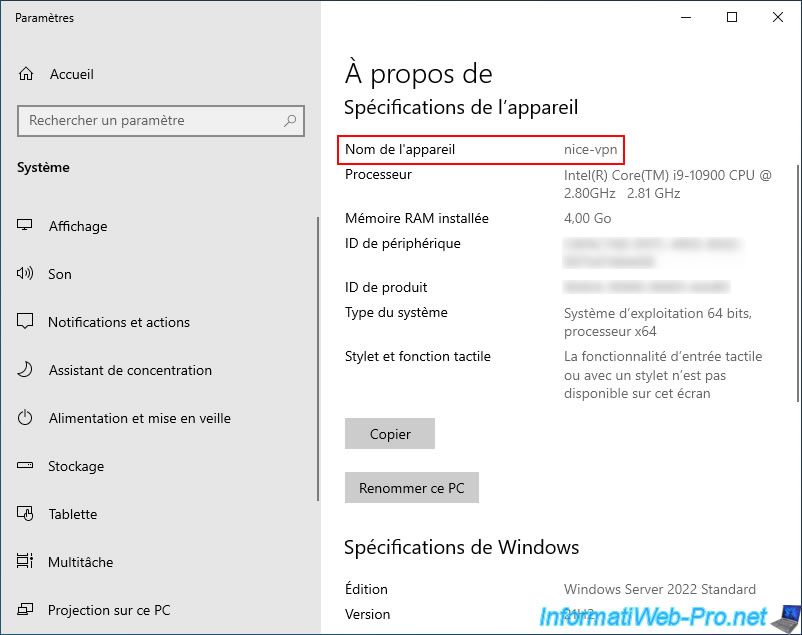
To begin, we installed a new "nice-vpn" server located in a workgroup (by default: WORKGROUP).
As you can see, this server is running Windows Server 2022.
Notes :
- the names used for the VPN server and the client PC in Nice follow the same format as in the previous tutorial.
In this new tutorial, we therefore have a VPN server named "nice-vpn" and a client PC named "nice-win10-client".
This is similar to the names used at Site 1 in Brussels (brux-vpn and brux-win10-client) and those at Site 2 in Paris (paris-vpn and paris-win10-client). - the machines at the two existing sites (Brussels and Paris) are running Windows Server 2022 and Windows 10 v21H2 Pro x64.
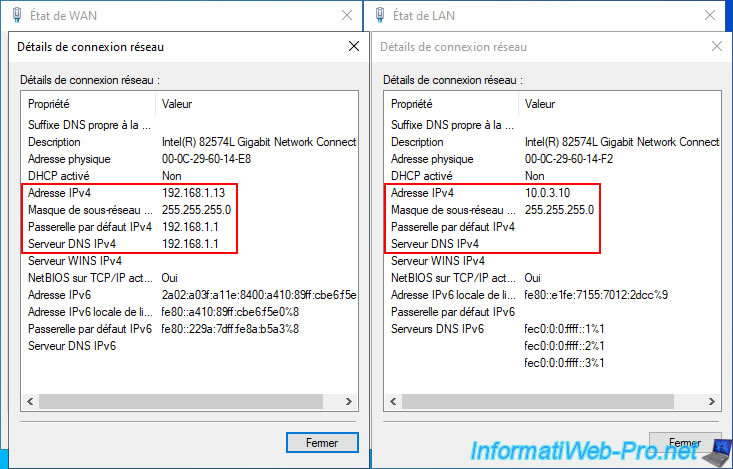
This VPN server "nice-vpn" has 2 network cards (as was already the case for the 2 other VPN servers created in the previous tutorial):
- WAN :
- IPv4 address: 192.168.1.13
- Subnet mask: 255.255.255.0
- Default IPv4 gateway: 192.168.1.1
- IPv4 DNS server: 192.168.1.1
- LAN :
- IPv4 address : 10.0.3.10.
- Subnet mask : 255.255.255.0.
- Default IPv4 gateway : (empty).
- IPv4 DNS server : (empty).
2. Configuring hardware firewalls
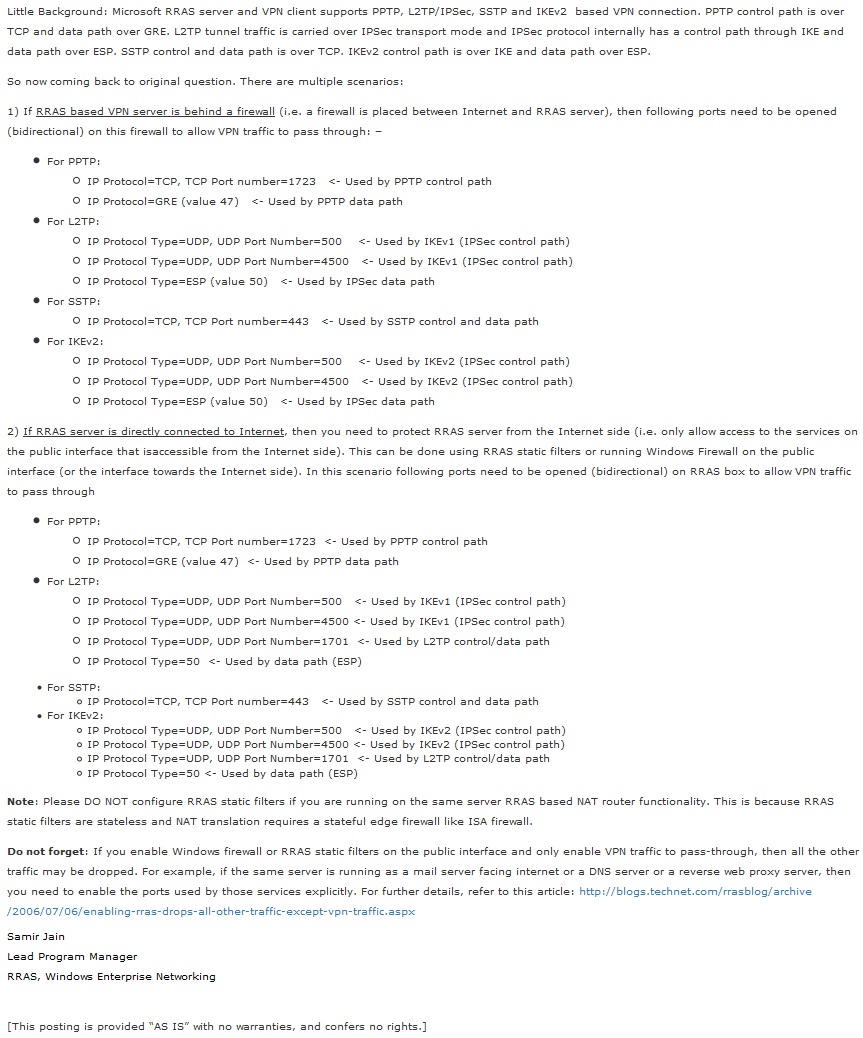
To make this VPN server accessible from the outside (Internet), you will also need to open and forward the desired ports in your router.
For instructions, refer to the information on the Microsoft website.
Source : Which ports to unblock for VPN traffic to pass-through ?
3. Install and configure a DHCP server
3.1. Install the DHCP server at site 3 (Nice)
On site 3 (Nice), install a DHCP server on one of your servers.
In our case, the DHCP server will be installed on the "nice-vpn" server, which will also act as a router and VPN server (to avoid increasing the number of servers in our setup).
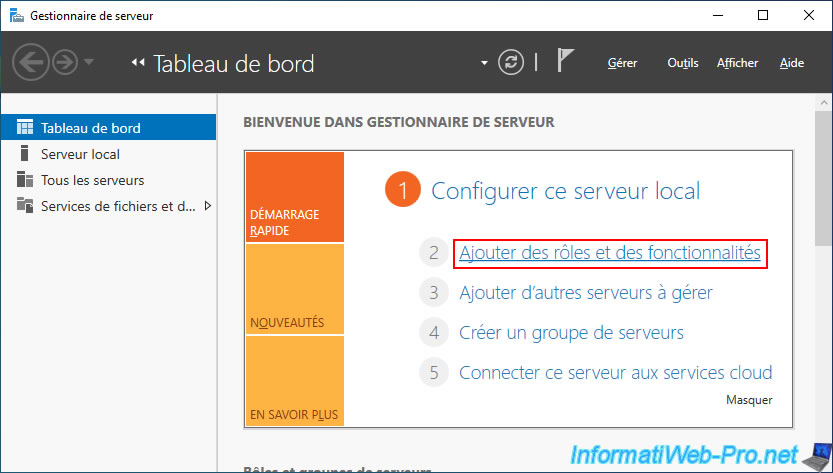
To do this, simply open the Server Manager and click on "Add Roles and Features".
Select "Role-based or feature-based installation".
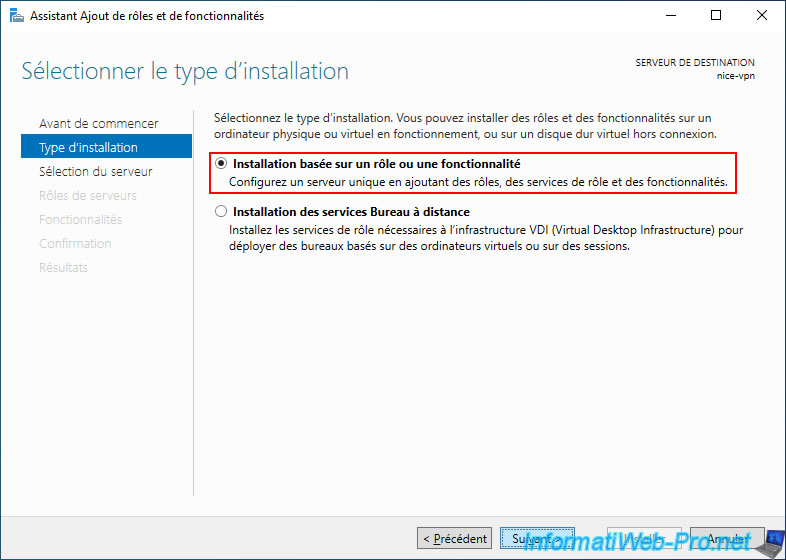
Check the "DHCP Server" box.
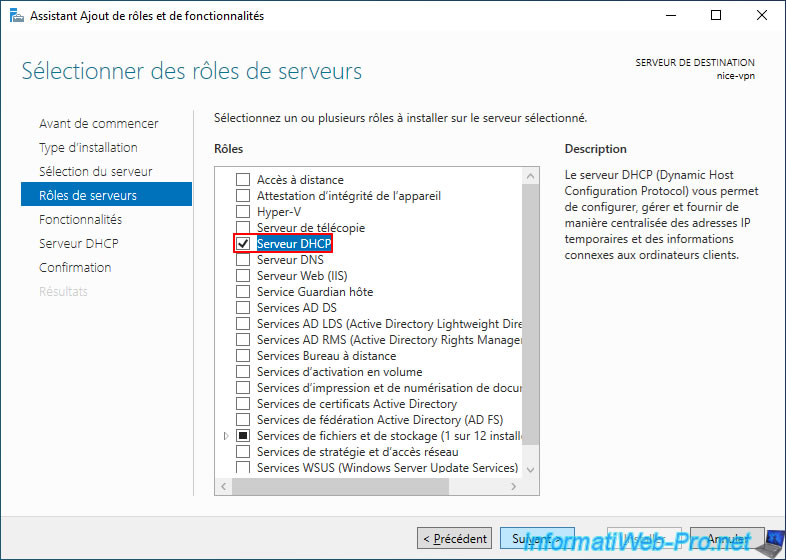
As Windows Server tells you, DHCP options allow you to specify the IP address of DNS servers and others (if you wish).
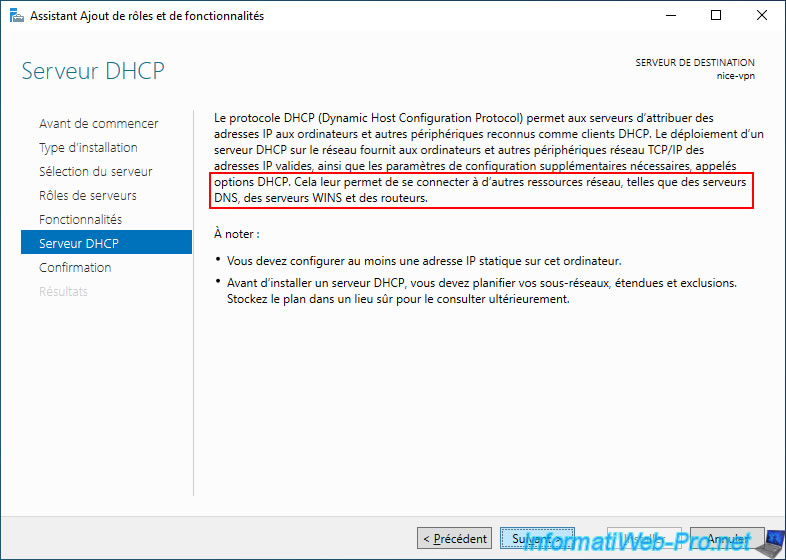
Click on "Install".
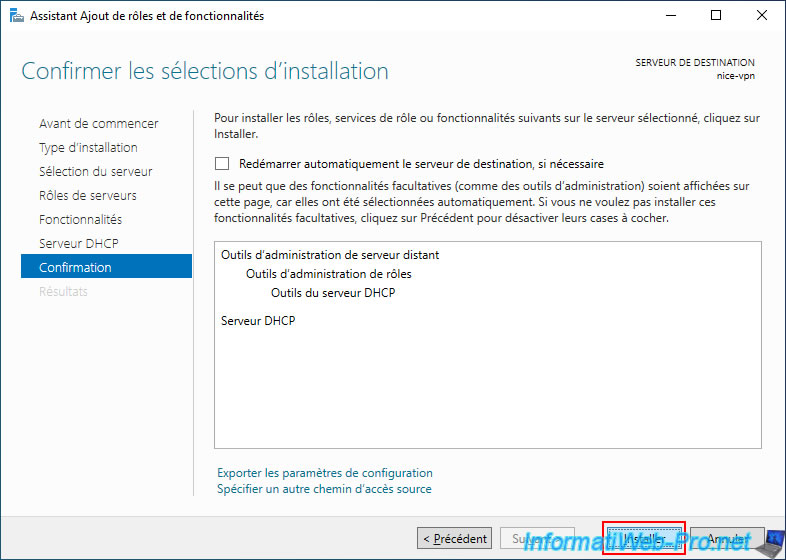
Please wait while your DHCP server is being installed.
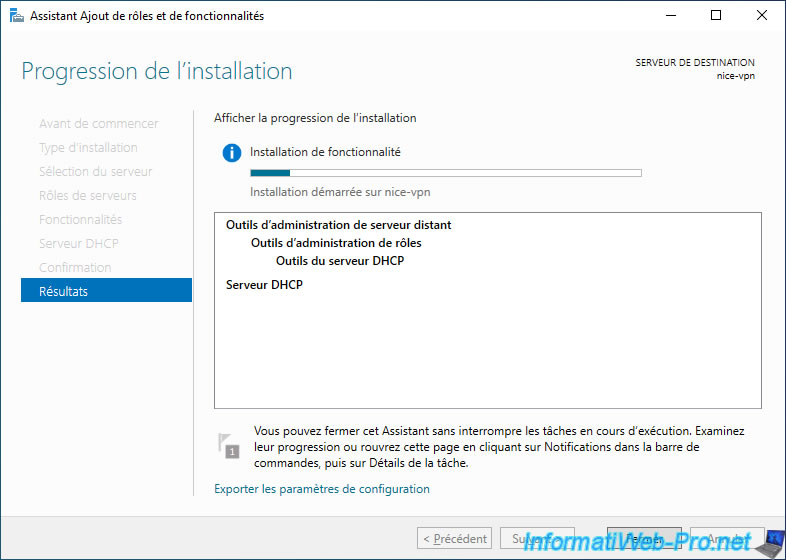
Once the DHCP server is installed (in Nice), click on the "Complete DHCP configuration" link.
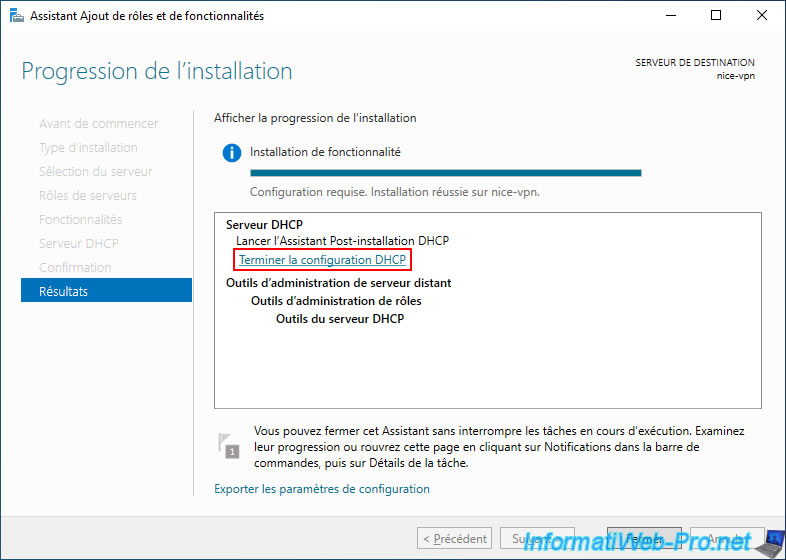
In the "DHCP Post-Installation Configuration" wizard that appears, simply click "Validate".
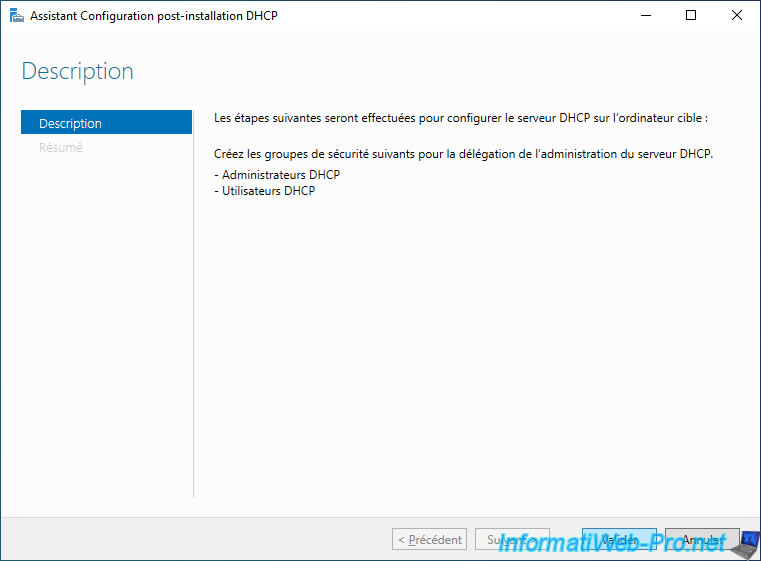
This step creates the necessary security groups for this DHCP server.
Click "Close".
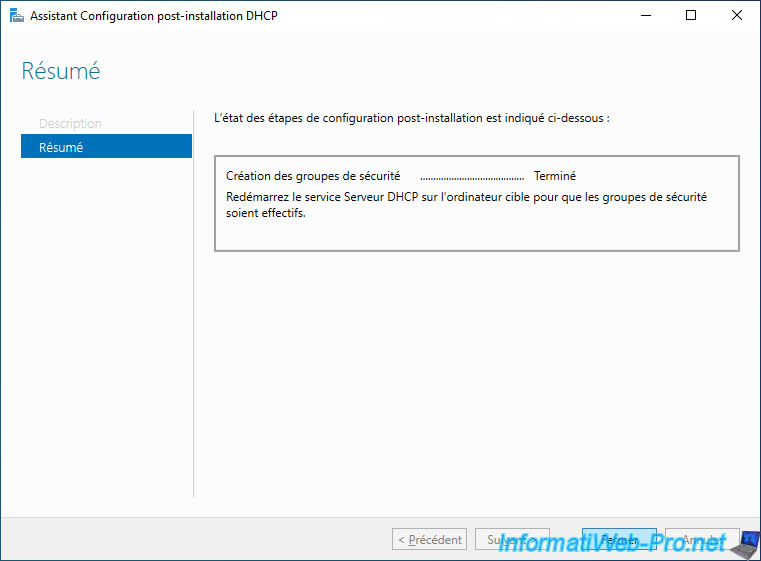
Click on "Close".
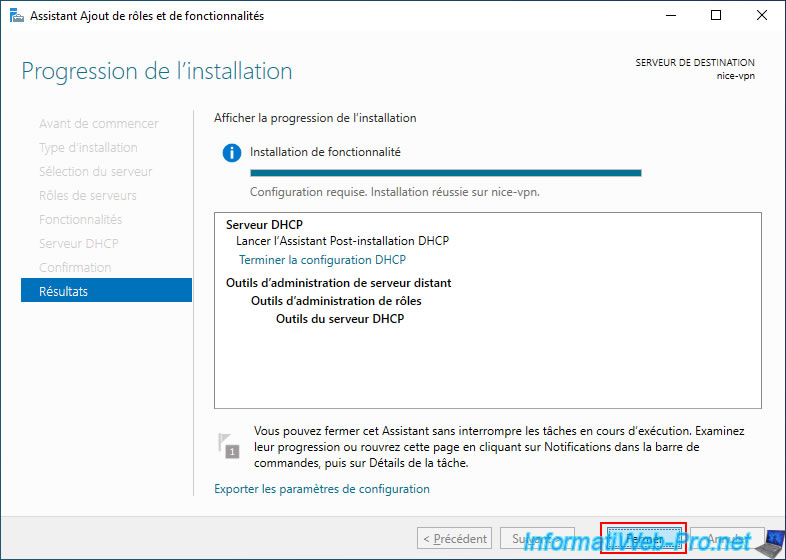
3.2. Configure the DHCP server on site 3 (Nice)
Open the "DHCP" console.
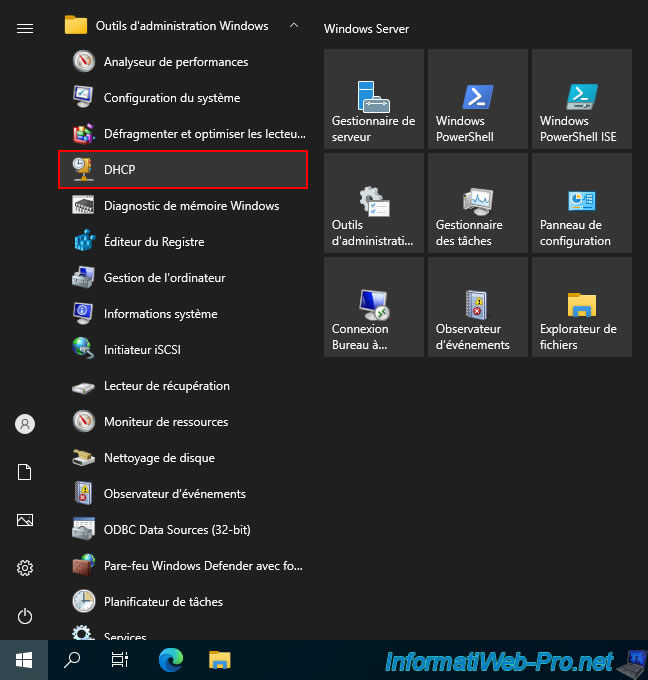
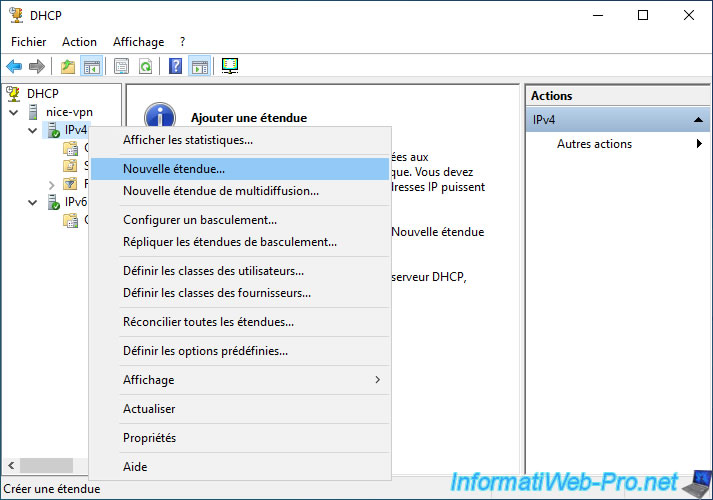
In the "DHCP" console, right-click "New Scope" on "IPv4".
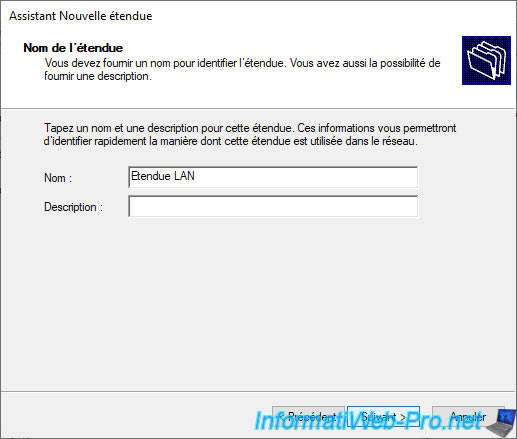
Specify a name for this scope.
For example: LAN scope.
Define a range of IP addresses located on the same network as the LAN to which this server is connected.
In our case, we are using the "10.0.3.X" subnet at site 3 (Nice).
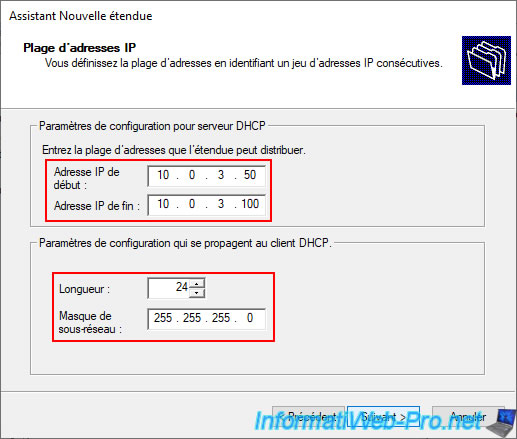
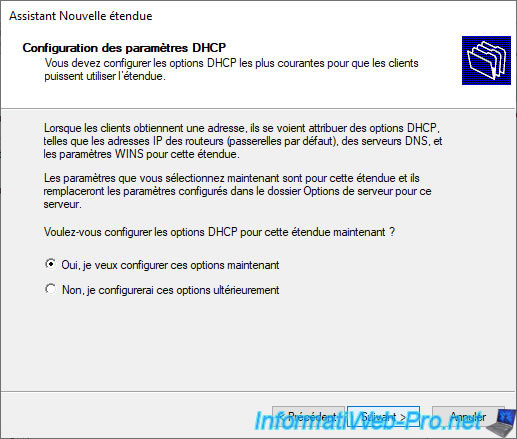
Leave the "Yes, I want to configure these options now" option selected.
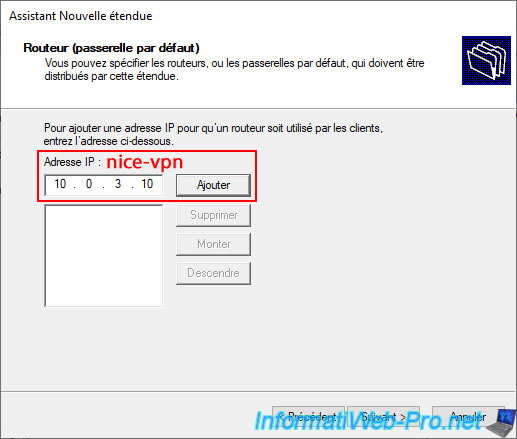
Enter the LAN IP address of your VPN server (nice-vpn in our case) as the router (default gateway) and click "Add".
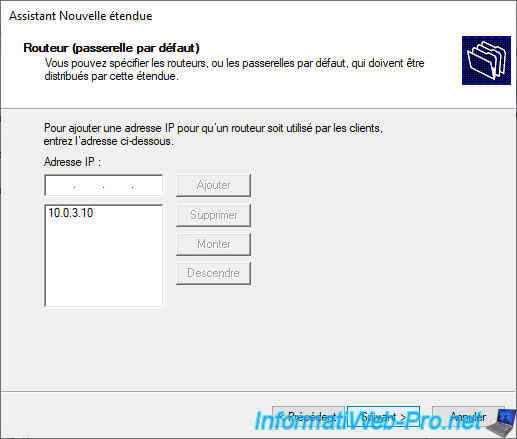
Once the IP address appears in the list, click "Next".
In the "Domain name and DNS servers" step, remove the IP address(es) that are already in the list.
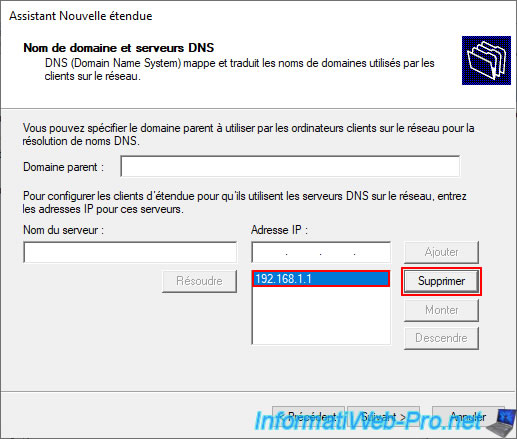
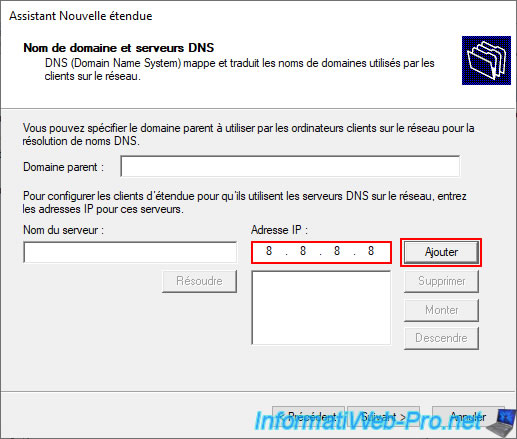
Next, add the IP address of a third-party DNS server (Google's public server "8.8.8.8" or a DNS server located on your LAN).
Warning : you can't specify the IP address of your VPN server as a DNS server, as it does not host any DNS servers.
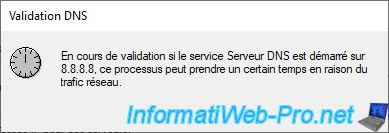
Please wait a few seconds while the specified DNS server is being validated.
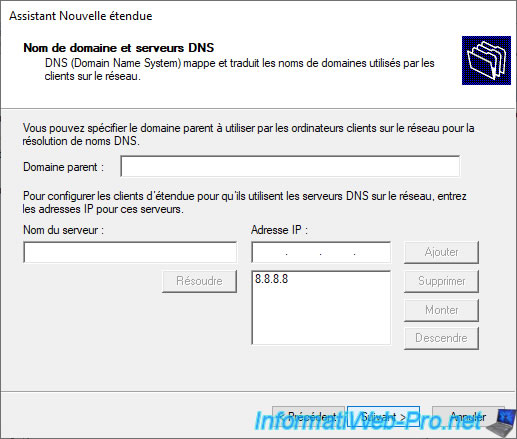
Next, click "Next".
Leave the "Yes, I want to activate this scope now" option selected and click "Next".
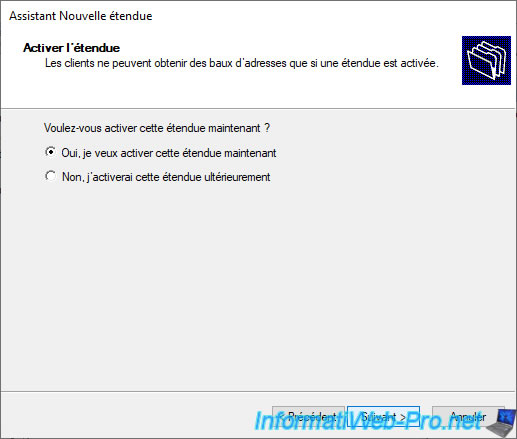
Click on "Finish".

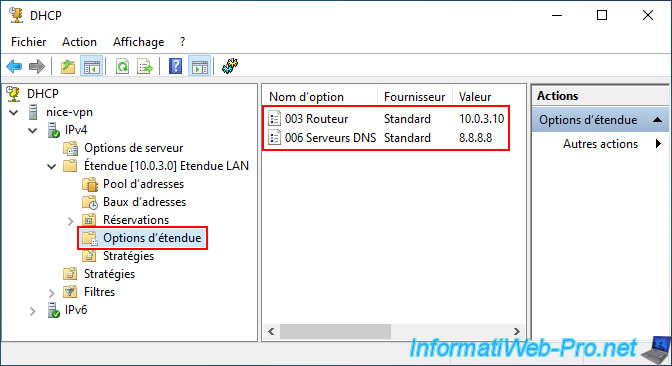
In the "Scope Options" section of your new "LAN Scope", you should see 2 DHCP options appear:
- 003 Router: the IP address of your VPN server (nice-vpn in our case).
- 006 DNS Servers: the IP address of one or more public DNS servers (such as Google's "8.8.8.8", for example) so that the servers and computers on the LAN can access the internet.
Share this tutorial
To see also
-

Windows Server 8/8/2012
WS 2008 - NAT and network routing
-

Windows Server 4/22/2015
WS 2012 - NAT and network routing
-

Windows Server 12/3/2016
WS 2012 - Routing and VPN server
-
Windows Server 11/23/2017
WS 2012 / 2012 R2 - Dynamic routing (RIPv2)
You must be logged in to post a comment