Add a site to a site-to-site (S2S) VPN infrastructure via PPTP/L2TP on Windows Server 2022

6.3. Create VPN tunnels and configure routing between your physical sites (Brussels and Paris) and site 3 (Nice)
6.3.1. Create the VPN tunnel between site 1 (Brussels) and site 3 (Nice) using PPTP
Now that the VPN server at site 3 (Nice) can communicate with the other remote physical sites (Brussels and Paris), it's necessary to create VPN tunnels in the other direction as well and configure routing on these remote VPN servers for everything to work correctly.
Indeed, VPN tunnels must be created on both sides for network packets to pass correctly in both directions.
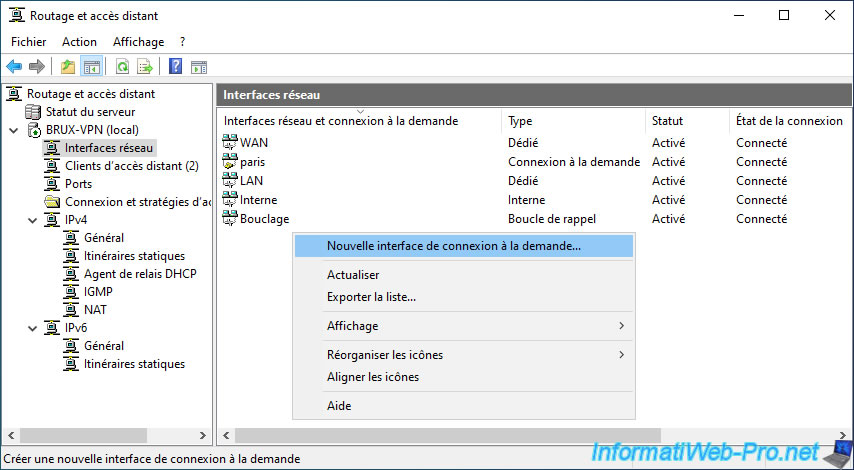
To begin, go to the "Network Interfaces" section of the VPN server at site 1 (Brussels) and right-click on "New On-Demand Connection Interface".
Enter the name of the remote router.
In this case: nice.
The VPN server in Brussels will attempt to connect to site 3 (Nice).

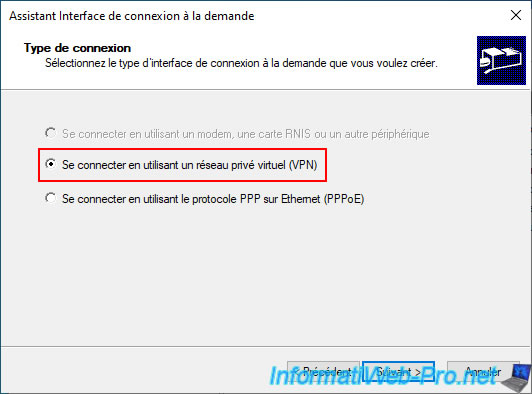
Select the "Connect using a virtual private network (VPN)" option again.
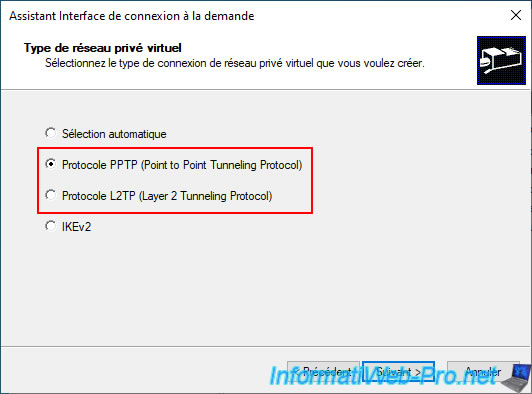
Select your preferred VPN protocol.
Type the IP address of the remote VPN server (in our case, the public (WAN) IP address of the VPN server "NICE-VPN").

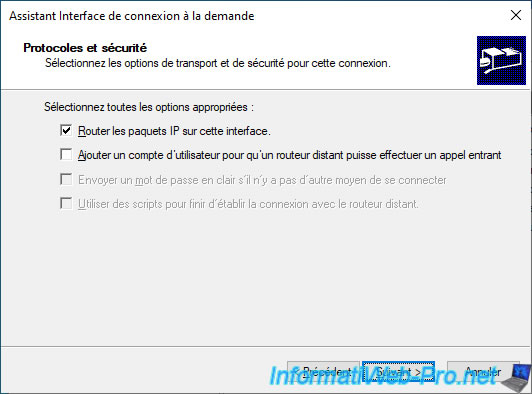
Check only the "Route IP packets on this interface" box (as usual).
Click "Add" again to add the static route that will allow the VPN server at site 1 to know which network is being used in Nice (in our case).

In our case, the subnet used on site 3 (Nice) is "10.0.3.X".
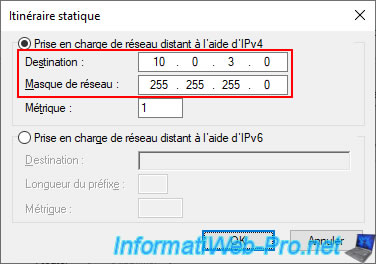
Then, click "Next".
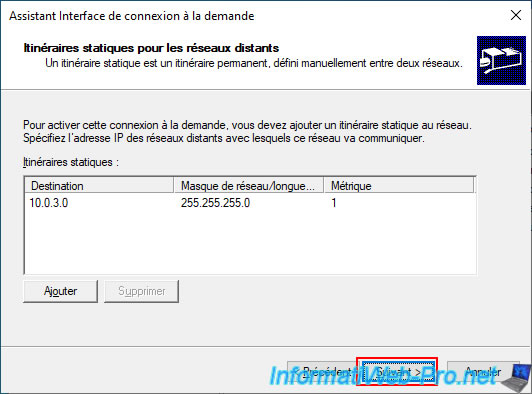
Enter the credentials for the "bruxuser" user account created on the remote VPN server "nice-vpn".
This is because the "brux-vpn" VPN server will connect to the "nice-vpn" VPN server.
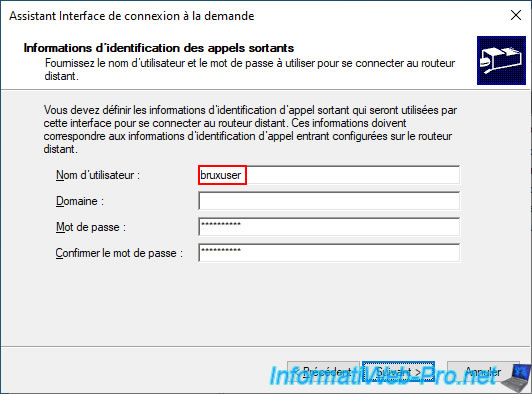
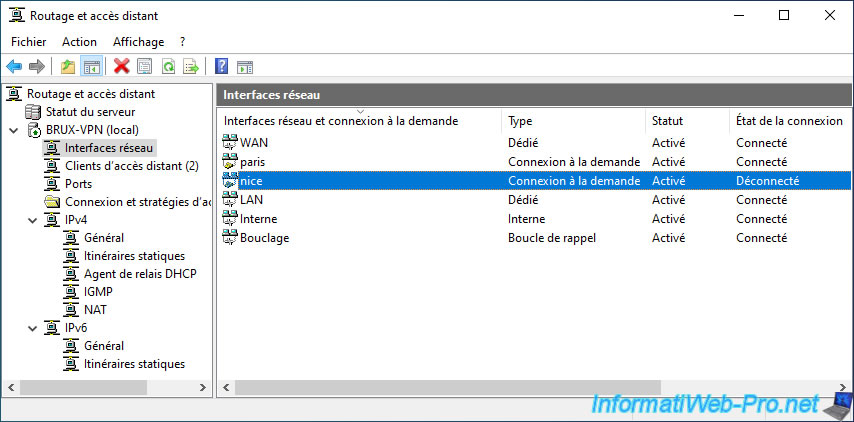
The new on-demand connection appears in the list of network interfaces of your VPN server "BRUX-VPN".
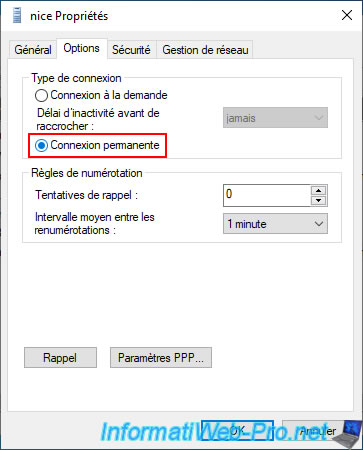
Double-click on your on-demand connection "nice".
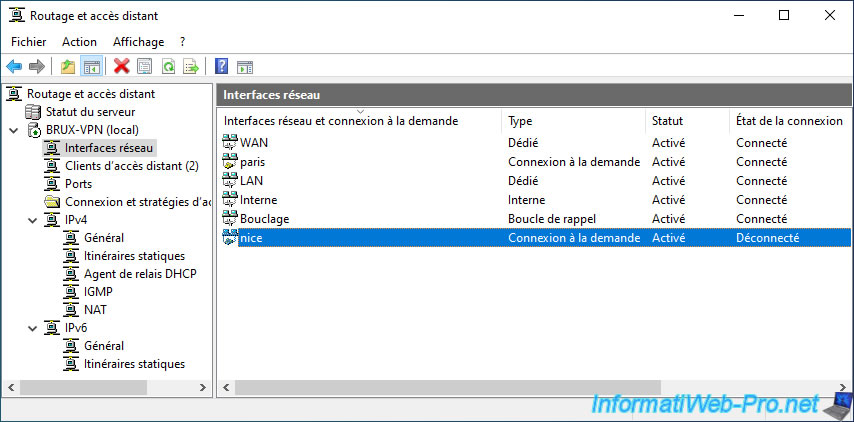
Select the "Permanent connection" option in the "Options" tab.
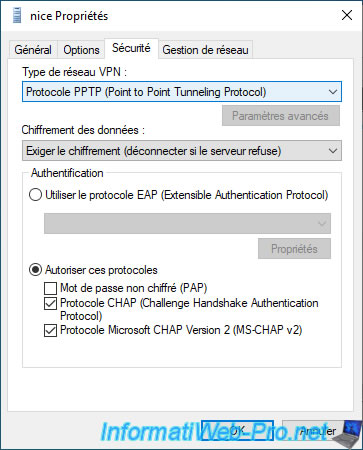
In the "Security" tab, you will see the previously selected VPN protocol again.
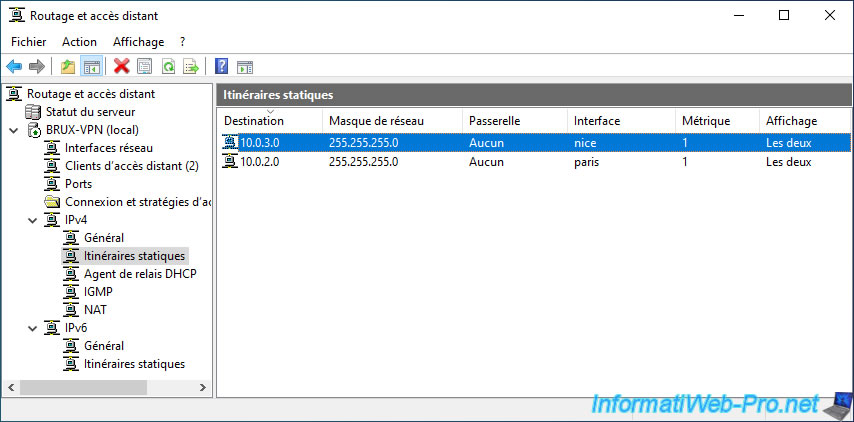
In the "IPv4 -> Static Routes" section, you will see that a new static route has been added.
Therefore, the "BRUX-VPN" server now knows that:
- the "10.0.2.X" subnet is located on site 2 (Paris) and can be accessed via its network interface (on-demand connection) "paris".
- the "10.0.3.X" subnet is located on site 3 (Nice) and can be accessed via its network interface (on-demand connection) "nice".
6.3.2. Configure the VPN tunnel between site 1 (Brussels) and site 3 (Nice) to use L2TP
To use the L2TP protocol between site 1 (Brussels) and site 3 (Nice), double-click on the "nice" request connection you just created.
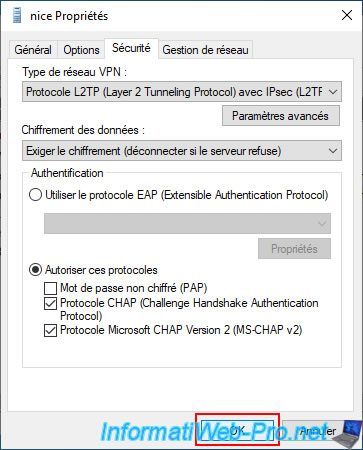
In the "Security" tab, select the "L2TP (Layer 2 Tunneling Protocol) with IPsec (L2TP/IPsec)" option.
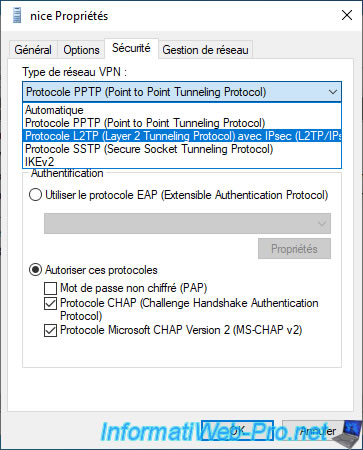
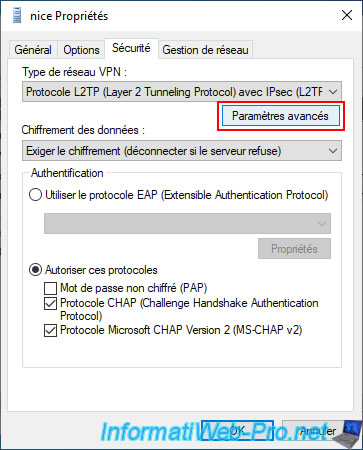
Click on the "Advanced settings" button.
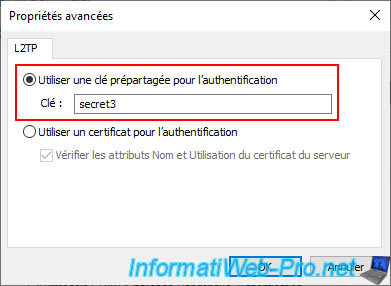
Select the "Use a pre-shared key for authentication" option and type the pre-shared key set on the remote VPN server (in this case: NICE-VPN).
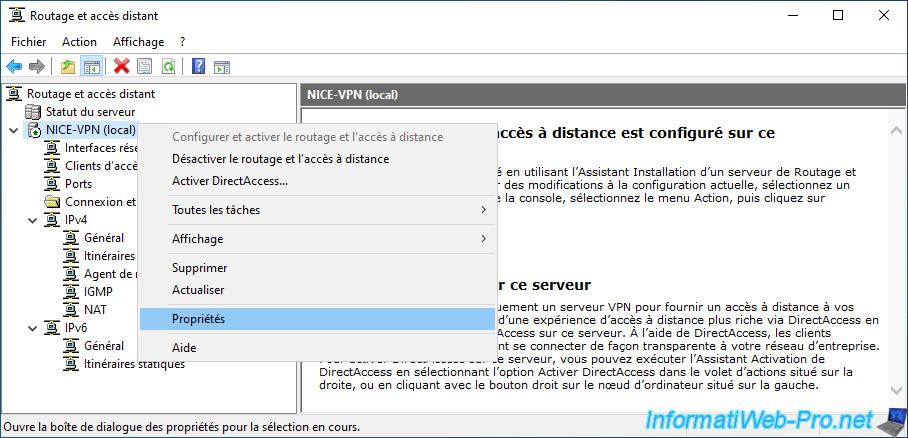
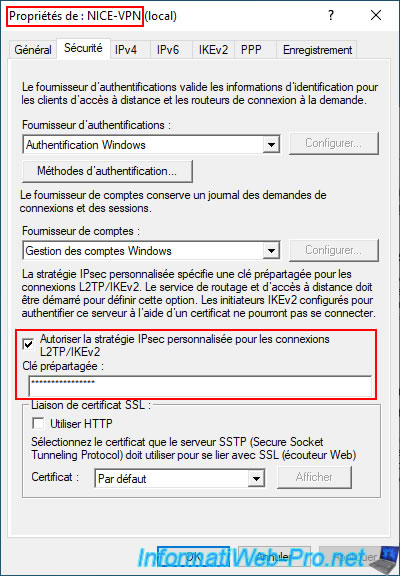
Again, to define it (if it is not already done), right-click "Properties" on the name of the remote VPN server (NICE-VPN).
In the "Security" tab, you will see the "Pre-shared key" checkbox.
Note: for this VPN server, "NICE-VPN", this pre-shared key was defined in step "6.1.3. Enable L2TP VPN protocol support (server and client)" of this tutorial.
Click OK.
6.3.3. Configure the routing between site 1 (Brussels) and site 3 (Nice)
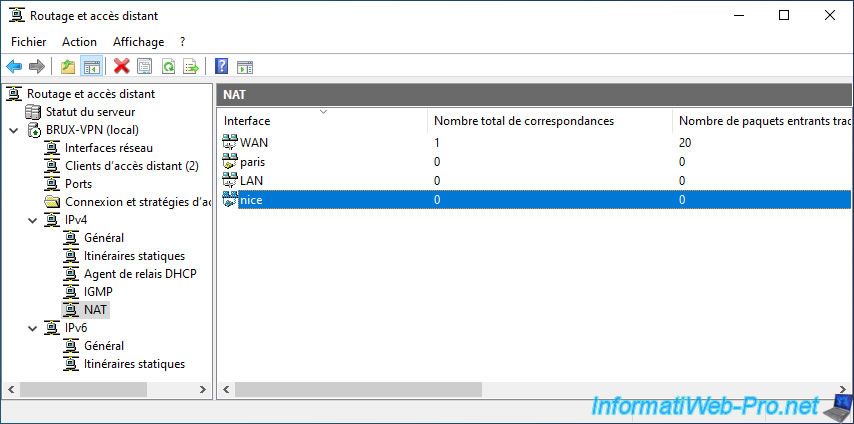
On this VPN server "BRUX-VPN", go to the "IPv4 -> NAT" section and right-click "New interface".
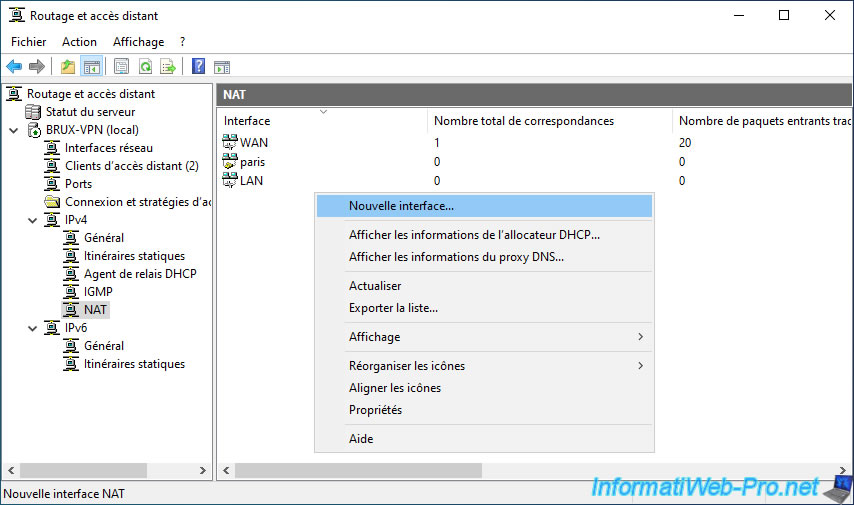
Select the "nice" interface you just created.

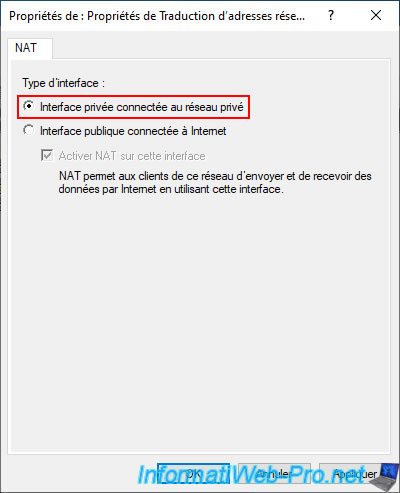
Select the interface type "Private interface connected to the private network".
The new "nice" interface appears in the "NAT" section.
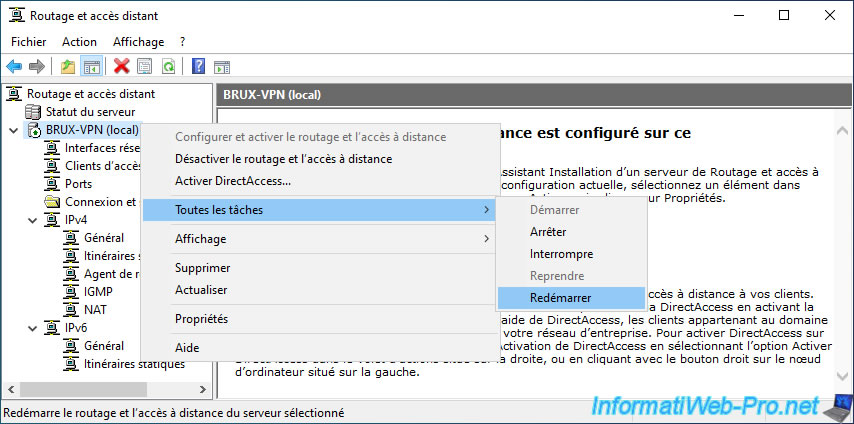
Restart your VPN server.

Share this tutorial
To see also
-

Windows Server 8/8/2012
WS 2008 - NAT and network routing
-

Windows Server 4/22/2015
WS 2012 - NAT and network routing
-

Windows Server 12/3/2016
WS 2012 - Routing and VPN server
-

Windows Server 12/9/2016
WS 2022 / 2016 / 2012 - Create a site-to-site (S2S) VPN tunnel via PPTP/L2TP
No comment