Add a site to a site-to-site (S2S) VPN infrastructure via PPTP/L2TP on Windows Server 2022

7. Allow pinging to your new VPN server (site 3 (Nice))
To test connectivity between your different sites, it can be helpful to enable pinging your VPN servers.
If you followed our previous tutorial, it should already be enabled on the VPN server for Site 1 (Brussels) and Site 2 (Paris).
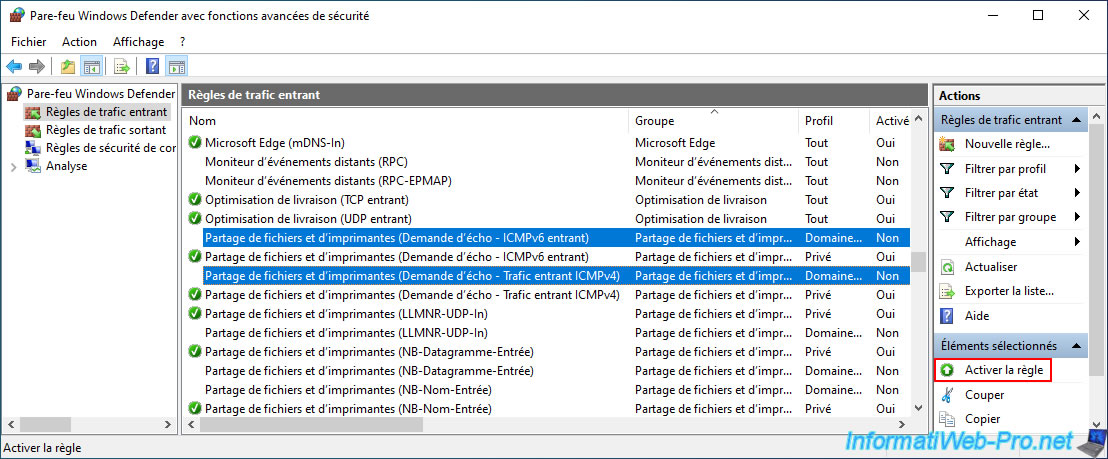
On your new VPN server created at Site 3 (Nice), re-enable these rules in the Windows Server firewall:
- File and printer sharing (Echo request - Incoming ICMPv6 traffic).
- File and printer sharing (Echo request - Incoming ICMPv4 traffic).
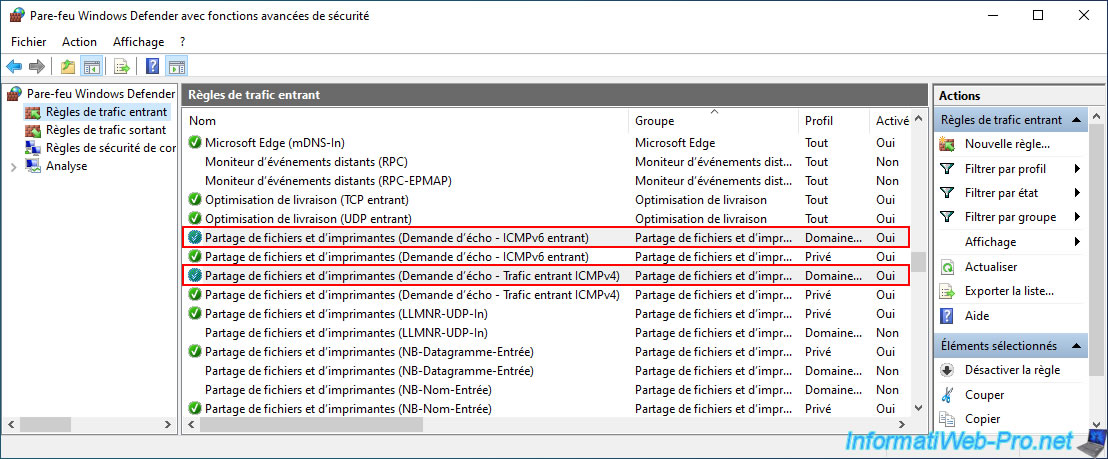
Once the rules are activated, a green icon will appear on the left.
8. VPN tunnels established
8.1. Check the connection status of your VPN tunnels
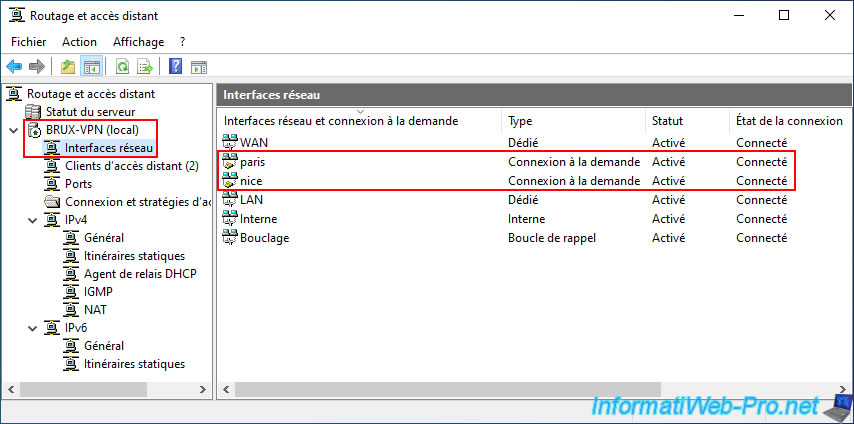
Since your on-demand connections are configured to be permanently connected (the "Permanent Connection" option was previously selected in the "Options" tab of these connections), they should already be in a "Connected" state in the "Network Interfaces" section of your VPN servers.
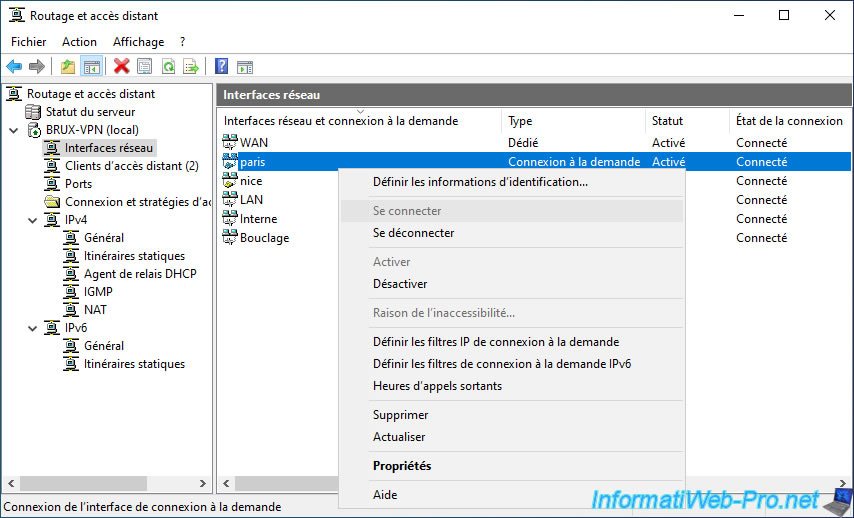
If one of your on-demand connections is not in "Connected" status, simply right-click "Connect" on it.
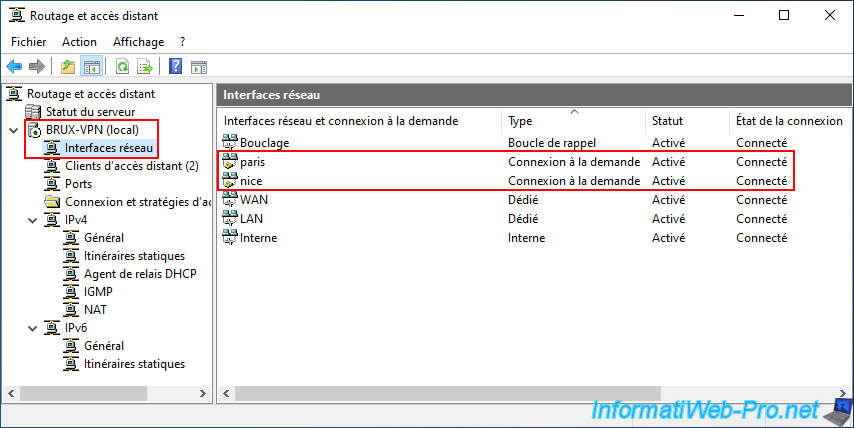
On the VPN server "BRUX-VPN" of site 1 (Brussels), check that the on-demand connections "paris" and "nice" are connected.
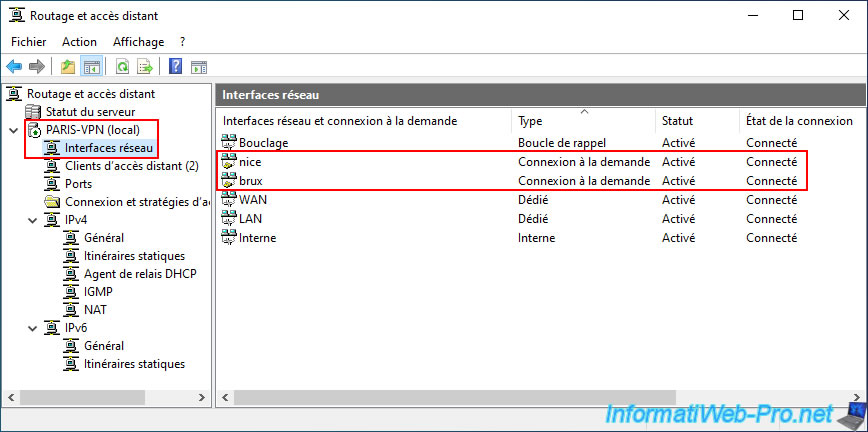
On the VPN server "PARIS-VPN" of site 2 (Paris), check that the on-demand connections "nice" and "brux" are connected.
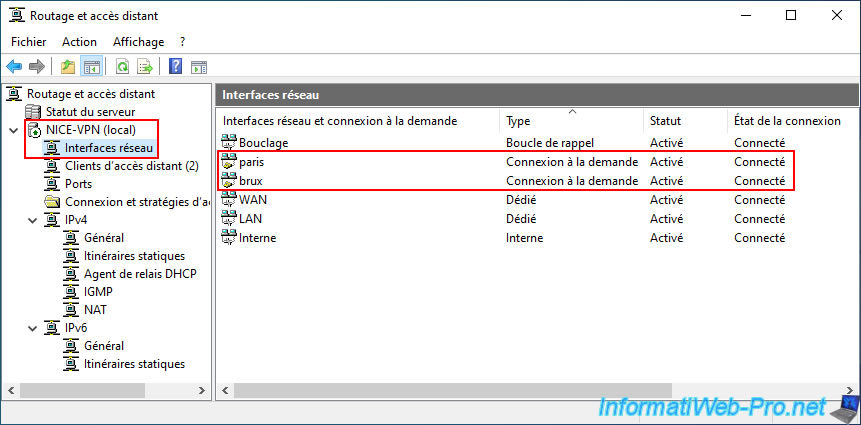
On the VPN server "NICE-VPN" at site 3 (Nice), check that the on-demand connections "paris" and "brux" are connected.
8.2. VPN ports used for your site-to-site VPN connections
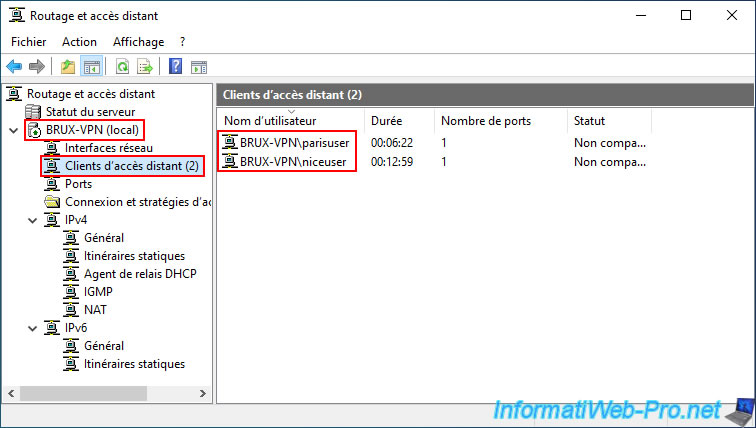
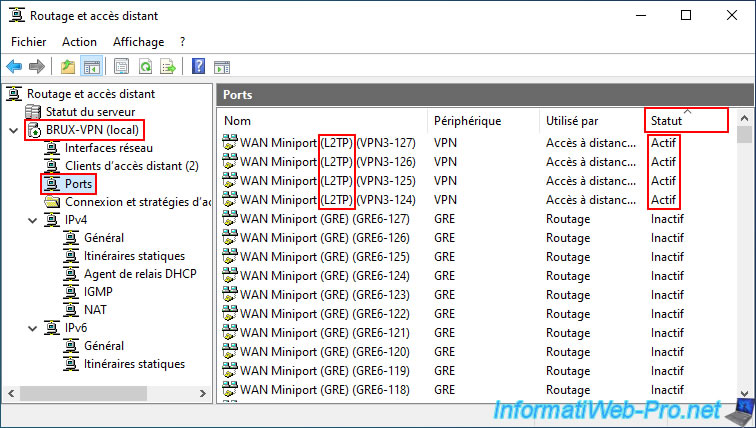
In the "Remote Access Clients" section of the VPN server "BRUX-VPN" located at site 1 (Brussels), you will see that the user accounts "parisuser" and "niceuser" of this VPN server "BRUX-VPN" are used by VPN clients (your 2 other remote VPN servers).
In the "Ports" section of this same VPN server, you'll see that 4 L2TP ports are active (in use).
In fact, 2 of these are used per VPN connection between 2 sites.
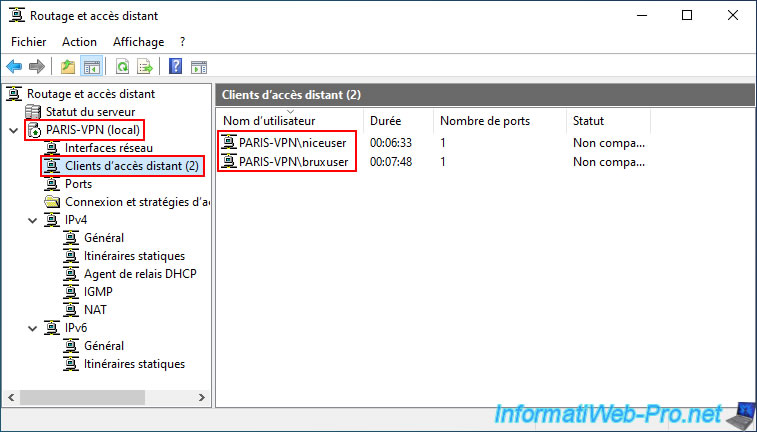
On the VPN server "PARIS-VPN" located on site 2 (Paris), you will see that the user accounts "niceuser" and "bruxuser" of this VPN server "PARIS-VPN" are used by VPN clients (your 2 other remote VPN servers).
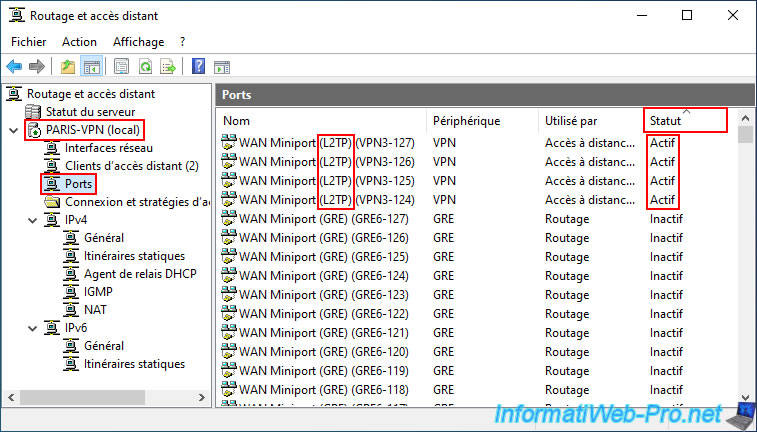
Again, in the "Ports" section, you will see that 4 L2TP ports are active (in use).
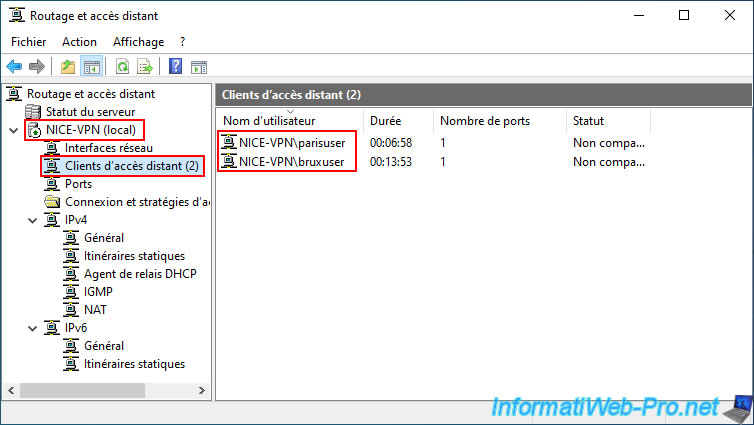
Finally, on the VPN server "NICE-VPN" located on site 3 (Nice), you will see that the user accounts "parisuser" and "bruxuser" of this VPN server "NICE-VPN" are used by VPN clients (your 2 other remote VPN servers).
9. Test the connectivity between your physical sites (between the VPN servers and from client PCs)
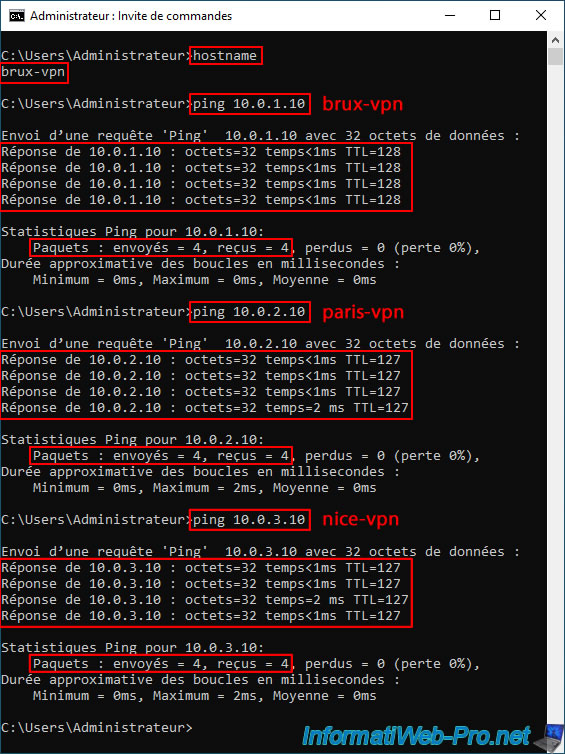
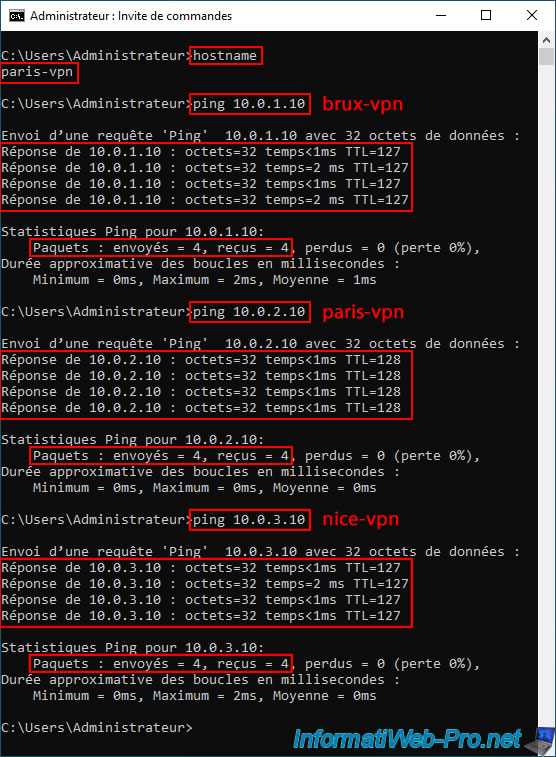
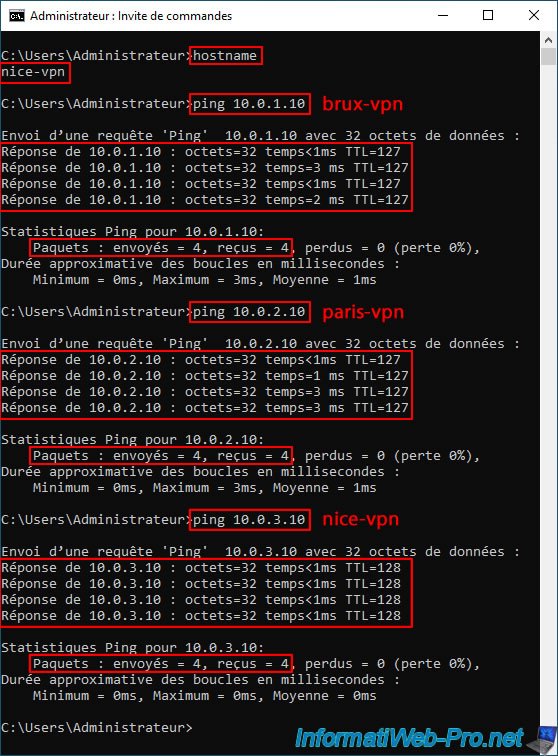
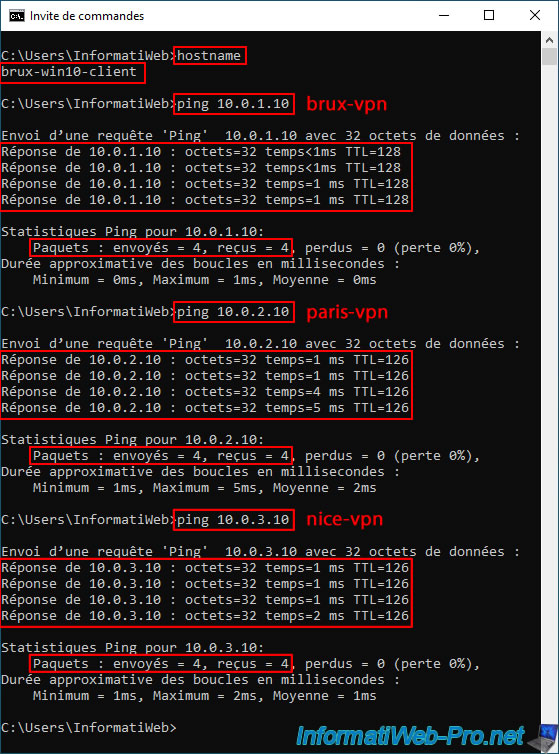
To verify that everything is working correctly, use ping from your VPN servers and from a client PC at each physical site (Brussels, Paris, and Nice), attempting to communicate with the LAN IP address of each VPN server.
For example, below, you can see that our VPN server "brux-vpn" at site 1 (Brussels) is able to communicate with:
- our VPN server "brux-vpn" at site 1 (Brussels) has the IP address: 10.0.1.10.
- our VPN server "paris-vpn" at site 2 (Paris) has the IP address: 10.0.2.10.
- our VPN server "nice-vpn" at site 3 (Nice) has the IP address: 10.0.3.10.
Our VPN server "paris-vpn" on site 2 (Paris) manages to communicate with the 3 VPN servers: brux-vpn, paris-vpn and nice-vpn.
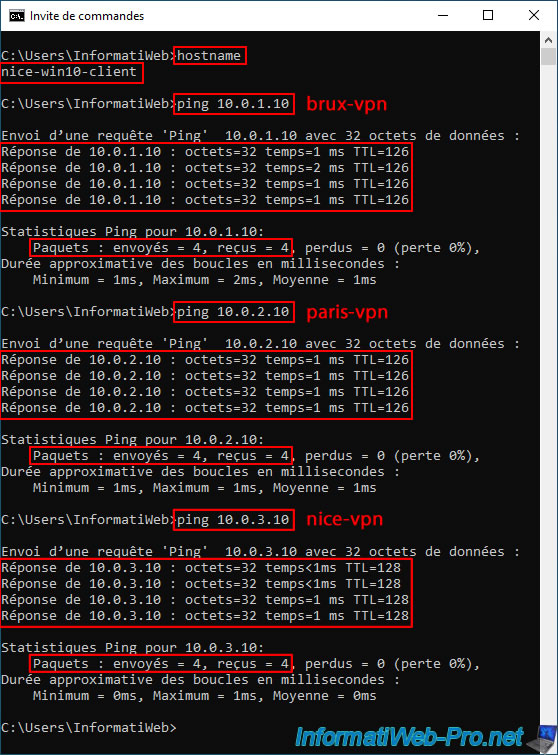
The same applies to our 3rd VPN server ("nice-vpn" located on site 3 (Nice)).
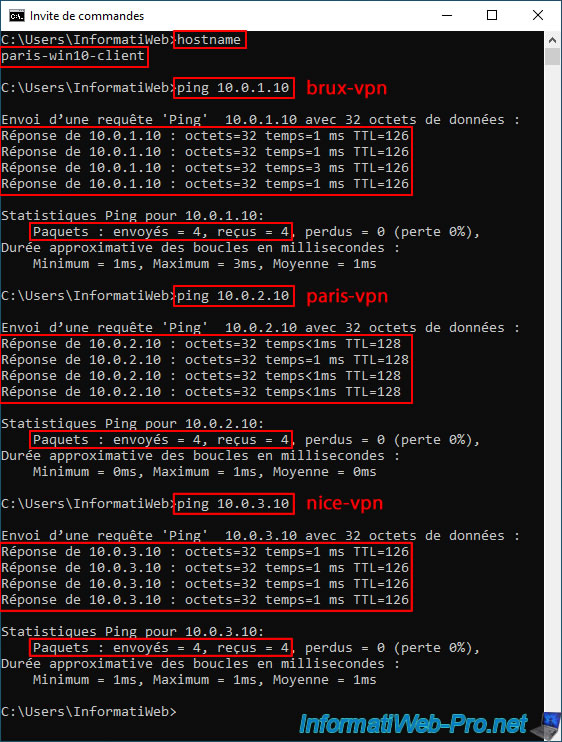
If the pings above work, then test them from your client PCs (one per site is sufficient).
If the pings below do not work, verify that you have correctly added all the necessary network interfaces in the "IPv4 -> NAT" section of each VPN server.
In the "IPv4 -> NAT" section of each VPN server, you should have the following interfaces: WAN, LAN, and the on-demand connection network interfaces (in this case: 2 per VPN server since there are 3 physical sites).
Share this tutorial
To see also
-

Windows Server 4/28/2012
WS 2003 - NAT and network routing
-

Windows Server 8/8/2012
WS 2008 - NAT and network routing
-

Windows Server 12/3/2016
WS 2012 - Routing and VPN server
-
Windows Server 11/23/2017
WS 2012 / 2012 R2 - Dynamic routing (RIPv2)
No comment