Add a site to a site-to-site (S2S) VPN infrastructure via PPTP/L2TP on Windows Server 2022

4. Create local users for VPN server authentication
4.1. Create users on site 3 (Nice) so that other physical sites can connect to the VPN server of site 3 (Nice)
4.1.1. Create a user on site 3 (Nice) so that site 1 (Brussels) can connect to the VPN server of site 3 (Nice)
On the VPN server for site 3 (Nice), go to the start menu and click on "Administrative Tools".
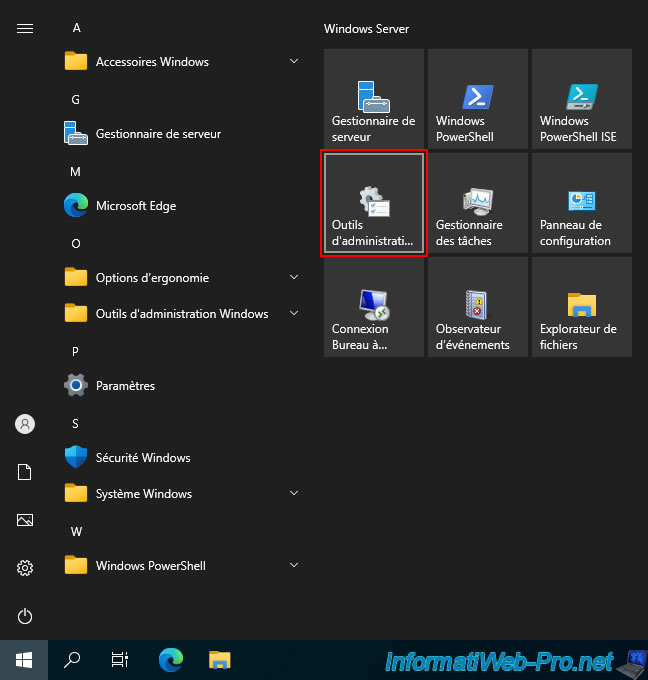
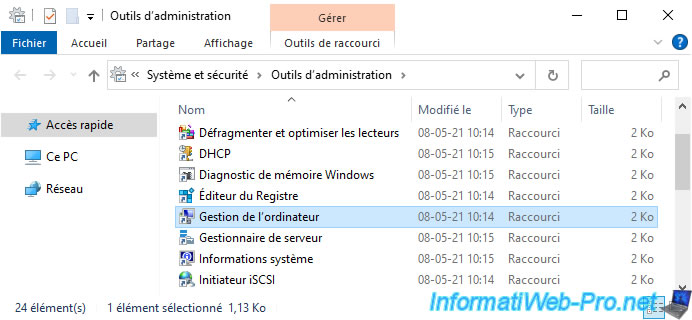
Next, launch the "Computer Management" console.
Note: you can also launch it by typing its name directly into the Start menu.
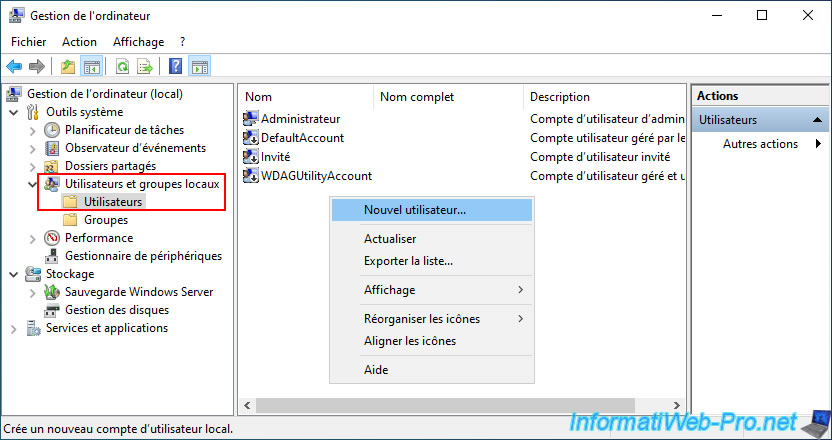
In the "Local Users and Groups -> Users" section, right-click and select "New User".
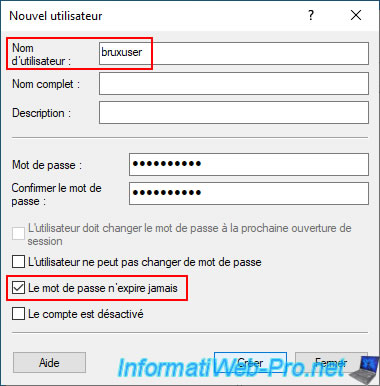
To begin, create a user account so that Site 1 (Brussels) can connect to your new VPN server, which will be installed at Site 3 (Nice).
In our case, we named it "bruxuser".
Next, uncheck the "User must change..." box and check the "Password never expires" box.
Finally, click "Create".
Important : it's strongly recommended to create a separate user account and password for each physical site that will connect to your VPN server.
This way, if a password is stolen, you can lock that account without cutting off all VPN connections to the other physical sites.
Double-click on the user (in our case: bruxuser) that you just created.
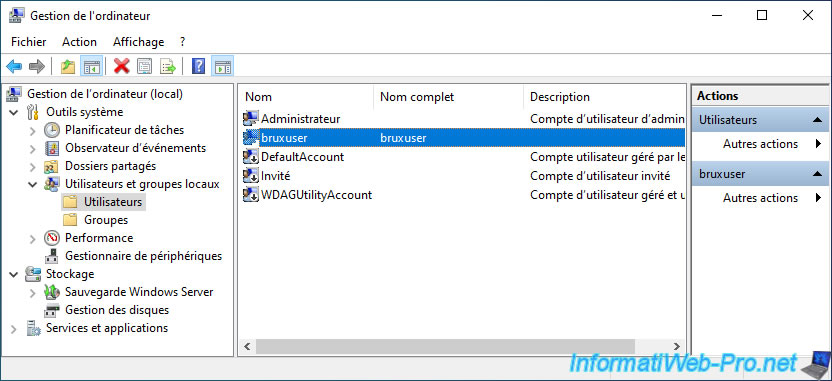
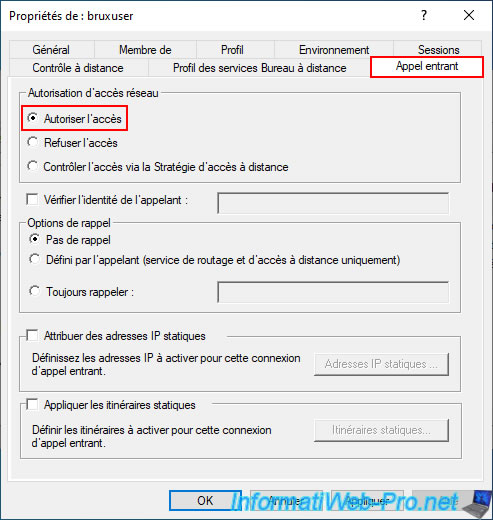
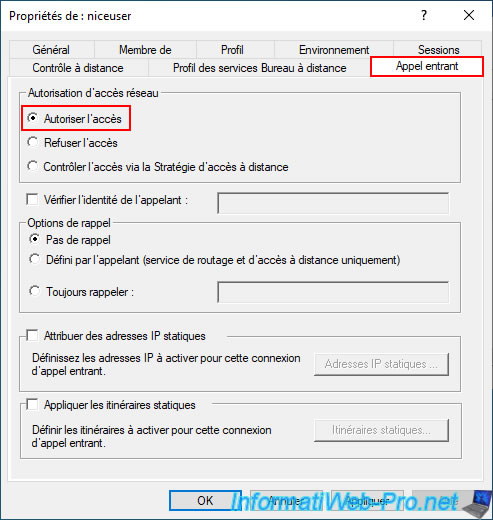
In the "Incoming Call" tab, select the "Allow access" option (located at the very top of the window) and click OK.
4.1.2. Create a user on site 3 (Nice) so that site 2 (Paris) can connect to the VPN server of site 3 (Nice)
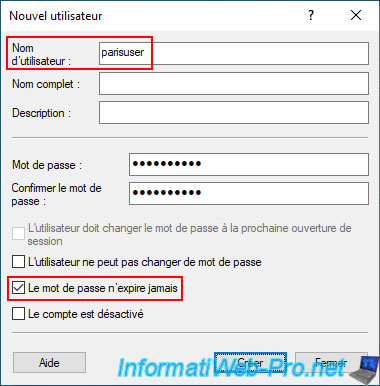
Similarly, still on this VPN server for site 3 (Nice), now create a new user so that site 2 (Paris) can connect to this VPN server for site 3 (Nice).
In our case, this user will be named "parisuser".
Again:
- uncheck the box "User must change..."
- then, check the box "Password never expires".
- then, click "Create".
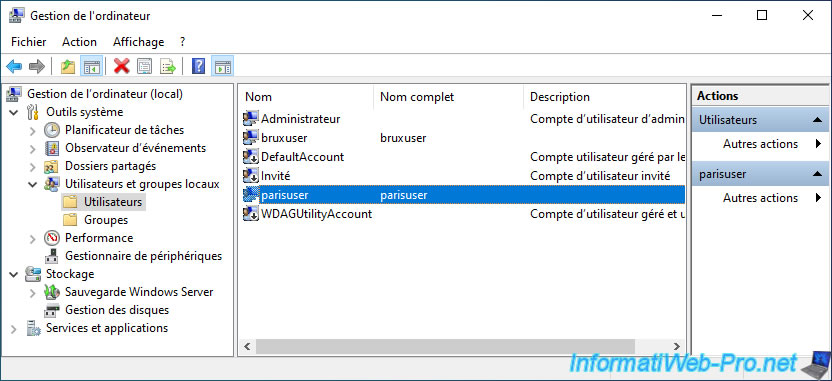
Double-click on this new user "parisuser".
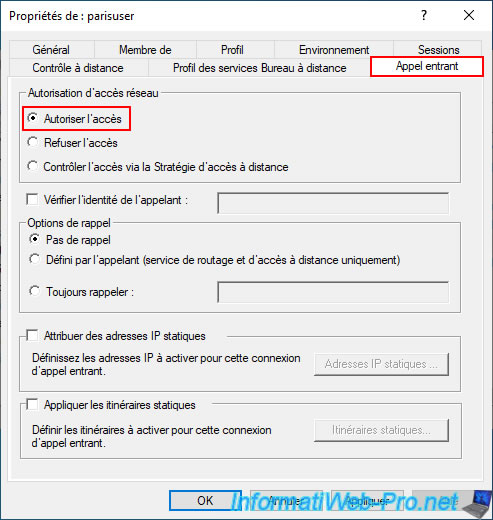
Again, in the "Incoming Call" tab, select the "Allow Access" option, and then click OK.
4.2. Create users on the other physical sites so that site 3 (Nice) can connect to the VPN servers of the other physical sites
4.2.1. Create a user on site 1 (Brussels) so that site 3 (Nice) can connect to the VPN server of site 1 (Brussels)
On the VPN server of site 1 (Brussels), open this "Computer Management" console and create a new user.
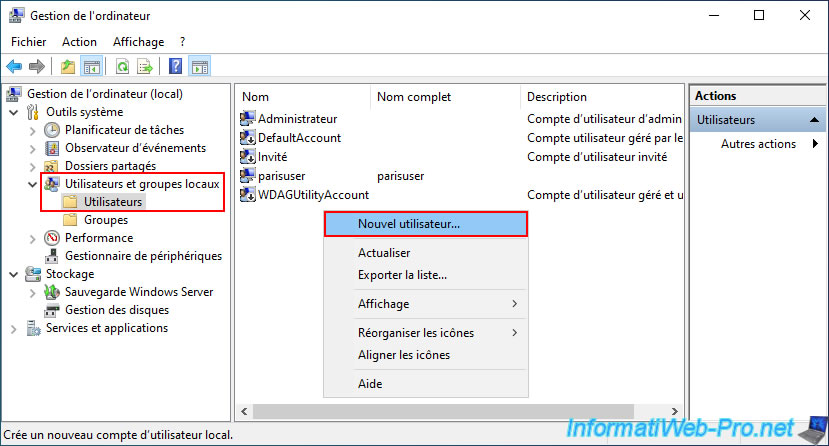
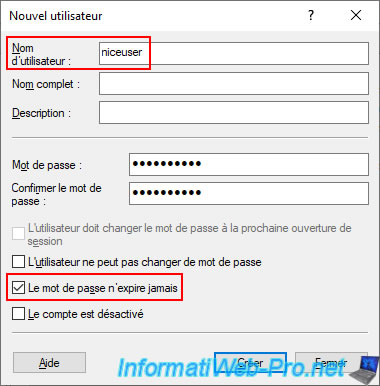
This time, create a user named "niceuser" (which will allow the Nice VPN server to connect to the Brussels VPN server).
Again, the only checkbox is "Password never expires".
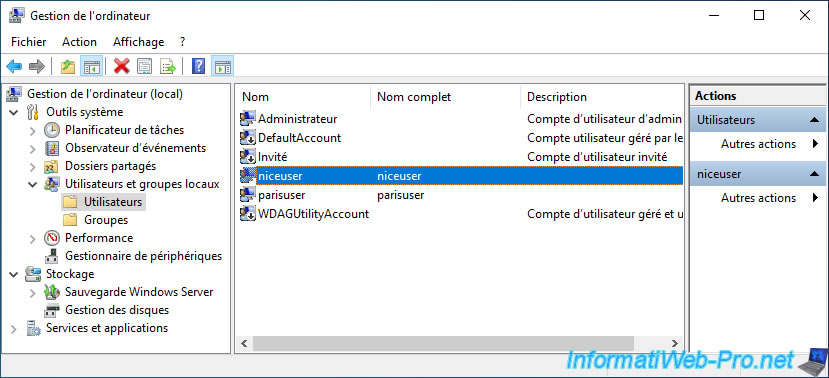
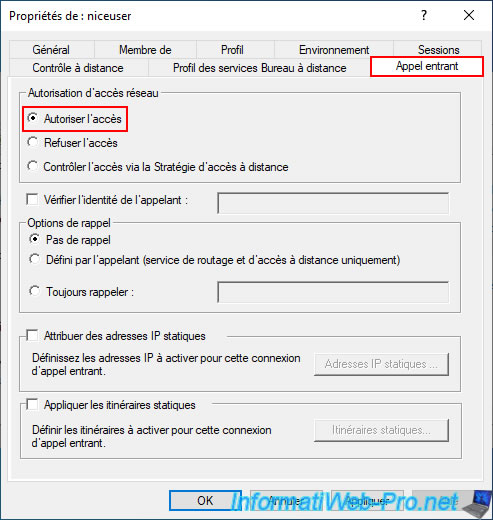
Double-click on the "niceuser" user you created.
Select the "Allow access" option in the "Incoming call" tab.
4.2.2. Create a user on site 2 (Paris) so that site 3 (Nice) can connect to the VPN server of site 2 (Paris)
This time, on the VPN server of site 2 (Paris), open this same console and create a new user.
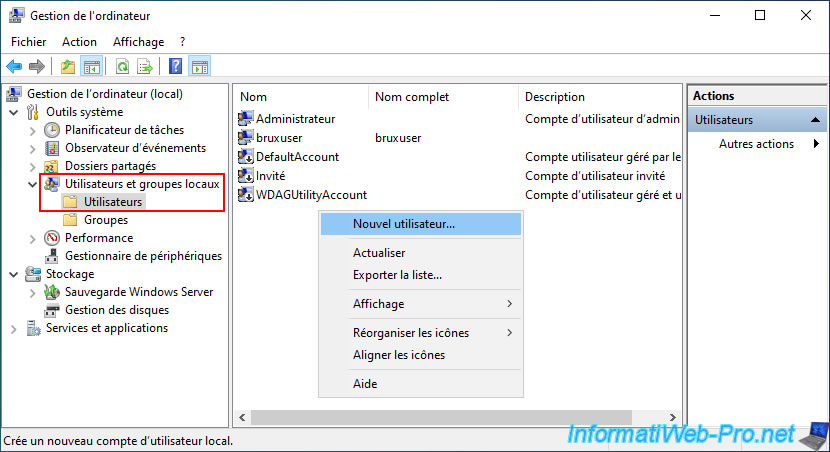
Again, we name this user "niceuser" and we only check the box "The password never expires".
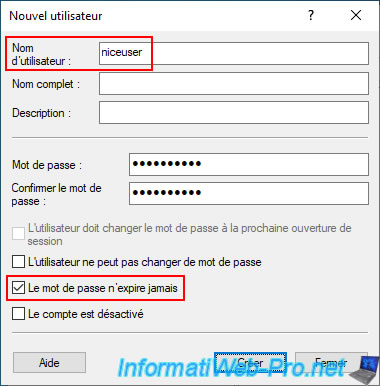
Double-click on this user "niceuser".
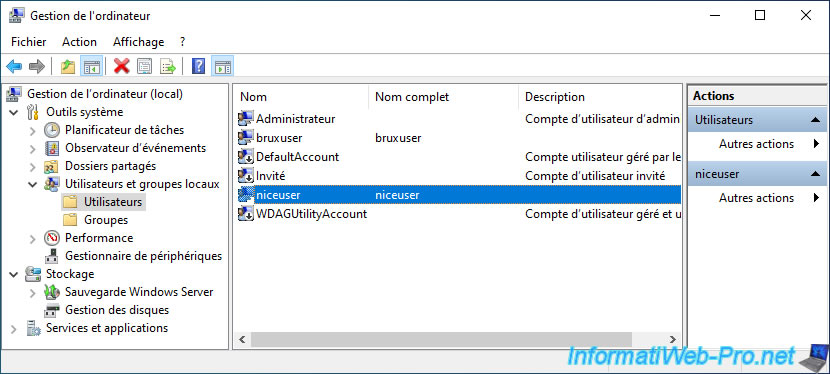
Select the "Allow access" option (as usual).
5. Install the "Remote Access" role on site 3 (Nice)
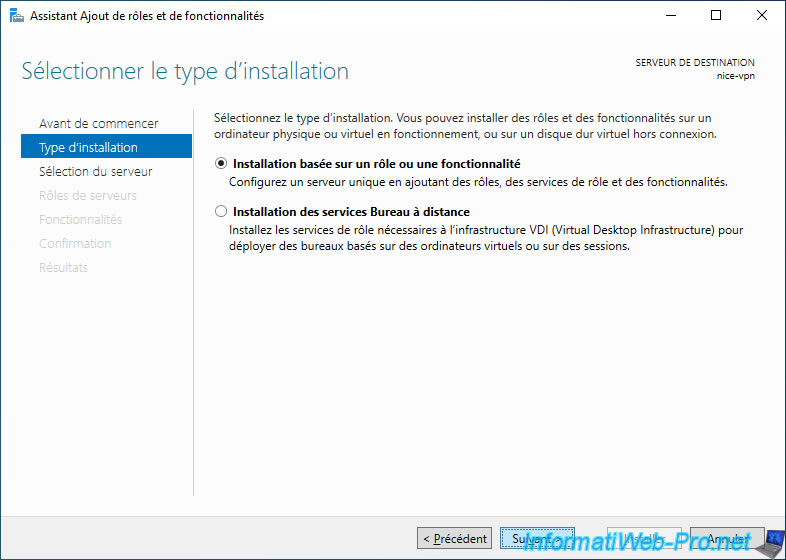
On the "nice-vpn" VPN server at site 3 (Nice), select the "Role-based or feature-based installation" option.
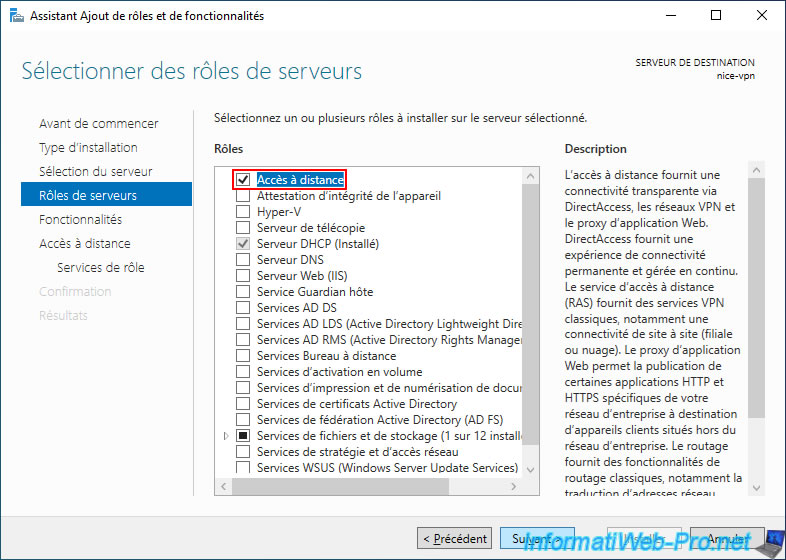
Select the "Remote Access" server role.
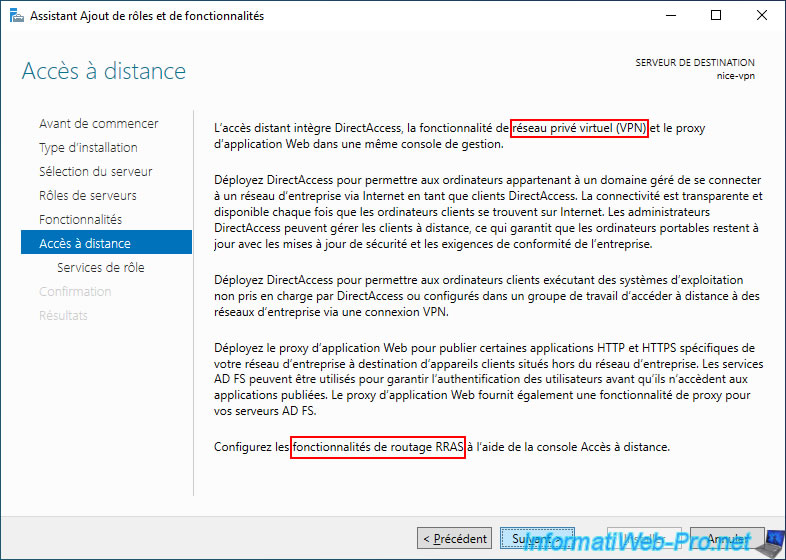
As you can see, this "Remote Access" role allows you to create virtual private networks (VPNs) and configure routing options.
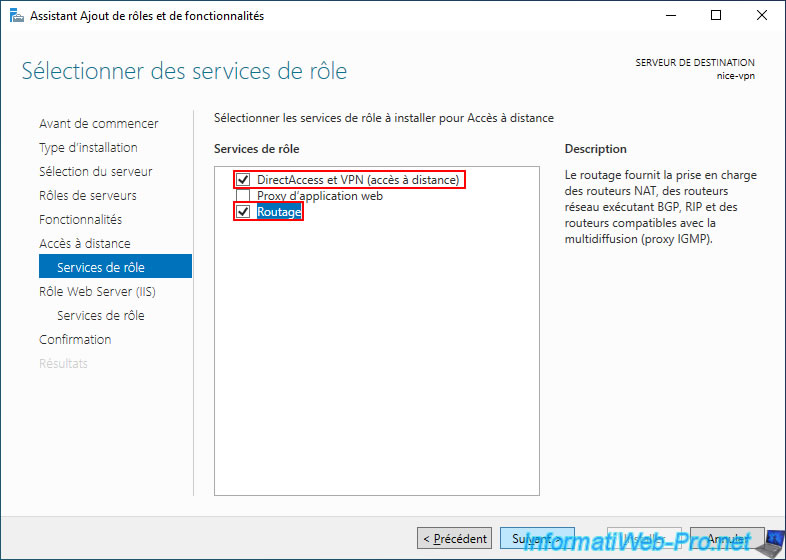
Select the "DirectAccess and VPN (remote access)" and "Routing" role services.
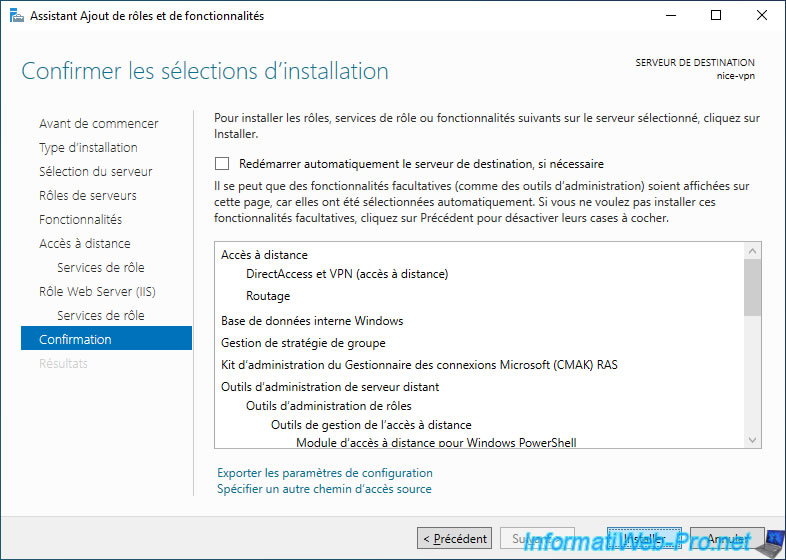
Click on "Install".
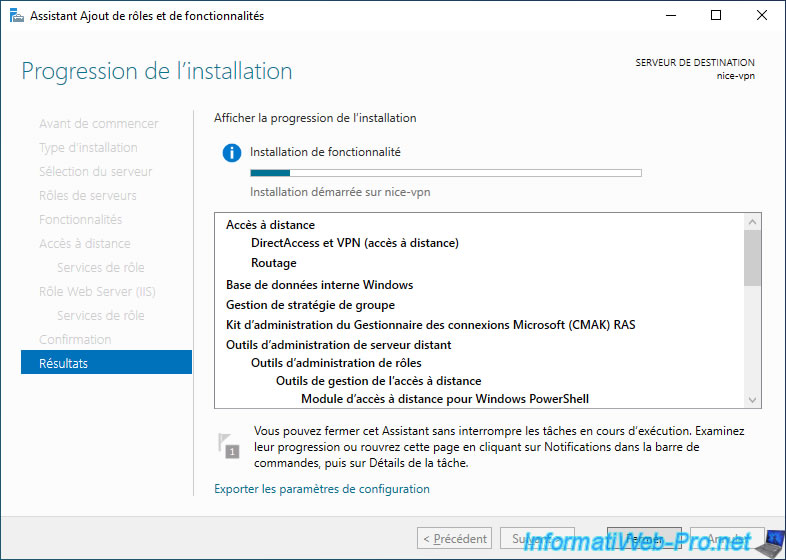
Please wait while the "Remote Access" role is being installed.
Share this tutorial
To see also
-

Windows Server 8/8/2012
WS 2008 - NAT and network routing
-

Windows Server 4/22/2015
WS 2012 - NAT and network routing
-

Windows Server 12/3/2016
WS 2012 - Routing and VPN server
-
Windows Server 11/23/2017
WS 2012 / 2012 R2 - Dynamic routing (RIPv2)
No comment