Add a site to a site-to-site (S2S) VPN infrastructure via PPTP/L2TP on Windows Server 2022

6. Configure routing and remote access with the required VPN tunnels
6.1. Configure routing and remote access (VPN) on site 3 (Nice)
6.1.1. Initial configuration of routing and remote access (VPN) at site 3 (Nice)
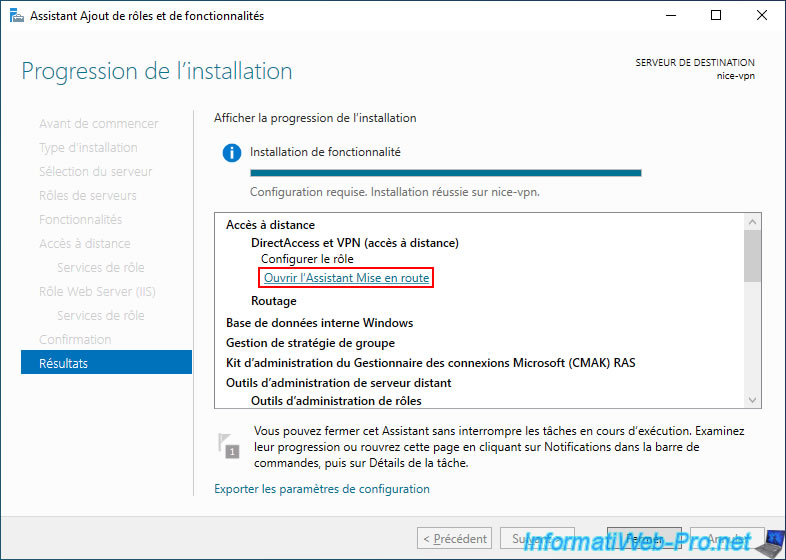
Once the "Remote Access" role is installed, click on the "Open Getting Started Wizard" link that will appear.
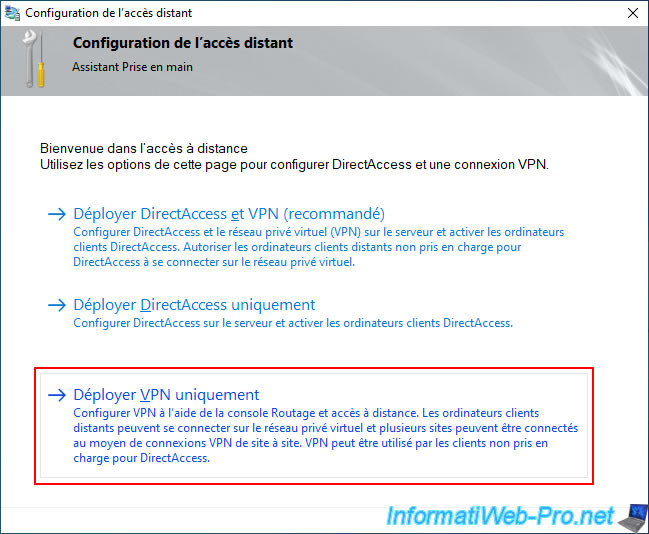
In the "Remote Access Configuration" window that appears, click on "Deploy VPN only".
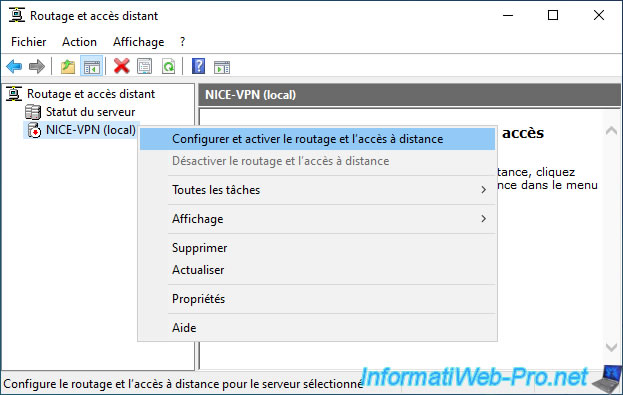
In the "Routing and Remote Access" console that appears, right-click "Configure and enable routing and remote access" on the name of your VPN server (in our case "NICE-VPN").
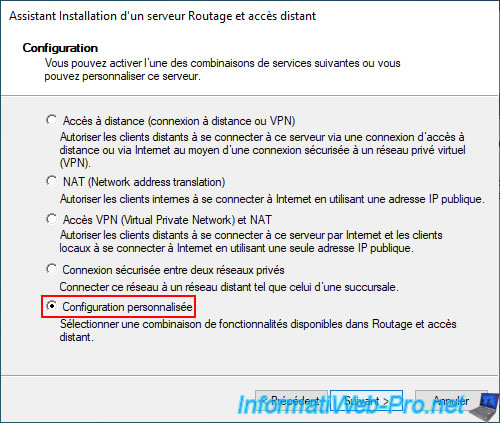
In the setup wizard that appears, select "Custom setup".
Then, check the "VPN Access" and "NAT" boxes.
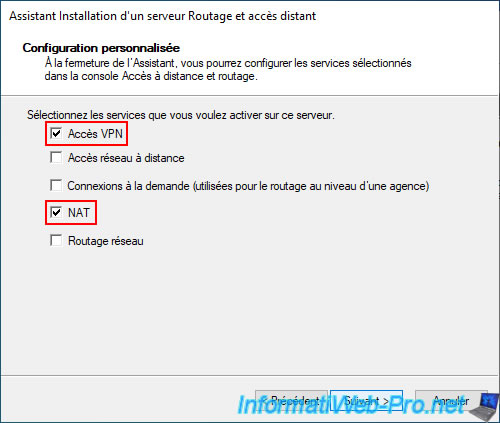
Click on "Finish".
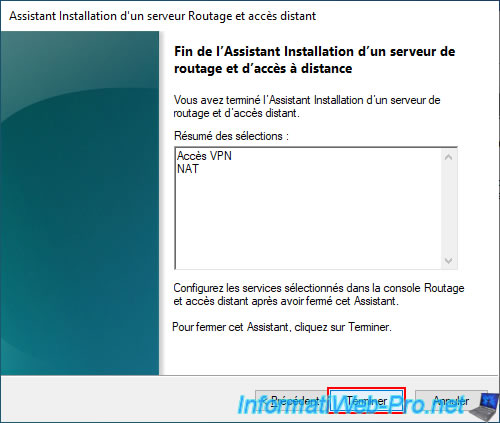
Click on "Start the service".

Please wait a moment while the "Routing and Remote Access" service starts up.

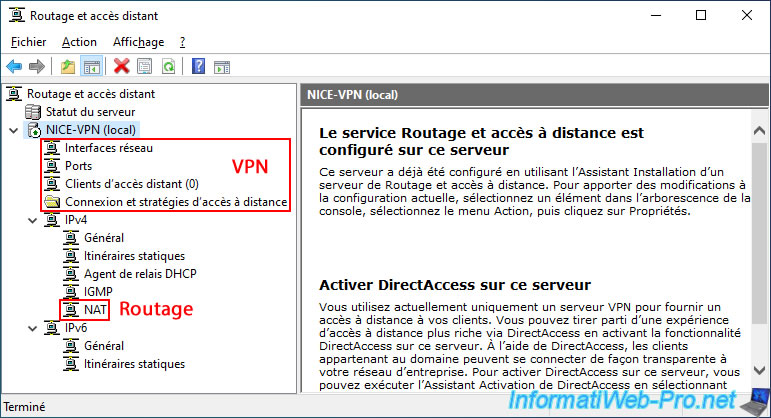
As you can see, VPN options, as well as the routing (NAT) option, appear in the "Routing and Remote Access" console.
6.1.2. Define the range of IP addresses to assign to clients of the VPN server at site 3 (Nice)
Now that the initial configuration is complete, you need to define a range of IP addresses that will be assigned to clients (i.e., the VPN servers at your other physical locations) that will connect to this VPN server ("NICE-VPN" in our case).
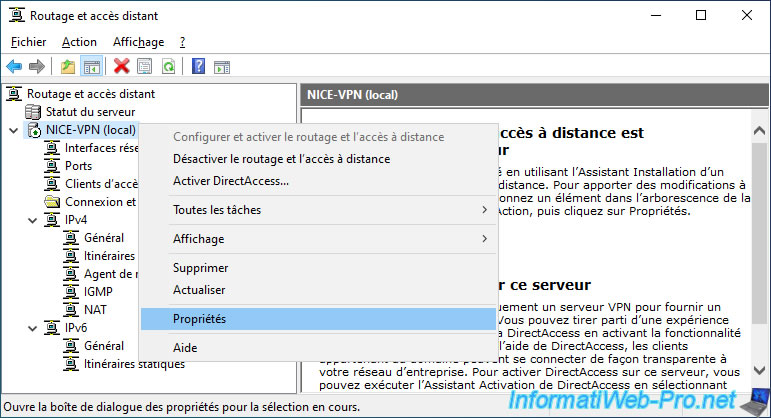
To do this, right-click on the name of your VPN server and select "Properties".
In the "IPv4" tab, select the "Static Address Pool" option and click "Add".
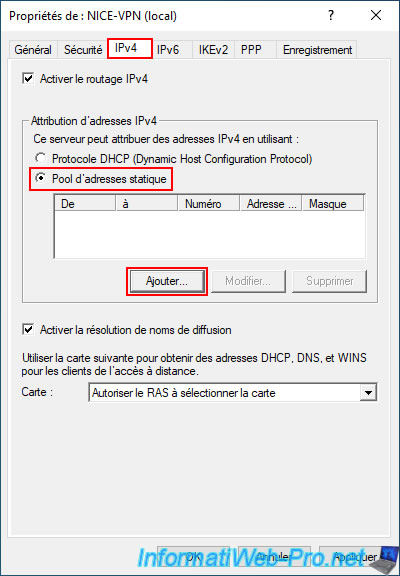
Define a range of IP addresses whose subnet is different from the one used on the LAN of your other physical sites and also different from the subnets used on the other VPN servers.
In our case, we use:
- the network ID "10.0.1.0" for the LAN of site 1 (Brussels).
- the network ID "10.0.2.0" for the LAN of site 2 (Paris).
- the network ID "10.0.3.0" for the LAN of site 3 (Nice).
- the network ID "10.0.11.0" for VPN server clients at site 1 (Brussels).
- the network ID "10.0.12.0" for VPN server clients at site 2 (Paris).
- the network ID "10.0.13.0" for VPN server clients at site 3 (Nice).
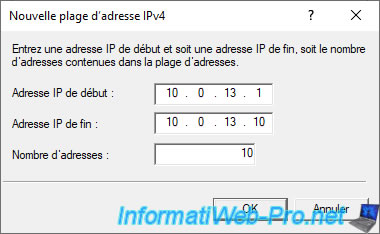
So, in the "New IPv4 address range" window (on our VPN server "NICE-VPN"), we enter the following:
- Starting IP address: 10.0.13.1
- Ending IP address: 10.0.13.10
- Number of addresses: 10
Warning : the network ID used here must be different from those used on your other sites. Otherwise, packet routing will not function correctly.
Additionally, two IP addresses (one local and one remote) are used for each VPN tunnel (as explained previously in step "6.1.2. Define the IP address range to assign to clients of the VPN server at Site 1 (Brussels)" in our previous tutorial).
The desired IP address range appears in the list.
Click OK.
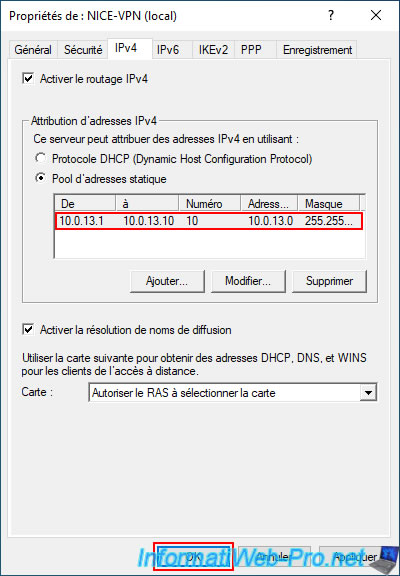
Now, right-click "All tasks -> Restart" on your VPN server name.
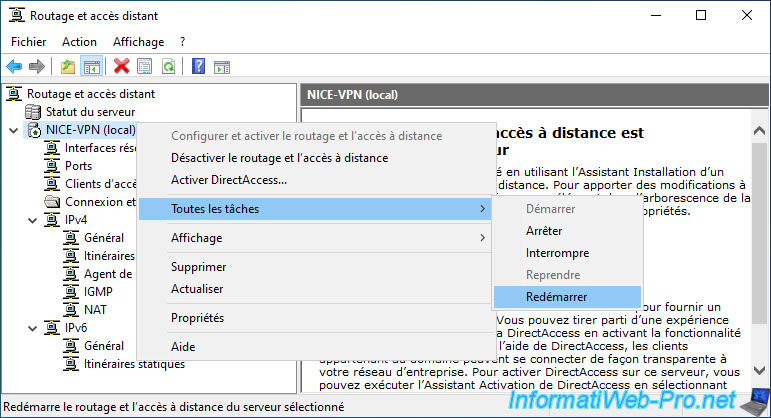
Please wait while the remote access service for this VPN server restarts.

6.1.3. Enable support for the L2TP VPN protocol (server and client)
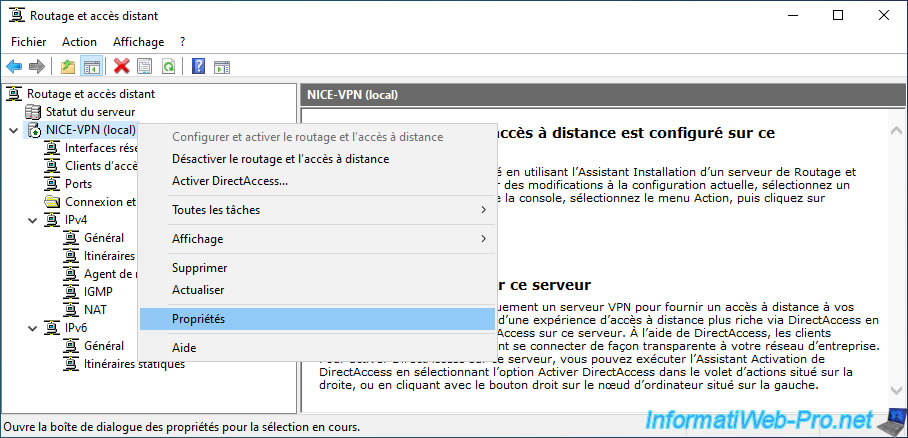
In order for your other VPN servers to be able to connect via the L2TP protocol to this server, but also for this server to be able to connect as a client to the VPN servers of your other physical sites, you must right-click "Properties" on the name of the VPN server of site 3 (Nice).
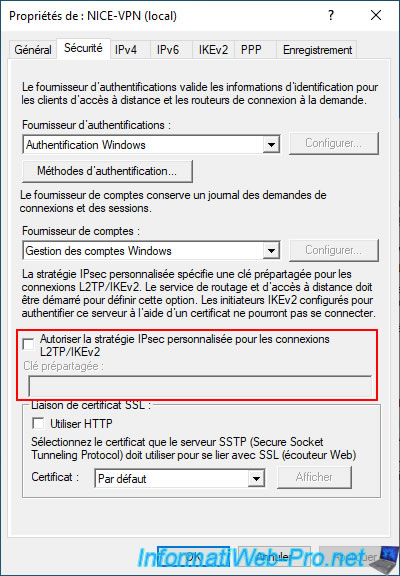
In the "Security" tab, you can see that, by default, the "Allow IPsec policy..." box is unchecked.
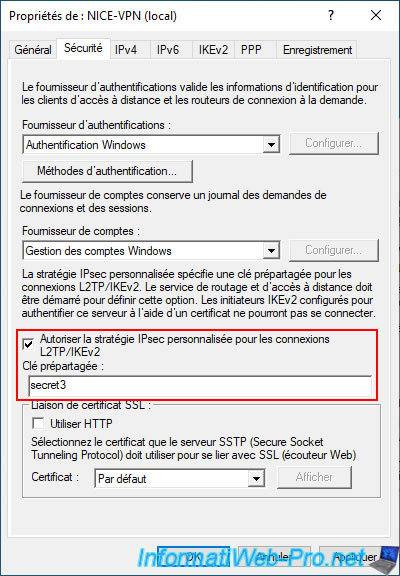
For your VPN server to use the L2TP VPN protocol (as both a server and a client), the "Allow custom IPsec policy for L2TP/IPsec connections" checkbox must be selected.
Once the box is selected, enter a pre-shared key and write it down.
You will need this key later in this tutorial when configuring "nice" on-demand connections on the VPN servers at your other physical locations (Brussels and Paris in our case).
Click OK.
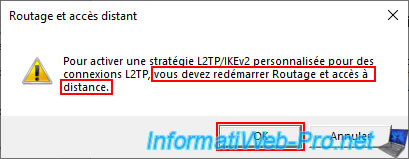
When you check the "Allow custom IPsec policy for L2TP/IPsec connections" box, a warning appears when you click OK and Windows Server prompts you to restart the "Routing and Remote Access" service for this new "L2TP/IKEv2" policy to be used.
Plain Text
To enable a custom L2TP/IKEv2 policy for L2TP connections, you must restart Routing and Remote Access.
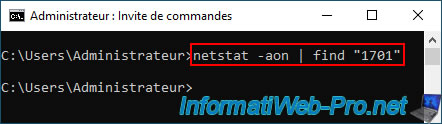
If you open a command prompt and type the command below, you will see that no results are displayed at the moment.
Batch
netstat -aon | find "1701"
Right-click on your VPN server name (in our case "NICE-VPN") and click on "All tasks -> Restart".
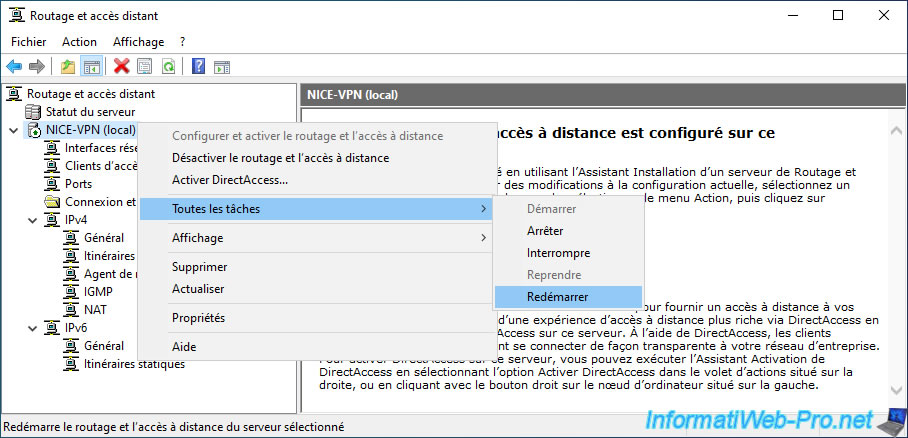
The routing and remote access service is restarting.

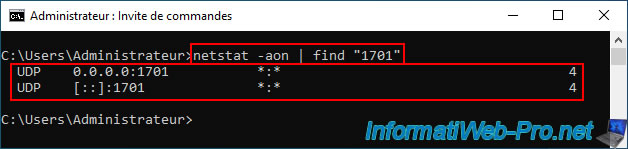
Now, if you run the same command, you'll see that the "UDP 1701" port is being used (which corresponds to a port used by the "L2TP" VPN protocol).
In other words, your server is now acting as a VPN server (specifically for the L2TP protocol).
Furthermore, this port must be used by your VPN server so that your VPN server can also connect to other VPN servers using the "L2TP" VPN protocol as a client.
Share this tutorial
To see also
-

Windows Server 4/28/2012
WS 2003 - NAT and network routing
-

Windows Server 8/8/2012
WS 2008 - NAT and network routing
-

Windows Server 4/22/2015
WS 2012 - NAT and network routing
-

Windows Server 12/9/2016
WS 2022 / 2016 / 2012 - Create a site-to-site (S2S) VPN tunnel via PPTP/L2TP
No comment