Add a site to a site-to-site (S2S) VPN infrastructure via PPTP/L2TP on Windows Server 2022

6.2.4. Create the VPN tunnel between site 3 (Nice) and site 2 (Paris) using PPTP
Similar to before, and again on the VPN server of site 3 (Nice), return to the "Network Interfaces" section and right-click "New On-Demand Connection Interface".

Enter the name of the remote router.
In this case: Paris.
Note: this is a placeholder name.

Again, select the "Connect using a virtual private network (VPN)" option.
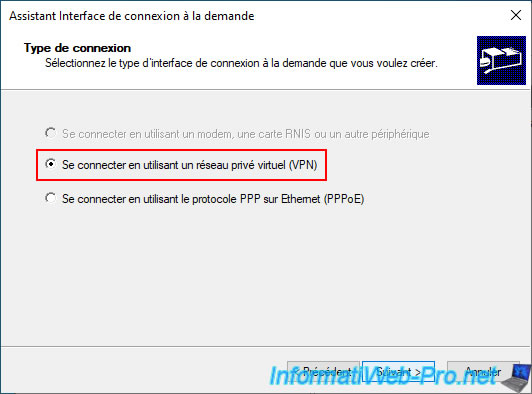
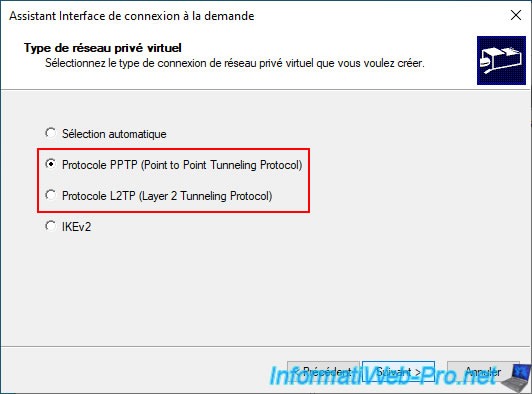
Select your preferred VPN protocol.
For example, the "PPTP (Point-to-Point Tunneling Protocol)" protocol, which is simpler to configure.
Enter the public IP address of the remote VPN server.
In our case, this would be the public IP address (provided by the ISP) of the VPN server "paris-vpn".
Again, since we conducted this tutorial using virtual machines, it's normal for a private (local) IP address to appear here.

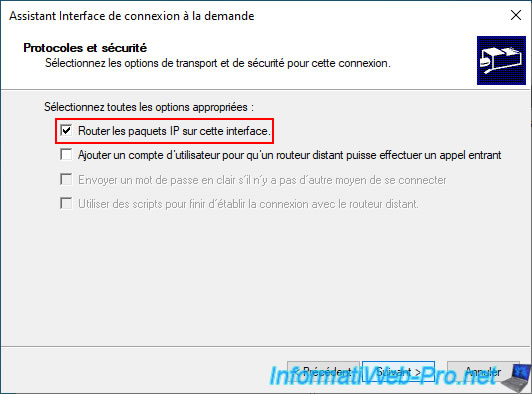
Check the box "Route IP packets on this interface".
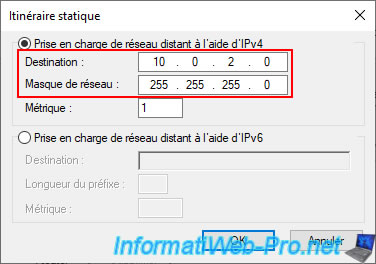
Click on "Add".

This time, specify the subnet used at site 2 (Paris).
In our case, at site 2 (Paris), the subnet used is "10.0.2.X".
Click on "Next".

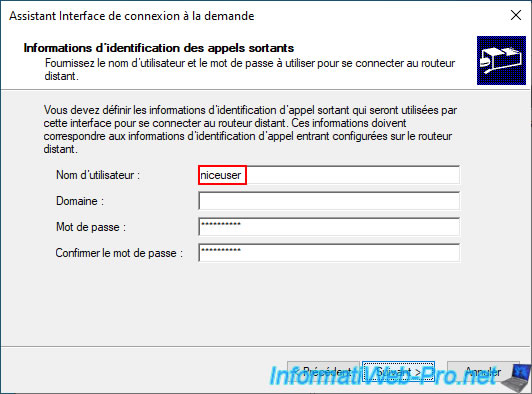
Please re-enter the login credentials for the user account "niceuser" (since we are on the VPN server "nice-vpn").
However, in this case, it is the user account "niceuser" created on the VPN server "paris-vpn".
Click on "Finish".

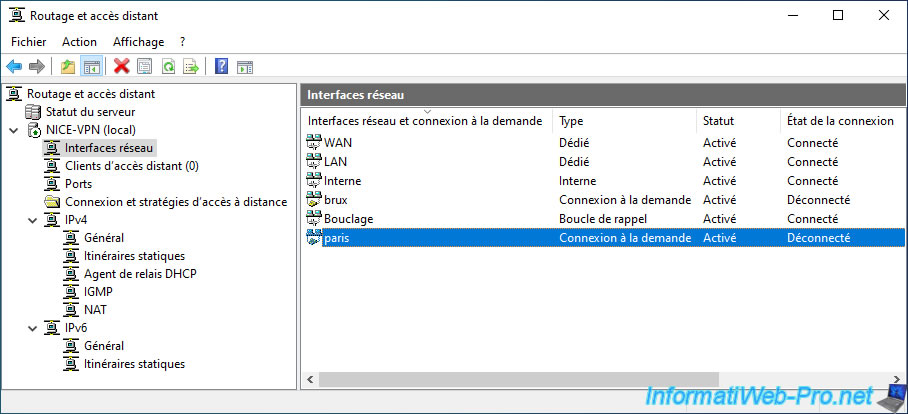
The new "paris" on-demand connection appears in the "Network Interfaces" section of the "NICE-VPN" VPN server.
Double-click on this "paris" on-demand connection.
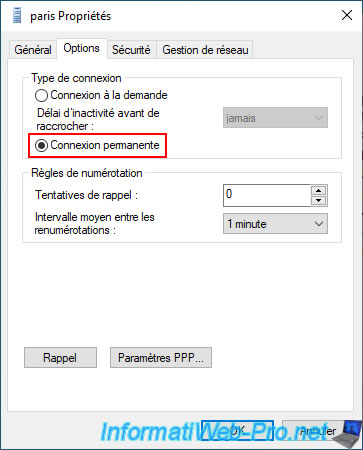
In the "Options" tab, select the "Permanent connection" option.
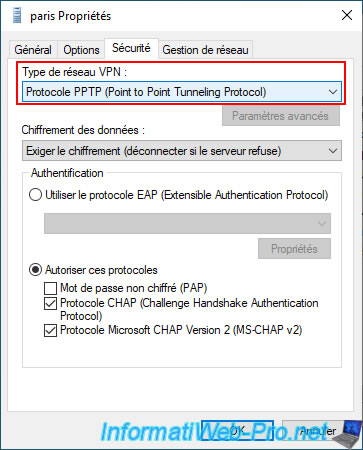
Again, in the "Security" tab, you will see the name of the VPN protocol previously selected in the wizard.
Warning : for L2TP, additional configuration (explained in the next step of this tutorial) will be required.
In the "IPv4 -> Static Routes" section, you will see that a new static route has been added for the "paris" on-demand connection interface you just created.
Therefore, our VPN server "NICE-VPN" now knows that:
- the "10.0.1.X" subnet is accessible via the "brux" on-demand connection interface.
- the "10.0.2.X" subnet is accessible via the "paris" on-demand connection interface.

6.2.5. Configure the VPN tunnel between site 3 (Nice) and site 2 (Paris) to use L2TP
To switch from PPTP to L2TP on your new on-demand "paris" connection, go to the "Network Interfaces" section and double-click on it.
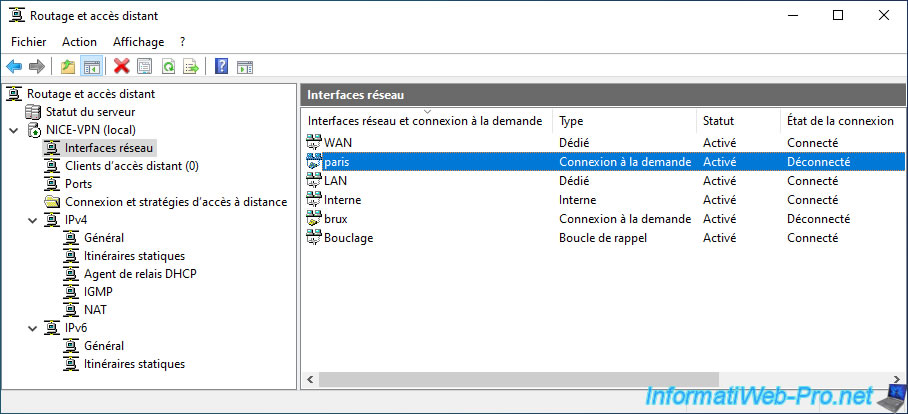
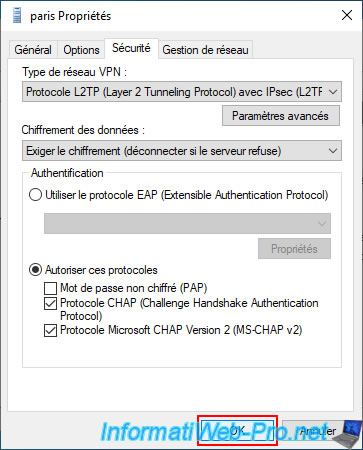
In the "Security" tab, select "L2TP (Layer 2 Tunneling Protocol)..." from the list at the top.
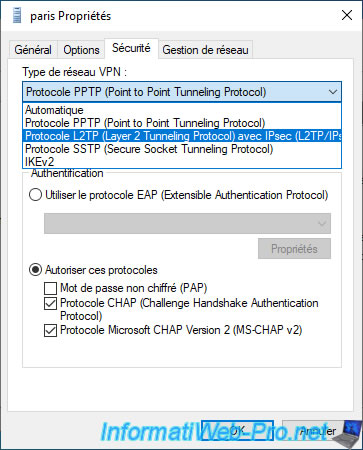
Next, click the "Advanced settings" button just below.
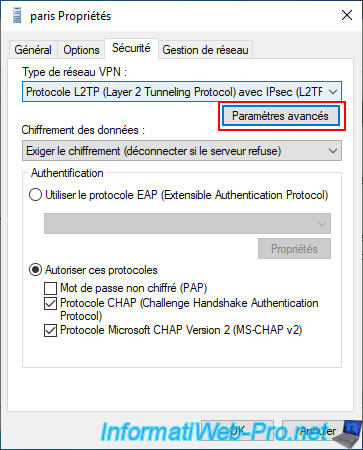
Select the "Use a pre-shared key for authentication" option and type the pre-shared key set on the remote VPN server (in this case: PARIS-VPN).

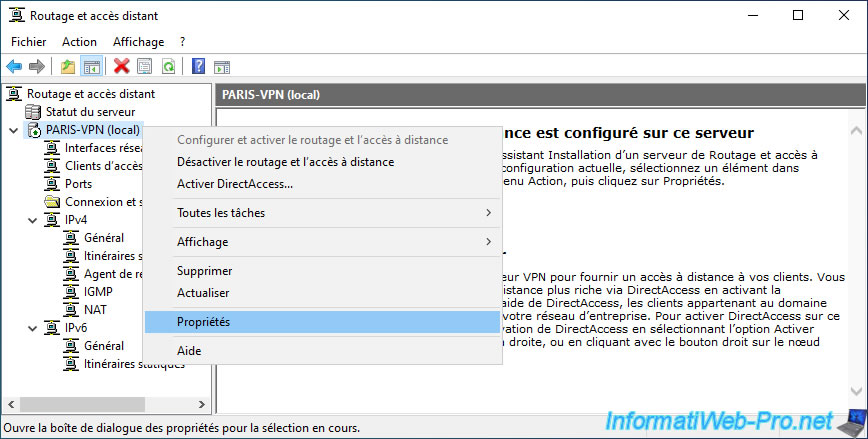
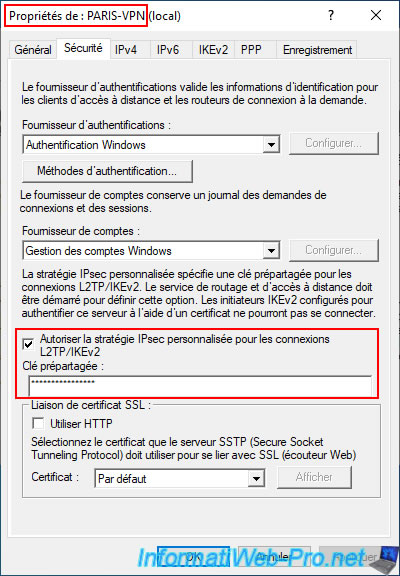
To set it on the remote VPN server, go to the VPN server "PARIS-VPN" and right-click "Properties" on its name.
Again, in the "Security" tab, you can define it by enabling the "Allow IPsec policy..." option, but Windows Server will not display it if it is already defined.
Click OK to save the changes to your connection to the "paris" request.
6.2.6. Configure the routing between site 3 (Nice) and site 2 (Paris)
Similar to before, to ensure network packets are routed correctly between the network at site 3 (Nice) and the remote network at site 2 (Paris), you will need to add your new connection to the "paris" request in the NAT section of your server.
To do this, go to the "IPv4 -> NAT" section and right-click, selecting "New Interface".
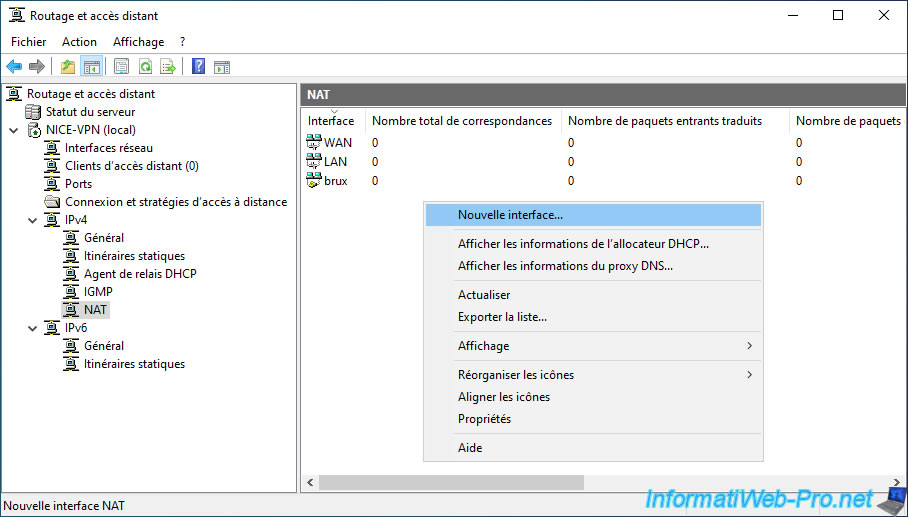
Select your new connection on demand "paris" and click OK.

Select the "Private interface connected to the private network" option.
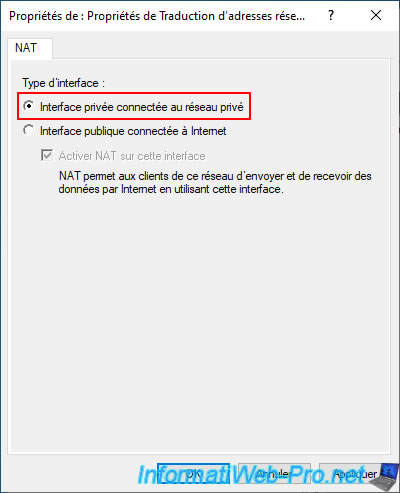
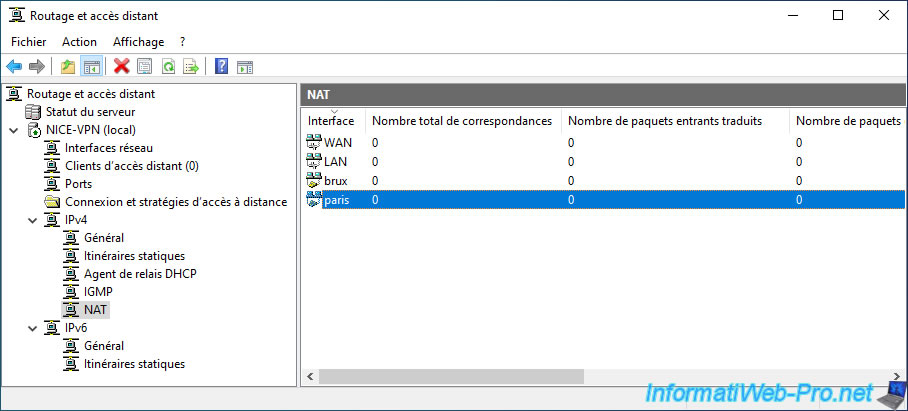
The new on-demand connection interface "paris" appears in the "NAT" section of your server.
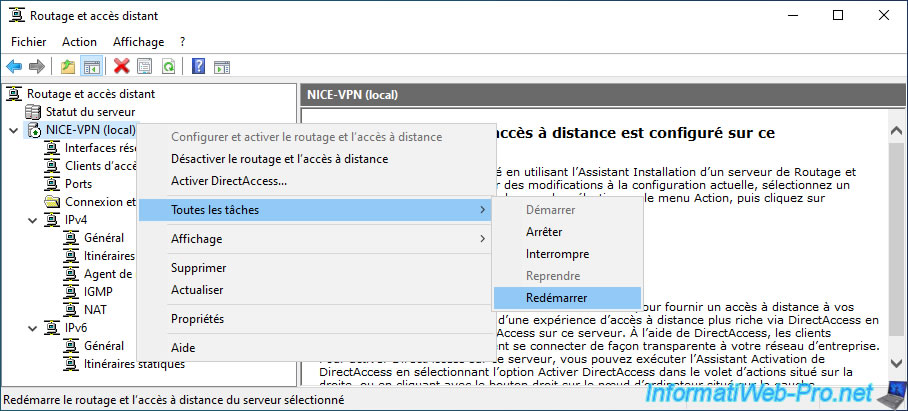
Restart your server for the routing with this new network interface to take effect.

Share this tutorial
To see also
-

Windows Server 4/28/2012
WS 2003 - NAT and network routing
-

Windows Server 8/8/2012
WS 2008 - NAT and network routing
-

Windows Server 4/22/2015
WS 2012 - NAT and network routing
-

Windows Server 12/9/2016
WS 2022 / 2016 / 2012 - Create a site-to-site (S2S) VPN tunnel via PPTP/L2TP
No comment