Add a site to a site-to-site (S2S) VPN infrastructure via PPTP/L2TP on Windows Server 2022

6.1.4. Configure routing (NAT) for the local area network (LAN) and internet access (WAN) at site 3 (Nice)
To allow your servers and computers to access the internet through this router, you need to configure the routing on it.
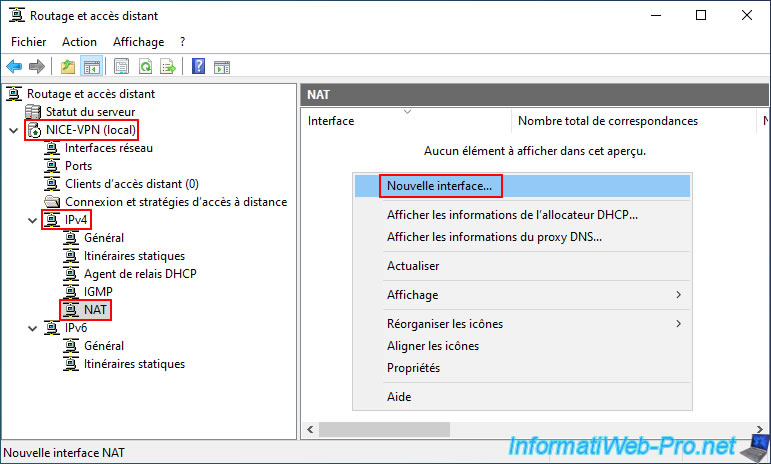
To do this, go to the "IPv4 -> NAT" section of your VPN server and right-click, selecting "New Interface".
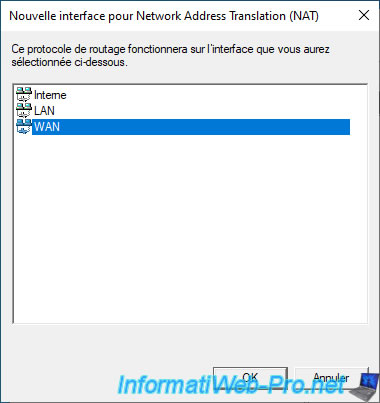
In the "New Interface for Network Address Translation (NAT)" window that appears, select the "WAN" interface and click OK.
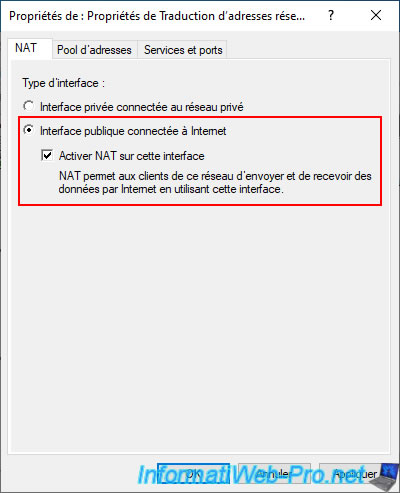
In the "NAT" tab, select the "Public interface connected to the Internet" option and check the "Enable NAT on this interface" box.
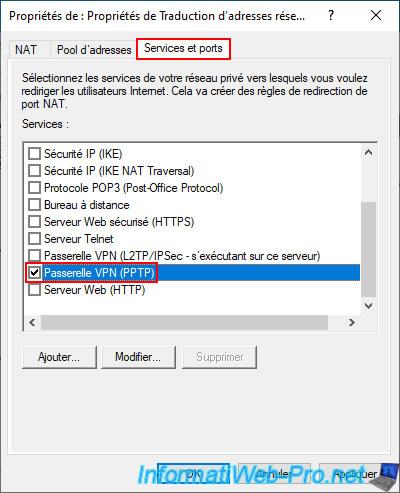
Next, go to the "Services and Ports" tab and check the "VPN Gateway..." box that corresponds to the VPN protocol you want to use.
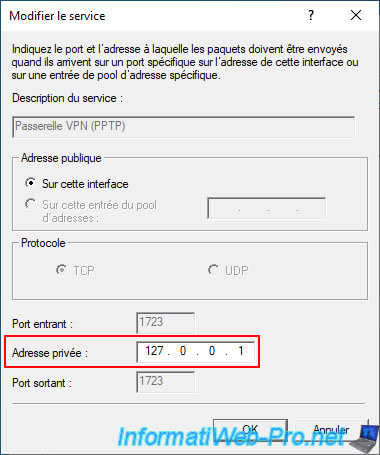
To use the "PPTP" VPN protocol (which is simpler to configure but less secure), check the "VPN Gateway (PPTP)" box.
In the "Edit service" window that appears, enter the private address "127.0.0.1" (which simply indicates that the PPTP VPN server is on the same server as this NAT router).
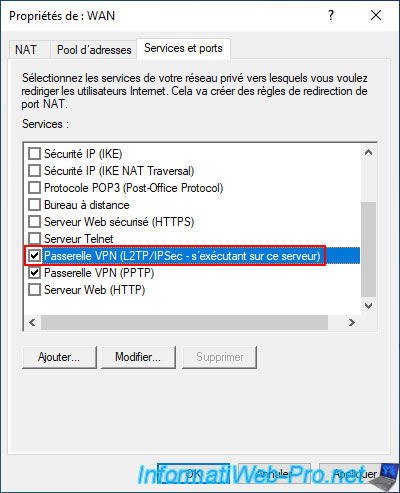
To use the "L2TP" VPN protocol, check the box "VPN Gateway (L2TP/IPsec - running on this server)".
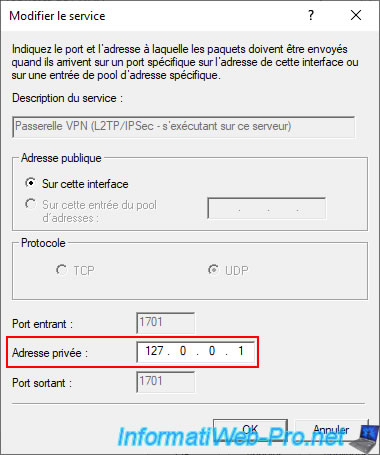
Again, in the "Edit service" window that appears, enter the private address "127.0.0.1".
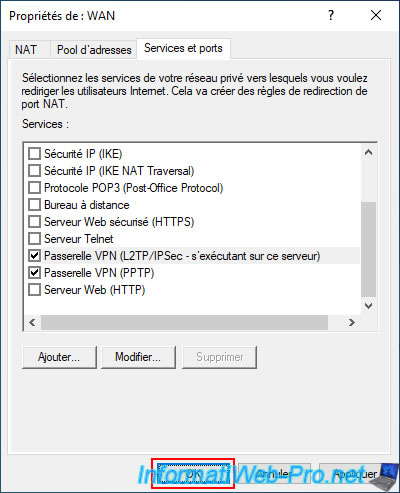
Next, click OK.
Note: if you check both "VPN Gateway" boxes here, it means your VPN server will accept both VPN protocols (PPTP and L2TP).
However, for security reasons, you should prioritize using L2TP in a business environment.
For testing purposes, you can leave both boxes checked temporarily.
Now, right-click again and select "New Interface" (in this section "NAT").
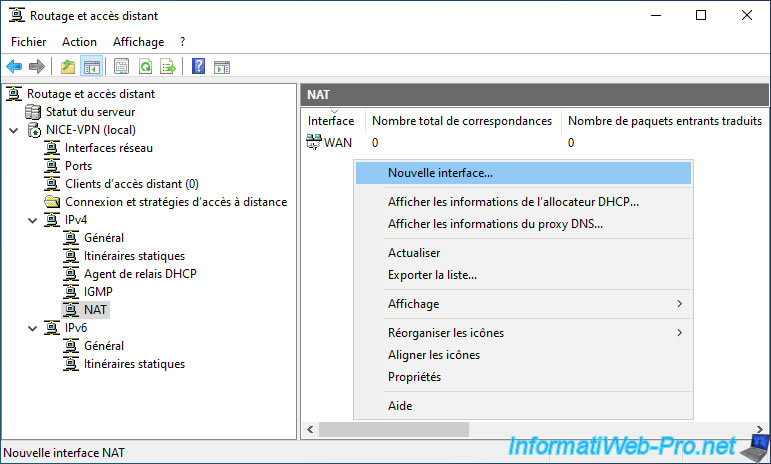
This time, select the "LAN" interface.

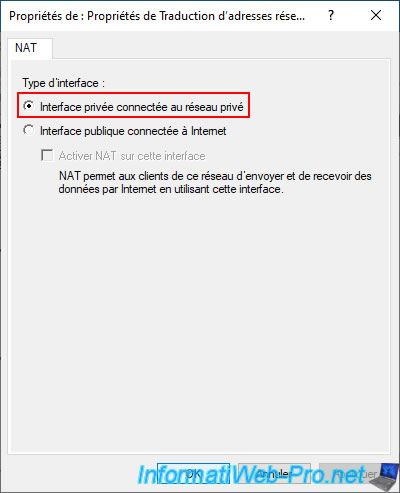
This time, select the "Private interface connected to the private network" option.
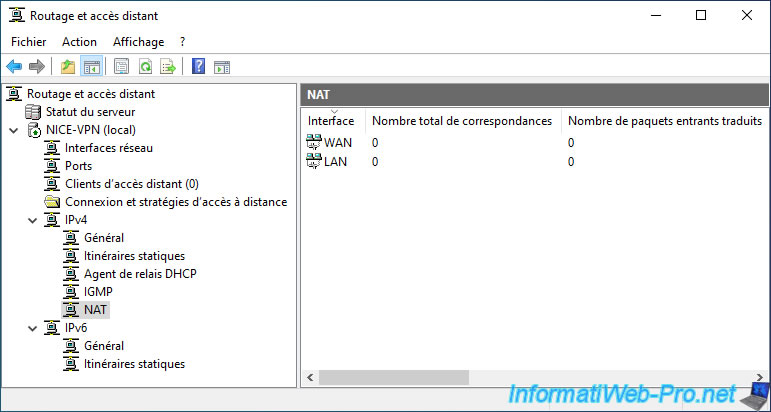
Now, your server acts as a router between the local area network (LAN) and the internet (WAN).
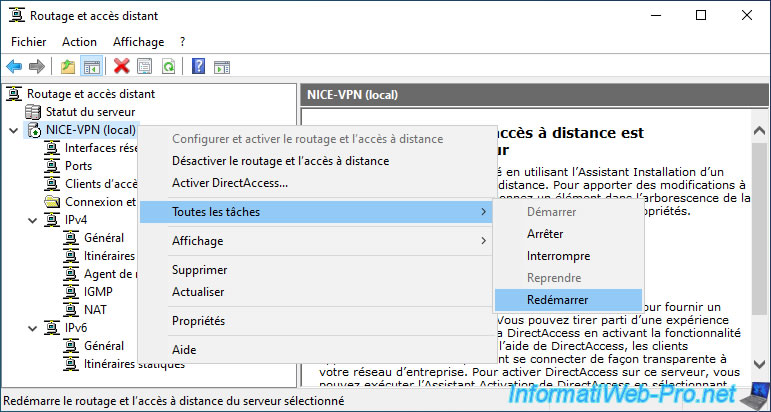
For routing to work, remember to restart the routing and remote access services of this VPN server.
6.1.5. Configure the VPN server firewall on site 3 (Nice)
To ensure your VPN server is accessible to your other VPN server, it's crucial to verify that the necessary ports are correctly opened in the VPN server's firewall.
This should be the default setting on Windows Server.
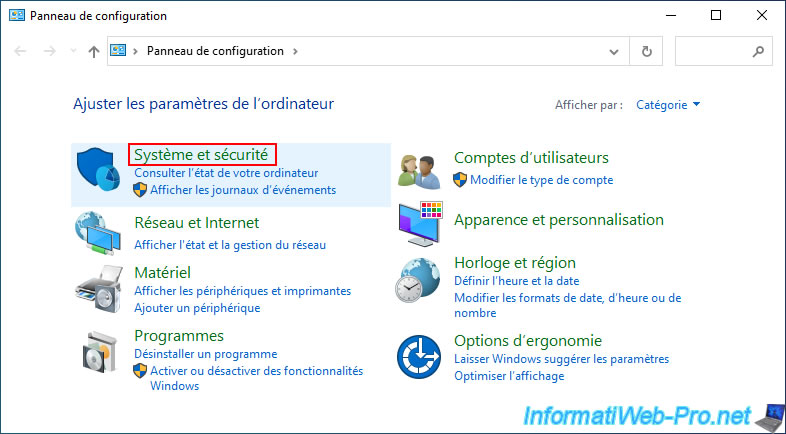
To check this, open the Control Panel and click on: System and Security.
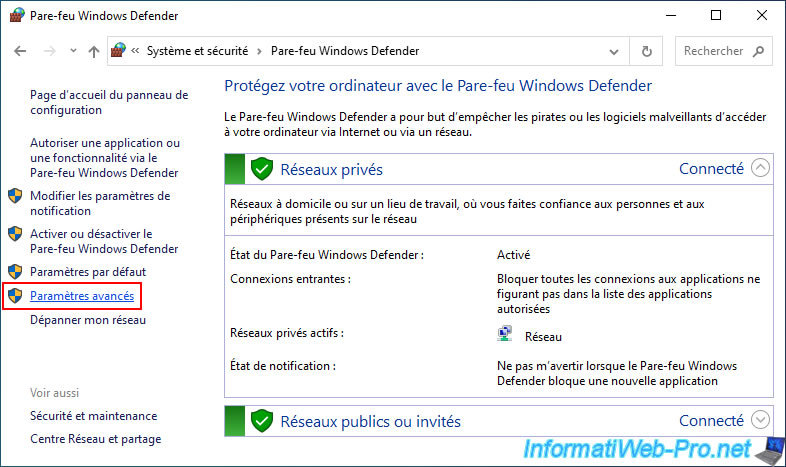
Next, click on: Windows Defender Firewall.

Then, click on the "Advanced settings" link located in the left column.
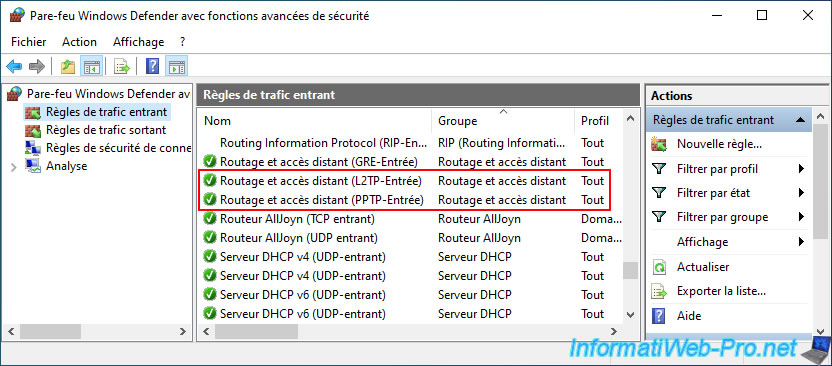
Next, locate the "Routing and Remote Access" rule group and verify that these rules are enabled (according to the VPN protocols you wish to use):
- Routing and remote access (L2TP-Inbound).
- Routing and remote access (PPTP-Inbound).
Note: if they are not activated, select them, then click on "Activate rule" (in the right column).
Share this tutorial
To see also
-

Windows Server 4/28/2012
WS 2003 - NAT and network routing
-

Windows Server 12/3/2016
WS 2012 - Routing and VPN server
-
Windows Server 11/23/2017
WS 2012 / 2012 R2 - Dynamic routing (RIPv2)
-

Windows Server 12/9/2016
WS 2022 / 2016 / 2012 - Create a site-to-site (S2S) VPN tunnel via PPTP/L2TP
No comment