- NAS
- Unraid
- 24 June 2026 at 07:56 UTC
-

- 1/6

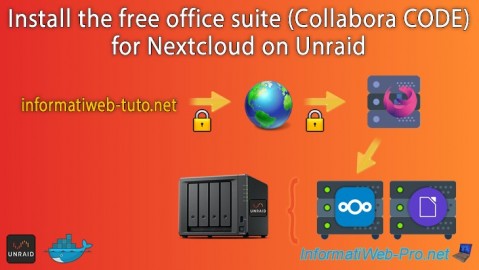
On Unraid, you can install Collabora Online, a free Office suite based on LibreOffice, which will be accessible via the Nextcloud file server (previously installed on Unraid).
Warning : before following this tutorial, you must have completed our previous tutorials for:
- install Nextcloud on Unraid: Unraid 6.9.2 - Docker - Install a file server (Nextcloud).
- be able to access Nextcloud from the internet (via swag), as well as locally: Unraid 6.9.2 - SWAG - Access Nextcloud via reverse proxy and personal domain.
- Unable to open office files by default
- Configure your domain name (at OVH)
- Uninstall the Collabora CODE app from Nextcloud (if necessary)
- Install the independent Collabora server on Unraid
- Add configuration for Collabora on reverse proxy (swag)
- Add the subdomain for Collabora in the certificate generated via the swag container
- Configure Nextcloud to use your independent Collabora server
- Configure Nextcloud to get the LAN IP address to contact your Collabora server
- Collabora Online error in Nextcloud
- Configure Collabora to get the LAN IP address to contact your Nextcloud server
- Collabora Online works from the Nextcloud web interface
- Create new office files via Nextcloud Office and Collabora Online
1. Unable to open office files by default
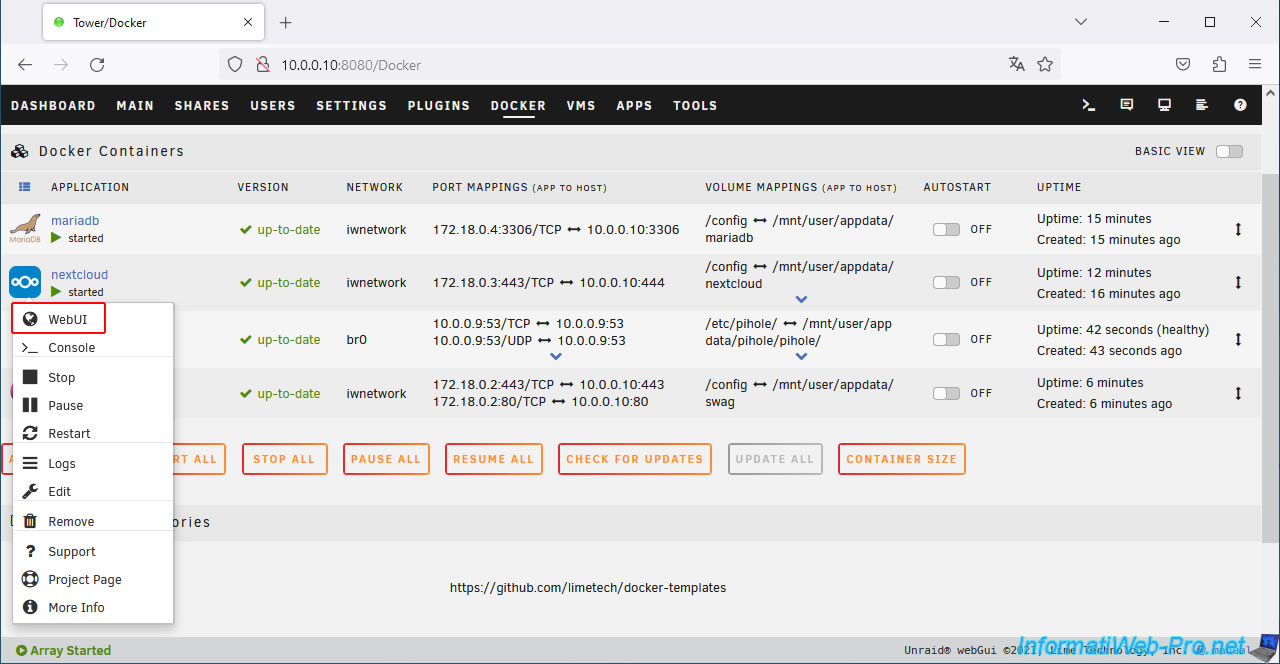
Access the Nextcloud web interface by clicking on its icon, then on: WebUI.
Try opening a file created with an Office suite (in our case: an Excel file).
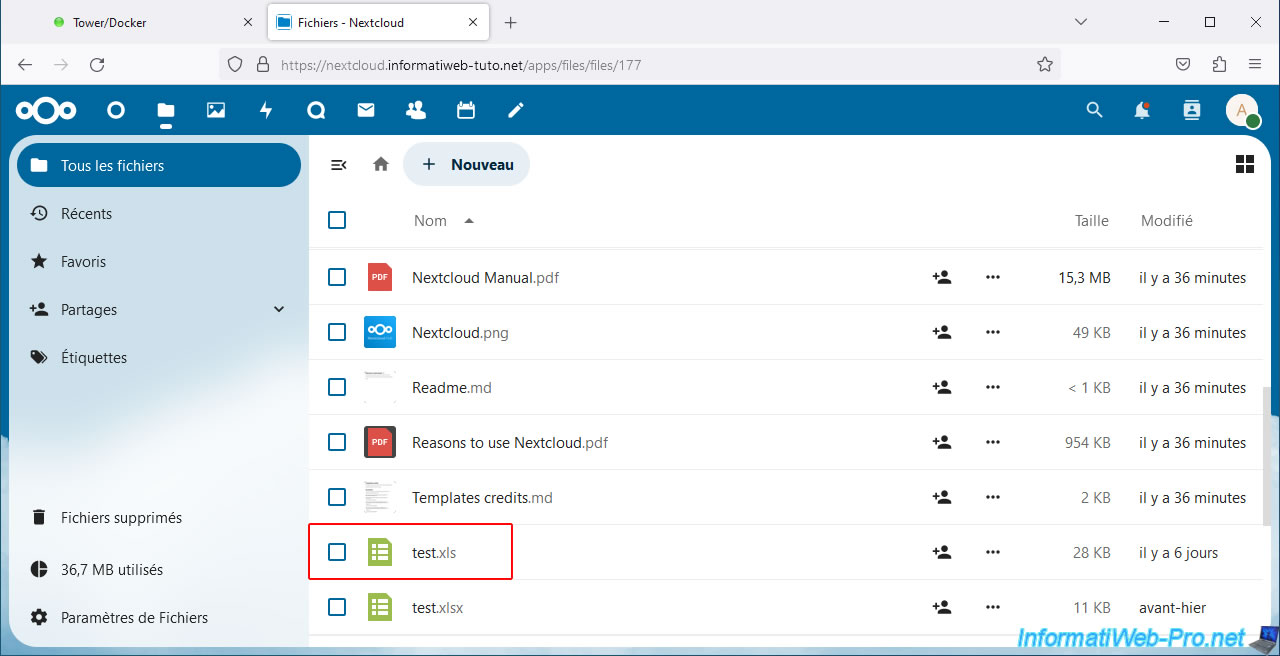
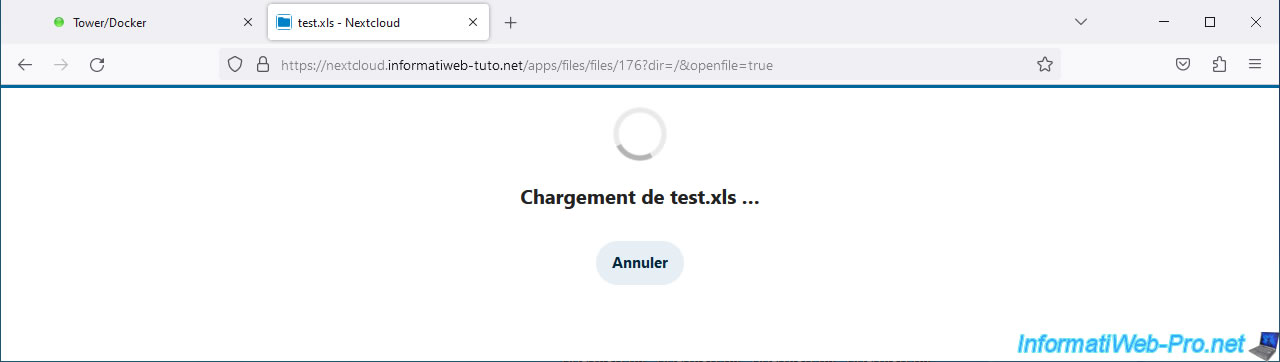
The "Loading test.xls" page appears in our case and nothing else happens.
To understand where the problem is coming from, click on the icon in the top right corner, then on: Administration settings.
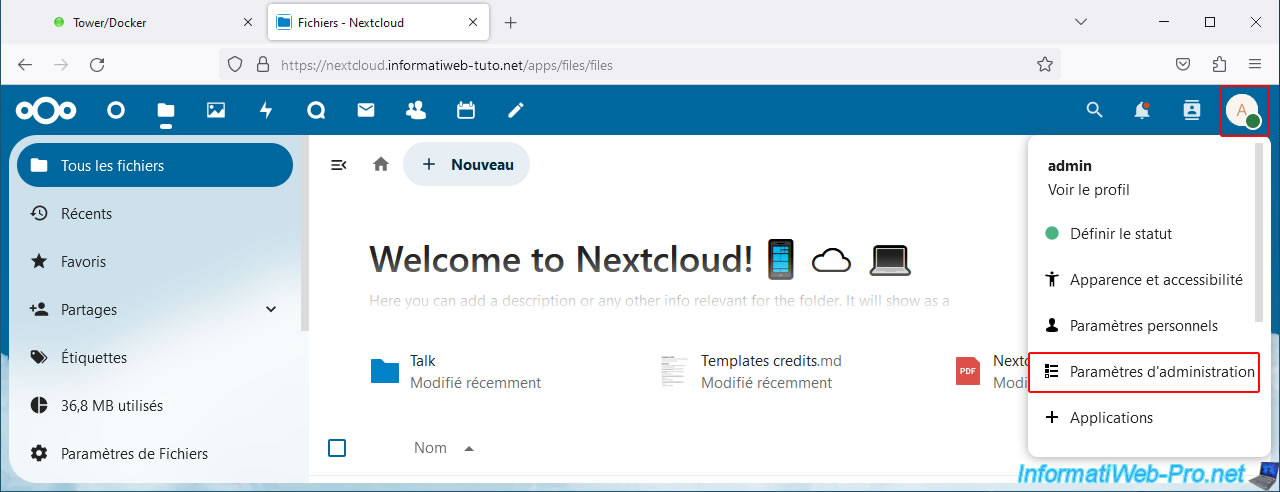
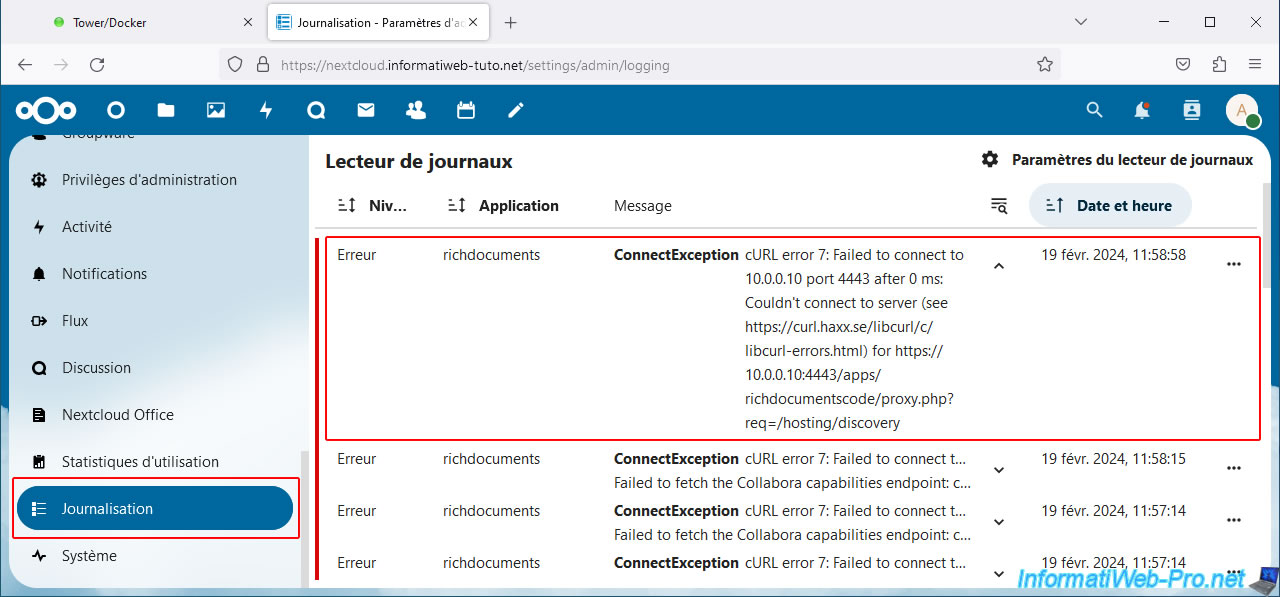
Next, in the "Administration" section of the left menu, go to "Logging."
As you can see, an error appears for the "richdocuments" application.
This corresponds to the "Nextcloud Office" application installed by default if you installed the recommended applications during the Nextcloud installation (as explained in our first Nextcloud tutorial).
Plain Text
Erreur richdocuments
ConnectException cURL error 28: Connection timed out after 45002 milliseconds (see https://curl.haxx.se/libcurl/c/libcurl-errors.html) for https://collabora.informatiweb-tuto.net/hosting/capabilities
Failed to fetch the Collabora capabilities endpoint: cURL error 28: Connection timed out after 45002 milliseconds (see https://curl.haxx.se/libcurl/c/libcurl-errors.html) for https://collabora.informatiweb-tuto.net/hosting/capabilities
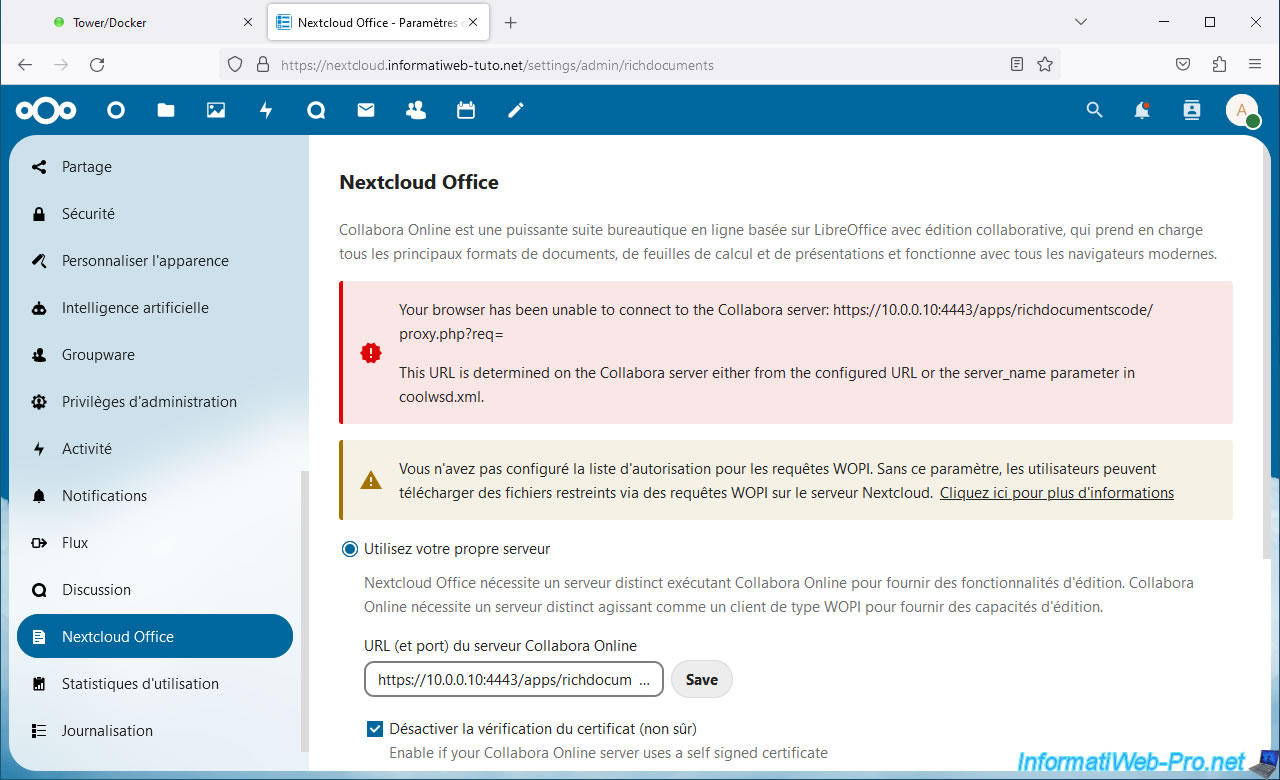
If you go to the "Nextcloud Office" section in the left menu, you will see that Nextcloud cannot connect to the Collabora server (which is not installed by default).
Plain Text
Your browser has been unable to connect to the Collabora server: https://10.0.0.10:4443/apps/richdocumentscode/proxy.php?req=
This URL is determined on the Collabora server either from the configured URL of the server_name parameter in coolwsd.xml.
2. Configure your domain name (at OVH)
For Nextcloud to connect to your Collabora server, you must use your own domain (just as you did to access your Nextcloud server via the internet).
To do this, at OVH, go to the "Web Cloud -> Domain Names" section and click on your domain name.
Then, go to the "DNS Zone" section and click Add Entry.
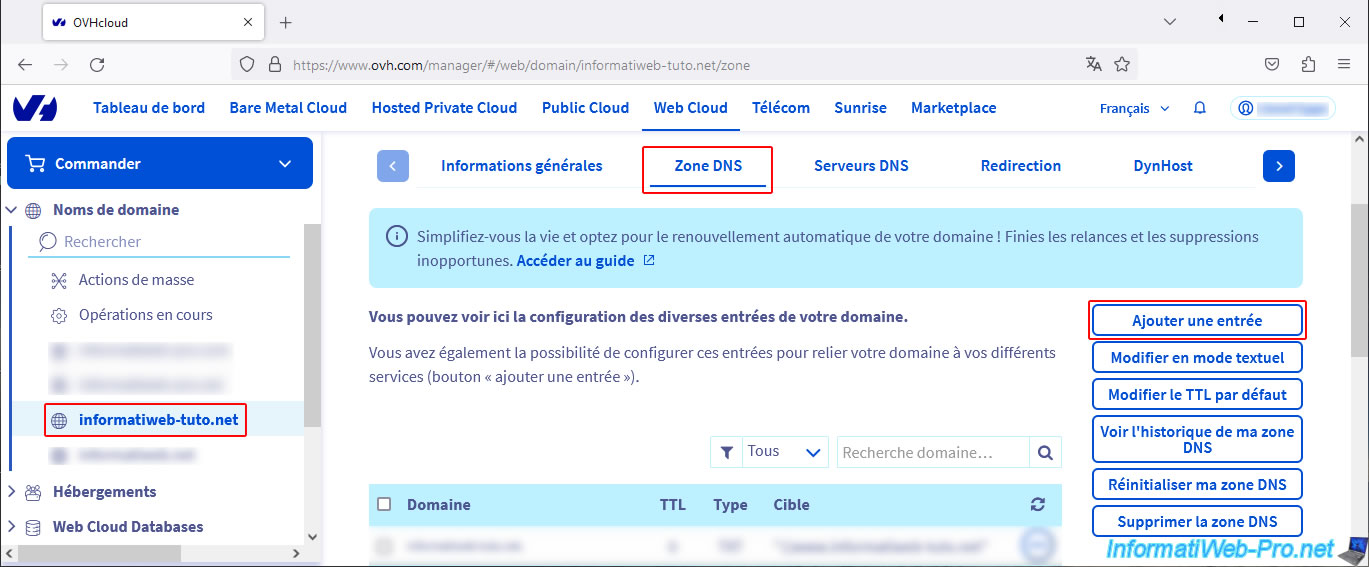
Choose the type of DNS record to use:
- A: to point your future "collabora" subdomain to an IPv4 address.
- AAAA: to use an IPv6 address.
- CNAME: to point your future "collabora" subdomain to the same IP address as another domain (for example, your root domain, which is supposed to point to your WAN (external) IP address).
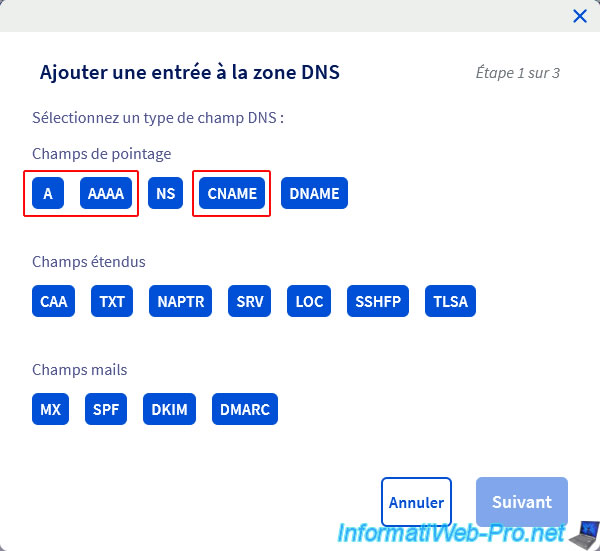
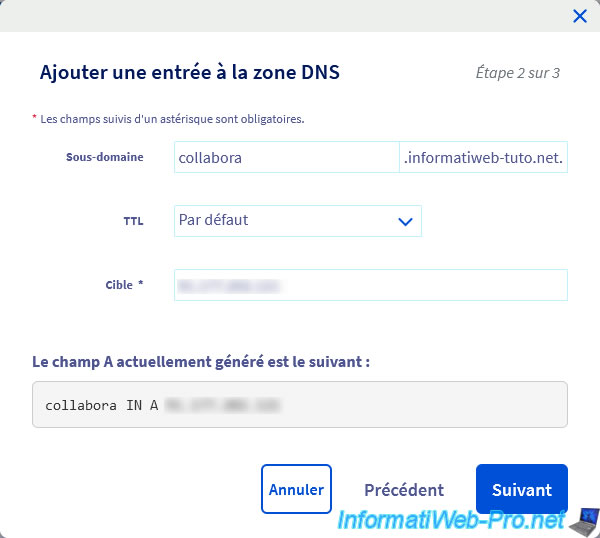
If you chose type "A" (IPv4) or "AAAA" (IPv6):
- specify "collabora" for the subdomain.
- specify your WAN IP address, which you can see at "my-ip.com" (for example), as the target.
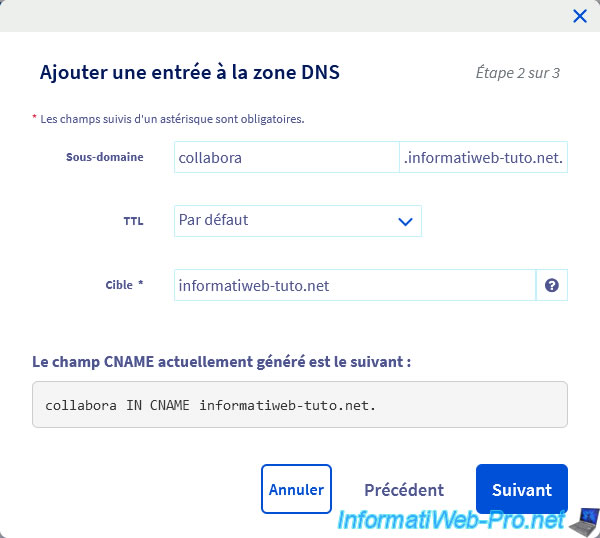
For the "CNAME" type, specify which domain this "collabora" subdomain should point to.
In our case, it's our root domain "informatiweb-tuto.net," which already points to our external IP address.
Then, click on: Validate.
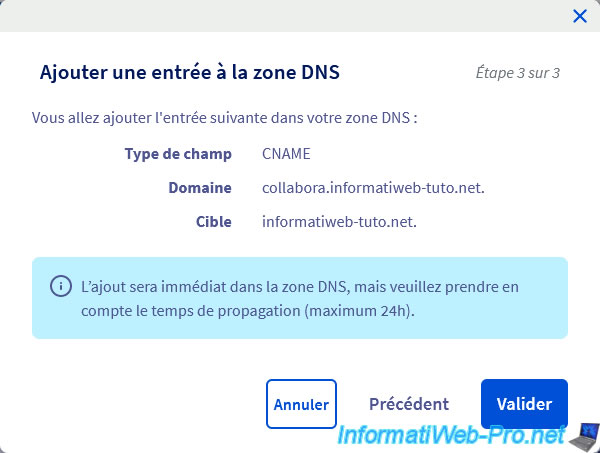
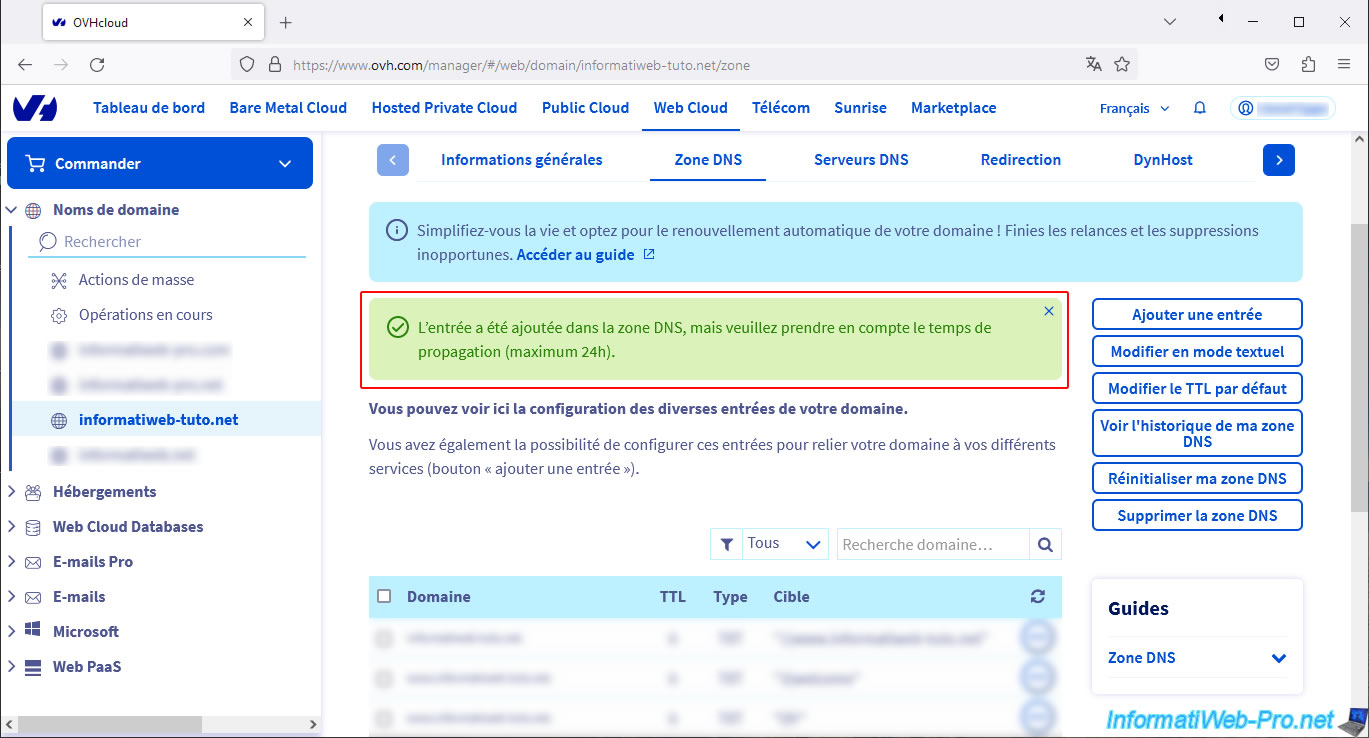
As OVH tells you, the DNS zone of your domain has been modified at your host, but DNS propagation can take up to 24 hours.
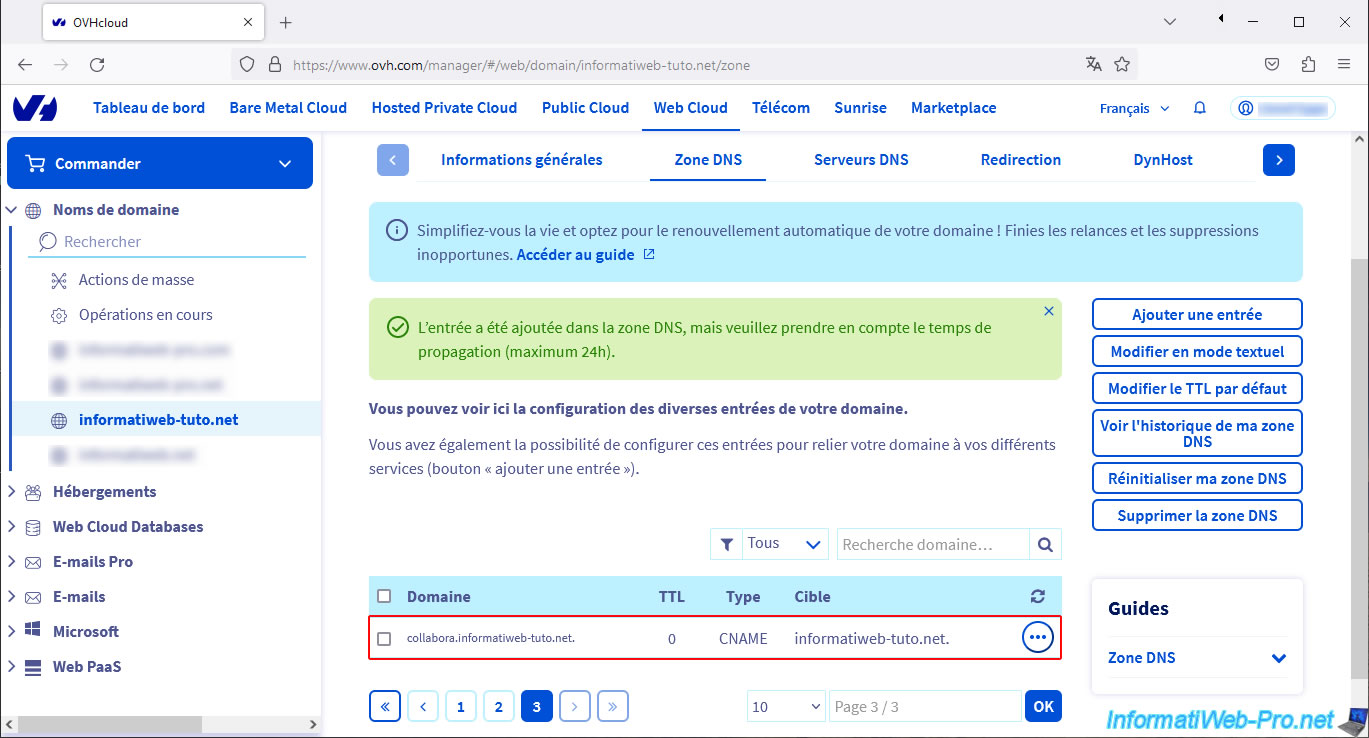
In the list of your subdomains, you will see your subdomain "collabora" appear.
3. Uninstall the Collabora CODE app from Nextcloud (if necessary)
To use Collabora (the free Office suite based on LibreOffice) on Nextcloud, there are 2 techniques:
- Use the Collabora code application, which allows you to install a Collabora server (with limited functionality) directly in Nextcloud.
In this case, in the same container as Nextcloud. - Install a Collabora server on Unraid in a different container to benefit from all its features.
Then, configure Nextcloud to use this independent server.
Apparently, based on our tests, the first option no longer works when Nextcloud is installed on Unraid.
Indeed, if you enable it, Nextcloud will become inaccessible and therefore no longer work.
It's therefore important to disable the "Collabora Code" application on Nextcloud if it is enabled in your case.
To do this, click on the icon in the top right corner, then on Applications.
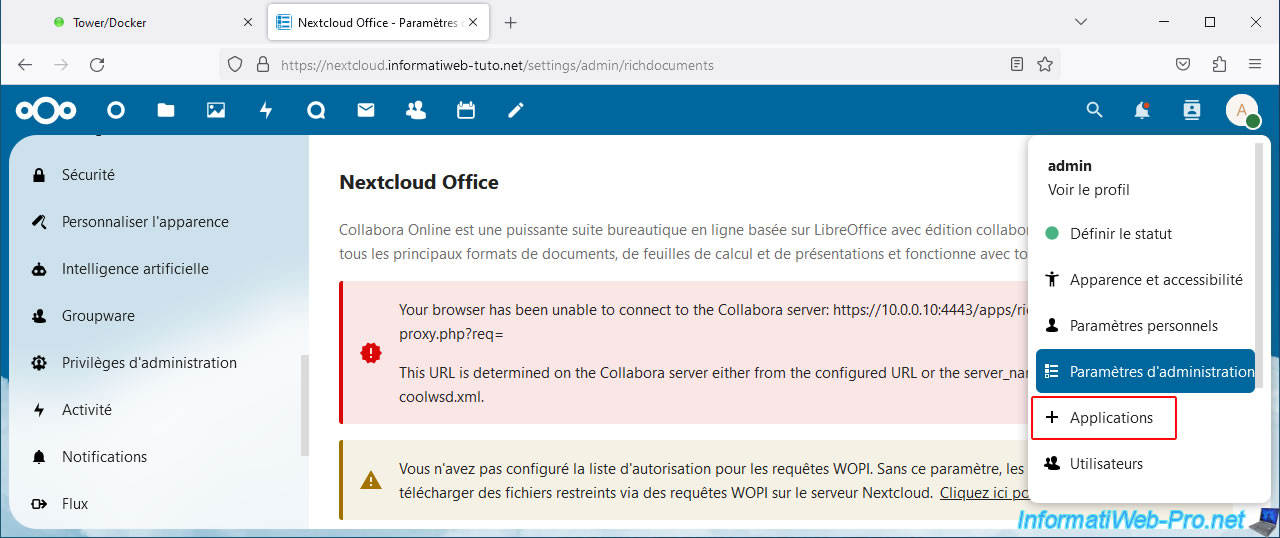
As you can see in the "Your Apps" section, the "Nextcloud Office" app is activated.
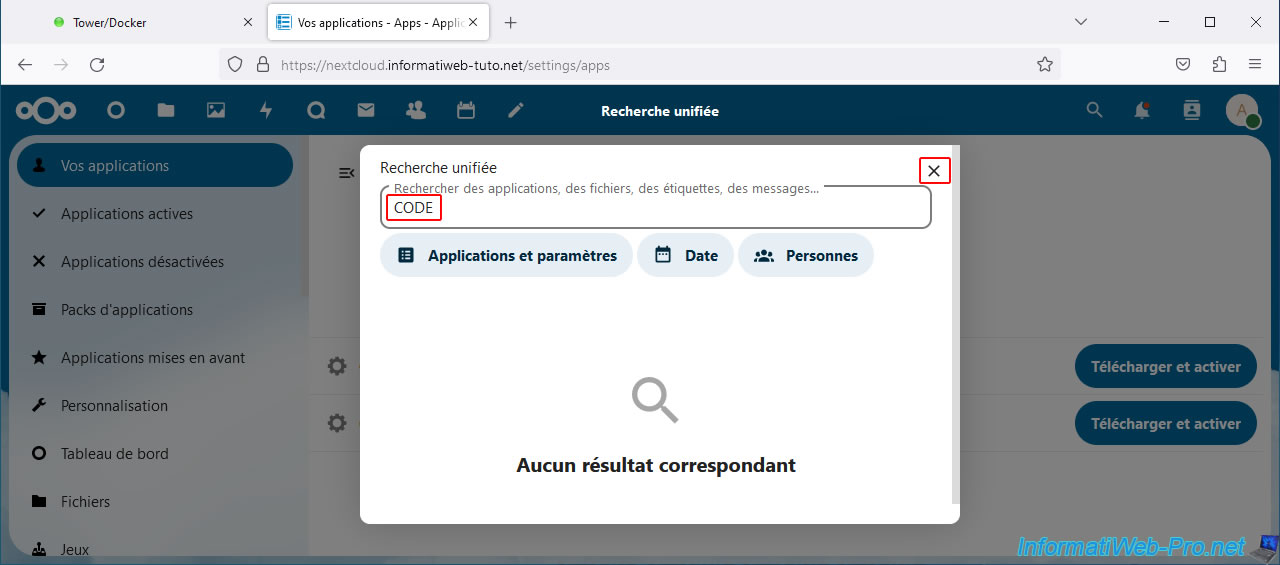
Click the search icon in the top right corner of the page.
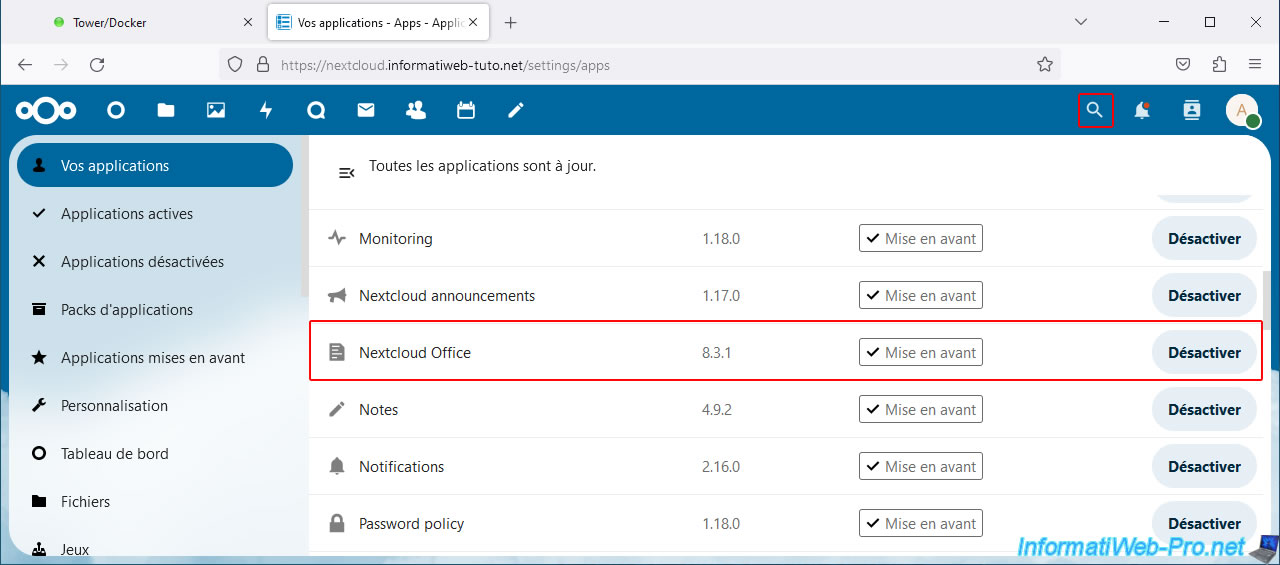
Type "CODE" in the search box, ignore the "No matching results" message and click the cross in the top right corner to close only this popup.
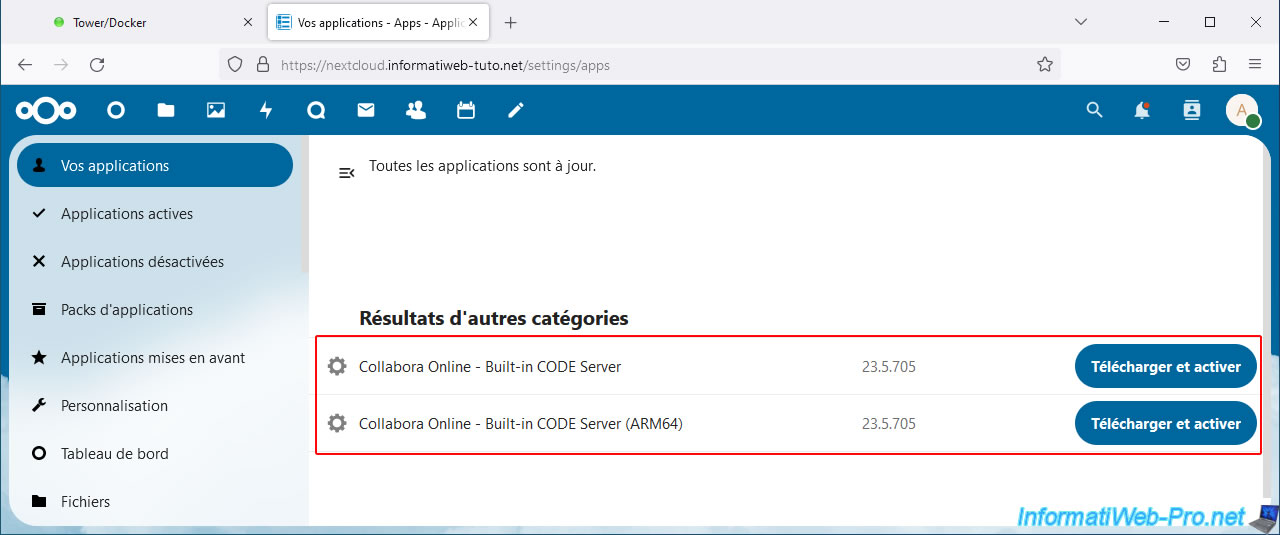
In the "Results from other categories" list, you will see 2 applications appear:
- Collaborata Online - Built-in CODE Server.
- Collaborata Online - Built-in CODE Server (ARM64).
If the button for these apps is "Download and Activate," then these apps are disabled. So, you don't need to do anything.
Otherwise, click the "Disable" button displayed.
Share this tutorial
To see also
-
NAS 4/29/2026
Unraid 6.9.2 - Docker - Install a DDNS client (Duck DNS)
-
NAS 4/15/2026
Unraid 6.9.2 - Docker - Install a file server (Nextcloud)
-
NAS 6/3/2026
Unraid 6.9.2 - SWAG - Access Jellyfin via reverse proxy and Duck DNS (DDNS)
-
NAS 5/27/2026
Unraid 6.9.2 - SWAG - Use a DDNS client (Duck DNS)
You must be logged in to post a comment