Install the free office suite (Collabora CODE) for Nextcloud on Unraid 6.9.2
- NAS
- Unraid
- 24 June 2026 at 07:56 UTC
-

- 5/6

9. Collabora Online error in Nextcloud
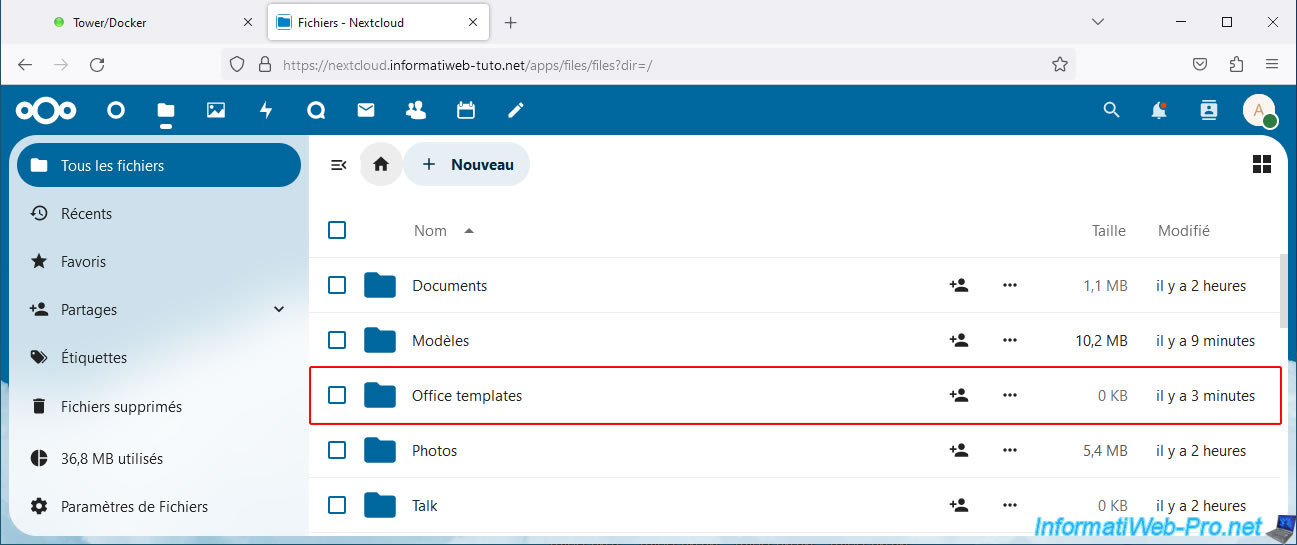
Go to your "Office templates" folder.
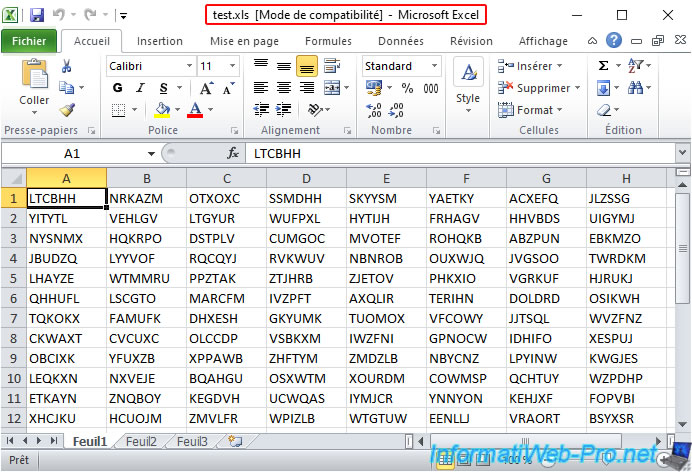
In our case, we created an Excel file with random data (for testing) and saved it in the 2 possible formats: xls and xlsx.
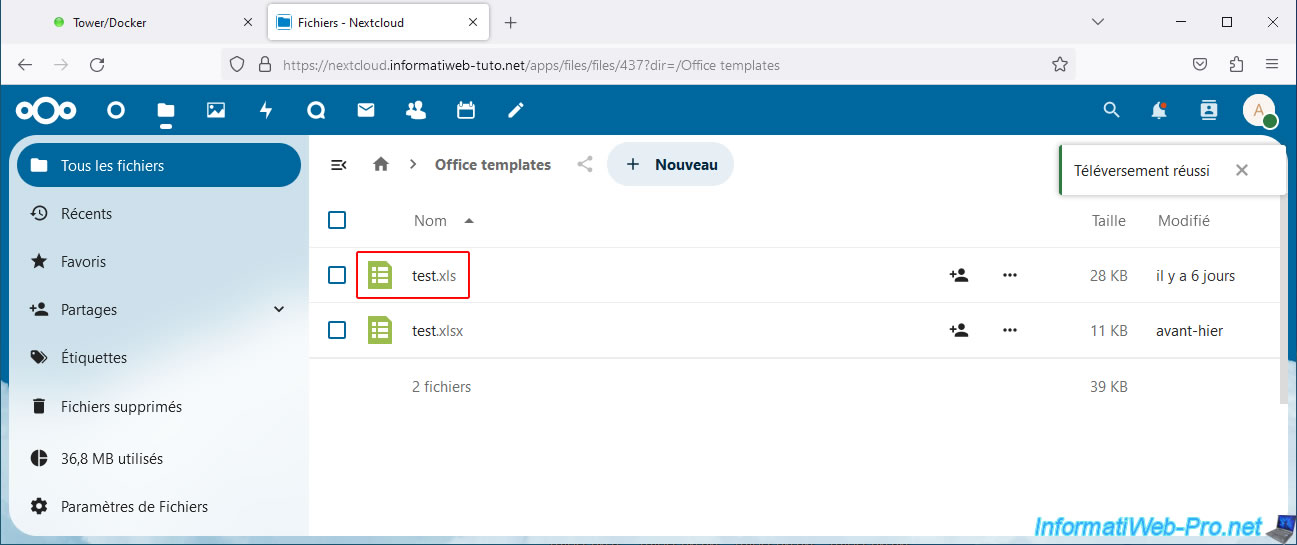
Next, we added these two Excel files to our "Office Templates" folder.
Once the files are added, try opening one of them.
The message "Changing [office file name]" appears.
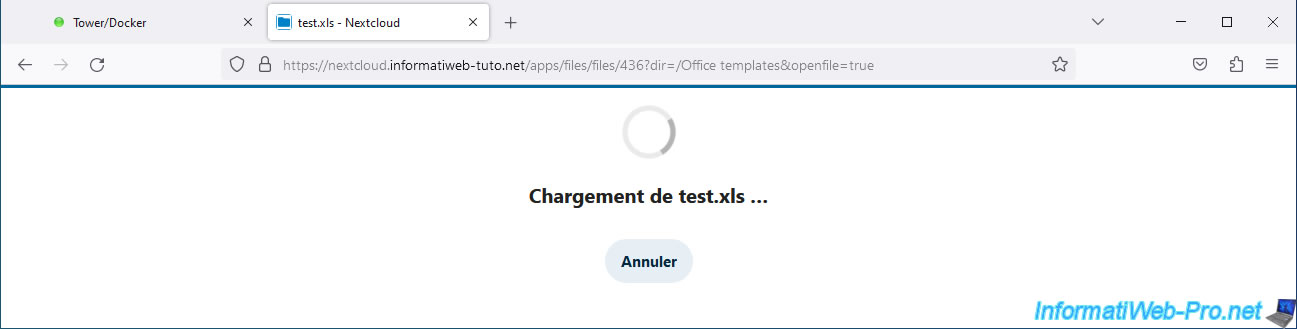
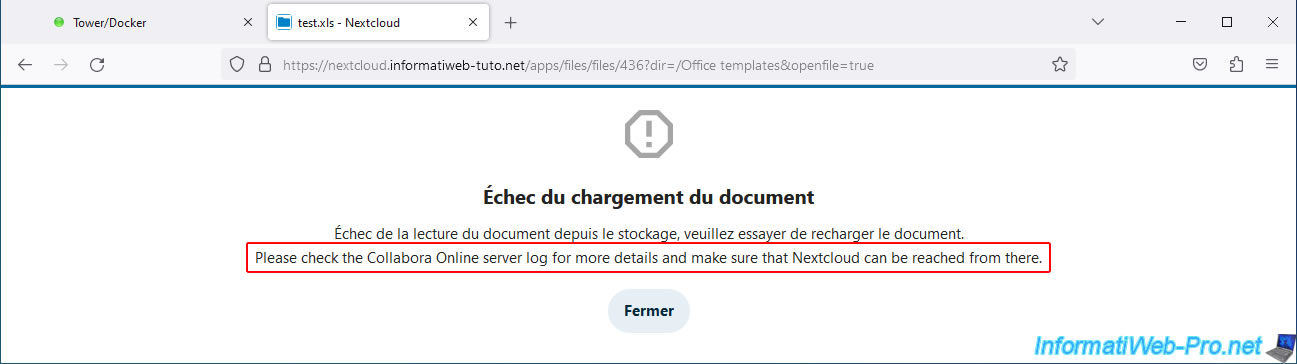
Then an error occurs after a few seconds or even a minute.
Plain Text
Failed to upload the document.

Failed to read the document from storage. Please try uploading it again.
Please check the Collabora Online server log for more details and make sure Nextcloud can be reached from there.
As clearly stated in this error message, you need to check your Collabora server logs and make sure that Nextcloud can be reached from this Collabora server.
10. Configure Collabora to get the LAN IP address to contact your Nextcloud server
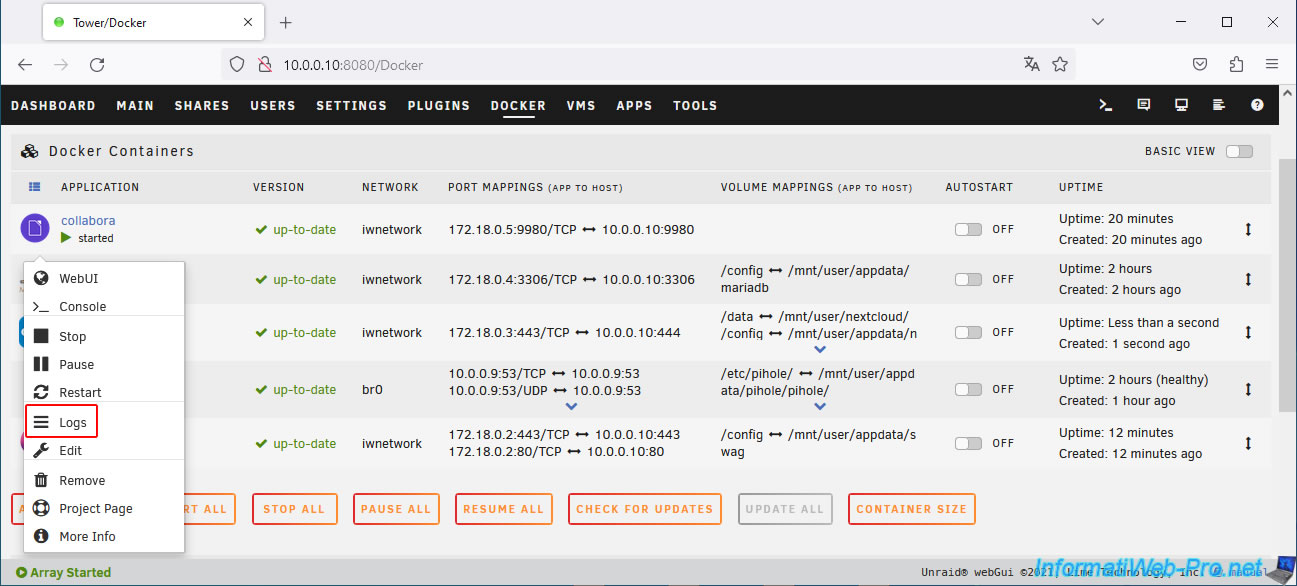
To get started, click on your "collabora" container icon, then on: Logs.
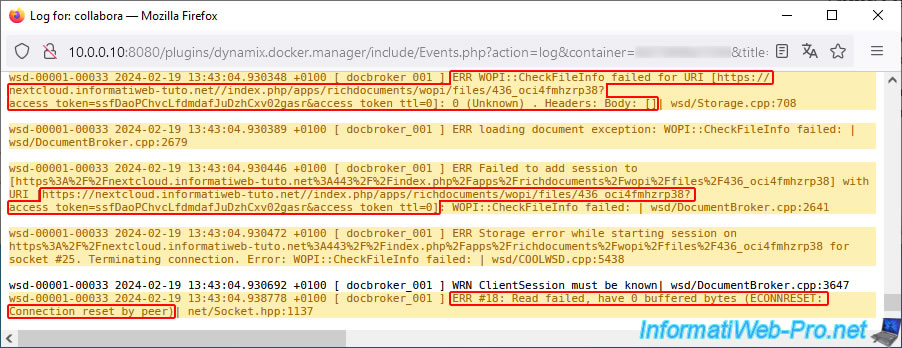
In the Collabora logs, you'll see that Collabora is internally attempting to contact your Nextcloud server using your external domain name (which points to your external IP address).
As you already know, you can't communicate with your external IP address from your own local network because loopback is blocked by default by all routers.
Hence, the response is 0 (0 buffered bytes) and your Collabora server receives nothing (Headers: Body: []) because the packets are simply blocked at your network level (Connection reset by peer).
Plain Text
ERR WOPI::CheckFileInfo failed for URI [https://nextcloud.informatiweb-tuto.net//index.php/apps/richdocuments/wopi/files/436_oci4fmhzrp38?access_token=...&access_token_ttl=0]: 0 (Unknown) . Headers: Body: []| wsd/Storage.cpp:708
ERR loading document exception: WOPI::CheckFileInfo failed: | wsd/DocumentBroker.cpp:2679
ERR Failed to add session to [https%3A%2F%2Fnextcloud.informatiweb-tuto.net%3A443%2F%2Findex.php%2Fapps%2Frichdocuments%2Fwopi%2Ffiles%2F436_oci4fmhzrp38] with URI [https://nextcloud.informatiweb-tuto.net//index.php/apps/richdocuments/wopi/files/436_oci4fmhzrp38?access_token=...&access_token_ttl=0]: WOPI::CheckFileInfo failed: | wsd/DocumentBroker.cpp:2641
ERR Storage error while starting session on https%3A%2F%2Fnextcloud.informatiweb-tuto.net%3A443%2F%2Findex.php%2Fapps%2Frichdocuments%2Fwopi%2Ffiles%2F436_oci4fmhzrp38 for socket #25. Terminating connection. Error: WOPI::CheckFileInfo failed: | wsd/COOLWSD.cpp:5438
...
ERR #18: Read failed, have 0 buffered bytes (ECONNRESET: Connection reset by peer)| net/Socket.hpp:1137
Open the console for your "collabora" container by clicking on its icon, then on: Console.
Note: by default, the console for this container opens with user rights only.
Although not necessary in this case, you can open it as root if you wish by using the command "docker exec -u 0 -it collabora bash" from your Unraid server's terminal.

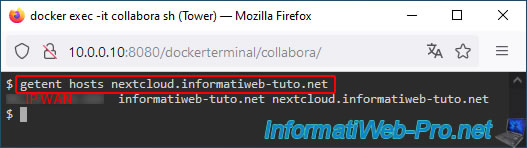
Use the "getent" command to find out what IP address your Collabora server receives when it attempts to resolve the domain "nextcloud.[your domain]".
As you can see, your Collabora server is currently receiving your external IP address for your subdomain "nextcloud.[your domain]".
Bash
getent hosts nextcloud.informatiweb-tuto.net
Plain Text
[IP WAN] informatiweb-tuto.net nextcloud.informatiweb-tuto.net
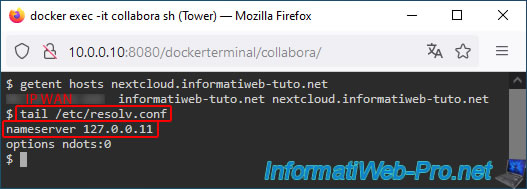
For your information, the contents of the "/etc/resolv.conf" file are the same as those for your "nextcloud" container.
This "collabora" container also uses the local DNS server "127.0.0.11".
Bash
tail /etc/resolv.conf
Note: commands are very limited in this Docker container, and the "nano" command does not exist in this case.
Hence the use of the "tail" command, which displays the same result in this case.
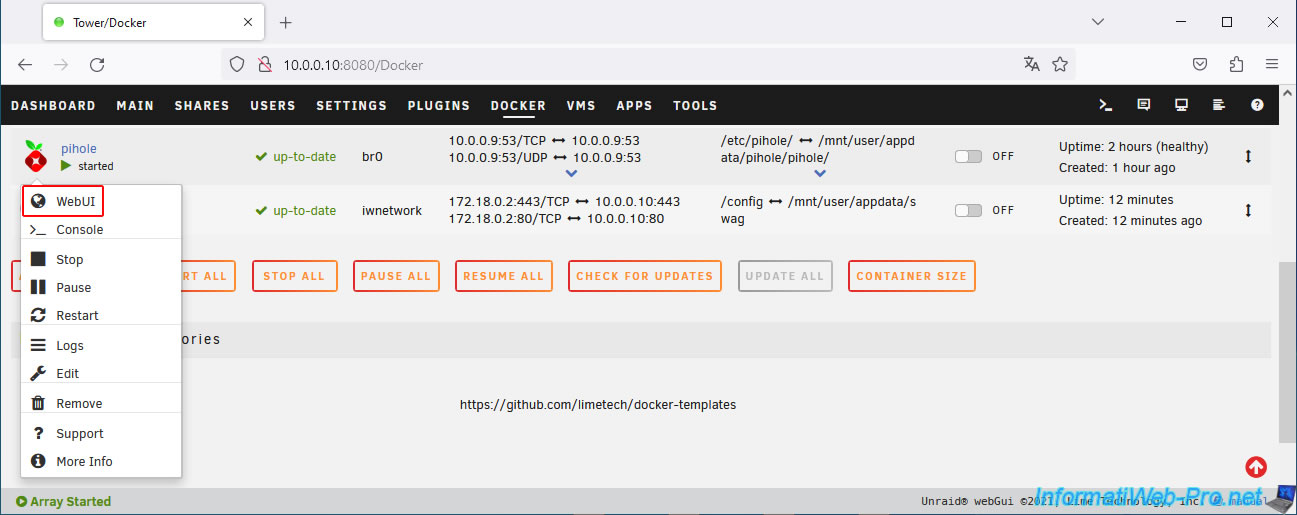
Access your local "Pi-hole" DNS server web interface by clicking on your "pihole" container icon, then on: WebUI.
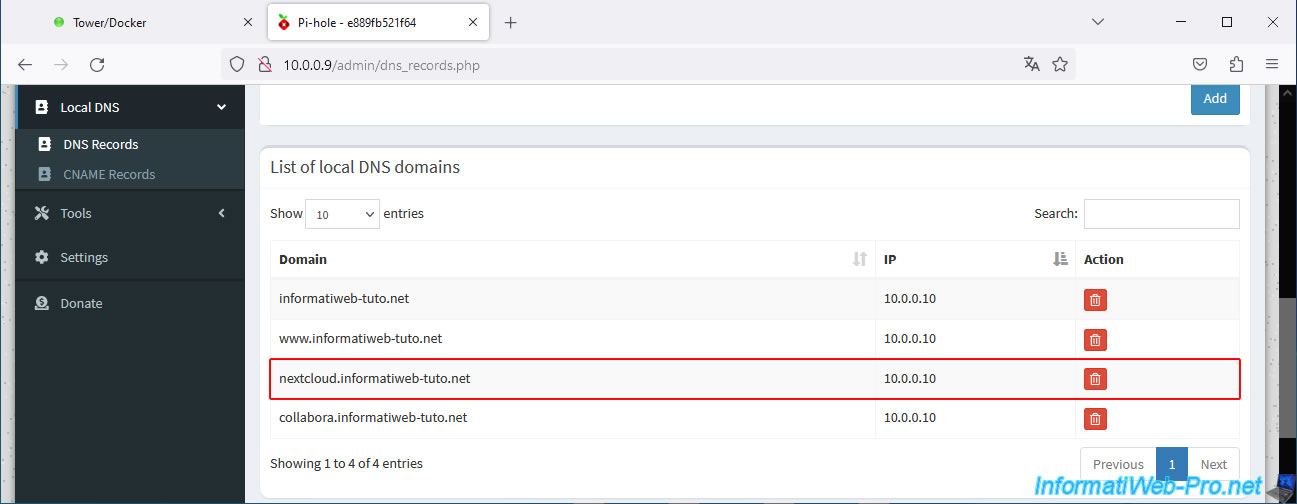
Go to the "Local DNS -> DNS Records" section and verify that the entry for your subdomain "nextcloud.[your domain]" exists in the "List of local DNS domains" list and that the associated IP address matches the LAN IP address of your Unraid server.
If you've followed our Nextcloud tutorials so far, this should be the case. If not, add this line.
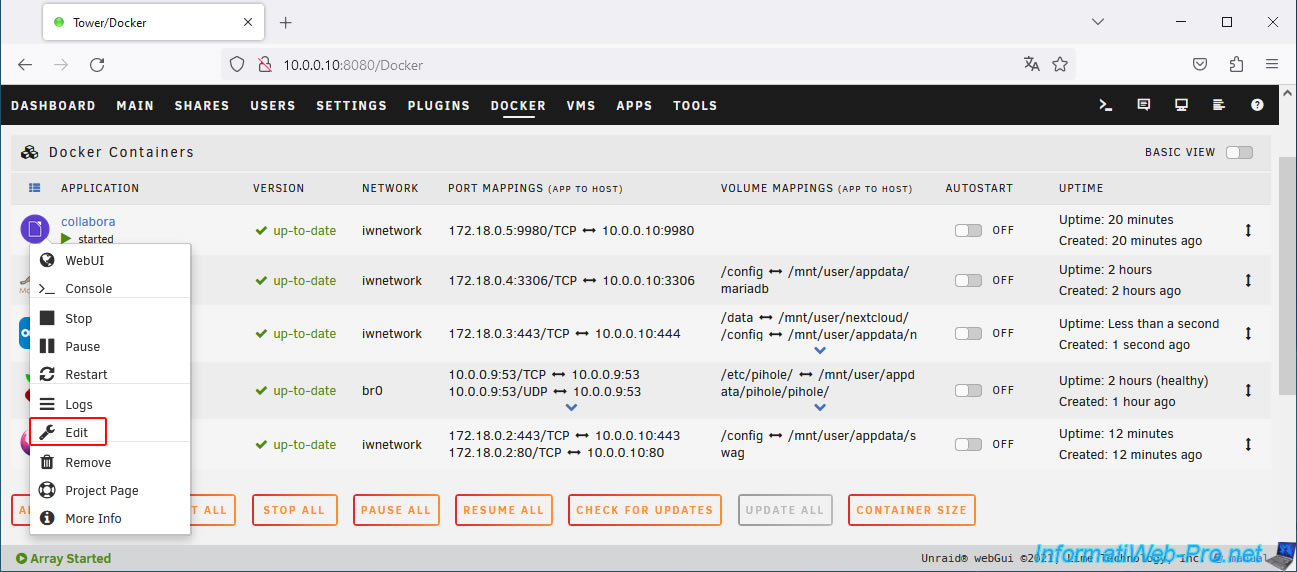
Now that your local "Pi-hole" DNS server is correctly configured, modify the configuration of your "collabora" container by clicking on its icon, then on: Edit.
Click on the "Basic view" selector located at the top right of the page to access the advanced view.
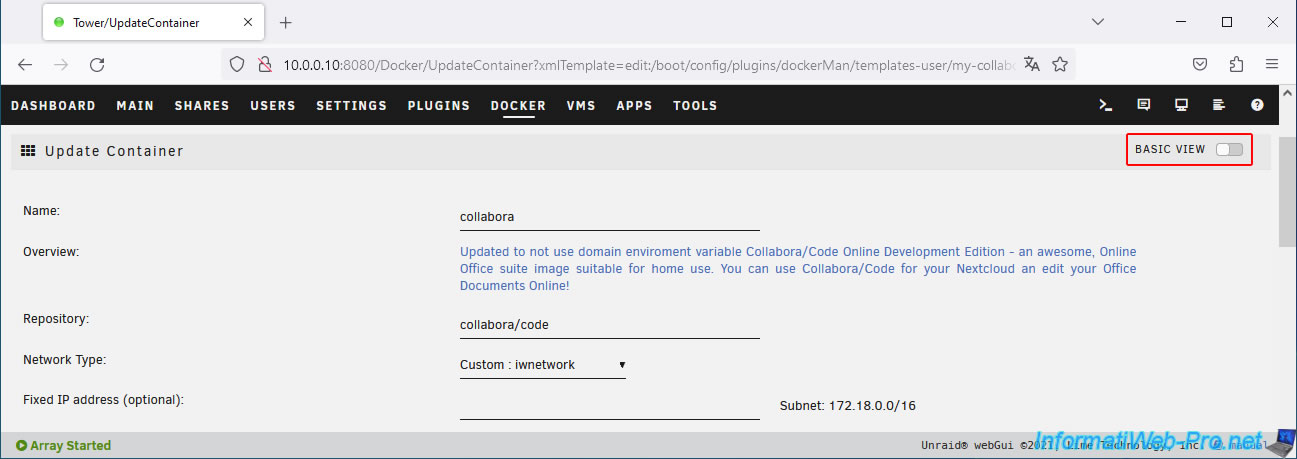
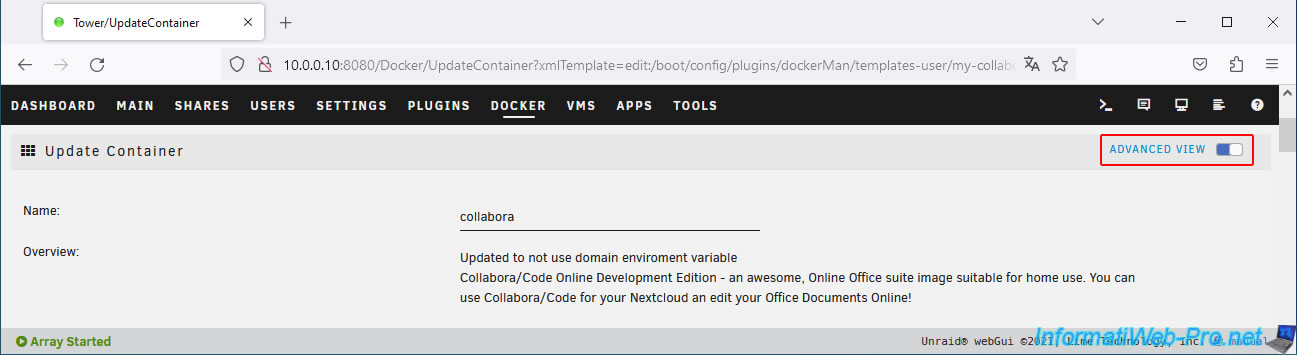
The Advanced view appears.
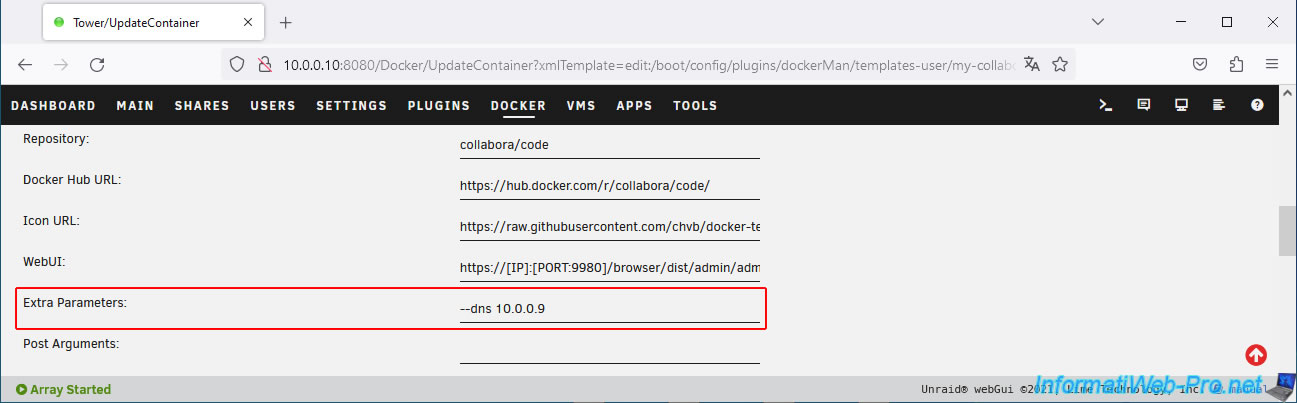
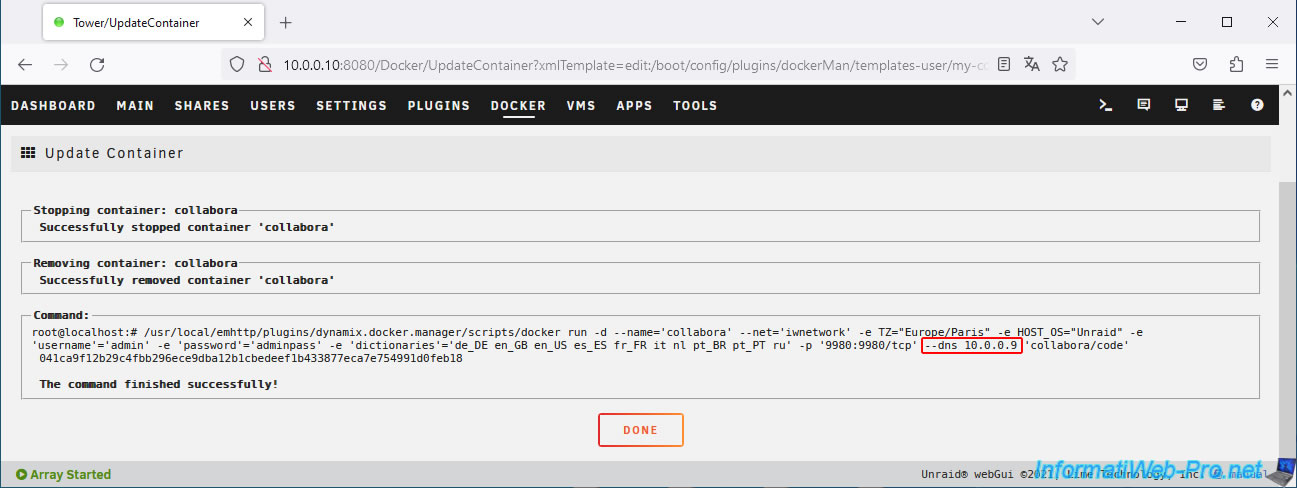
In the "Exta Parameters" box, enter "--dns 10.0.0.9" as before (where "10.0.0.9" is the IP address of your local "Pi-hole" DNS server).
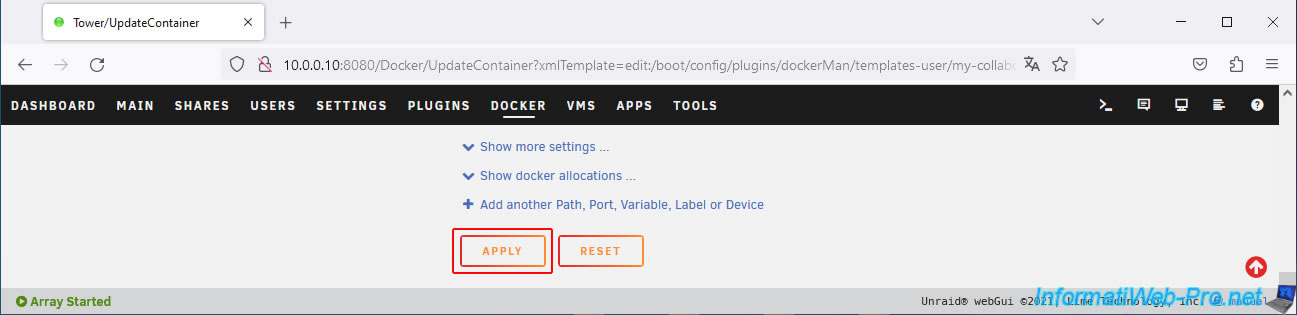
At the bottom of the page, click on: Apply.
In the Docker command launched by Unraid, you'll see that this new parameter has been added: "--dns 10.0.0.9".
Click Done.
Open your "collabora" container console again and type the command below again.
Bash
getent hosts nextcloud.informatiweb-tuto.net
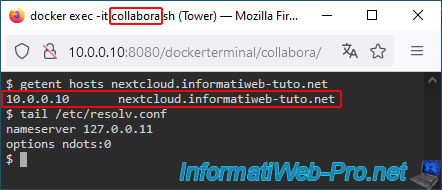
As you can see, Collabora now receives the LAN IP address of your Unraid server when it attempts to resolve your domain name "nextcloud.[your domain]".
This will allow Collabora to communicate locally with Nextcloud via your reverse proxy (as explained previously).
Plain Text
10.0.0.10 informatiweb-tuto.net nextcloud.informatiweb-tuto.net
The DNS server used is still specified as "127.0.0.11" in this container's "/etc/resolv.conf" file.
However, as explained above, your "collabora" container now uses your "Pi-hole" DNS server specified via the "--dns" parameter.
Bash
tail /etc/resolv.conf
Plain Text
nameserver 127.0.0.11
Share this tutorial
To see also
-
NAS 2/18/2026
Unraid 6.9.2 - Change temperature thresholds
-

NAS 3/18/2026
Unraid 6.9.2 - Fixing common problems
-

NAS 9/2/2026
Unraid 6.9.2 - VMs - Create a gaming virtual machine (accessible via Parsec)
-
NAS 9/16/2026
Unraid 6.9.2 - VMs - Hotplug USB devices (Libvirt Hotplug USB plugin)
No comment