- Windows Server
- WSUS
- 11 November 2026 at 09:17 UTC
-

- 1/9

In a business environment, you can centralize the management of Microsoft updates (Windows, Windows Server, Office, etc.) by installing an update server called "WSUS" (Windows Server Update Services).
For detailed information about this "WSUS" server, please refer to our article: What is a WSUS server and why install it in a business?
Notes :
- an Active Directory infrastructure is used to centrally configure all servers and client workstations to contact your new WSUS server instead of the official "Microsoft Update" server to search for and install updates (for Windows and other selected Microsoft products on your WSUS server).
- by default, the first WSUS server you install will act as the master WSUS server.
In a small business, a single WSUS server is sufficient. However, in larger businesses, you might need multiple WSUS servers to distribute the workload based on the physical location or department where the servers or client workstations to be updated are located.
- Installing a WSUS (Windows Server Update Services) server
- Initial configuration of your master WSUS server
- WSUS console overview
- Managing updates under WSUS
- Configure the servers and computers to use WSUS
- Global configuration via GPO to use a WSUS server
- Targeting WSUS server clients
- Update the policieis
- Check for available updates on Windows Server 2022 via WSUS
- Check for available updates on Windows 10 via WSUS
- Check the update status of servers and computers from the WSUS server
- Installing Windows updates via WSUS
1. Installing a WSUS (Windows Server Update Services) server
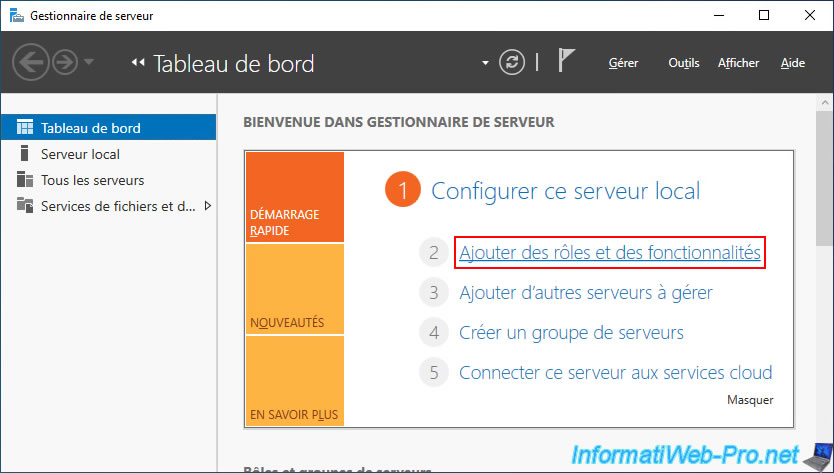
To install a WSUS (Windows Server Update Services) server on Windows Server 2022, start by opening Server Manager and clicking on the "Add roles and features" link.
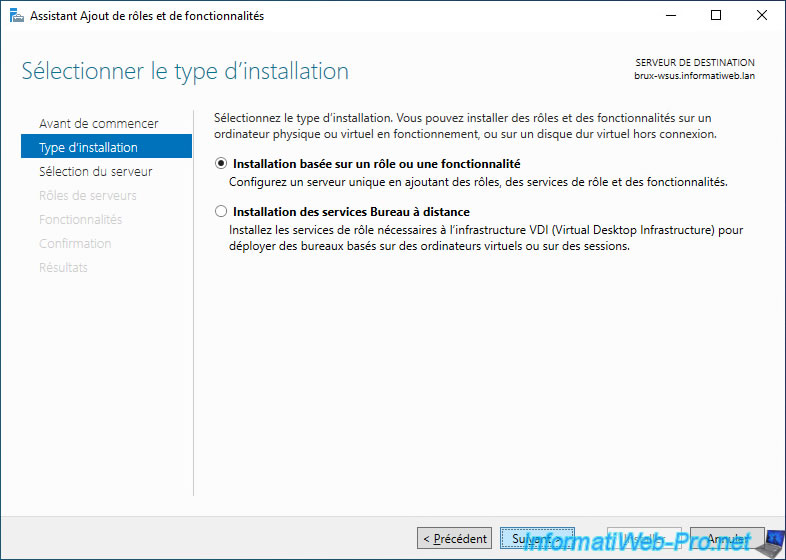
Select "Role-based or feature-based installation".
Select the "WSUS (Windows Server Update Services)" role.
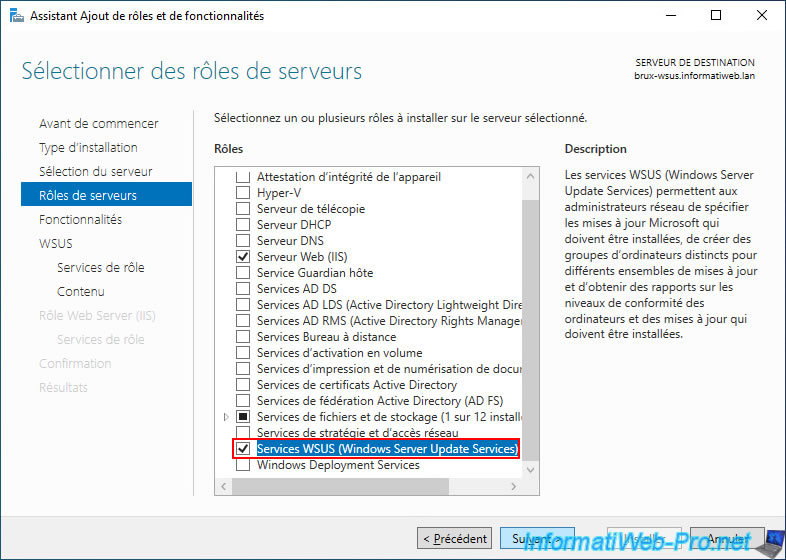
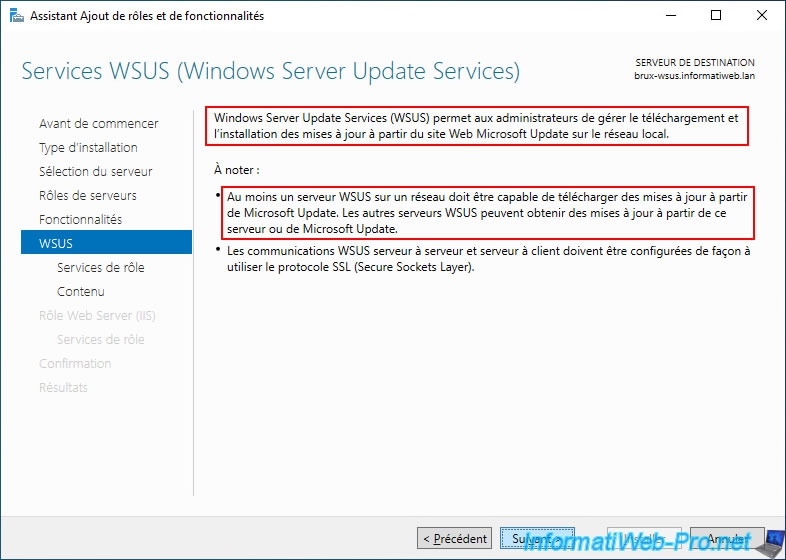
As the Add Roles and Features Wizard explains, Windows Server Update Services (WSUS) allows you to manage the download and installation of updates via Windows Update on the local network.
As expected, at least one WSUS server must have access to Microsoft Update (Microsoft's official update server) to download the desired updates.
Then, your other WSUS servers, as well as your other servers and client workstations, will download their updates from your WSUS server.
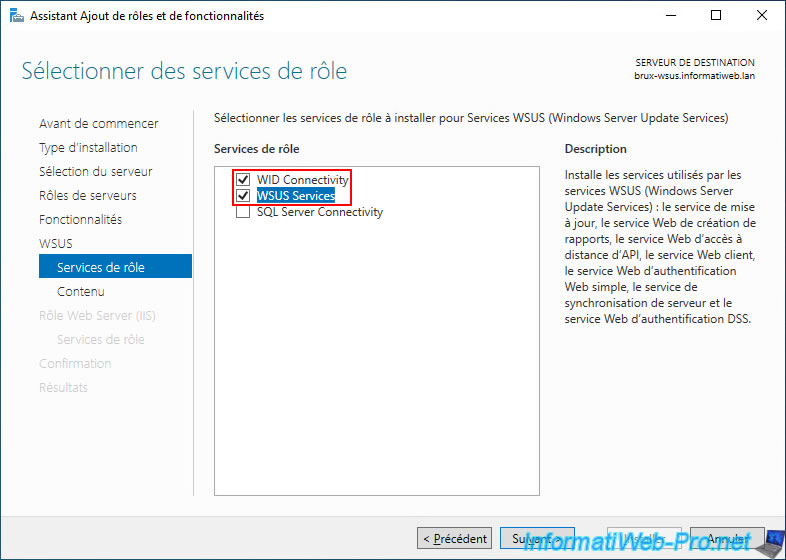
For WSUS, you can see that 3 role services are available:
- WID Connectivity: enables WSUS to use the internal Windows Server database.
- WSUS Services: the WSUS server itself.
- SQL Server Connectivity: allows you to store the WSUS database on a Microsoft SQL Server database server (optional).
This can be useful for large WSUS deployments or to leverage the power of Microsoft SQL Server (including data replication, etc.).
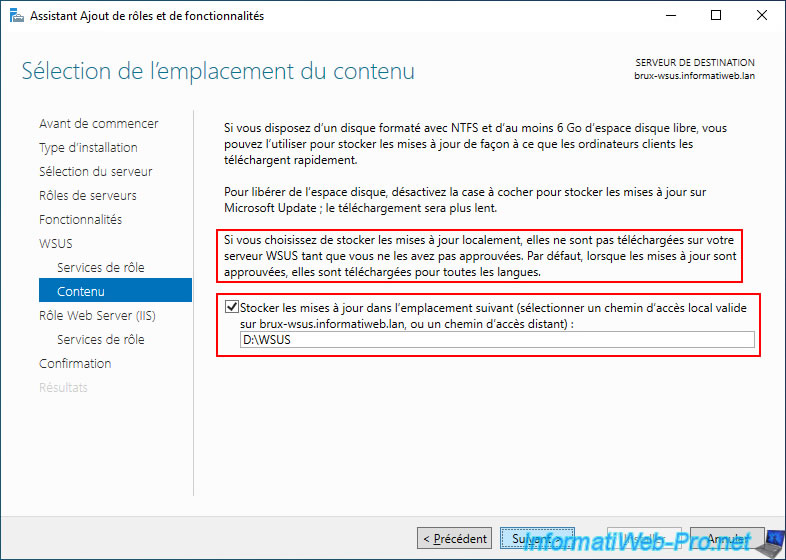
To avoid saturating your company's internet bandwidth, it is recommended to store downloaded updates on a local drive.
This way, your WSUS server will store the downloaded updates locally so it can then distribute them to your other servers or client workstations.
To do this, check the "Store updates in the following location..." box and type the path to the folder where you want to store them.
Preferably, this should be a different drive than the one where Windows Server is installed to avoid impacting Windows Server performance when downloading to or from this second drive.
In our case, we specified the path "D:\WSUS".
Important : as indicated in the wizard at this stage, updates are only downloaded by WSUS if you have not approved them.
This allows you to download only the updates you need for your servers or client workstations, but it also means that there will inevitably be a delay between the time you approve updates on your WSUS server and the time they are available for download to your servers and client workstations.
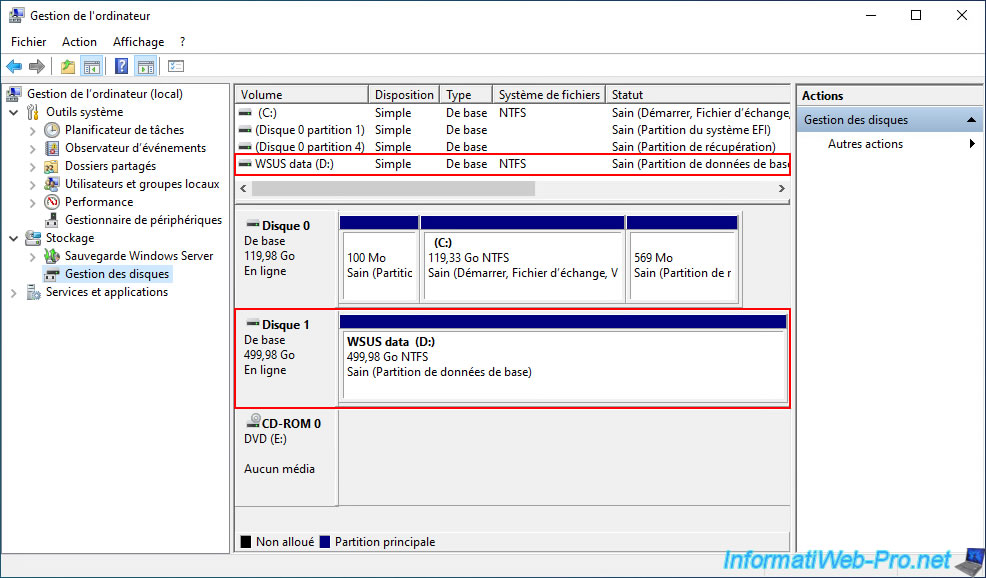
As you can see, in our case, the updates downloaded by the WSUS server will therefore be stored on a 500 GB disk different from the disk where Windows Server 2022 is installed.
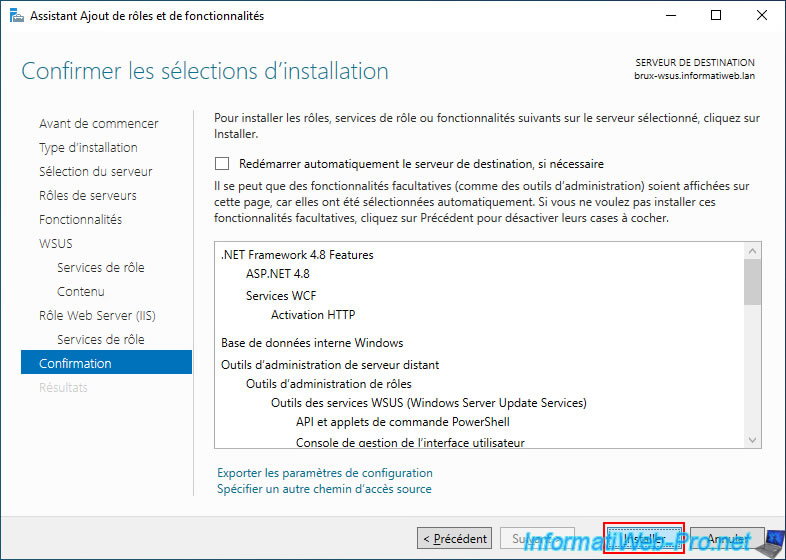
Click "Install" to start the installation of the "WSUS (Windows Server Update Services)" role.
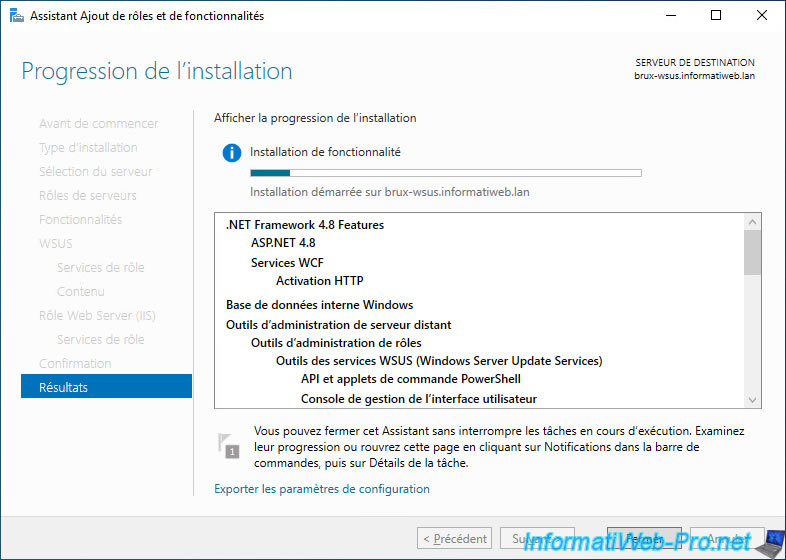
Please wait while the "WSUS (Windows Server Update Services)" role is being installed.
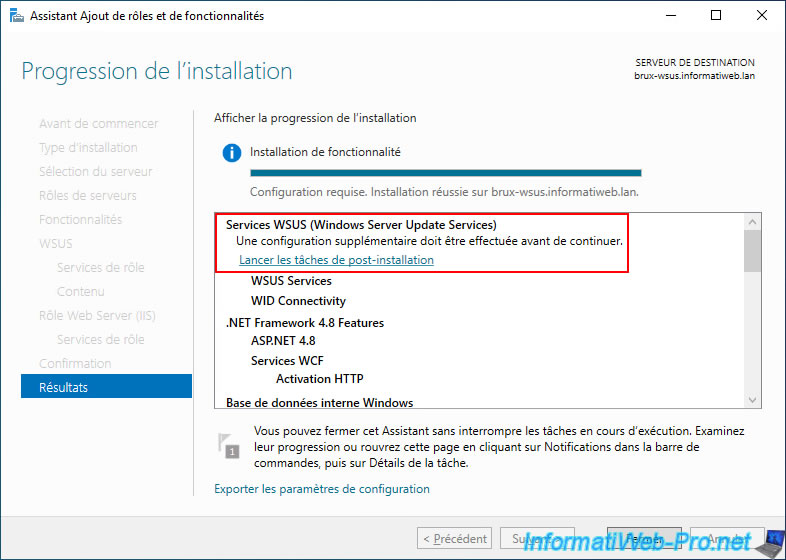
Warning : once the "WSUS (Windows Server Update Services)" role is installed, you must first click the "Launch post-installation tasks" link that appears.
As you can see, once the role installation is complete, a message will appear stating "Additional configuration is required before proceeding".
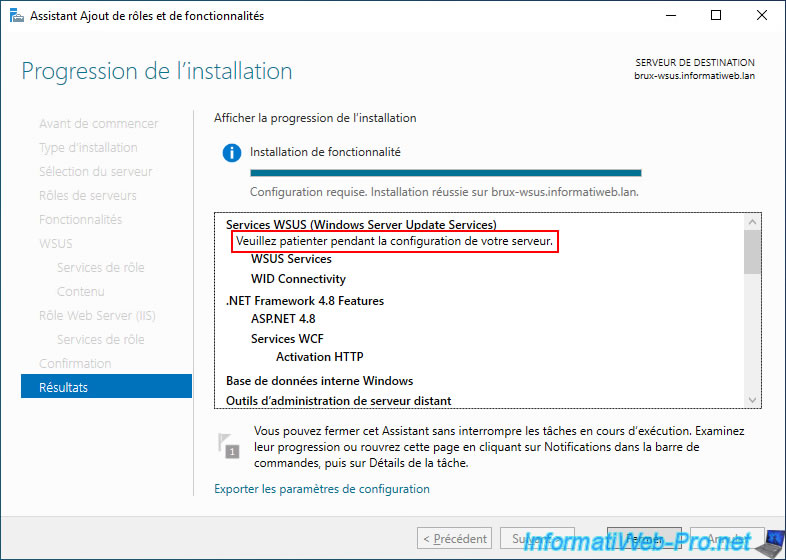
Once you click on this "Start post-installation tasks" link, another message will appear: "Please wait while your server is being configured".
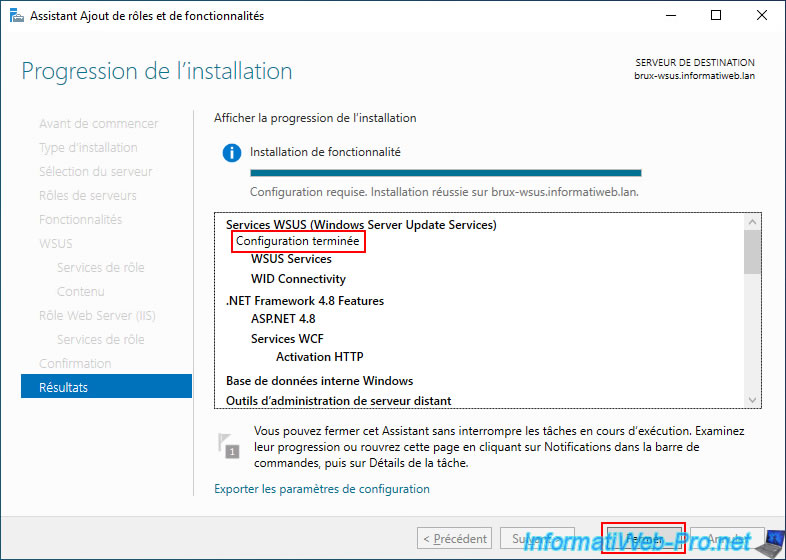
Once this setup process is complete, the message will change to "Setup complete".
Now, click "Close".
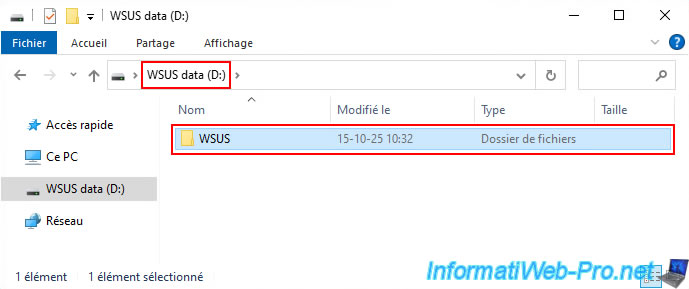
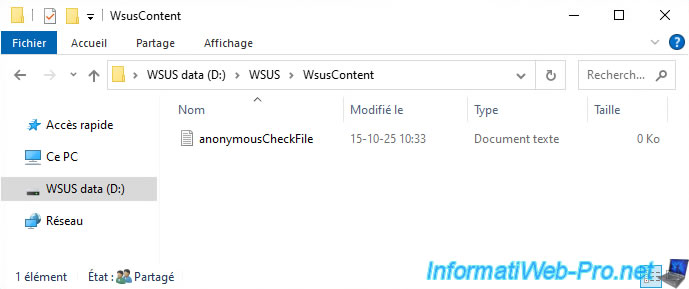
On your 2nd disk (in our case, the "WSUS data (D:)" disk), you will find the "WSUS" folder specified earlier in the Add Roles and Features Wizard.
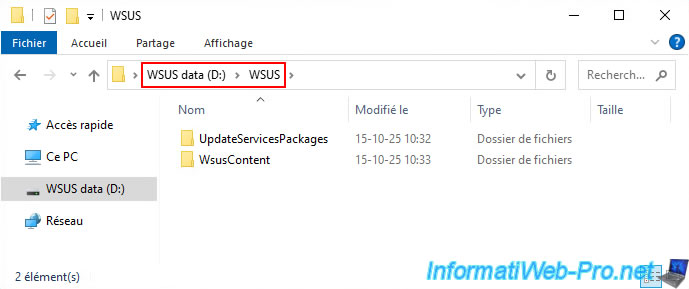
Within this "WSUS" folder, you will find 2 subfolders:
- UpdateServicesPackages: this folder is used to deliver third-party (non-Microsoft) updates if desired, using third-party tools or System Center Configuration Manager (SCCM).
- WsusContent: this folder will contain the update files that will be distributed to servers and client workstations connecting to your WSUS server via Windows Update.
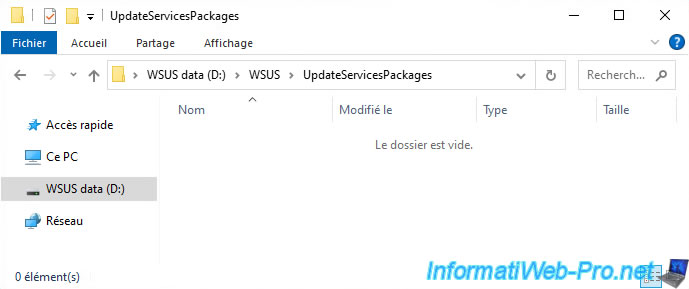
By default, the "UpdateServicesPackages" subfolder is empty.
By default, the "WsusContent" subfolder will contain an empty "anonymousCheckFile.txt" file.
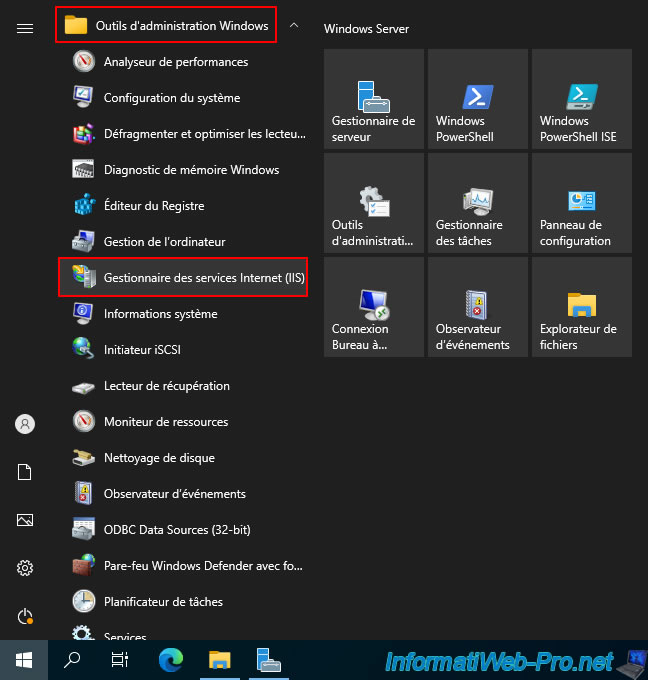
If you go to the start menu of your WSUS server and click on the "Windows Administrative Tools" folder, you will see that the "Internet Information Services (IIS) Manager" appears.
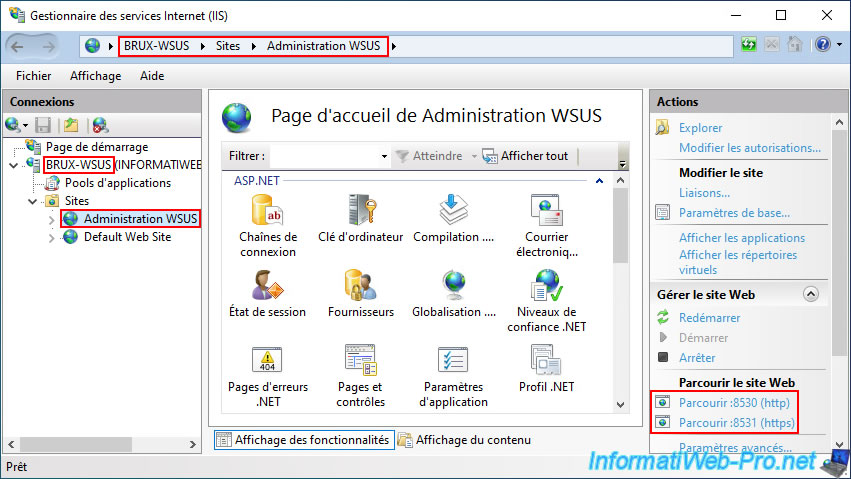
If you open IIS and go to the "Sites" folder, you'll see that a "WSUS Administration" site is accessible on port 8530 (for HTTP) and port 8531 (for HTTPS).
Note: you'll need this information later when you configure your Group Policy Objects (GPOs).
But you'll see how to do that later in this tutorial.

You must be logged in to post a comment