Install a master WSUS server on Windows Server 2022
- Windows Server
- WSUS
- 11 November 2026 at 09:17 UTC
-

- 5/9

5. Configure the servers and computers to use WSUS
To enable your servers and computers to use your WSUS server as a source to search for and download updates for Windows, Windows Server and other Microsoft products, some configuration via Group Policy Objects (GPO) is required.
5.1. Global configuration via GPO to use a WSUS server
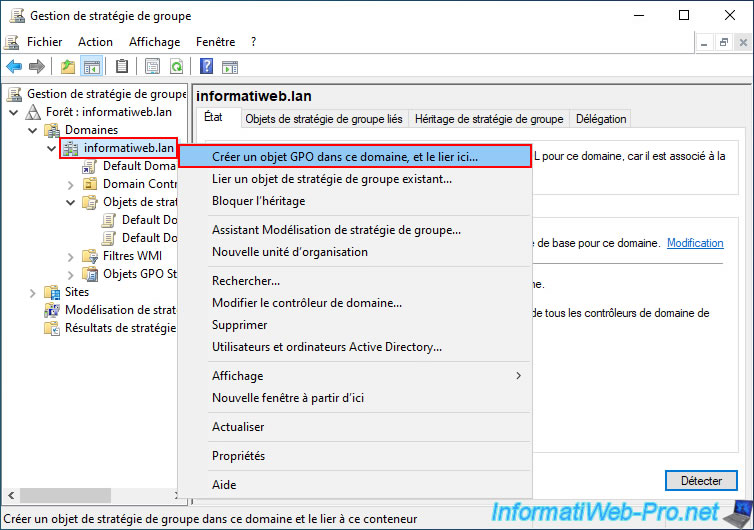
On your domain controller, open the "Group Policy Management" console and right-click "Create a GPO object in this domain, and link it here...".
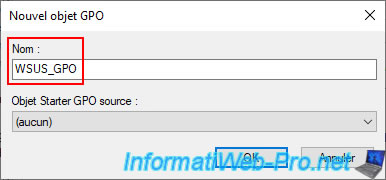
Specify a name for this GPO.
In our case: WSUS_GPO.
Note: this GPO allows you to configure global settings for using WSUS.
You can then create additional GPOs to distribute the different servers and computers into groups that you create within WSUS.
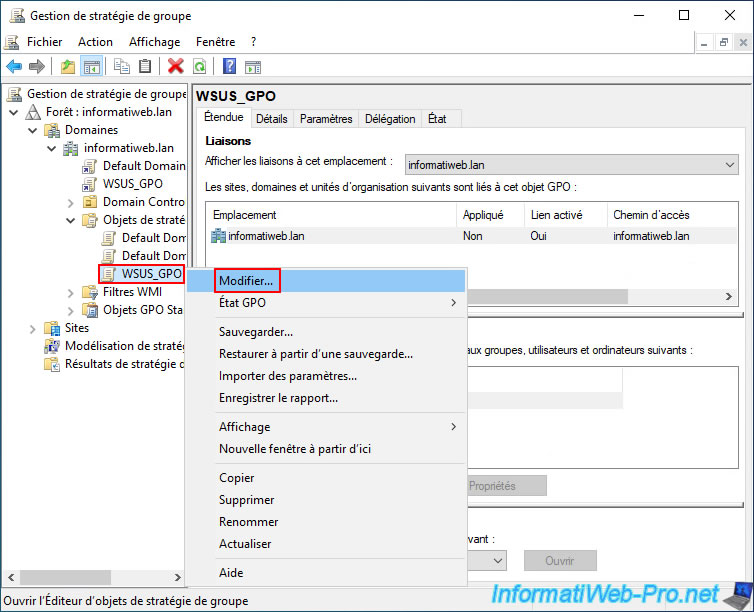
Next, right-click and select "Edit" on this "WSUS_GPO" object.
In the Group Policy editor that appears for this "WSUS_GPO" object, go to the section "Computer Configuration -> Policies -> Administrative Templates -> Windows Components -> Windows Update".
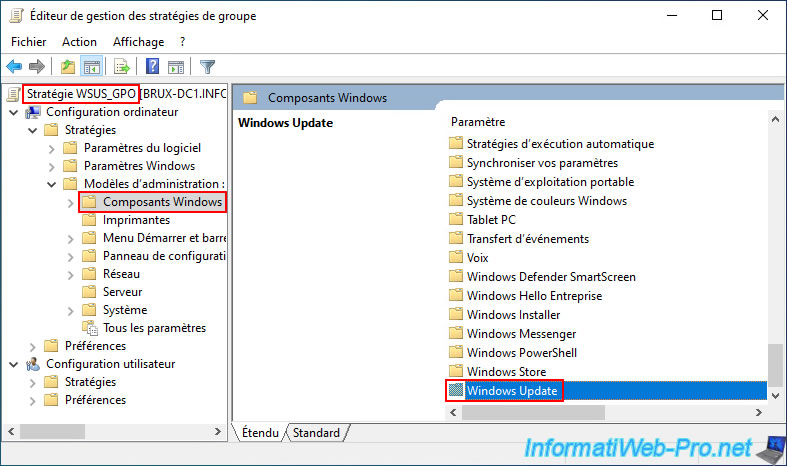
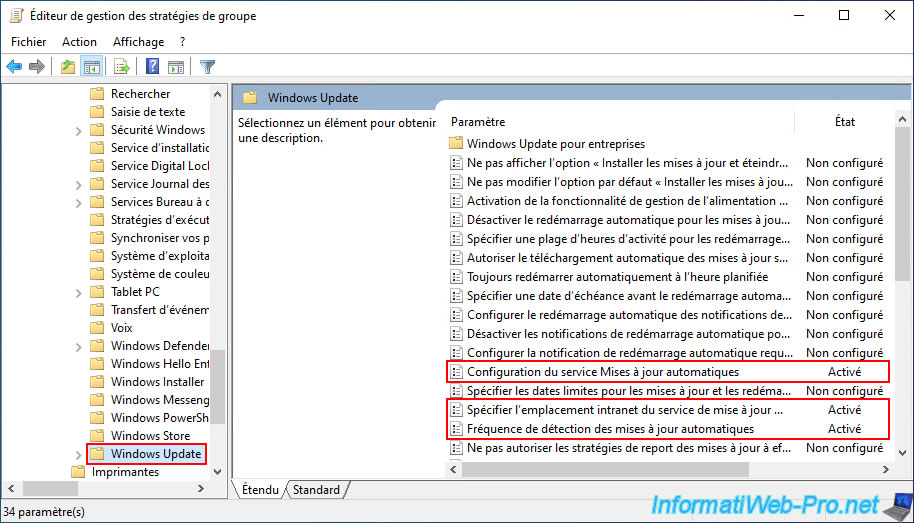
In this "Windows Update" folder, you will need to configure the settings:
- Configure the Automatic Updates service.
- Specify the intranet location of the Microsoft update service.
- Automatic update detection frequency.
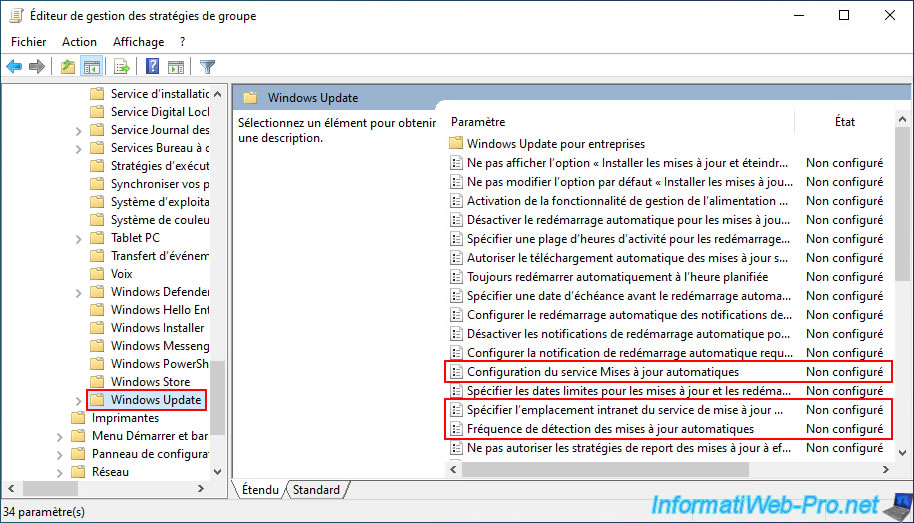
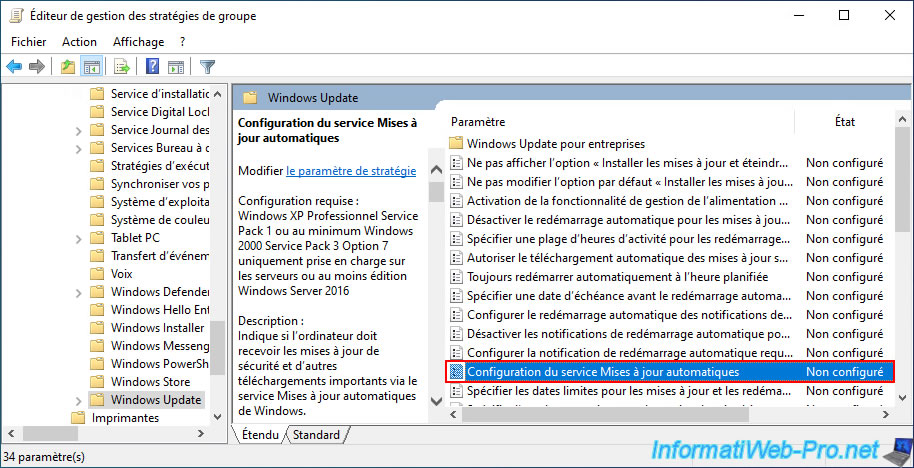
To begin, double-click on the "Automatic Updates Service Configuration" policy.
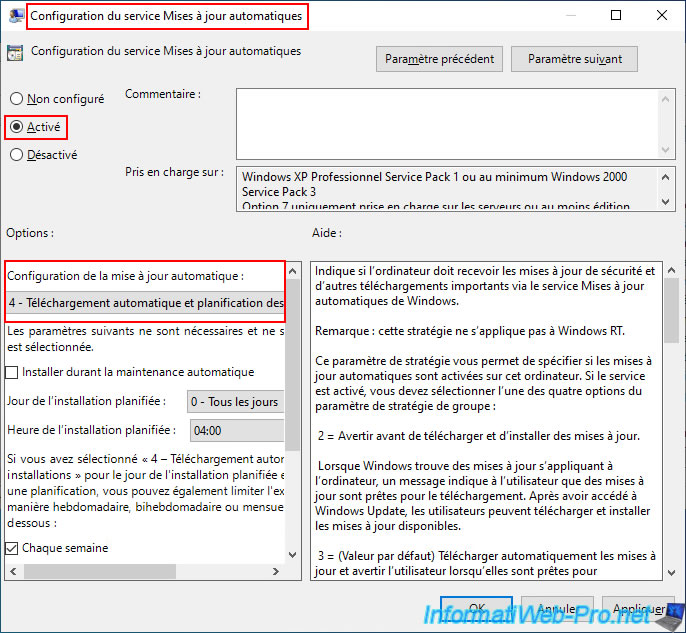
Enable the "Automatic Updates Service Configuration" policy and select option "4 - Automatic Download and Installation Scheduling".
This option allows your servers and computers to automatically download and install updates according to your desired schedule.
This ensures that your servers and computers remain up-to-date without requiring any intervention from your users.
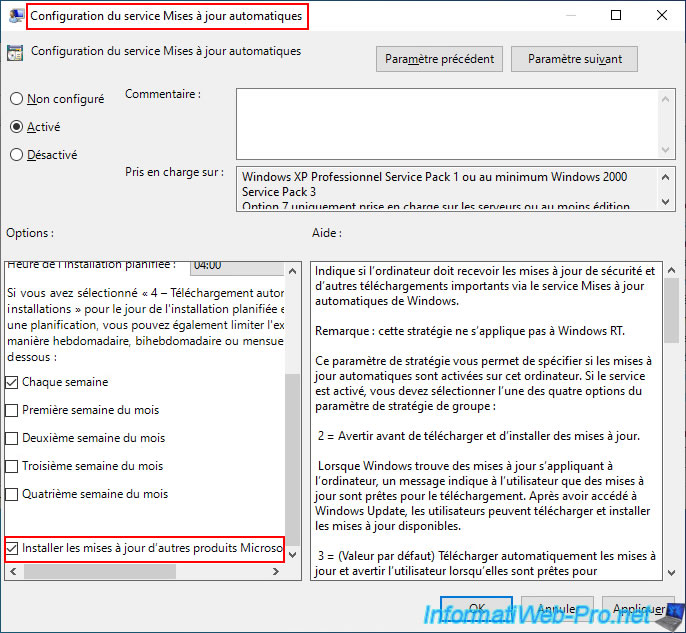
At the bottom, select the "Install updates for other Microsoft products" checkbox to ensure that all updates you approve for your servers and computers are downloaded and installed (including updates for other Microsoft products, such as Microsoft .NET Framework, Microsoft Office, Microsoft SQL Server, etc.).
Then, click OK.
The "Automatic Updates Service Configuration" policy is enabled.
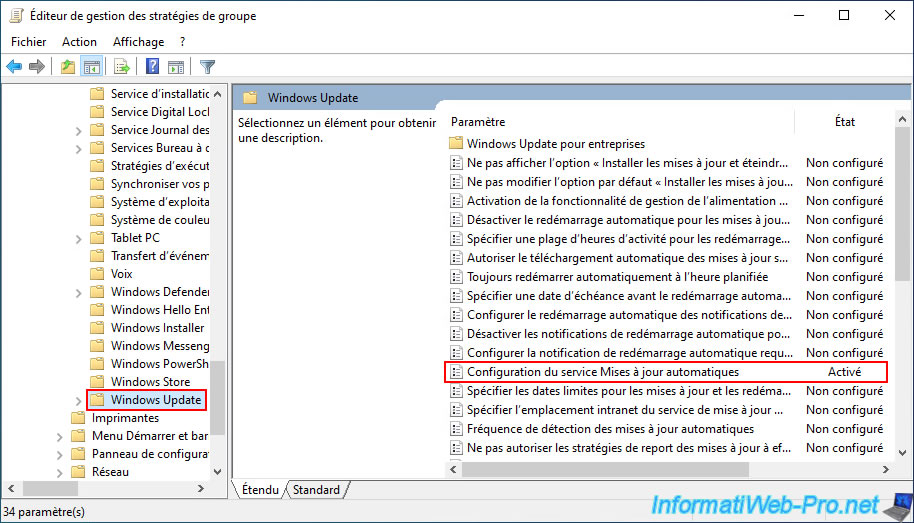
Now, double-click on the "Specify the intranet location of the Microsoft update service" policy.
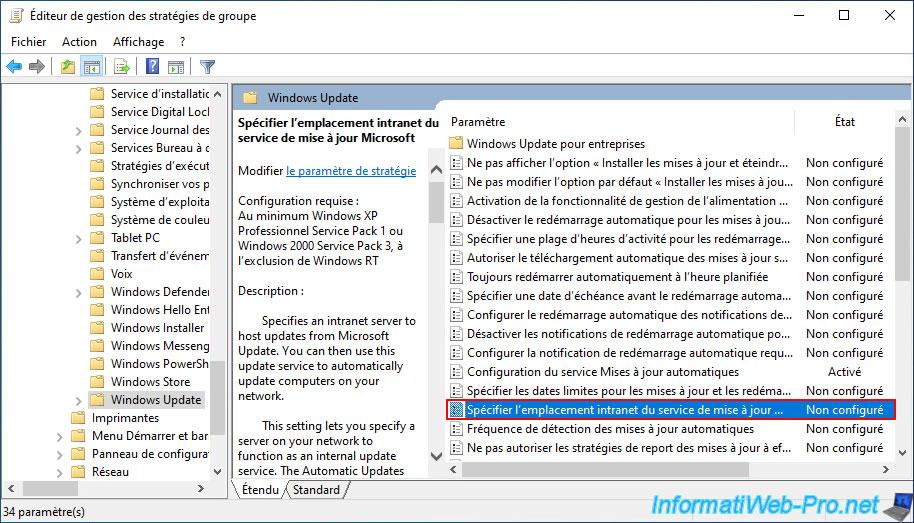
To configure the "Specify the intranet location of the Microsoft Update Service" policy, you will need the name of your WSUS server and the port to use.
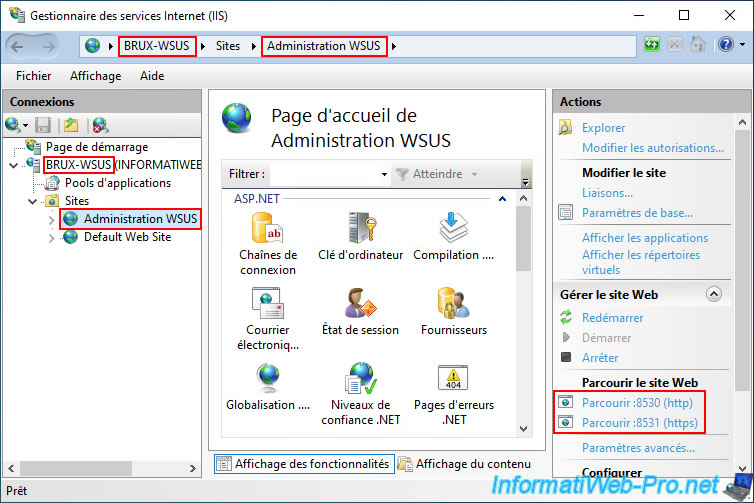
To find this information, simply open Internet Information Services (IIS) Manager from the Windows Server Start menu and select the "WSUS Administration" site.
As you can see in the bottom right corner, this site uses port 8530 (HTTP) and port 8531 (HTTPS).
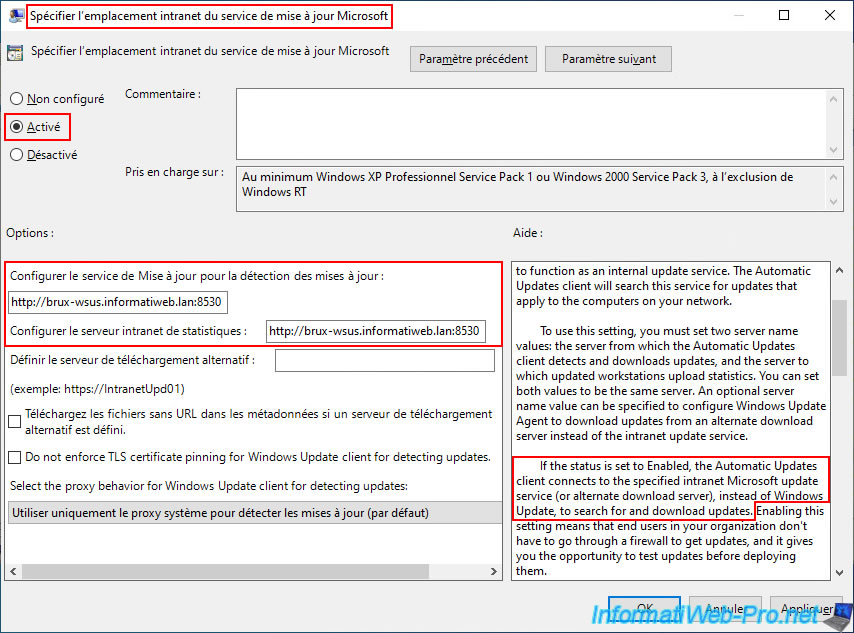
Enable this "Specify the intranet location of the Microsoft Update Service" policy and enter your WSUS server address using the HTTP protocol and the NETBIOS name (in the case of a workgroup) or the domain name (in the case of an Active Directory infrastructure) in the first two boxes:
- Configure the Update service for update detection.
- Configure the intranet statistics server.
In our case, we therefore enter the address "http://brux-wsus.informatiweb.lan:8530" in these two fields.
Note: as indicated in the description of this policy, enabling this policy means that the client (the server or computer in question) will connect to your local intranet WSUS server instead of Windows Update (Microsoft's server on the internet).
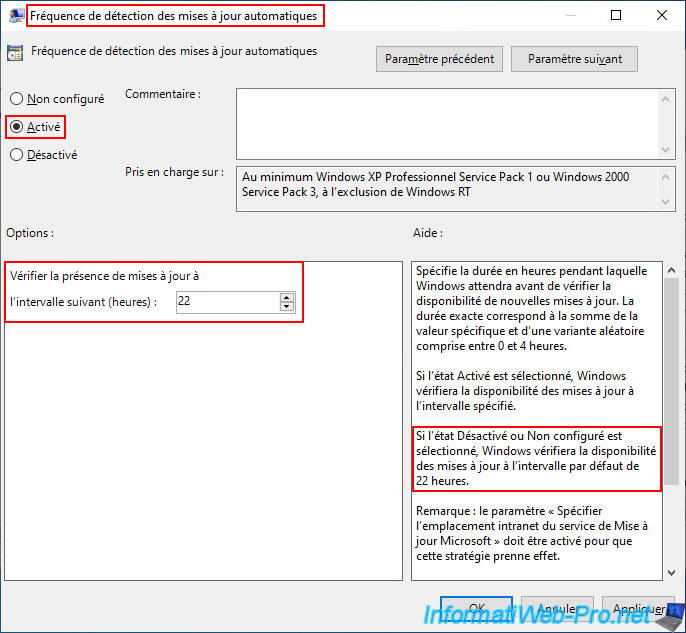
Finally, double-click on the "Automatic update detection frequency" policy.
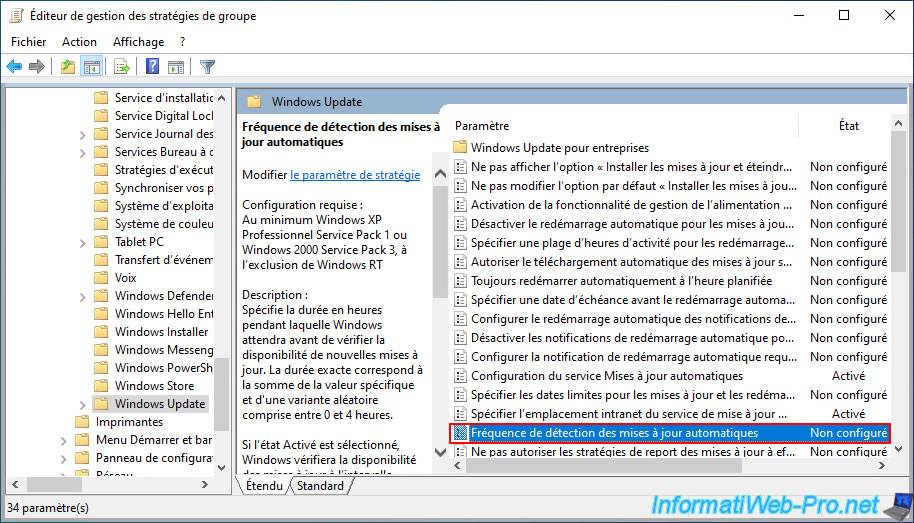
Enable the "Automatic Update Detection Frequency" policy and change the update check interval if desired.
Note: the default value for this update check interval is 22 hours.
The 3 group policies (GPOs) required to use WSUS are enabled and configured.

No comment