Install a master WSUS server on Windows Server 2022
- Windows Server
- WSUS
- 11 November 2026 at 09:17 UTC
-

- 7/9

5.2.4. Configure group policy objects (GPOs) to assign your servers and computers to WSUS groups
5.2.4.1. Configure group policy objects (GPOs) to assign your servers to the desired WSUS group
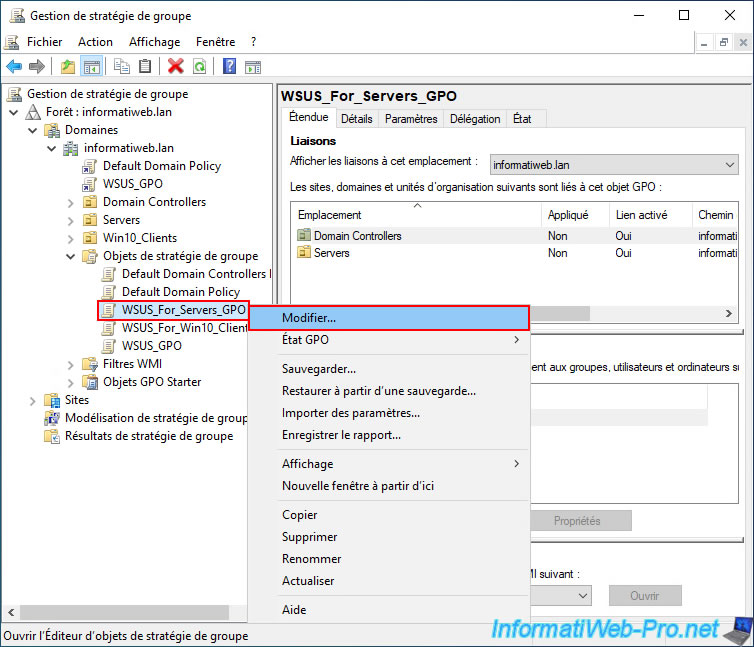
Now that your 2 empty GPO objects (1 GPO object per target WSUS group) are created, right-click "Edit" on the "WSUS_For_Servers_GPO" GPO object created first.
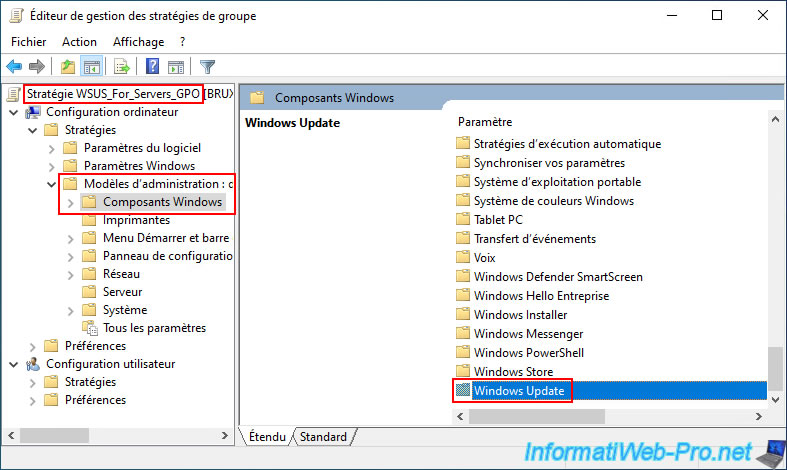
In the Group Policy editor that appears for this GPO object "WSUS_For_Servers_GPO", go again to the section "Computer Configuration -> Policies -> Administrative Templates -> Windows Components -> Windows Update".
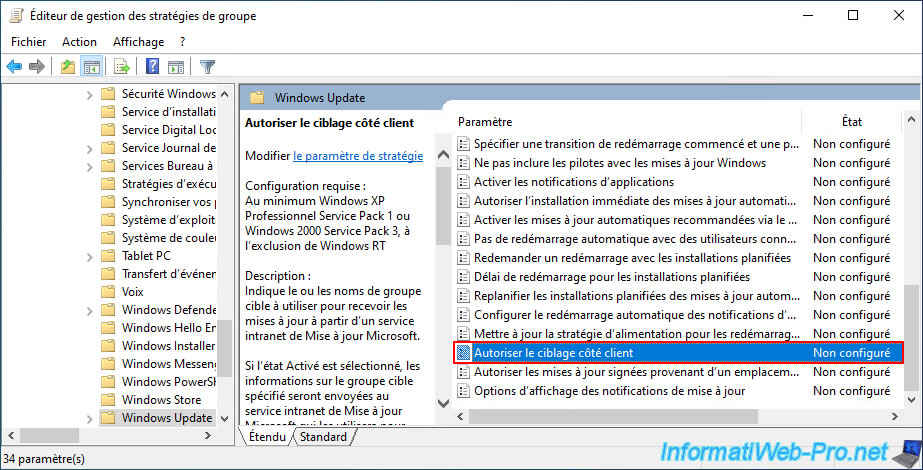
At the end of the list of available strategies in this "Windows Update" folder, double-click on the "Allow client-side targeting" policy.
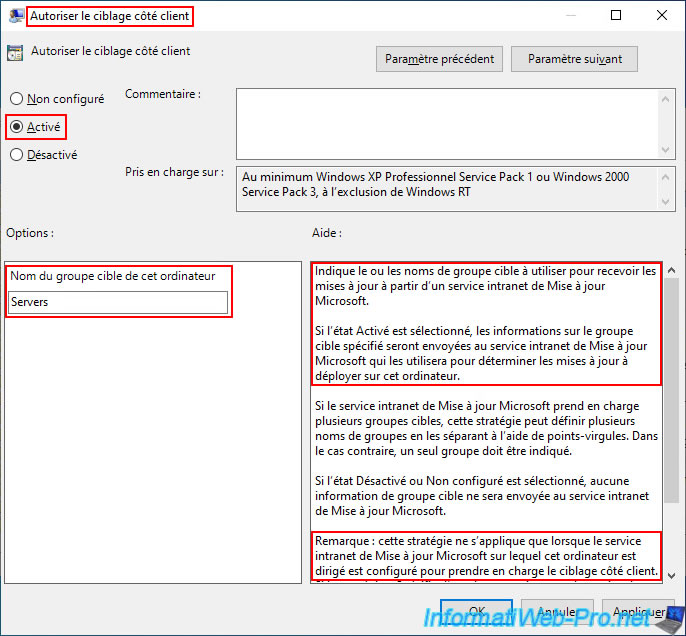
Enable the "Allow client-side targeting" policy and specify the desired WSUS group name.
For our GPO "WSUS_For_Servers_GPO", the WSUS group to specify here is "Servers".
Warning : as indicated towards the end of this policy description, this policy only applies if the WSUS server is configured to support client-side targeting. This means that your WSUS server should expect server and computer assignment to be performed via GPOs (which is the case thanks to the modified setting in the "Options -> Computers" section of your WSUS server).
5.2.4.2. Configure group policy objects (GPOs) to assign your computers to the desired WSUS group
This time, right-click and select "Edit" on the "WSUS_For_Win10_Clients_GPO" object created second.
Again, go to "Computer Configuration -> Policies -> Administrative Templates -> Windows Components -> Windows Update".
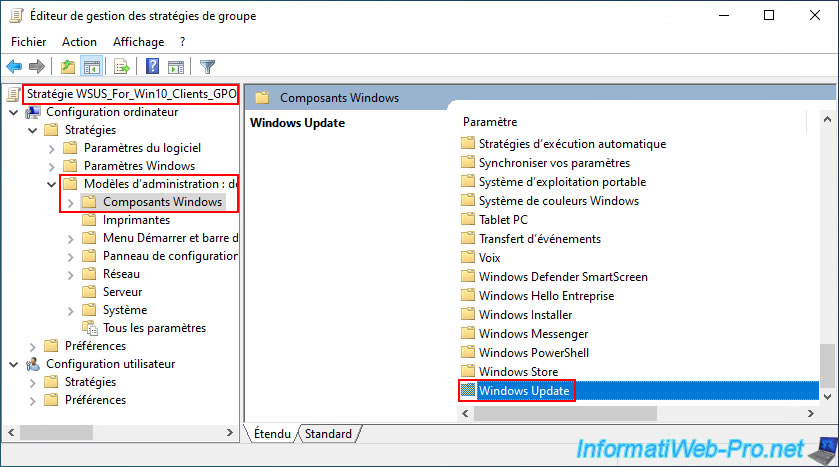
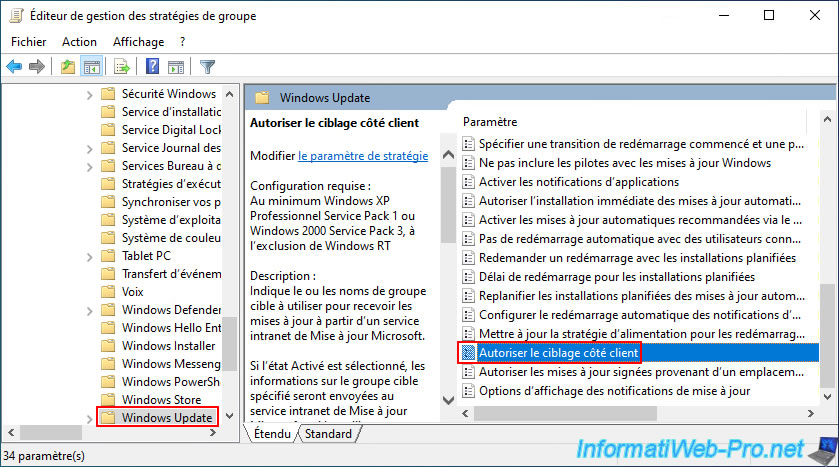
Double-click the "Allow client-side targeting" policy again.
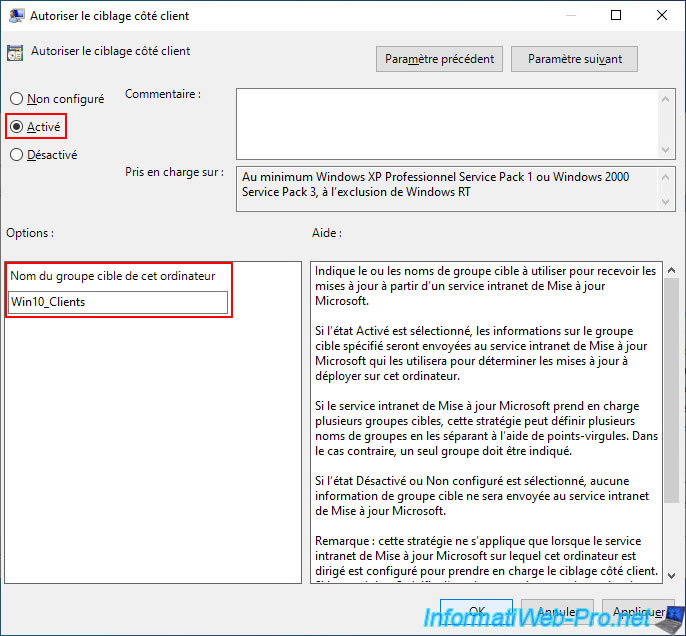
Activate this policy and this time specify the WSUS group name "Win10_Clients".
5.3. Update the policieis
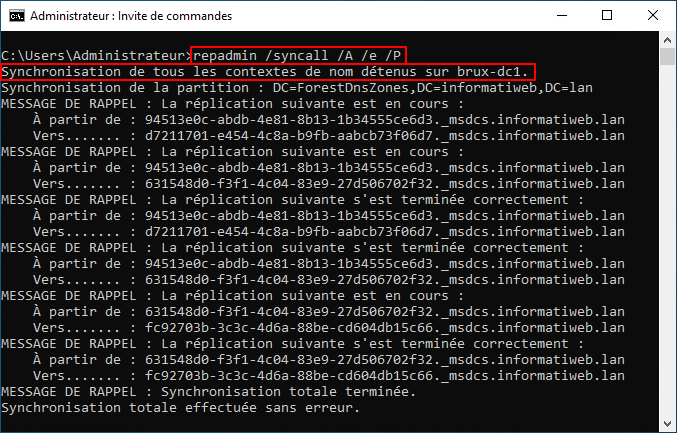
If you have multiple Active Directory domain controllers, it may be useful to force synchronization of Active Directory data (including GPO object references) to the other AD domain controllers.
Batch
repadmin /syncall /A /e /P
Warning : this command does not force replication of the SYSVOL folder containing the GPOs you just created.
Replication of the Active Directory "SYSVOL" folder is handled by a separate system (DFRS). Therefore, there may be a delay if some of your servers or computers depend on other domain controllers within your Active Directory domain.
Note: if you only have one Active Directory domain controller, this does not apply to you.
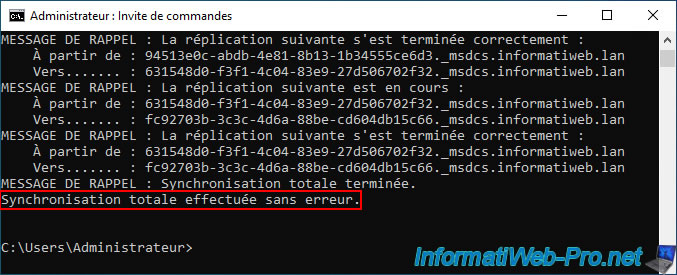
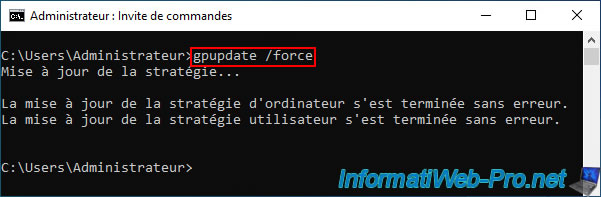
Next, force the Group Policy (GPO) update on your target servers and computers by running the "gpupdate" command.
Alternatively, simply wait for the update to occur automatically.
Batch
gpupdate /force
5.4. Check for available updates on Windows Server 2022 via WSUS
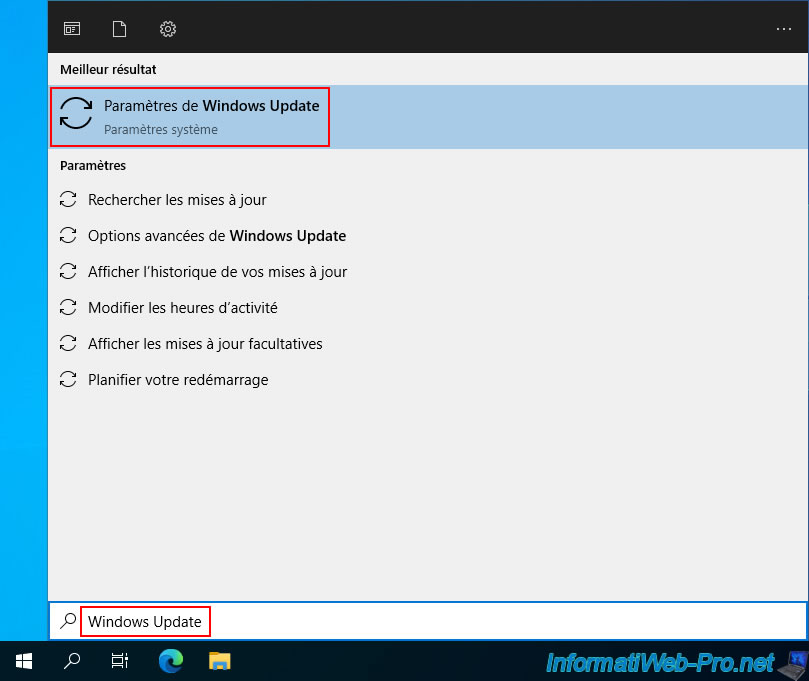
On one of your Windows Server servers, open the Start menu and type "Windows Update".
Then, click on the "Windows Update settings" result that appears.
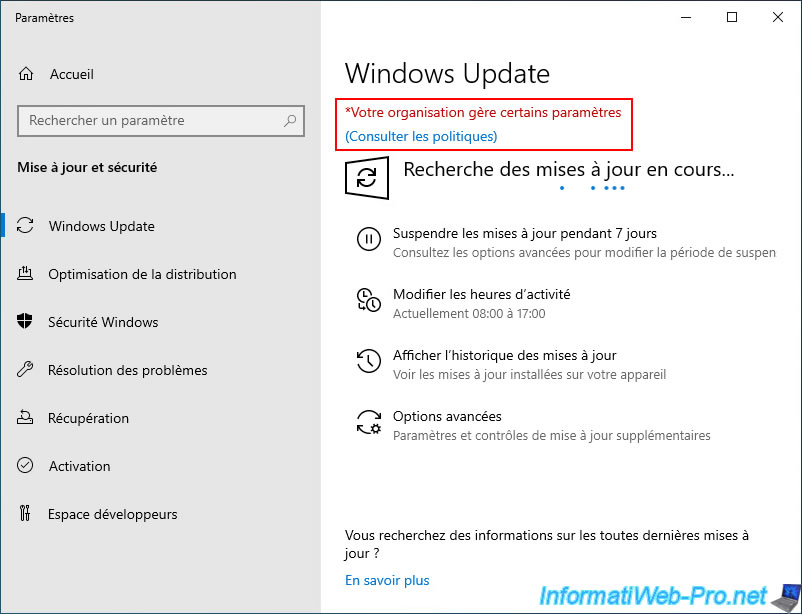
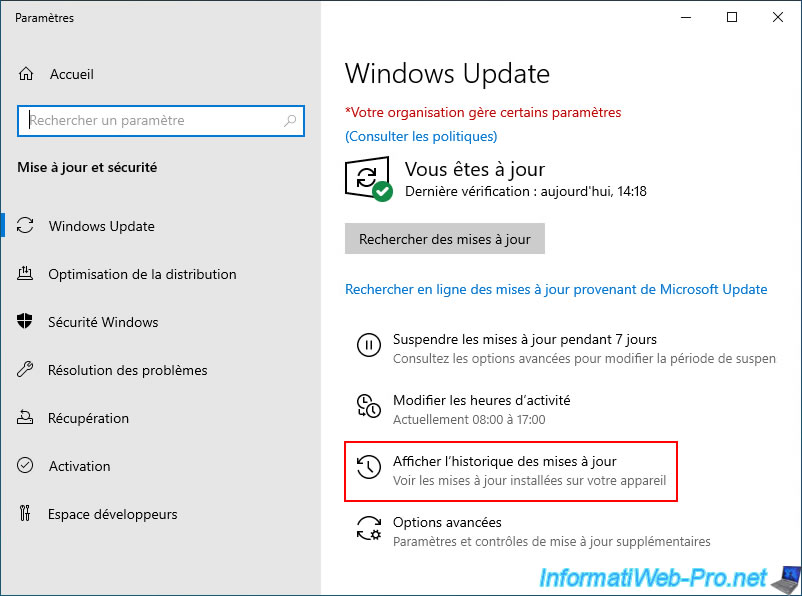
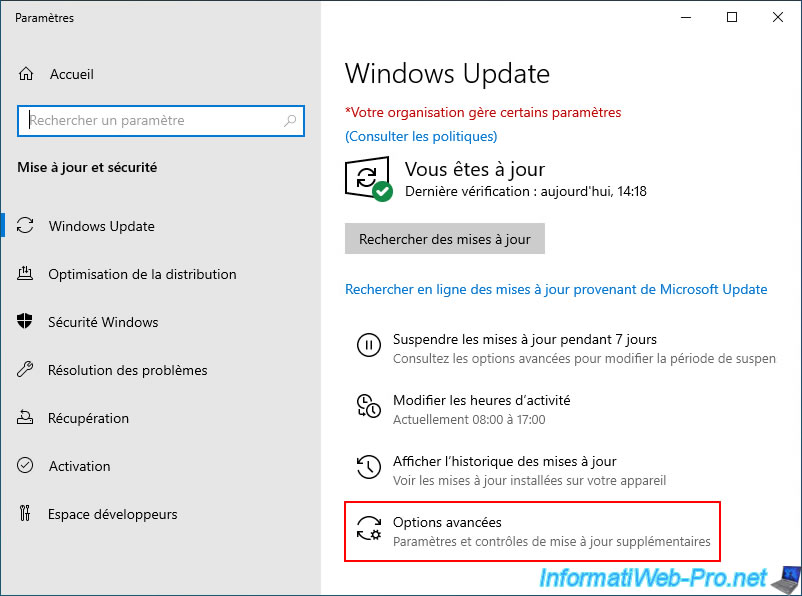
As you can see, a message "Your organization manages certain settings" appears in red in Windows Update.
Click the "(View policies)" link located just below it.
As you can see, the message displayed may be "Your organization has defined certain update management policies".
Additionally, you can see that the "Intranet Update Service for update detection" policy has been set on this device.
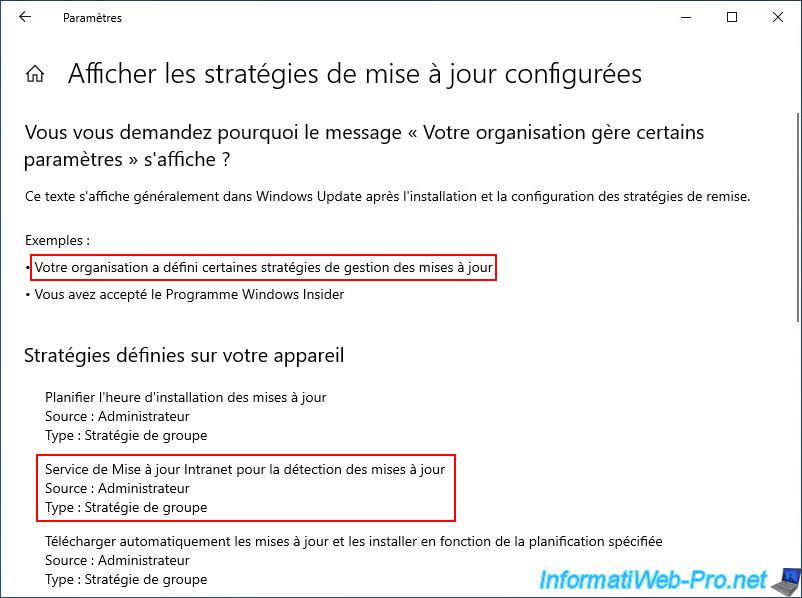
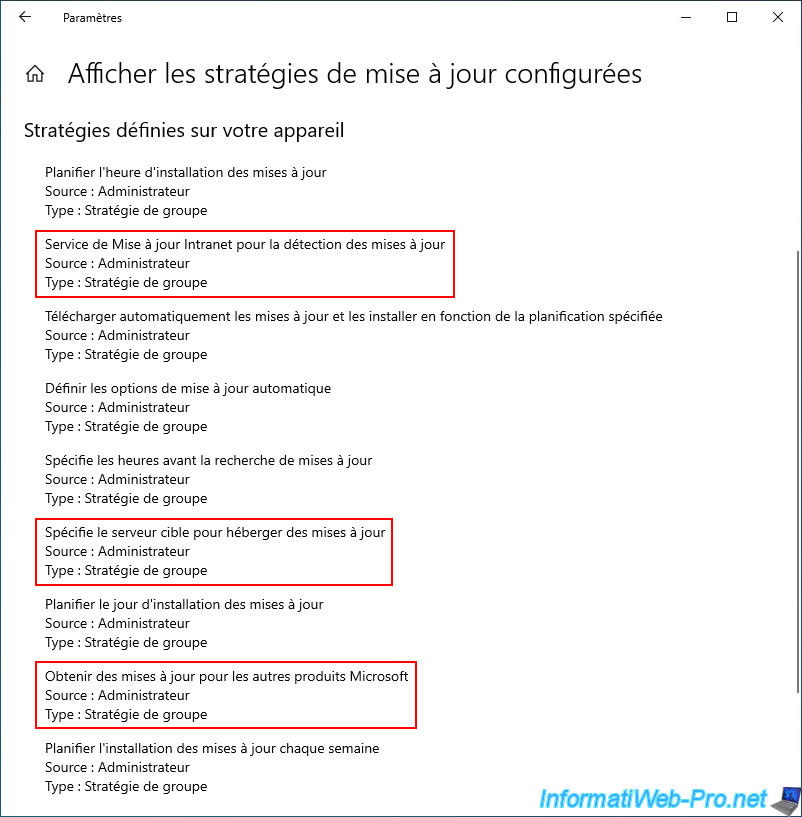
If you look at the complete list of strategies defined on your device for Windows Update, you will see the following policies:
- Intranet Update Service for detecting updates.
- Specifies the target server to host updates.
- Gets updates for other Microsoft products.
Note: the first two strategies mentioned above refer to using a local WSUS server instead of the official Microsoft Update server (on the internet).
The third policy refers to the "Install updates for other Microsoft products" checkbox displayed in the "Configure Automatic Updates" Group Policy Object (GPO).
As you can see, Windows Update on this server running Windows Server 2022 considers the server to be up to date.
Click "View update history".
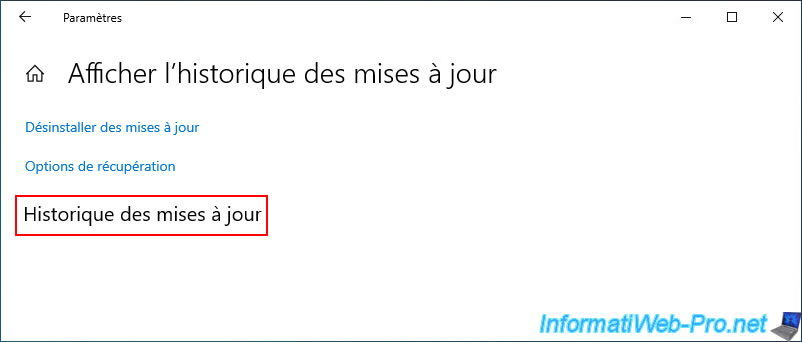
As you can see, no updates are currently installed on this server.
This is expected, as no updates have been approved for Windows Server 2022 servers on our WSUS server yet.
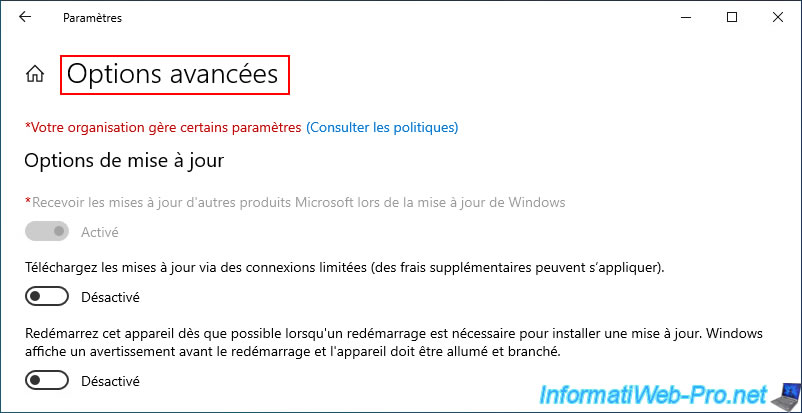
Click on "Advanced options".
Again, you can see that some Windows Update settings are greyed out because they have been modified via group policies that apply specifically to this server.

No comment