Install a master WSUS server on Windows Server 2022
- Windows Server
- WSUS
- 11 November 2026 at 09:17 UTC
-

- 4/9

4. Managing updates under WSUS
4.1. Filter updates under WSUS by product (Windows, Windows Server, ...)
If you have selected many products (Windows, Windows Server, Office, etc.) and/or classifications (critical updates, security updates, etc.), the list of updates displayed in the "Updates -> All Updates" section may be very long.
In our case, there are 1354 updates for Windows 10 and Windows Server 2022 (Microsoft Server 21H2).
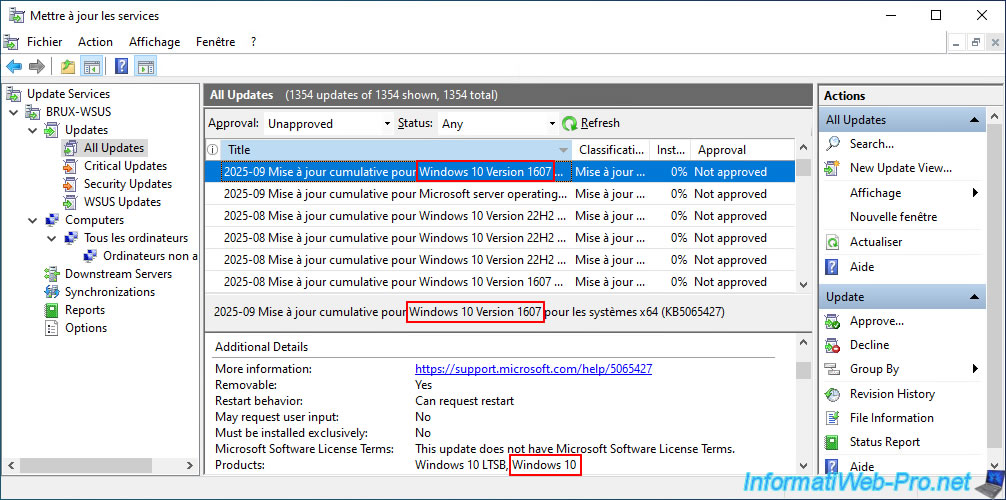
As you can see below, there are updates for older versions of Windows 10 (e.g., Windows 10 Version 1607) which are found under the "Windows 10" product.
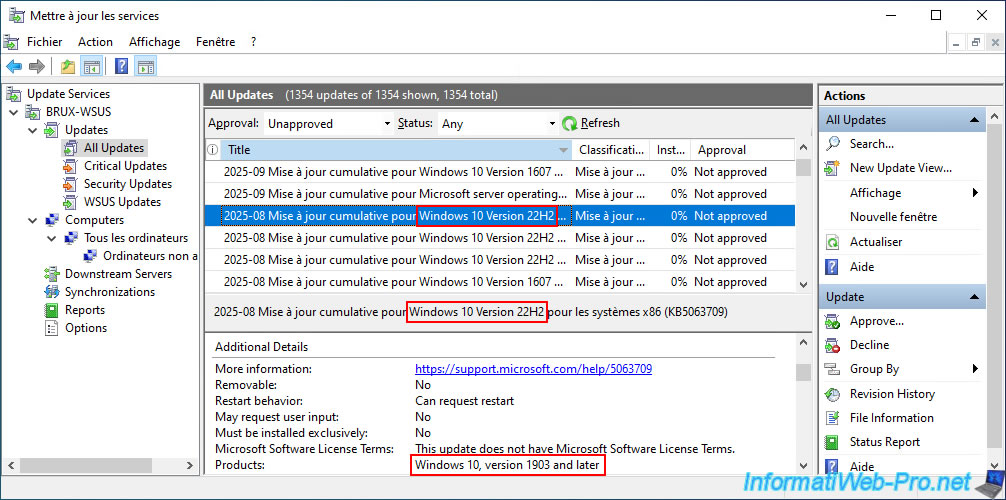
There are also updates for recent versions of Windows 10 (e.g., Windows 10 Version 22H2) that are only found in the "Windows 10, version 1903 and later" product and not in the "Windows 10" product.
Hence the need to have selected both products in the initial WSUS setup wizard.
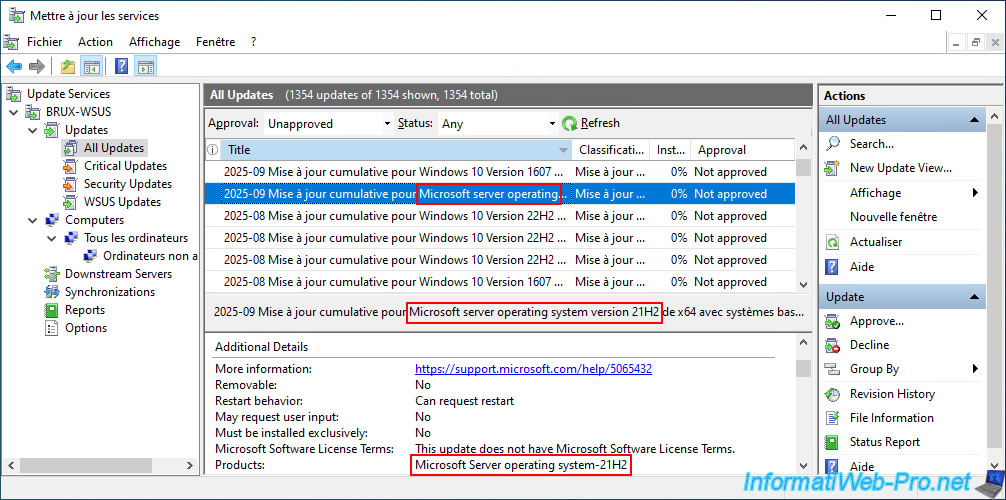
Finally, there are also updates for the desired server version of Windows (e.g., Microsoft Server 21H2 (Windows Server 2022)) which can be found in the "Microsoft Server operating system-21H2" product.
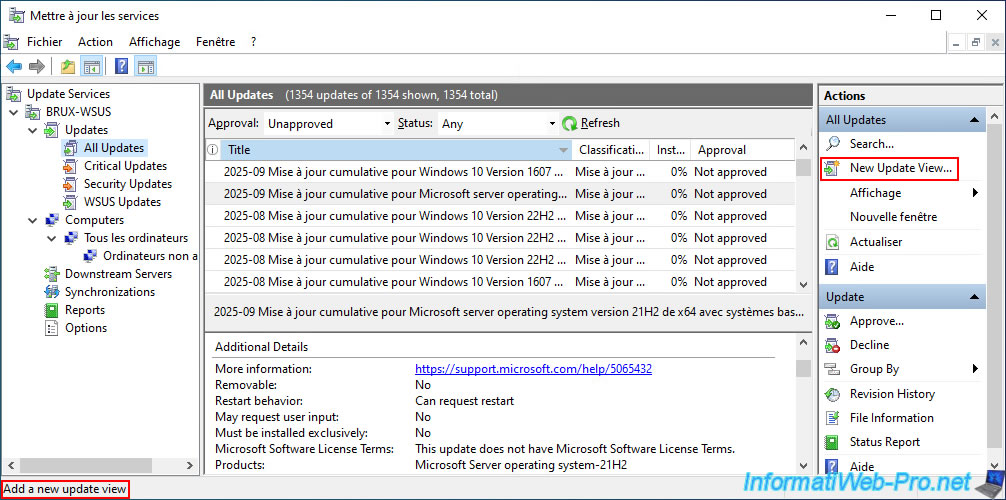
To reduce the size of this list and more easily find updates for the desired product, click on the "New Update View" option (in the right column).
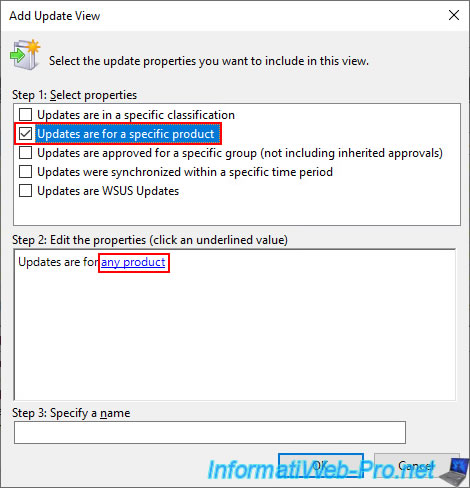
In the "Add Update View" window, select the "Updates are for a specific product" option, then click the "any product" link that appears in the center (Step 2...).
Note: as you can see, you can filter the display of updates based on their classification (update type or download type), their product, their approval status for a specific group, updates planned for the WSUS server only, etc.
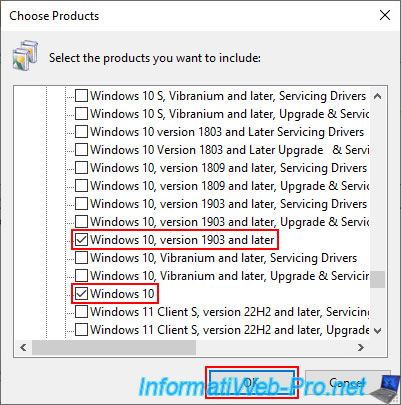
By clicking the "any product" link, a "Choose Products" window will appear.
In our case, we'll create a view to see all the updates for Windows 10.
So, check the boxes:
- Windows 10, version 1903 and later: for updates to recent versions of Windows 10 (1903 to present (e.g., 22H2)).
- Windows 10: for updates to older versions of Windows 10 (e.g., 1607, 1703, etc.).
Next, click OK.
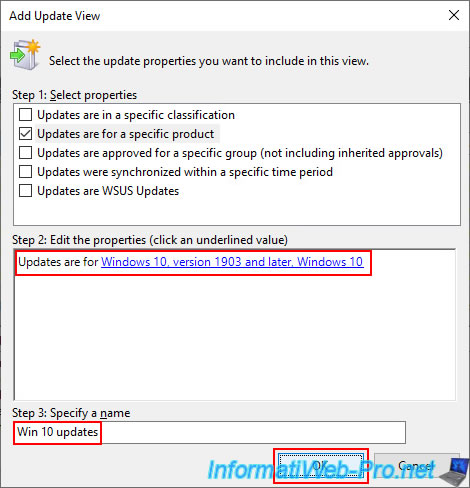
The products selected above will appear in the blue link in Step 2.
Enter a name for this view, "Win 10 updates" for example, and then click OK.
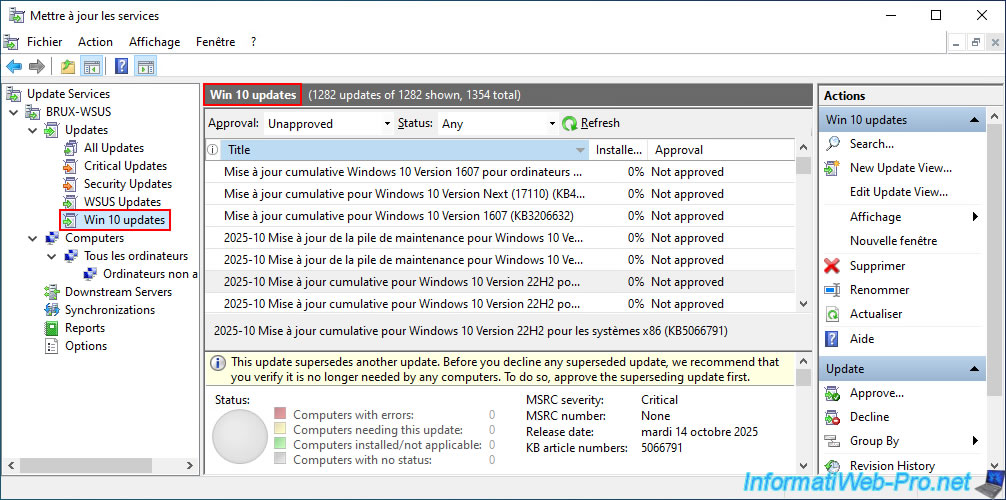
If you select the new section "Updates -> Win 10 updates", you'll see that the number of updates displayed (xxxx updates... shown) has decreased compared to before.
As expected, only Windows 10 updates remain in this list.
Similarly, click the "New Update View" option again, located in the upper right corner of the displayed update list.
Then, select the "Updates are for a specific product" option again and click the "Any product" link that appears in blue in the center of the window.
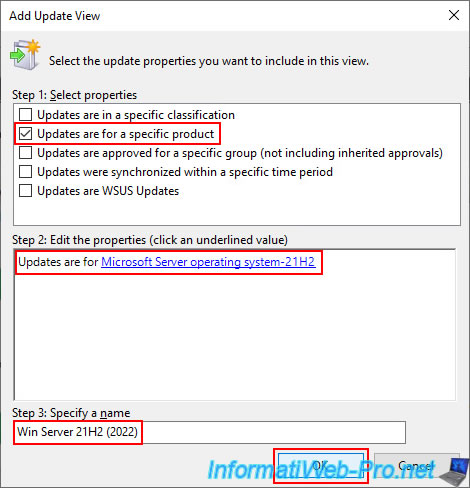
This time, we'll select the "Microsoft Server operating system-21H2" product, which corresponds to Windows Server 2022.
For the name of this view, enter, for example, "Win Server 21H2 (2022)".
Then, click OK.
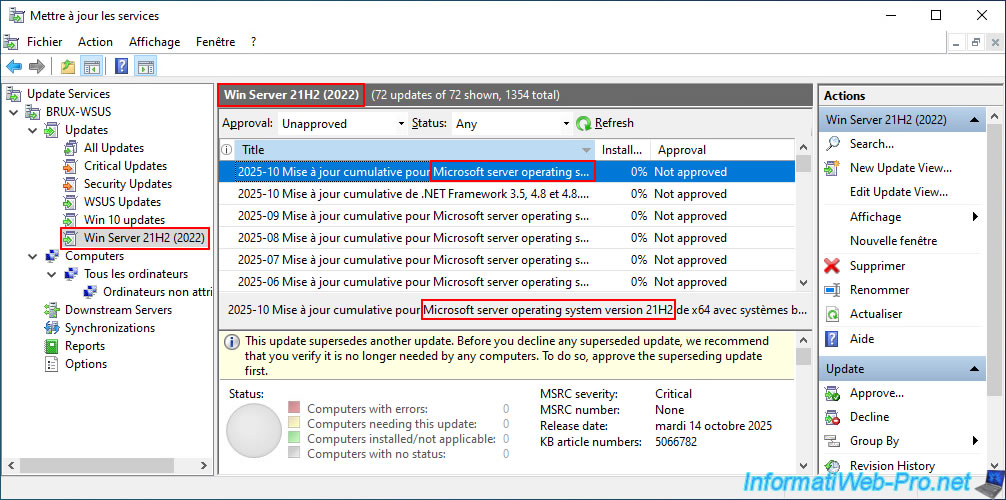
As expected, by going to the "Updates -> Win Server 21H2 (2022)" section, you will only see updates for "Microsoft Server Operating System version 21H2" (Windows Server 2022).
Furthermore, you can see that there are only 72 updates for this Windows Server version out of the 1354 updates listed on our WSUS server.
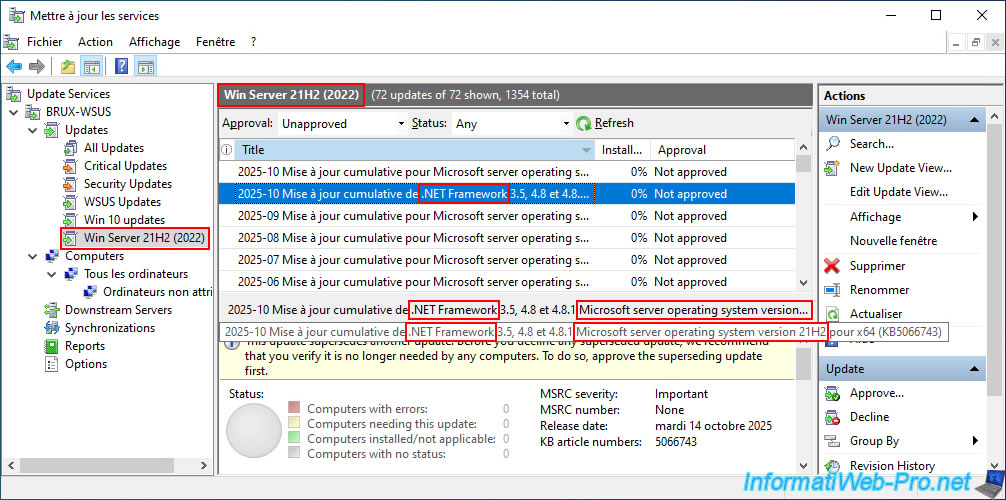
Note that this "Microsoft server operating system version 21H2" product also includes updates for certain components such as the ".NET Framework" planned for this version of Microsoft Server (Windows Server).
4.2. Update replacements
Over time, Microsoft commonly replaces older updates with newer ones.
This means the older update (which has been replaced) becomes obsolete, and installing the newer update (which replaces it) is sufficient to keep the server or workstation up to date.
It can also happen that one update replaces another, and that the older update is itself later replaced by yet another.
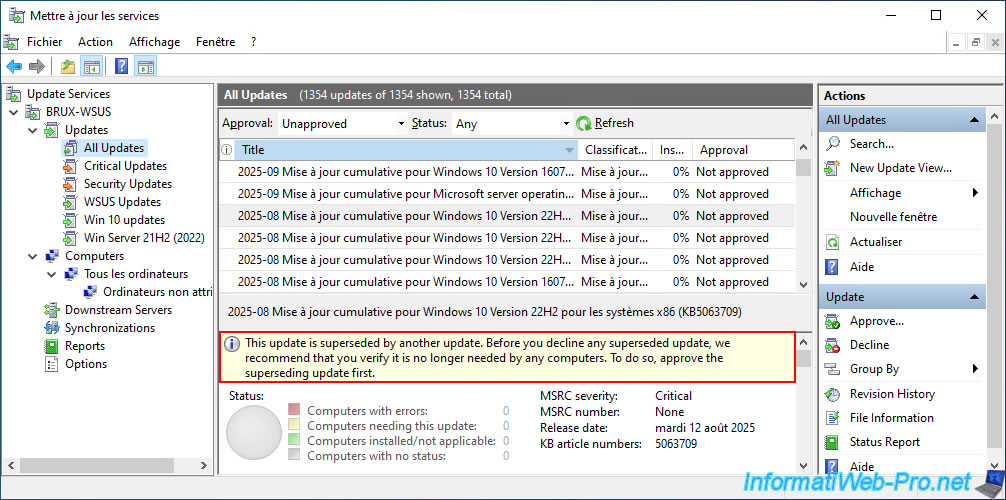
To see these replacements and to do a first sort in this long list of updates, right-click on the name of a column (in a subsection of the "Updates" section), then click on "Supersedence".
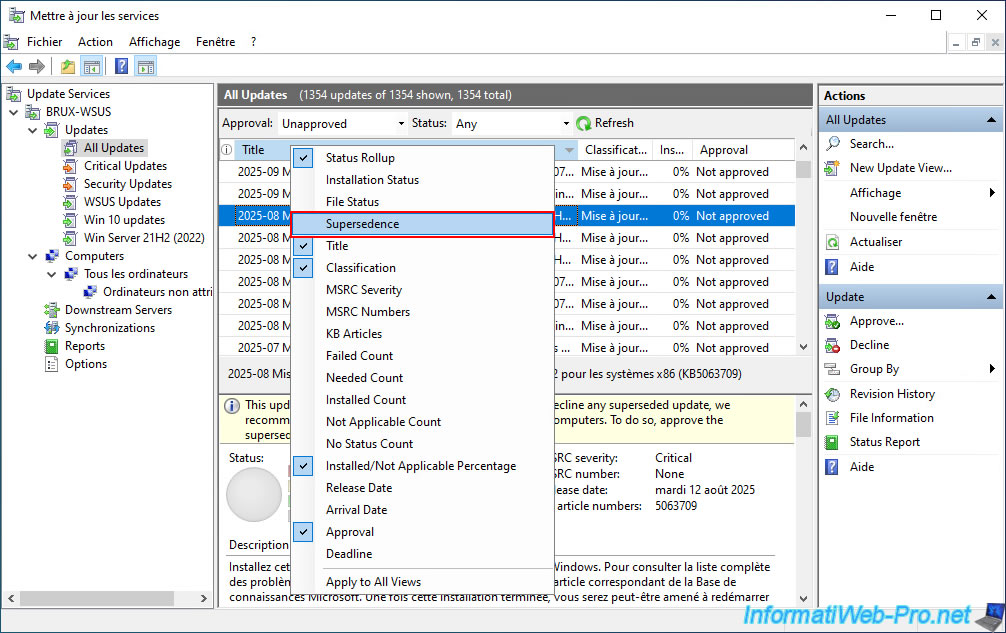
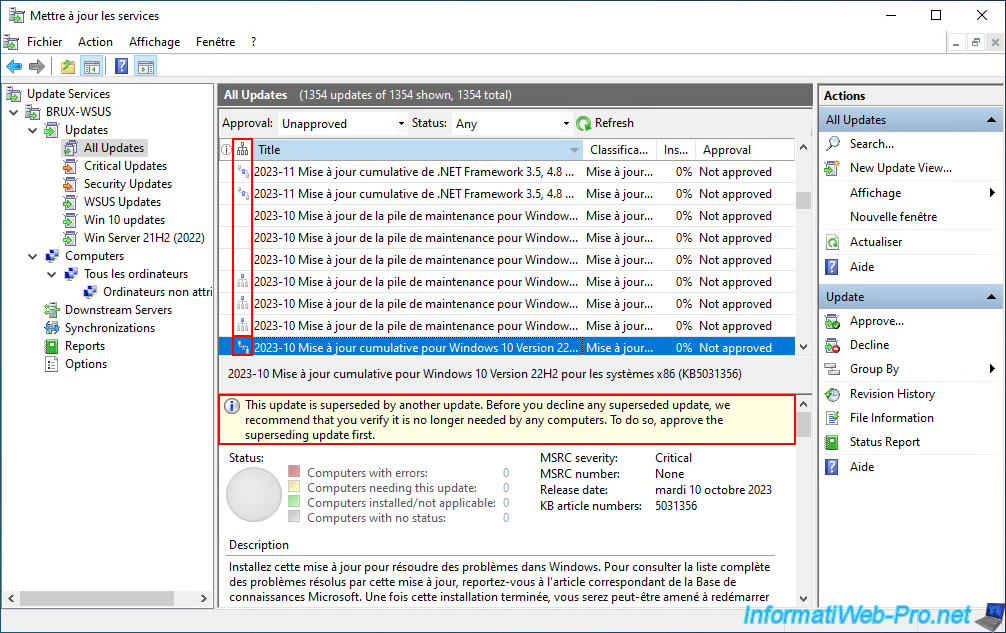
You will see a small column appear with various icons, or no icon at all for some updates.
If you select an update where the small blue square (within the small icon) is in the center, you will see that this update has been replaced by another. It is therefore recommended that you approve the replacement update before declining the original.
Plain Text
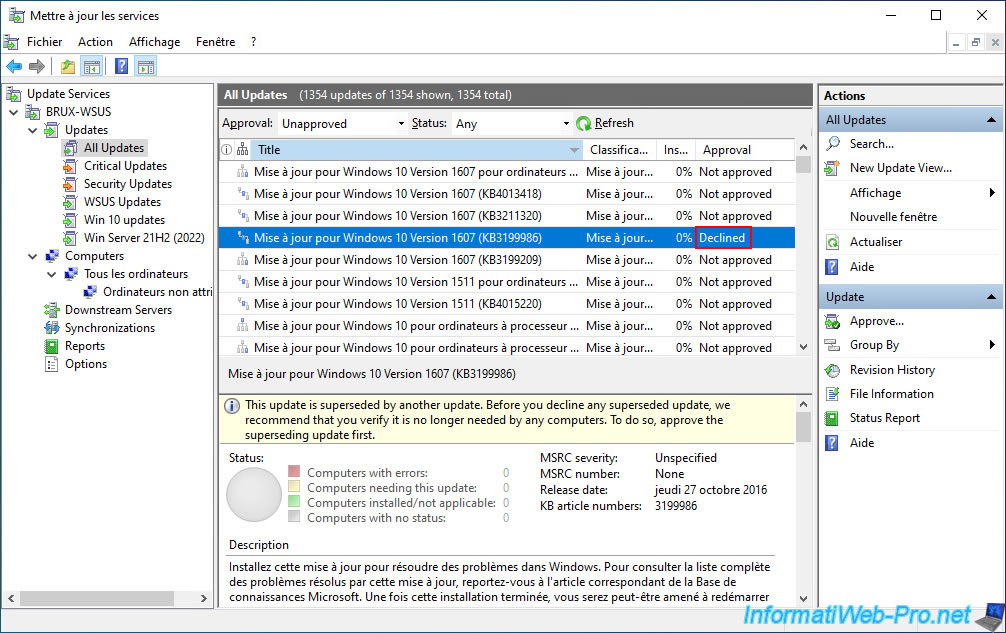
This update is superseded by another update. Before you decline any superseded update, we recommend that you verify it is no longer needed by any computers. To do so, approve the superseding update first.
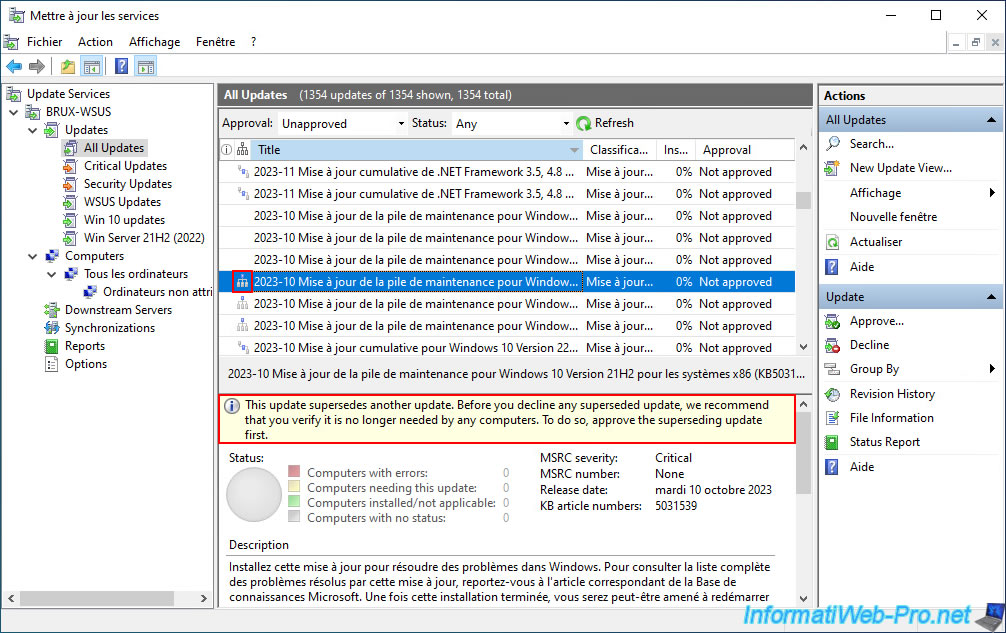
If you select an update where the small blue square (in the small icon) is located at the top, you will see that this update replaces another update. It is therefore recommended that you approve this new update before declining the one it replaces.
Plain Text
This update supersedes another update. Before you decline any superseded update, we recommend that you verify it is no longer needed by any computers. To do so, approve the superseding update first.
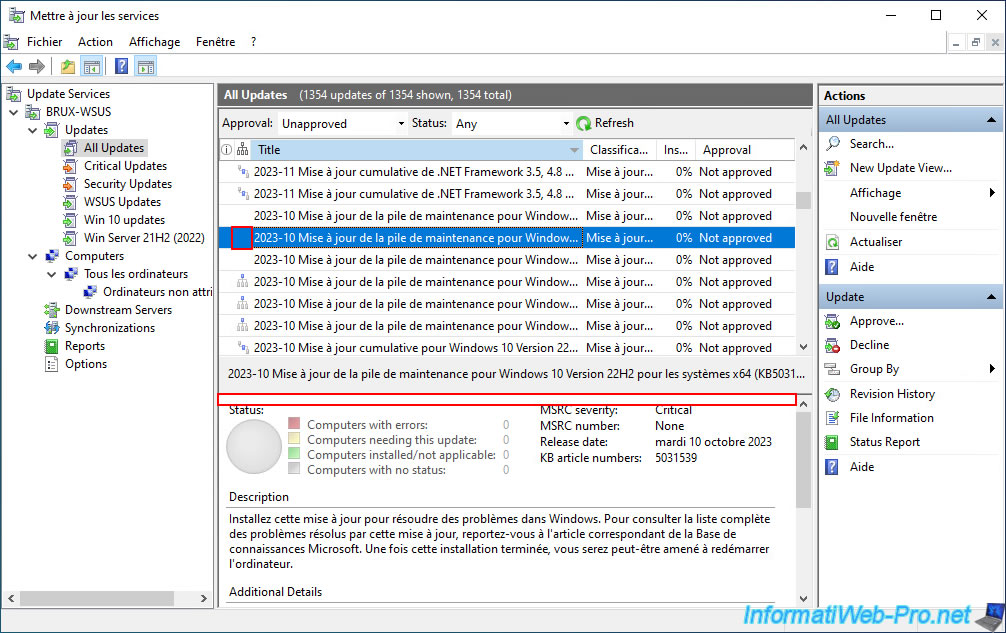
Finally, if you select an update where there is no icon in this "Supersedence" column, you will notice that no message appears on a yellow background.
This simply means that there is no replacement (currently) for that update.
4.3. Approve updates
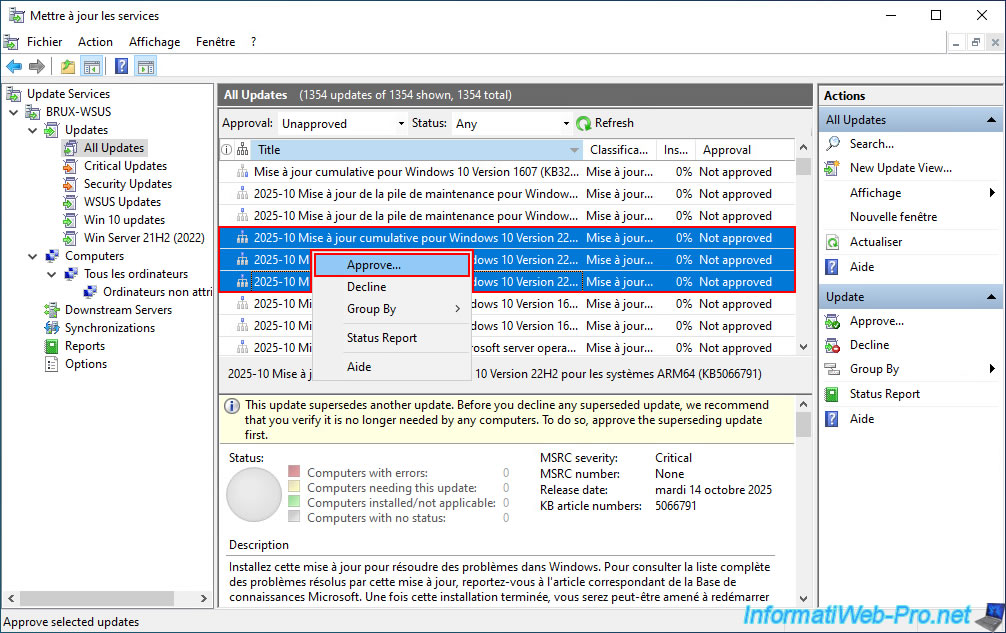
To approve updates, select the desired updates and right-click on them, then select "Approve".
Note: by default, the "Approval" column shows all updates as "Not approved".
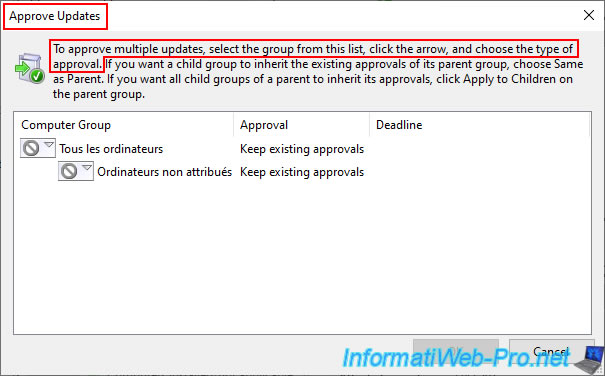
The "Approve Updates" window appears.
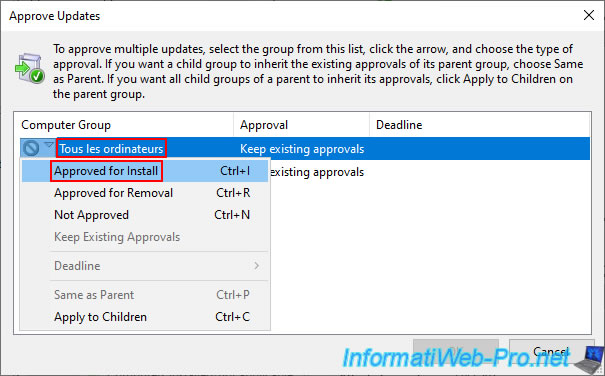
To approve these updates for installation on all your servers and computers, click the icon to the left of "All computers" and then click "Approve for Install."
Note: you can also approve an update for removal from specific computers (this might be necessary to fix a bug related to a particular update, for example).
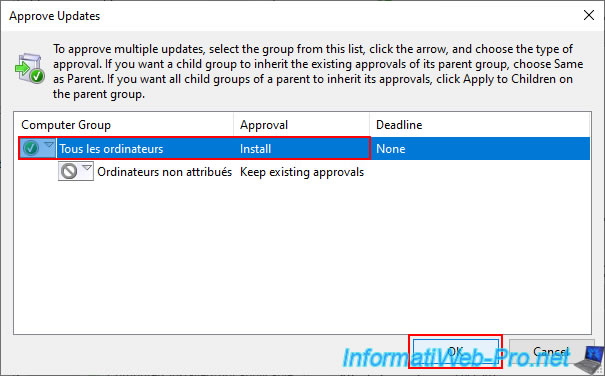
Next, click OK.
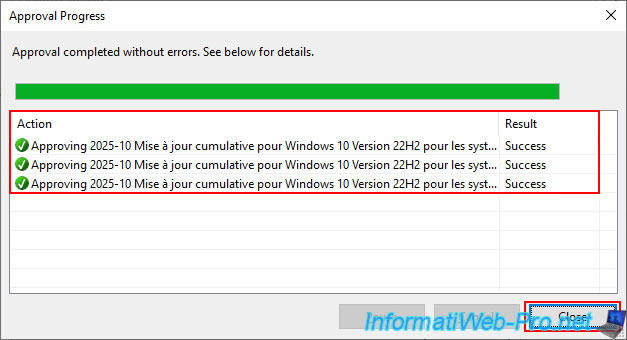
Please wait a few seconds while the desired updates are approved, then click "Close".
Note: this process is very quick, but it does depend on the number of updates selected.
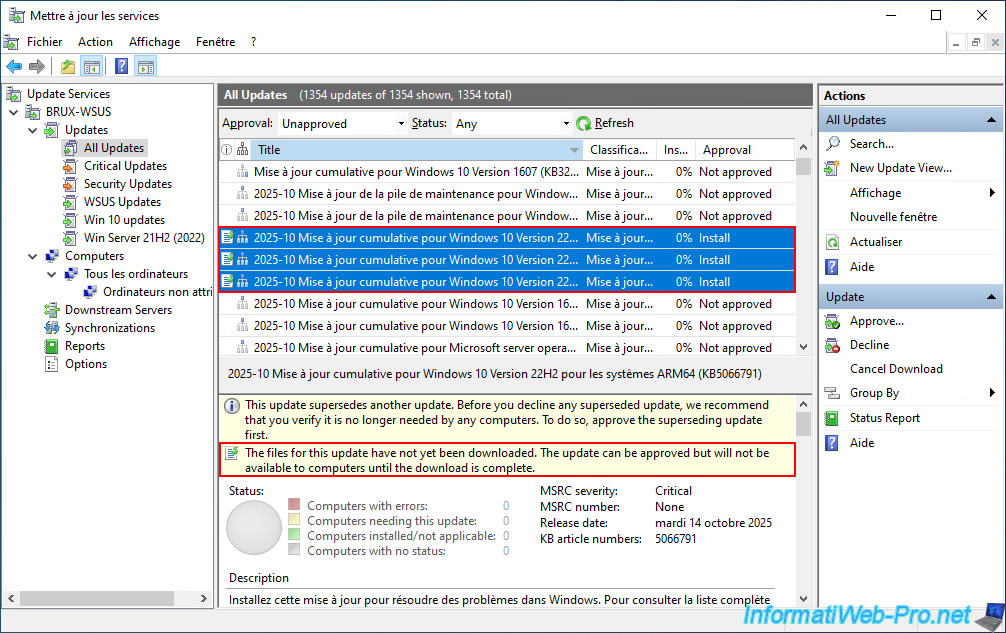
Once the desired updates are approved, you will see the status "Install" appear in the "Approval" column for these updates, but you will also see that they have not yet been downloaded by your WSUS server.
This means that they are not immediately available to your servers and computers that use your WSUS server to search for and download applicable updates.
Notes :
- by default, WSUS only downloads updates after you approve them.
This saves your company's internet bandwidth and disk space.
Furthermore, it prevents unnecessarily downloading all the updates that have been superseded in the meantime but are also in this list (as we showed you previously). - to change the update download behavior for your WSUS server, go to "Options -> Update File and Languages".
Plain Text
The files for this update have not yet been downloaded. The update can be approved but will not be available to computers until the download is complete.
4.4. Decline updates
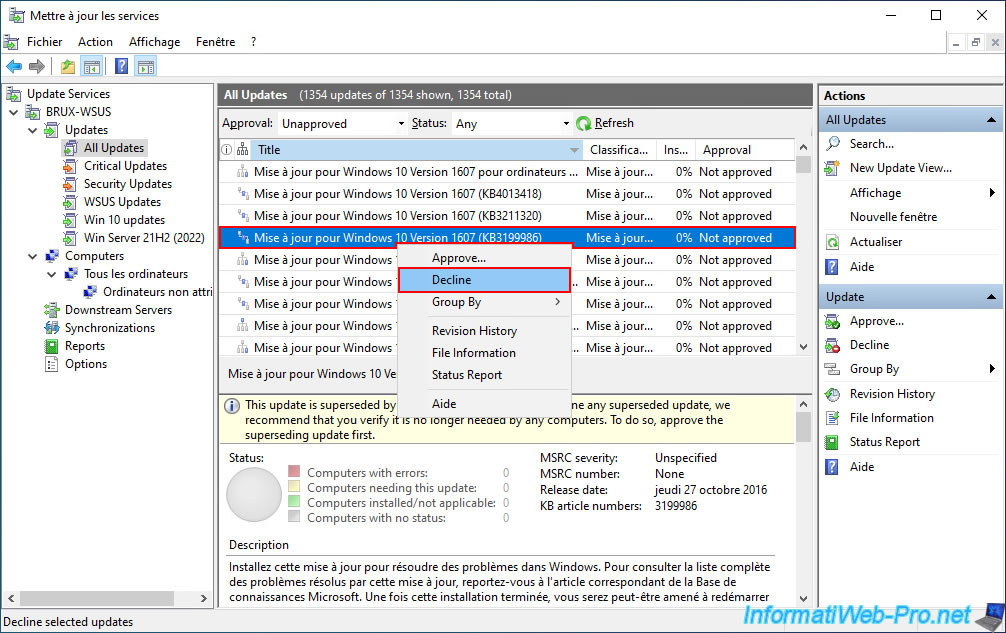
To decline updates, select the desired updates, then right-click and choose "Decline".
Note: for this example, we declined an update that is automatically replaced by a newer one (as indicated by the yellow message and the blue square icon next to its name in the list).
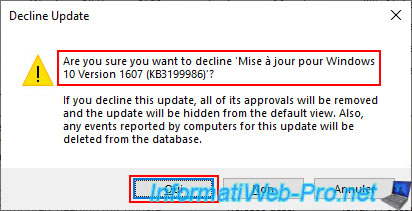
Confirm your refusal of this update by clicking "Yes".
Warning : as WSUS indicates, refusing an update will also remove any approvals you may have previously set for it, hide it from the default view, and delete any events reported by computers for this update.
Plain Text
Are you sure you want to decline [update name] ?
This time, you can see that the status displayed for this update in the "Approval" column is "Declined".
No comment