Install a master WSUS server on Windows Server 2022
- Windows Server
- WSUS
- 11 November 2026 at 09:17 UTC
-

- 2/9

2. Initial configuration of your master WSUS server
To use your WSUS server, you must first perform the initial configuration (which can take more than an hour depending on your choices and your internet connection).
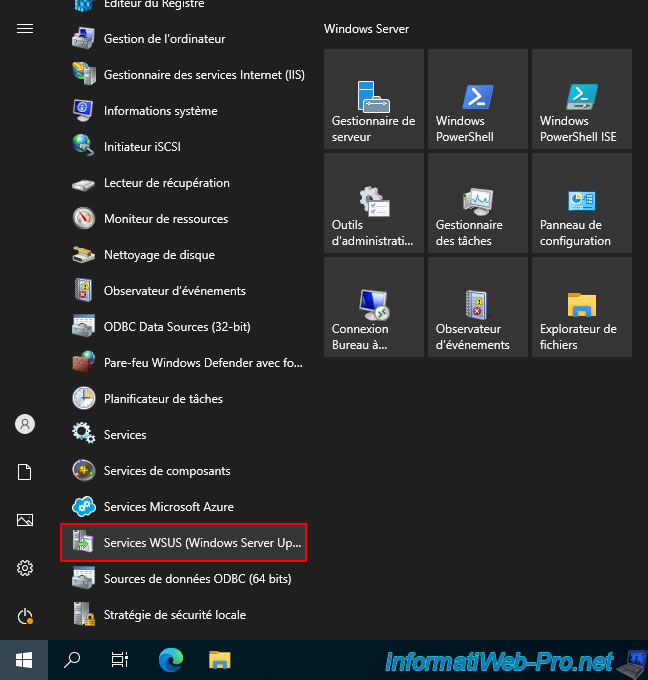
To do this, open the Start menu and click on "Windows Administrative Tools -> WSUS Services (Windows Server Update Services)".
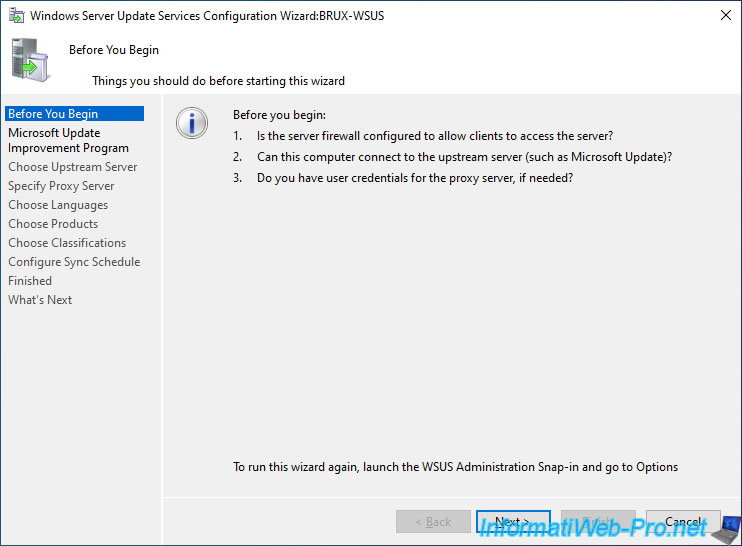
The "Windows Server Update Services Configuration Wizard" appears.
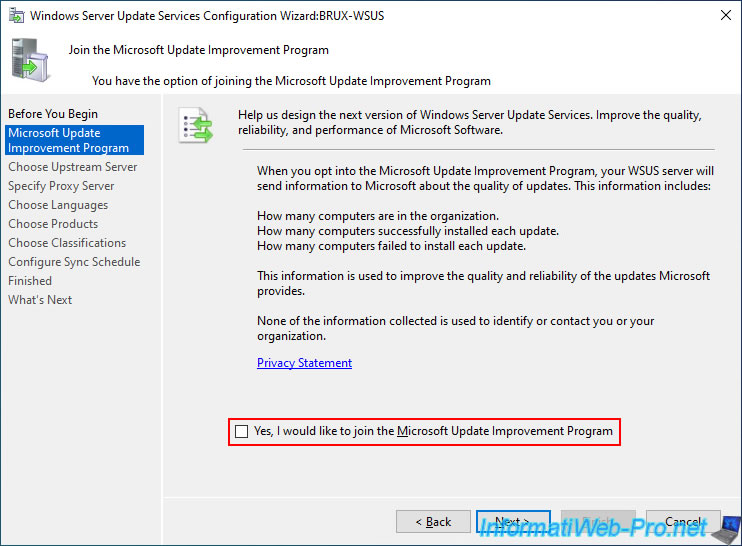
Uncheck the "Yes, I would like to join..." box to avoid sending too much information to Microsoft and click Next.
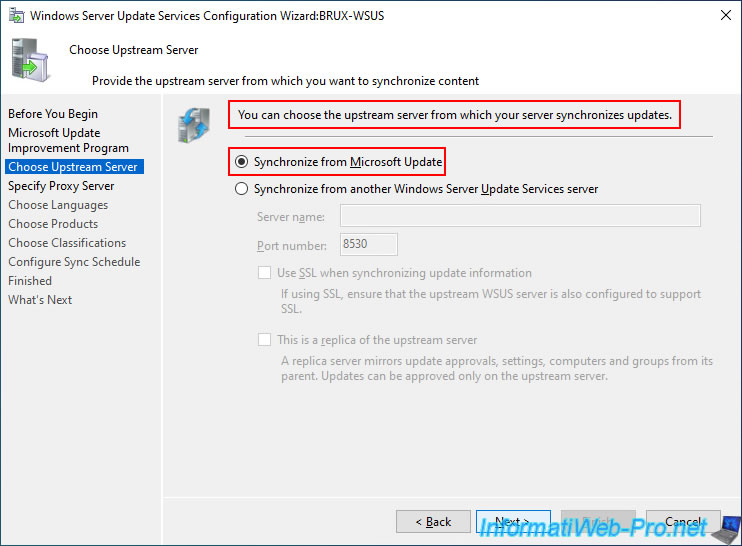
In the "Choose Upstream Server" step, you must select the server from which you want to synchronize update data.
For your first WSUS server (master WSUS server), you must choose the "Microsoft Update" server as the source.
Therefore, select the "Synchronize from Microsoft Update" option and click Next.
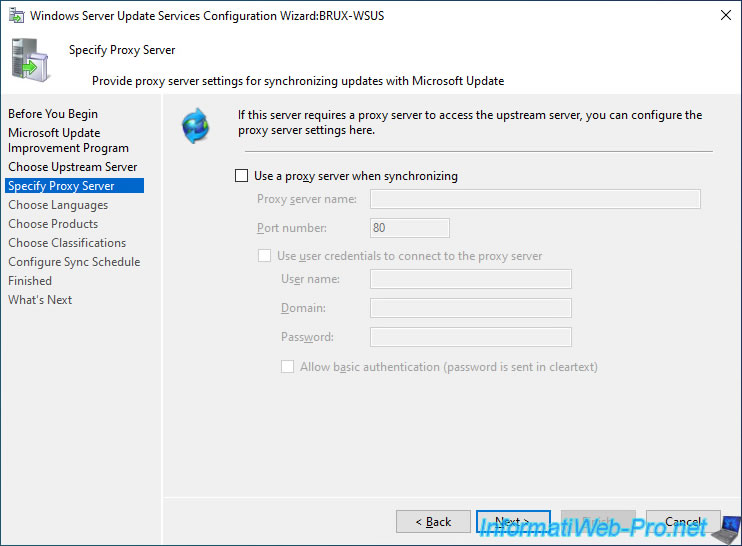
If needed, you can specify information for the use of a proxy (which may be required in some companies where internet access is very restricted or controlled).
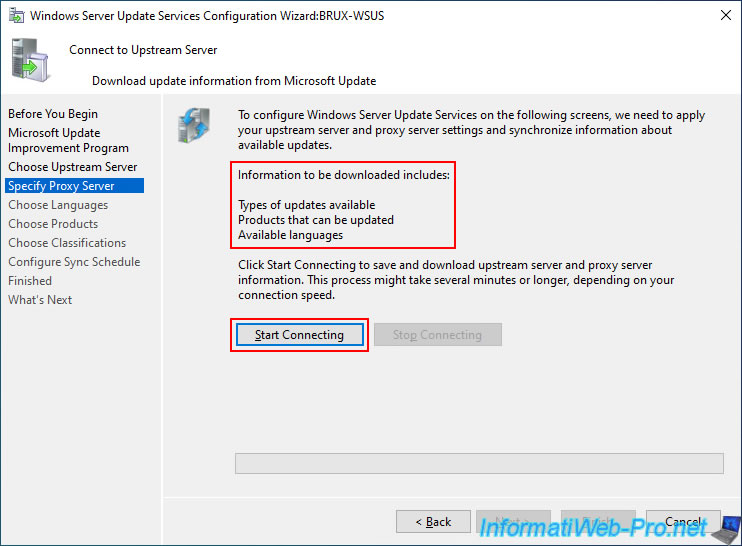
To begin, the assistant will ask you to download information about the types of updates available on Microsoft Update.
Specifically, the assistant will download:
- the list of available update types.
- the list of Microsoft products for which Microsoft updates can be downloaded and managed via WSUS.
- the list of languages available for downloading Microsoft updates.
Click the "Start Connecting" button.
Important : this wizard will only download information that allows you to choose which products you want to be able to update, the types of updates, and the languages you want to provide through your WSUS server.
However, this wizard will not download any updates at this time.
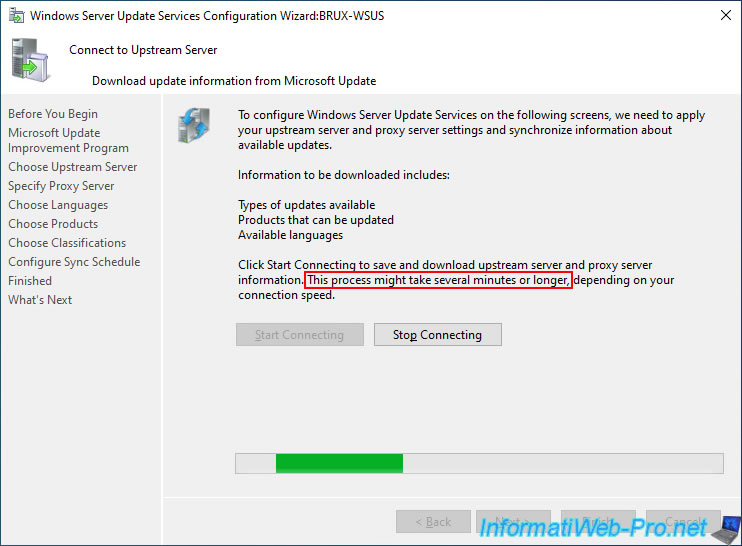
Please wait while the previously mentioned information is downloaded.
Note: as indicated by this assistant, this process may take several minutes (approximately 15 minutes, but this depends on your internet connection and the data available at the time).
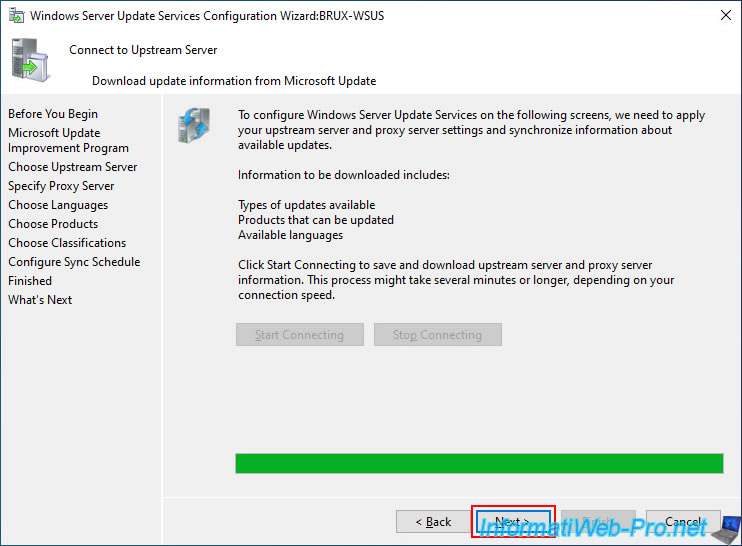
Once the download process is complete, click the "Next" button which will have automatically reactivated.
At the "Choose Languages" step, you'll see that the assistant selects your language by default (in our case: French), as well as English.
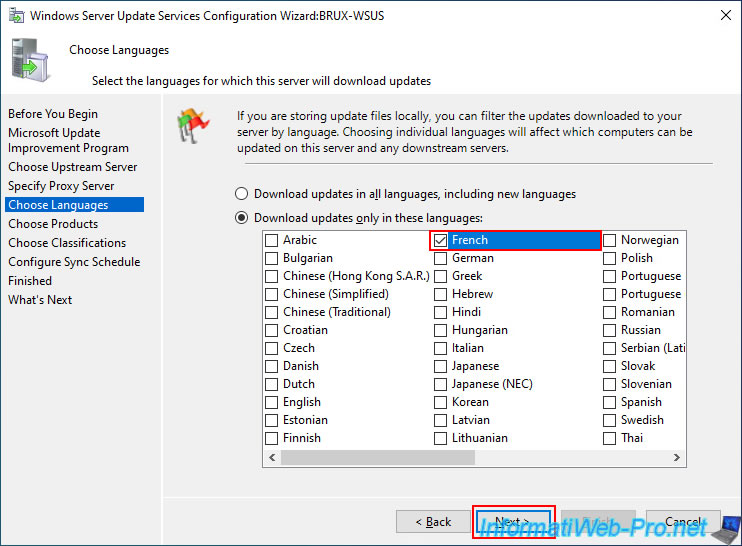
To avoid downloading too much data, we unchecked English, keeping only French in our case.
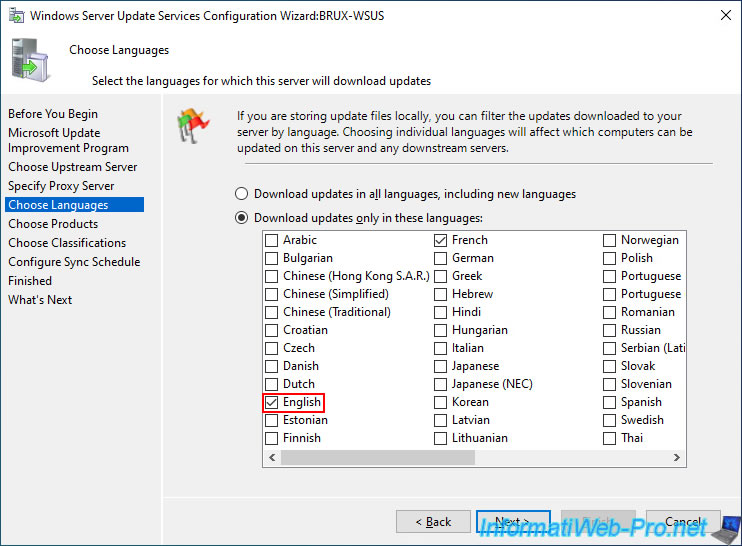
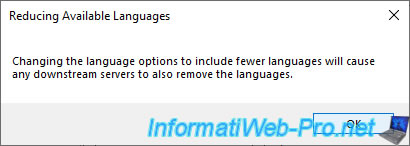
When you deselect a language, the wizard informs you that downstream servers (such as replica or standalone WSUS servers) will also be limited to the languages selected here, as they will depend on your master WSUS server.
Important : if you plan to use WSUS in a multi-site infrastructure (across multiple countries), this means that the master server will need to download all the necessary languages (e.g., English (for the physical site in the USA), French (for the physical site in France or Belgium), etc.).
Therefore, the replica server installed in the USA will be able to download updates in English via your master WSUS server, and the replica server installed in France or Belgium will be able to download updates in French via your master WSUS server.
Note: in our case, we only have one WSUS server (for this tutorial), so this doesn't apply to us. Simply click OK.
As expected, we're keeping only our "French" language in this case.
Click Next.
In the "Choose Products" step, you can select the Microsoft products for which you want to provide updates to your servers and client workstations.
As you may have noticed (using the scroll bar on the right), the list of available Microsoft products is very long and comprehensive.
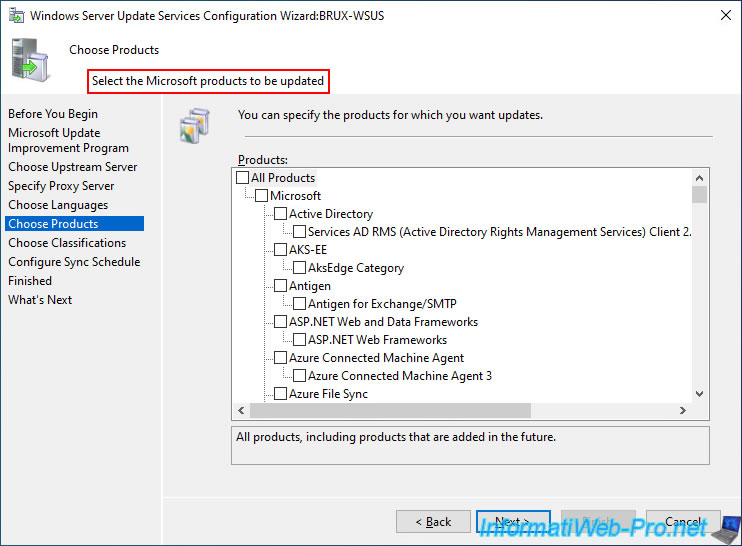
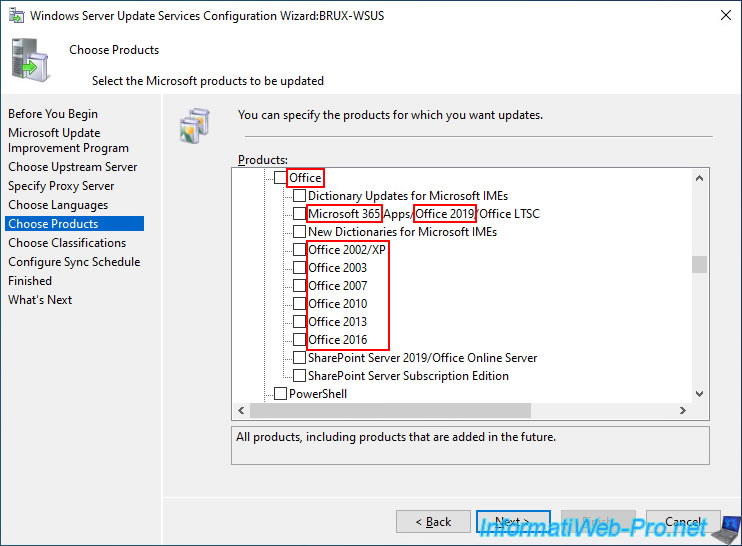
In this list, you will find an "Office" section to manage the download and distribution of updates for the "Microsoft Office 365" suite or its older versions: Microsoft Office 2019, 2016, 2013, ...
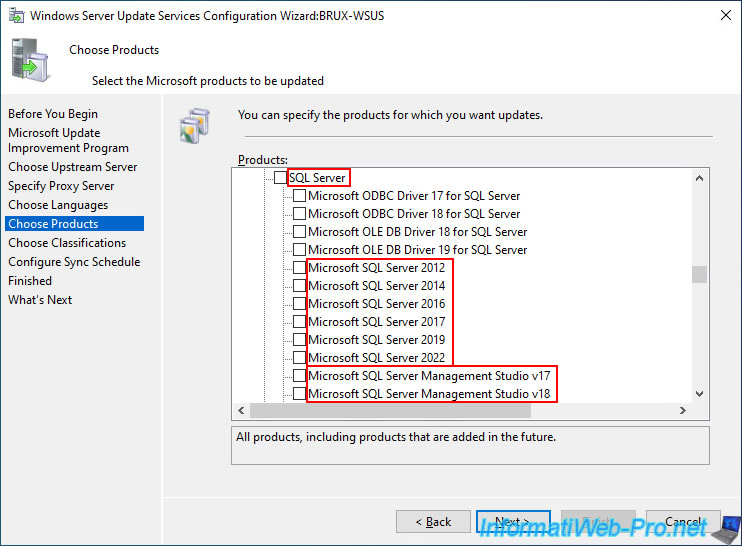
In this list, you will also find a "SQL Server" section to manage the download and distribution of updates for the popular "SQL Server" database server in versions such as Microsoft SQL Server 2022, 2019, 2017, and others.
You can also update SQL Server management tools by selecting products such as Microsoft SQL Server Management Studio v20, v19, v18, and others.
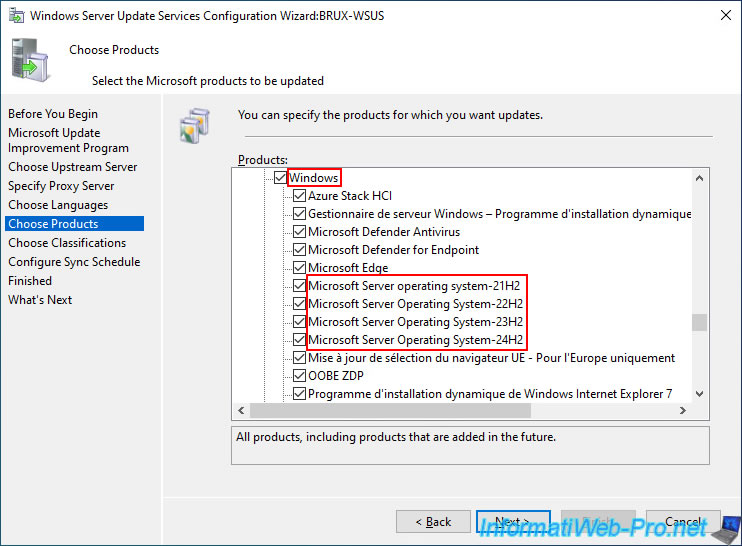
More interestingly, you'll find a "Windows" section that includes updates for Windows (clients), Windows Server (servers), and Microsoft Server (the new name for the most recent versions of Windows Server).
However, this "Windows" section also includes products available for Windows, such as Microsoft Defender Antivirus, Microsoft Edge, Windows 10 Feature On Demand, and more.
Important : uncheck the "Windows" box (it's already checked by default) to select only what you actually need.
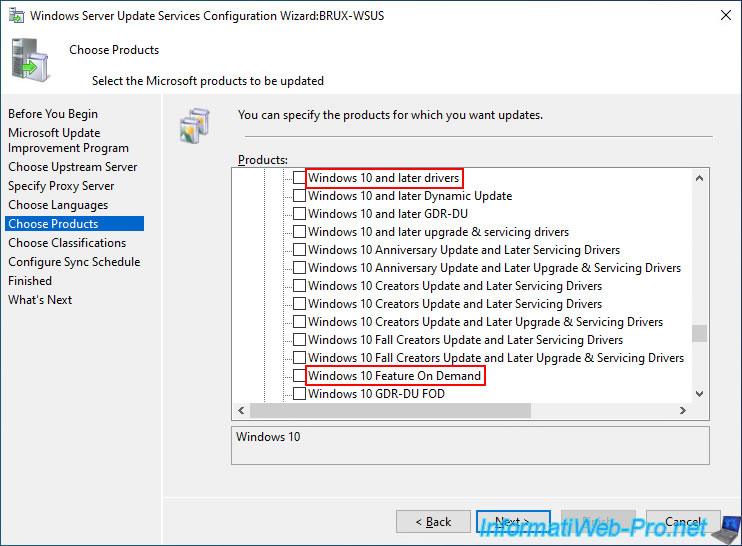
In this "Windows" section, you will find, among other things, the following products:
- Windows 10 and later drivers: available (compatible) drivers for Windows 10.
- Windows 10 Feature On Demand: installing features on demand from the Windows 10 interface.
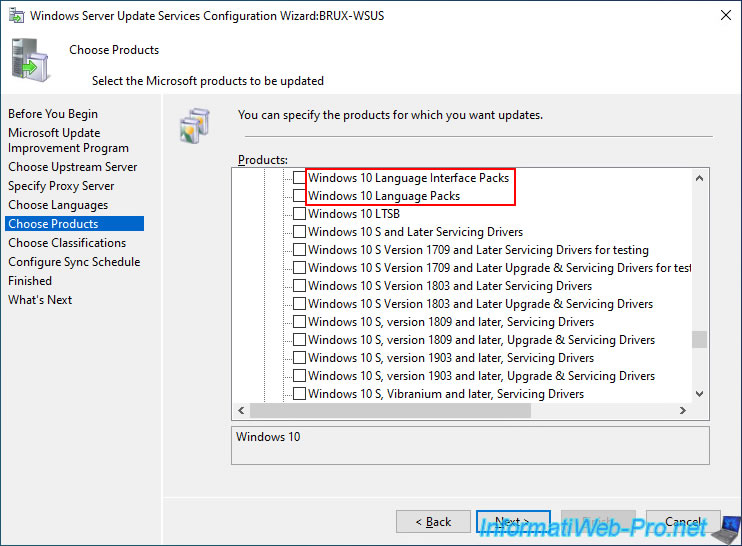
- Windows 10 Language Interface Packs / Windows 10 Language Packs: language packs for Windows 10.
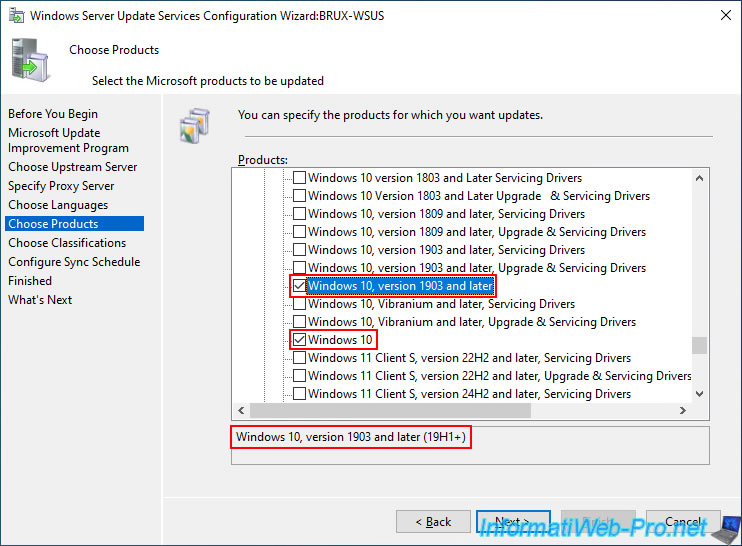
To distribute updates for recent versions of Windows 10 via your WSUS server, it is recommended to select both the "Windows 10" (older Windows 10 updates) and "Windows 10, version 1903 and later" products.
If you select only the "Windows 10" product, you will notice that WSUS will only display older Windows 10 updates (versions 1607, 1703, etc.) and not updates for Windows 10 version 22H2, etc.
Note: selecting both products will ensure that WSUS can provide the necessary updates for newer Windows 10 versions if needed.
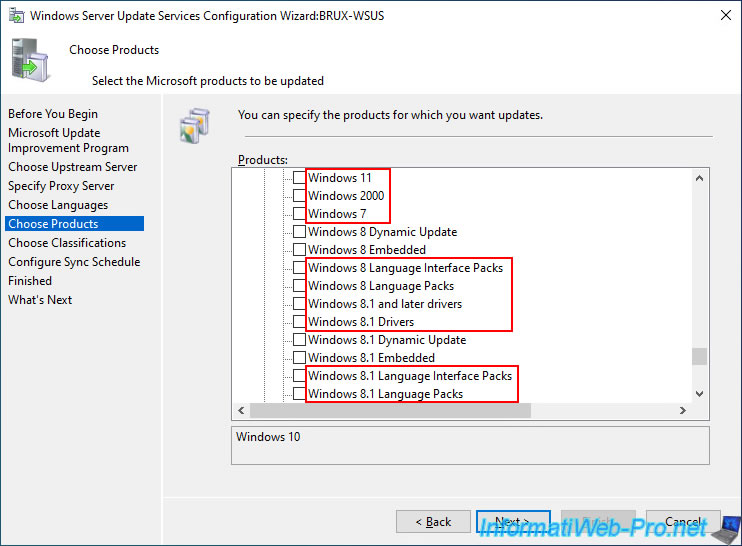
You can also provide updates for Windows 11, as well as older versions of Windows: Windows 8.1, Windows 8, Windows 7, ...
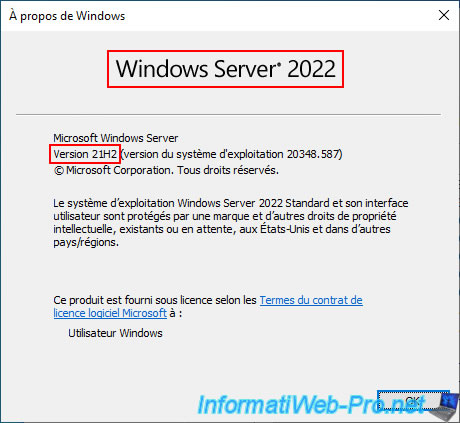
For Windows Server, run the "winver" program on your server to find out its exact version.
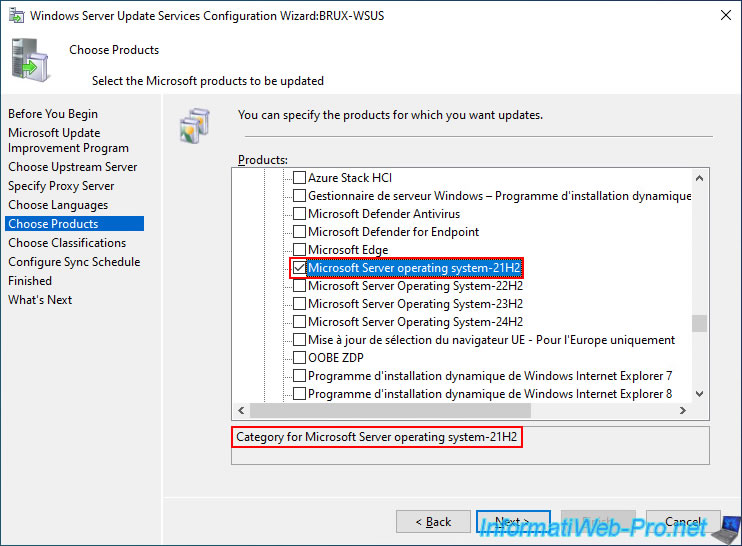
In our case, we can see that the exact version of Windows Server 2022 is "21H2".
In the list of products displayed by the WSUS assistant, we select "Microsoft Server operating system-21H2".
Note: as a reminder, newer versions of Windows Server have been renamed "Microsoft Server".
To find the version corresponding to the commercial name of your Windows Server version (Microsoft Server), refer to the "Server versions" section of the "List of Microsoft Windows versions - Wikipedia" page.
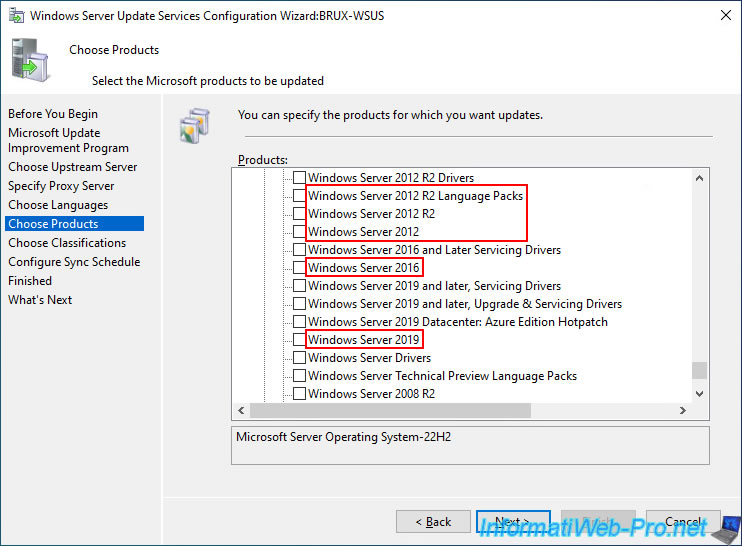
For previous versions of Windows Server, you will find, among others: Windows Server 2019, 2016, 2012 R2, etc.
In summary, in our case, we selected:
- Windows 10: updates for older versions of Windows 10
- Windows 10, version 1903 and later: updates for recent versions of Windows 10 (from version 1903 to the latest (currently 22H2)).
- Microsoft Server operating system-21H2: updates for Windows Server 2022 (21H2).
No comment