Install a master WSUS server on Windows Server 2022
- Windows Server
- WSUS
- 11 November 2026 at 09:17 UTC
-

- 3/9

In the next step (Choose Classifications), you can select the desired classification type.
You can then select which types of updates you want to provide via WSUS, and you can also provide upgrades for subsequent versions of Windows (e.g., upgrade to Windows 10 v22H2, v21H2, v21H1, etc.).
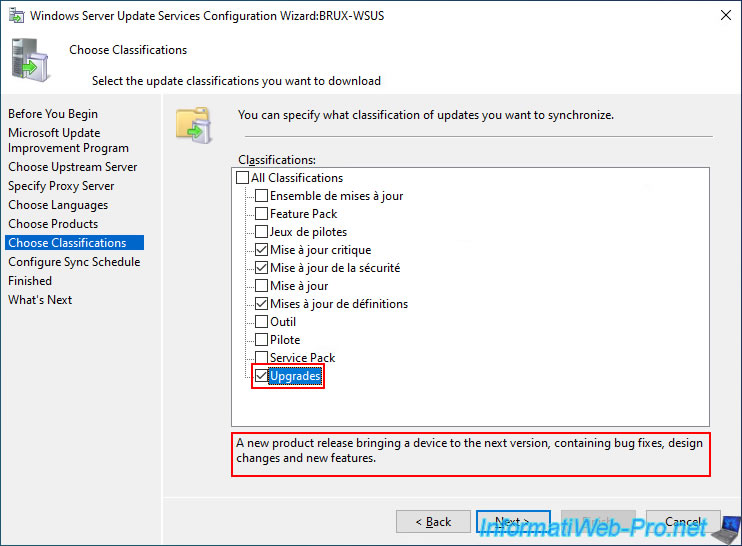
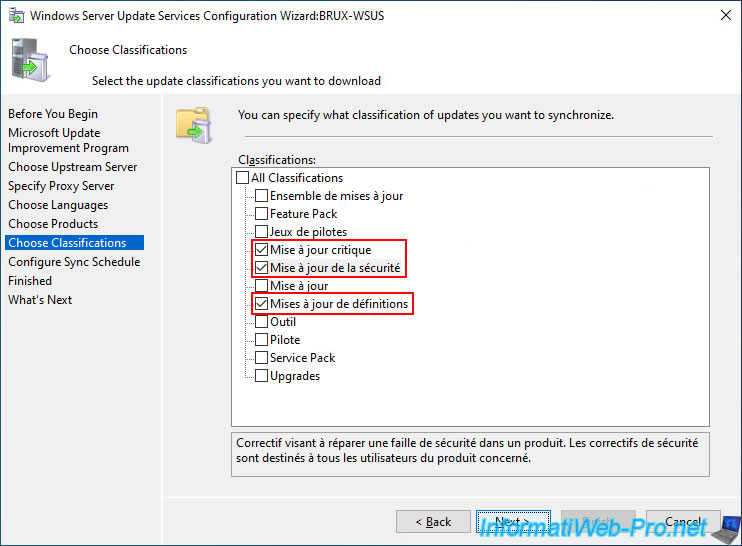
To limit the amount of data downloaded (including for storing updates), we have chosen to download only the updates (Windows and Windows Server) that improve the security of our servers and client workstations.
To do this, select these updates:
- Critical update.
- Security update.
- Definition updates.
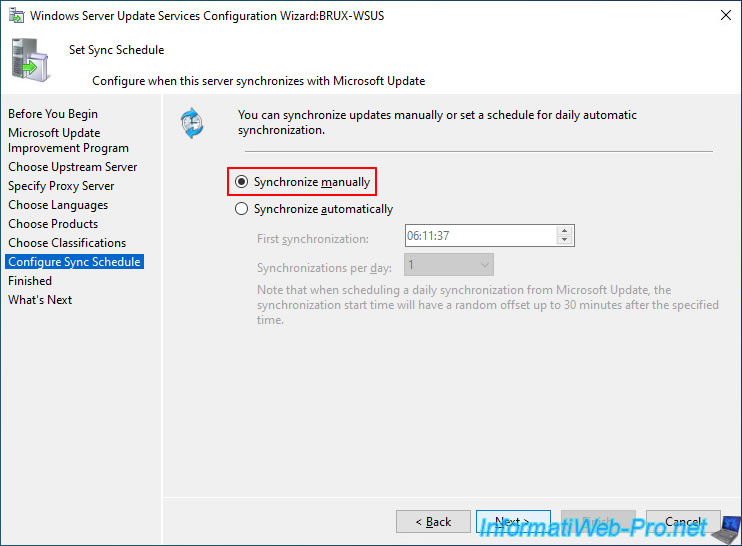
For synchronization from the "Microsoft Update" server, you can choose to initiate the synchronization manually or automatically.
In our case, since this is a lab environment, we selected "Synchronize manually".
To have your WSUS server directly download the complete list of updates you want to access, check the "Begin initial synchronization" box and click Next.
Warning : this initial synchronization may take more than an hour depending on your server's performance, the products and other options you have selected, and your internet connection.
Note: in our case, you can see that this synchronization took 2 hours (and we have fiber optic internet, which is very fast).
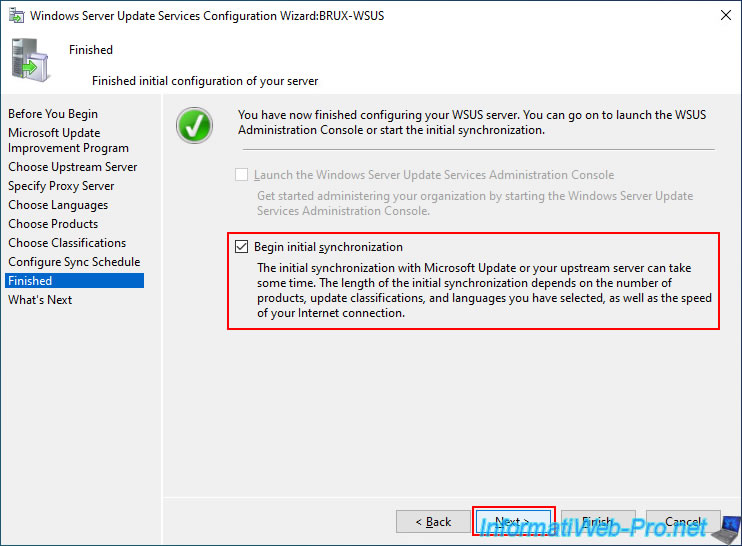
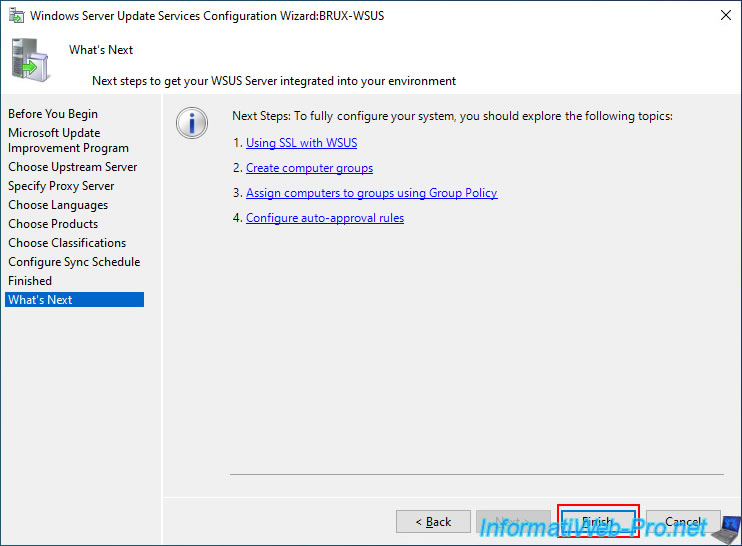
Next, click Finish.
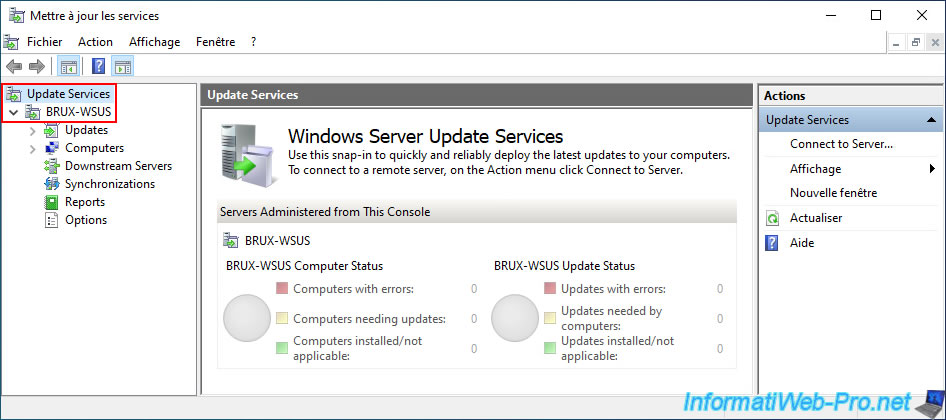
The "Update services" console appears.
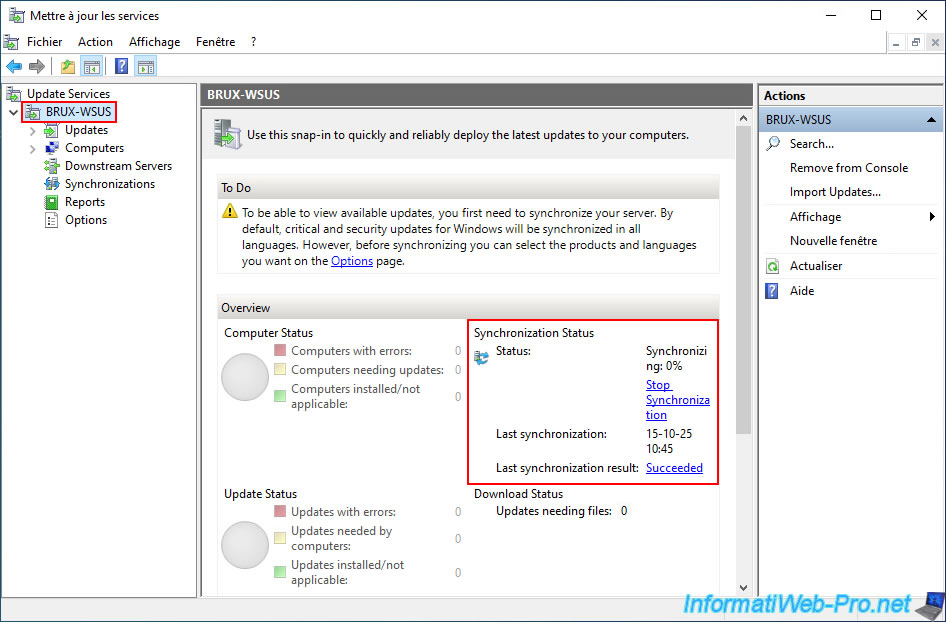
By selecting your WSUS server (in the left column), you will be able to see the status of the initial synchronization that was started automatically (if you checked the "Begin initial synchronization" box).
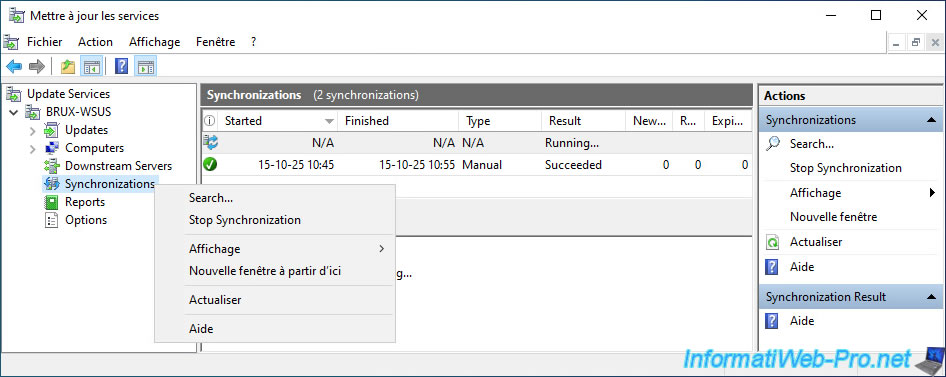
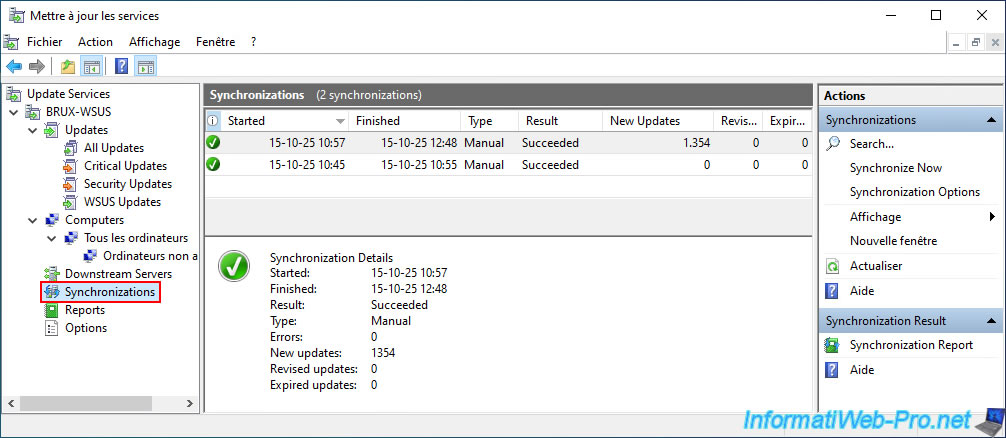
The status of this synchronization performed in the background by WSUS is also visible in the "Synchronizations" section.
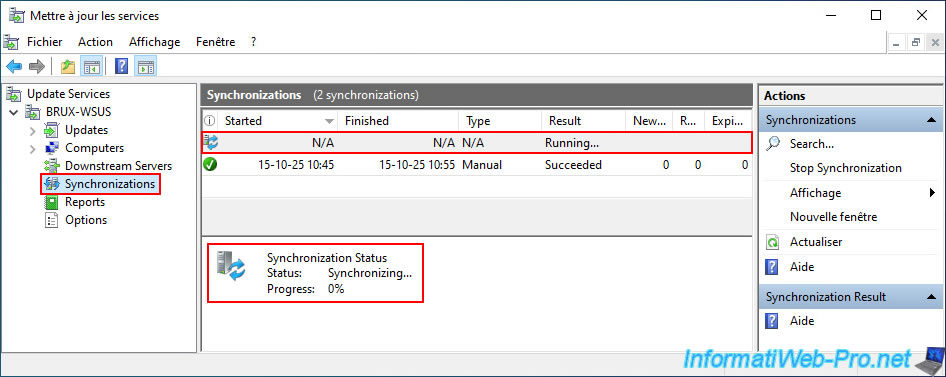
If synchronization has not started, you can start it by right-clicking "Start Synchronization" on this "Synchronizations" section.
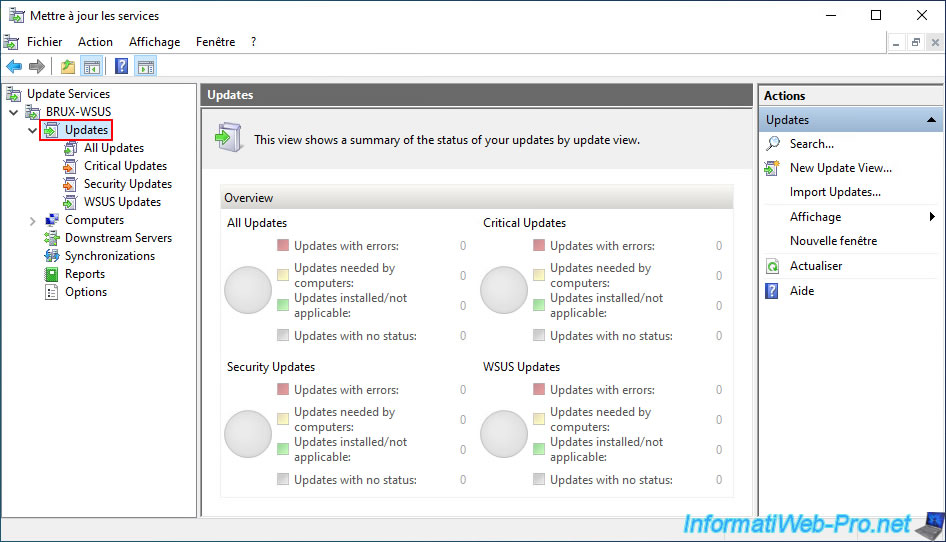
In the "Updates" section, you will be able to see the number of updates downloaded, installed, ... by update category.
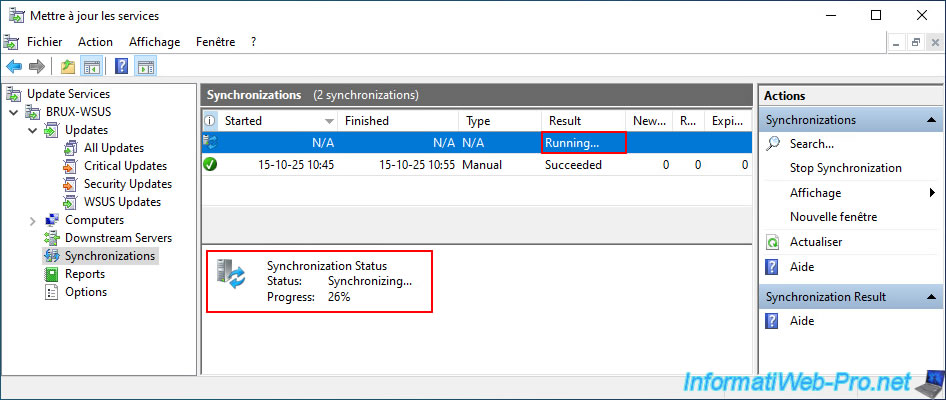
Please wait while your WSUS server synchronizes from the "Microsoft Update" server.
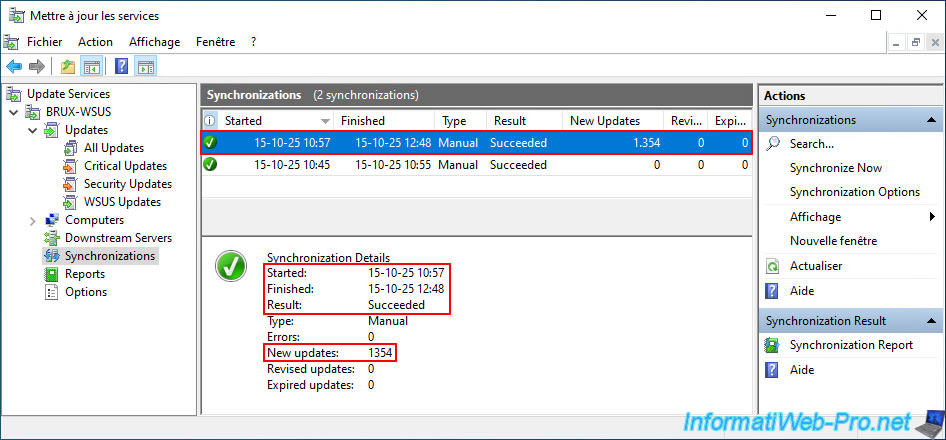
Once the synchronization is complete, the result will be "Succeeded".
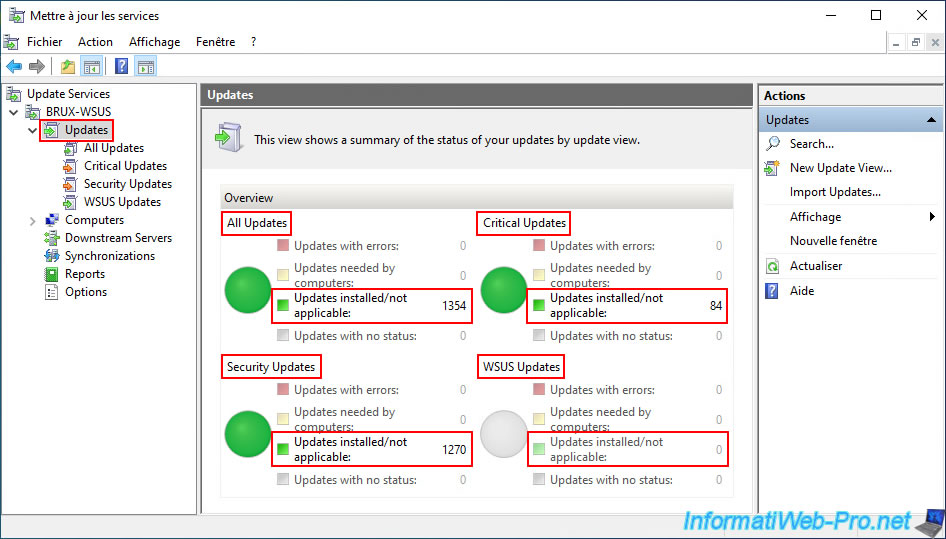
As you can see below, in our case, this synchronization took approximately 2 hours and retrieved a list of 1354 updates.
Now, in the "Updates" section, you can see:
- All Updates: the total number of updates referenced by your WSUS server (based on the products, classifications, etc., previously selected via the initial setup wizard).
- Critical Updates: the number of updates considered "critical" by Microsoft.
- Security Updates: the number of security updates provided by Microsoft.
- WSUS Updates: the number of updates specifically designed for your WSUS server.
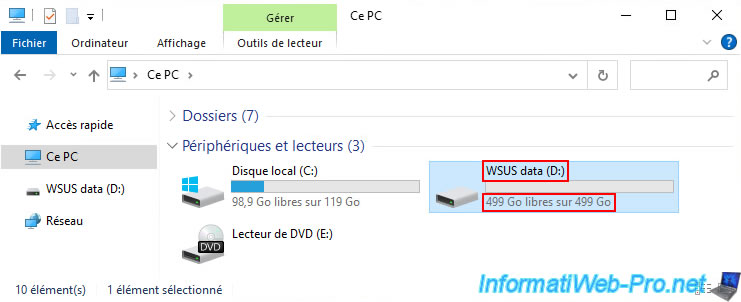
If you open Windows File Explorer, you'll notice that no update files have been downloaded (despite the very long synchronization time).
Indeed, Windows Server 2022 still indicates that there are 499 GB of free space remaining on our 499 GB "WSUS data (D:)" drive.
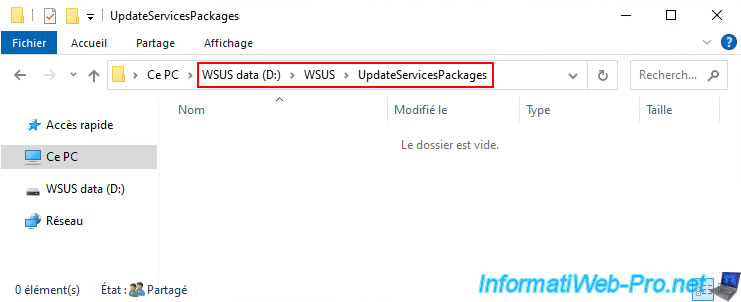
The folder "D:\WSUS\UpdateServicesPackages" is still empty.
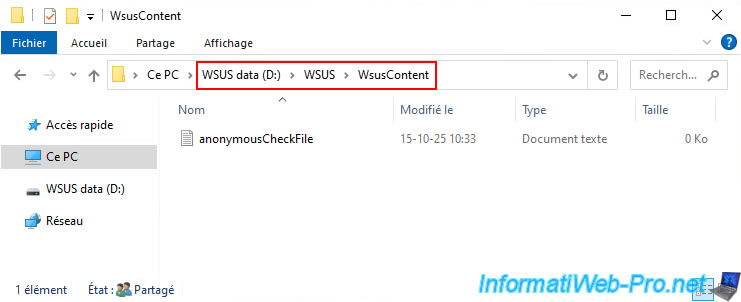
The "WsusContent" folder still only contains the empty file "anonymousCheckFile.txt".
3. WSUS console overview
In the "Updates" section of this WSUS console, you can see a preview of:
- All Updates: total number of updates.
- Critical Updates: number of critical updates.
- Security Updates: number of security updates.
- WSUS Updates: number of updates for WSUS.
You can also see the overall status of these updates:
- the number of updates with an error status.
- the number of updates required by your servers or computers.
- the number of updates installed or not applicable (including unapproved ones).
- the number of updates with no status.
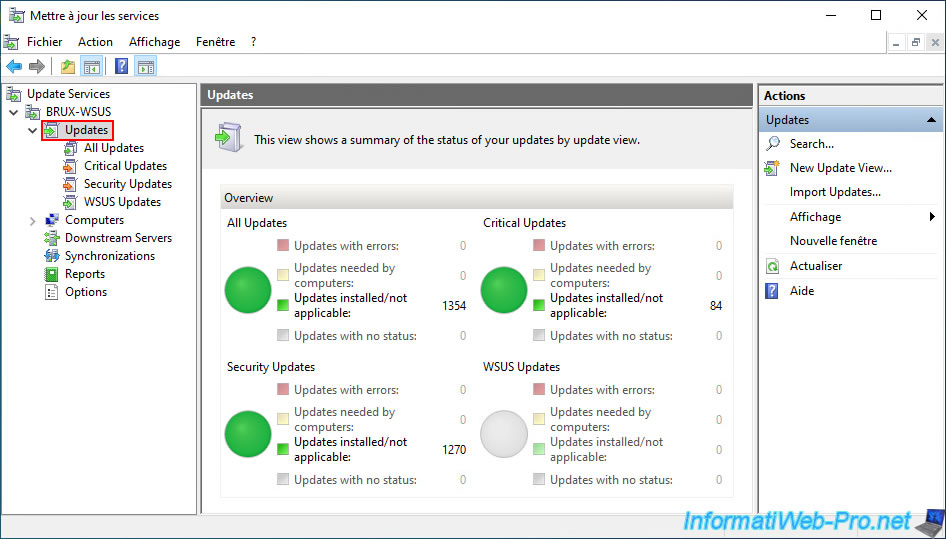
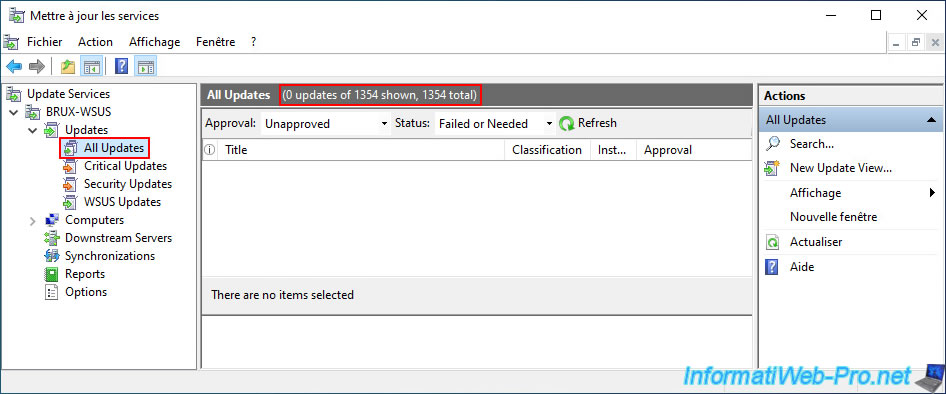
To view the updates referenced on your WSUS server, go to the "Updates -> All Updates" section.
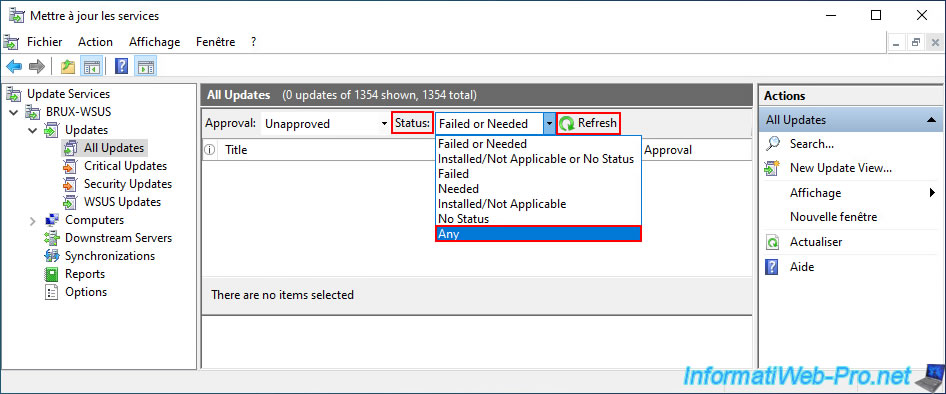
By default, you will see that the list is empty, but Windows Server indicates that 0 out of more than 1000 updates are displayed.
To see them all, select the "Any" status, then click "Refresh".
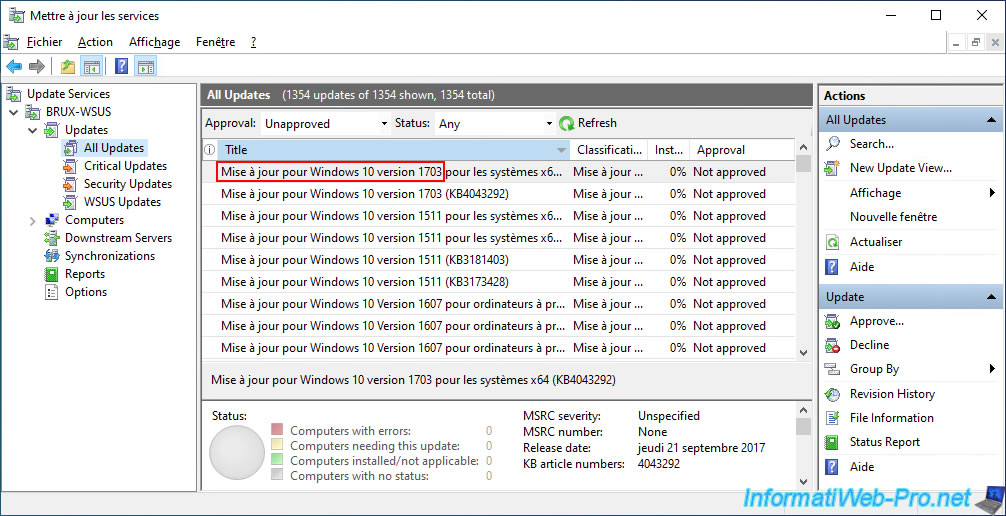
Now, the complete list of updates for the products and classifications selected previously (in the initial setup wizard) is displayed.
As you can see, in our case, we can therefore see numerous updates for:
- older versions of Windows 10: 1607, 1703, ...
- newer versions of Windows 10: 22H2.
- Microsoft Server 21H2 (Windows Server 2022).
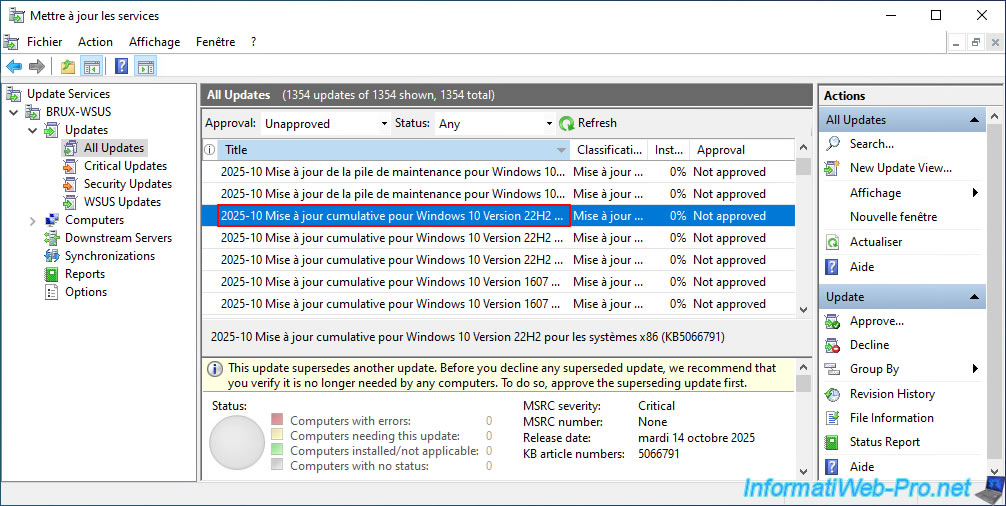
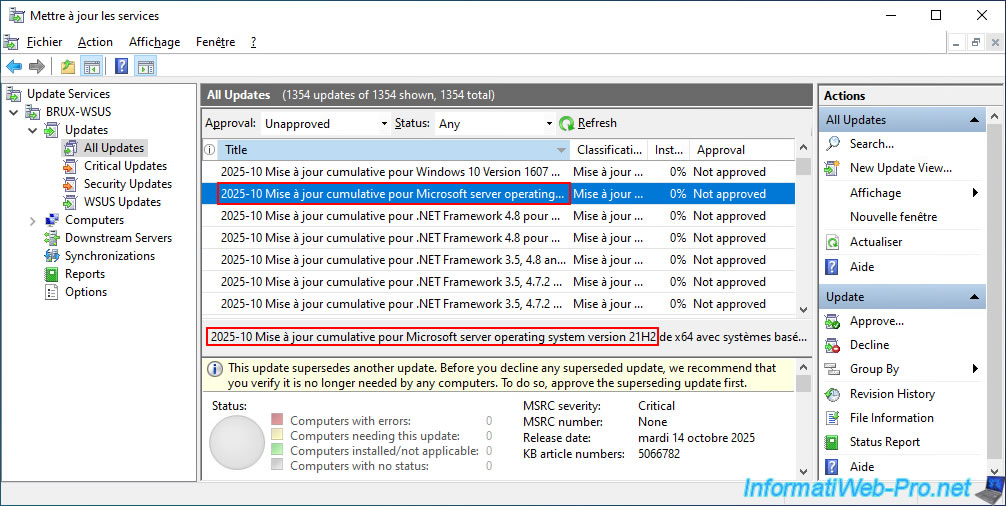
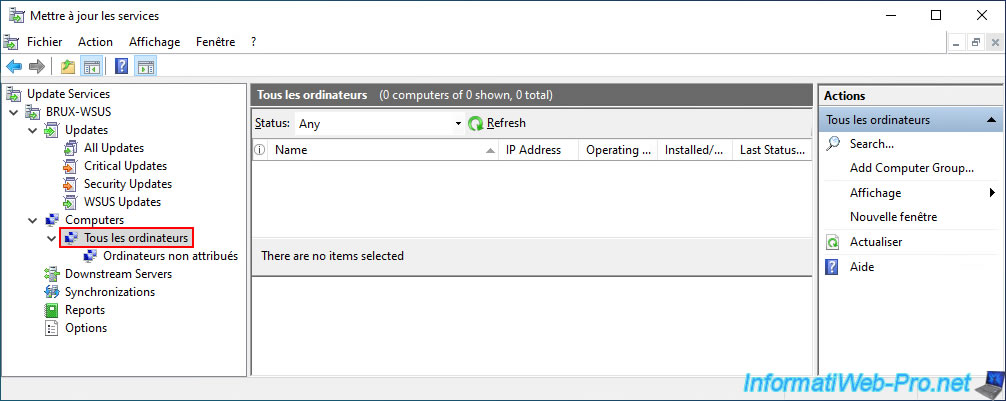
In the "Computers -> All computers" section, you can see all the servers and computers that have already contacted your WSUS server at least once.
For now, the list is empty because you will need to provide them with your WSUS server address using Group Policy Objects (GPOs), which you will see later.
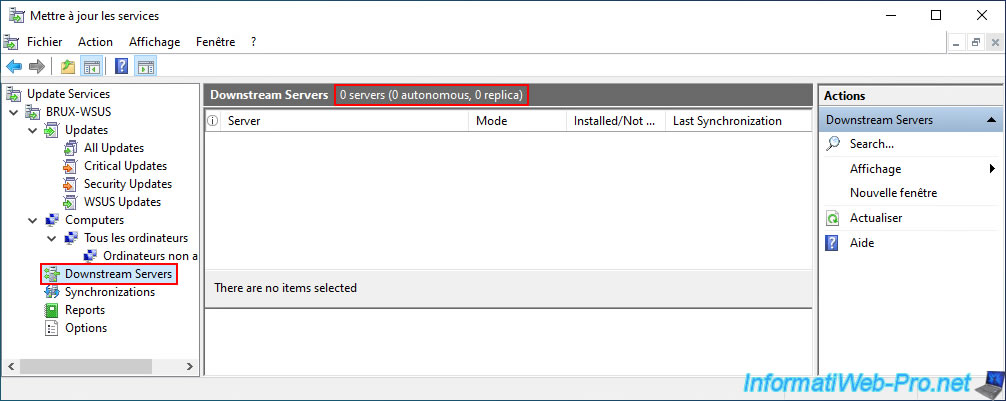
In the "Downstream Servers" section, you can see all the WSUS servers that depend on this master WSUS server.
By default, there are none. However, in a large enterprise or multinational corporation, you might see replica or standalone servers that depend on this master WSUS server.
As you have already seen, in the "Synchronizations" section, you will be able to see the progress and status of the synchronizations performed by your WSUS server.
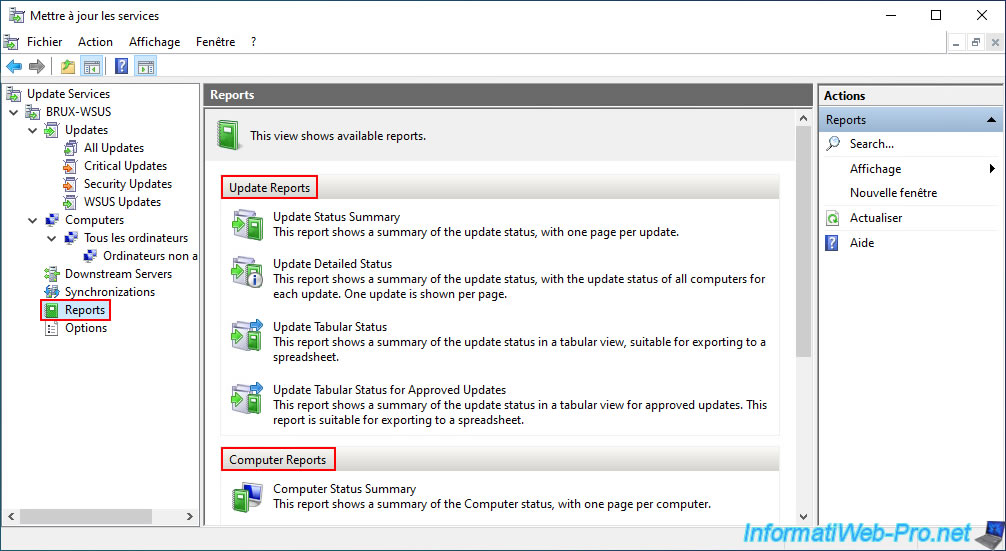
In the "Reports" section, you can generate reports on updates, as well as on computers updated via your WSUS server and WSUS server synchronizations.
Note: to generate these reports, you will need the "Microsoft Report Viewer 2012 Runtime" component (which will be offered for download automatically by WSUS). If needed, the file to download is "ReportViewer.msi".
This component itself requires the other component, "Microsoft System CLR Types for SQL Server 2012", available on the "Microsoft® SQL Server® 2012 SP4 Feature Pack" page of the Microsoft website. There, you will need to download the "SQLSysClrTypes.msi" file, which is 2.40 MB in size (not the 2.10 MB version for the x86 version).
Windows Server 2022 is necessarily 64-bit (x64), so install the x64 version (the 2.30 MB file) and not the x86 version (the 2 MB file).
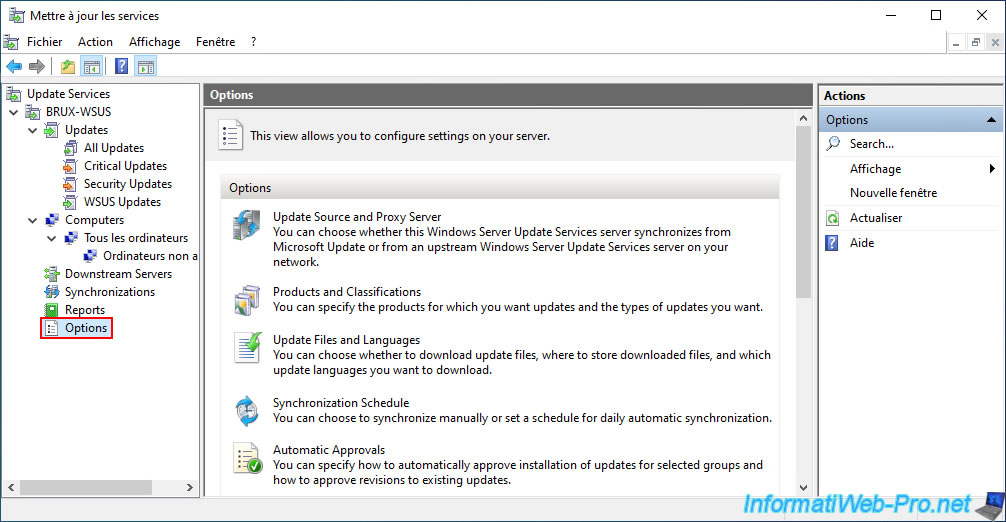
Finally, in the "Options" section, you will be able to:
- Update Source and Proxy Server: change the source used (the official Microsoft Update server or another WSUS server) for downloading updates and update data (full access if the source is the official server, but restricted access if the source is another WSUS server).
You can also modify the necessary information if your WSUS server needs to use a proxy to access the internet within your organization. - Products and Classifications: change the list of products (Windows, Office, Exchange, etc.) that your WSUS server will support for distributing updates, and also change the classifications (types of updates or downloads) supported by your WSUS server.
- Update Files and Languages: choose whether updates should be stored locally on your WSUS server or downloaded from Microsoft Update.
This means that you only approve or reject updates, but approved update files will be downloaded from Microsoft Update and not from your WSUS server if you choose. If you choose to store update files locally, you can choose whether updates should only be downloaded after they are approved (default behavior) or not.
You can also modify the list of languages supported by your WSUS server. - Synchronization Schedule: choose whether your WSUS server should synchronize with its source (Microsoft Update or another WSUS server) manually or automatically.
If you want automatic synchronization, you can choose the time of the first synchronization and set the daily frequency (at least once a day) at which synchronizations will be performed. - Automatic Approvals: allows you to configure automatic approval rules for updates.
By default, you will find a "Default Automatic Approval Rule" which is disabled, but which, when enabled, allows critical and security updates to be automatically approved for all computers (and servers). - Server Cleanup Wizard: easily clean your server by removing old, unnecessary updates (such as those that have since been replaced by newer, approved updates), older computers that haven't contacted this WSUS server for more than 30 days, and more.
- Reporting Rollup: choose whether this WSUS server should centralize update statistics for itself and its downstream servers (replica and/or standalone WSUS servers that depend on it).
- Email Notifications: configure SMTP settings for your WSUS server to automatically send email notifications or reports.
- Microsoft Update Improvement Program: change your choice regarding participation in the Microsoft Update Improvement Program for this product.
- Personalization: choose whether to display only the computers and statuses for this WSUS server or also those of downstream servers (replica and/or standalone WSUS servers that depend on it).
- WSUS Server Configuration Wizard: allows you to restart the initial WSUS configuration wizard seen previously.
Source : [DOC] WSUS30SP2DeployGuide.doc - Download Center - Microsoft (page 13 for "Reporting Rollup").
No comment