Install a master WSUS server on Windows Server 2022
- Windows Server
- WSUS
- 11 November 2026 at 09:17 UTC
-

- 9/9

6. Installing Windows updates via WSUS
As explained earlier, in step "4.3. Approve Updates" of this tutorial, you must first approve the desired updates so that your WSUS server can download them and store them locally (if you have followed our tutorial from the beginning).
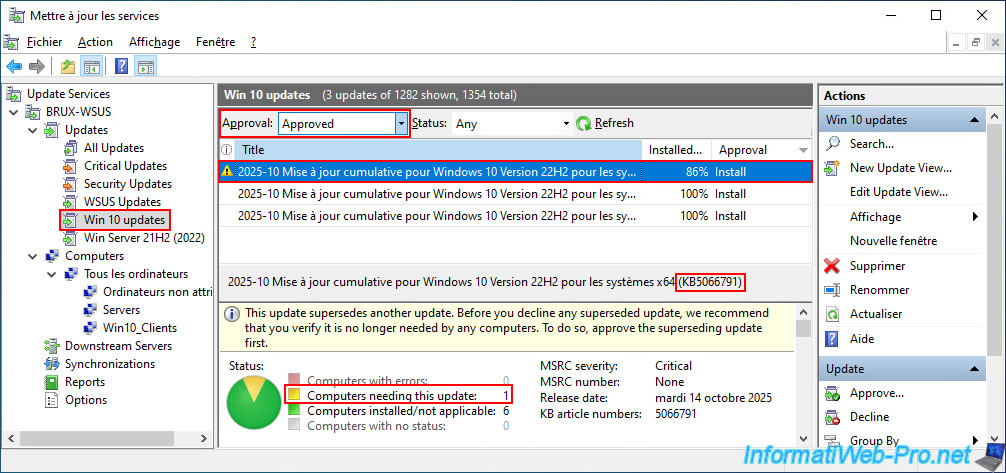
As you can see, in our case, we approved three "KB5066791" updates for Windows 10 version 22H2.
Specifically, these are three versions (x64, x86, and ARM64) of the same Windows update.
Note: this update approval is just an example. The only important information is that it corresponds to the Windows 10 version on the computer where you want it installed.
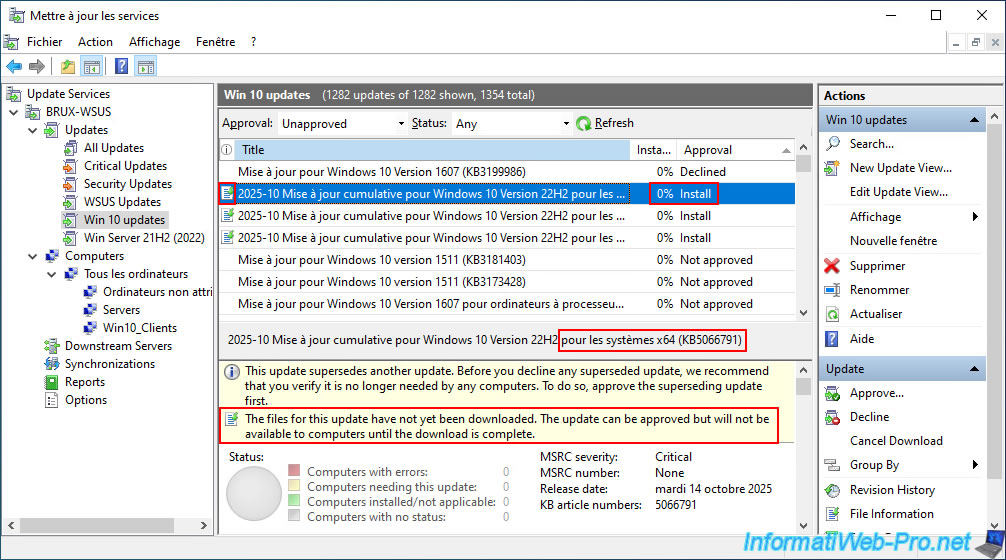
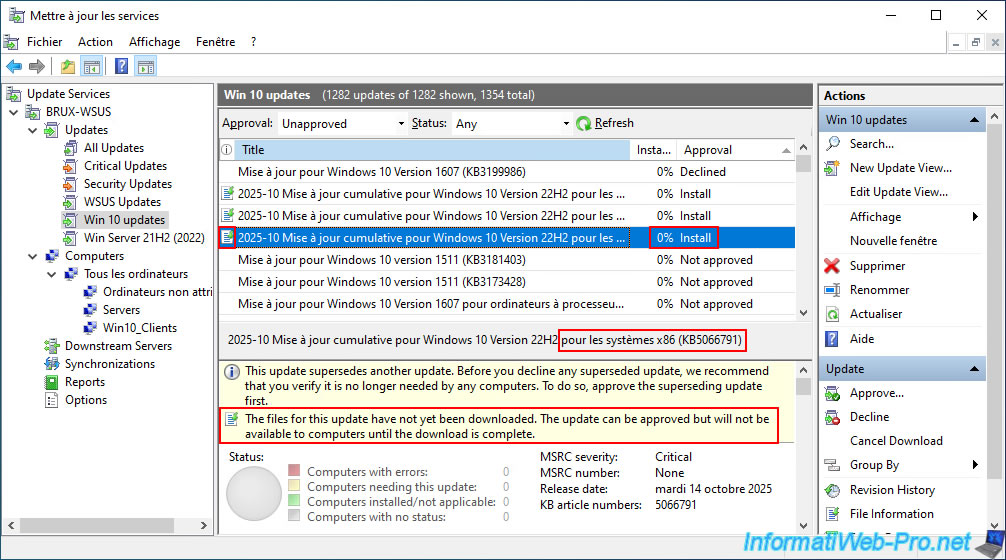
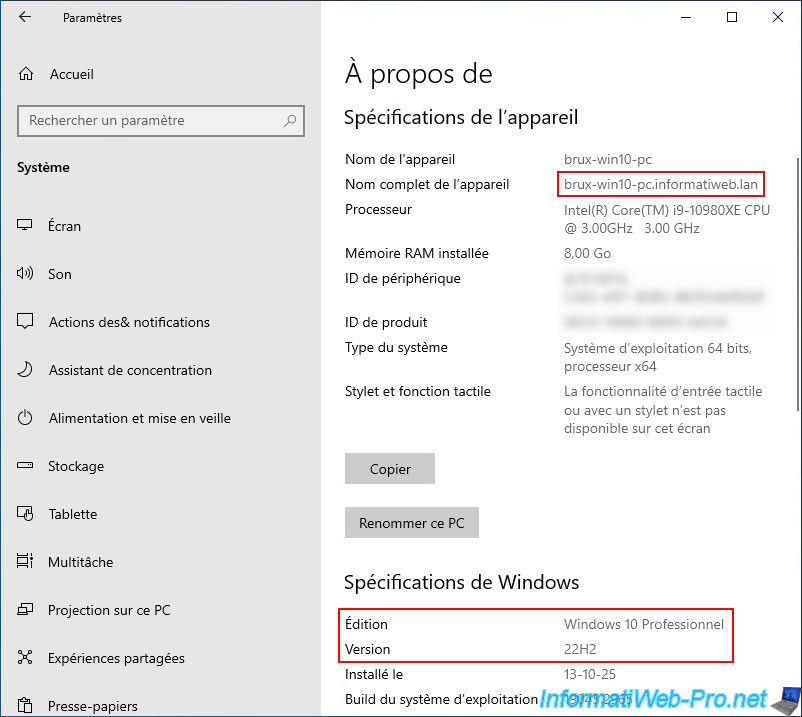
As you can see below, our computer is running Windows 10 Professional version 22H2.
This corresponds to the version of Windows 10 targeted by the approved update on our WSUS server.
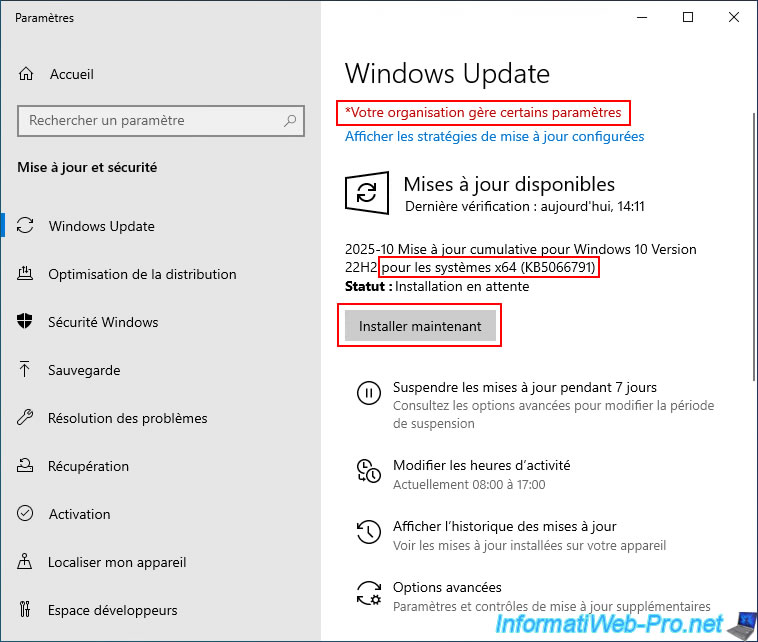
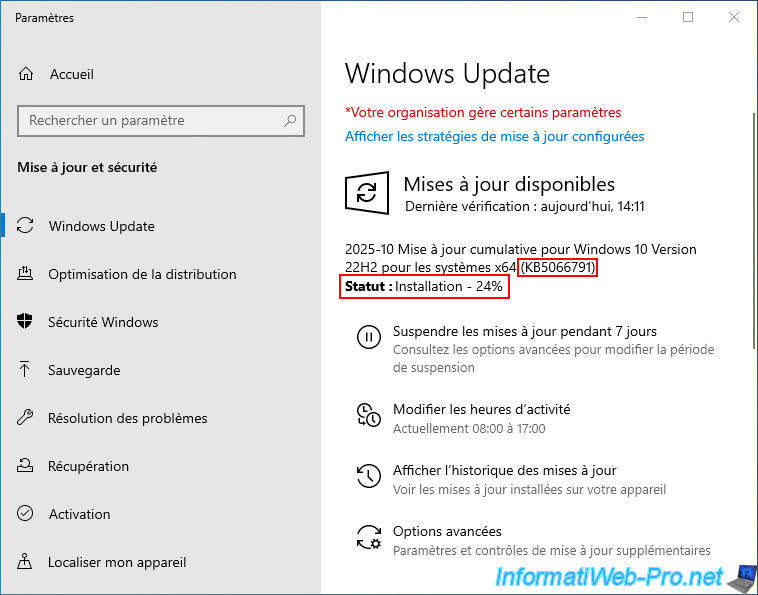
As expected, Windows Update on this Windows 10 computer only detects the availability of this update, "KB5066791," intended for Windows 10 version 22H2.
Click "Install now" (this is just for testing purposes; in a production environment, the download and installation will be automatic).
Please wait while this update is being installed.
During the installation of this update on one of your Windows 10 client computers, go to your WSUS server and you will see that one computer needs this update (Computers needing this update: 1).
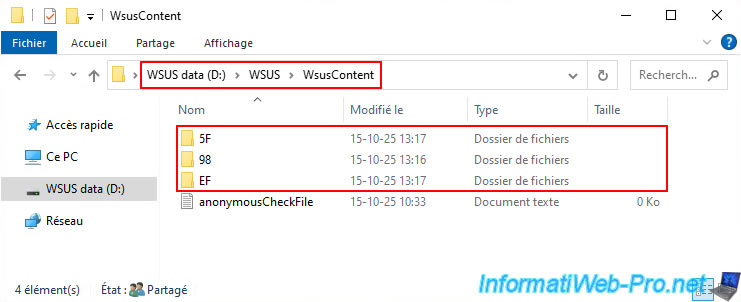
If you go to the "WsusContent" folder (in our case, "D:\WSUS\WsusContent"), you'll see that new folders have appeared.
You'll likely quickly realize that a new folder was automatically created for each update downloaded by your WSUS server (since we only approved three updates via WSUS for this example).
Therefore, when your other Windows 10 computers also try to download these updates, your WSUS server can provide them without having to download them again from the "Microsoft Update" server.
This saves a significant amount of bandwidth in a company with a large IT infrastructure (typically multinational corporations, for example).
Furthermore, it speeds up the deployment of updates to your servers and client computers, because each update is only downloaded once from the internet.
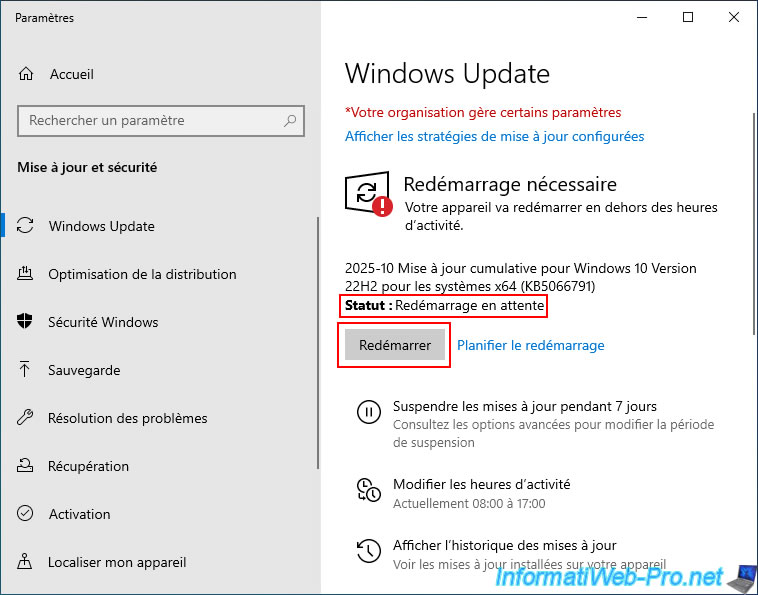
Once the update installation is complete, a restart may be required (depending on the update installed).
Click the "Restart" button (if it appears).
Note: in a business environment, the restart would be scheduled for a time outside of regular business hours (which is generally possible, except in companies operating 24/7).
Please wait while your computer restarts.

The installation of the update in question continues during the computer restart.



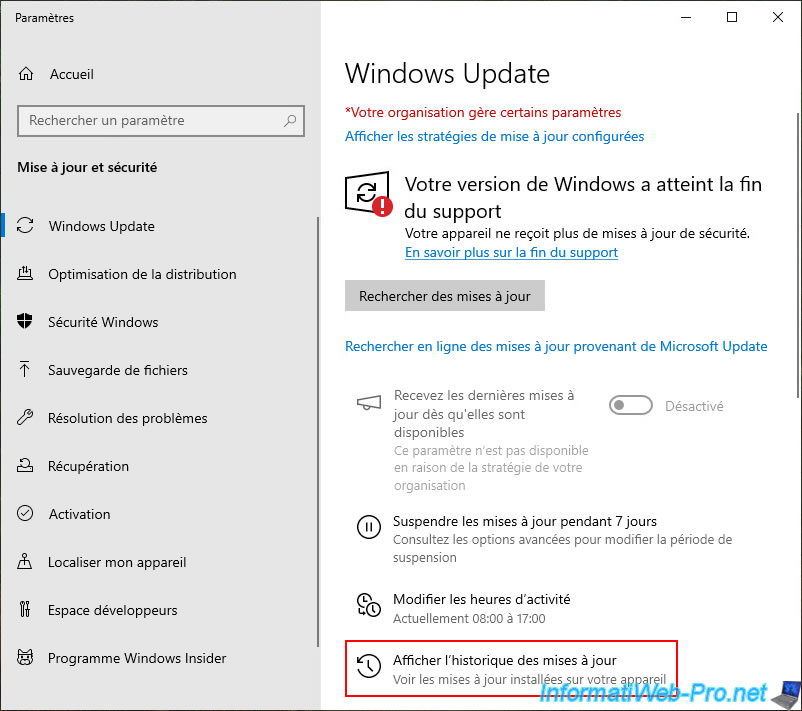
In our case, a new (grayed-out) option appeared, and Windows 10 indicated that it had reached the end of support (which isn't entirely accurate, as with Extended Support (ESU), the end date is only October 14, 2026).
Click on "View update history".
Source : Windows 10 support has ended on October 14, 2025 - Microsoft.
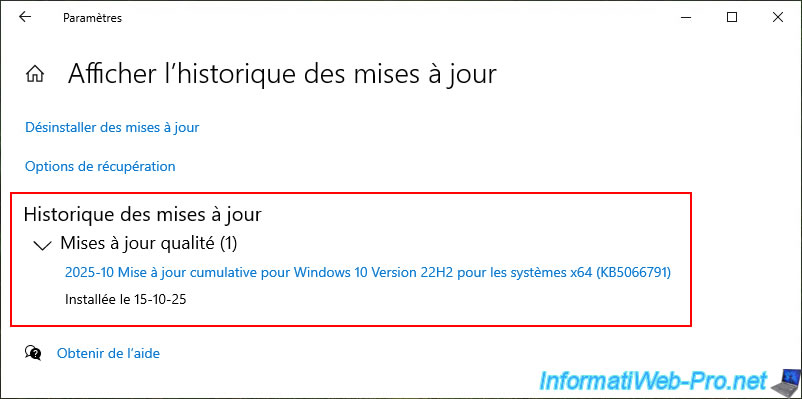
As expected, Windows Update downloaded and installed only update KB5066791, not all updates available from Microsoft.
This demonstrates that you can precisely control which updates are installed on your computers and servers via Windows Update.
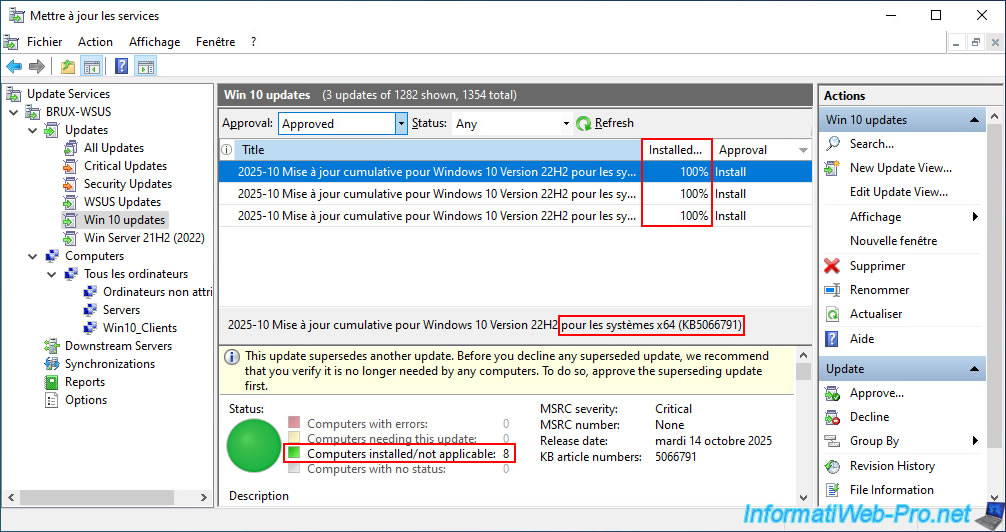
Since this update only applies to one Windows 10 computer in our case, the installation status is now 100%.
Indeed, there is one computer (brux-win10-pc) where this update is now installed, and seven servers (running Windows Server 2022) for which this Windows 10 update is therefore not applicable.

No comment