Install a master WSUS server on Windows Server 2022
- Windows Server
- WSUS
- 11 November 2026 at 09:17 UTC
-

- 8/9

5.5. Check for available updates on Windows 10 via WSUS
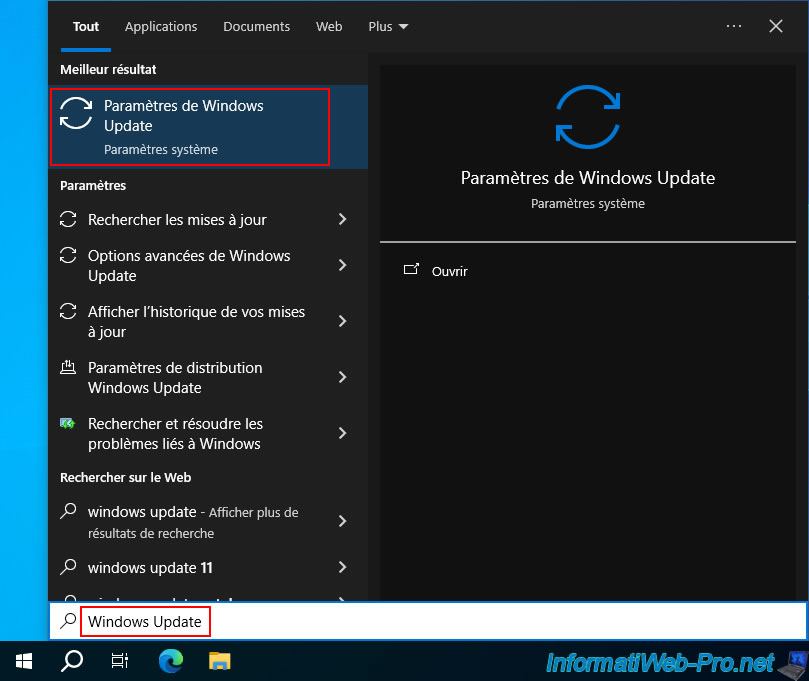
On a Windows 10 computer, open the Start menu and type "Windows Update".
Then, click on the "Windows Update settings" result.
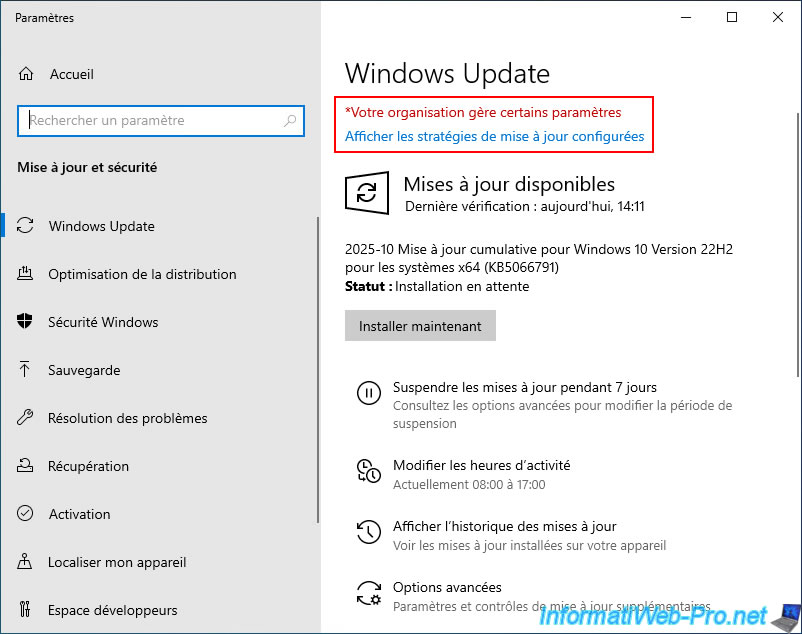
Again, you may see the message "Your organization manages certain settings" displayed in red in Windows Update.
Click the "View configured update policies" link located just below it.
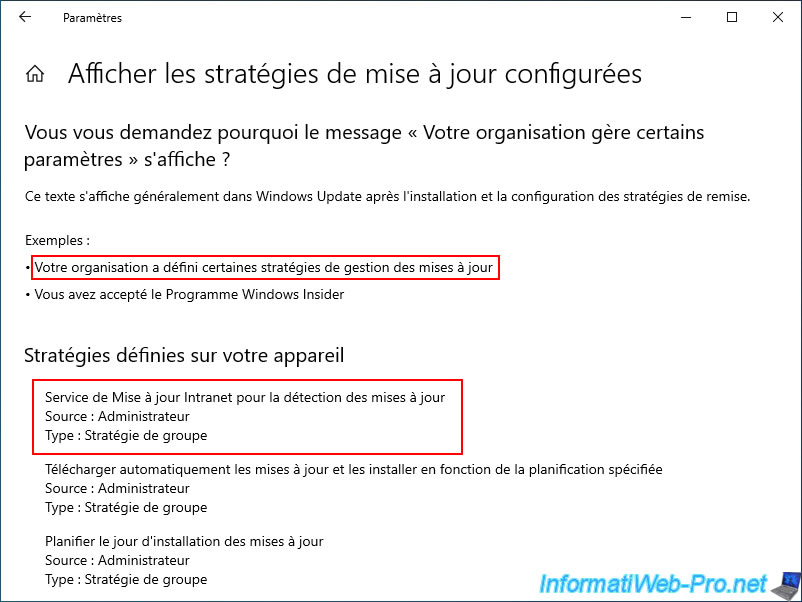
Again, you can see that the "Intranet Update Service for update detection" policy is set on this device.
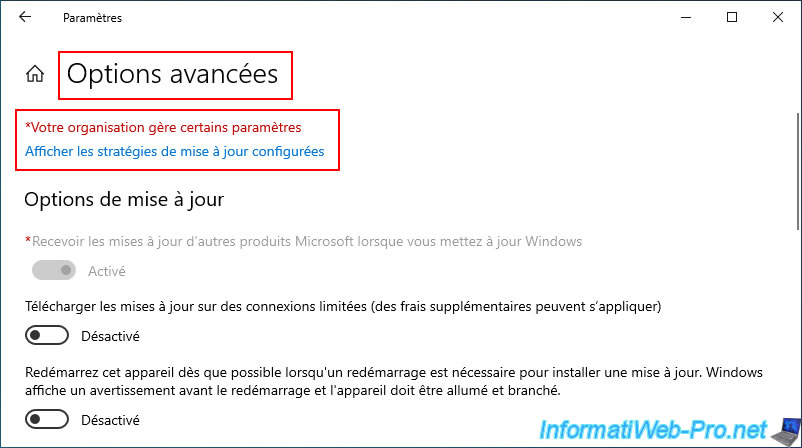
In the advanced options of Windows Update, you will again see the message "Your organization manages certain settings".
You will also notice that some settings are grayed out because they were imposed via Group Policy Objects (GPOs).
5.6. Check the update status of servers and computers from the WSUS server
In a business environment, the WSUS server allows you to centrally manage the download and installation of updates for Windows, Windows Server, and other Microsoft products (Office, SQL Server, etc.).
To do this, go to the "Computers -> All Computers" section of the WSUS console.
Then, select "Status: Any" and click "Refresh".
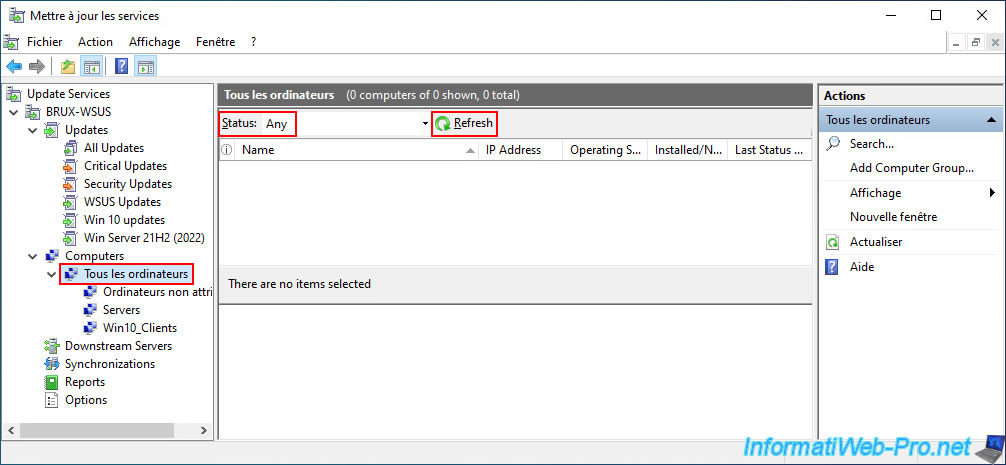
If any of your servers and/or computers have already contacted your WSUS server, you will see them listed here.
As you can see, currently, 3 servers and/or computers appear in the list in our case.
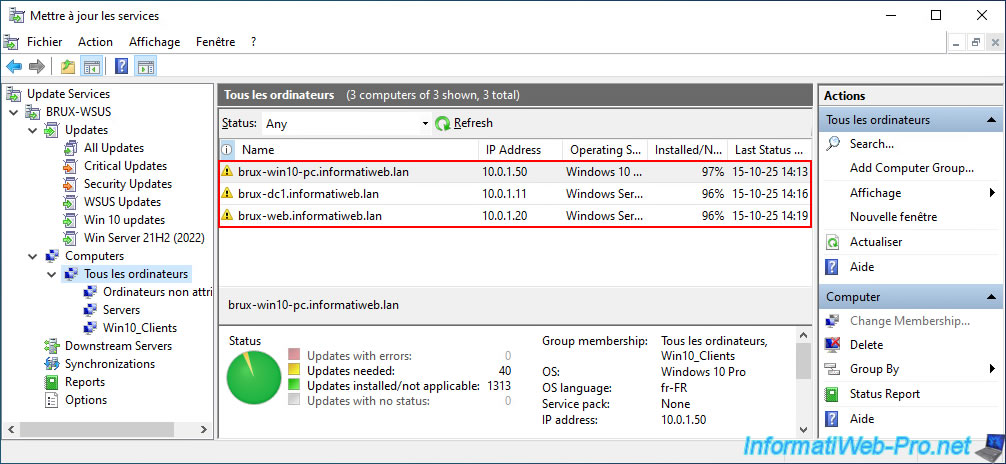
A little later, you'll notice that the number of visible computers (servers/computers) has increased.
If you select a server or computer for which a date appears in the "Last Status" column, you'll be able to see its update status, as well as other system information (OS, language, etc.).
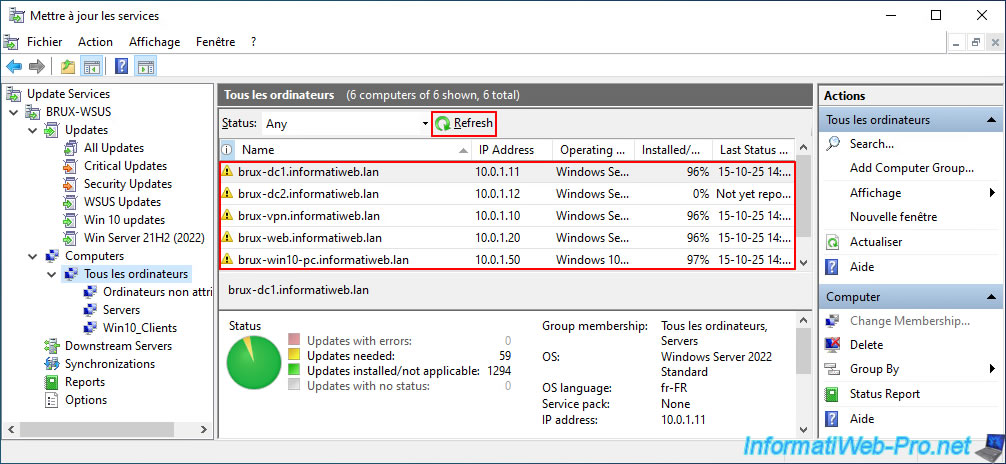
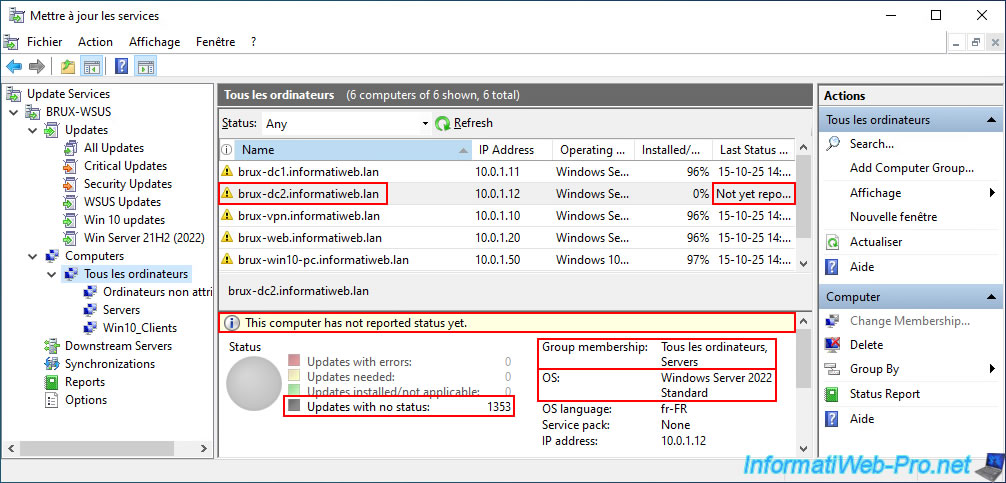
However, it's also possible that some servers and/or computers may appear with a "Not yet reported" status in the "Last Status" column.
If you select one of these, you'll see the message "This computer has not reported status yet" appear on a yellow background.
This indicates that this server recently contacted your WSUS server, but Windows Update has not yet completed its scan on this server or computer and therefore has not yet sent the scan results to your WSUS server.
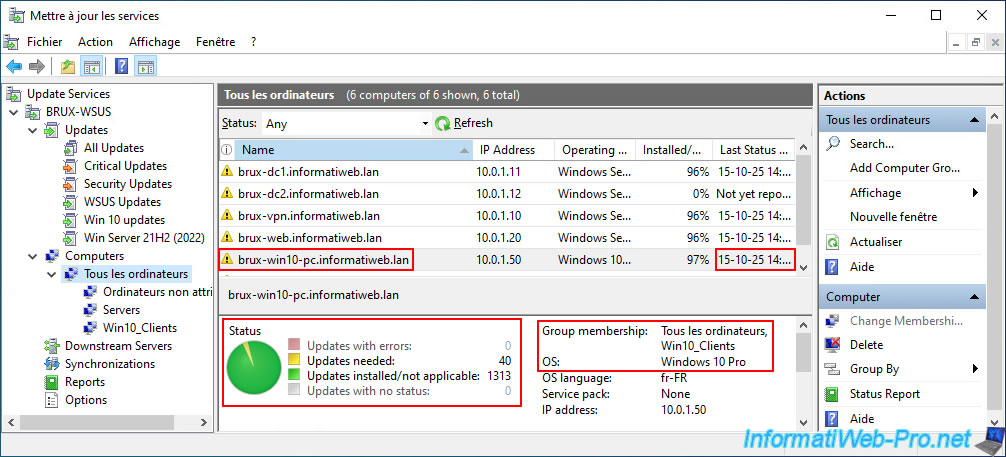
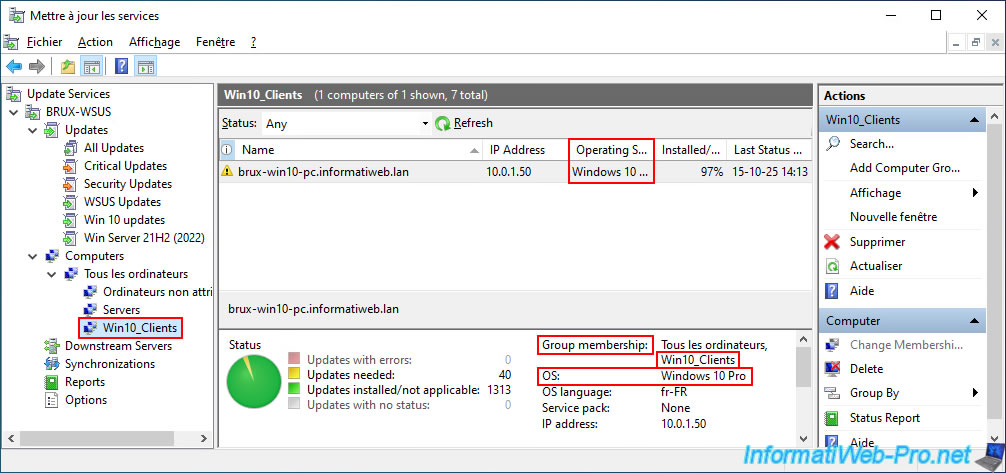
For example, if we select our computer "brux-win10-pc.informatiweb.lan", we can see its update status, as well as its OS (Windows 10 Pro) and the groups ("All Computers" and "Win10_Clients") in which this computer is located on our WSUS server.
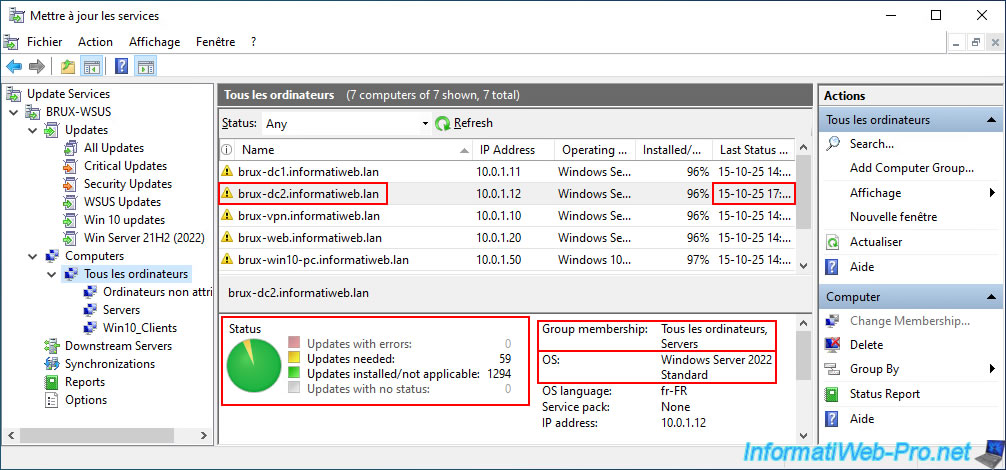
If we select our server "brux-dc2.informatiweb.lan", we can see its update status, as well as its OS (Windows Server 2022 Standard) and the groups ("All Computers" and "Servers") in which this server is located on our WSUS server.
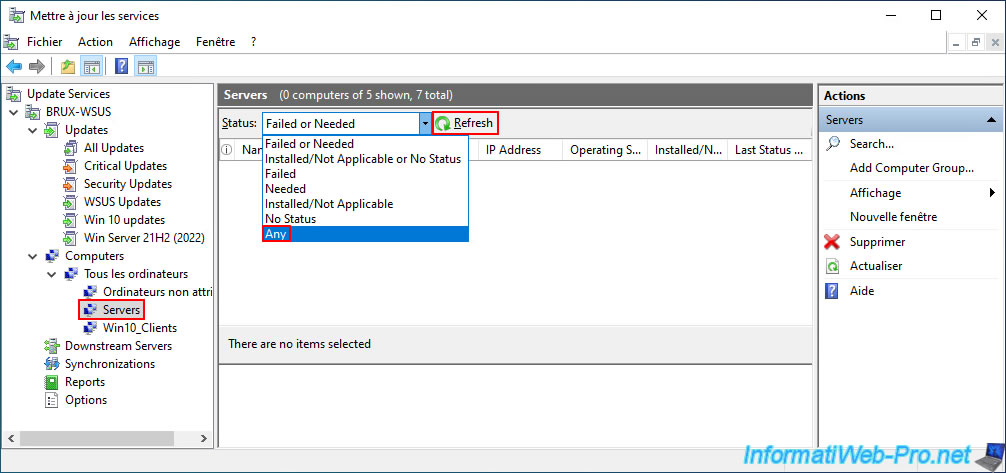
To filter the display of these servers and computers, select the desired group in the left column.
For example: the "Servers" group.
Then, select "Status: Any" and click "Refresh".
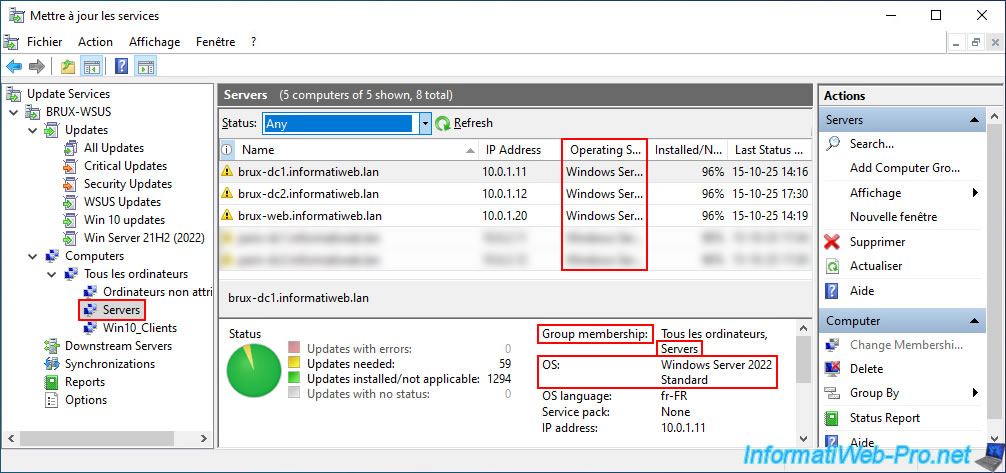
As expected, the list only contains servers whose OS is "Windows Server 2022" (in our case).
If we select our WSUS group "Win10_Clients", we can see that the list only contains computers whose OS is "Windows 10 Pro" (in our case).

No comment