- Windows Server
- WSUS
- 25 November 2026 at 10:17 UTC
-

- 1/6

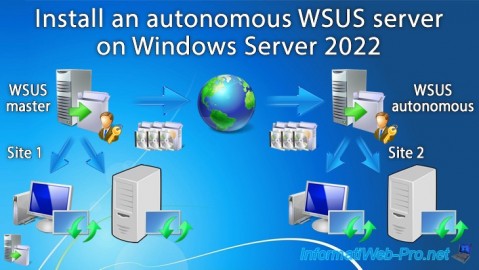
On Windows Server, it's possible to deploy an update server called WSUS.
However, in a multinational organization, it's often necessary to deploy a WSUS server per physical site (country or region, depending on your needs) so that the IT infrastructure can be updated via an update server available locally at each physical site.
To simplify update management for your Microsoft products, you can create a master WSUS server, and then WSUS servers that depend on this master server.
These downstream WSUS servers can be replica WSUS servers (as explained in our "Install a replica WSUS server on Windows Server 2022" tutorial) or autonomous WSUS servers (as in the tutorial below).
The main difference is that with an autonomous WSUS server, only the updates, product selections, and classifications are replicated.
The administrator of the local site where the autonomous WSUS server is located will therefore have to manage the approval of updates synchronized from the master WSUS server himself, as well as the WSUS groups (because those of the autonomous WSUS server will only be created on this autonomous WSUS server).
- Configuring the master WSUS server
- Installing an autonomous WSUS server and initial configuration
- Synchronization of the autonomous WSUS server from the master WSUS server
- Targeting WSUS server clients
- Configure WSUS to use groups via GPO and create the new WSUS groups
- Configure folders in Active Directory to target the desired servers and computers
- Force the replication of created organizational units to other Active Directory domain controllers
- Create WMI filters so that a GPO object applies only to a specific Active Directory site
- Configure GPOs to use WSUS with a master server and an autonomous server at 2 different sites
- Configure common WSUS settings via GPO
- Configure the specific settings for the autonomous WSUS server via GPO
- Assign the Nice servers to the WSUS group "NiceServers" via GPO
- Assign the Windows 10 computers in Nice to the WSUS group "NiceWin10_Clients" via GPO
- Replicate group policy objects (GPOs) in your Active Directory infrastructure
- Verify that your GPO objects are applied on your servers and computers
- Checking for updates on Windows 10 (with WSUS as the update server)
- Check for updates on Windows Server (with WSUS as the update server)
- Bonus: clear the Windows Update cache if an update is detected from the Microsoft server.
1. Configuring the master WSUS server
As you can see, for this tutorial, we have a master WSUS server named "BRUX-WSUS" with two update views named "Win 10 updates" and "Win Server 21H2 (2022)" (these are views created manually in WSUS).
Therefore, you know that our master WSUS server provides updates for our servers running Windows Server 2022 (Microsoft Server 21H2) and for our computers running Windows 10 (22H2).

Regarding servers and computers, you can see that there are servers and computers located on 2 physical sites:
- the "brux-..." servers and computers in Brussels connect to the master WSUS server "BRUX-WSUS" (where the subnet used is "10.0.1.X").
To deploy a master WSUS server, refer to our tutorial: Install a master WSUS server on Windows Server 2022. - the servers and computers in the "paris-..." directory in Paris connect to the secondary WSUS server "PARIS-WSUS" (where the subnet used is "10.0.2.X").
To deploy a replica WSUS server, refer to our tutorial: Install a replica WSUS server on Windows Server 2022.
This is for illustrative purposes only.
In reality, you only need a master WSUS server from which your future autonomous WSUS server will synchronize.

As you can see below, our "paris-wsus" server is a WSUS server in "Replica" mode and it depends on our "BRUX-WSUS" server.
This shows that the "BRUX-WSUS" server acts as the master server in our case.

On this master server "BRUX-WSUWS", we can configure the products, and you can see that those available in our case are:
- Microsoft Server operating system-21H2.
- Windows 10, version 1903 and later.
- Windows 10.


The classifications available on our master server "BRUX-WSUS" are:
- Critical update.
- Security update.
- Definition updates.
Again, we can manage them because this is a master WSUS server.
This will not be the case on an autonomous server (and it's also not possible on a replica WSUS server).

The language available on our master server "BRUX-WSUS" is only "French".
Warning : an autonomous server depends on the choices (products, classifications, and languages) made on your master WSUS server.
Although the update approval status and WSUS groups will not be copied to the autonomous WSUS server, this means that your autonomous WSUS server will have the same (non-modifiable) choices.
As a side note, the language selection for the autonomous WSUS server will be limited to the language choices made on the master server, but you can restrict it further on your autonomous server if needed.
This allows you, for example, to download the "French" and "English" languages to your master WSUS server, and then select only "French" on your autonomous WSUS server, which you could install in Nice, France, for example.

2. Installing an autonomous WSUS server and initial configuration
To install an autonomous WSUS server, first install the "WSUS (Windows Server Update Services)" role.
For this tutorial, we created a new server, "nice-wsus," located in Nice, France, which will depend on the master WSUS server, "brux-wsus," in Brussels, Belgium.
The goal is for product selection to be handled at the company headquarters (in Brussels), while the local administrator in Nice can still manage update approvals and WSUS groups on this Nice server (while being limited by the product, classification, and language choices defined in Brussels).

Ideally, store updates locally on a second disk of your autonomous WSUS server.
By default, updates will be copied from your master WSUS server to this new autonomous WSUS server via the WSUS synchronization system.
This autonomous WSUS server can then deliver updates to your local servers and computers without overloading the internet connection at that physical location.

Once the "WSUS (Windows Server Update Services)" role is installed, click on the "Launch post-installation tasks" link that will appear.

Once the message "Configuration complete" appears, click "Close".

Now, open the WSUS console and you will see the configuration wizard appear automatically.
As you can see, this is indeed the "NICE-WSUS" server that we just installed.
To put this WSUS server in "autonomous" mode, you must select the "Synchronize from another Windows Server Update Services server" option and specify the name of a parent WSUS server (in our case, our master WSUS server "brux-wsus.informatiweb.lan").
Then, make sure to leave the "This is a replica of the upstream server" checkbox unchecked.
Note: if you check the "This is a replica of the upstream server" checkbox, it will be a replica WSUS server.
If you uncheck it, it will be an autonomous WSUS server.

Click "Start Connecting" to download update information (products, update types, and language list) from your master WSUS server (in our case, "brux-wsus.informatiweb.lan").
Note: this will take a few minutes.

Once this update information has been downloaded, click "Next".

As you can see, you can choose the desired language(s) for updates to this autonomous WSUS server.
However, the list of available languages is very limited, as it depends on the language list defined by the administrator of the master WSUS server (used as the source).

Choose whether your autonomous WSUS server (in our case: NICE-WSUS) should be synchronized automatically or manually from your master WSUS server.
In our case, it will be synchronized manually.

Check the "Begin initial synchronization" box and click "Next".

Click on "Finish".

Now that the autonomous WSUS server is configured and synchronization has started (even if it's still in progress), you can see it appear on your master WSUS server in the "Downstream Servers" section.
As expected, this new WSUS server (in our case, "nice-wsus.informatiweb.lan") is an autonomous WSUS server, and its parent server is "BRUX-WSUS" (our master WSUS server).

Share this tutorial
To see also
-
Windows Server 11/11/2026
WS 2022 - WSUS - Install a master WSUS server
-
Windows Server 11/18/2026
WS 2022 - WSUS - Install a replica WSUS server
-
Windows Server 11/4/2026
WS 2022 - WSUS - What is a WSUS server?
You must be logged in to post a comment