- Windows Server
- WSUS
- 18 November 2026 at 14:39 UTC
-

- 1/7

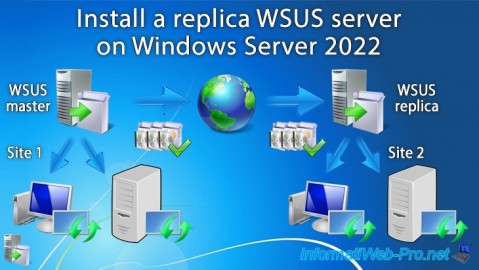
To manage the download and installation of Microsoft updates (Windows, SQL Server, etc.) within a company, you can use a Windows Server update server called "WSUS".
In the case of a multinational corporation (a company with operations in multiple countries), it's also possible to centralize the management of these updates on a master WSUS server installed at the company headquarters. Then, replica WSUS servers can be deployed in the different countries to avoid saturating the network bandwidth between your various physical sites.
In this tutorial, you'll see that we already have a master WSUS server (BRUX-WSUS) at the (fictional) company headquarters located in Brussels (for example).
Next, we'll install a replica WSUS server (PARIS-WSUS) in Paris.
If you'd like to learn how to deploy and manage a master WSUS server, please refer to our tutorial: Install a master WSUS server on Windows Server 2022.
Therefore, your company's servers and computers will always download updates from the local WSUS server:
- those in Brussels will connect to the master WSUS server in Brussels.
- those in Paris will connect to the Paris replica WSUS server.
Important : for this example, we used a multi-site Active Directory infrastructure.
If you want to use the same database before deploying your master WSUS server (following the tutorial mentioned earlier) at one physical site (Brussels in our case), and then your replica WSUS server at another site (Paris in our case), you can follow the tutorial above for multi-site Active Directory.
Note: in a test environment, a multi-site infrastructure for Active Directory is not necessary.
However, in production, using a master WSUS server and replica WSUS servers is a common implementation in multinational companies (thus requiring a multi-site Active Directory infrastructure as described in the tutorial below).
- Configuring the master WSUS server
- Installing a WSUS replica server and initial configuration
- Synchronizing the replica WSUS server from the master WSUS server
- Targeting WSUS server clients
- Configure WSUS to use groups via GPO and create the new WSUS groups
- Configure folders in Active Directory to target the desired servers and computers
- Force the replication of created organizational units to other Active Directory domain controllers
- Create WMI filters so that a GPO object applies only to a specific Active Directory site
- Configure GPOs to use WSUS with a master server and a replica server on 2 different sites
- Configure common WSUS settings via GPO
- Configure the settings specific to the master WSUS server via GPO
- Configure the WSUS replica server-specific settings via GPO
- Assign the Brussels servers to the WSUS group "BruxServers" via GPO
- Assign the Windows 10 computers in Brussels to the WSUS group "BruxWin10_Clients" via GPO
- Assign the Paris servers and computers to their respective WSUS groups via GPO
- Replicate GPOs in your Active Directory infrastructure
- Force WSUS group replication
- Verify that your GPO objects are applied on your servers and computers
- Check for updates on Windows and Windows Server (with WSUS as the update server)
1. Configuring the master WSUS server
As explained previously, we have already installed a master WSUS server in Brussels named "BRUX-WSUS".
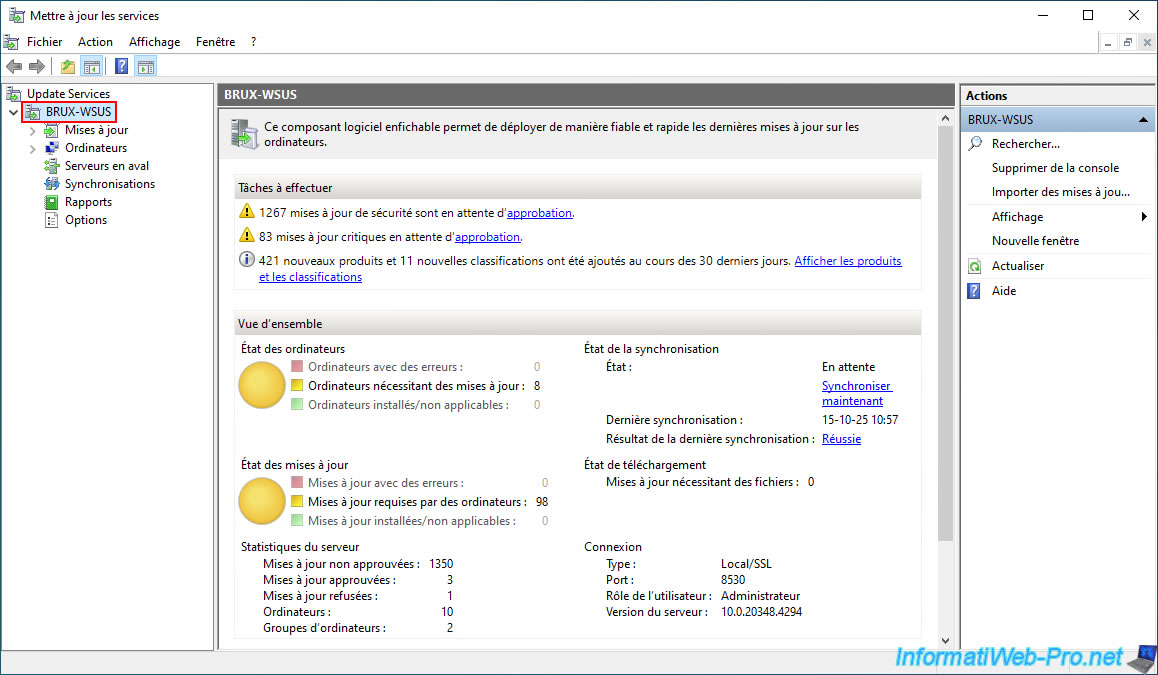
This "BRUX-WSUS" server already makes it possible to provide updates for Windows 10 and Windows Server 2022 to the computers and servers located on the physical site in Brussels.
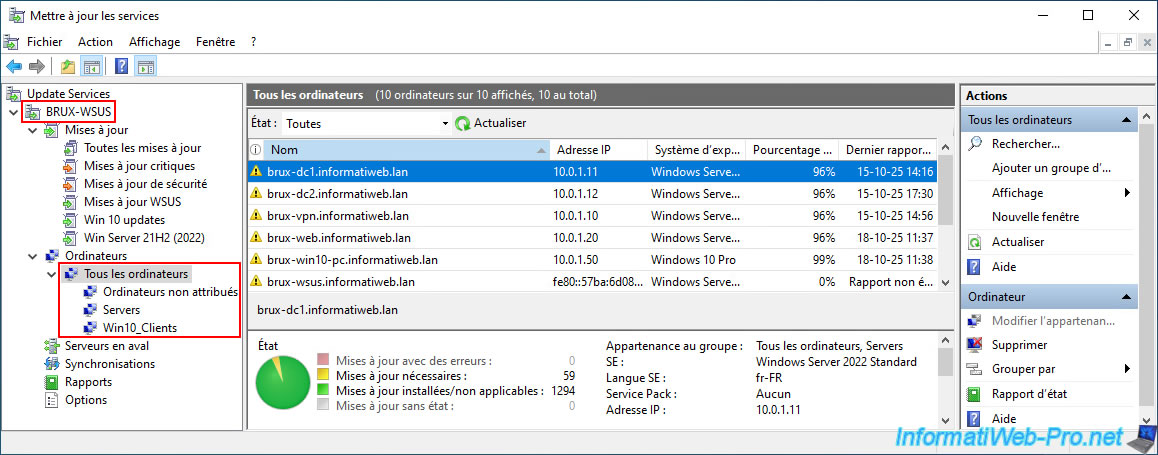
Currently, the servers and computers connecting to this WSUS server are sorted into different groups (which is useful for managing update approvals and for easier identification).
That said, these groups will be deleted in our case and recreated to easily identify the servers and computers at each physical site.
Indeed, it's not possible to rename them afterward.
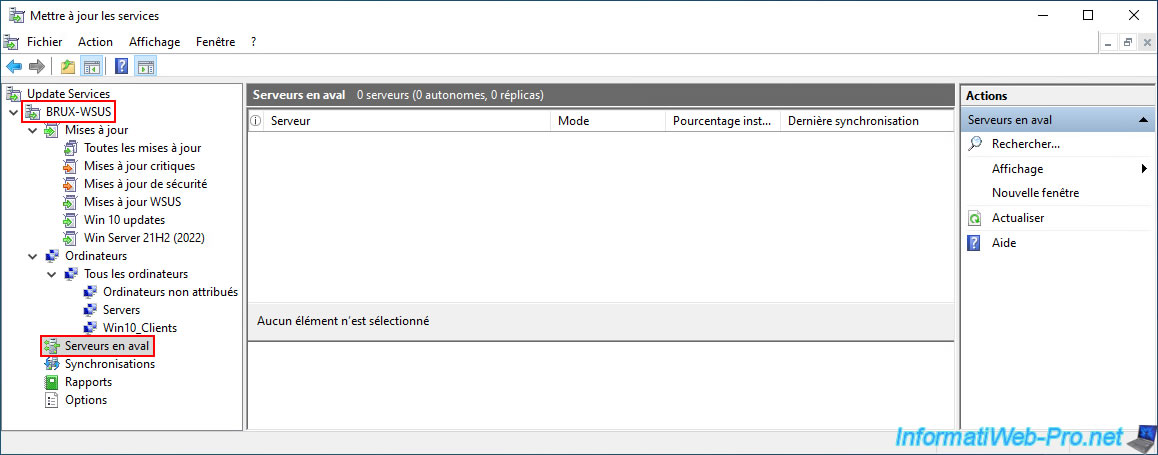
Currently, the "Downstream Servers" section of this master WSUS server is empty.
However, as WSUS indicates, this list will contain the standalone or replica servers once they are deployed and connect to your master WSUS server.
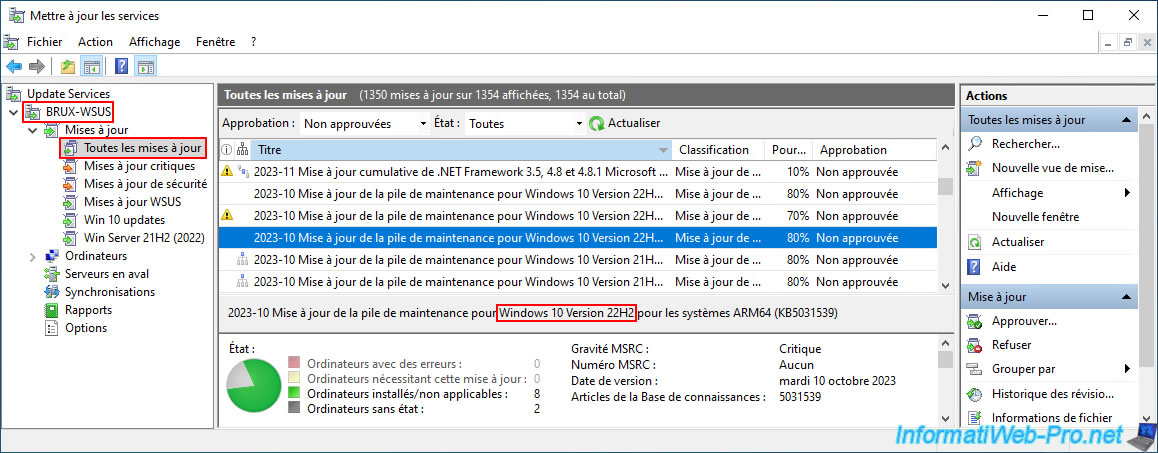
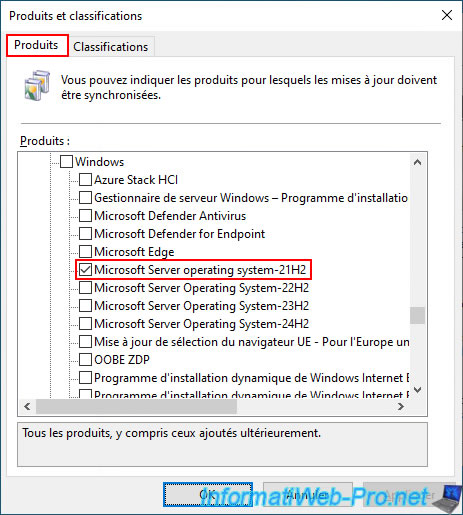
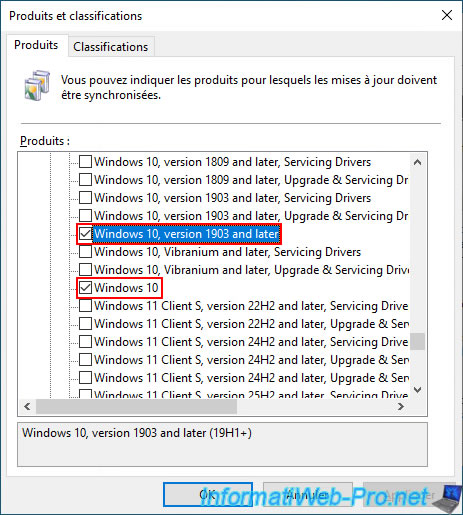
In the "Options -> Products and Classifications" section, you can see that our master WSUS server can provide updates for:
- Microsoft Server operating system-21H2: Servers running Windows Server 2022.
- Windows 10, version 1903 and later: Computers with a recent version of Windows 10 (version 1903 and later, currently up to 22H2).
- Windows 10: Computers with an older version of Windows 10.
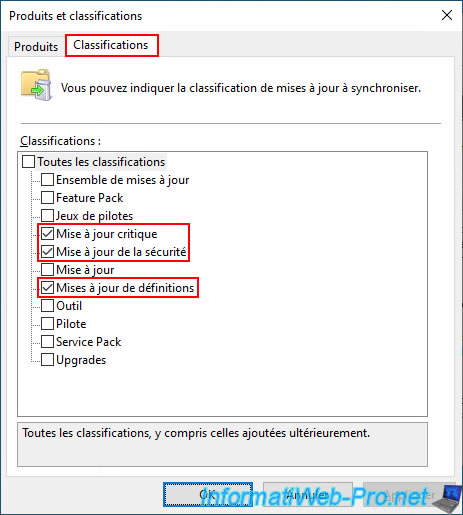
For classifications, we have chosen to provide only security-related updates.
This includes:
- Critical update.
- Security updates.
- Definition updates.
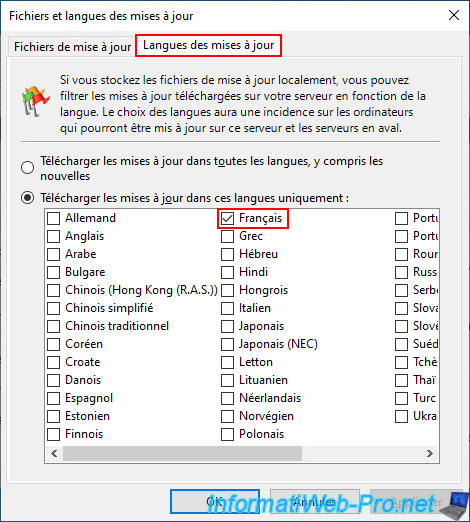
Finally, our master WSUS server downloads updates only in French.
Warning : a replica server is limited by the choices made on the master WSUS server.
This means that WSUS management is centralized on the master WSUS server, and the replica WSUS server simply synchronizes regularly with the master server.
- the replica server will therefore only support the products, classifications, and languages supported on the master WSUS server.
- creating WSUS groups (to group servers or computers) is only possible on the master WSUS server.
These groups will then be synchronized to the replica WSUS server. - update approval is only possible on the master WSUS server. This means that all decisions are made at company headquarters.
Even though it is possible to approve updates from the master server only for certain groups of servers or computers. - the only option available on the replica server is language.
This allows updates to be provided only in French for France and Belgium, and then only in English for the United States, if both French and English are supported on the master server.
Therefore, all necessary languages must be available (selected) on the master WSUS server. Next, you select only the desired language for each country on each WSUS replica server located in each country.
2. Installing a WSUS replica server and initial configuration
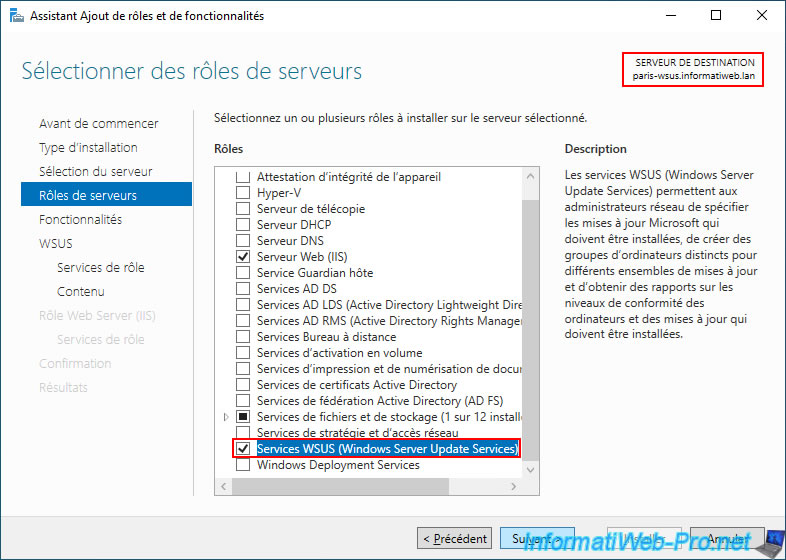
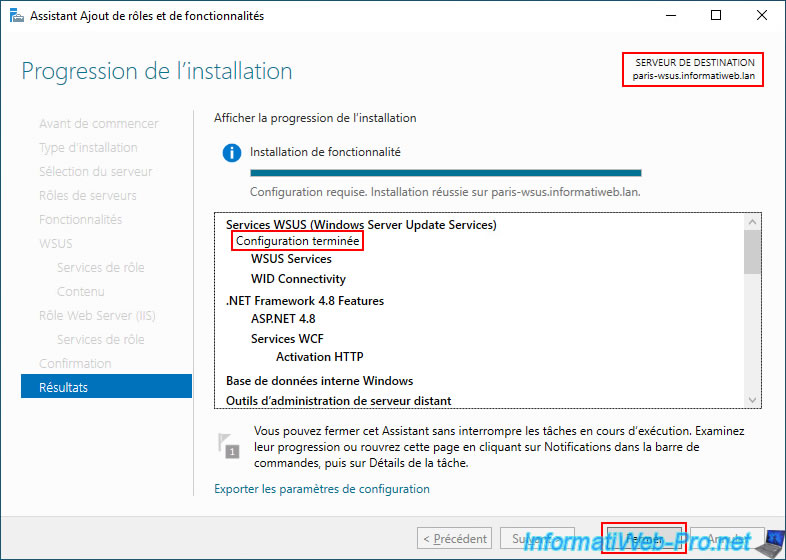
To install a WSUS replica server, first install the "WSUS Services (Windows Server Update Services)" role (as you did for installing a master WSUS server).
In our case, this role is installed on our server "paris-wsus.informatiweb.lan" (as you can see at the top).
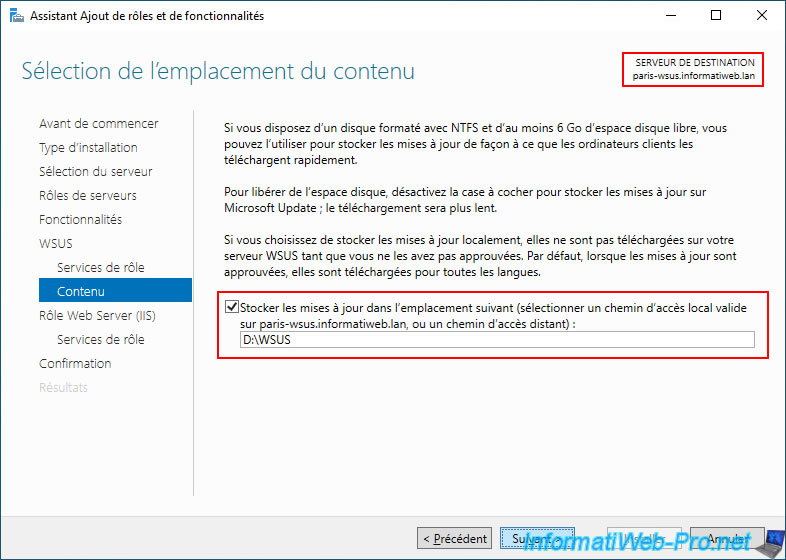
To conserve internet bandwidth at your second physical site (in our case, Paris), it's recommended to use local storage for this WSUS replica server.
Otherwise, updates for the servers and computers in Paris would still be downloaded from your master WSUS server (in Brussels in our case) or the Microsoft Update server (if you change the WSUS setting to download updates from Microsoft while respecting the update approvals defined on the WSUS server).
To do this, check the box "Store updates in the following location...".
In our case, this is again a "WSUS" folder that will be created on a second 500 GB disk (on this replica server).
Note: during the initial synchronization between your new WSUS replica server and your master WSUS server, updates will be downloaded to this local storage.
Each update will therefore be stored on the local storage of each WSUS server.
Once the "WSUS (Windows Server Update Services)" role is installed on this "paris-wsus" server, click on the "Launch post-installation tasks" link that appears.
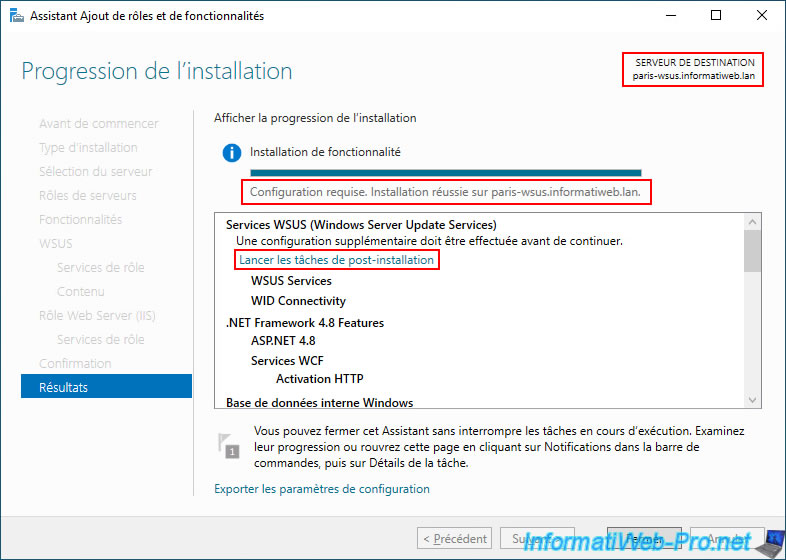
Once these post-installation tasks are complete, the message "Configuration complete" will appear.
Click "Close".
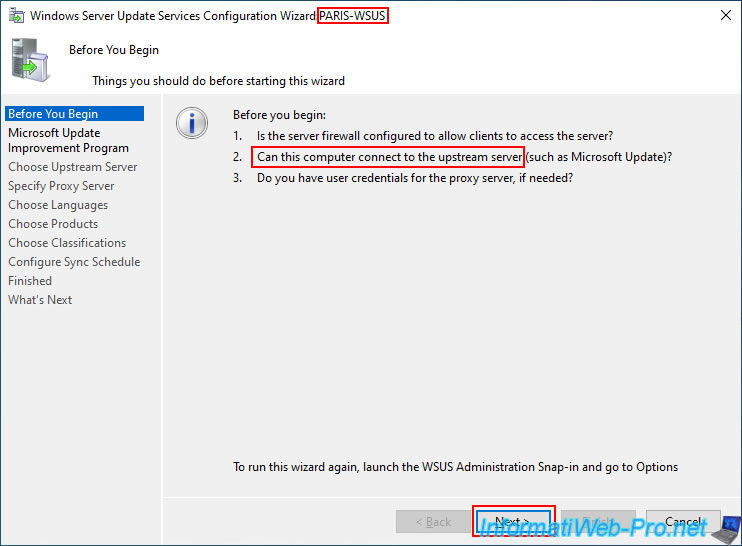
In the Windows Server Start menu, open the "Windows Administrative Tools -> WSUS (Windows Server Update Services)" console.
As you can see, this wizard now applies to our new "PARIS-WSUS" server.
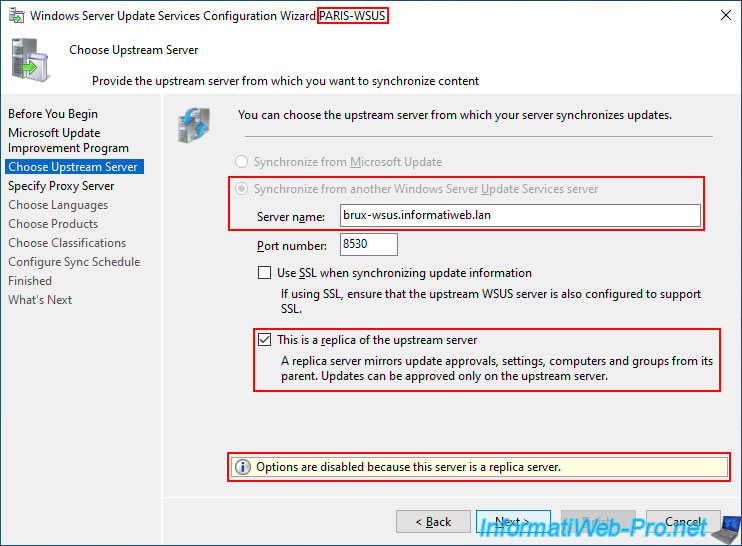
In the "Choose Upstream Server" step, select "Synchronize from another Windows Server Update Services server" and enter the domain name of your master WSUS server.
In our case: brux-wsus.informatiweb.lan.
Next, check the "This is a replica of the upstream" box to make this WSUS server act as a WSUS replica server.
This means that this server will mirror update approvals, WSUS settings, WSUS groups, etc.
As indicated below this checkbox, updates can only be approved on the master (upstream) WSUS server.
This is ideal when you want to be able to make all decisions at headquarters, while avoiding overloading the connection between your two physical sites with updates to be delivered to the second physical site.
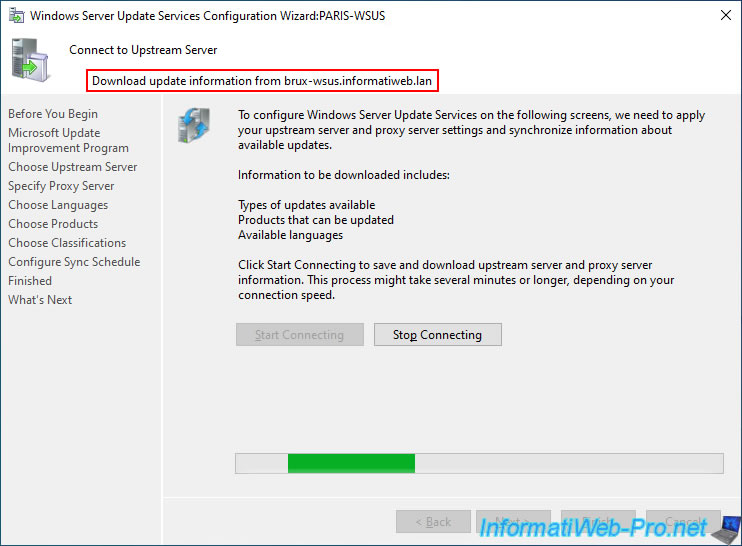
To configure your replica WSUS server (in our case: PARIS-WSUS), it needs to know the information available on the master WSUS server mentioned earlier.
In our case, you can see at the top of the window that update information will be downloaded from our master WSUS server "brux-wsus.informatiweb.lan".
Click the "Start Connecting" button.
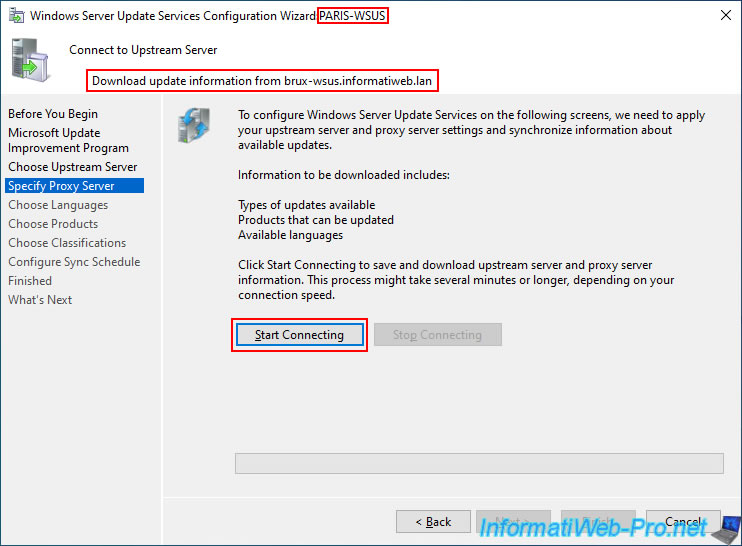
Please wait a few minutes while the update information is downloaded from your master WSUS server.
This process can take approximately 15 minutes and its duration depends on the bandwidth of the connection between your master WSUS server and your replica WSUS server (which may be slower than from the "Microsoft Update" server), since the information travels over the network connection between your two physical sites (in our case, between the Brussels and Paris sites).
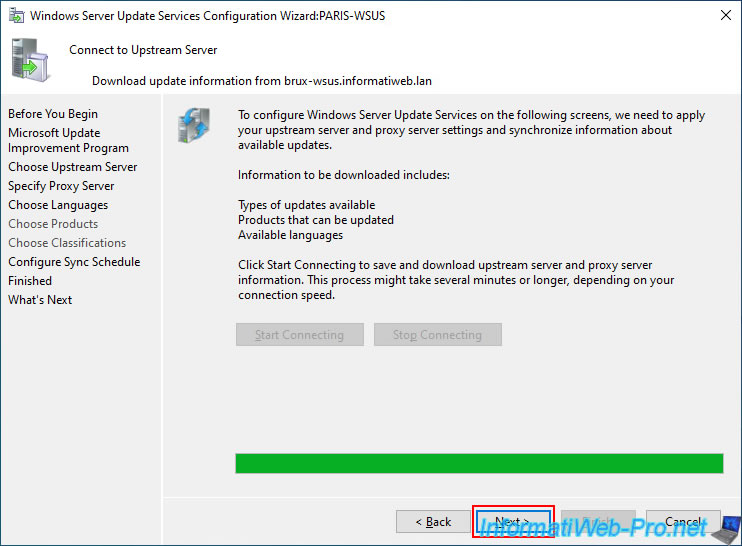
Once the update information has been downloaded from your master WSUS server, click "Next".
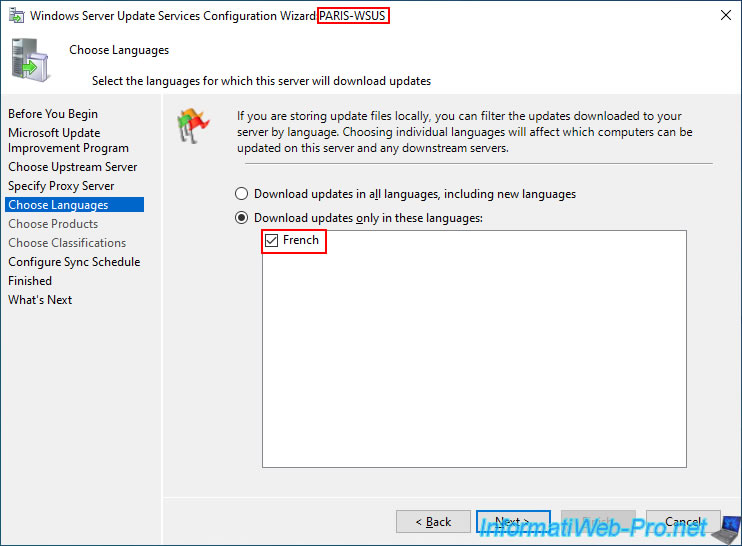
As you can see, the language list is very limited when configuring a WSUS replica server.
Indeed, the list of languages available for the replica server depends solely on the languages available on the replica WSUS server itself.
In our case, the master WSUS server "BRUX-WSUS" is located in Brussels, Belgium, and the replica WSUS server "PARIS-WSUS" is located in Paris, France.
Since both countries speak French, French is sufficient on the master WSUS server "BRUX-WSUS" for the replica WSUS server "PARIS-WSUS" to also provide updates in French in Paris.
Warning : if your company is located in both France and the United States (for example), you will need to select "English" and "French" at the company headquarters (for example, in France) in order to then select only "English" on the replica server you install in the United States.
Warning : as you have probably noticed, the "Choose Products" and "Choose Classifications" steps are grayed out in the left column and will therefore be ignored by the wizard.
This also applies to the selection of products and classifications. Anything that needs to be available on the master WSUS server and/or on some of your replica WSUS servers must be available (selected) at least on the master WSUS server.
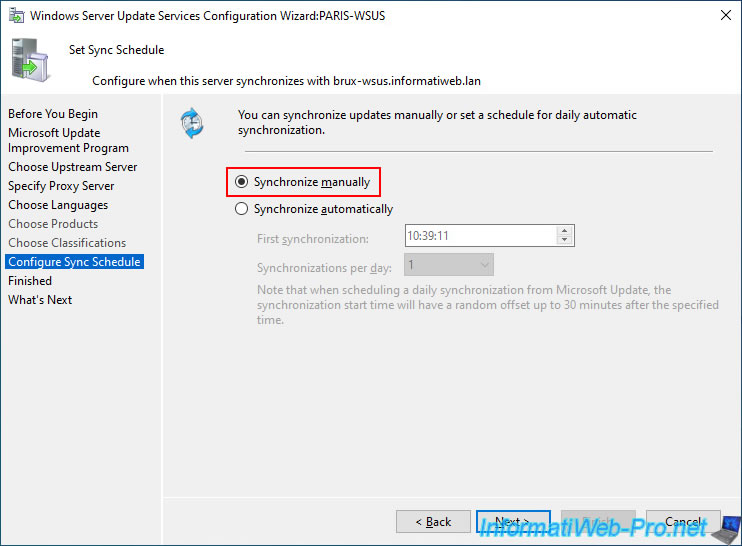
Choose whether you want to synchronize your replica server manually or automatically from your master WSUS server.
In our case, we'll do it manually for this tutorial.
So, select the "Synchronize manually" option.
Check the "Begin initial synchronization" box to initiate the first synchronization between your master WSUS server and your replica WSUS server.
This will copy all data (update approvals, products, classifications, WSUS groups, approved update files (default), etc.) from your master WSUS server to your replica WSUS server.
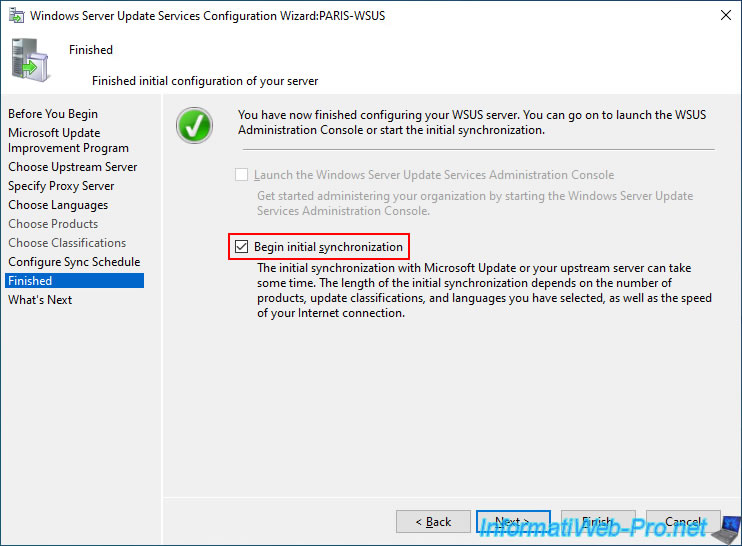
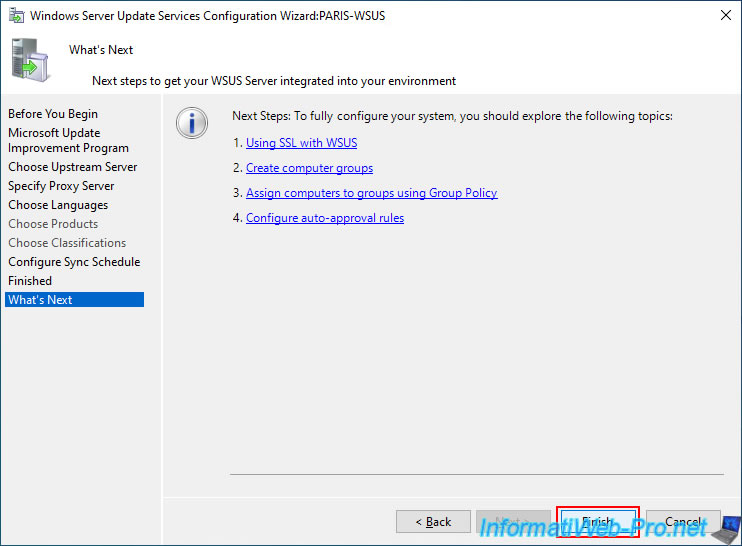
Click on "Finish".
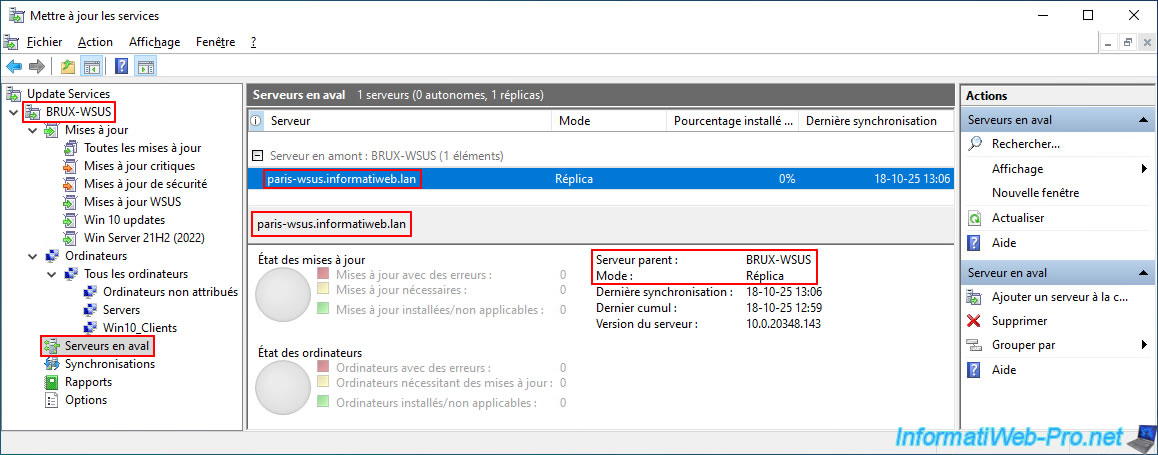
If you go to the "Downstream Servers" section of your master WSUS server (in our case: BRUX-WSUS), you will see that your new WSUS server (in our case: paris-wsus.informatiweb.lan) is in "Replica" mode and depends on the parent server "BRUX-WSUS".
Share this tutorial
To see also
-
Windows Server 11/11/2026
WS 2022 - WSUS - Install a master WSUS server
-
Windows Server 11/4/2026
WS 2022 - WSUS - What is a WSUS server?
You must be logged in to post a comment