Install a master WSUS server on Windows Server 2022
- Windows Server
- WSUS
- 11 November 2026 at 09:17 UTC
-

- 6/9

5.2. Targeting WSUS server clients
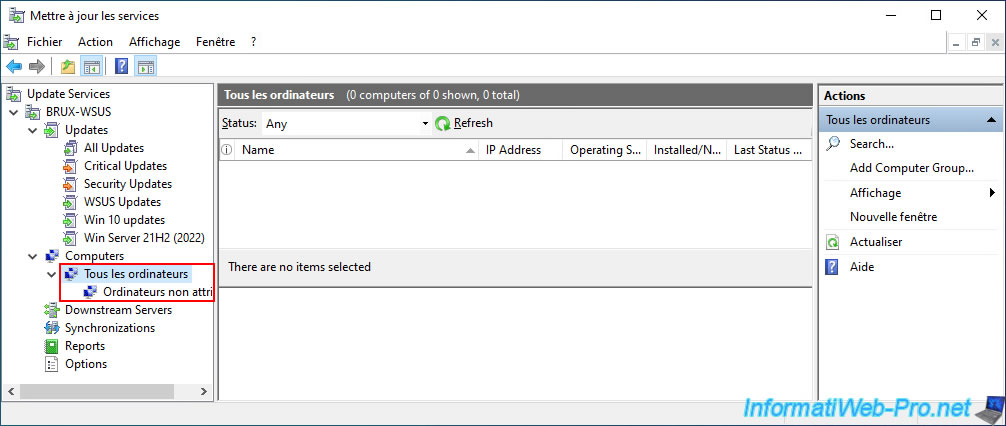
By default, all computers connecting to your WSUS server are listed in the "Computers -> All Computers" section, as well as in the "Unassigned Computers" subsection.
However, you can create new groups on your WSUS server to organize your servers and computers, and then automatically assign them to the desired groups using Group Policy (if you wish).
5.2.1. Configure WSUS to use groups with assignment via GPO
To begin, go to the "Options" section (in the left column), then click on the "Computers" option.
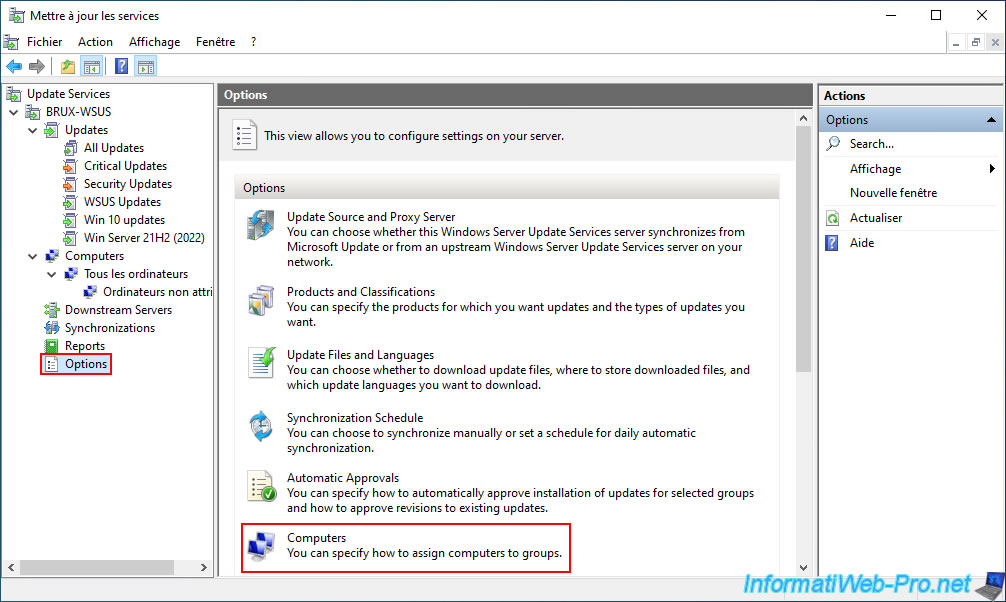
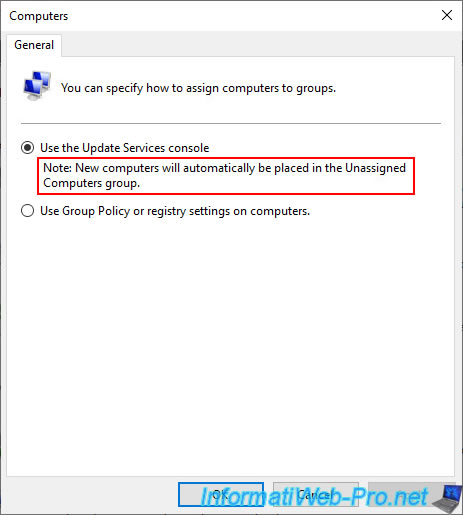
As you can see, by default, all new computers (and servers) are automatically placed in the "Unassigned Computers" group using the "Use the Update Services console" option.
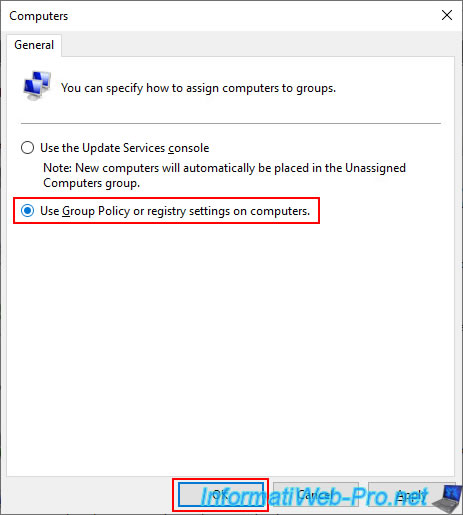
To manage the assignment automatically and centrally via Group Policy Objects (GPOs), you will need to select the "Use Group Policy or registry settings on computers" option, and then click OK.
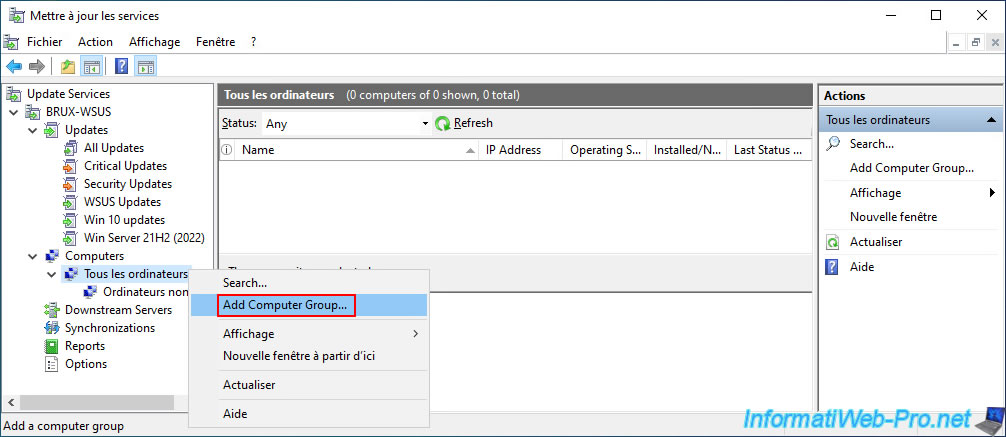
Next, right-click and select "Add Computer Group" in the "All Computers" section (in the left column).
Note: in our case, we will create two groups: "Servers" (for our servers running Windows Server 2022) and "Win10_Clients" (for our computers running Windows 10).
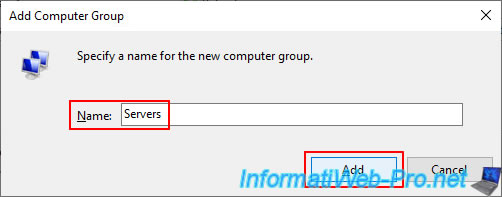
In the small "Add Computer Group" window that appears, type the name of the desired group, then click "Add".
In our case, "Servers".
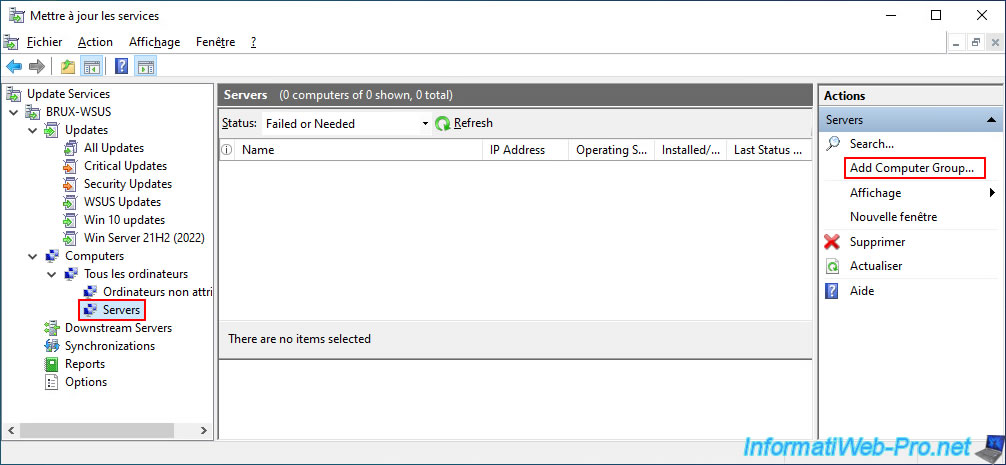
The group you created (in our case: Servers) appears in the left column.
Right-click again and select "Add Computer Group" in the "All Computers" section (on the left), or click the "Add Computer Group" option in the upper right corner to create a new group.
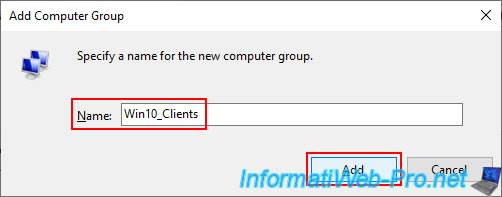
This time, we're naming this group "Win10_Clients".
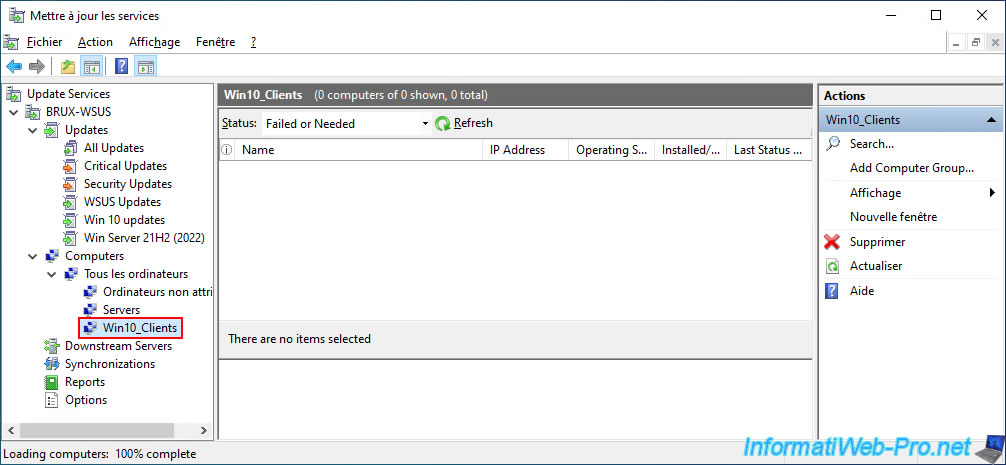
This new group "Win10_Clients" appears in the left column.
5.2.2. Configure folders in Active Directory to target the desired servers and computers
On your Active Directory domain controller, open the "Active Directory Users and Computers" console and organize your servers and computers as desired using organizational units (OUs) or containers (CNs).
The goal is to be able to link Group Policy Objects (GPOs) to one or more OUs to place the desired servers or computers into a group previously created in WSUS.
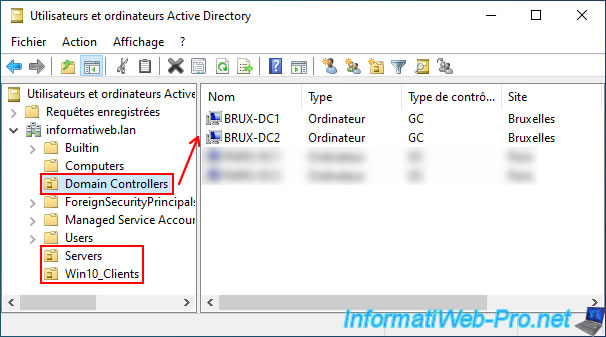
In our case, we created two additional organizational units (folders):
- Servers: for servers that are not domain controllers.
The GPO for the "Servers" group created under WSUS will apply to the "Domain Controllers" organizational unit (containing the Active Directory domain controllers) and the "Servers" organizational unit (containing the other servers). - Win10_Clients: For computers running Windows 10.
In the "Domain Controllers" folder, you can see our domain controllers.
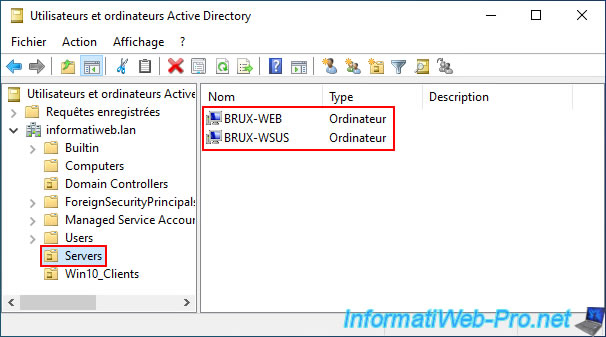
In the "Servers" folder, you can see:
- BRUX-WEB: a simple IIS web server running on Windows Server 2022, used solely as an example.
It's not required for WSUS to function. - BRUX-WSUS: our WSUS server installed in this tutorial, which acts as the master WSUS server (even though it is the only one used in this tutorial).
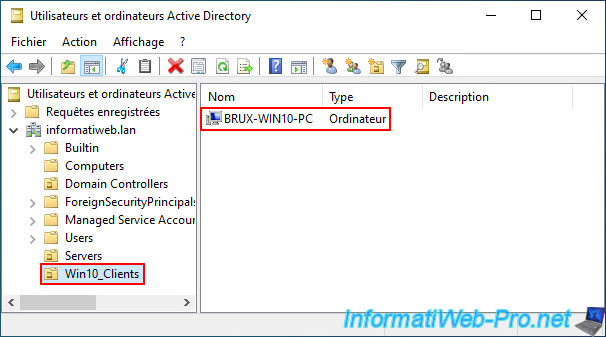
In the "Win10_Clients" folder, you can see a client computer running Windows 10 (version 22H2).
5.2.3. Create the GPO objects to assign your servers and computers to WSUS groups
5.2.3.1. Create a GPO to assign your servers to the desired WSUS group
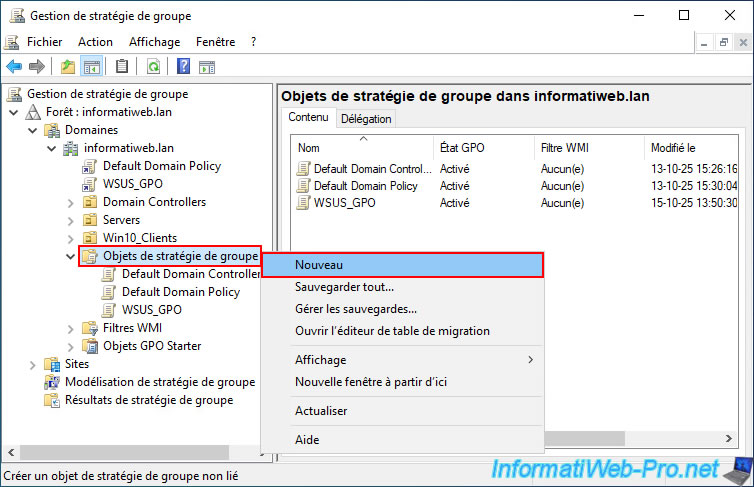
To assign your servers to a group created in WSUS, you will need to create your GPO by right-clicking and selecting "New" in the "Group Policy Objects" folder.
This allows you to create a GPO and then assign it to one or more organizational units (which is necessary in our case since our servers and domain controllers are located in two different organizational units).
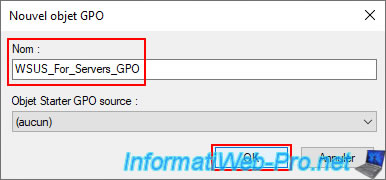
Enter "WSUS_For_Servers_GPO" as the name (for example) for this GPO object, and then click OK.
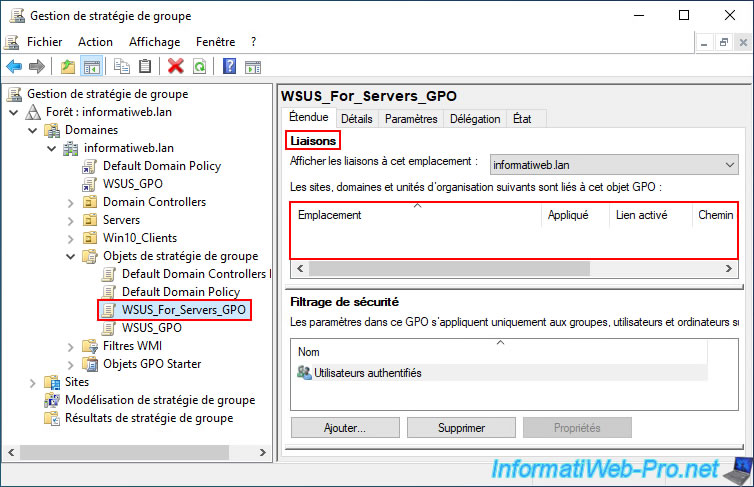
As you can see, this GPO object "WSUS_For_Servers_GPO" has been created, but it is not linked to anything at the moment.
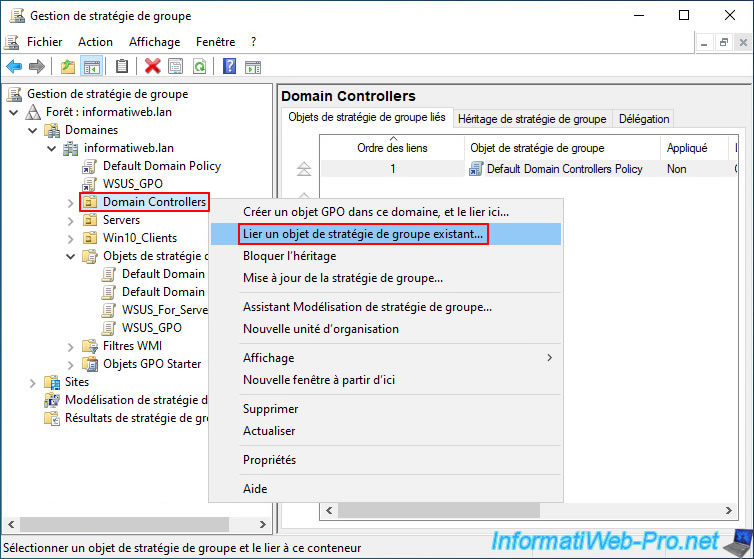
Now, right-click on the "Domain Controllers" organizational unit and click on "Link an existing group policy object".
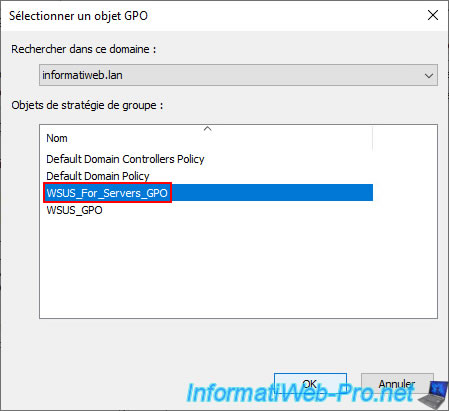
Select your GPO object "WSUS_For_Servers_GPO" and click OK.
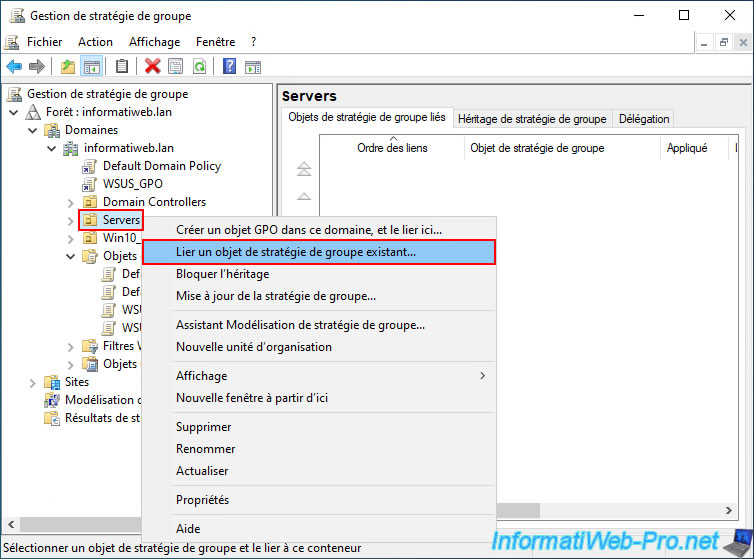
Then, right-click on your "Servers" organizational unit (this time) and click again on "Link an existing group policy object".
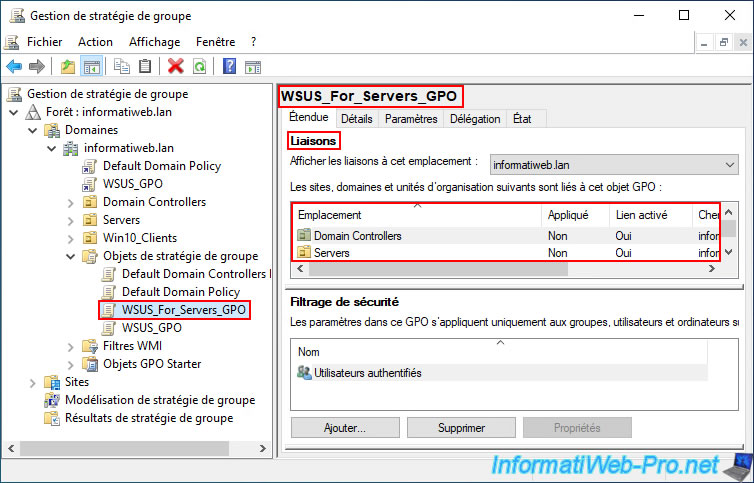
Now, if you select your GPO object "WSUS_For_Servers_GPO", you will see that it is linked to your 2 organizational units:
- Domain Controllers.
- Servers.
5.2.3.2. Create a GPO to assign your computers to the desired WSUS group
This time, we'll create a second GPO that will target only Windows 10 computers.
So, you can use the shortcut method of right-clicking and selecting "Create a GPO in this domain, and link it here..." on your "Win10_Clients" organizational unit.
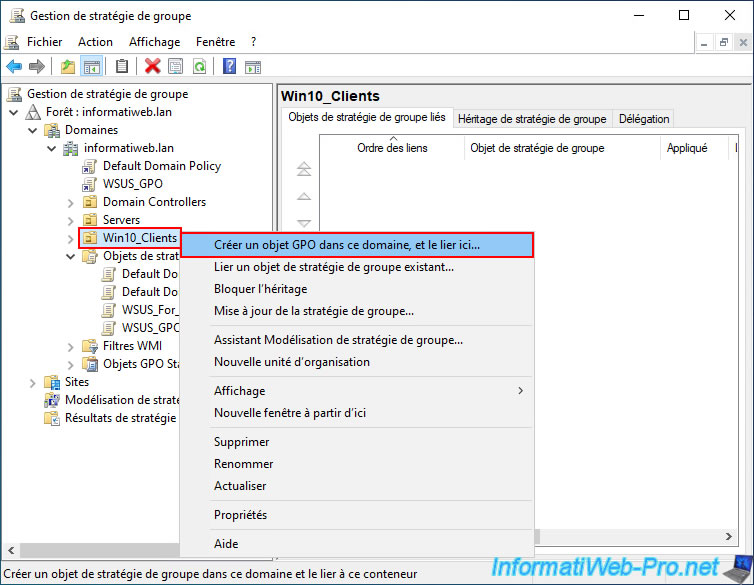
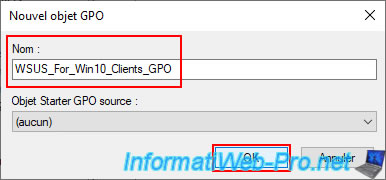
Enter "WSUS_For_Win10_Clients_GPO" as the name (for example) for this GPO object, and then click OK.
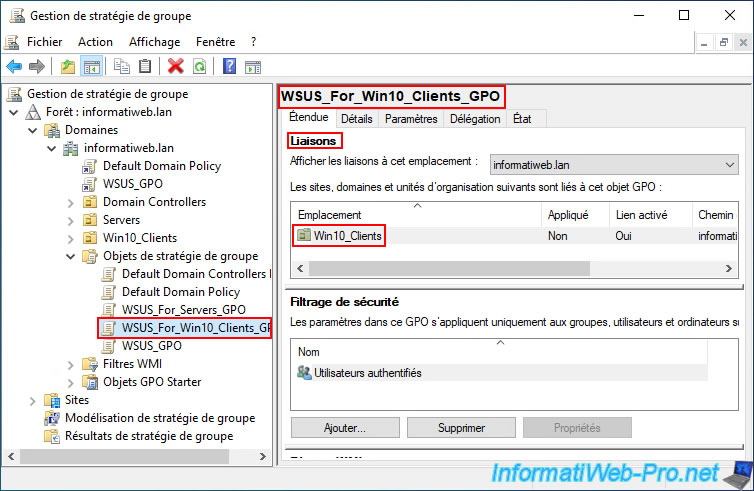
As expected, this new GPO object "WSUS_For_Win10_Clients_GPO" is linked to your organizational unit "Win10_Clients".

No comment