- NAS
- Unraid
- 21 October 2026 at 13:08 UTC
-

- 1/2

If you have enabled nested virtualization on Unraid, you will be able to install VMware Workstation Pro in a virtual machine created on Unraid.
- Create a Windows 10 virtual machine on Unraid
- Install Windows 10 in the VM created on Unraid
- Install the drivers for the VM created on Unraid
- Create a nested virtual machine on VMware Workstation Pro
- Install the guest OS on VMware Workstation Pro
1. Create a Windows 10 virtual machine on Unraid
To begin, create a virtual machine using Unraid to install Windows 10 (for example).
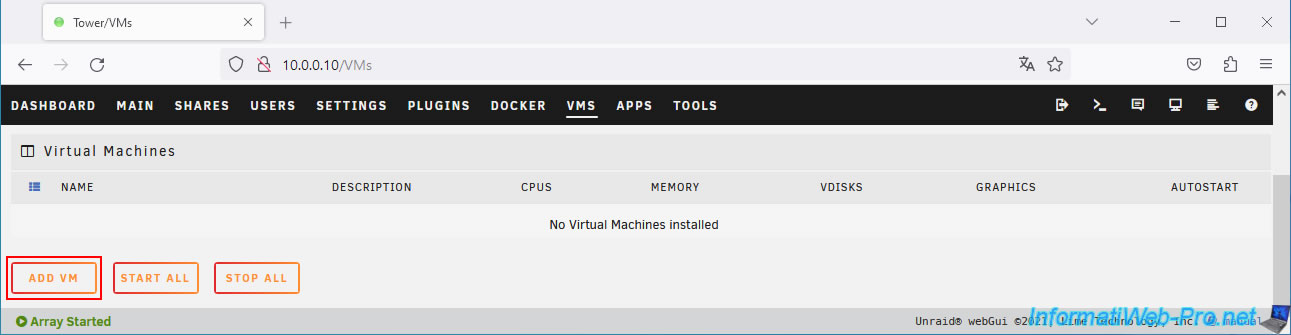
To do this, go to the "VMS" tab and click Add VM.
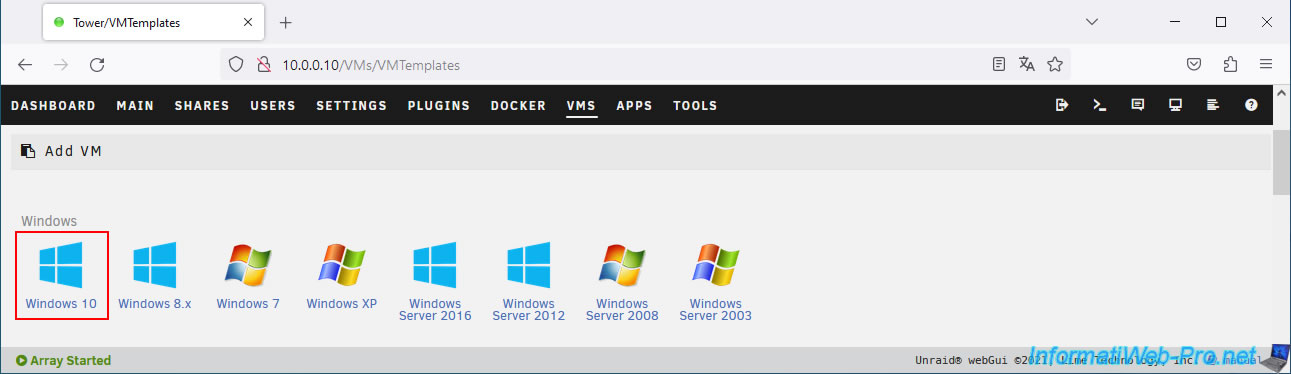
Warning : VMware Workstation Pro requires at least Windows 8 and later version 16.
Click on: Windows 10.
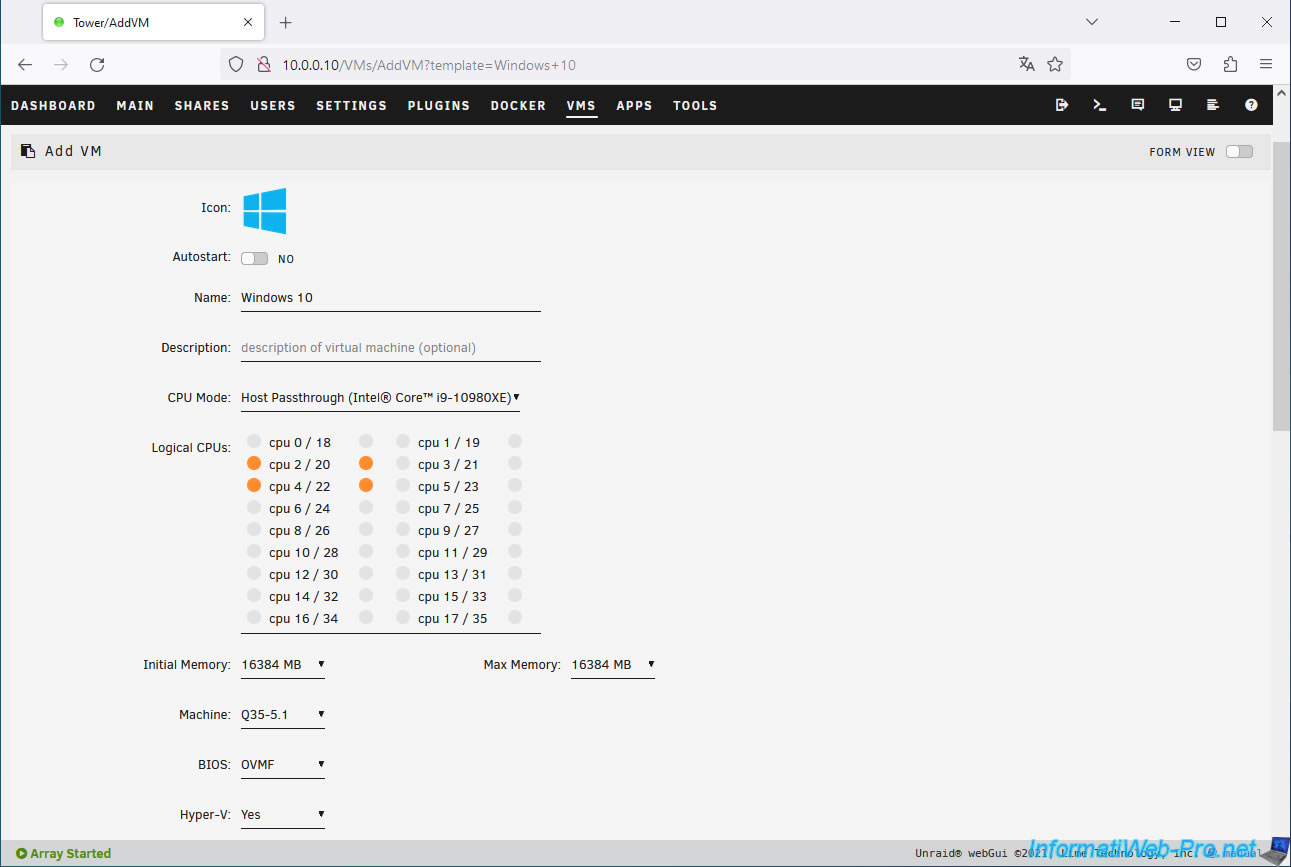
For this virtual machine, specify:
- Name: Windows 10 (or whatever you prefer).
- CPU Mode: Host Passthrough. Allows you to use your Unraid server's physical processor for better performance and compatibility.
- Logical CPUs: assign enough cores to allow you to assign them to the virtual machines you will launch within this virtual machine created on Unraid.
In our case, we assigned only 4 cores for the demonstration. - Initial Memory: again, allocate enough RAM to this virtual machine to be able to launch multiple virtual machines on VMware Workstation Pro.
- Machine: use a Q35 machine (currently: Q35-5.1) as this is recommended by Unraid for recent operating systems.
- BIOS: OVMF. Allows you to use UEFI firmware to boot the VM.
This has been supported since Windows 7.
For virtual CD drives:
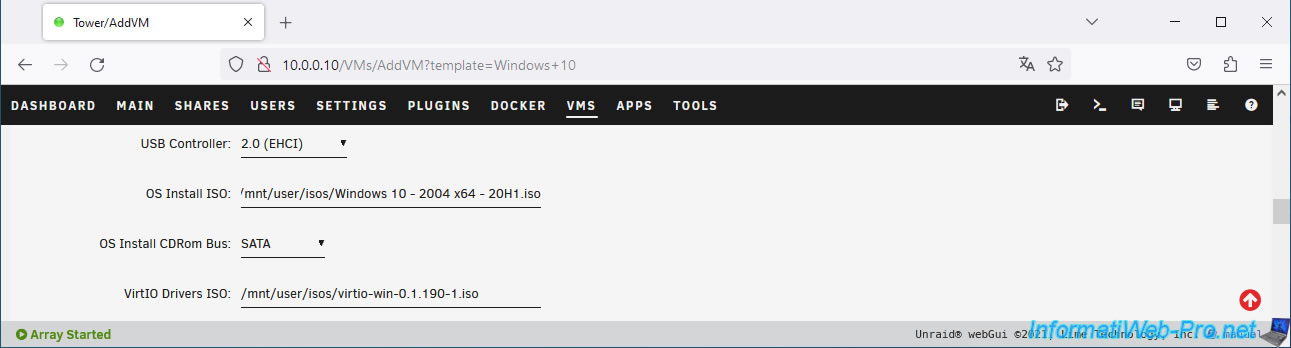
- OS Install ISO: select your Windows 10 ISO file.
In our case, the Windows 10 v2004 x64 ISO. - VirtIO Drivers ISO: the previously downloaded VirtIO Drivers ISO file.
If necessary, refer to the "3. Enable virtual machine manager on Unraid" of our tutorial on creating a virtual machine on Unraid to download it.
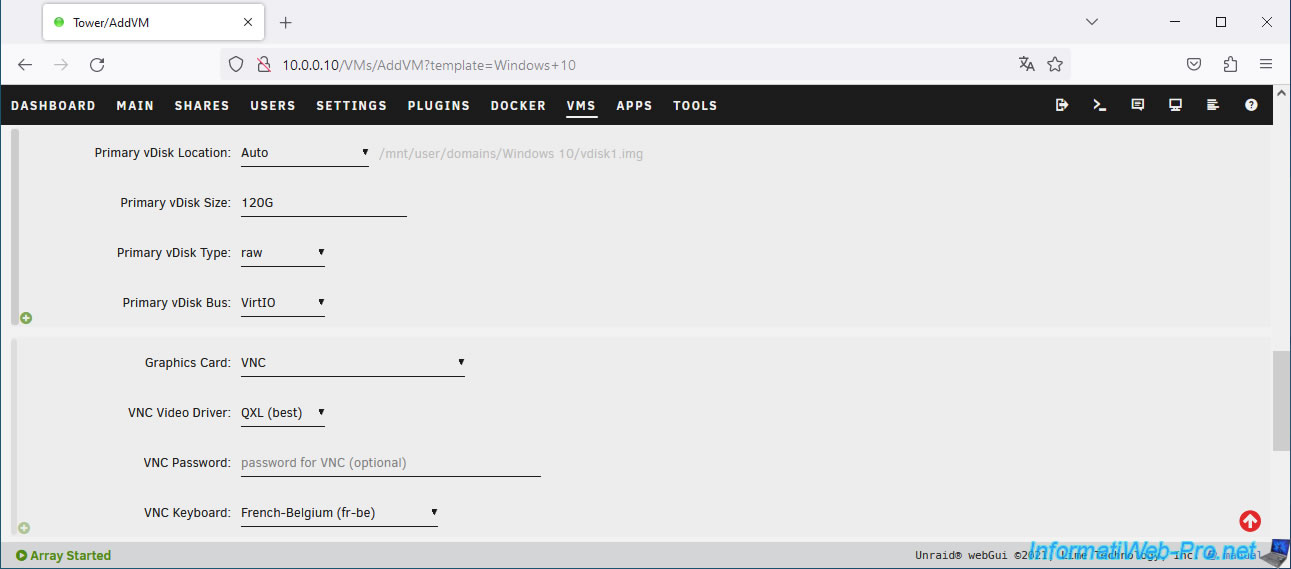
Specify a sufficient capacity (size) for the primary hard disk (Primary vDisk) to accommodate multiple virtual machines.
In our case, we created a 120 GB virtual hard disk (Primary vDisk Size: 120G).
Next, select your keyboard language for your virtual machine's VNC console.
In our case, "VNC Keyboard: French-Belgium (fr-be)."
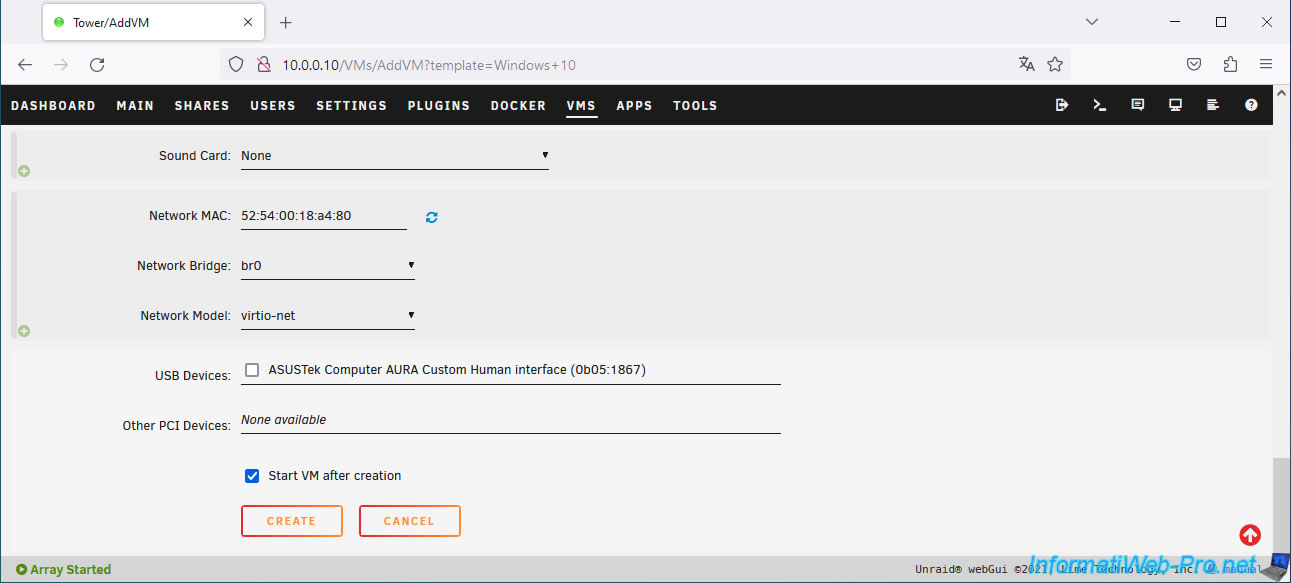
Finally, leave the "Start VM after creation" box checked at the bottom of the page and click on: Create.
2. Install Windows 10 in the VM created on Unraid
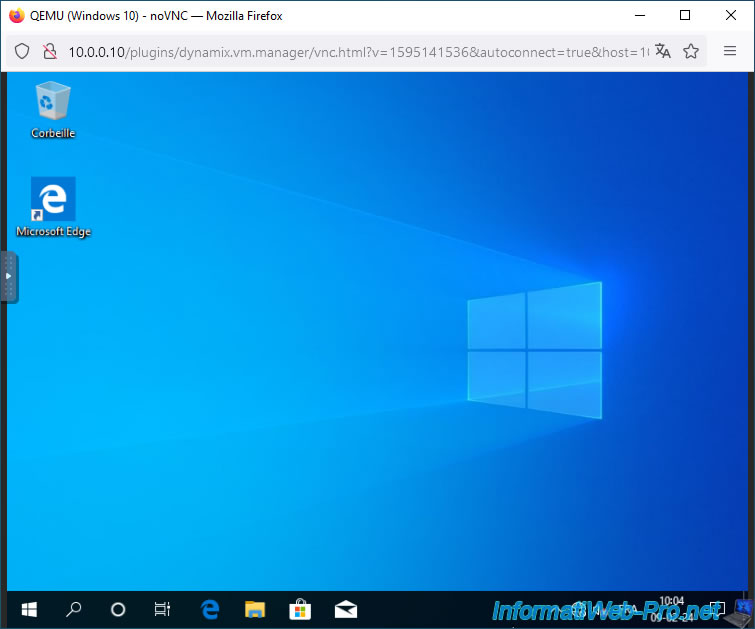
Click on your VM icon, then on: VNC Remote.
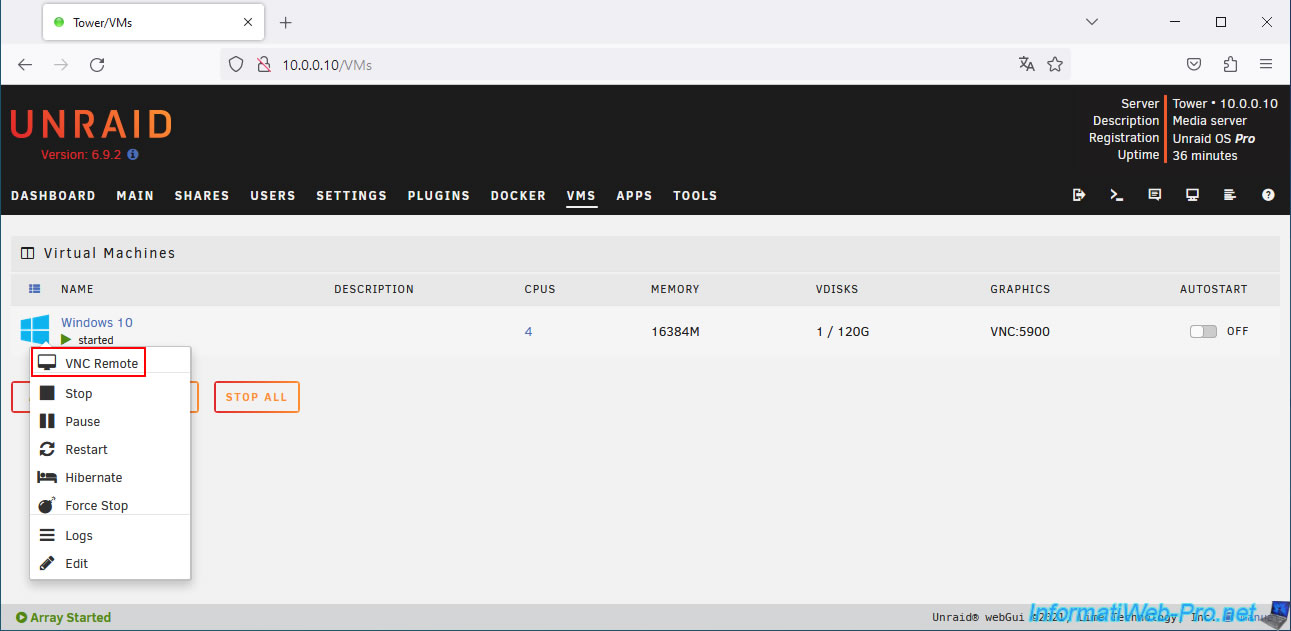
The Windows 10 installer appears.
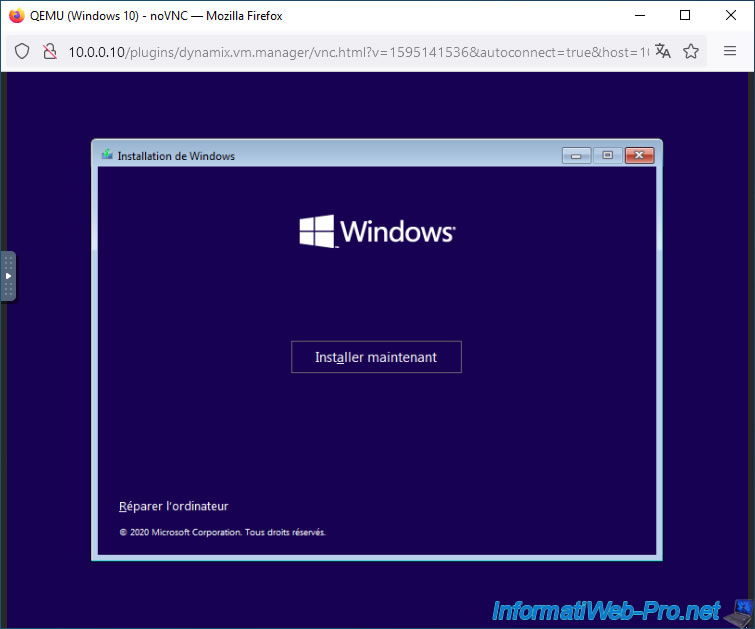
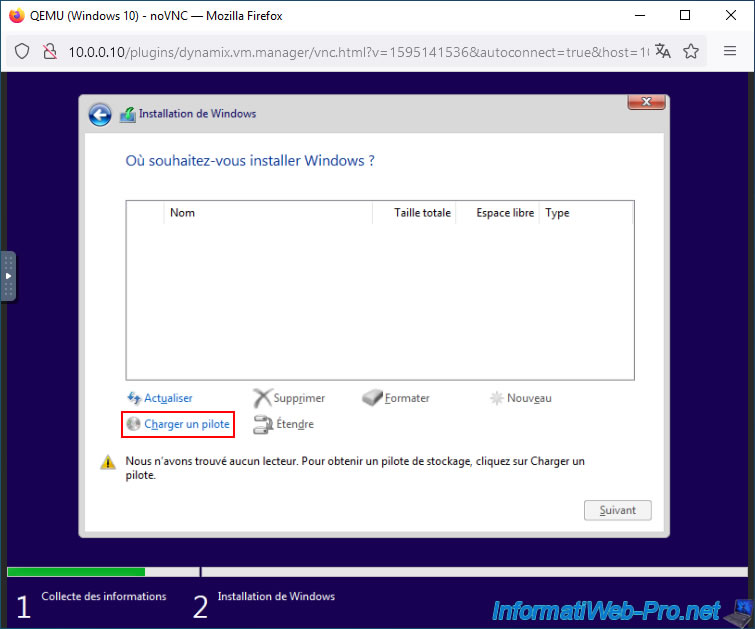
By default, your virtual hard drive isn't recognized by the Windows installer.
To fix this, simply click "Load Driver" (as explained in our "Unraid 6.9.2 - VMs - Create a virtual machine" tutorial).
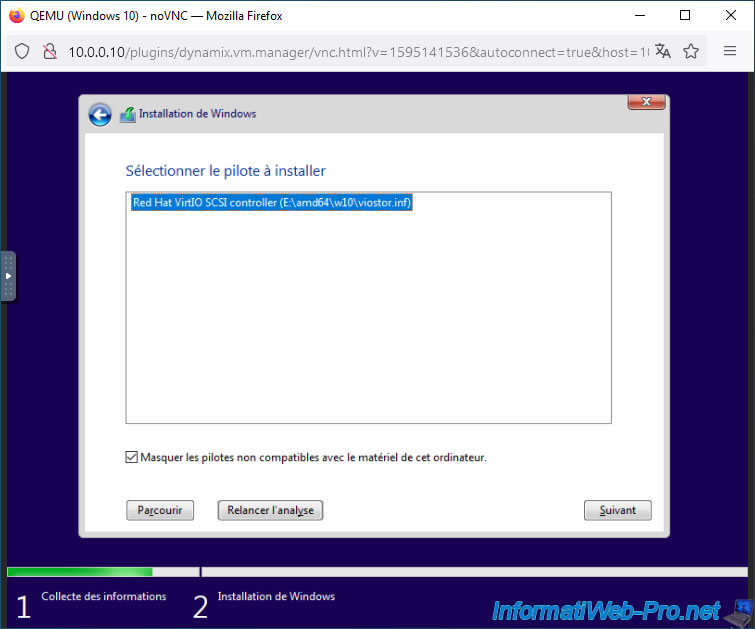
Select the "amd64\w10" folder in the virtual CD drive containing the virtio drivers and install the "Red Hat VirtIO SCSI controller" driver that appears.
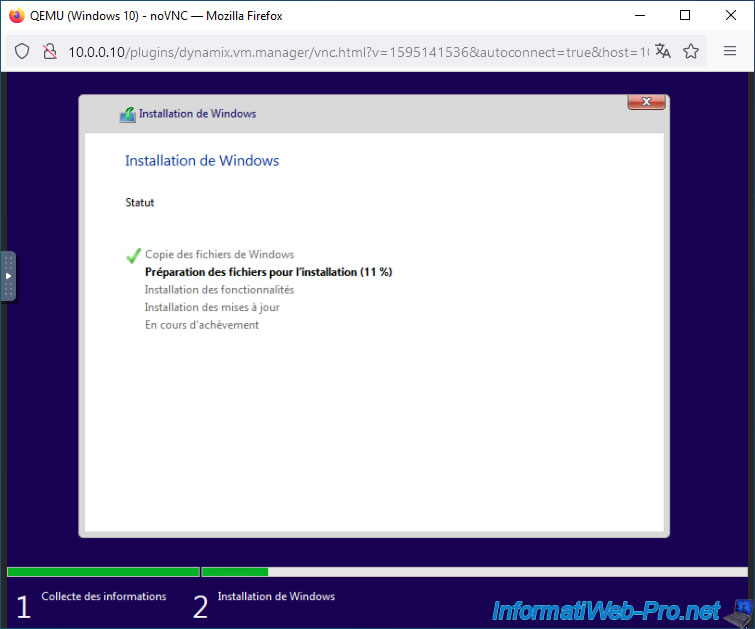
Then, Windows 10 will install without any problems.
3. Install the drivers for the VM created on Unraid
As with any VM created on Unraid, you will need to install the VirtIO drivers on it.
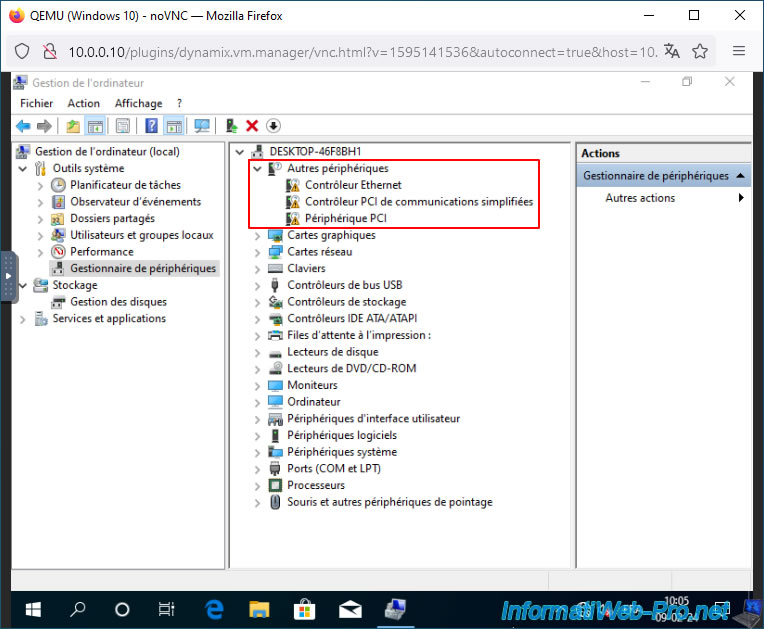
To do this, open Device Manager and right-click "Update driver software" on each device in the "Other devices" section.
Then, select the virtual CD drive containing the VirtIO drivers.
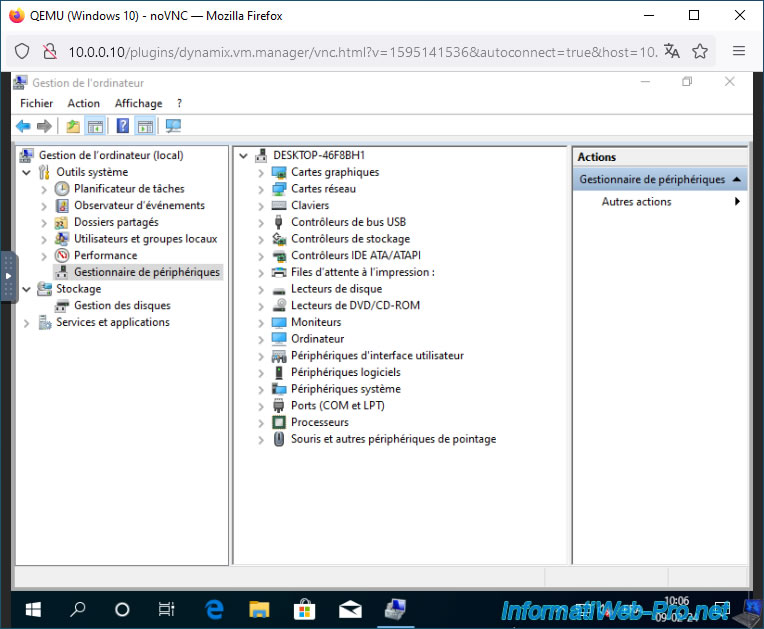
Once the VirtIO drivers are installed, you will see this.
Share this tutorial
To see also
-

NAS 1/30/2026
Unraid 6.9.2 - Create shares (network / user)
-

NAS 3/4/2026
Unraid 6.9.2 - Install the "Community Applications" plugin (old version)
-
NAS 7/22/2026
Unraid 6.9.2 - VMs - Backing up a VM manually
-

NAS 9/2/2026
Unraid 6.9.2 - VMs - Create a gaming virtual machine (accessible via Parsec)
You must be logged in to post a comment