Virtualize VMware Workstation on Unraid 6.9.2
- NAS
- Unraid
- 21 October 2026 at 13:08 UTC
-

- 2/2

4. Create a nested virtual machine on VMware Workstation Pro
Install VMware Workstation Pro in your virtual machine created with Unraid and ignore the warning that 3D acceleration will be disabled.
This warning appears because DirectX 11.1 has been required since version 16.2.0 of VMware Workstation, and the virtual graphics card created by Unraid therefore does not support DirectX 11.1.
To avoid this problem, you can create a gaming virtual machine to which you can upgrade to a real graphics card that supports at least DirectX 11.1, or install an earlier version of VMware Workstation.
However, note that virtual machines will still run without 3D acceleration.
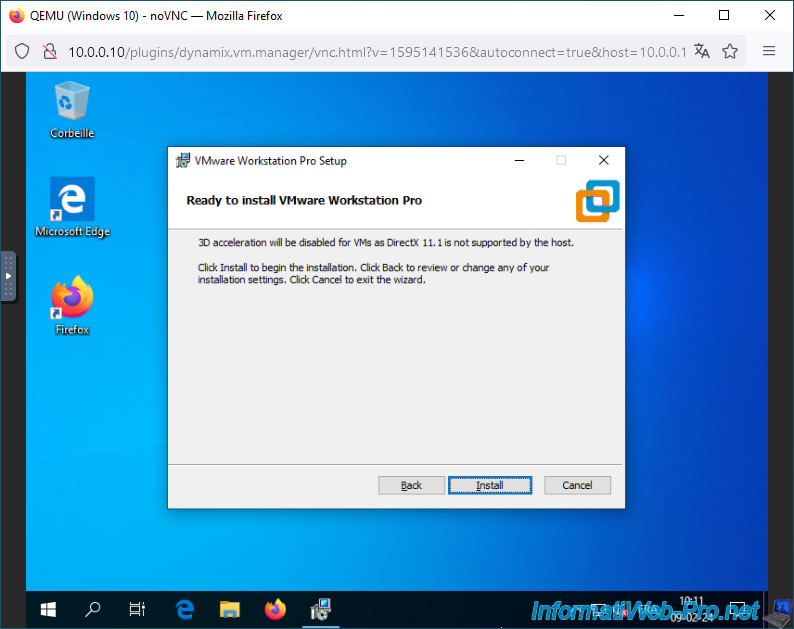
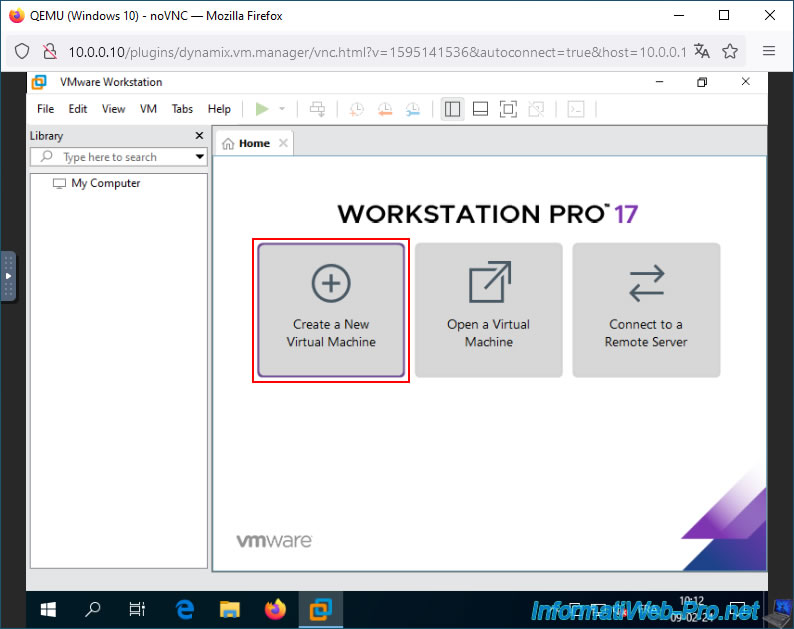
Launch VMware Workstation Pro and click on "Create a New Virtual Machine" or go to the menu: File -> New Virtual Machine.
Notes :
- In our case, we'll create a new virtual machine with Windows 10 as the guest operating system.
- For more information on creating a virtual machine in VMware Workstation Pro, refer to our tutorial: VMware Workstation 16 / 15 - Create a virtual machine.
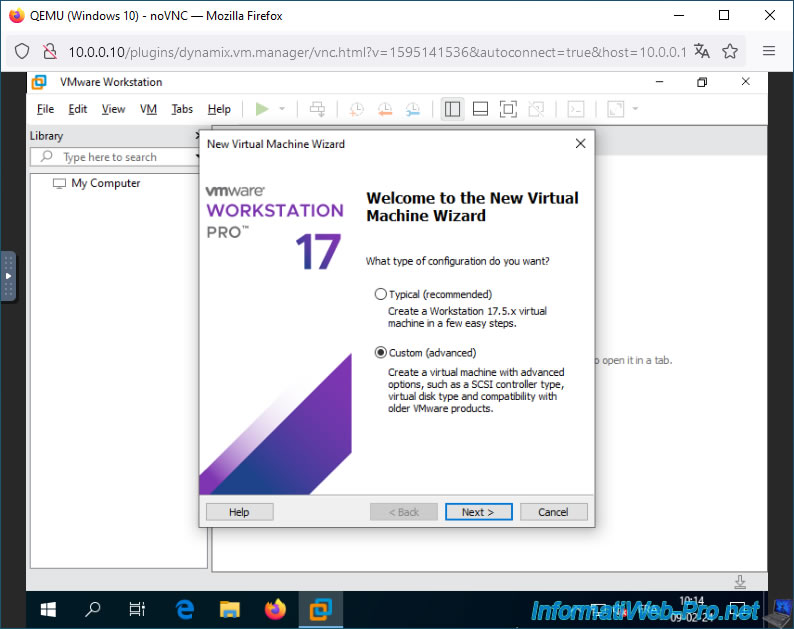
Select: Custom (advanced).
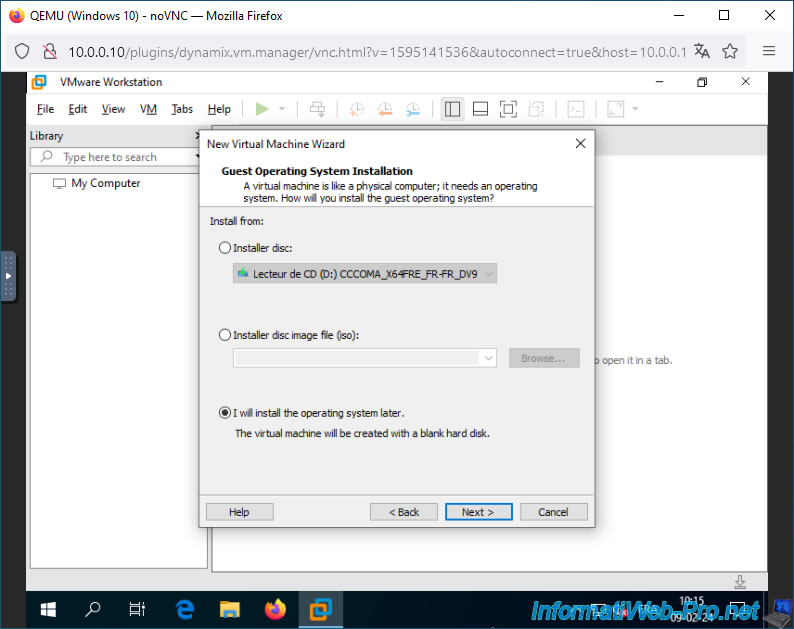
Select: I will install the operating system later.
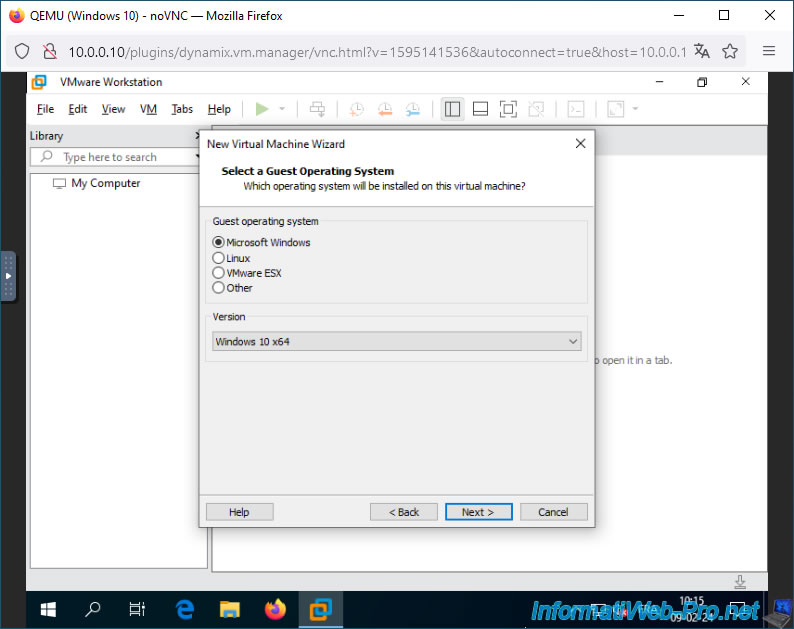
For guest OS, select:
- Guest operating system : Microsoft Windows.
- Version : Windows 10 x64.
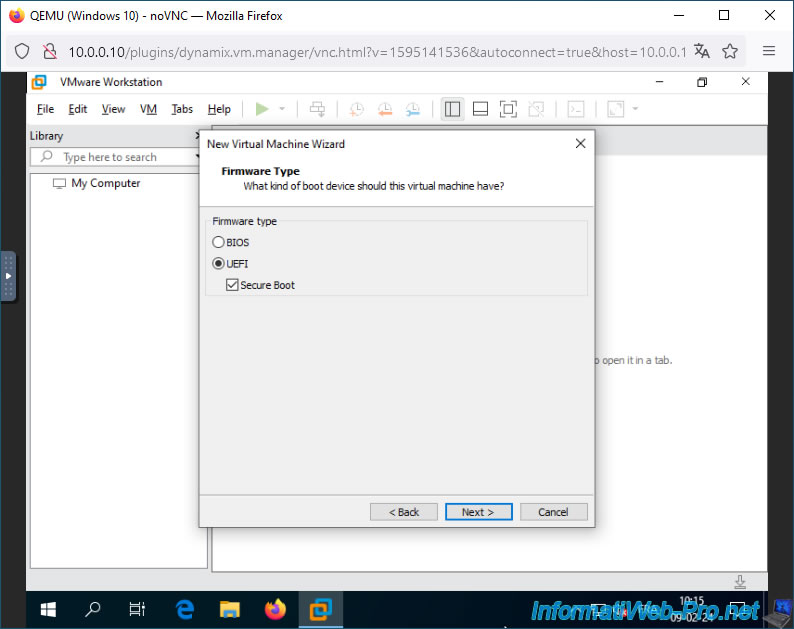
Select "UEFI" and check the "Secure Boot" box to enable secure boot (if the version of Windows you want to virtualize supports it).
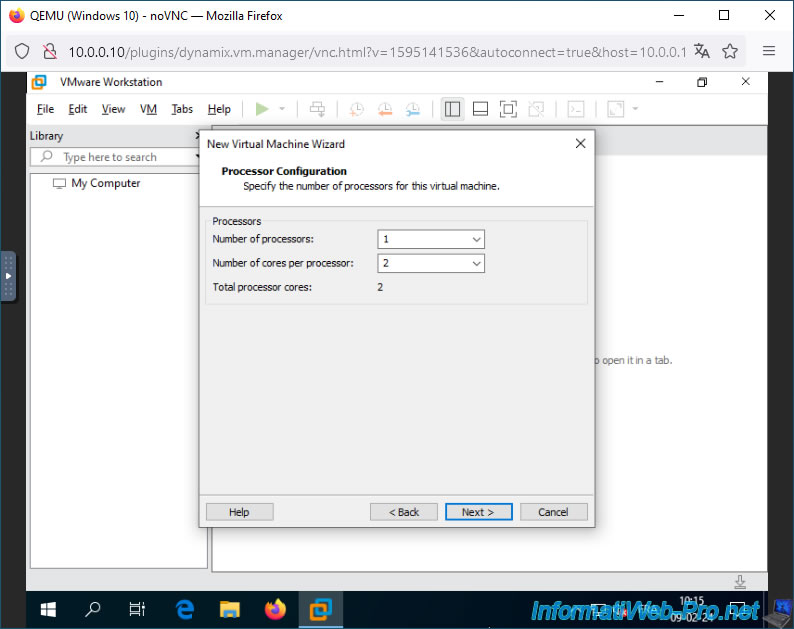
For Windows 10, allocate at least 1 processor with 2 cores:
- Number of processors : 1.
- Number of cores per processor : 2.
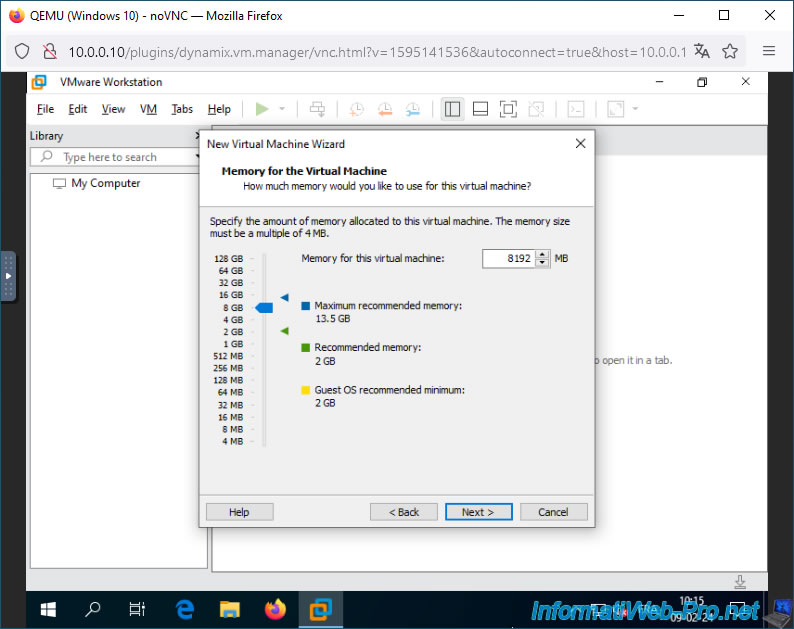
Allocate at least 4 GB of RAM, but preferably 8 GB for smoother operation.
Note: this depends on the amount of RAM you allocated to the VM created on Unraid.
For example, specify 60 GB for the size of this VM's virtual hard disk.
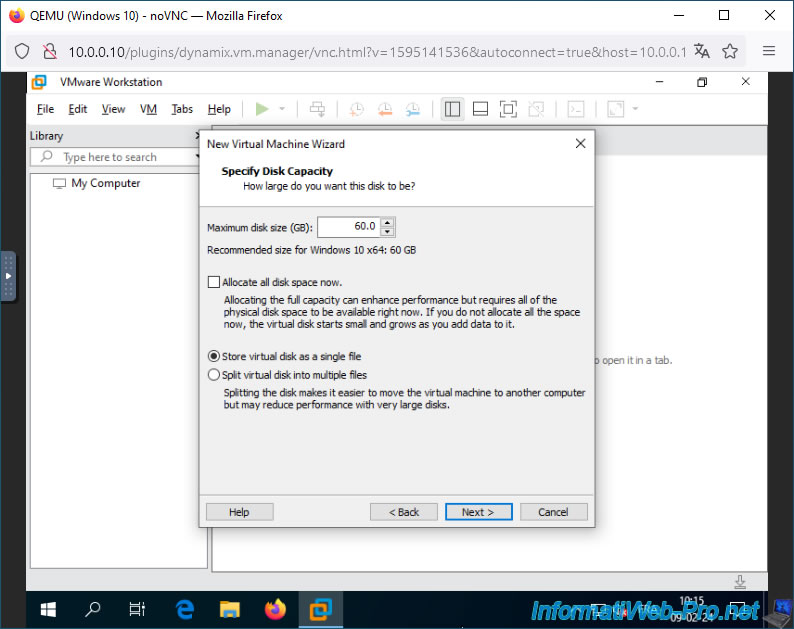
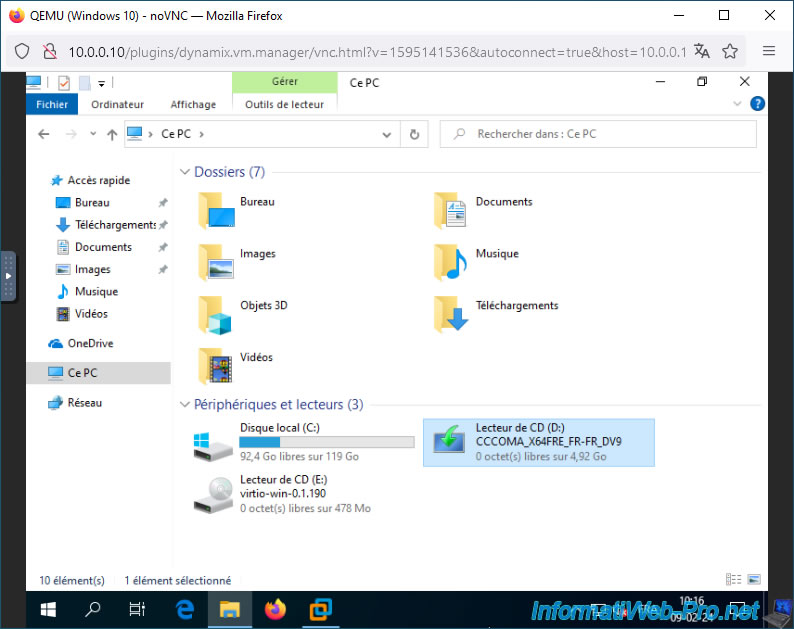
In our case, we will reinstall the same version of Windows 10, so our VM created on VMware Workstation Pro will use the CD drive of your VM created on Unraid.
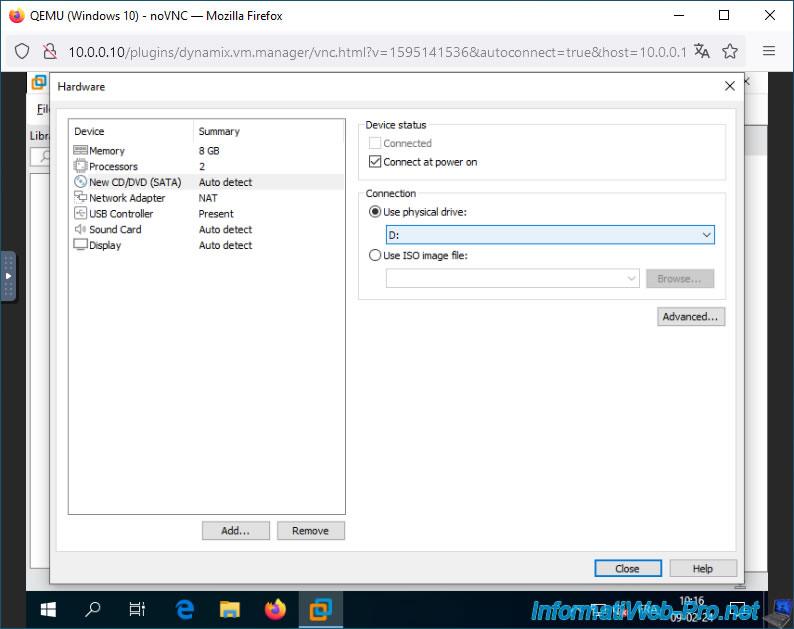
At the end of the VM creation wizard, click "Customize Hardware", then select the "New CD/DVD (SATA)" device.
On the right, select "Use physical drive" and select the virtual CD drive letter of your VM created on Unraid, where the Windows 10 ISO is located.
Finally, click Close.
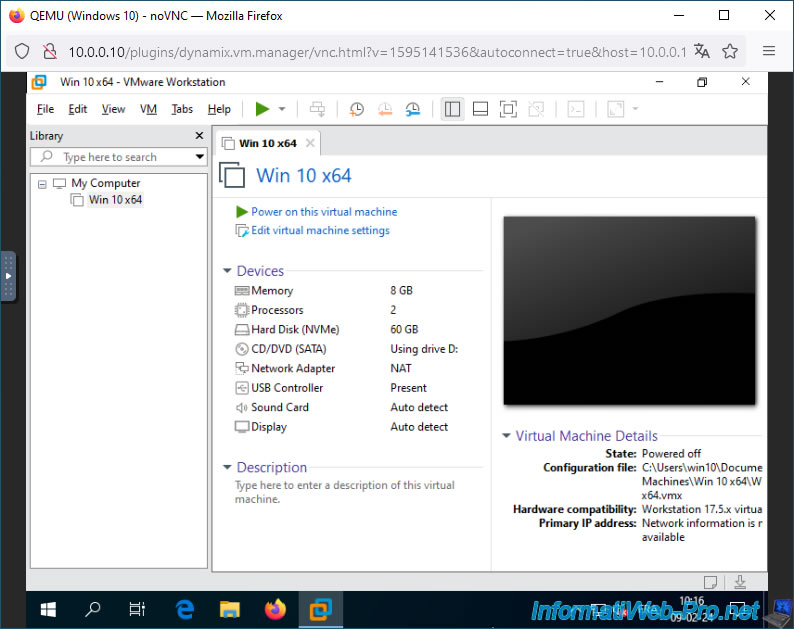
Your VM is created on VMware Workstation Pro.
5. Install the guest OS on VMware Workstation Pro
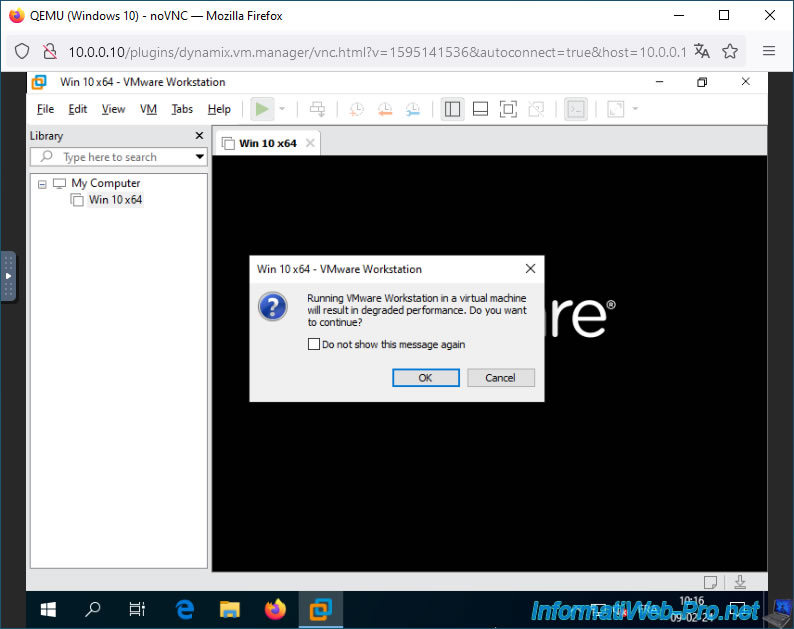
Start your VM created on VMware Workstation Pro and ignore the warning that appears by clicking OK.
Plain Text
Running VMware Workstation in a virtual machine will result in degraded performance. Do you want to continue?
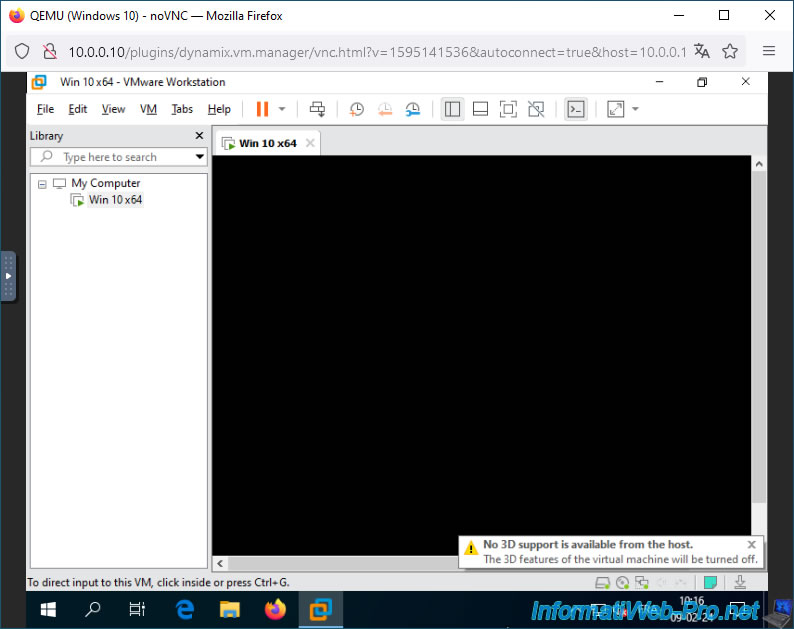
Ignore the message that appears again about 3D acceleration not being available.
Plain Text
No 3D support is available from the host.
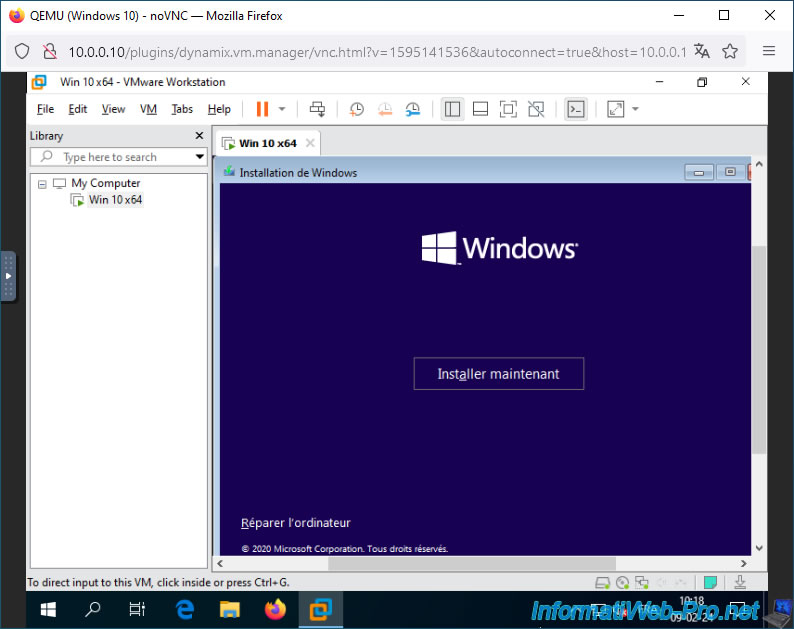
The Windows 10 installer appears in your VM on VMware.
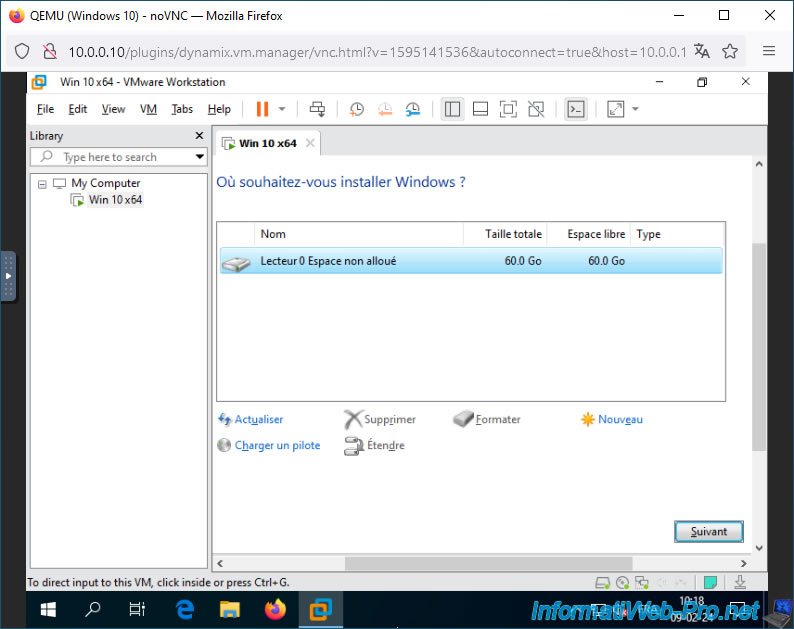
In VMware Workstation Pro, a SCSI controller supported by the Windows 10 installer is used by default.
The virtual hard drive is therefore automatically detected by the Windows 10 installer.
Please wait while Windows 10 installs.
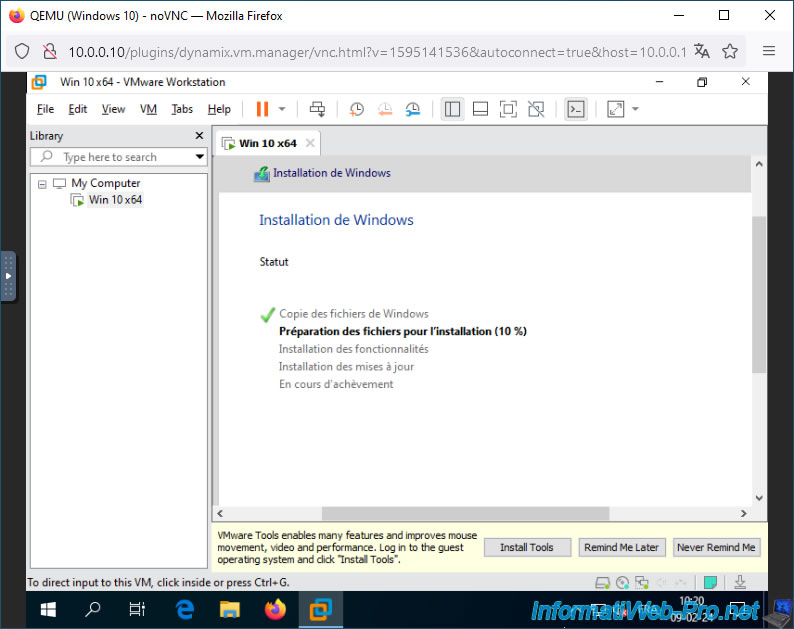
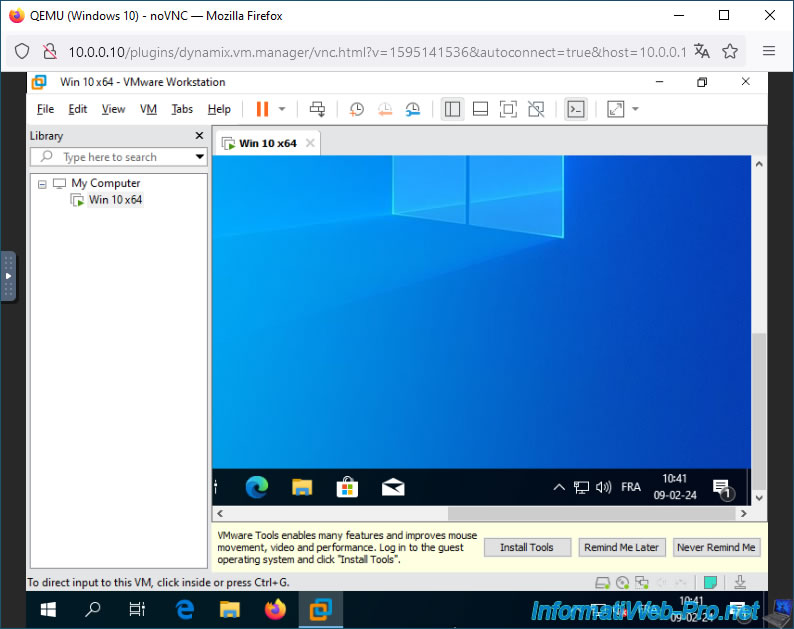
Windows 10 is installed in your VM created on VMware Workstation Pro.
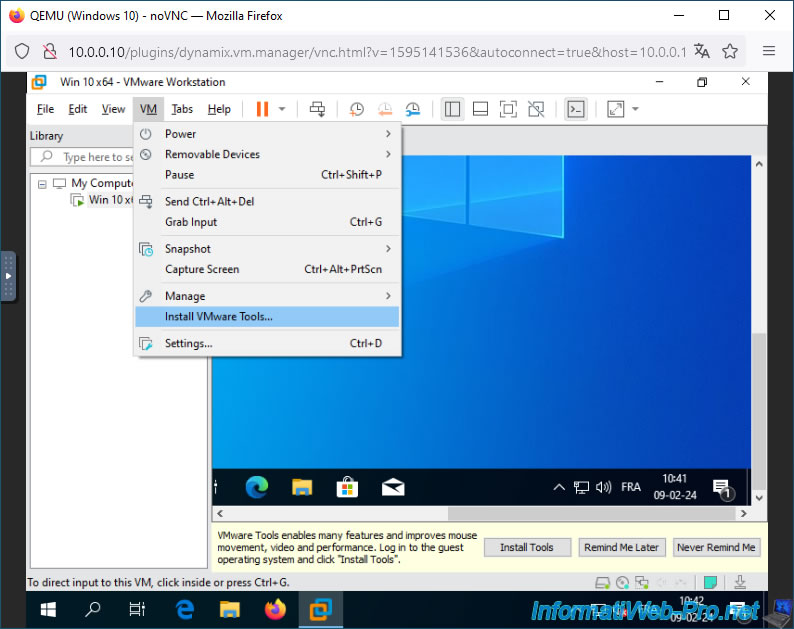
Go to the menu: VM -> Install VMware Tools.
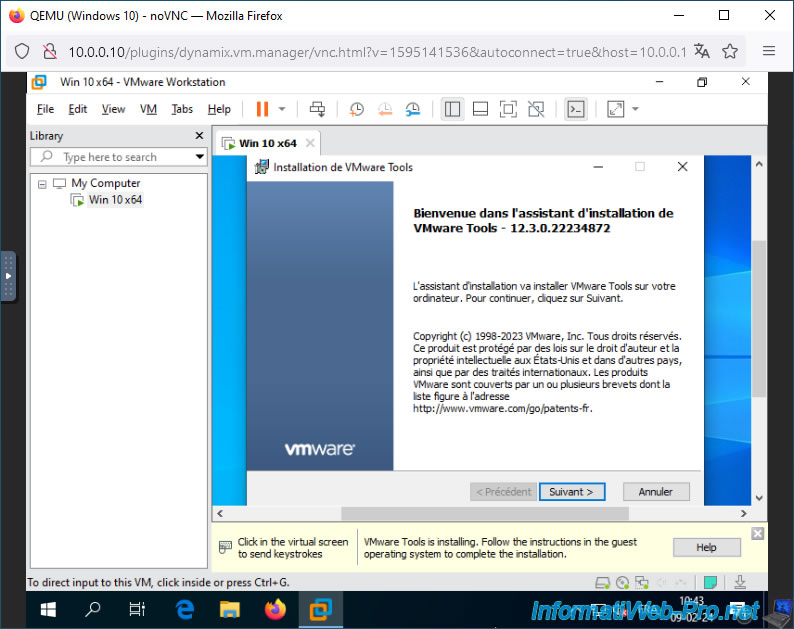
The VMware Tools installer appears.
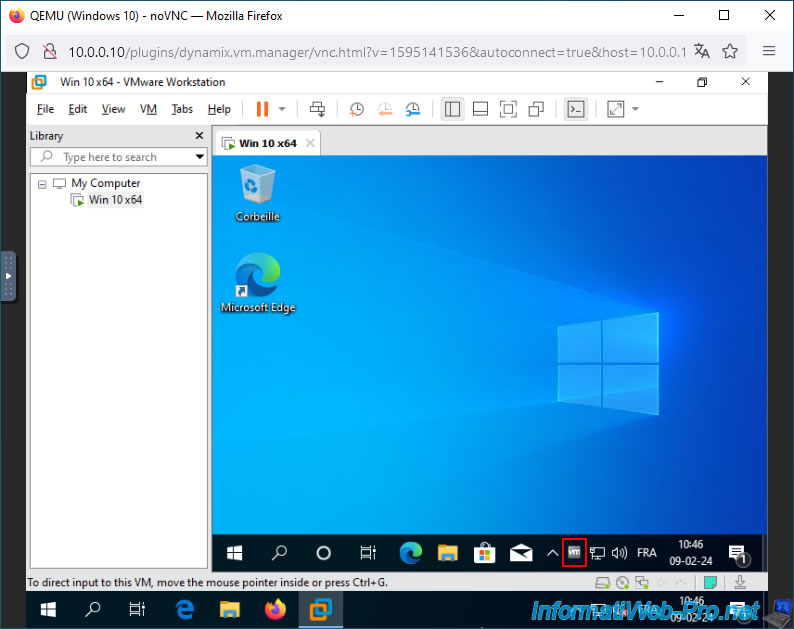
Once the installer is complete and the VM is restarted, the VMware Tools icon will appear in the Windows taskbar.
Share this tutorial
To see also
-
NAS 4/1/2026
Unraid 6.9.2 - Docker - Install a file explorer (CloudCommander)
-

NAS 6/10/2026
Unraid 6.9.2 - SWAG - Access Jellyfin via reverse proxy and personal domain
-
NAS 7/22/2026
Unraid 6.9.2 - VMs - Backing up a VM manually
-

NAS 9/9/2026
Unraid 6.9.2 - VMs - Create a gaming virtual machine (without ACS support)
No comment