- NAS
- Unraid
- 22 July 2026 at 07:46 UTC
-

- 1/2

Unlike virtualization solutions that allow you to easily clone virtual machines, Unraid doesn't offer a default option to do so.
However, it is possible to use a third-party script to manually back up your virtual machine configuration and to use a third-party application (via Docker) to back up the associated virtual hard disks.
- Create a share
- Download the script to manually backup your VMs
- Install the "User Scripts" plugin and add the script to your Unraid server
- Manually back up your virtual machine configuration
- Manually back up your virtual machines' virtual hard disks
1. Create a share
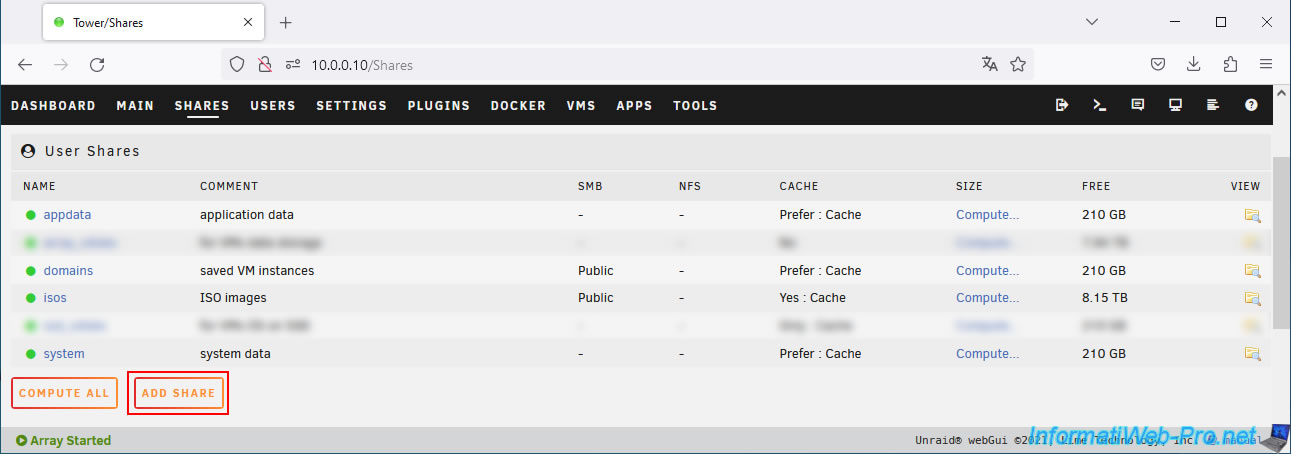
To begin, you'll need to create a share on your Unraid server where the script will store your virtual machine backups.
To do this, go to the "Shares" tab and click Add Share.
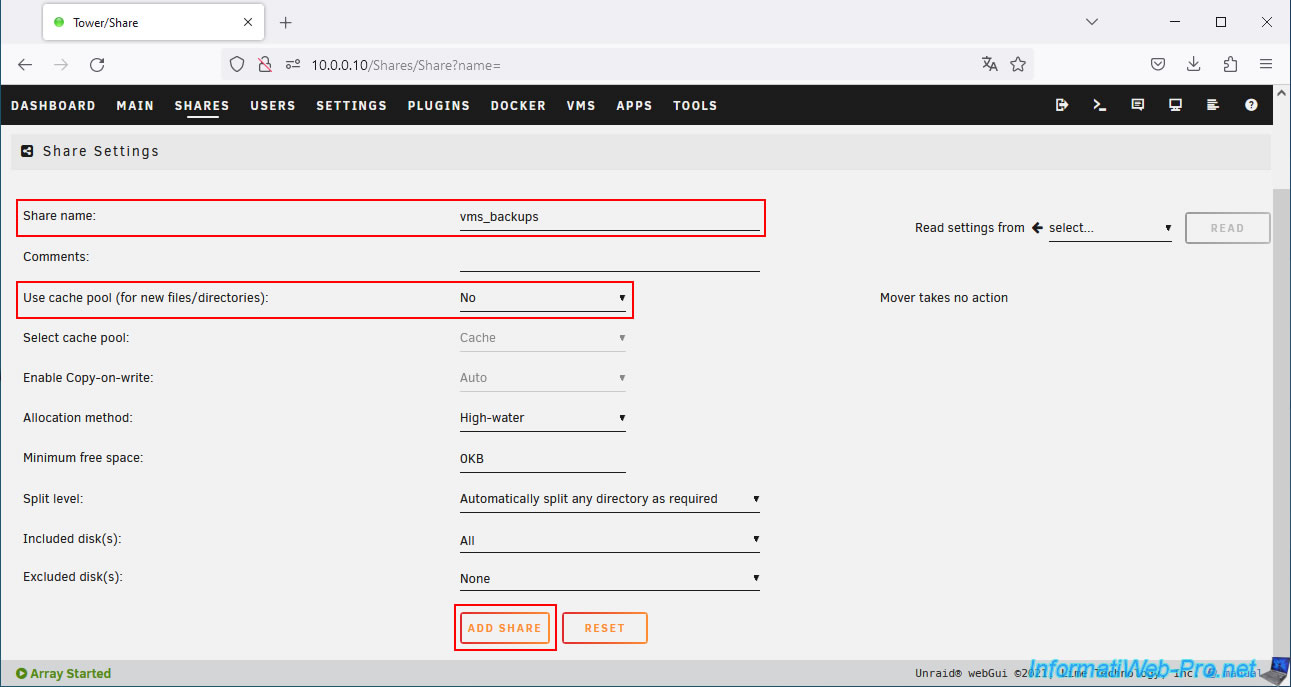
Configure these settings for your new share:
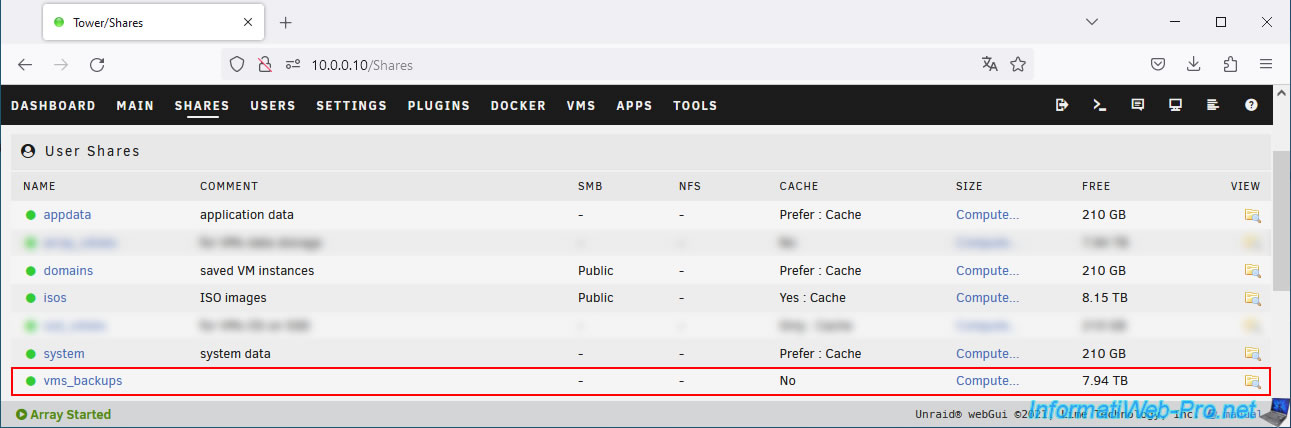
- Share name: vms_backups.
- Use cache pool (for new files/directories): No. This allows you to always store your virtual machine backups on your hard drives and NOT on your SSDs.
Storing backups (which are also large) is of no use on an SSD.
Then, click on: Add share.
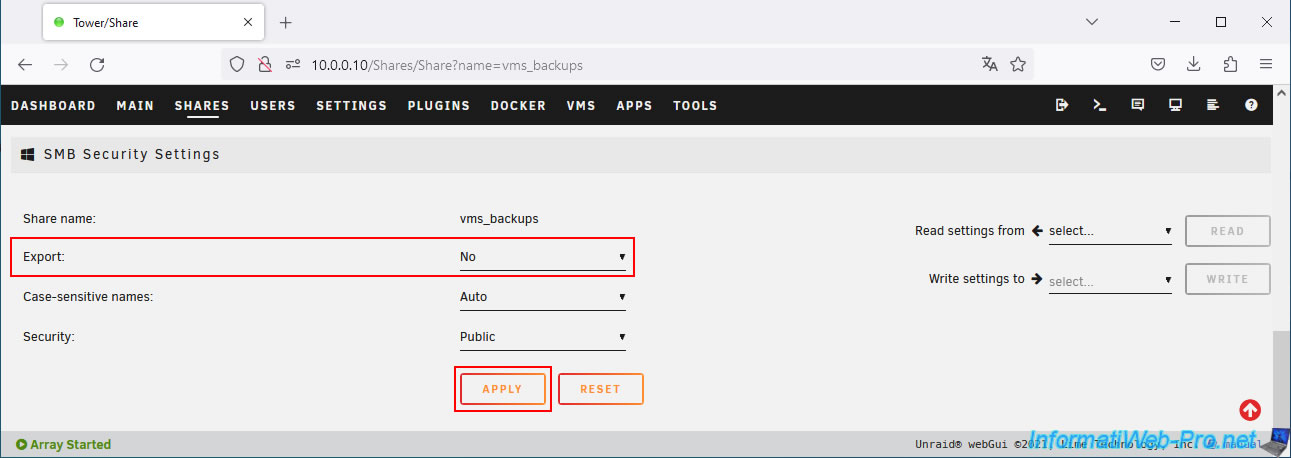
Then, at the bottom of the page, in the "SMB Security Settings" section, select "Export: No".
This will prevent this share from being accessible from the network.
It should only be accessible via the script (which will be launched on your Unraid server).
Once you've changed the "Export" setting, click Apply.
Your "vms_backups" share appears.
2. Download the script to manually backup your VMs
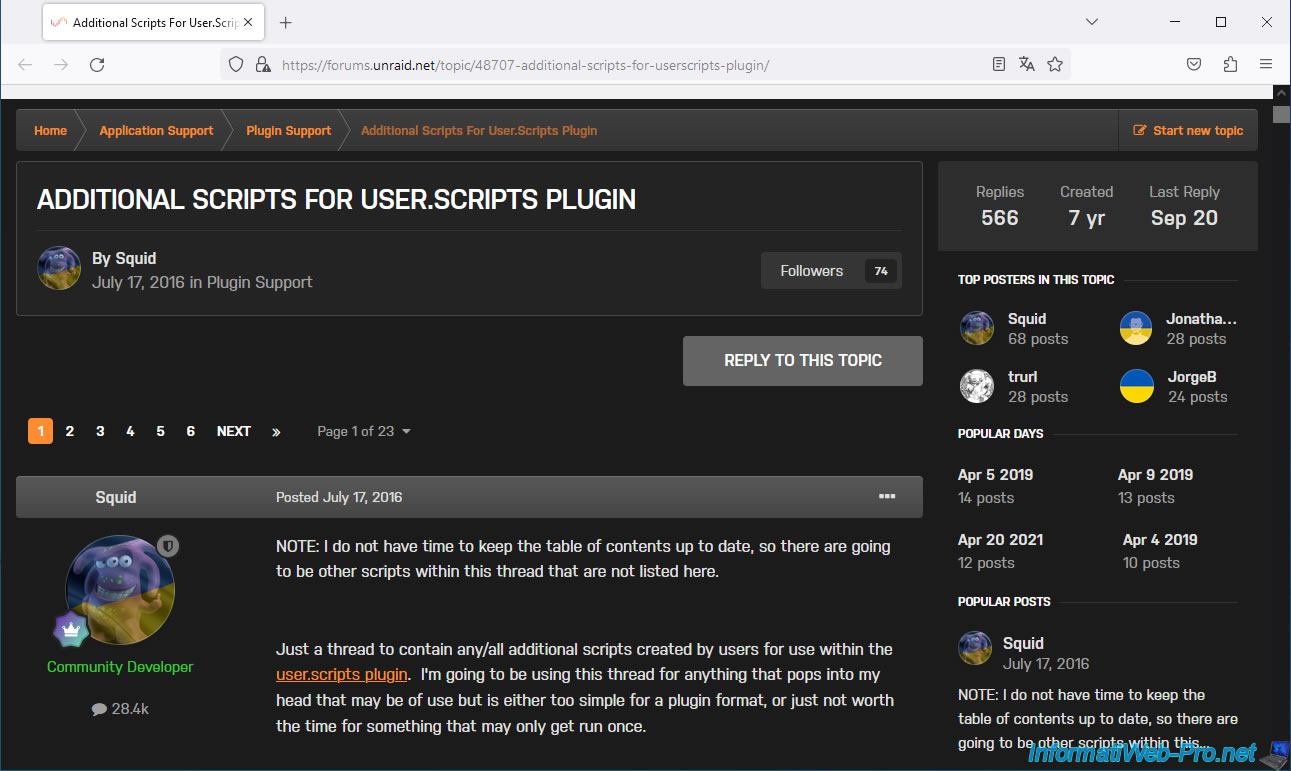
On the Unraid forum, you'll find a thread titled "Additional Scripts For User.Scripts Plugin."
This thread lists numerous third-party scripts that can be used in Unraid via the "User Scripts" plugin (which must be installed separately).
Note that this list is not exhaustive, and other interesting scripts may be found further down in this thread.
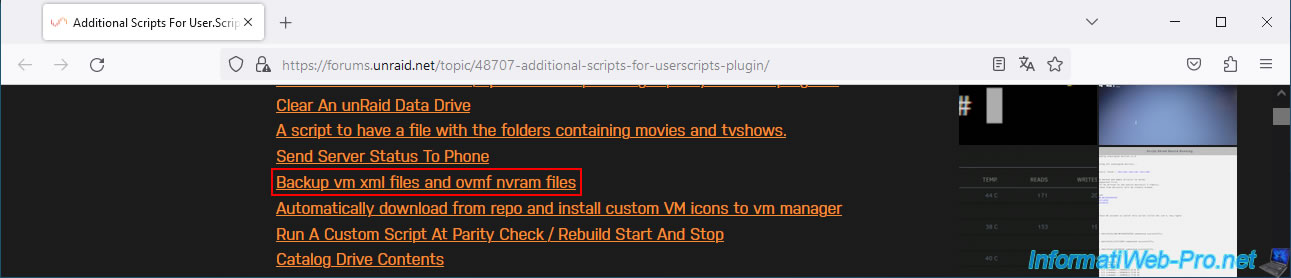
In our case, the script you are interested in is this one: Backup vm xml files and ovmf nvram files.
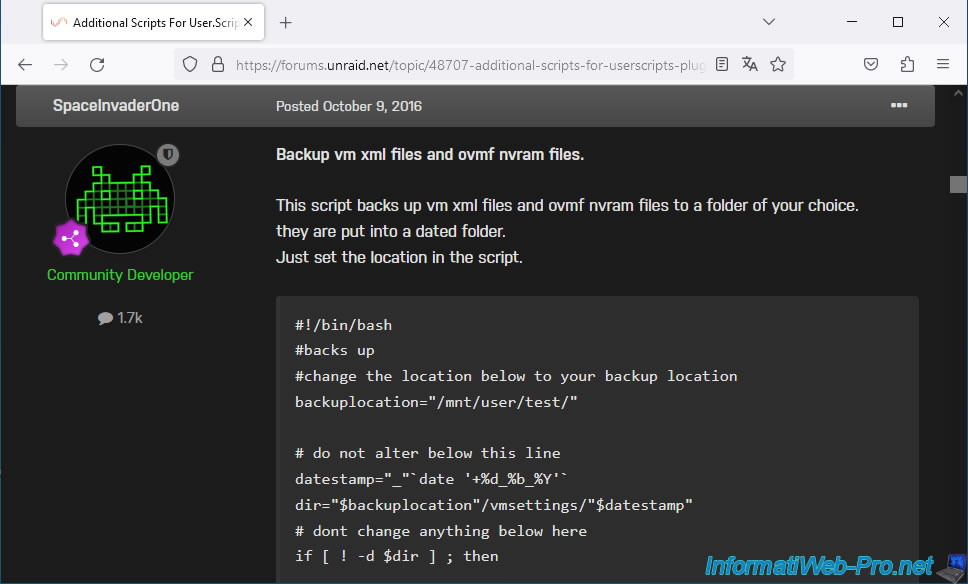
In the post you arrive at, you will see a script appear.
Important : the download link provided in this post no longer works.
However, its author provides another link to the same file hosted on Dropbox.
Download the "vm_settings_backup.zip" file via Dropbox.
Once the "vm_settings_backup.zip" file is downloaded, unzip it.
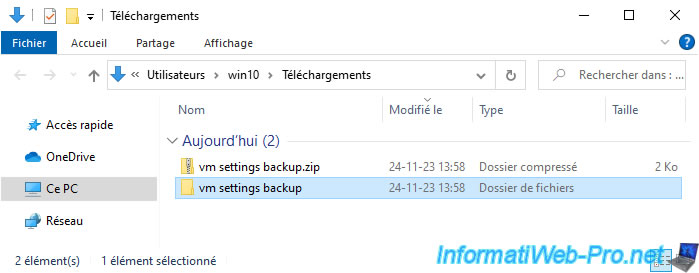
In this folder, you will find a folder with the same name.
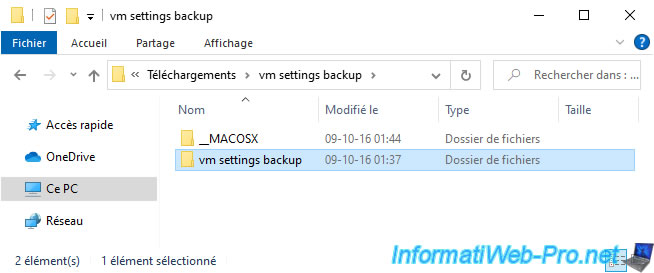
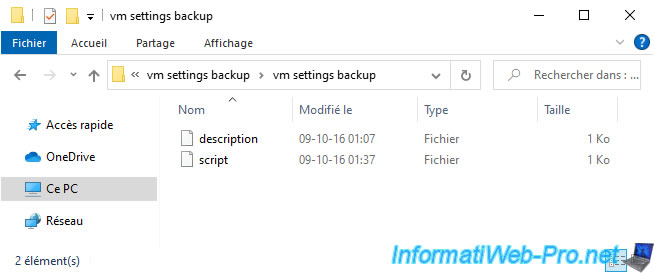
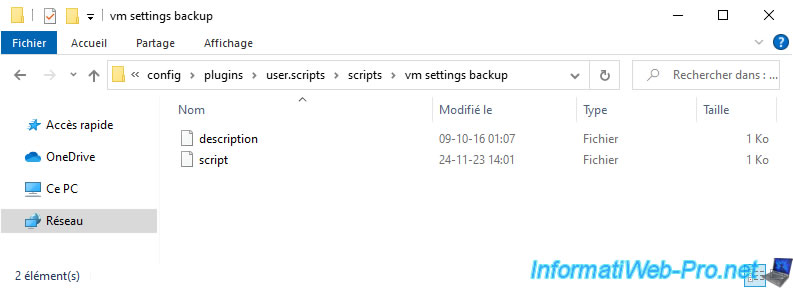
In this subfolder, you will find 2 files without extension:
- description: the description of this script.
- script: the script (also visible in its author's forum post).
Note: the names of these files are important, as these are the names expected by the "User Scripts" plugin that you will need to install on Unraid.
Open the "script" file with Windows Notepad.
In this file, you'll see that, by default, the script wants to back up your virtual machines to a share that you should name "test".
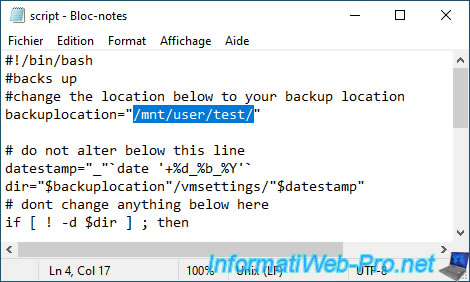
However, in our case, we created a "vms_backups" share.
So, change the path to "/mnt/user/vms_backups/".
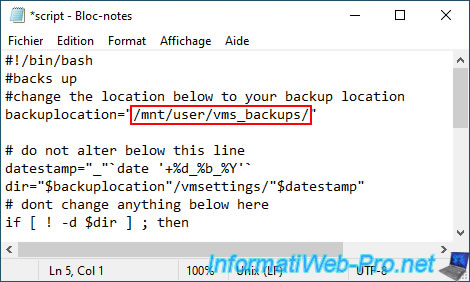
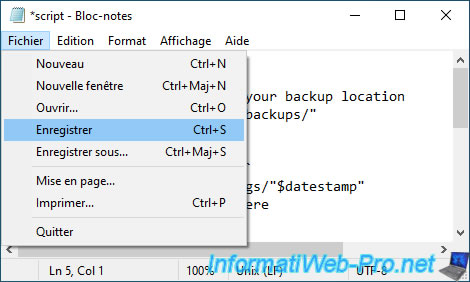
Then, save the changes.
3. Install the "User Scripts" plugin and add the script to your Unraid server
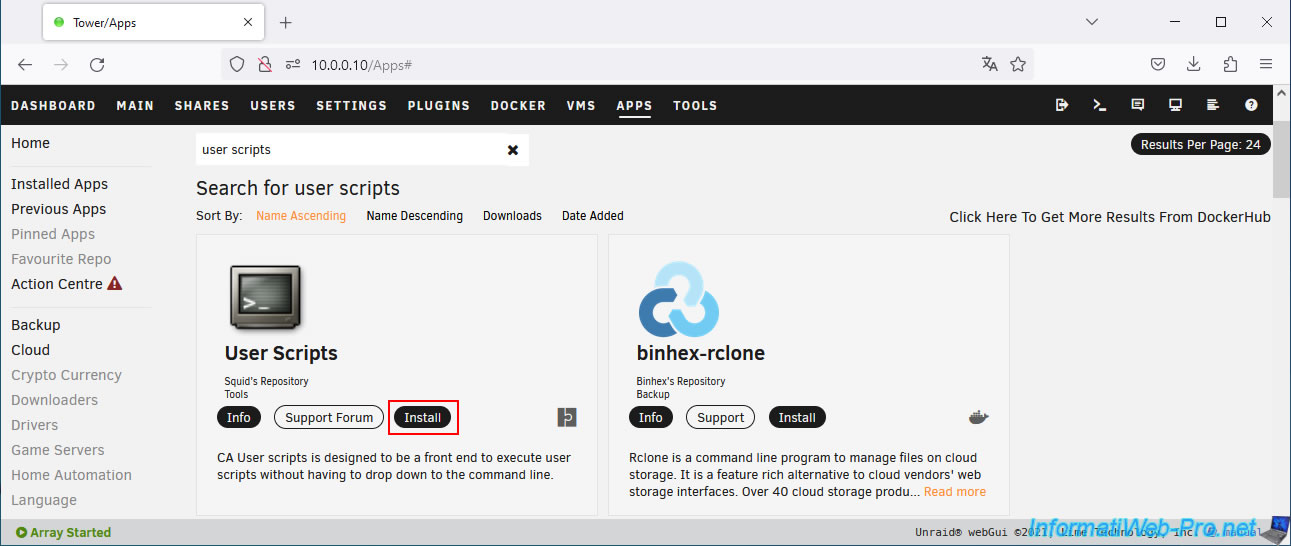
To use this script, you must first install the "User Scripts" plugin developed by Squid.
To do this, go to the "Apps" tab and search for "user scripts".
Then, install the "User Scripts" plugin that appears.
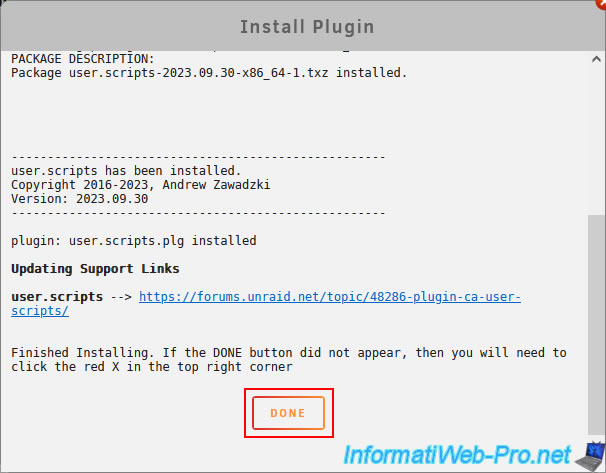
Once the "User Scripts" plugin is installed, click "Done".
Plain Text
plugin: user.scripts.plg installed.
Now, go to "Settings -> User Utilities -> User Scripts".
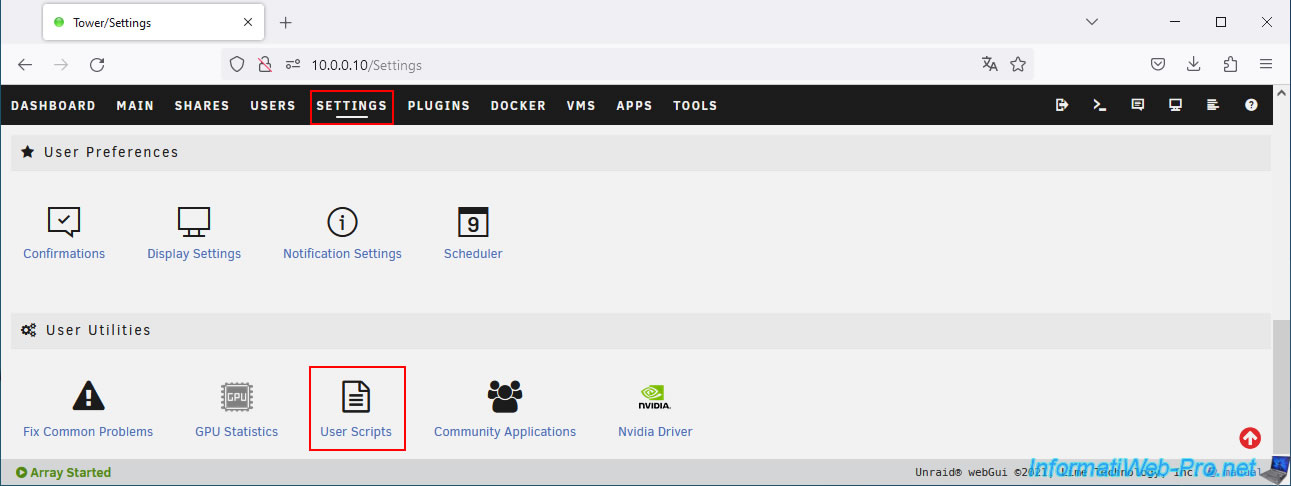
On your computer, access your Unraid server's network shares by typing "\\TOWER" (default) or "\\[your Unraid server's IP address]".
Then, navigate to: flash\config\plugins\user.scripts\scripts.
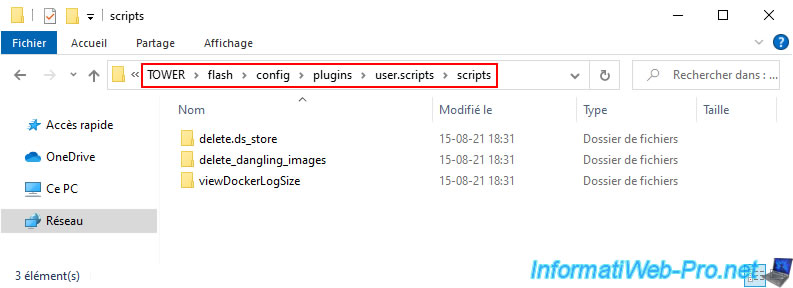
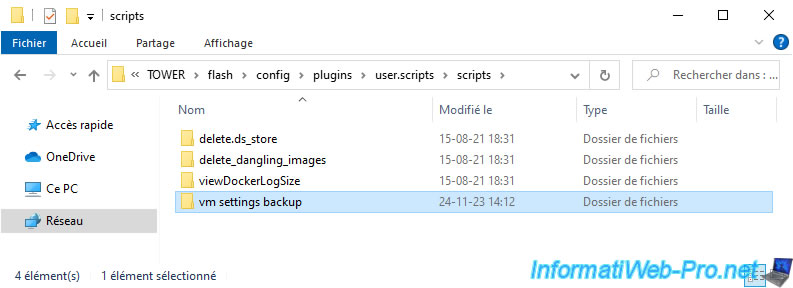
Copy the downloaded "vm settings backup" folder into this "scripts" folder on your Unraid server.
In this folder, you should see the "description" and "script" files appear.
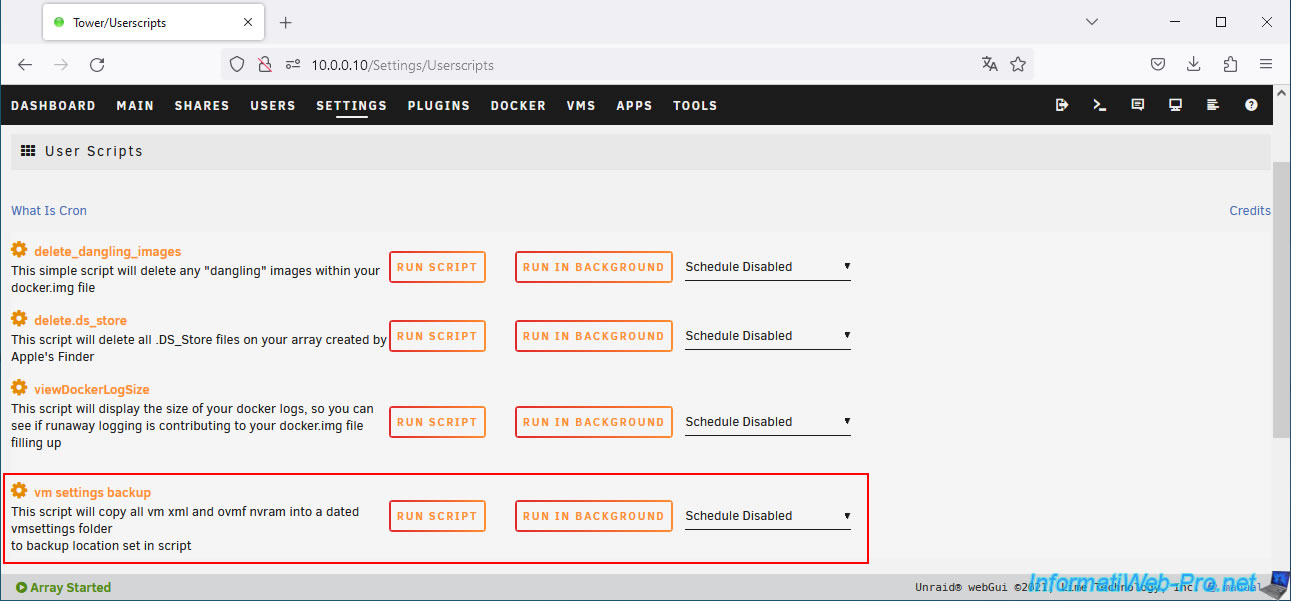
On your Unraid server's "User Scripts" page, you'll see the "vm settings backup" script appear.
If it doesn't, refresh the page by pressing F5.
Share this tutorial
To see also
-

NAS 1/15/2026
Unraid 6.9.2 - Change the parity disk
-
NAS 5/13/2026
Unraid 6.9.2 - SWAG - Locally access the reverse proxy (SWAG)
-
NAS 8/19/2026
Unraid 6.9.2 - VMs - Create a high-performance virtual machine (SSD)
-
NAS 8/5/2026
Unraid 6.9.2 - VMs - Manage your VMs with virt-manager (on Debian)
You must be logged in to post a comment