- NAS
- Unraid
- 14 October 2026 at 11:05 UTC
-

- 1/3

With Unraid, you can easily virtualize Hyper-V on Windows Server 2016.
Important : the main prerequisite is to enable nested virtualization on Unraid.
- Create a WS 2016 virtual machine on Unraid
- Install Windows Server 2016 in the VM created on Unraid
- Install VirtIO drivers on Windows Server 2016
- Install Hyper-V in the WS 2016 VM created on Unraid
- Create a nested virtual machine on Hyper-V
- Install the guest OS on Hyper-V
1. Create a WS 2016 virtual machine on Unraid
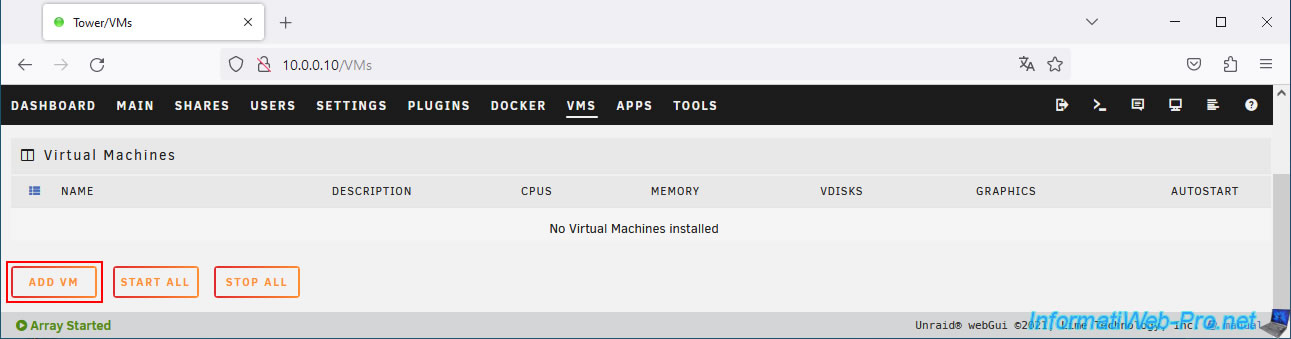
To begin, go to the "VMS" tab and click on: Add VM.
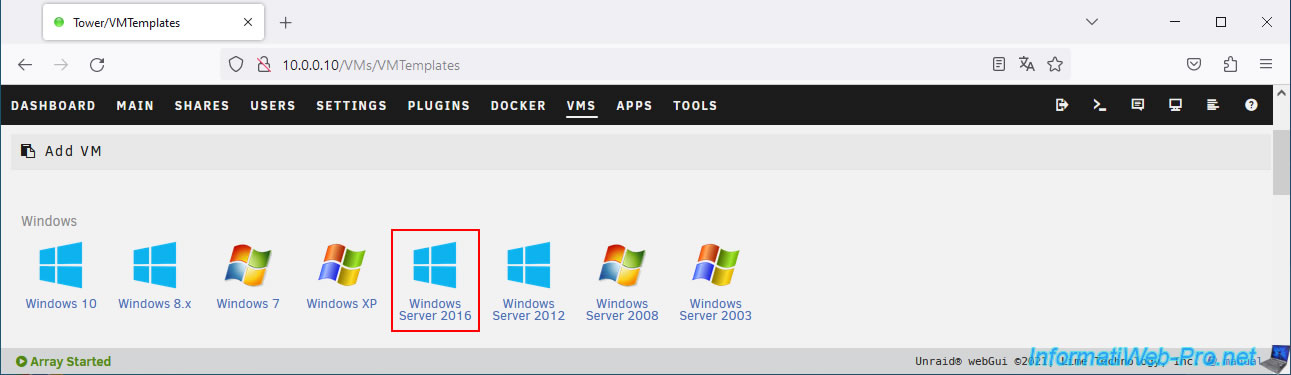
Click on: Windows Server 2016.
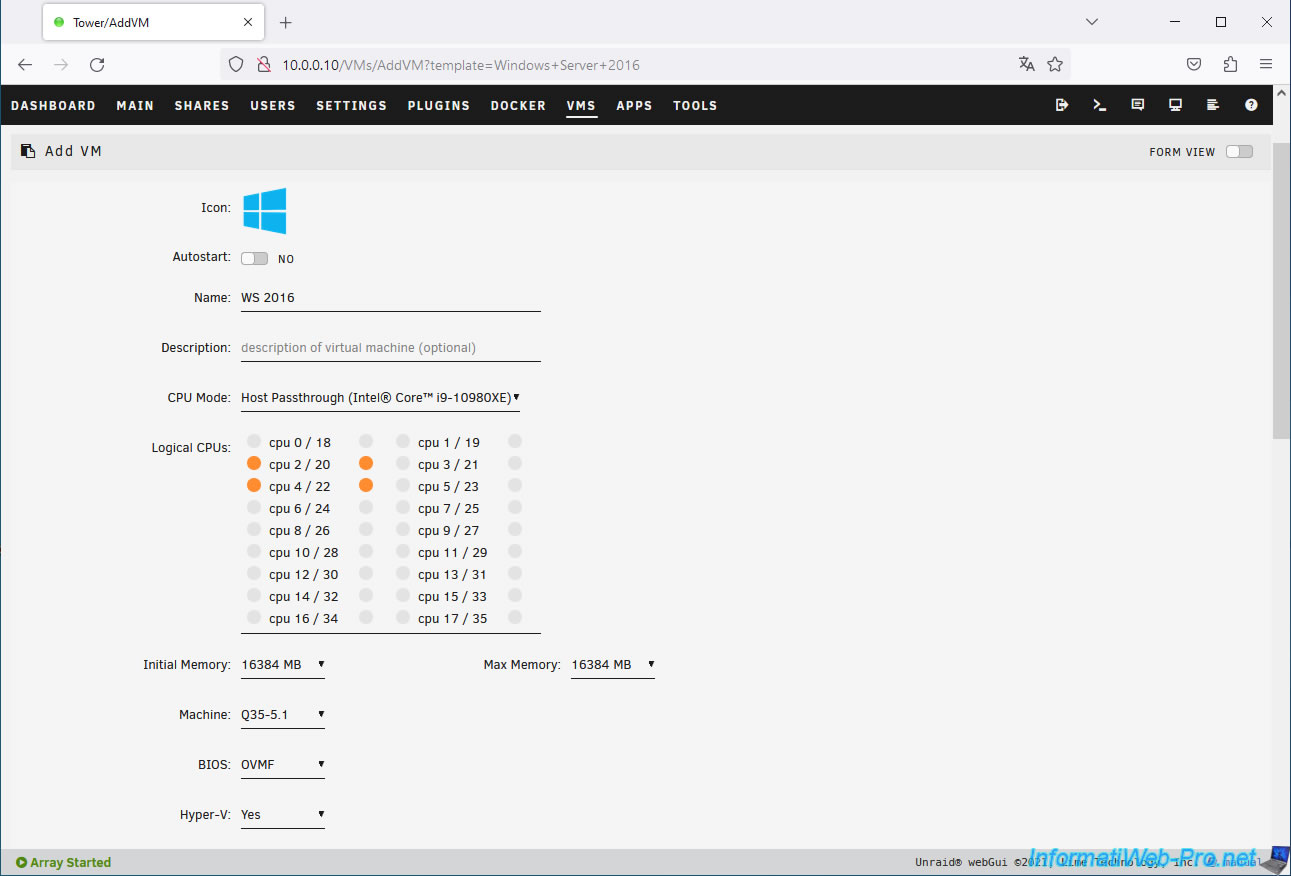
Fill in the fields like this:
- Name: WS 2016 (or whatever you prefer).
- Initial Memory: allocate enough RAM to your VM on Unraid so that you can run multiple virtual machines on Hyper-V later.
In our case, we allocated 16 GB of RAM. - Machine: select the most recent version of the machine, Q35 (recommended for recent operating systems).
In our case: Q35-5.1. - BIOS: OVMF. This supports booting in UEFI mode.
OVMF is used in this tutorial, but we also tested it with SeaBIOS, and it works the same way.
However, with SeaBIOS, the virtual machine will boot in LEGACY BIOS mode.
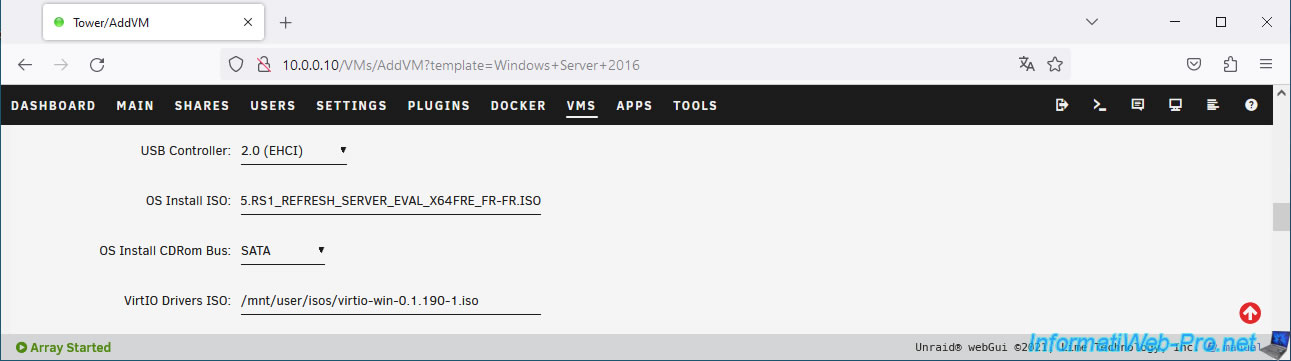
For virtual CDs, specify:
- OS Install ISO: select your Windows Server 2016 ISO file.
- VirtIO Drivers ISO: by default, the "virtio-win-...iso" file is automatically selected if you have already downloaded it.
If this is not the case, refer to the "Enable Virtual Machine Manager in Unraid" step of our "unraid-6-9-2-vms-create-vm" tutorial to obtain it.
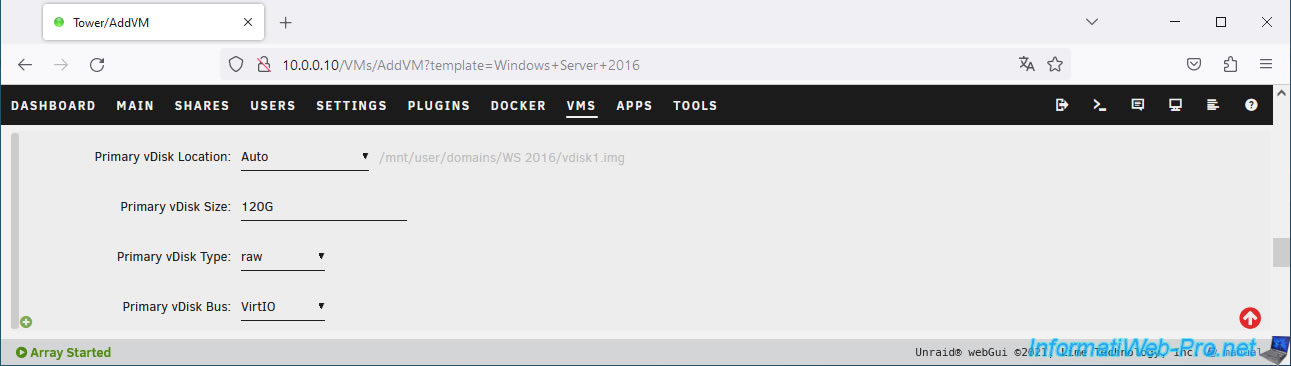
Specify a size for the virtual hard disk (vDisk) that is sufficient to store multiple virtual machines running Windows Server.
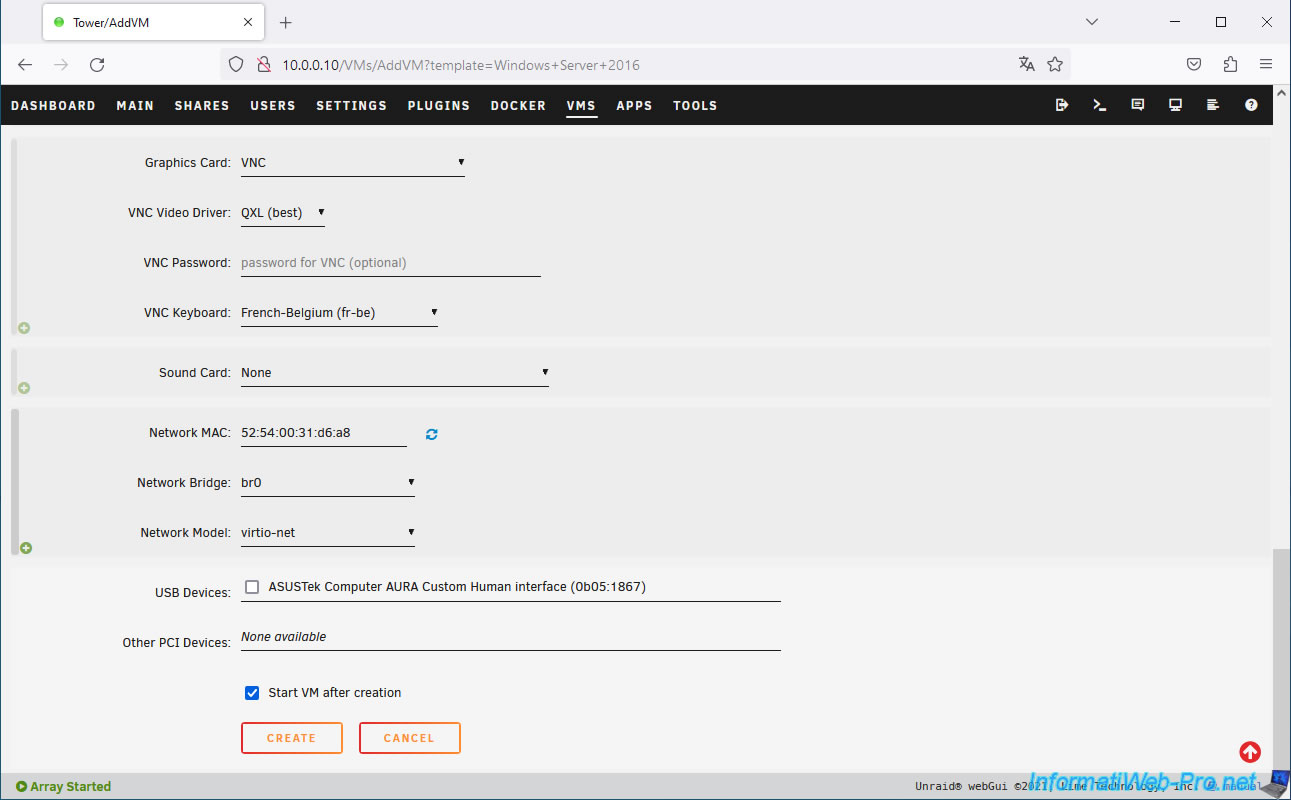
Select your keyboard language for the VNC console.
In our case, "VNC Keyboard: French-Belgium (fr-be)."
Then, click Create.
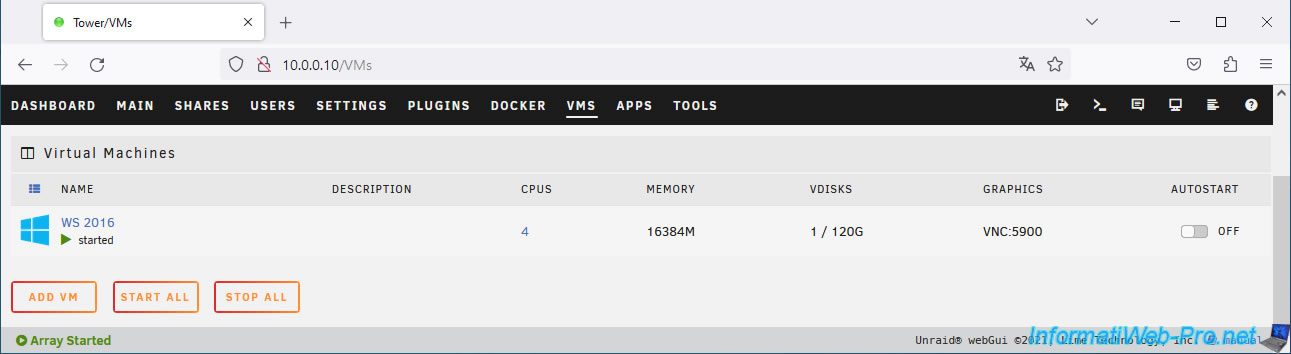
Your VM appears.
2. Install Windows Server 2016 in the VM created on Unraid
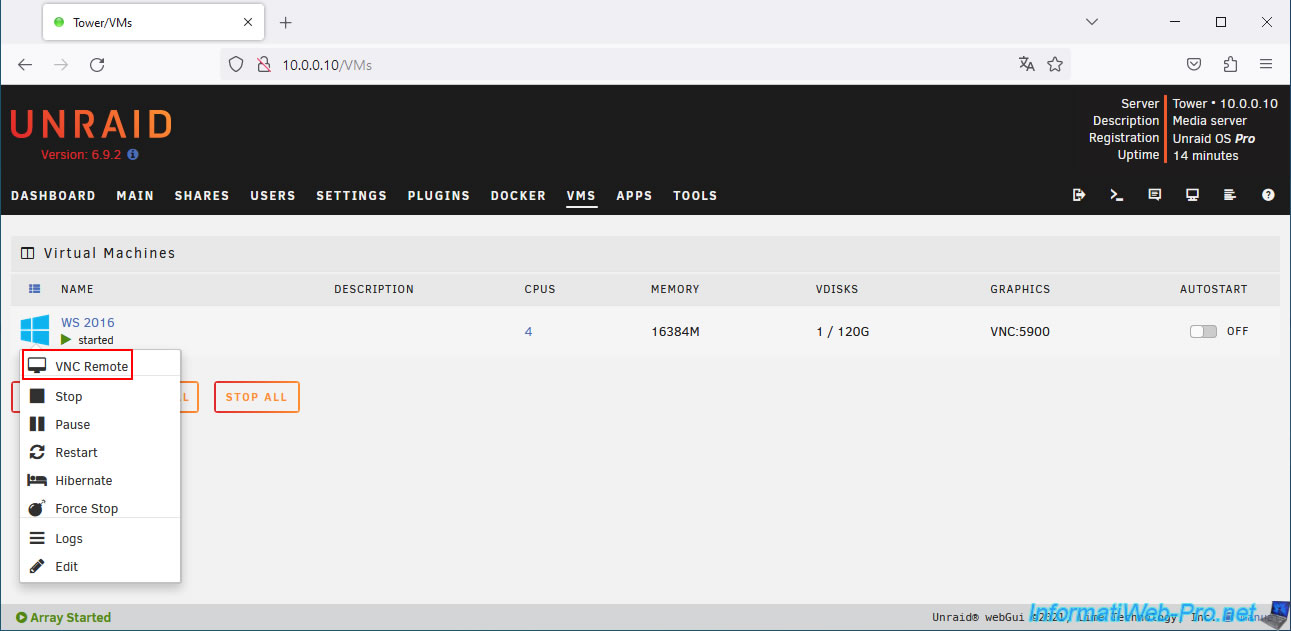
Open your VM console by clicking on its icon, then on: VNC Remote.
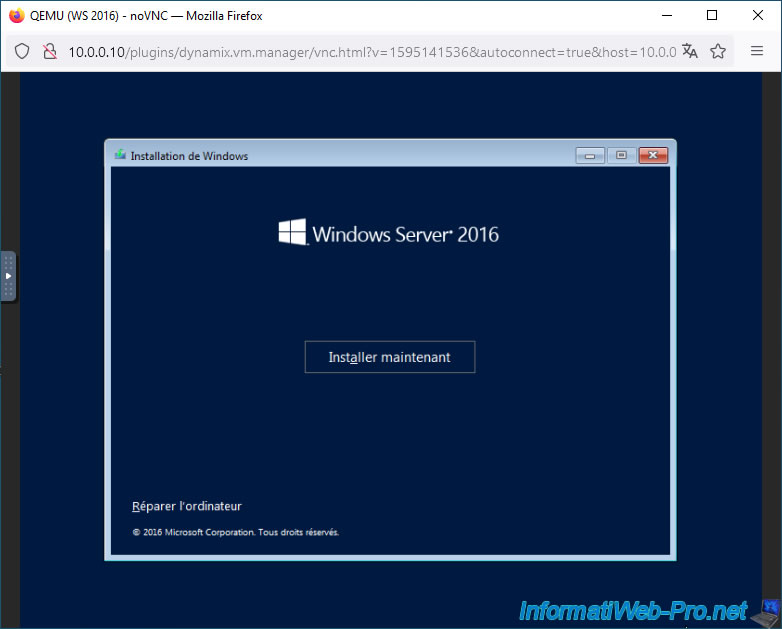
The Windows Server 2016 installer appears.
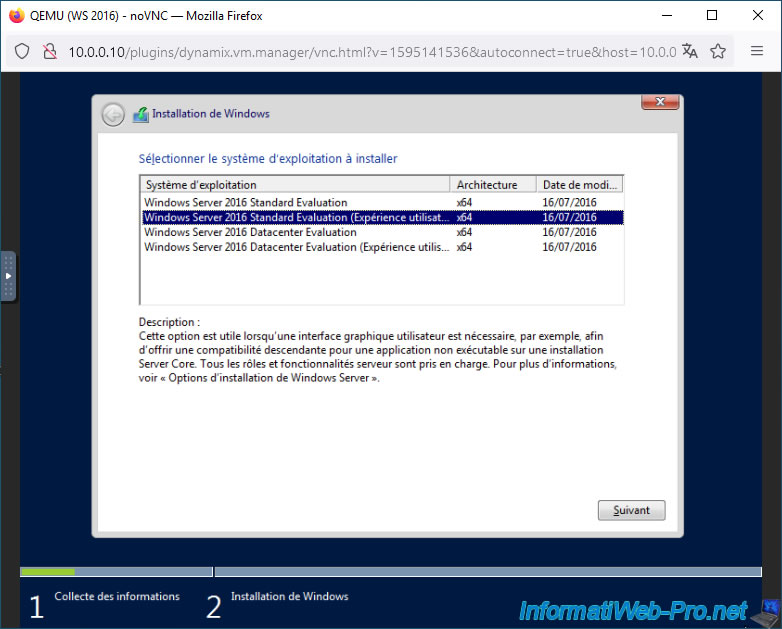
Select the desired edition with the suffix "(User Experience)".
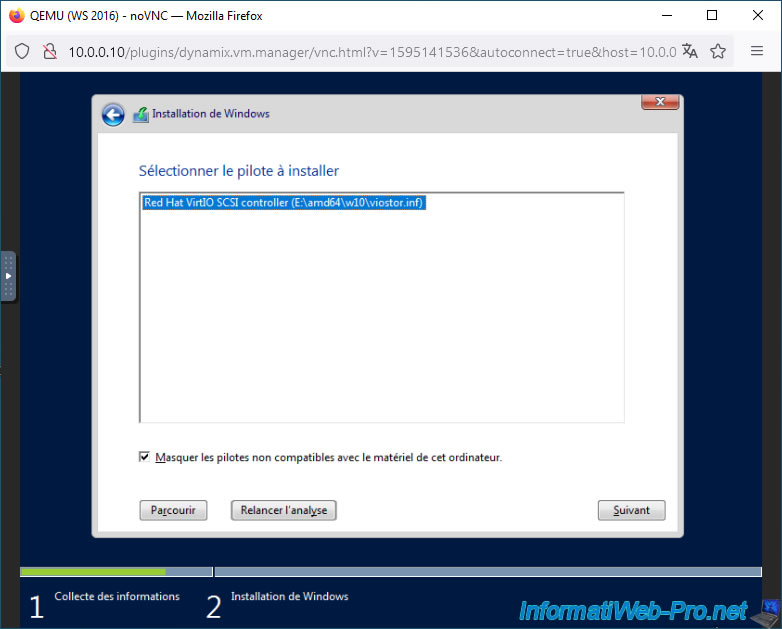
As with any Windows or Windows Server virtual machine created with Unraid, you'll need to manually install the Red Hat VirtIO SCSI controller driver for the virtual hard drive to be detected by the installer.
If necessary, refer to step "5. Install the guest operating system (Windows 10)" of our tutorial: unraid-6-9-2-vms-creer-vm.
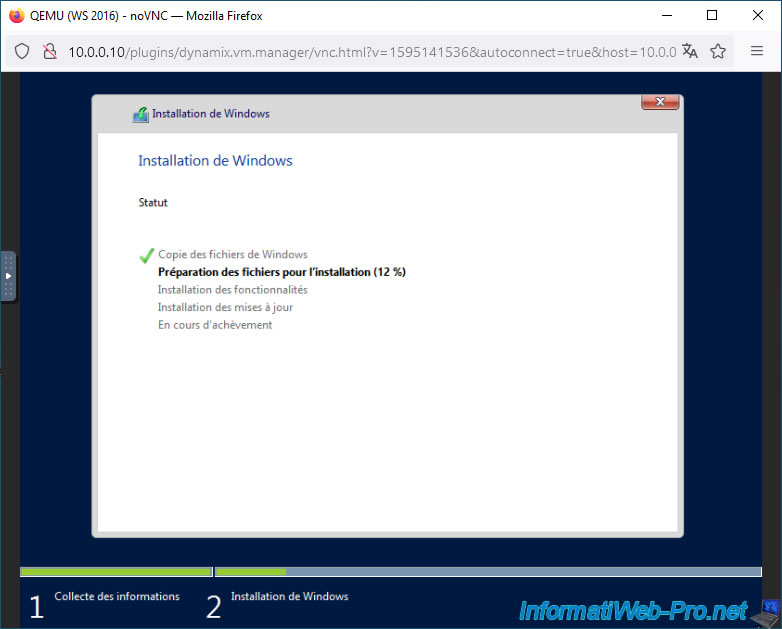
Then, wait while Windows Server is installed.
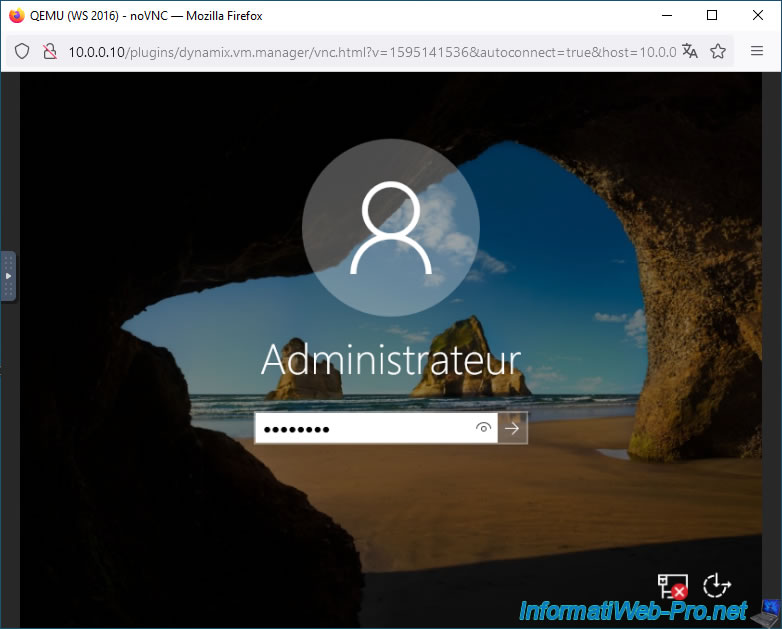
On Windows Server, you must press the three keys (Ctrl+Alt+Del) to connect to your session.
To do this, open the VNC console menu using the button on the left side of the window.

Then, click on the 1st blue icon, then on the last gray icon.

Now, type the Administrator password (set during Windows Server installation).
Share this tutorial
To see also
-

NAS 7/8/2026
Unraid 6.9.2 - Docker - Install a password manager (Vaultwarden)
-

NAS 9/9/2026
Unraid 6.9.2 - VMs - Create a gaming virtual machine (without ACS support)
-
NAS 8/13/2026
Unraid 6.9.2 - VMs - Guest not initialized display (solution)
-
NAS 10/21/2026
Unraid 6.9.2 - VMs - Virtualize VMware Workstation
You must be logged in to post a comment