- NAS
- Unraid
- 13 August 2026 at 14:25 UTC
-


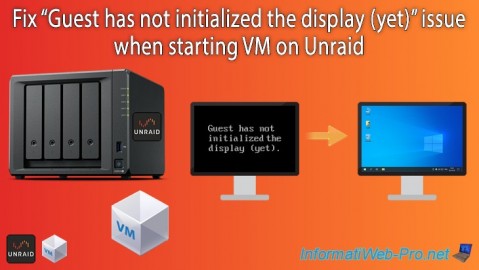
When you attempt to configure a virtual machine in Unraid to use a physical graphics card (using GPU passthrough), then re-enable the VNC option for your virtual machine's graphics card, your virtual machine's display may no longer work.
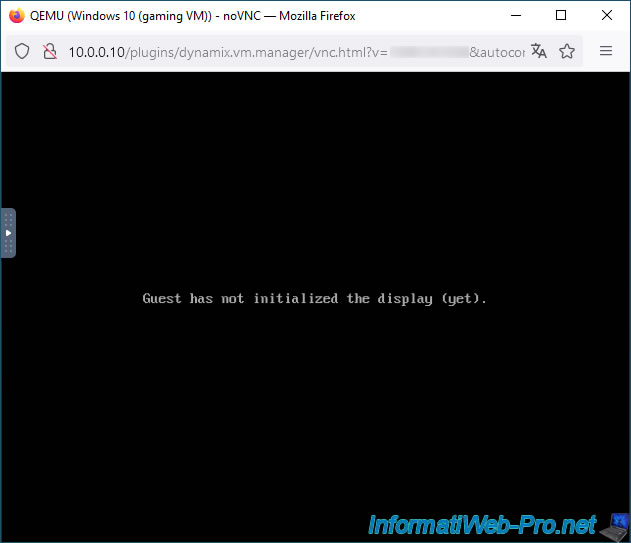
In this case, a message "Guest has not initialized the display (yet)" appears, and you are no longer able to see your virtual machine's screen.
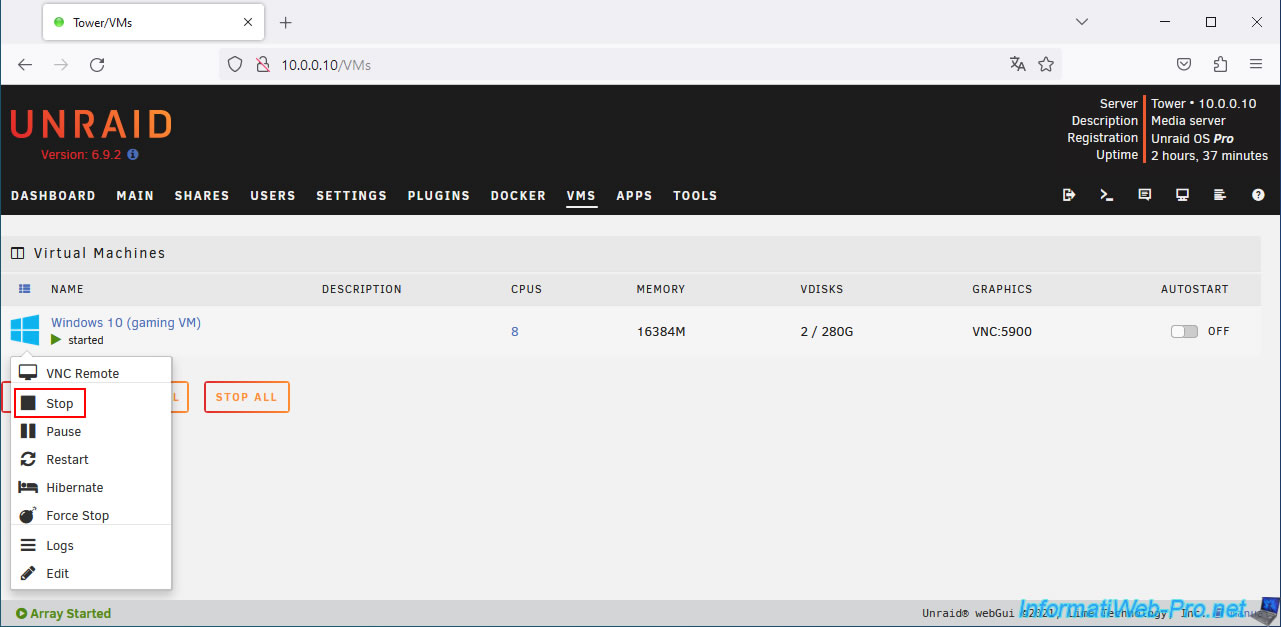
To resolve this issue, stop your virtual machine from the "VMS" tab of your Unraid server by clicking on your VM icon, then clicking on: Stop.
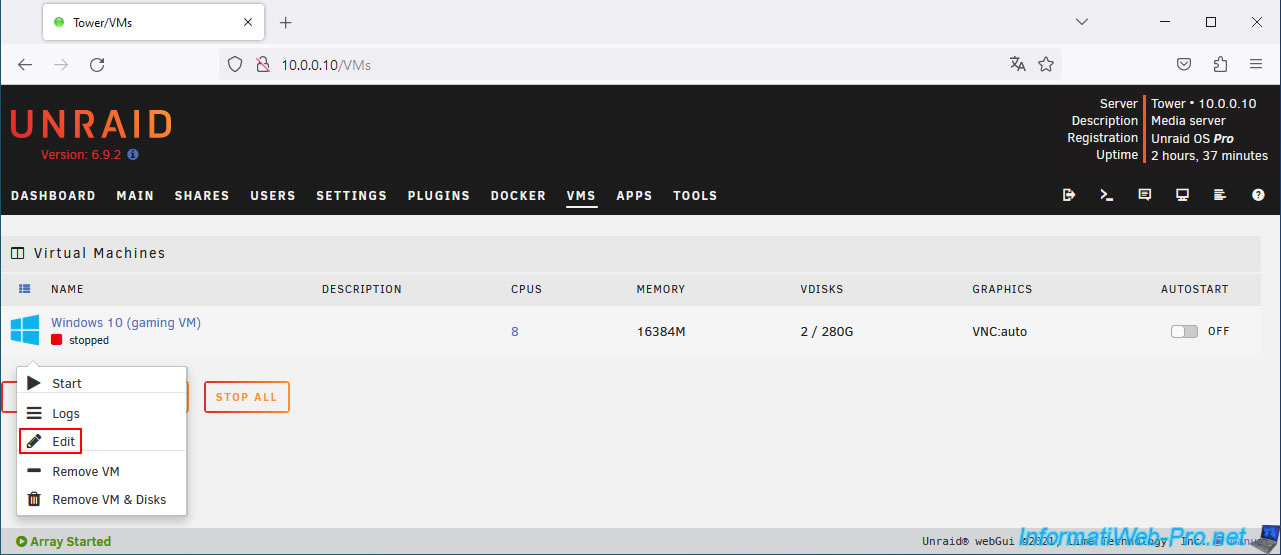
Edit your virtual machine's configuration by clicking on your VM icon, then on: Edit.
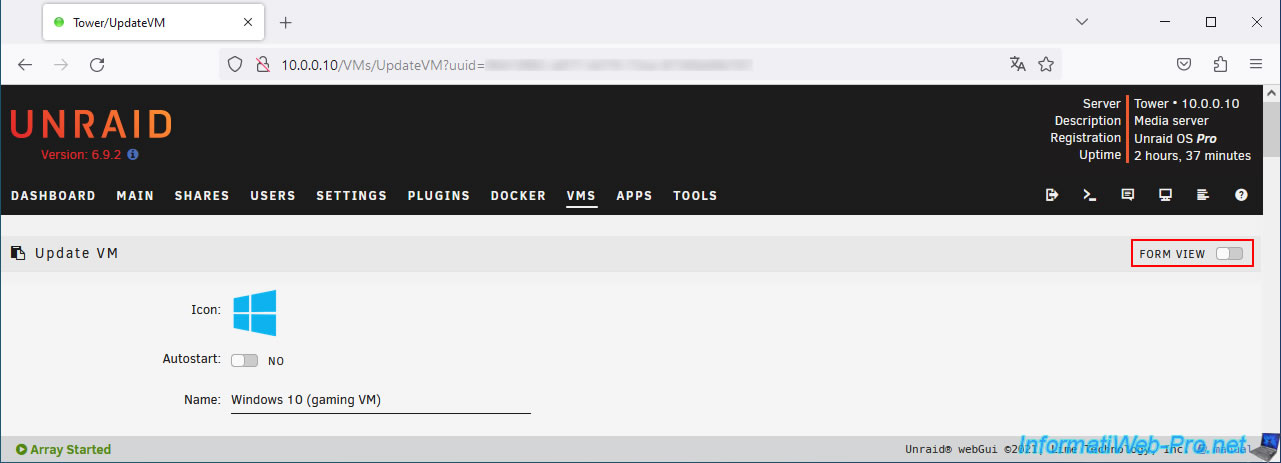
At the top right, click on the "FORM VIEW" selector to access the XML view.
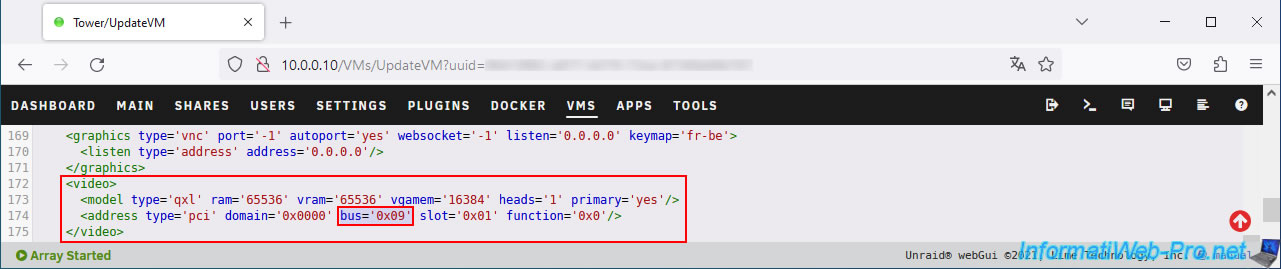
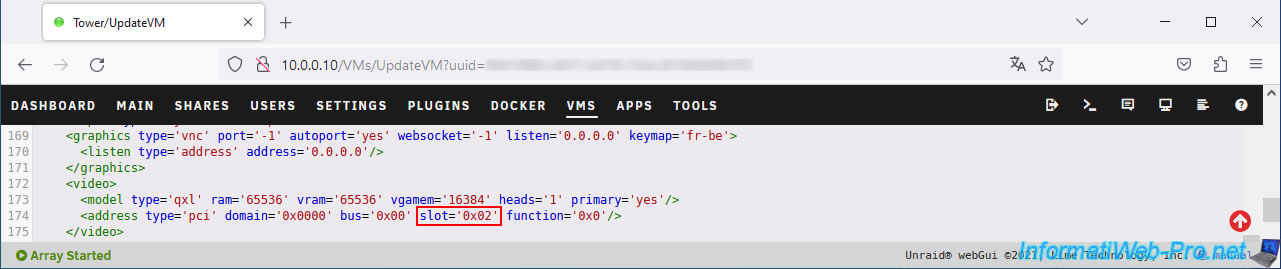
Locate the "<video>...</video>" section and locate the "bus" attribute of the "<address />" tag within it.
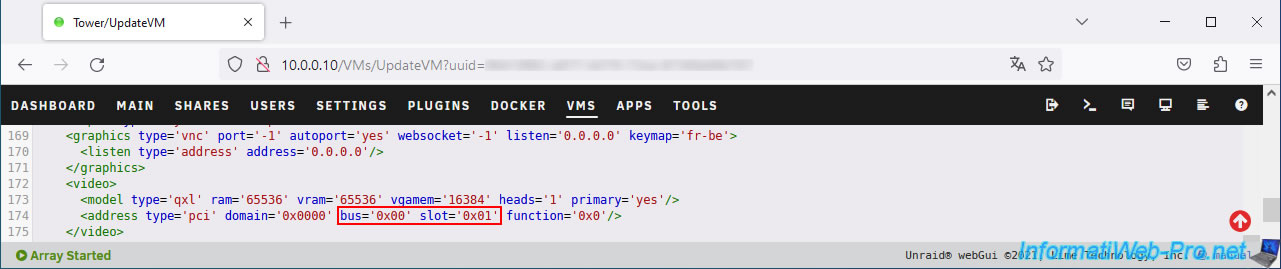
Change the bus number to "0x00" and specify "0x01" for the slot number.
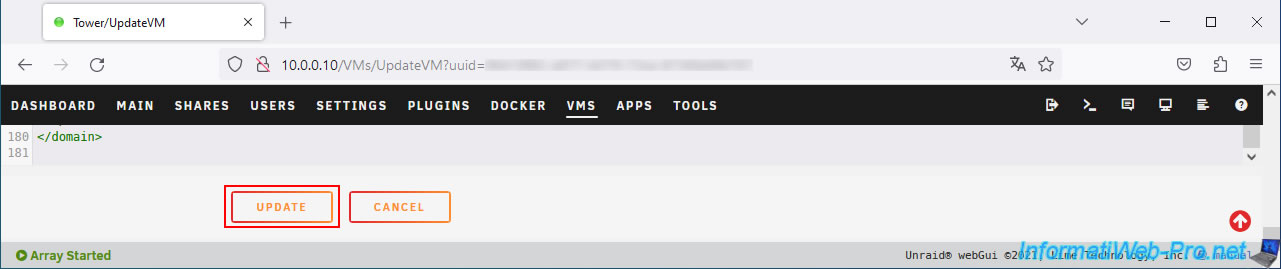
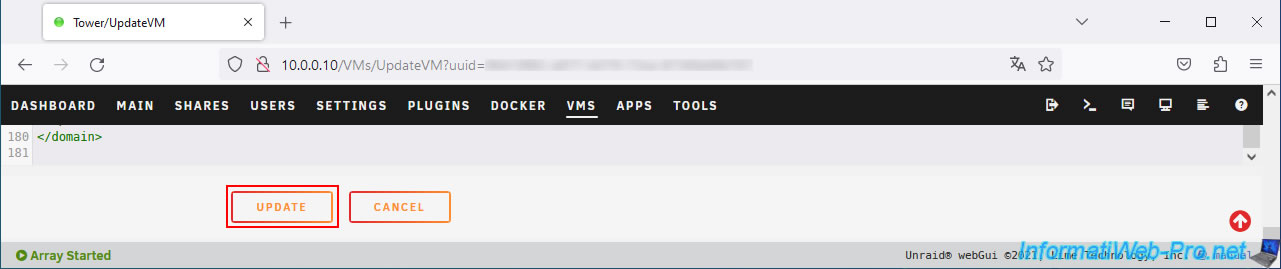
At the bottom of the page, click on: Update.
If the specified slot (bus=0x00 / slot=0x01) is already in use, the error below will appear.
Plain Text
VM creation error.
XML error: Attempted double use of PCI Address 0000:00:01.0
In this case, click OK.
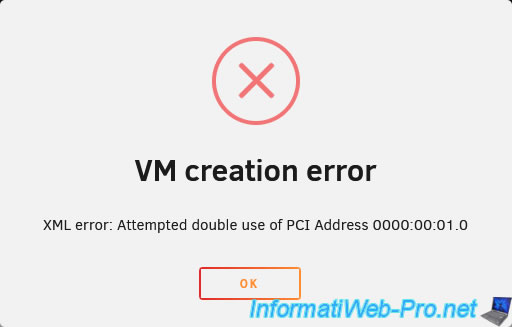
Then, return to your virtual machine's configuration and change the slot number.
For example: 0x02 instead of the previously specified "0x01".
If the error persists, try the following slot: 0x03, ...
Again, click "Update" at the bottom of the page.
The graphics card used is: VNC.
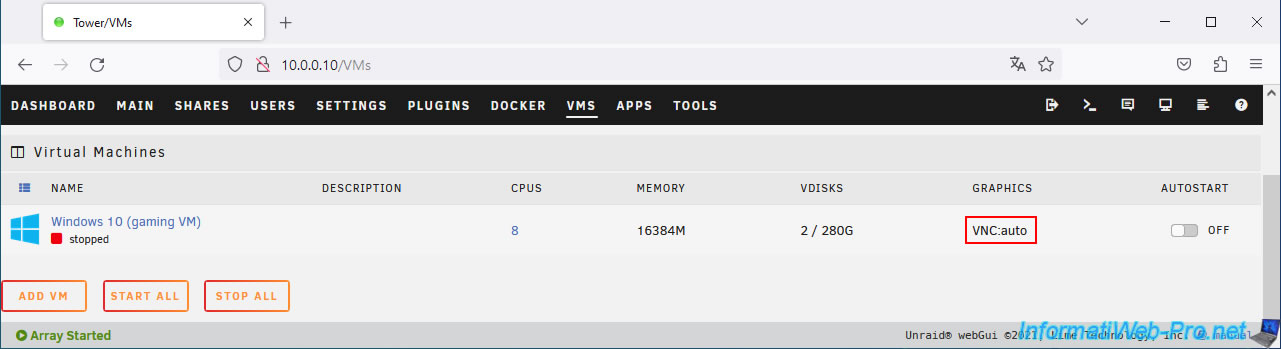
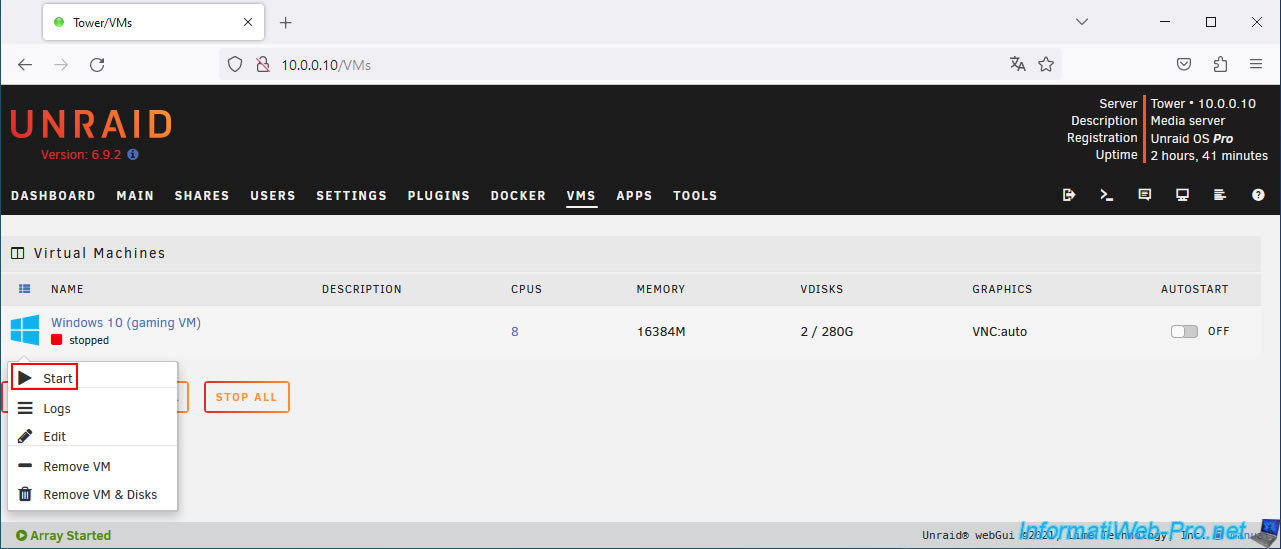
Start your virtual machine by clicking on its icon, then on: Start.
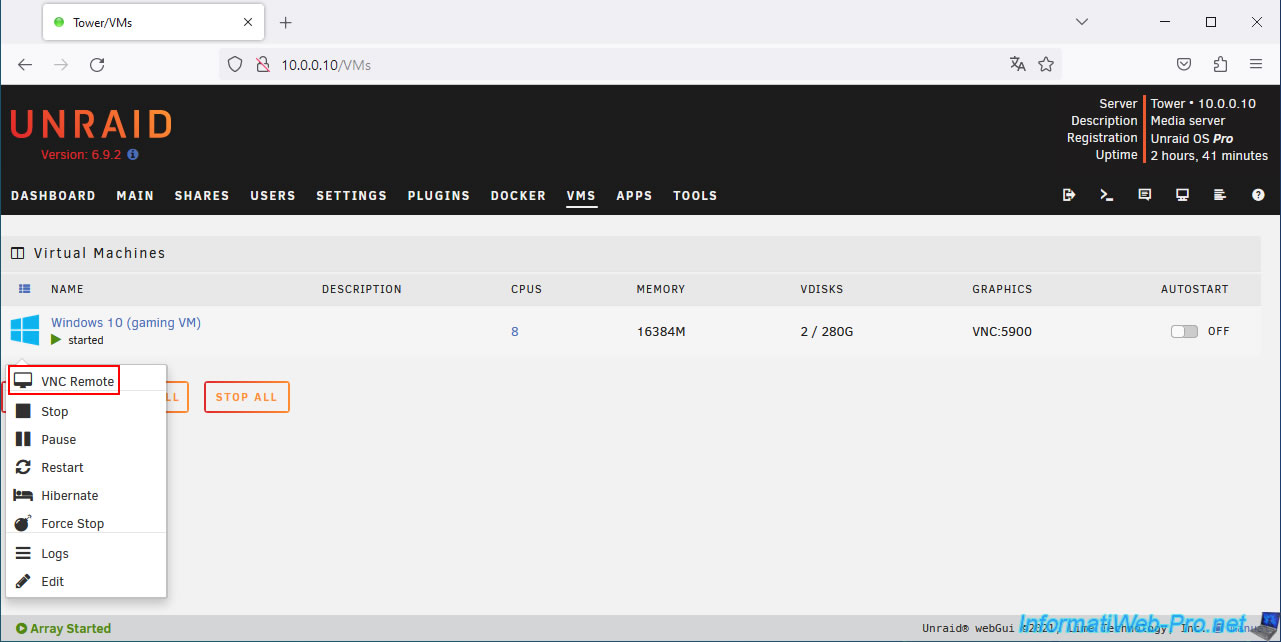
Open your virtual machine's VNC console by clicking on your VM icon, then on: VNC Remote.
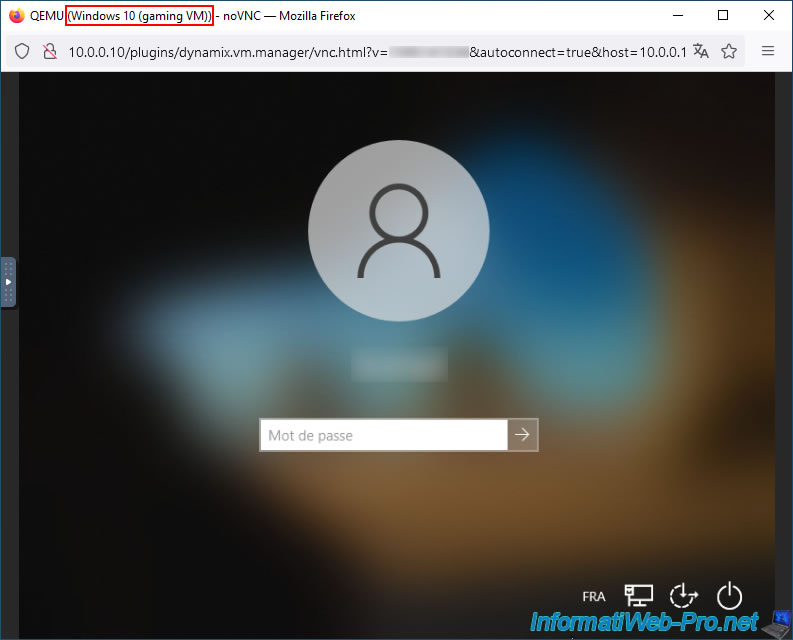
Normally, your virtual machine console will work correctly again.
Share this tutorial
To see also
-

NAS 1/30/2026
Unraid 6.9.2 - Create shares (network / user)
-

NAS 4/29/2026
Unraid 6.9.2 - Docker - Install a DDNS client (Duck DNS)
-
NAS 7/29/2026
Unraid 6.9.2 - VMs - Backing up a VM automatically
-

NAS 9/23/2026
Unraid 6.9.2 - VMs - Hotplug USB devices (USB Manager plugin)
You must be logged in to post a comment