Create a gaming virtual machine (with an eGPU) on Unraid 6.9.2
- NAS
- Unraid
- 01 October 2026 at 10:13 UTC
-

- 4/5

12. Use power mode: High performance
To avoid graphical glitches in your gaming virtual machine and prevent Windows 10 from attempting to put certain components to sleep (which could, again, create instabilities), it's recommended to use Windows' "High Performance" power mode.
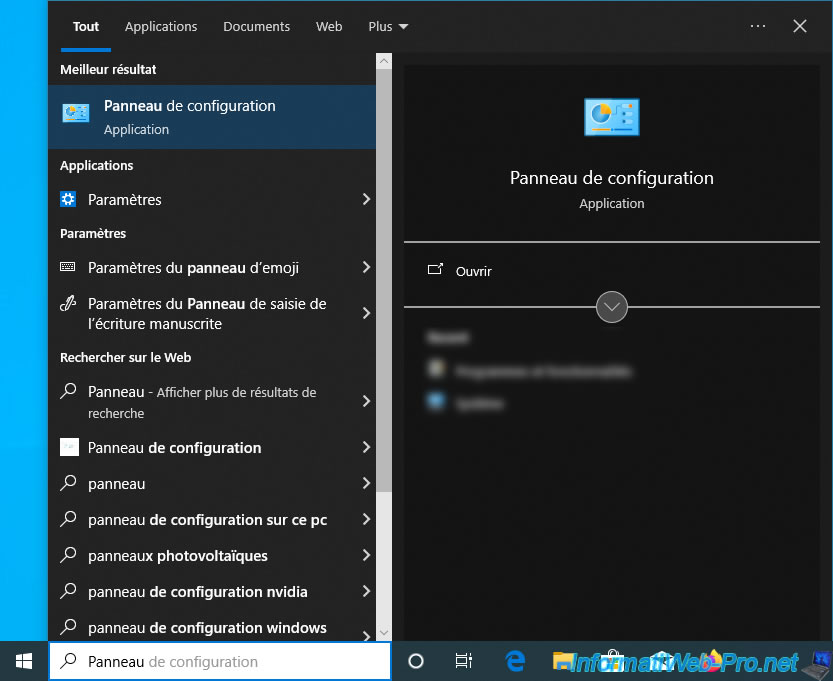
To do this, open the Windows 10 Start menu and type "Control Panel".
Then, open the Control Panel.
Note: when using an eGPU, this improves the stability of your gaming virtual machine.
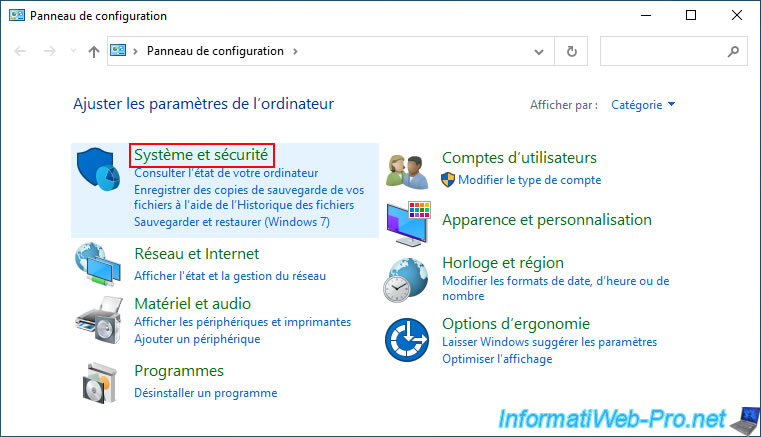
In the Windows 10 Control Panel, go to the "System and Security" section.
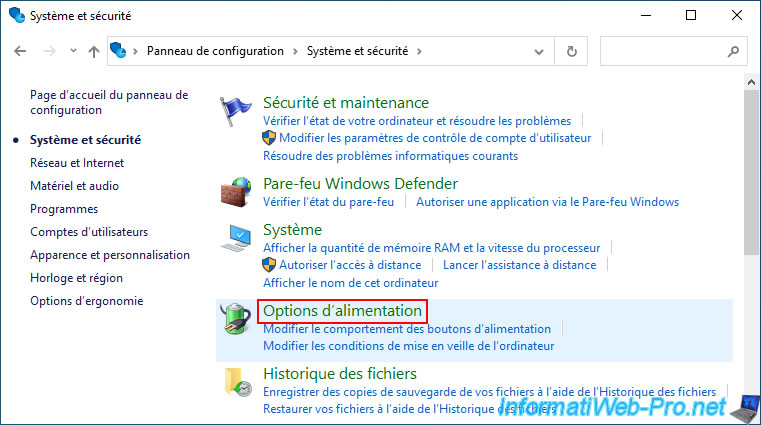
In this "System and Security" section, go to "Power Options".
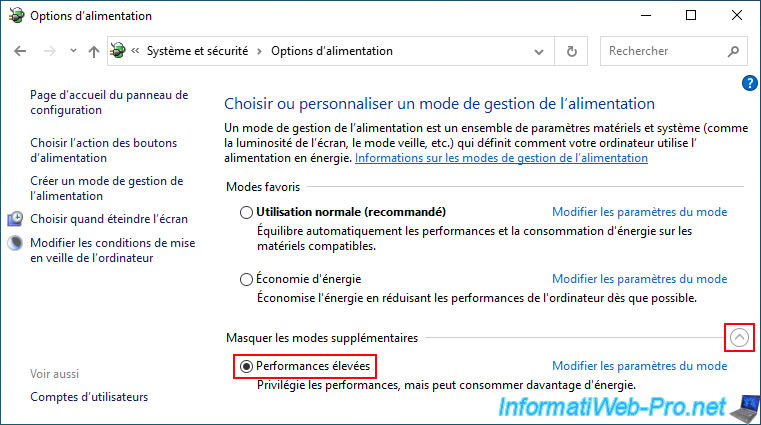
In these power options, click the arrow at the bottom right (to display additional modes) and select the "High performance" mode.
13. Install DirectX
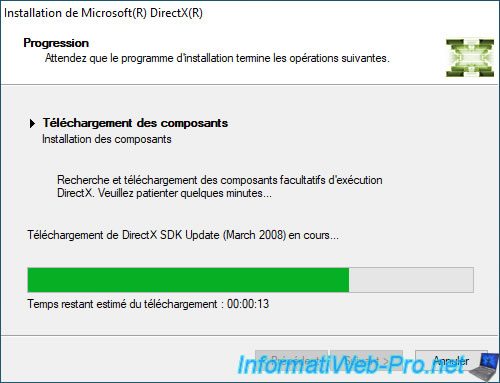
To ensure your games run properly (and avoid errors due to missing DirectX components), download the DirectX web installer (if you have internet access) or the DirectX offline installer (if you have turned off the Internet on your gaming VM).
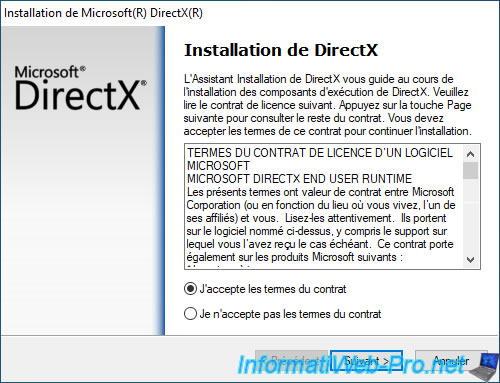
If you chose the DirectX web installer, the installer will download the components from Microsoft's website.
Otherwise, it will use its own previously downloaded data. In both cases, the result will be the same.
14. Install Steam and install your favorite game
Install your preferred gaming platform in your gaming VM.
In our case, we'll use "Steam" because we own a game on that platform.
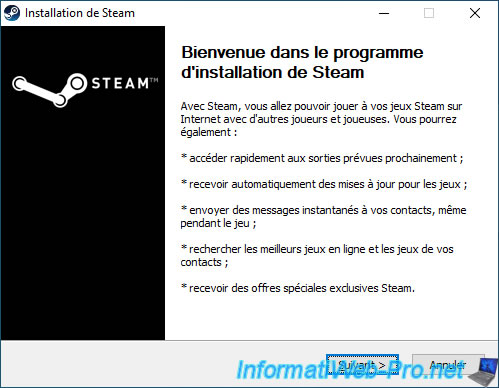
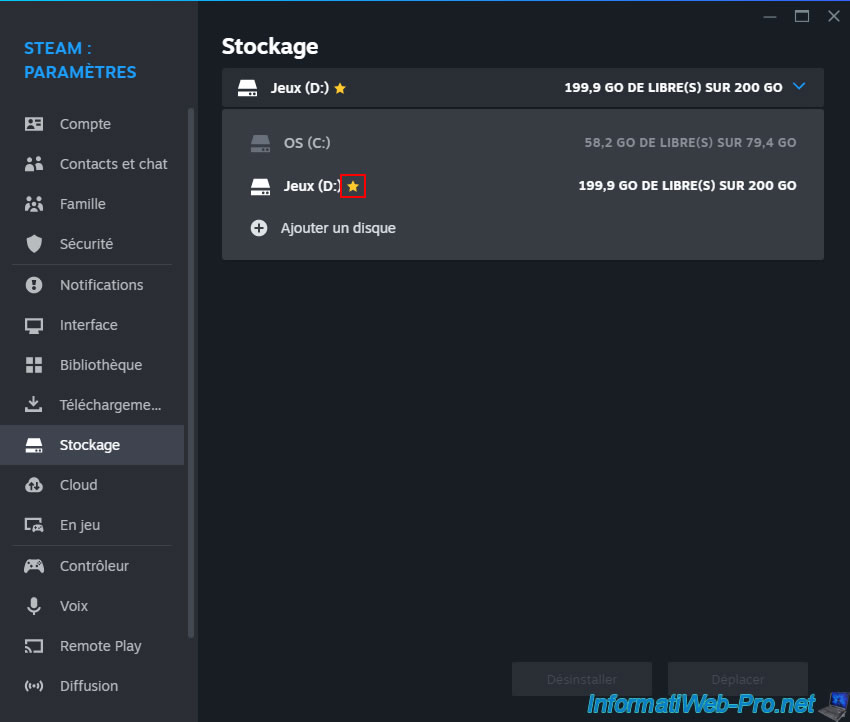
If you have decided to install Steam, refer to step "13. Install Steam and install your favorite game" of our tutorial on creating a gaming VM on Unraid to have Steam download and install your games by default on the 200 GB "Games (D:)" partition, rather than in the "OS (C:)" partition.
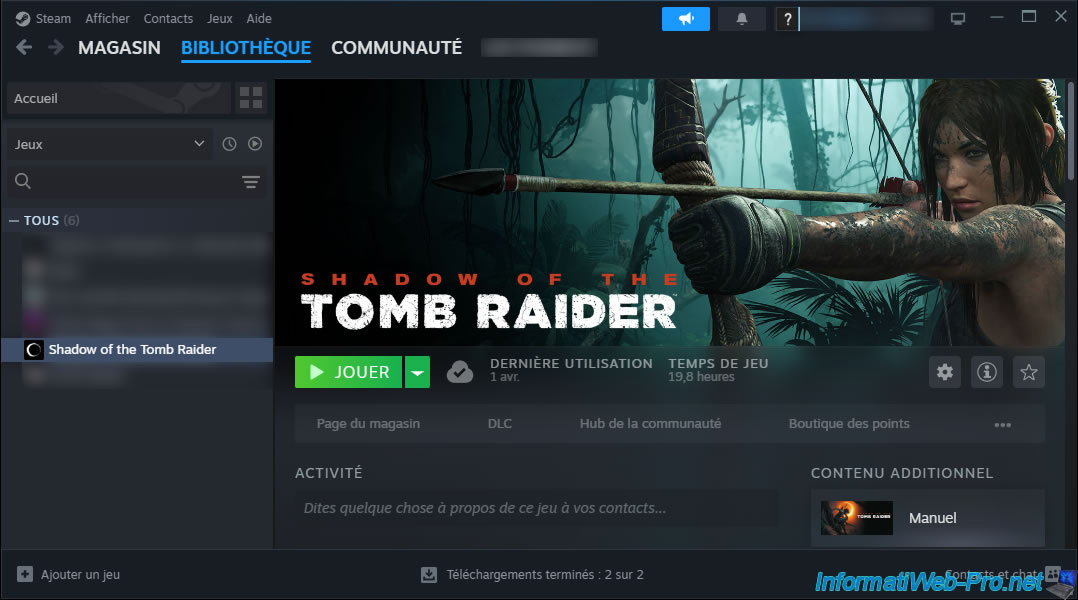
Download the game you've already purchased on this platform.
In our case, we'll use "Shadow of the Tomb Raider" again (already used in our other gaming VM creation tutorials).
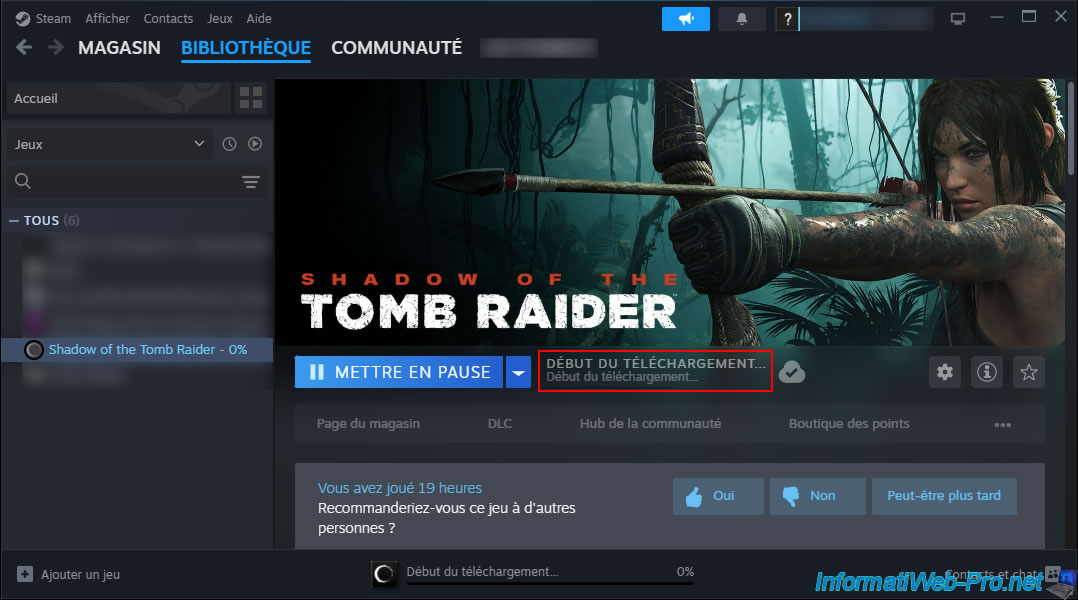
The desired game has been downloaded and installed.
15. Disable power management (ASPM) on Unraid
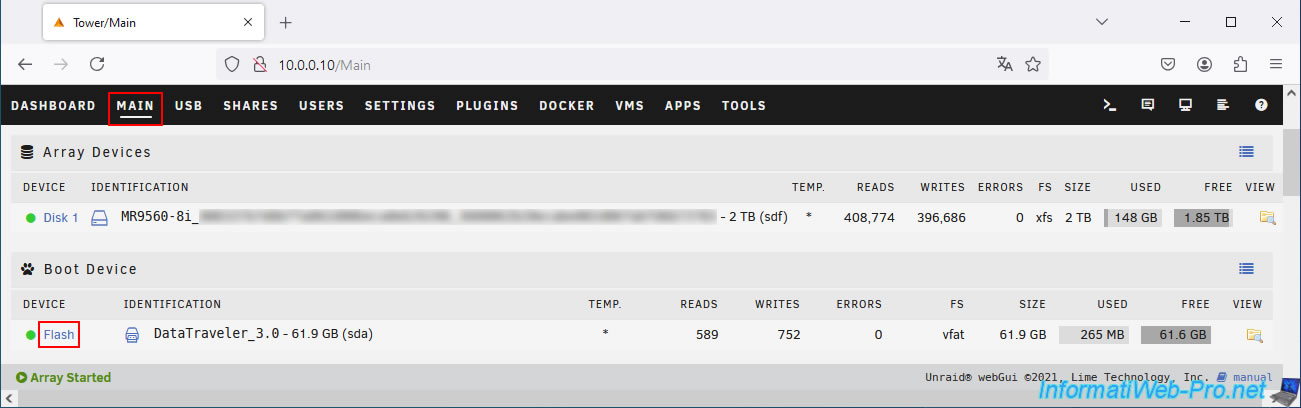
To prevent your gaming virtual machine from crashing quickly (due to the use of an eGPU), you need to add a boot parameter to disable power management (ASPM) in software.
To do this, go to the "Main" tab and click "Flash" (which corresponds to the USB key where Unraid is installed).
In the "Syslinux Configuration" section of this page, you will find the "Unraid OS" boot option (visible every time you boot your Unraid server).
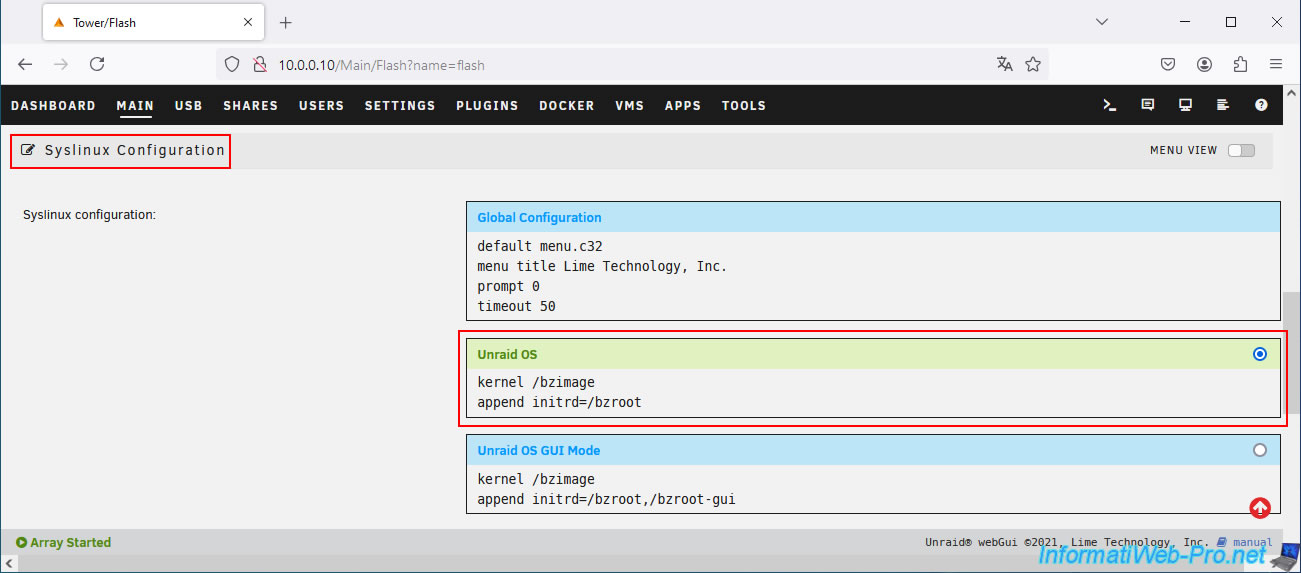
For this "Unraid OS" boot option (which is the one used by default), add the parameter "pcie_aspm=off" after the line "append initrd=/bzroot".
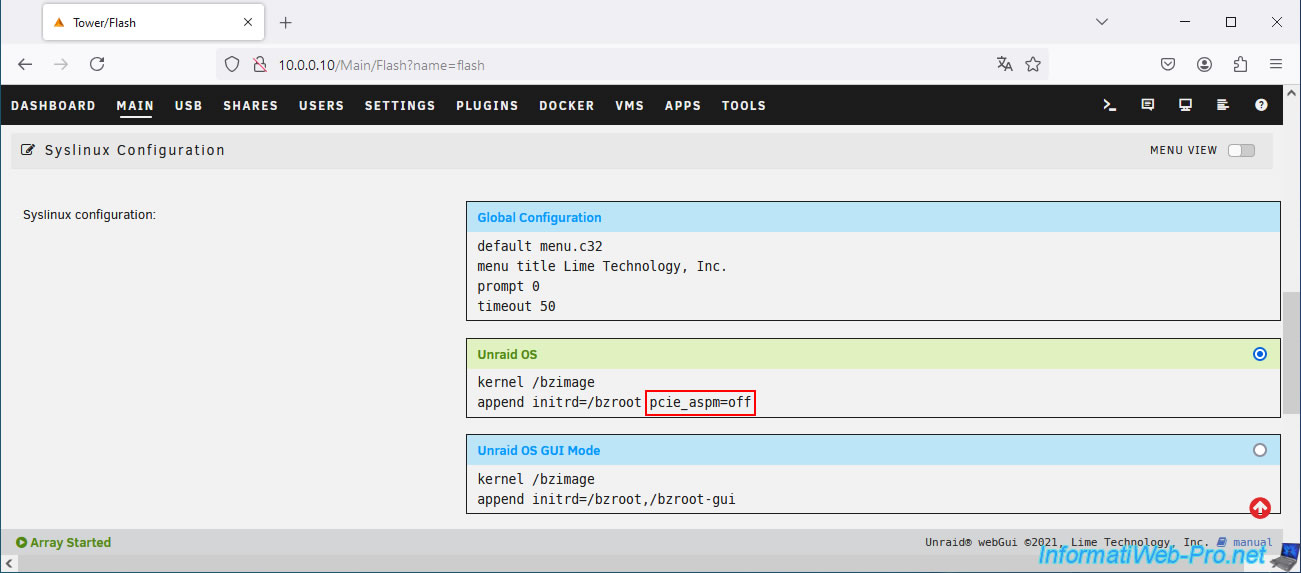
Then, at the bottom of the page, click on the "Apply" button.
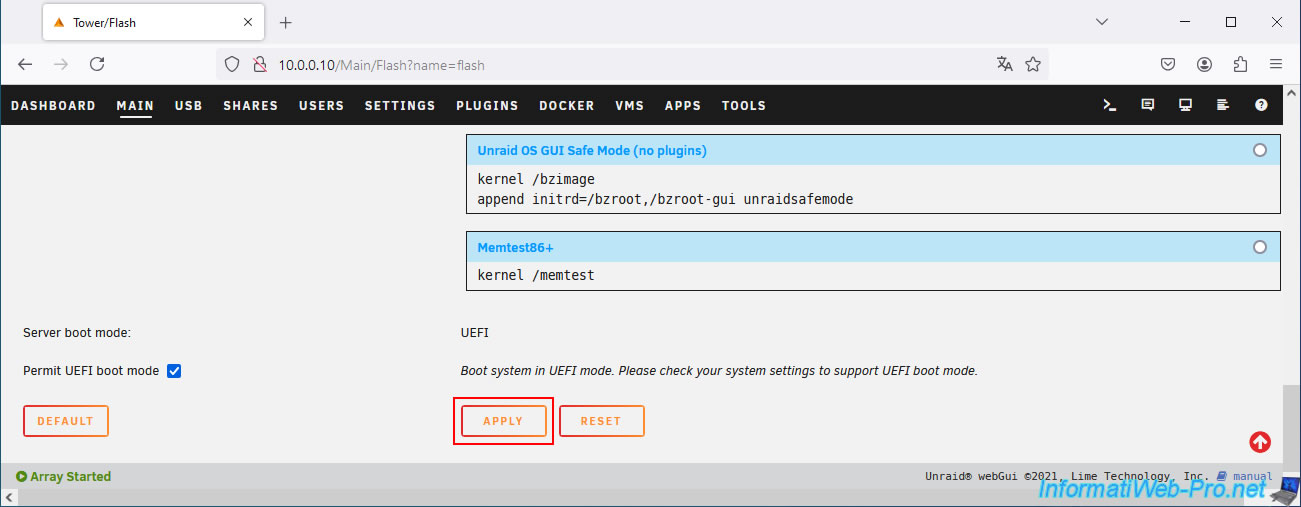
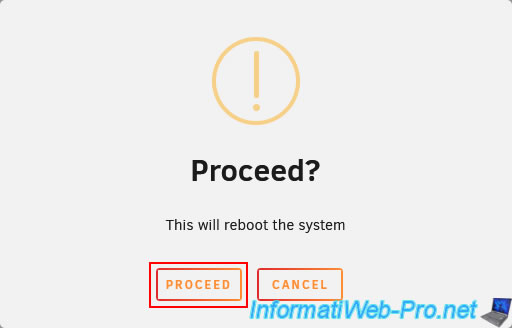
Once you've changed this startup option, you'll need to restart your Unraid server for the new setting to take effect.
To do this, go to the "Dashboard" tab and click the second icon to restart Unraid.
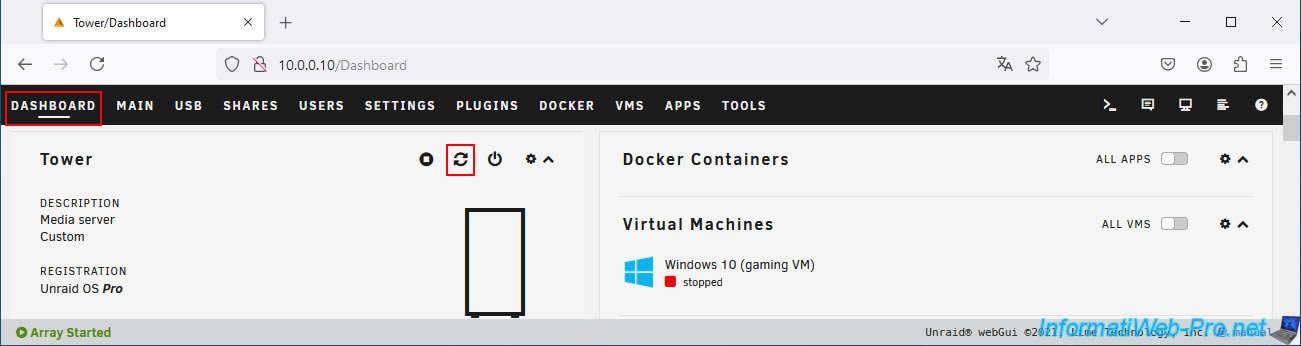
Confirm restarting Unraid.
16. Enable NVIDIA driver debug mode
To significantly improve the stability of your gaming VM when using an eGPU to create it, it's a good idea to enable NVIDIA driver debugging mode.
This greatly reduces the number of crashes and therefore significantly increases the amount of time you can play (more than an hour) before a random crash occurs.
To do this, search for "NVIDIA" in the start menu and launch the NVIDIA Control Panel.
Important : as a reminder, a gaming virtual machine using an eGPU is never 100% stable, even though our various tips make it much more stable than without them.
If you have any other really useful tips for creating a gaming VM with an eGPU or another virtualization solution that allows you to create a gaming VM with an eGPU that is 100% stable, please let us know. We're interested.
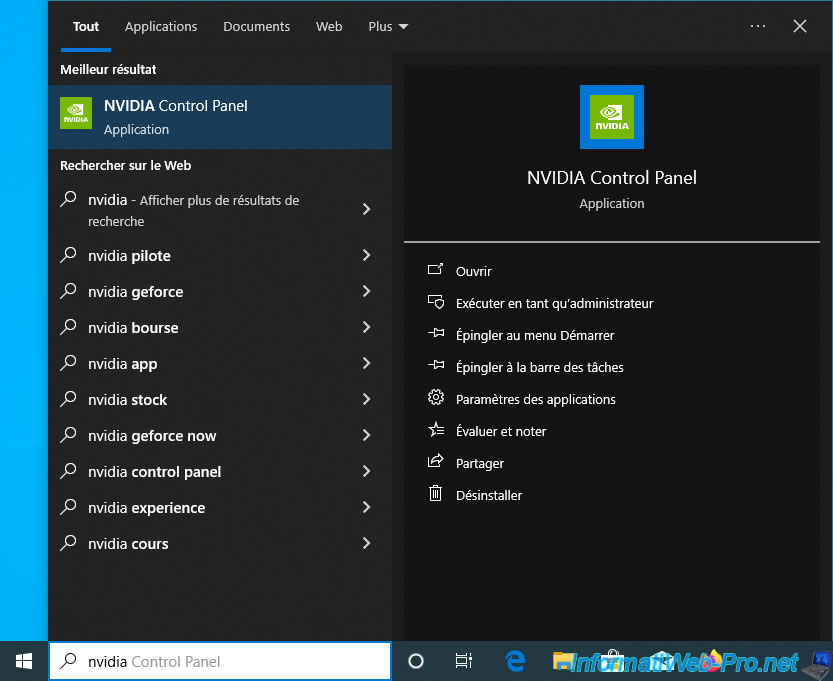
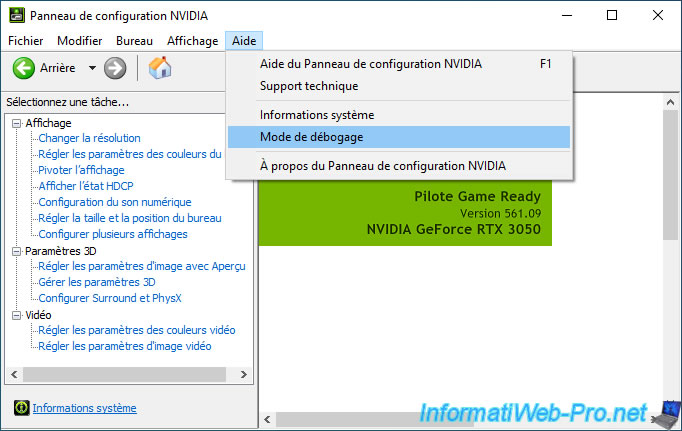
Go to the "Help" menu in the NVIDIA control panel and click on "Debug mode".
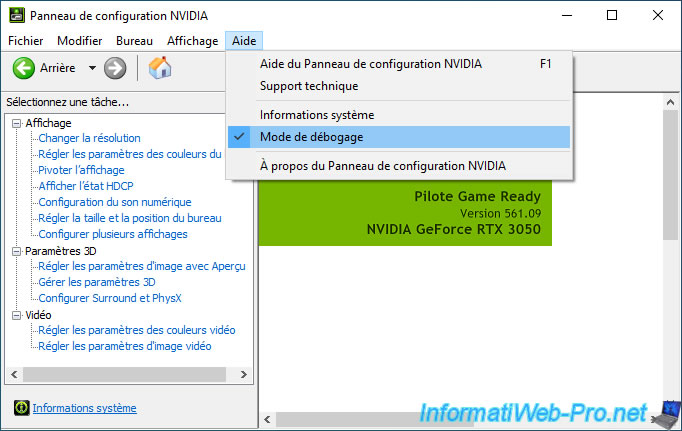
Next, open this menu again and you'll see a "V" appear to its left.
Now, close this NVIDIA control panel.
Warning : although this setting is usually enabled for future starts of your gaming VM, you may need to re-enable it yourself one day.
So, every time you start your gaming virtual machine, make sure this setting is still enabled before you start playing.
17. Play Shadow of Tomb Raider in your Windows 10 virtual machine
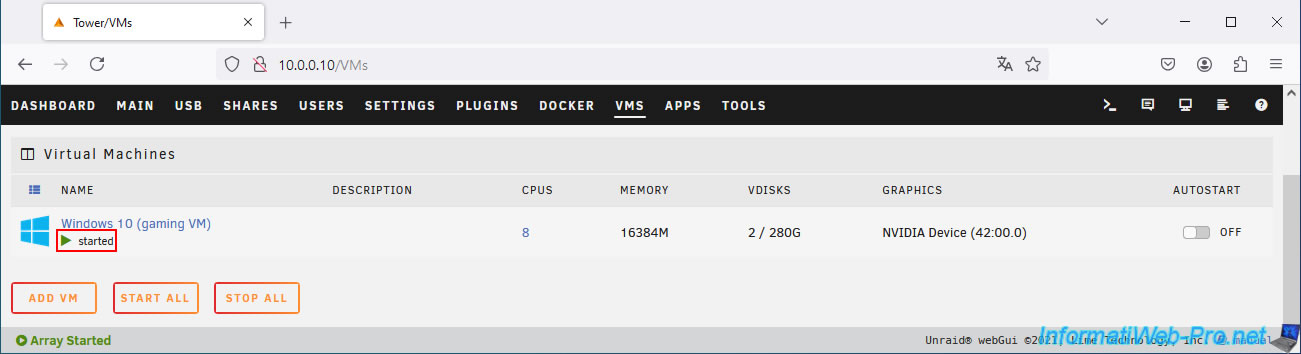
Start your gaming virtual machine (if it isn't already).
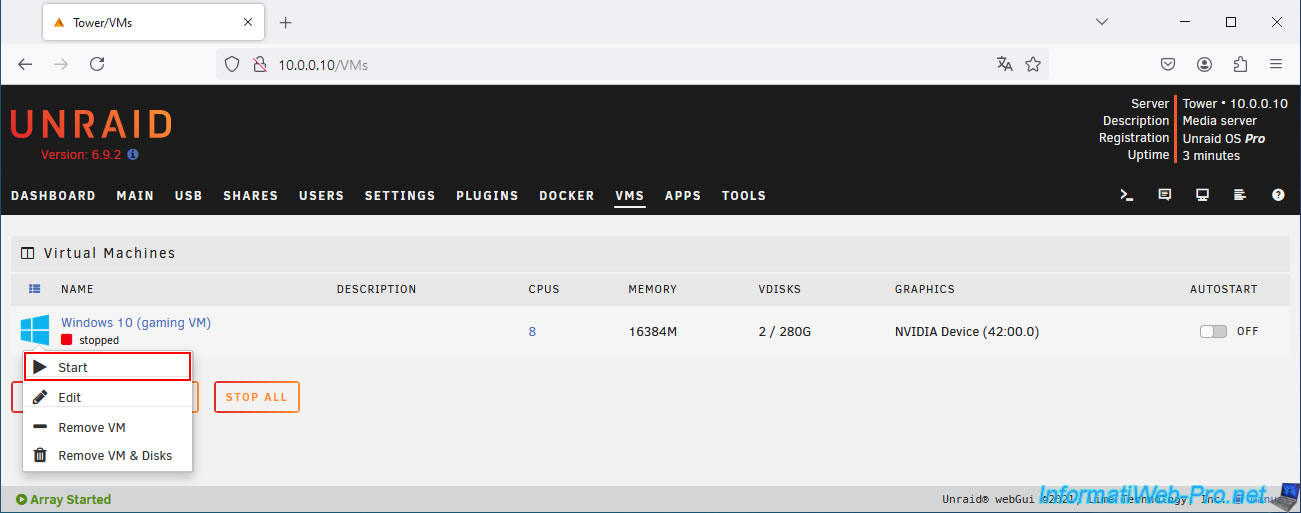
Your virtual machine is starting.
Warning : if Unraid tells you that a device is missing, it's probably because Unraid hasn't detected the graphics card in your eGPU.
In this case: turn off your eGPU and your Unraid server, then turn your eGPU back on first, wait 8 seconds, and then start your Unraid server.
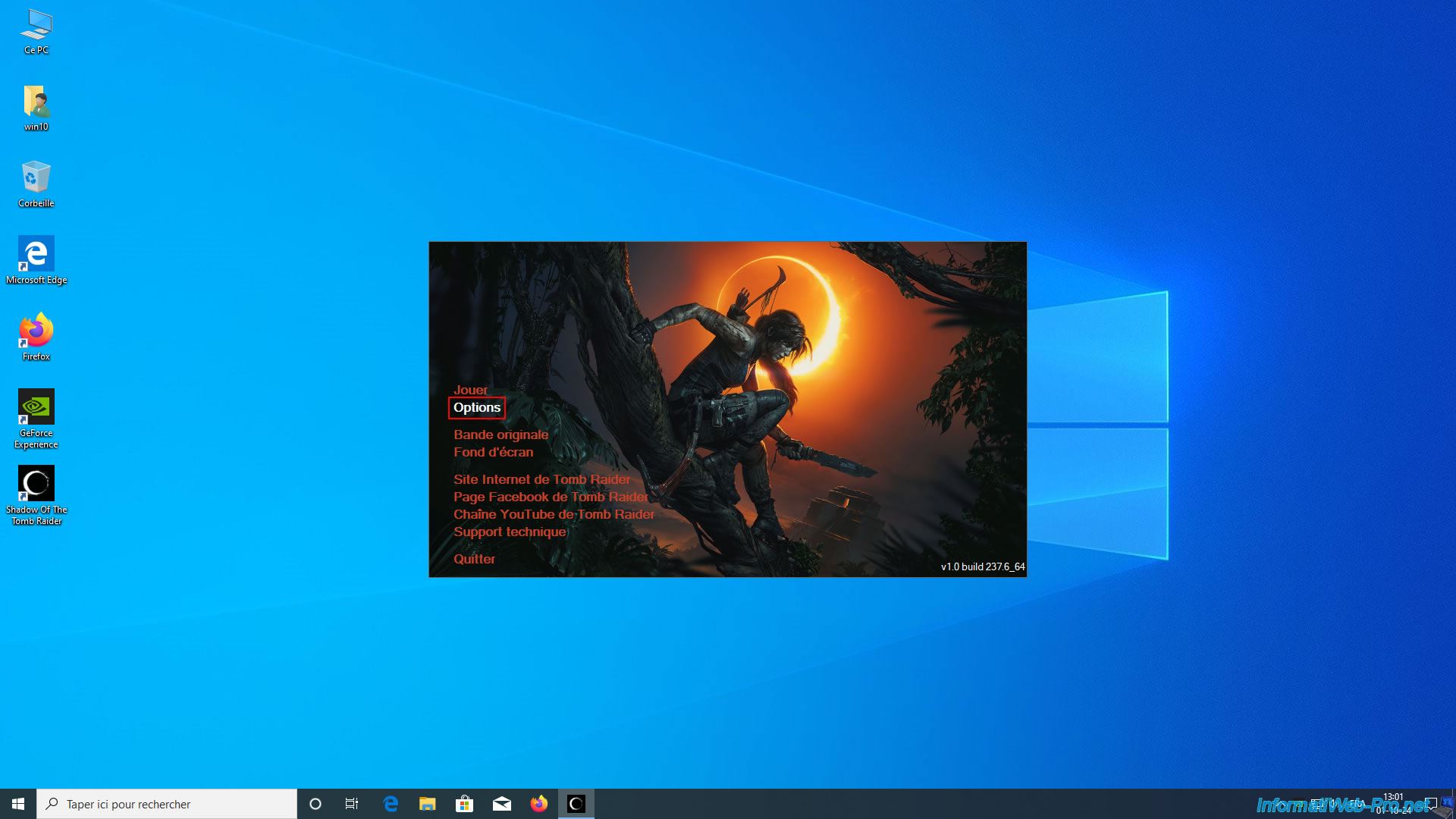
In the case of our game "Shadow Of Tomb Raider", we can open the options of this game.
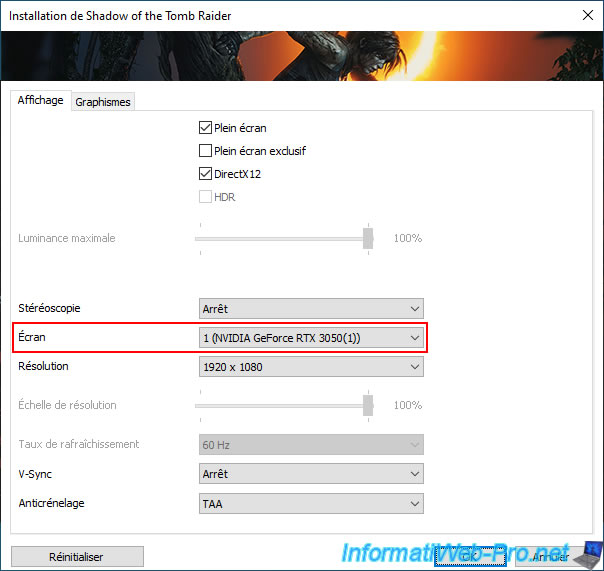
As you can see, this game will use our "NVIDIA GeForce RTX 3050" graphics card.
Then, we click on "Play".
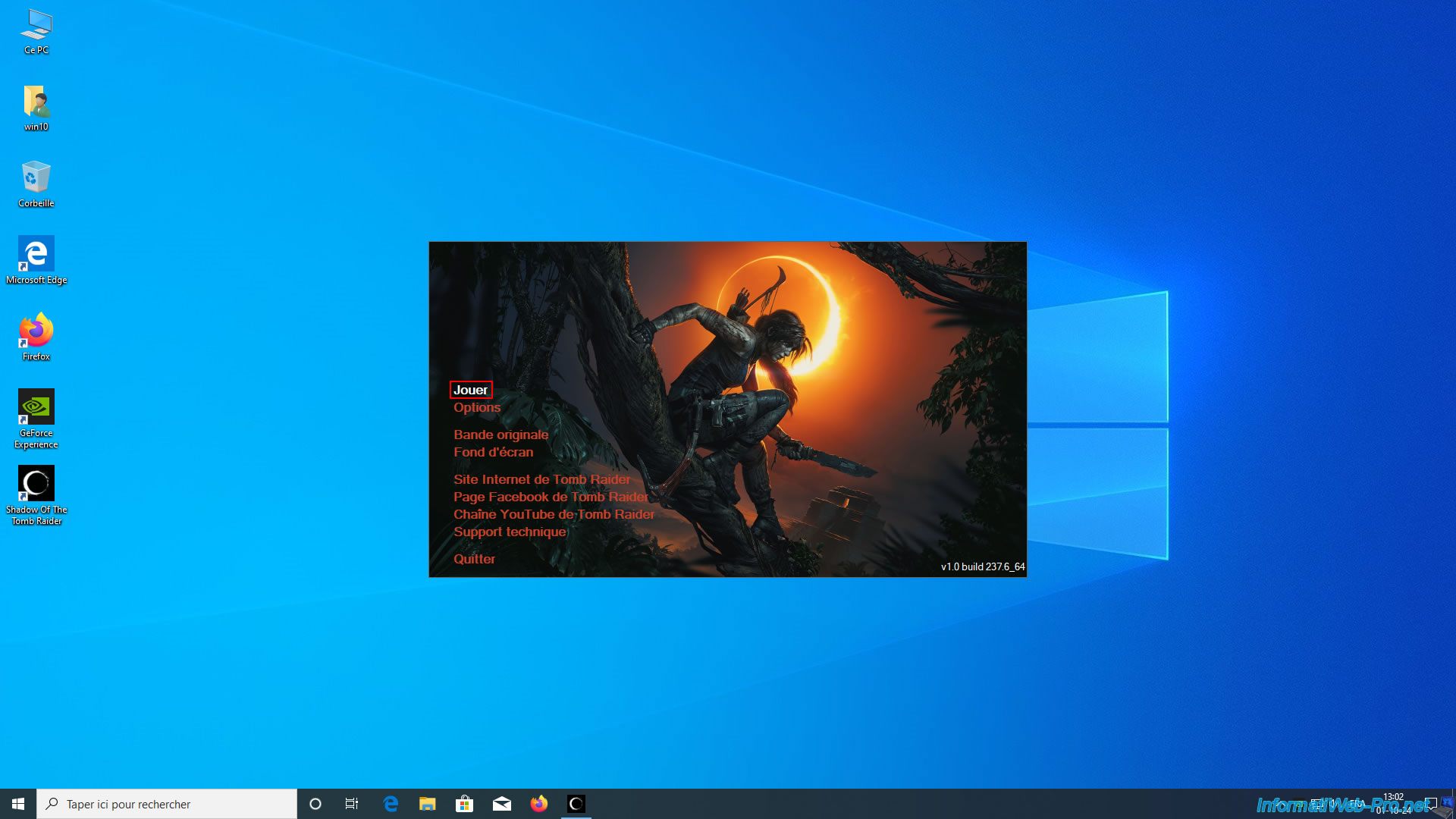
The game's main menu appears.
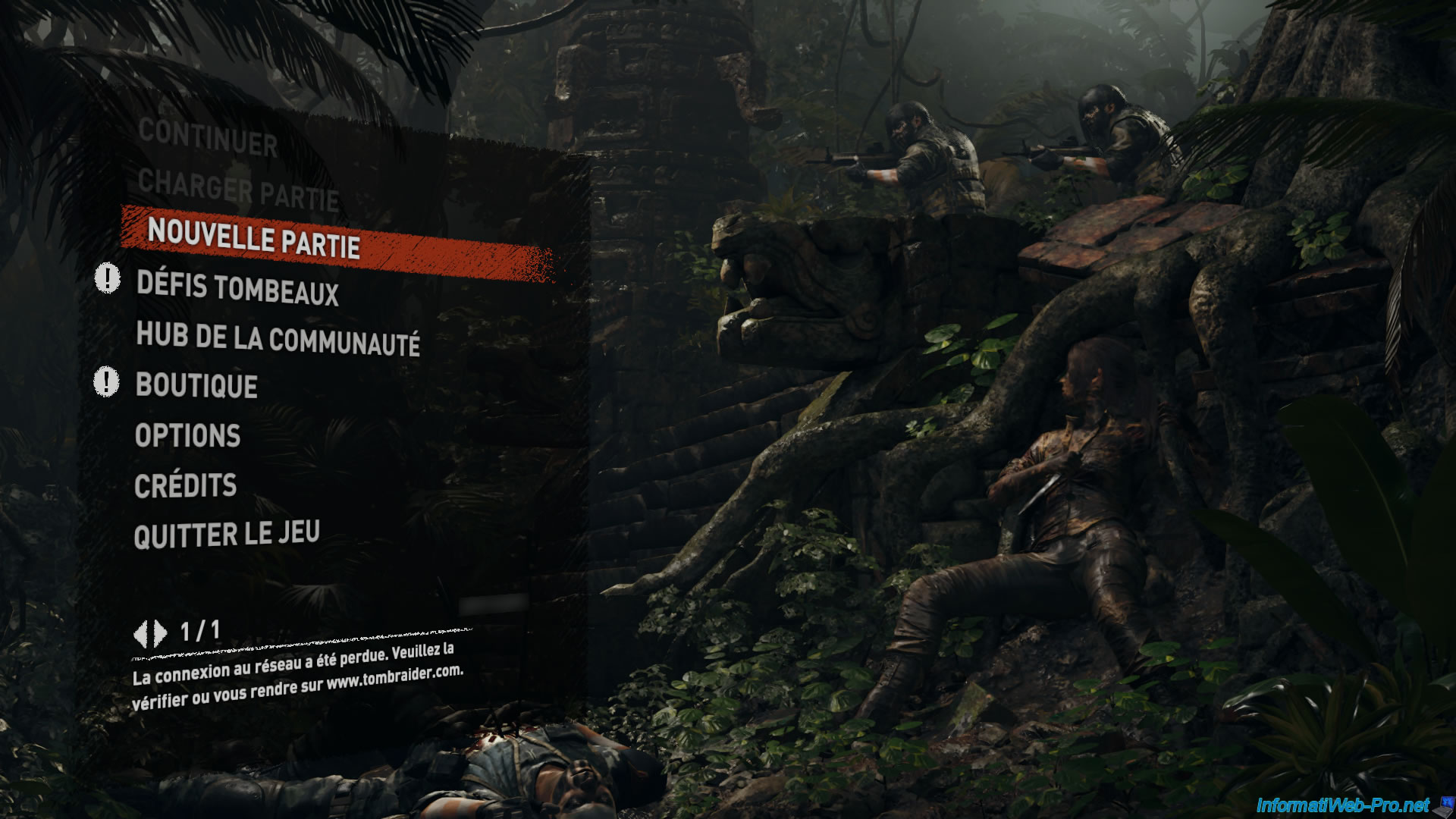
As expected, the game worked, and we were able to play for over an hour before a crash occurred.
But all we had to do was restart the game and continue playing.
Warning : remember to create regular backups of your game saves installed in this gaming VM, because if the game crashes while it's autosaving (which is the case for some games), the saved game could be corrupted (and therefore irrecoverable).
Share this tutorial
To see also
-

NAS 11/21/2025
Unraid 6.9.2 - Install and configure Unraid 6.9.2
-

NAS 1/21/2026
Unraid 6.9.2 - Replace a storage disk
-
NAS 5/20/2026
Unraid 6.9.2 - SWAG - Locally access the reverse proxy (SWAG) via NAT reflection
-

NAS 7/1/2026
Unraid 6.9.2 - SWAG - Use a personal domain with a dynamic WAN IP
No comment