Create a gaming virtual machine (with an eGPU) on Unraid 6.9.2
- NAS
- Unraid
- 01 October 2026 at 10:13 UTC
-

- 5/5

18. Use a physical KVM to control your gaming virtual machine
When you have an Unraid server where you want to create a gaming virtual machine, you necessarily need two monitors, two mice, and two USB keyboards.
To avoid purchasing so much hardware, and if you're a bit of a geek, you've probably purchased a physical KVM that allows you to control multiple computers (or virtual machines, including the graphics card and the necessary USB devices).
In our case, we have a physical KVM with a Logitech mouse and a keyboard from another brand connected.
Since USB isn't plug-and-play for virtual machines running Unraid, you're forced to use a third-party plugin to map the USB devices (keyboard/mouse) connected to your KVM to your gaming virtual machine when you select its position on this physical KVM. For this, refer to our tutorial: Unraid 6.9.2 - VMs - Hotplug USB devices (USB Manager plugin).
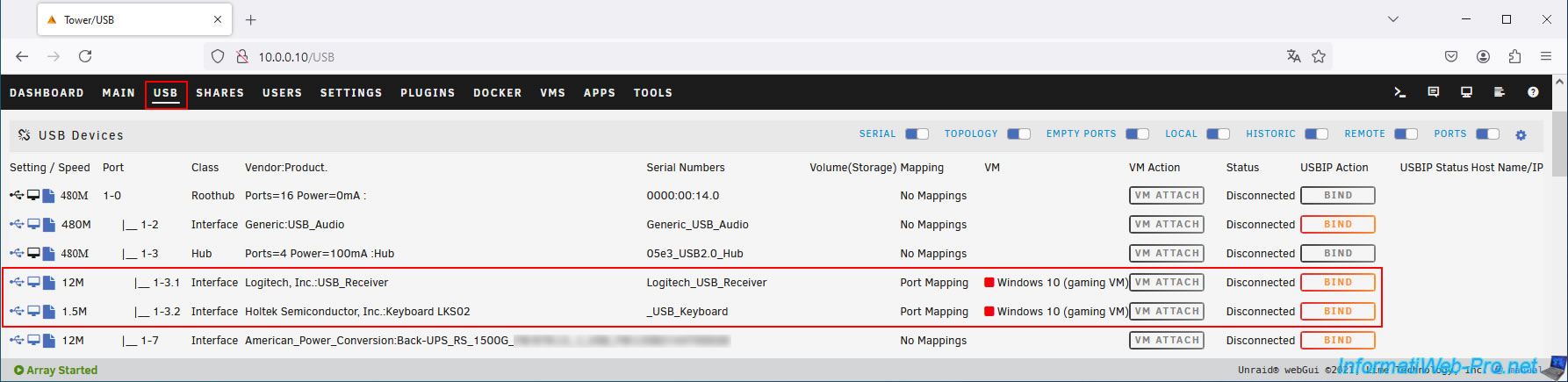
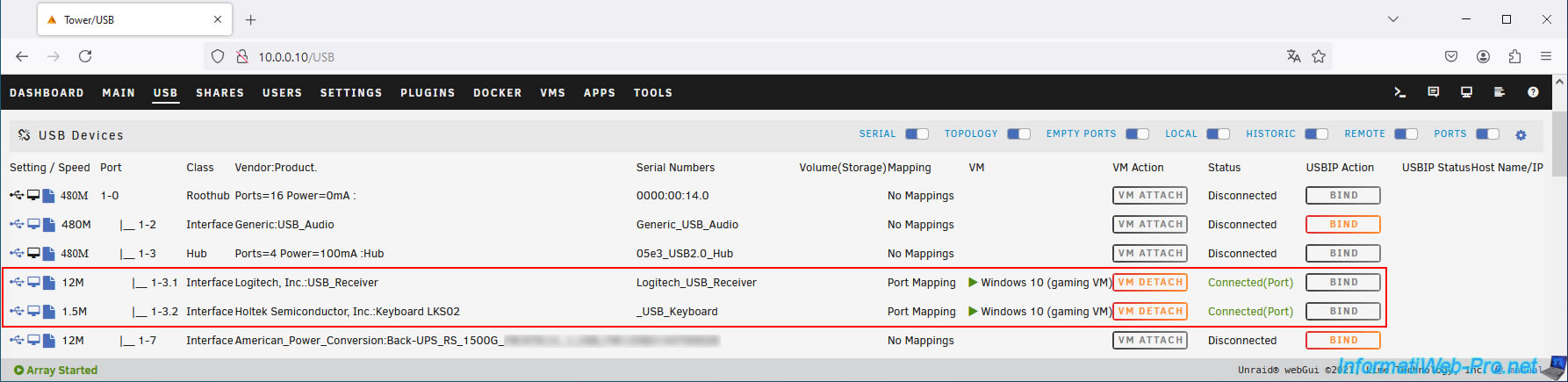
Once this plugin is installed and configured to also map your USB mouse and keyboard to your virtual machine, this plugin will automatically connect them to your gaming VM when it is powered on and you have selected the position corresponding to your gaming VM on your physical KVM.
19. Known bugs with gaming VMs using an eGPU
19.1. VM crash and VM forced to pause (freeze)
The most common bug with gaming VMs when using an eGPU is that after a certain amount of time (too short to actually have time to play your game), your gaming VM's screen freezes permanently.
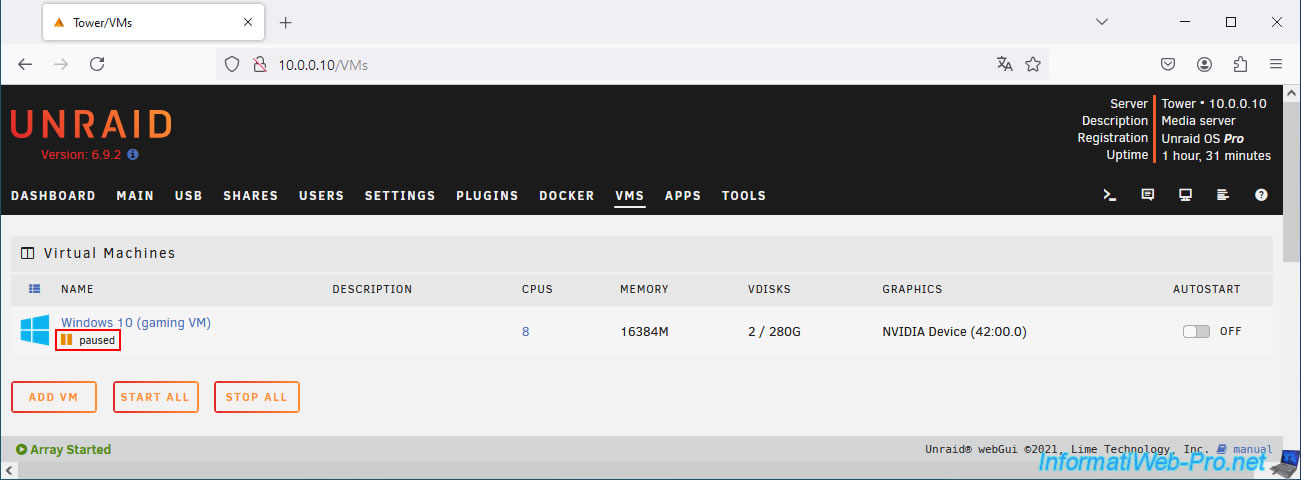
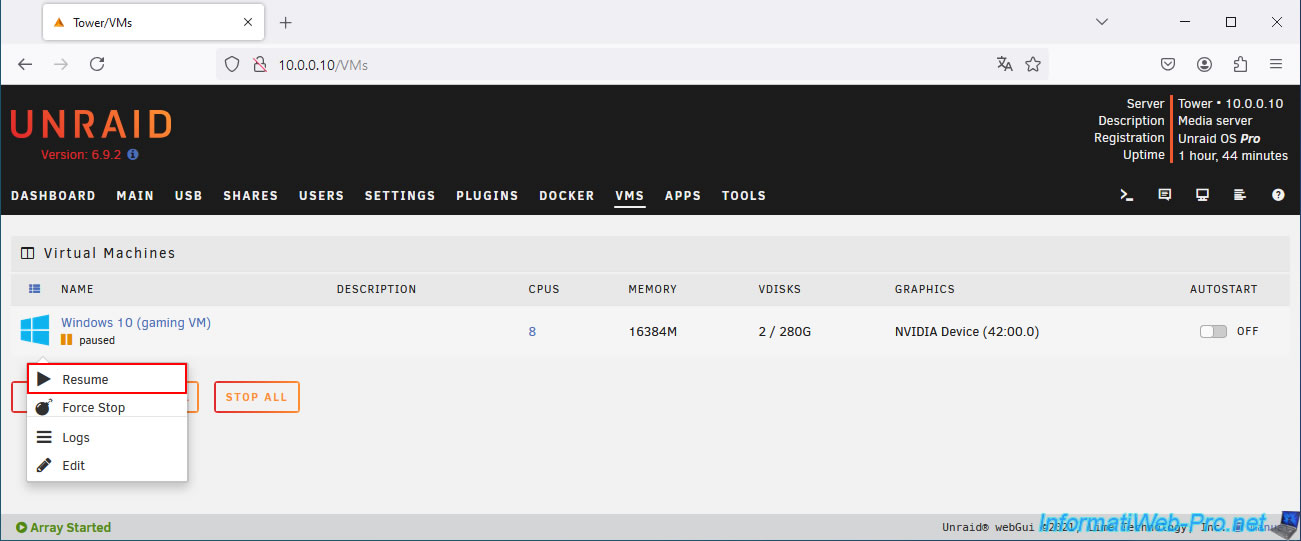
If you go to the "VMs" tab in Unraid, you'll notice that the virtual machine has been automatically paused by Unraid.
Plain Text
gaming VM : paused.
Important : this problem will not occur if you followed our tutorial (because you already disabled ASPM in step "15. Disable Power Management (ASPM) on Unraid" of this tutorial).
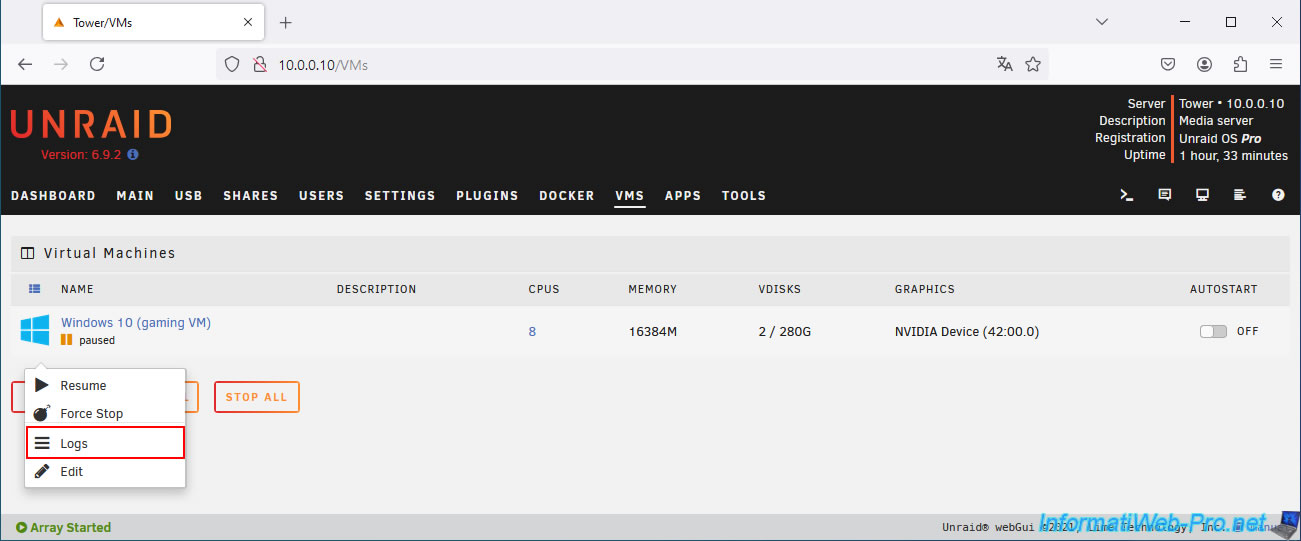
You click on your virtual gaming machine icon, then on "Logs" to find out what happened.
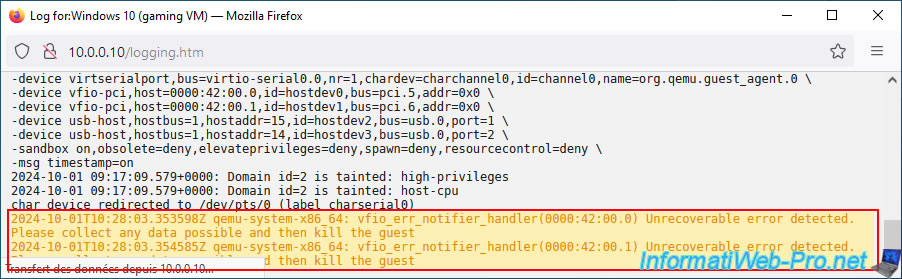
At the end of your virtual machine's logs (still paused), you will see these warnings appear.
Plain Text
2024-10-01T10:28:03.353598Z qemu-system-x86_64: vfio_err_notifier_handler(0000:42:00.0) Unrecoverable error detected. Please collect any data possible and then kill the guest.
2024-10-01T10:28:03.354585Z qemu-system-x86_64: vfio_err_notifier_handler(0000:42:00.1) Unrecoverable error detected. Please collect any data possible and then kill the guest.
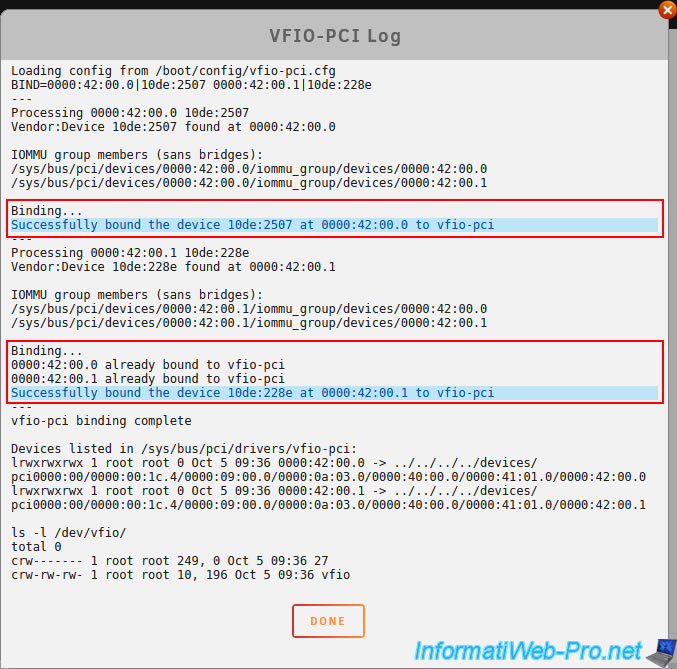
If you look at the previous image (or at the list of devices you assigned to the VFIO in your case), you'll easily understand that the fatal error concerns your NVIDIA graphics card (in our case, "42:00.0" for its graphics component and "42:00.1" for its audio component) added to your gaming virtual machine.
The error is the same as when you try to create a gaming VM on Proxmox without disabling ASPM.
You'll likely find the "pci=noaer" parameter on the"[SOLVED] AER PCIe Bus Errors - General Support - Unraid" and "[Solved] PCIE errors - General Support - Unraid" pages of the Unraid forum. However, the real solution (and which is also valid for "Proxmox"), is to use the parameter "pcie_aspm=off" (which definitely eliminates this problem) instead of "pci=noaer" (which is less stable).
Source : pcie - pcieport 0000:00:1d.0: AER: Corrected error received: 0000:04:00.0 - Ask Ubuntu.
Note that when this error occurs, the "Resume" option does not work.
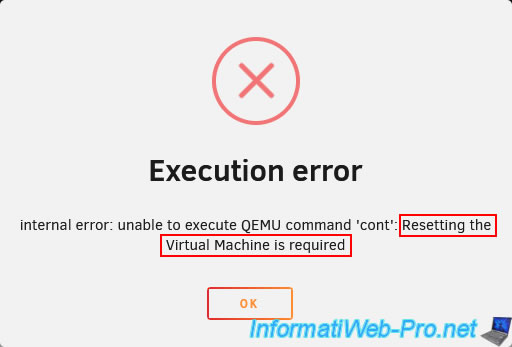
If you attempt to click "Resume", a runtime error will occur.
Plain Text
Execution error.
Internal error: unable to execute QEMU command 'count': Resetting the Virtual Machine is required.
In short, you will be forced to stop your virtual machine by clicking on "Force Stop".
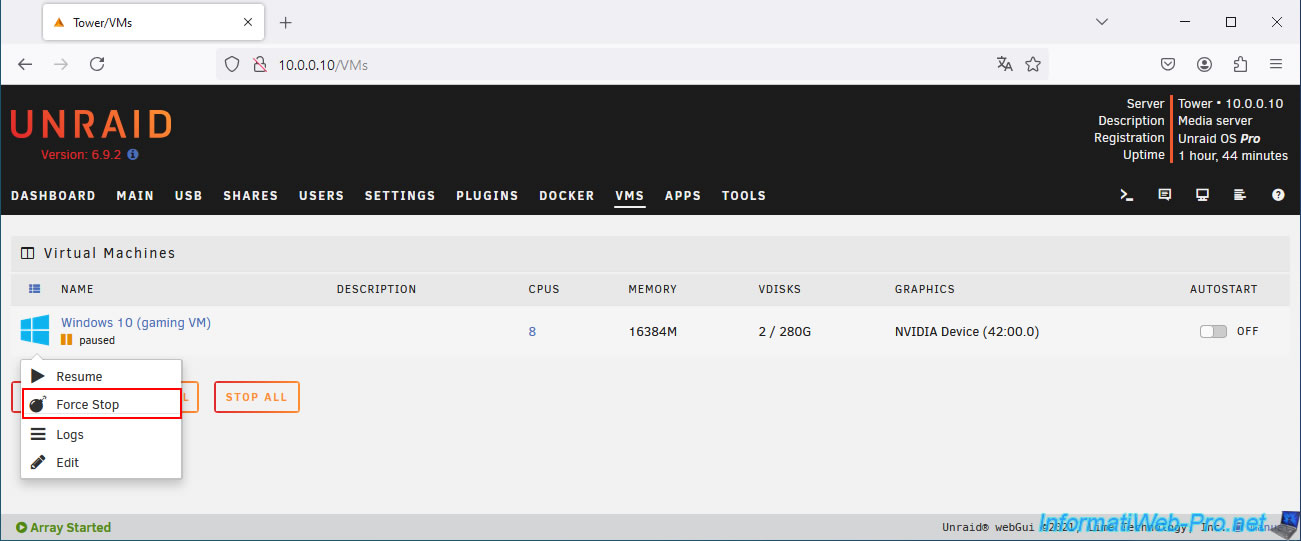
Your virtual gaming machine is shut down.
Plain Text
gaming VM : stopped.
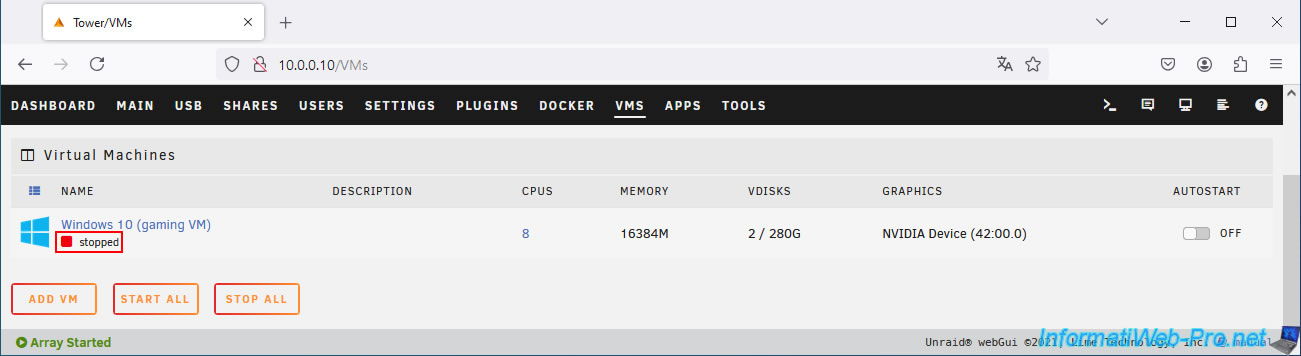
19.2. 0x887A0006 error: DXGI_ERROR_DEVICE_HUNG
The other issue that will persist when using your gaming virtual machine with an eGPU will be the error "0x887A0006: DXGI_ERROR_DEVICE_HUNG" that your game may randomly return to you after at least an hour of play (the duration being variable and for no apparent reason, although you can very often play for more than an hour without the game crashing if you have followed our entire tutorial).
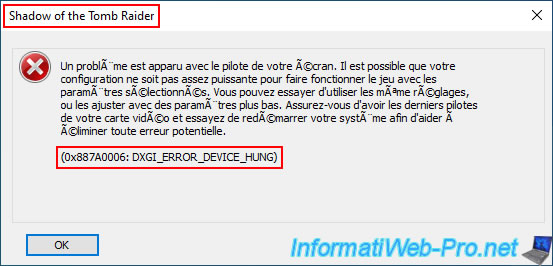
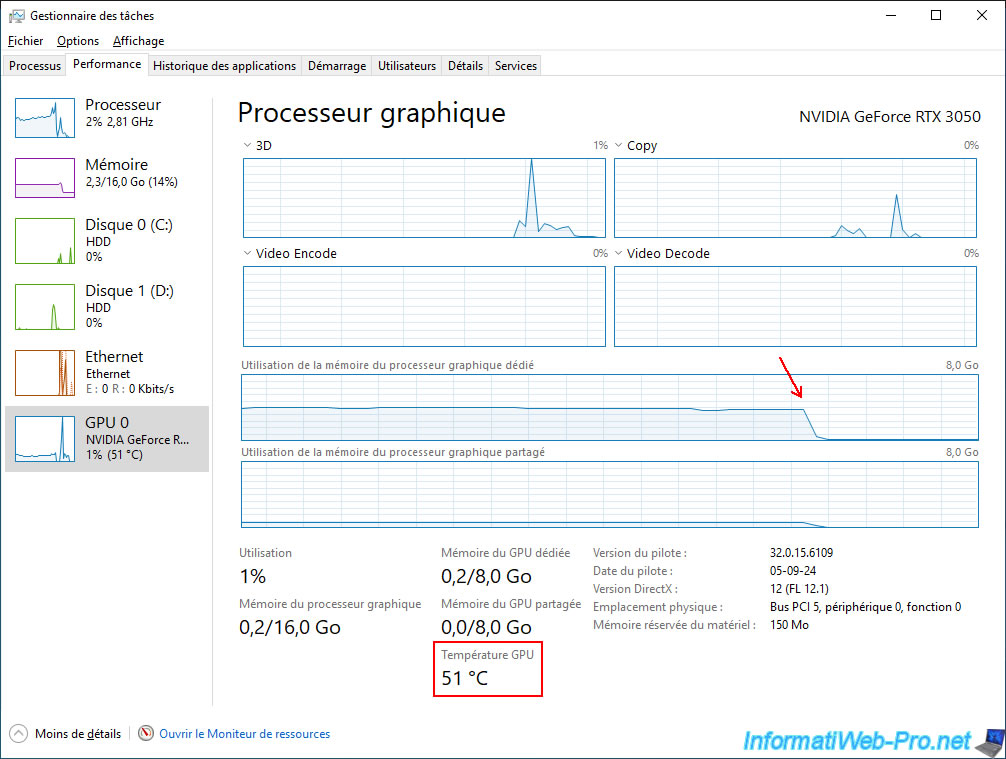
As you can see, at the time of the crash (indicated by the red arrow in the image below), there is no reason to explain why the game crashes randomly at that moment.
The graphics memory is half-used, the free RAM is more than sufficient, the CPU is not overloaded, and the graphics card temperature is clearly not high.
Note that the gaming virtual machine we created in a previous tutorial (with the same graphics card, but connected via PCIe instead of an eGPU and where we applied the "ACS override" patch) did not pose any stability issues.
According to our tests, the problem is therefore simply due to a stability issue with QEMU/KVM (the native Linux hypervisor used by Unraid and Proxmox, among others) and not with our NVIDIA graphics card.
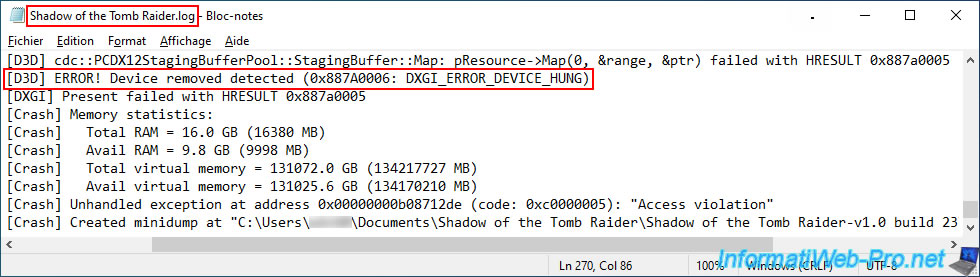
When the error occurred with the game we were using, we can retrieve a log file generated by the game, which indicates that the device was supposedly removed.
In other words, a very brief disconnection between your physical graphics card and your gaming VM (most likely due to eGPUs, which aren't stably supported by QEMU/KVM).
Or is it the eGPU that's creating a bottleneck that randomly prevents the graphics card from responding quickly enough (hence the "...DEVICE_HUNG" keyword)?
Plain Text
07:34:52:979 (00002752) > [D3D] cdc::PCDX12StagingBufferPool::StagingBuffer::Map: pResource->Map(0, &range, &ptr) failed with HRESULT 0x887a0005
07:34:52:979 (00002752) > [D3D] ERROR! Device removed detected (0x887A0006: DXGI_ERROR_DEVICE_HUNG)
07:34:52:984 (00007680) > [DXGI] Present failed with HRESULT 0x887a0005
19.3. Execution error - Device 0000:XX.XX.X not found
When using an eGPU with Unraid (or other virtualization solutions, such as "Proxmox", for example), sometimes your virtual machine does not start or no longer starts when you try to launch it another day.
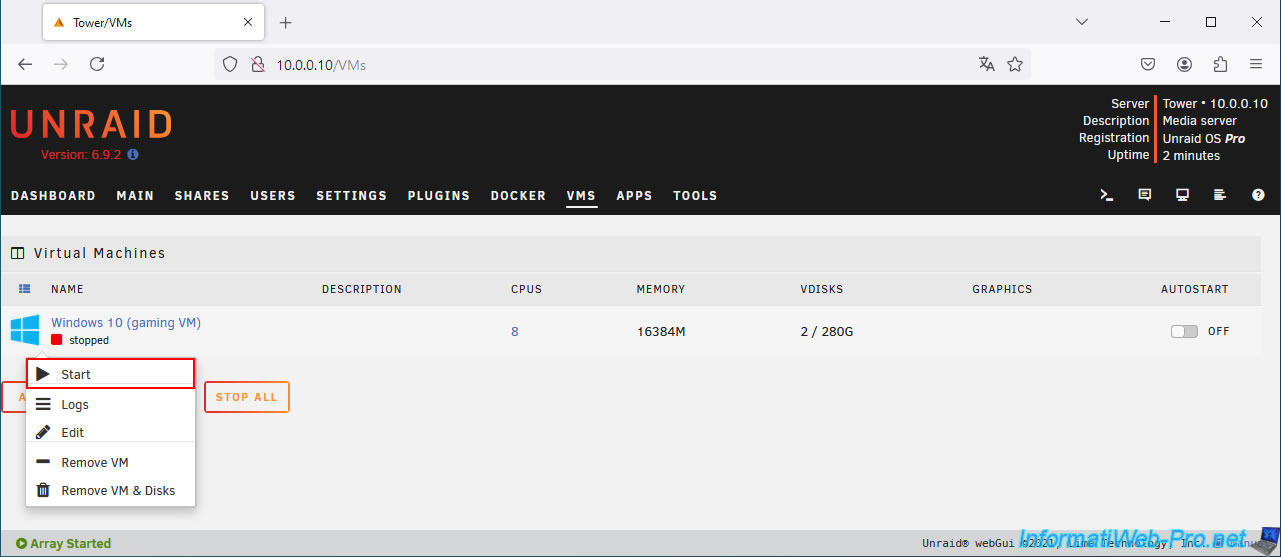
Indeed, an error message similar to the one below will appear and will tell you in summary that the device (whose IOMMU ID is "0000:42:00.0" cannot be found).
Plain Text
Execution error
Device 0000:42:00.0 not found: could not access /sys/bus/pci/devices/0000:42:00.0/config: No such file or directory
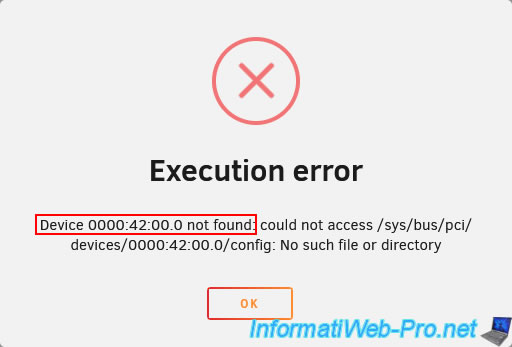
To understand what is happening, just go to "Tools -> System Devices" (to see the system devices recognized by Linux and therefore also by Unraid).
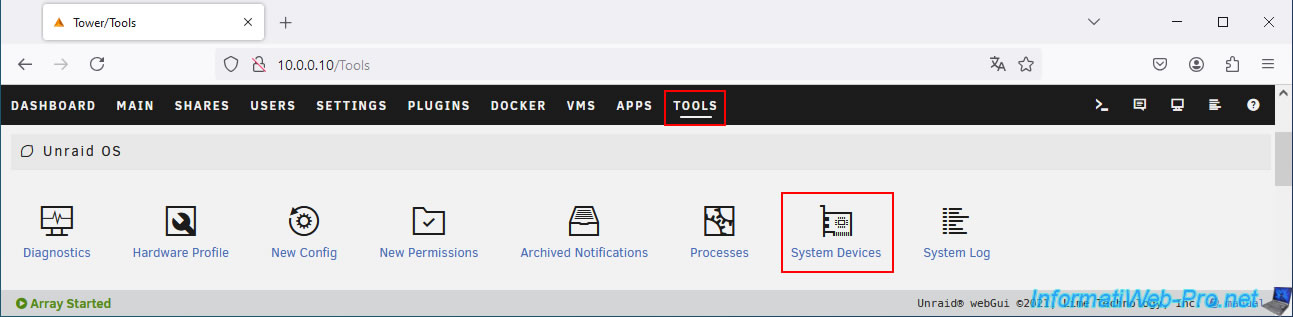
If we look at the bottom of the list, we see several lines related to Thunderbolt.
However, we can't find our NVIDIA graphics card (which we previously assigned to VFIO).
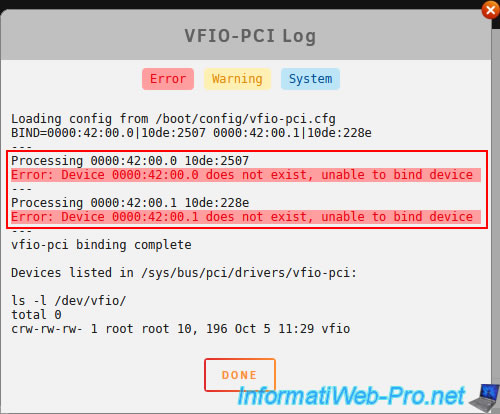
Click the "View VFIO-PCI Log" button.
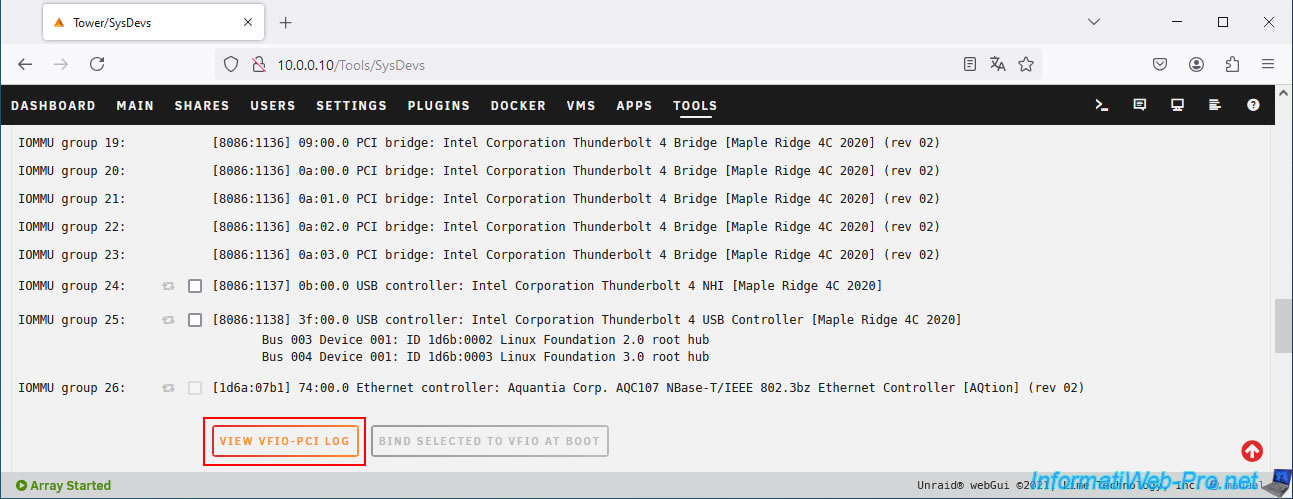
As you can see, we can see 2 errors in this log.
Plain Text
Processing 0000:42:00.0 10de:2507
Error: Device 0000:42:00.0 does not exist, unable to bind device
Processing 0000:42:00.1 10de:228e
Error: Device 0000:42:00.1 does not exist, unable to bind device
- The first error concerns the device with IOMMU ID "0000:42:00.0" and hardware ID "10de:2507".
- The second error concerns the device with IOMMU ID "0000:42:00.1" and hardware ID "10de:228e".
These two devices correspond to the graphics and audio components of our NVIDIA RTX 3050 graphics card, respectively (which you can easily verify by typing the hardware ID "10de:2507" into Google).
In short, the VFIO-PCI driver is telling you that these devices don't exist and that it was therefore unable to assign them to the VFIO-PCI driver (which is required to then use your graphics card with your gaming VM).
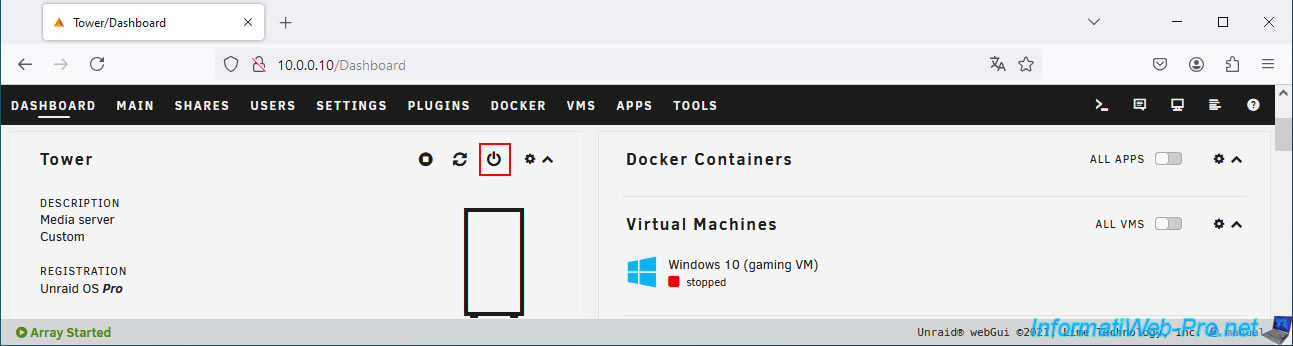
The solution is quite simple.
Simply shut down your Unraid server via the "Dashboard" tab, then click on the second icon.
Warning : you must shut down your Unraid server, not restart it.
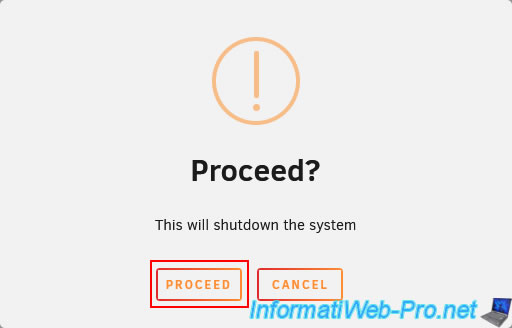
Confirm stopping your Unraid server.
Once your Unraid server is powered down, turn off your eGPU.
Then, do the following in order:
- Turn on your eGPU.
- Wait 8 seconds (to ensure your eGPU is powered on and booting).
- Turn on your Unraid server.
Note: if this doesn't work, shut down your Unraid server and eGPU again and repeat the three steps from the list above.
This time, it will work. With our Razer Core X, the first boot of the eGPU and Unraid never works. The graphics card isn't detected.
But on the second or third attempt (it depends on the case), it works. The graphics card in the eGPU is finally recognized.
Note that once the graphics card is recognized, it will remain visible and accessible as long as you don't shut down your Unraid server or your eGPU.
After restarting Unraid and your eGPU, return to the "Tools -> System Devices" section and you will see that the graphics card in your eGPU will appear in the list with green dots. As you can see, in our case, the device "42:00.0" corresponds to the graphics part (VGA compatible controller) of our NVIDIA graphics card and the device "42:00.1" corresponds to its audio part (Audio device).
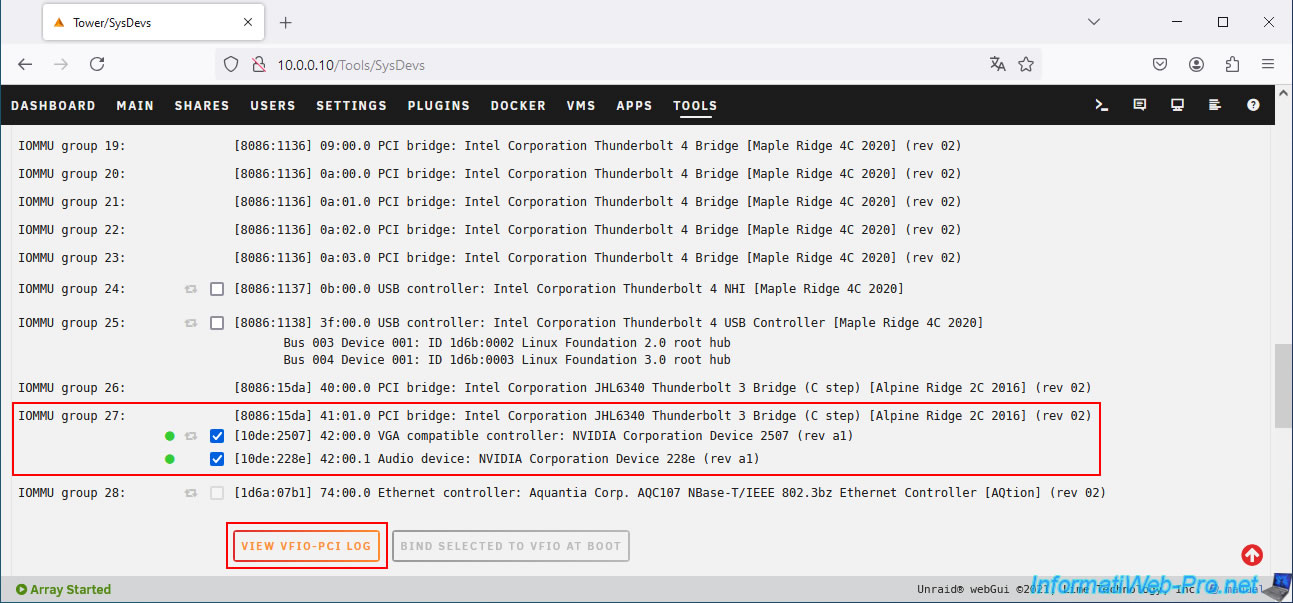
If you click the "View VFIO-PCI Log" button again, you'll see that both devices ("0000:42:00.0" and "0000:42:00.1") have been successfully assigned to the VFIO.
Your gaming virtual machine will now boot without issue.
Share this tutorial
To see also
-

NAS 7/8/2026
Unraid 6.9.2 - Docker - Install a password manager (Vaultwarden)
-

NAS 3/18/2026
Unraid 6.9.2 - Fixing common problems
-

NAS 5/6/2026
Unraid 6.9.2 - SWAG - Install a reverse proxy (SWAG)
-

NAS 10/14/2026
Unraid 6.9.2 - VMs - Virtualize Hyper-V (nested virtualization)
No comment