Create a gaming virtual machine (gaming VM) on Unraid 6.9.2
- NAS
- Unraid
- 26 August 2026 at 13:14 UTC
-

- 5/5

13. Install Steam and install your favorite game
For this tutorial, we chose Steam, because we purchased the game "Shadow of Tomb Raider" through this platform a few years ago.
Note that this game supports ray tracing, which allows us to prove that the Nvidia RTX 3070 graphics card is being used (including its specific features).
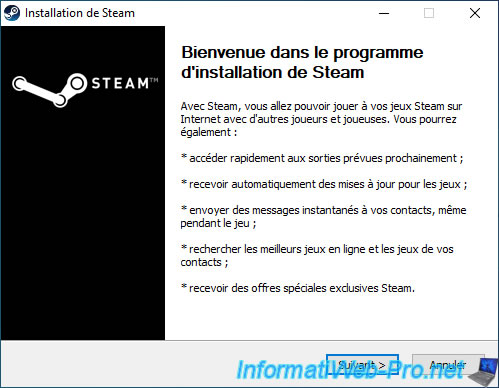
Install Steam using the default installation path. This will install the Steam program in the "C" partition.
You will then configure Steam to download and install games on the other partition (located on the other virtual hard drive).
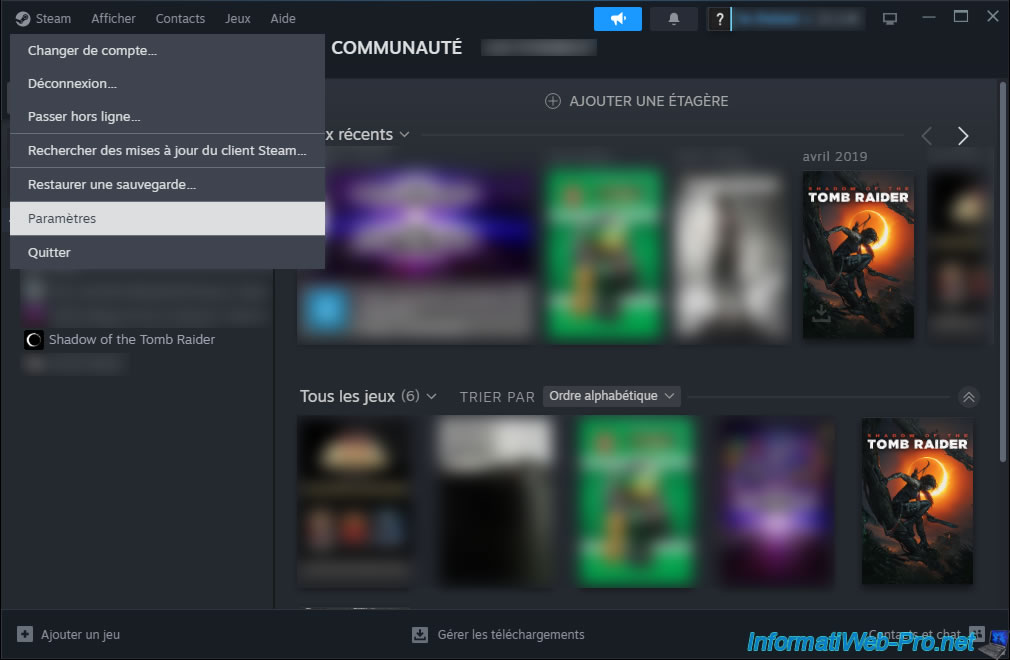
Once Steam is installed, log in to your Steam account, then go to the menu: Steam -> Settings.
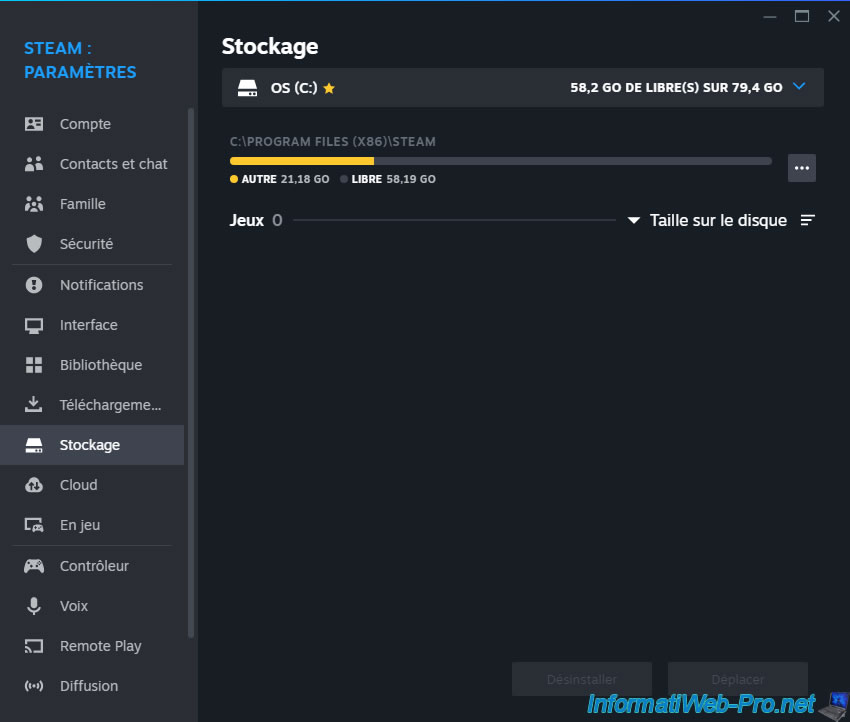
In the "Steam: Settings" window that opens, go to the "Storage" section.
As you can see, by default, games will be downloaded and installed to the "C" partition.
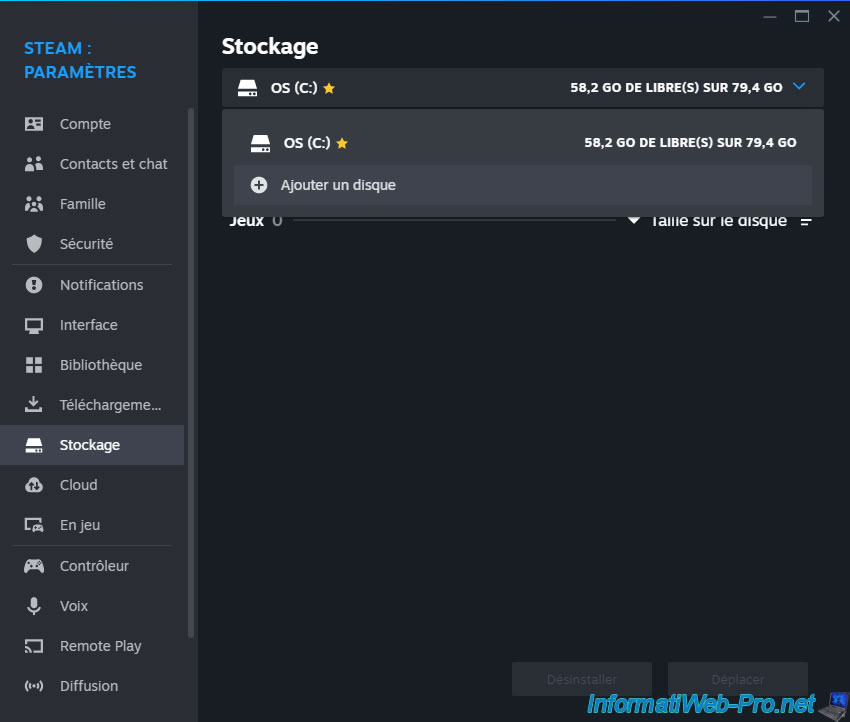
Open the list and click: Add disk.
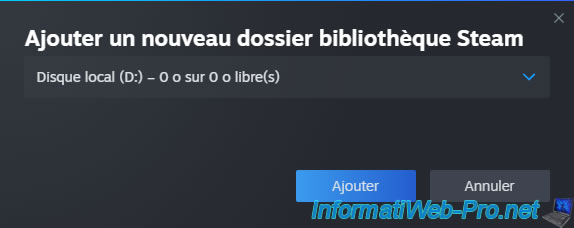
In the "Add new Steam library folder" window that appears, select "Local Disk (D:)" and click Add.
Note: ignore the fact that Steam indicates "0 bytes free," as this is incorrect and will be corrected shortly afterward.
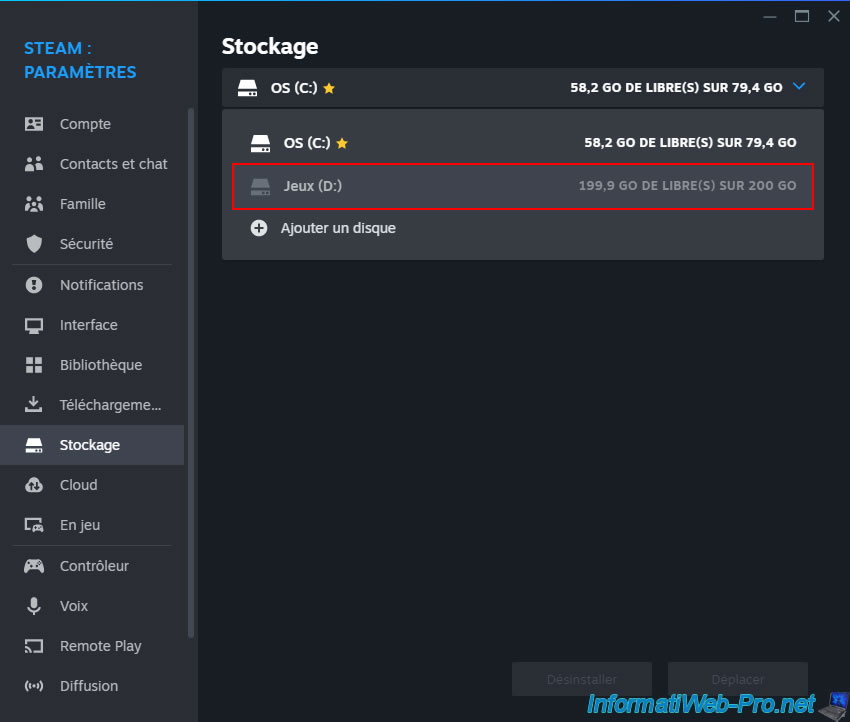
Now, your "Games (D:)" partition appears in the list, and Steam tells you that there are 199.99 GB free out of 200 GB.
Click on this "Games (D:)" partition.
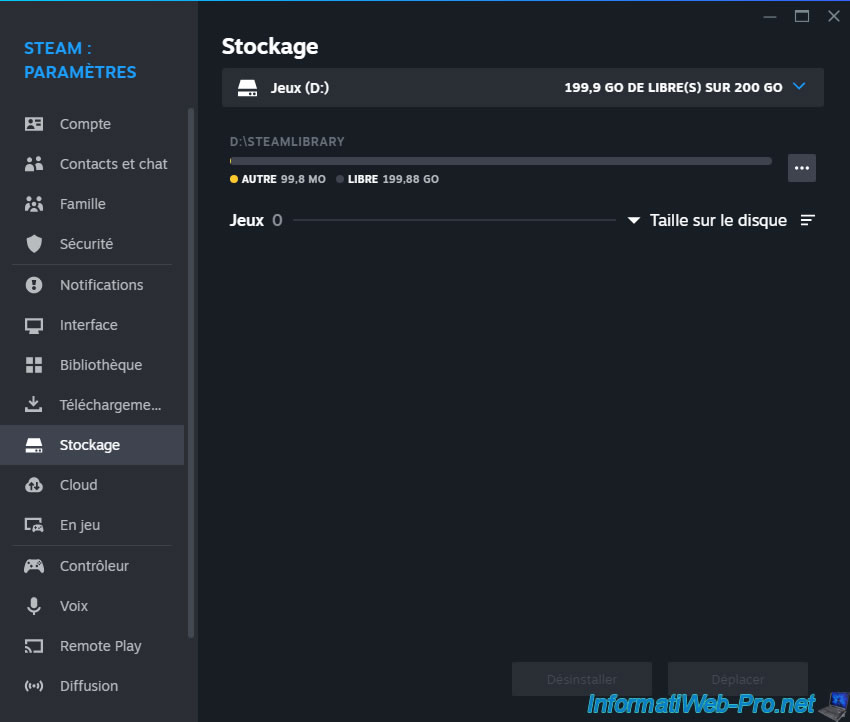
Steam tells you that there is a "SteamLibrary" folder on this partition and that 99.8 MB is already in use.
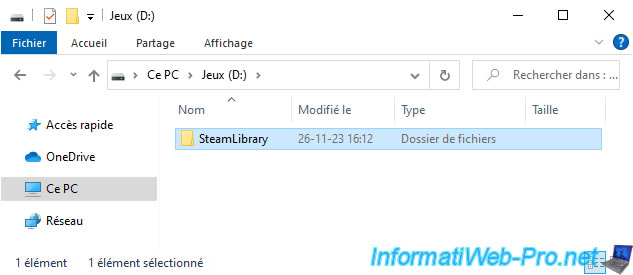
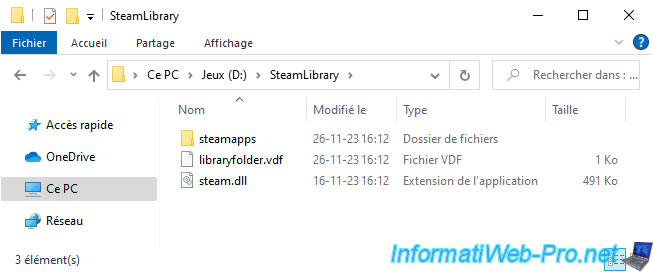
If you open file explorer, you will indeed see that a "SteamLibrary" folder has been automatically created at the root of your "Games (D:)" partition.
This folder currently contains 2 system files and a "steamapps" folder.
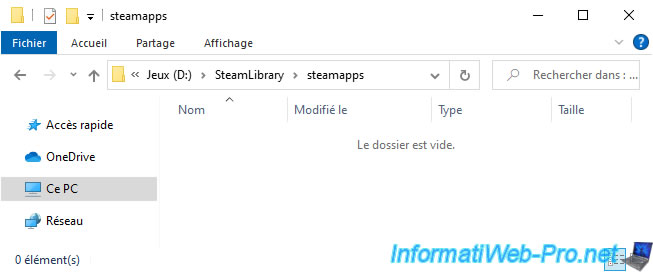
This "steamapps" folder is empty at the moment.
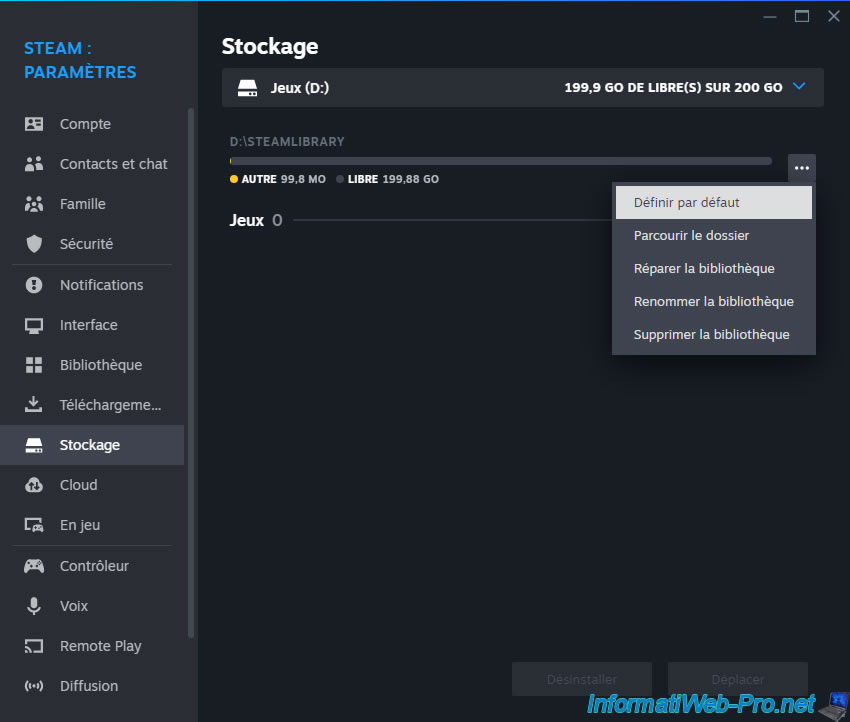
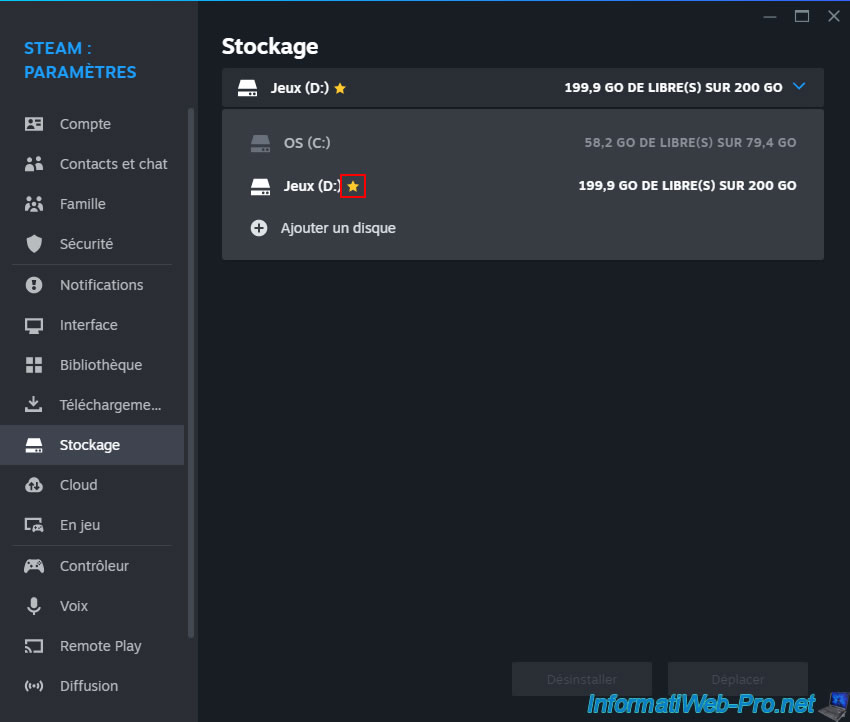
To have Steam select your "Games (D:)" partition by default when you attempt to download and install games, click the "..." button, then click: Set as Default.
Now, a star appears to the right of this score.
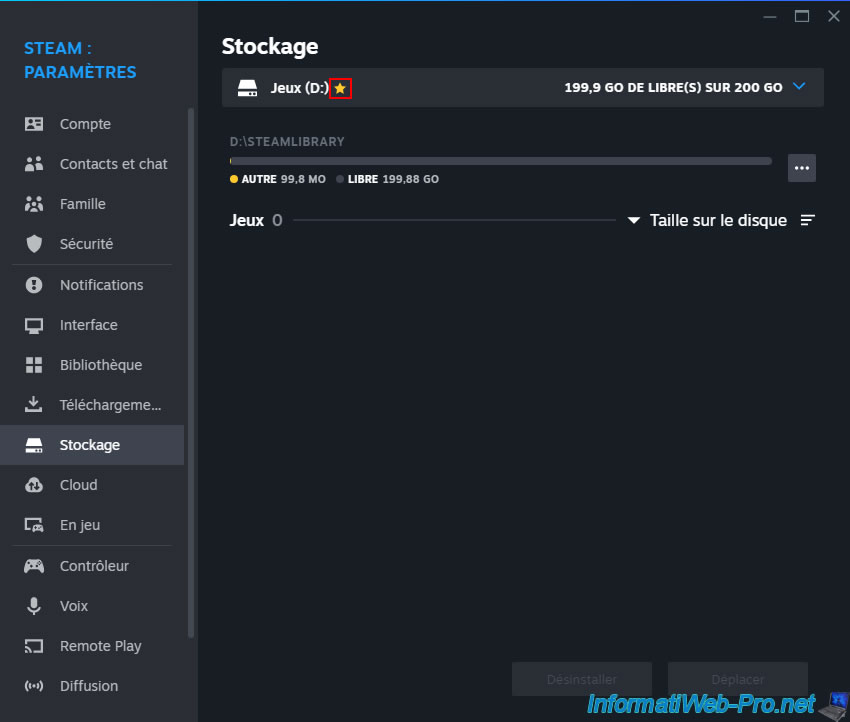
Including in the list of partitions at the top of the window.
Download and install the game you want.
In our case: Shadow of the Tomb Raider.
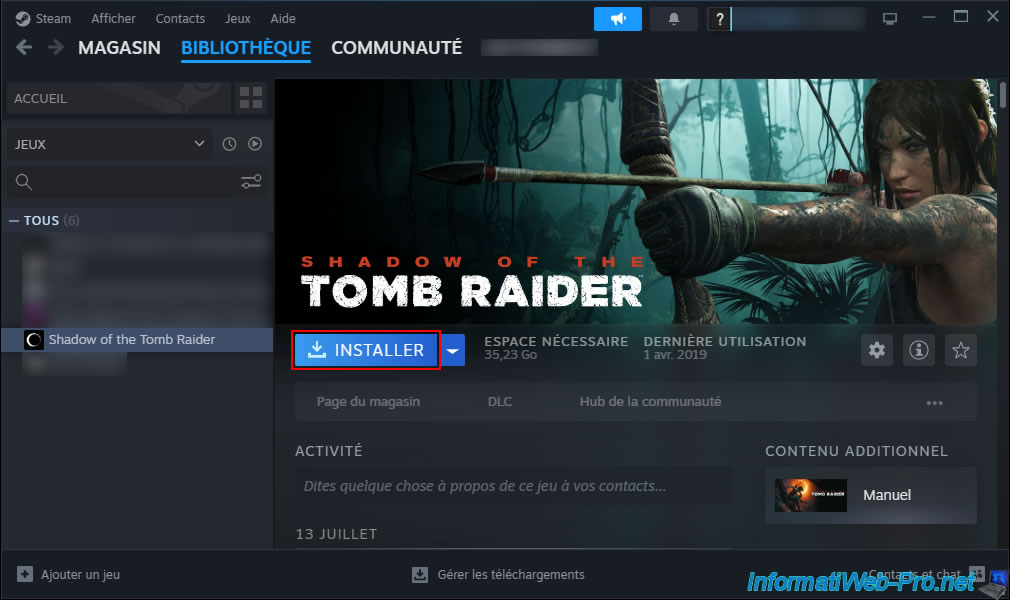
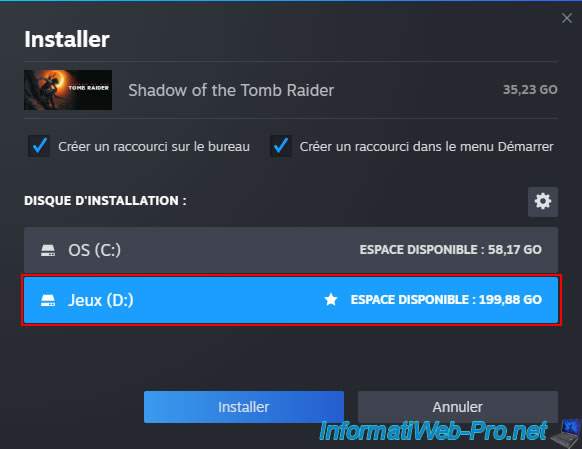
As you can see, by default, Steam chooses your "Games (D:)" partition, which you previously set as the default location.
Click Install.
Note: the game will be stored on the second virtual hard drive of your virtual machine, which is physically stored on your Unraid server's hard drives and NOT on the SSDs.
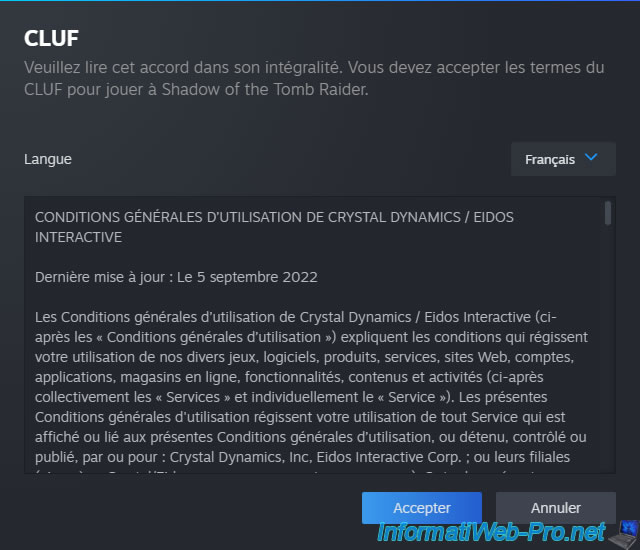
Accept the terms of use that appear by clicking Accept.
Please wait while the desired game is downloaded and installed.
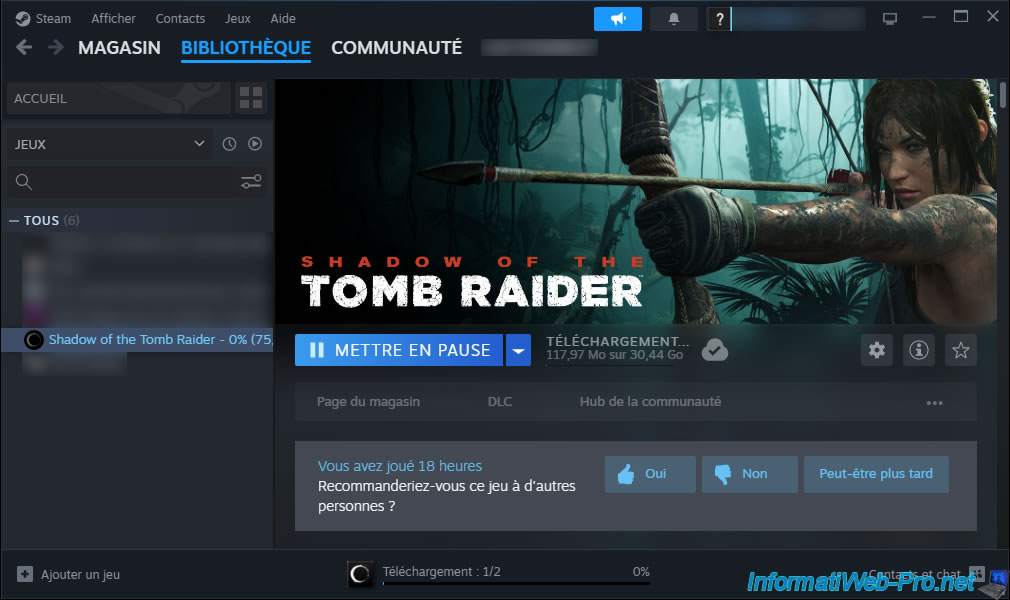
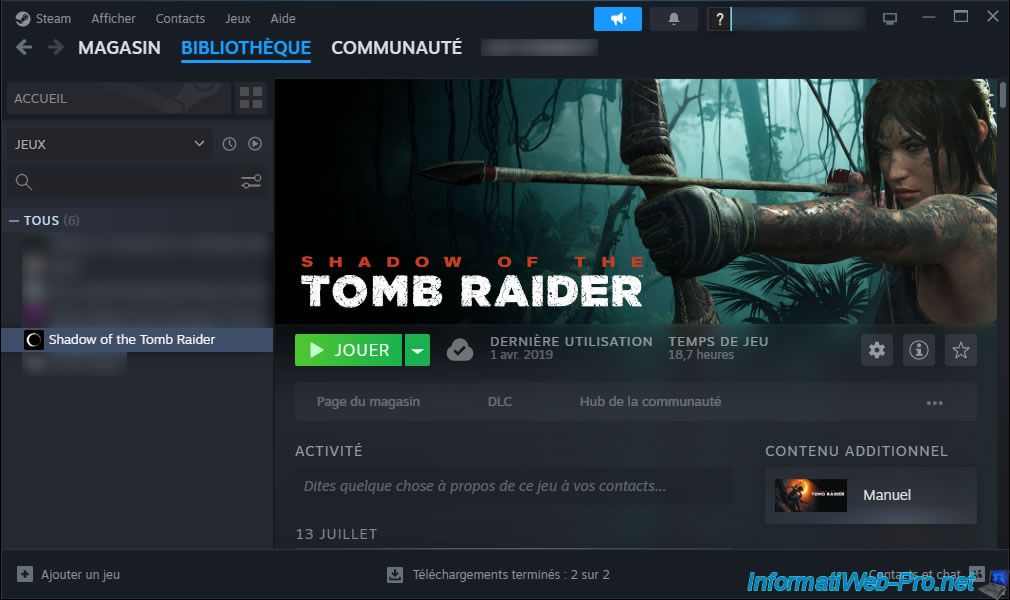
The download and installation of the desired game is complete.
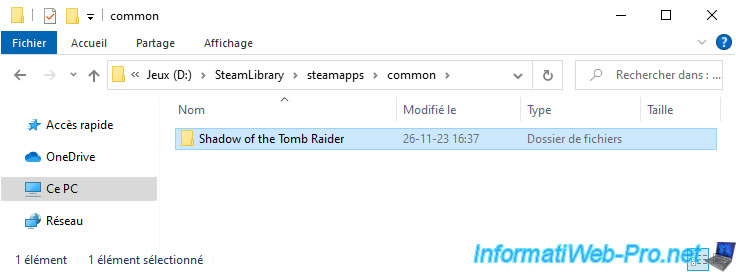
On your "Games (D:)" partition, you will see your game appear in the "SteamLibrary\steamapps\common" folder.
14. Play Shadow of Tomb Raider in your Windows 10 virtual machine
Now that everything is configured and installed, all you have to do is launch your game in your virtual machine.
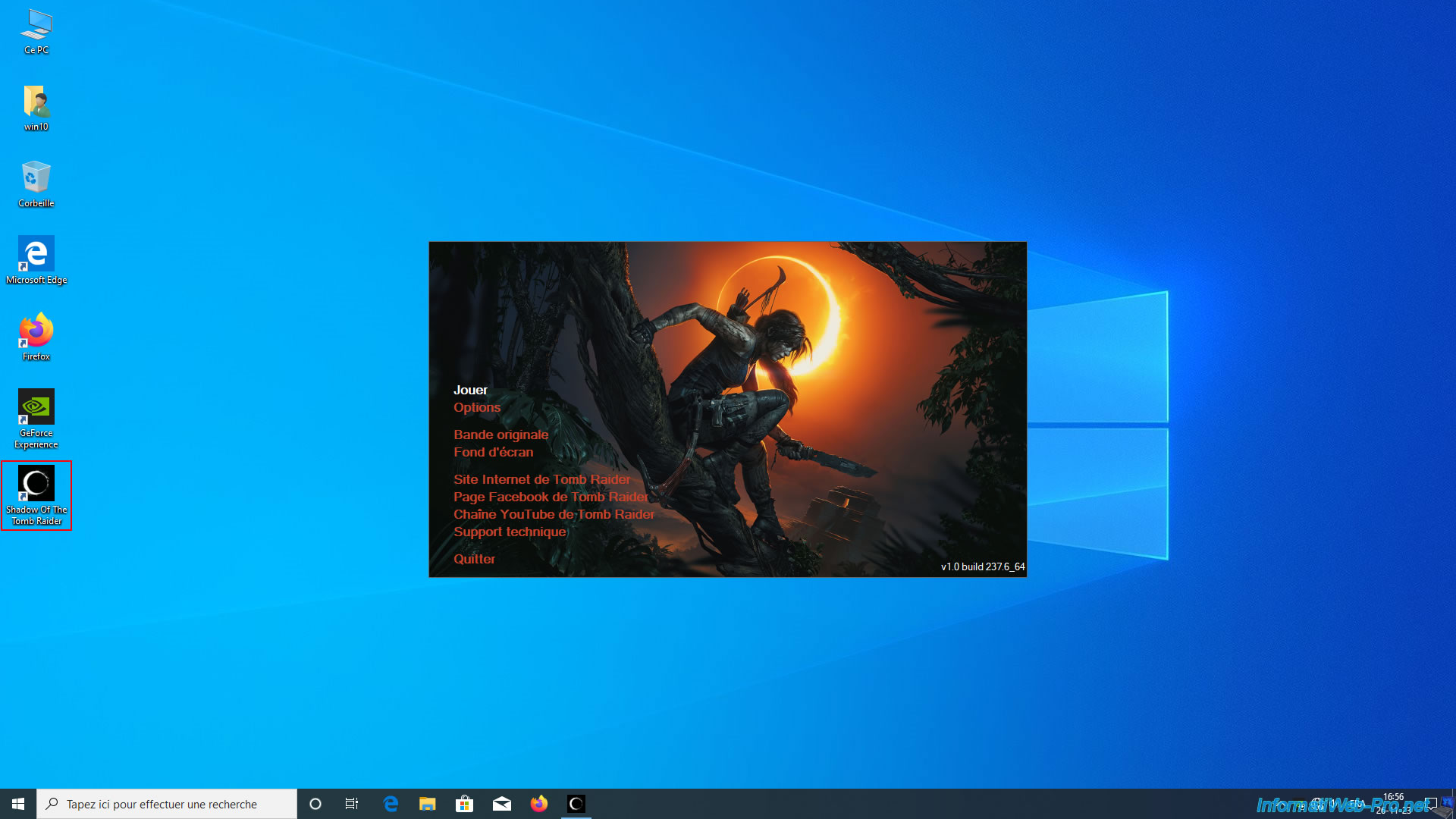
As you can see, our game sees our "NVIDIA GeForce RTX 3070" graphics card.
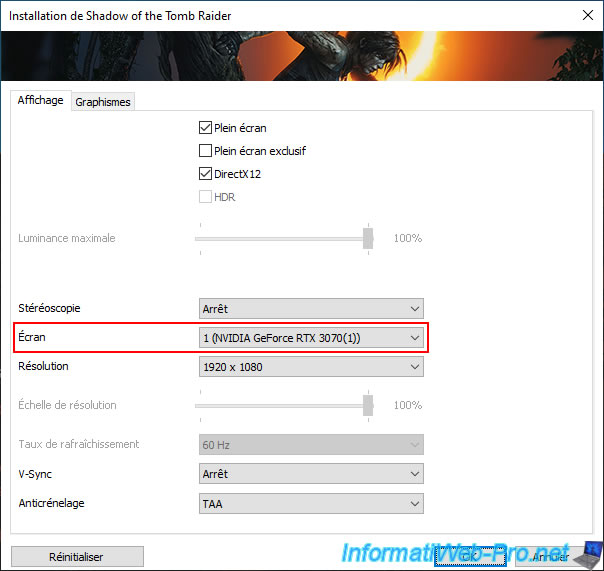
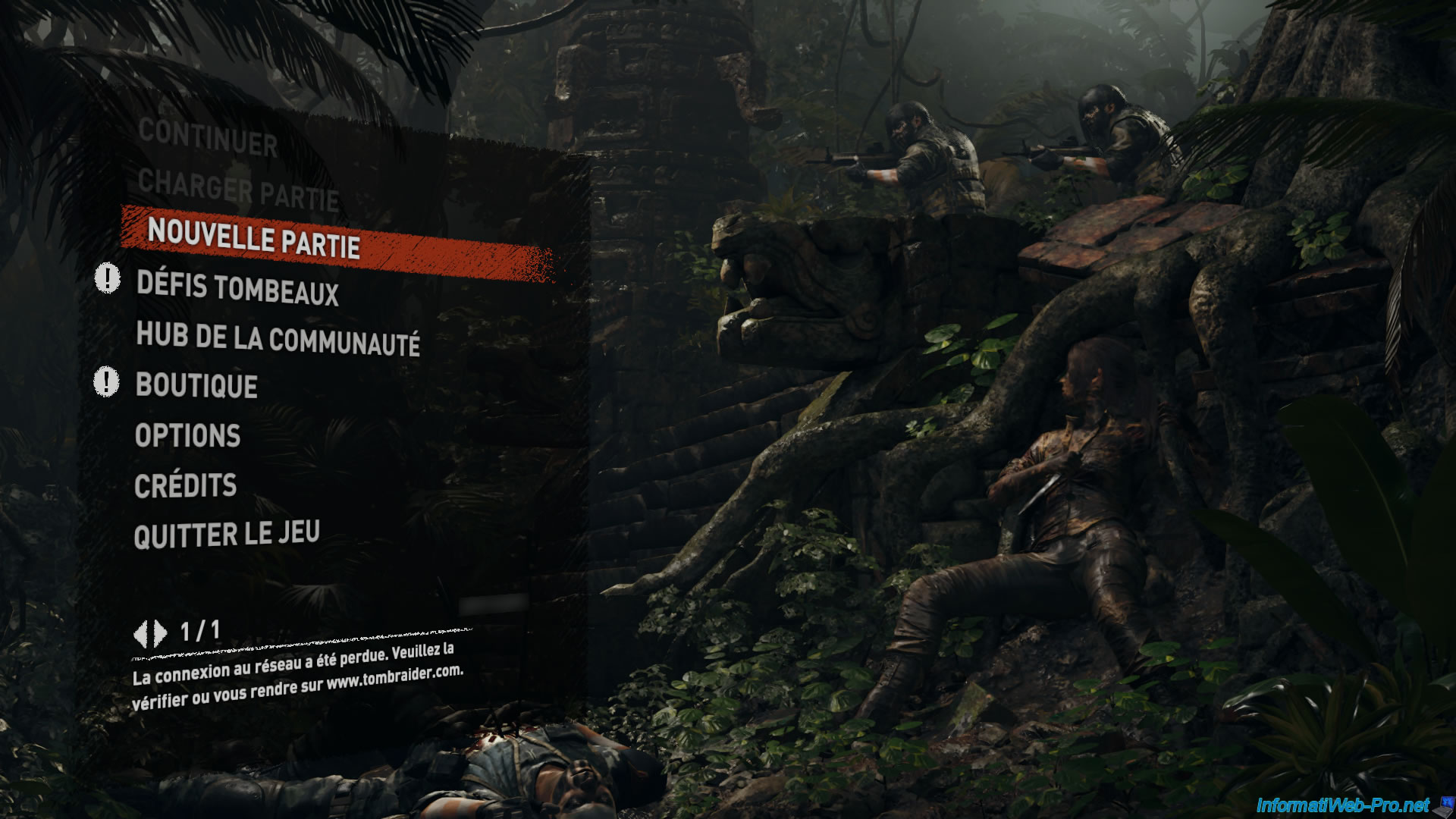
As expected, the game launches without any issues.
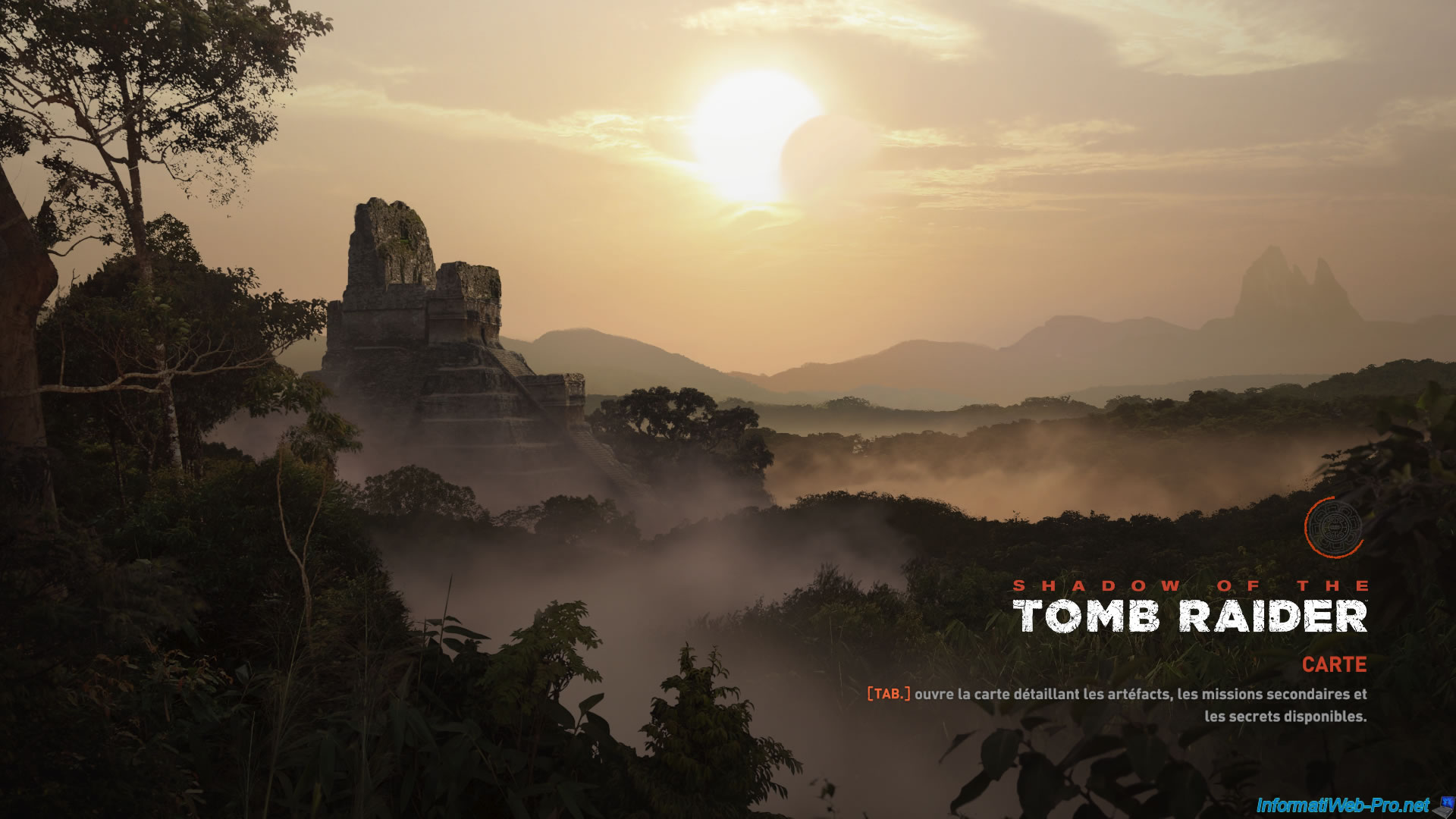
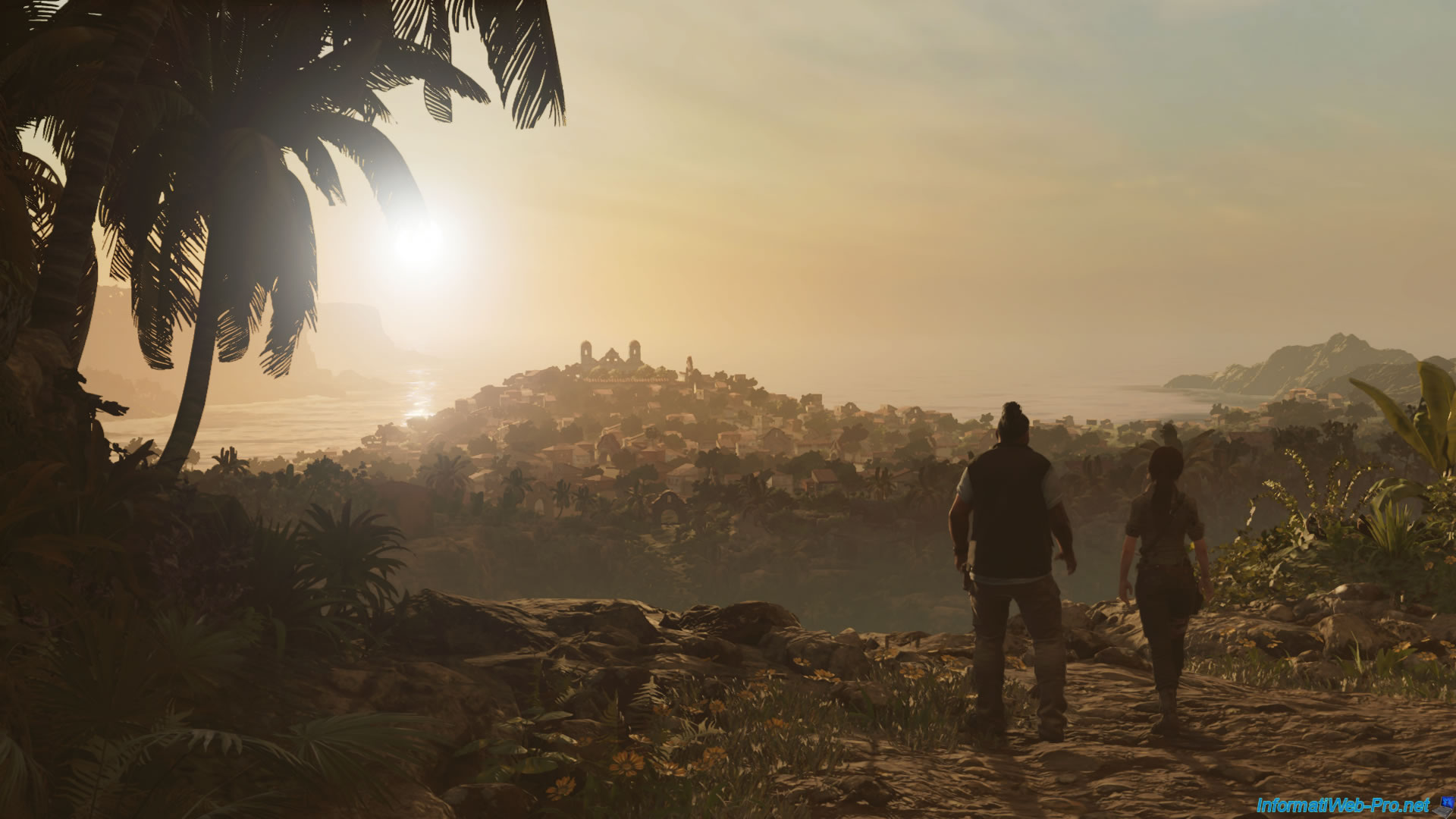
As you can see, the graphic quality is there.
The light is well managed with the Ray Tracing of our Nvidia RTX 3070 graphics card.
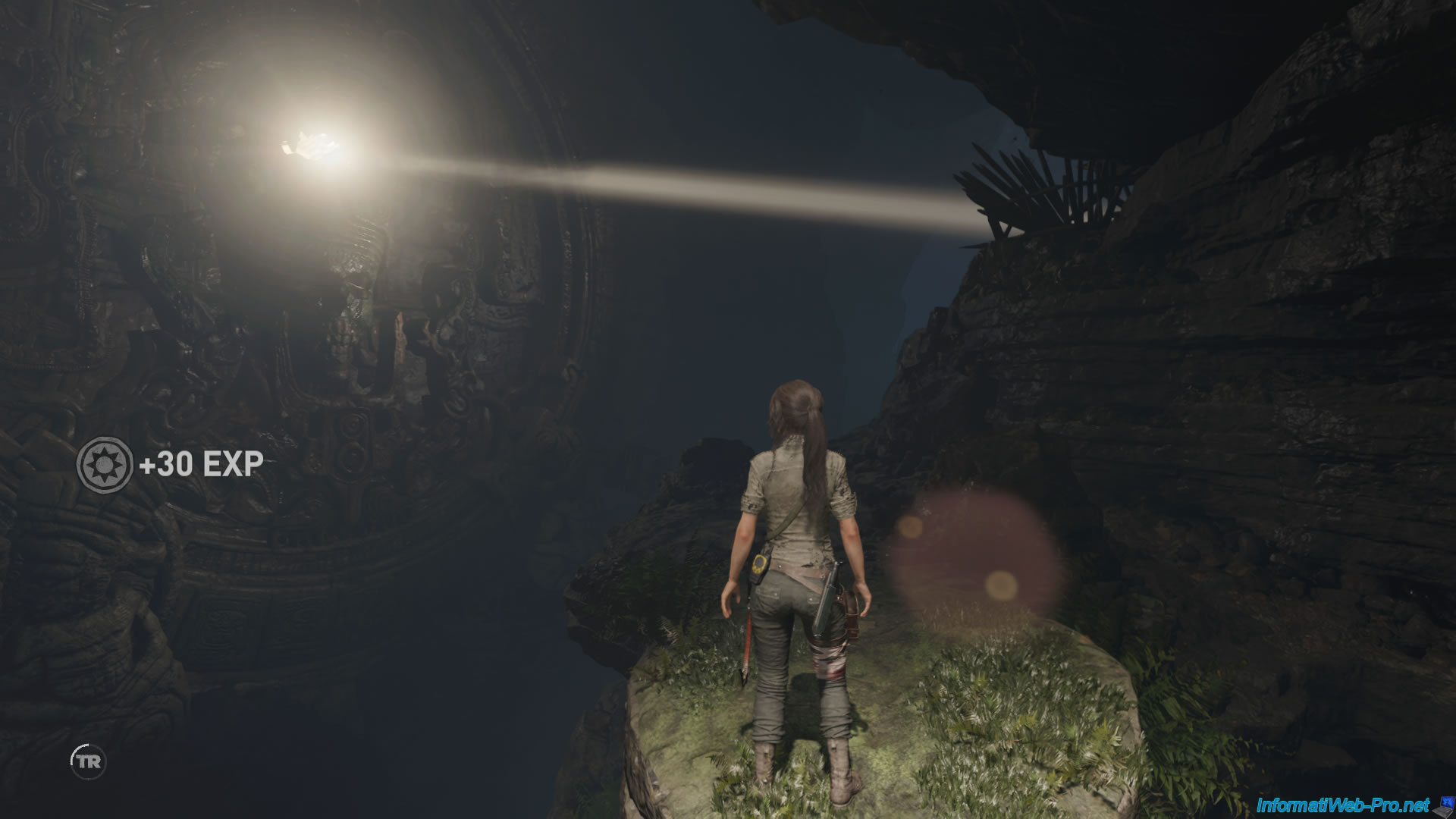
Radiant sunshine thanks to RTX.
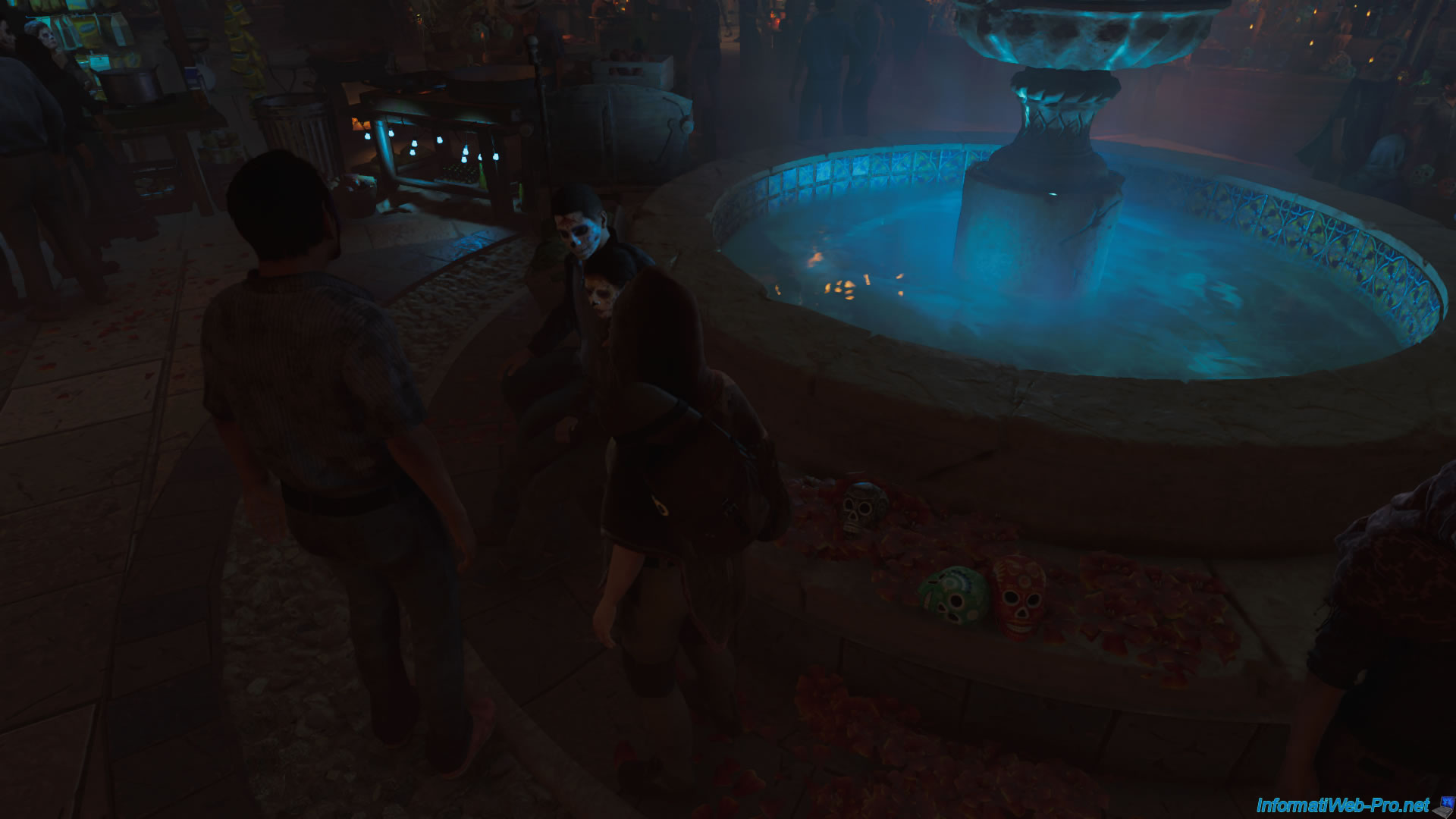
And also the reflections in the water managed thanks to Ray Tracing.
Share this tutorial
To see also
-
NAS 12/4/2025
Unraid 6.9.2 - Define a private static IP address
-
NAS 1/1/2026
Unraid 6.9.2 - Disable flash network sharing
-
NAS 3/4/2026
Unraid 6.9.2 - Install the "Community Applications" plugin (old version)
-
NAS 9/16/2026
Unraid 6.9.2 - VMs - Hotplug USB devices (Libvirt Hotplug USB plugin)
No comment