- NAS
- Unraid
- 23 April 2026 at 13:05 UTC
-

- 1/3

Plex is a multimedia solution allowing you to watch your films, your TV series, listen to music, ... hosted on your own server (Unraid).
- Create shares for the Plex library
- Download and configure the Docker container: Plex
- Configuring Plex server
- Using Plex
- Stop the Docker Plex container
- Install the Plex client on Windows
- Connect the Plex Client for Windows to your Plex Server
- Manage Plex settings
1. Create shares for the Plex library
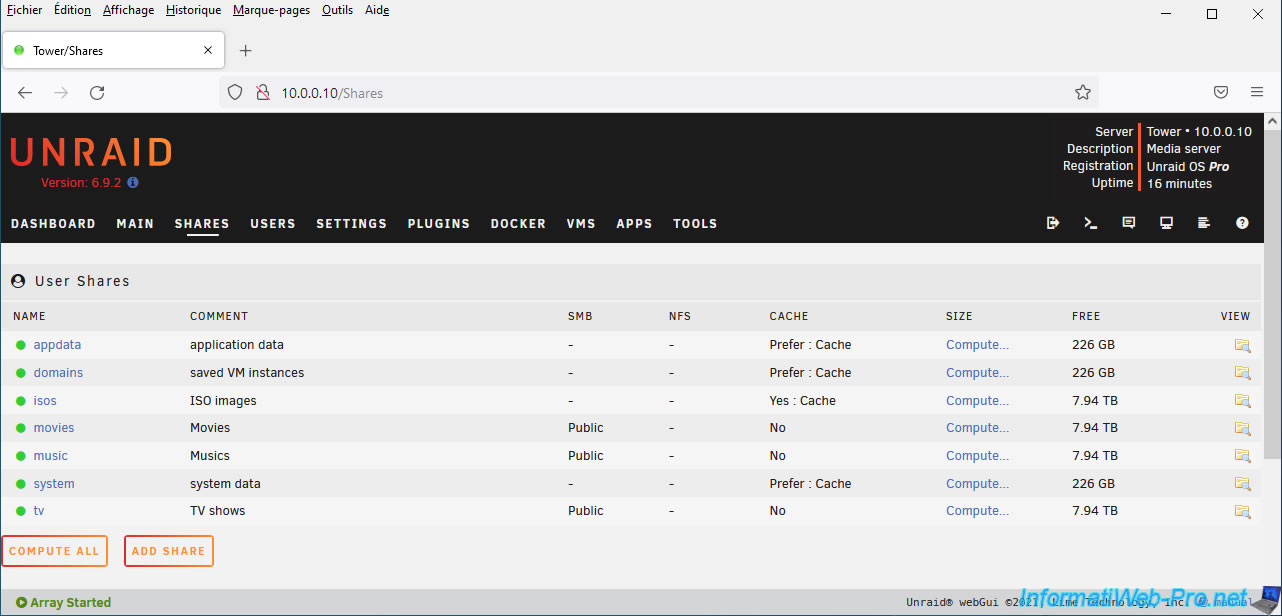
To create shares to use for the Plex library, refer to our tutorial: Unraid 6.9.2 - Docker - Install a media server (Jellyfin).
2. Download and configure the Docker container: Plex
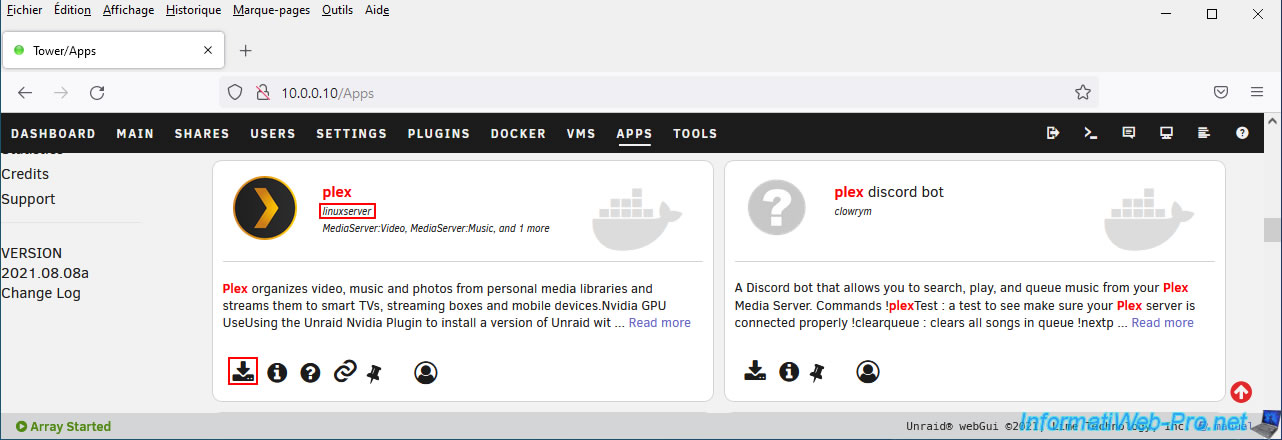
To get started, look for the "Plex" Docker container.
As you can see, there are several Plex containers (or variations) that exist.

Download and install the "plex" container created by "linuxserver".
An "Add Container" page appears.
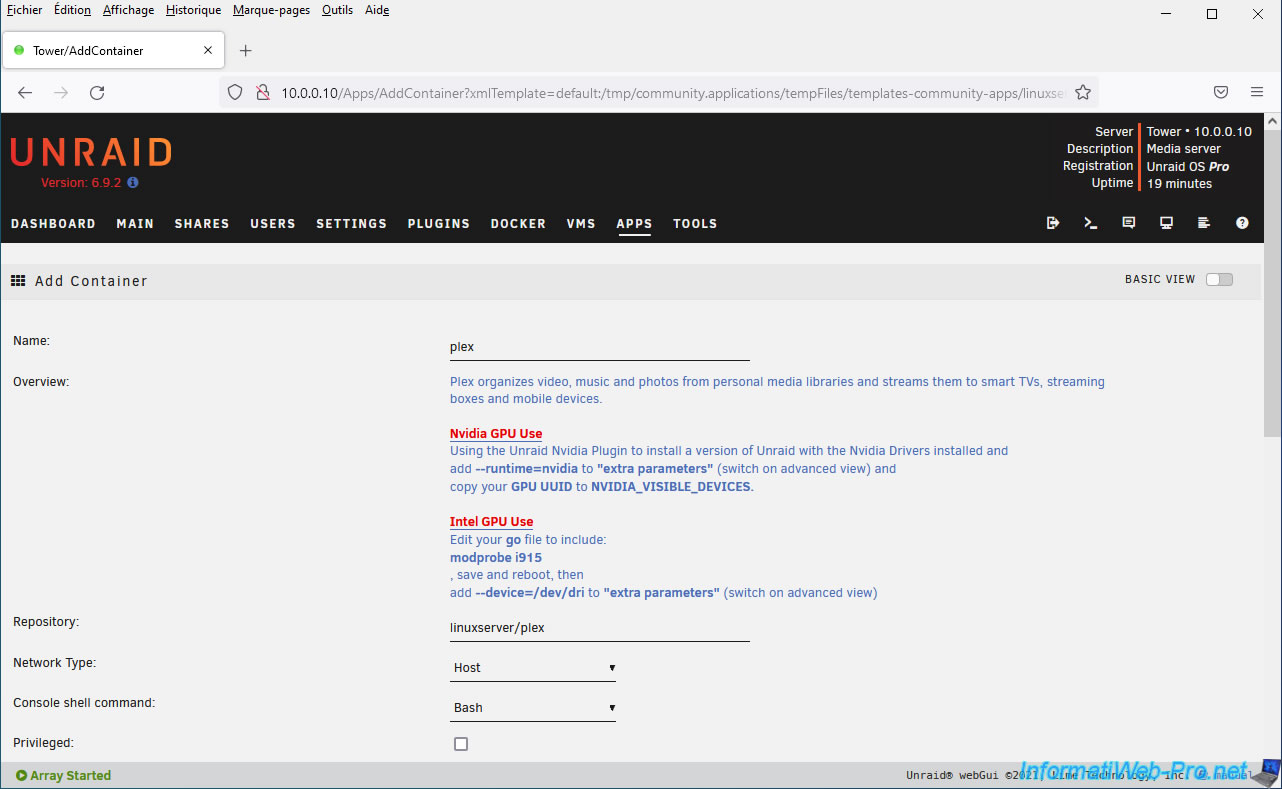
To begin, you will be able to specify the folders of your Plex libraries:
- Movies: for movies
- TV: for TV series
- Music: for music
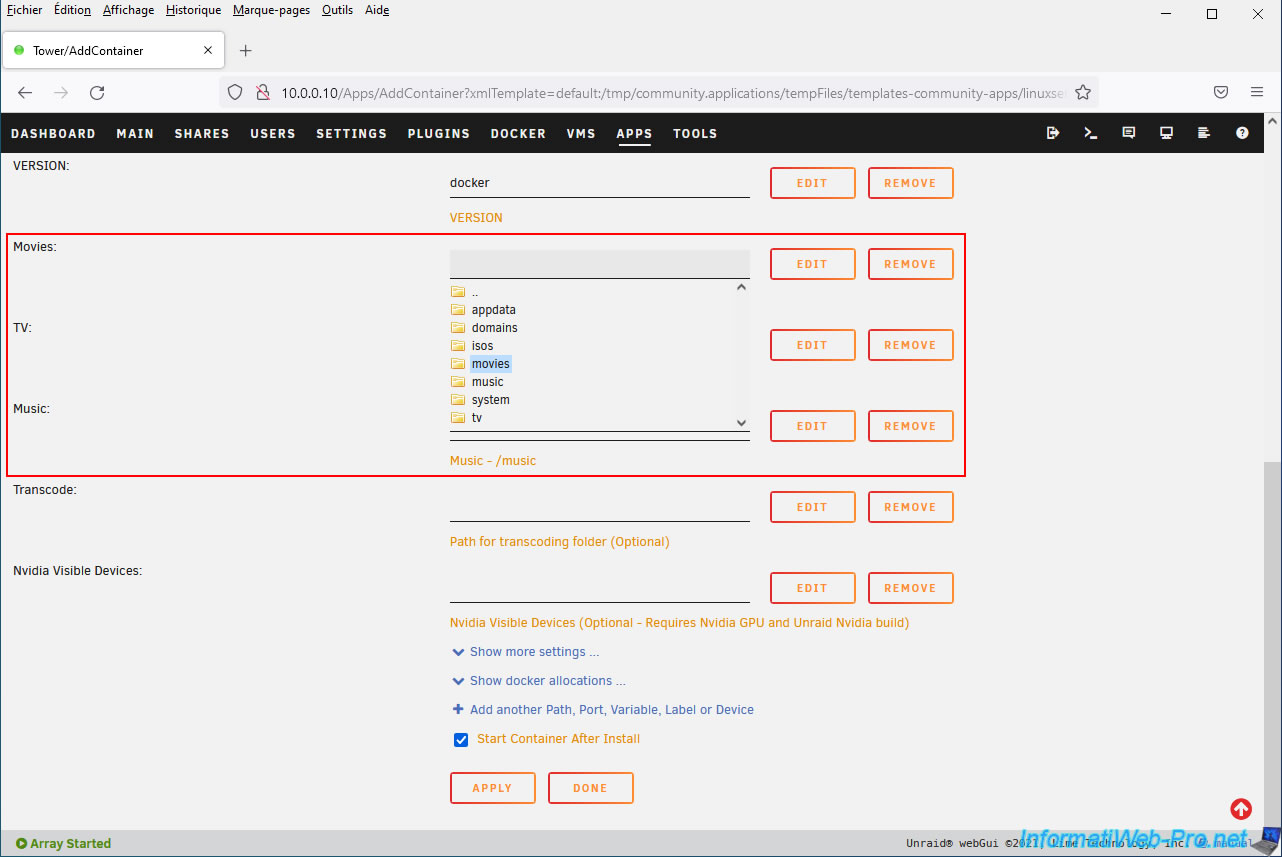
Update: in the meantime, the "Music" field has disappeared from the configuration page.
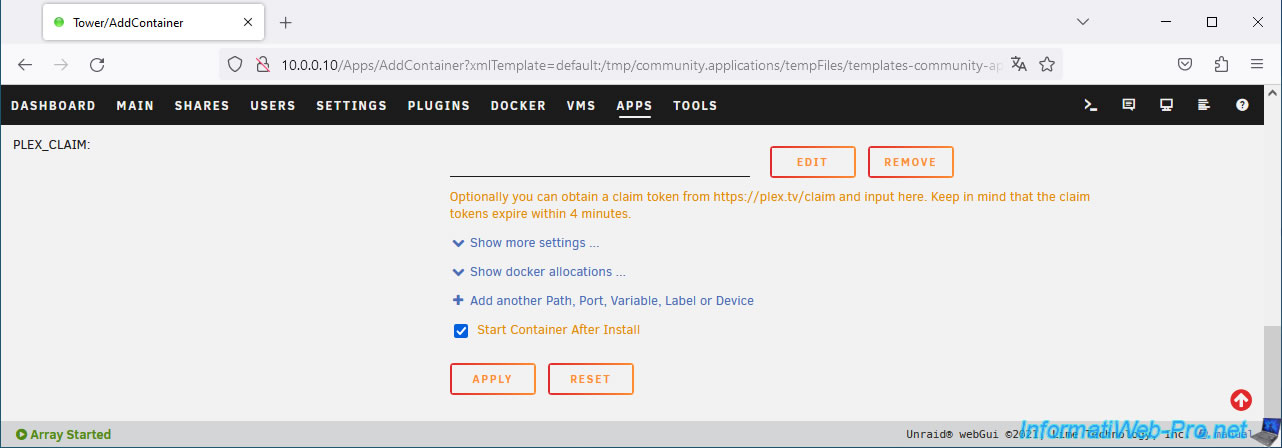
However, if necessary, you can always map this folder manually by clicking on the "Add another Path, Port, Variable, Label or Device" link located at the bottom of the page.
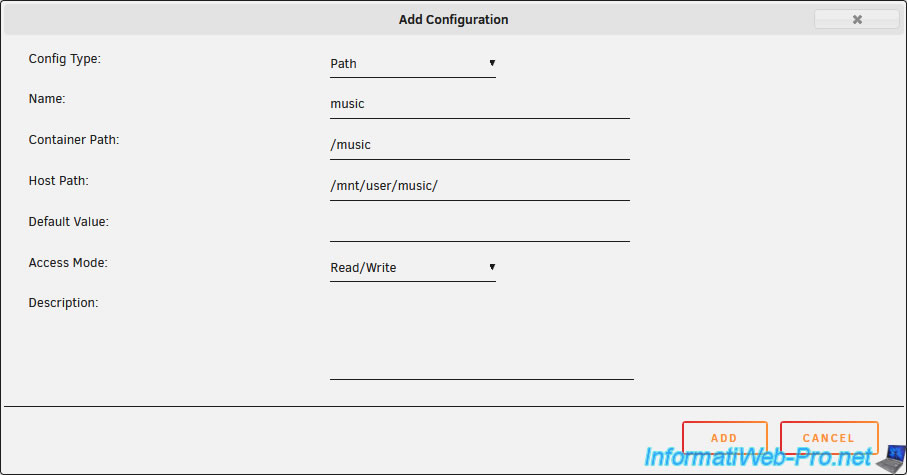
Then, in the "Add Configuration" window that appears, configure these parameters like this:
- Config Type : Path.
- Name : music.
- Container Path : /music
- Host Path : /mnt/user/music/
- Access Mode : Read/Write.
Then, click "Add".
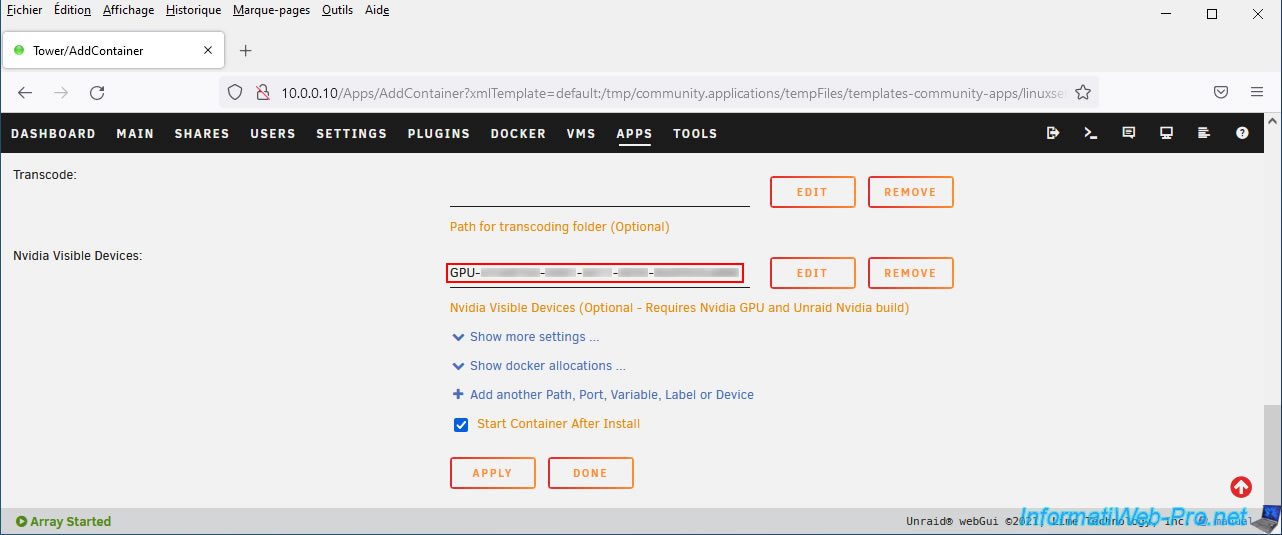
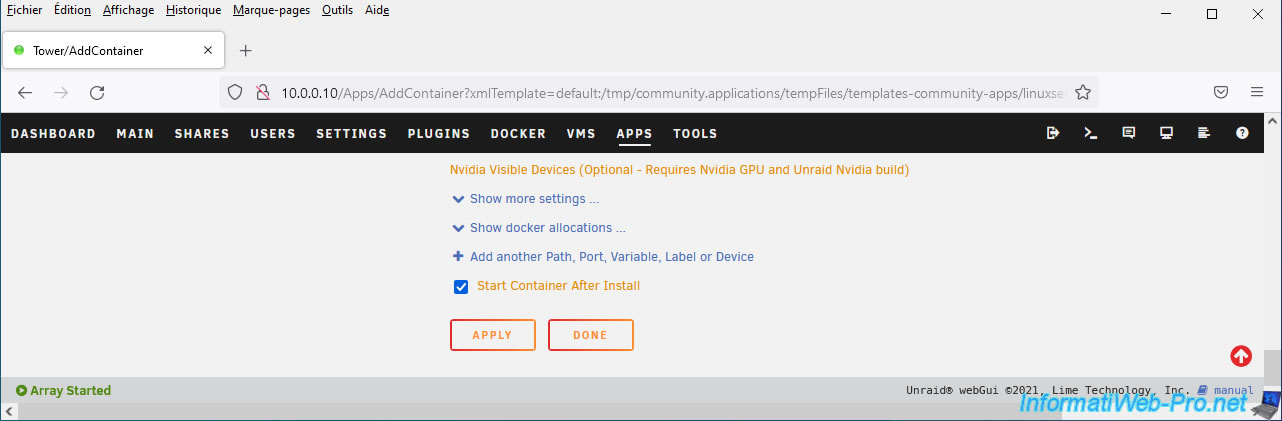
If you want to use Plex's hardware video transcoding, you'll need to fill in the "Nvidia Visible Devices" field to tell Plex which graphics card to use.
However, this feature requires a Plex Pass (which is therefore paid).
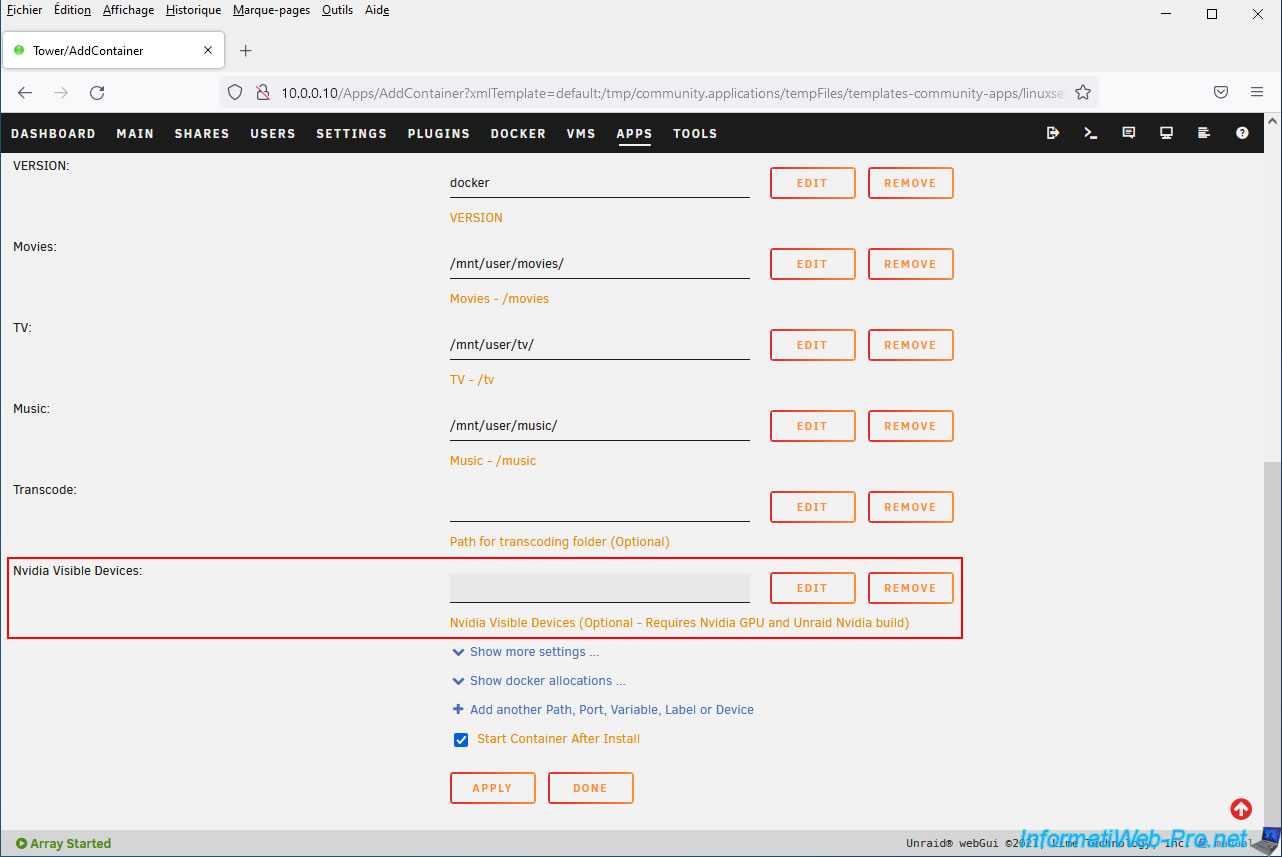
To be able to enter this parameter, you will need the "Nvidia Driver" plugin (which replaces the "Unraid Nvidia" plugin which no longer exists).
Once this plugin is installed, go to: Settings -> Nvidia Driver.
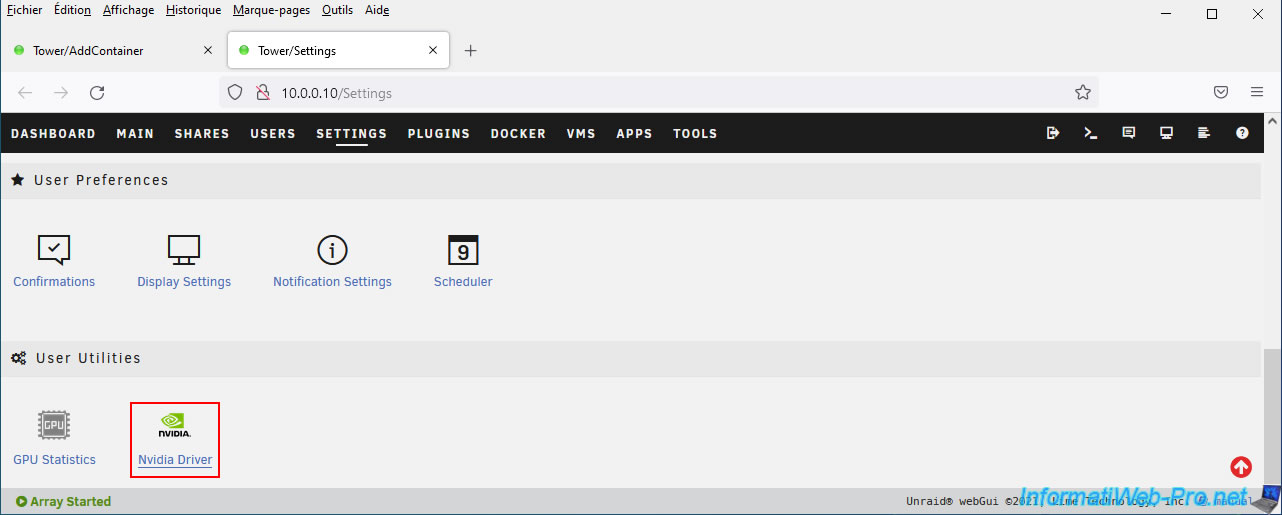
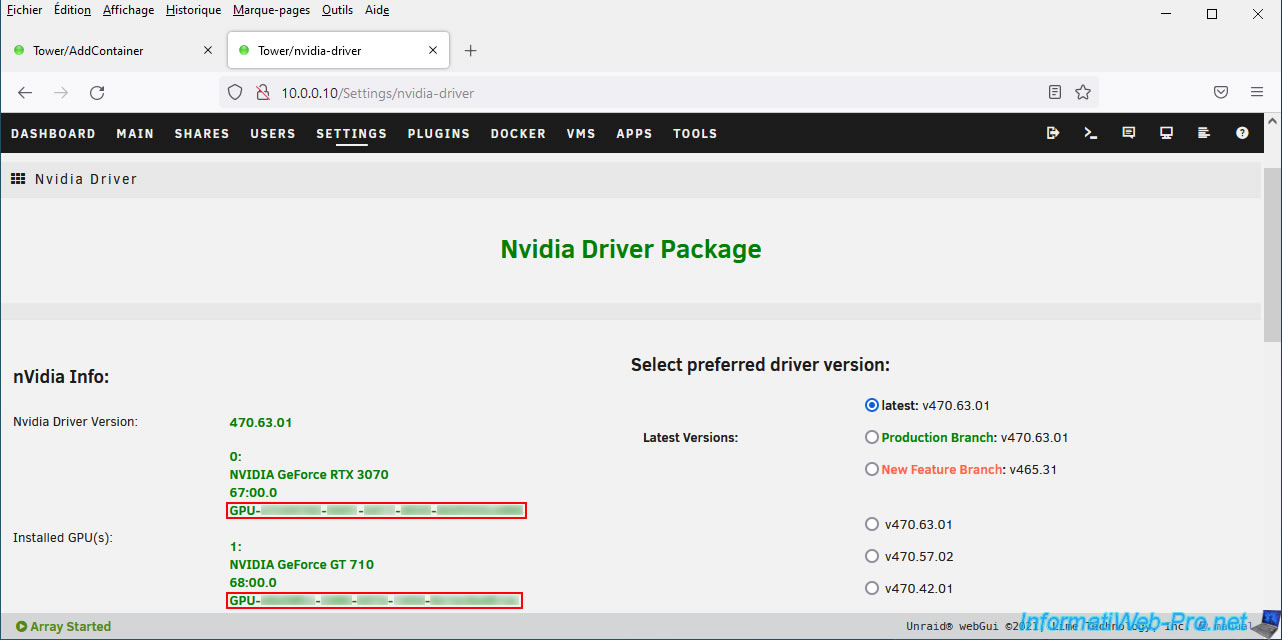
On the left, you will find the identifier (UUID) of each NVIDIA graphics card that is in your server.
The format of this is: GPU-xxxxxxxx-xxxxxx-xxxxxxxx.
Copy and paste this identifier (UUID) into the "Nvidia Visible Devices" box.
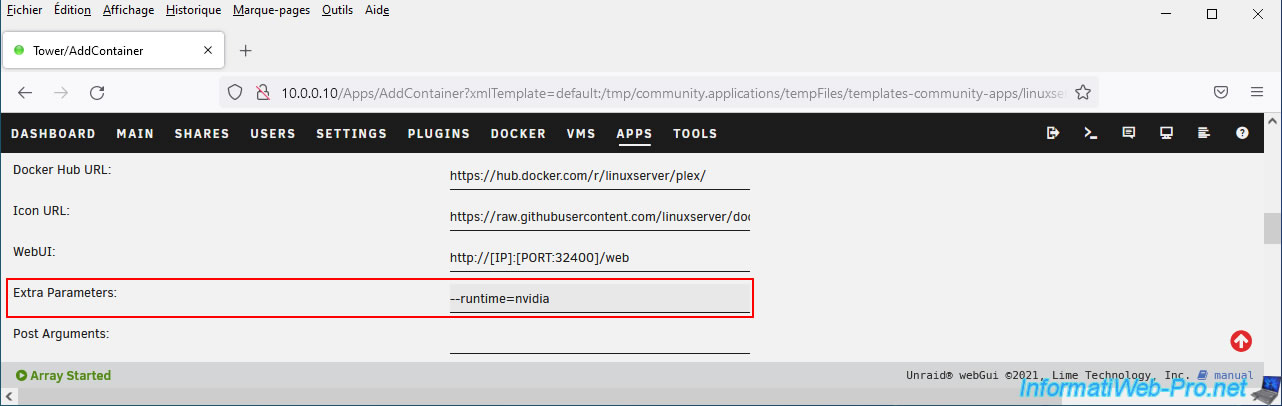
If you have entered this "Nvidia Visible Devices" field to be able to use hardware transcoding, then click on the "Basic view" switch at the top right to switch this form to advanced mode.
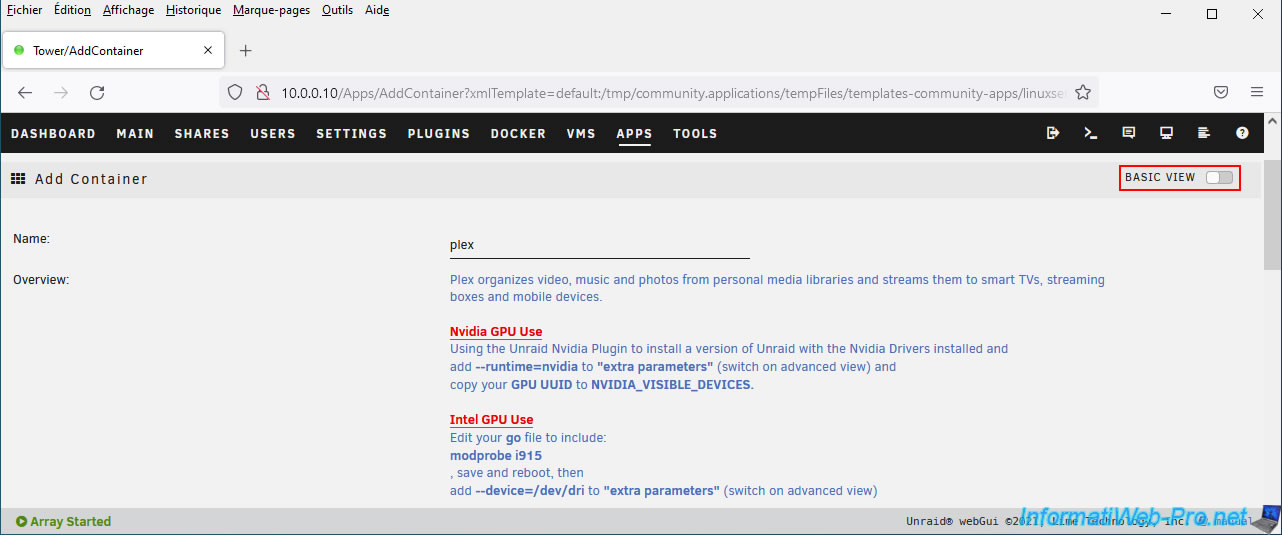
In the "Extra Parameters" box, specify the value "--runtime=nvidia".
To finish, click Apply:
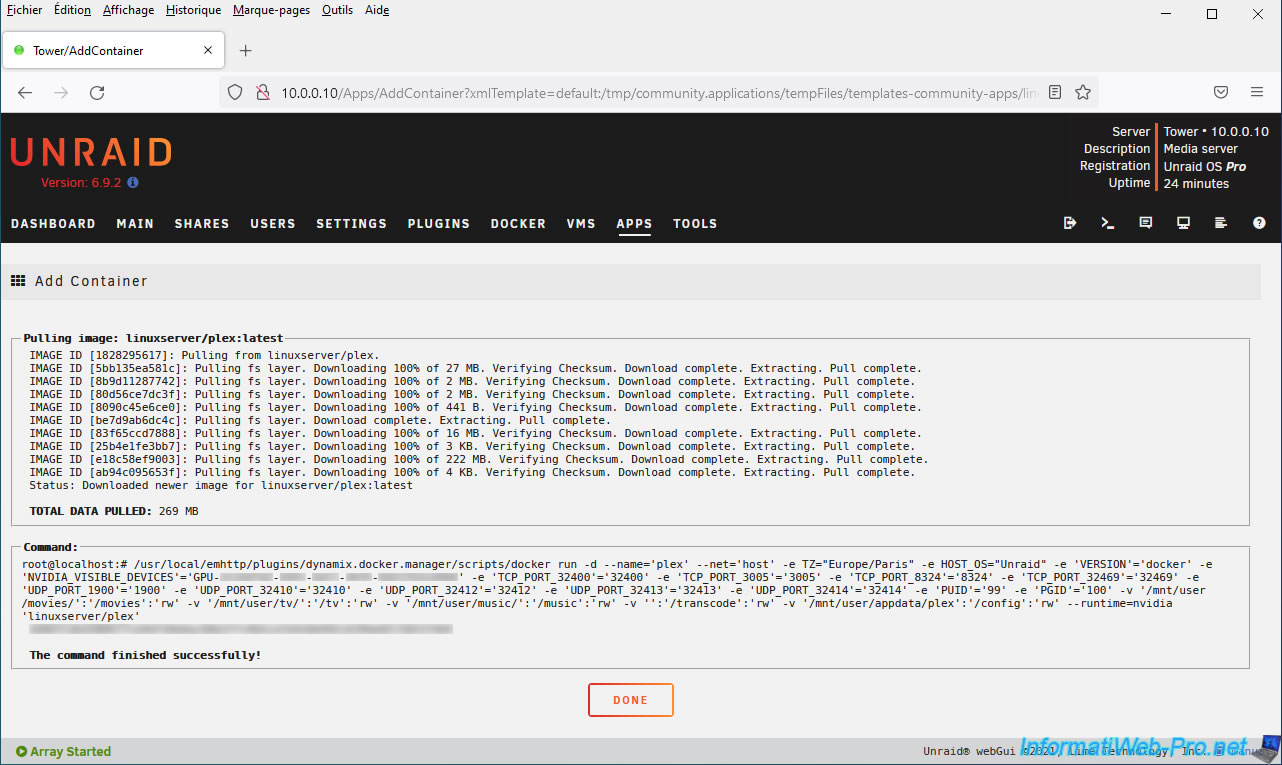
Wait while the various components of this "Plex" Docker container download and install it.
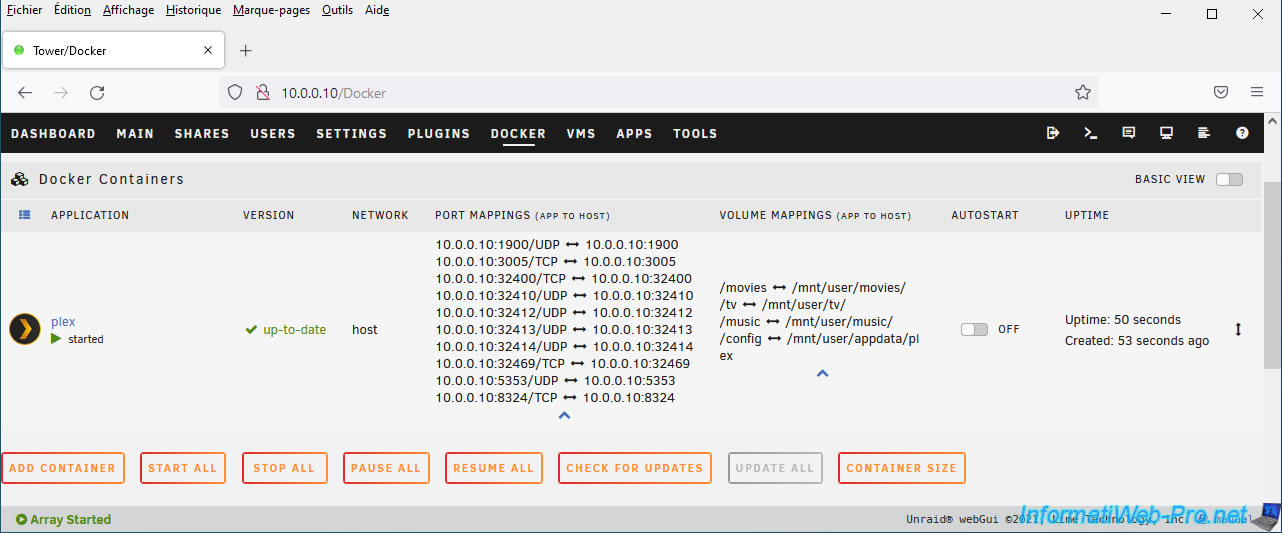
The "Plex" Docker container is installed and launched.
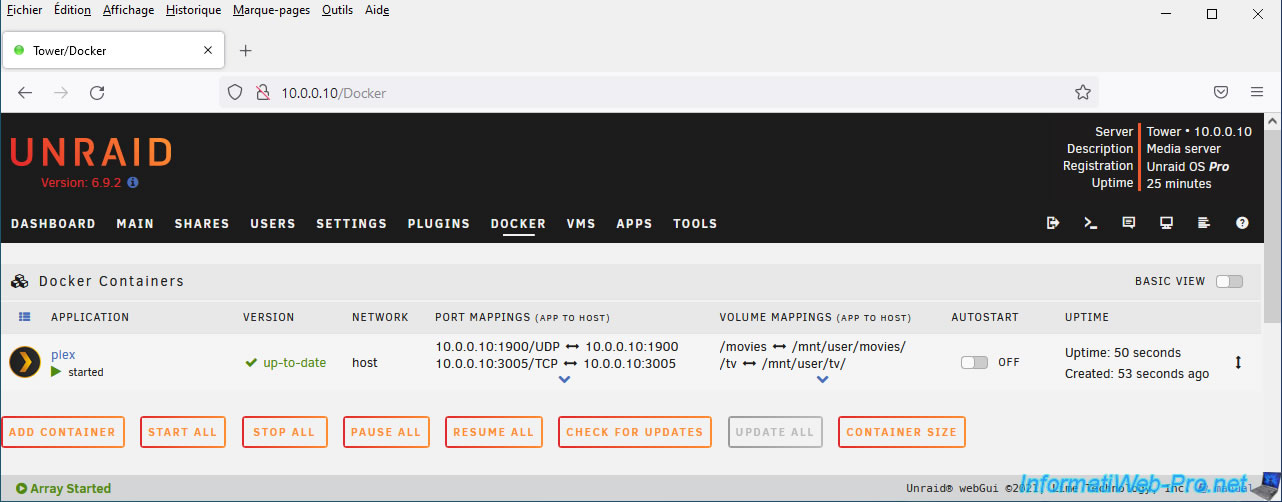
To see the full list of port mappings and volumes (shares), click the small blue arrow you want.
Share this tutorial
To see also
-
NAS 6/24/2026
Unraid 6.9.2 - Docker - Install the office suite (Collabora) for Nextcloud
-
NAS 1/21/2026
Unraid 6.9.2 - Replace a storage disk
-
NAS 5/27/2026
Unraid 6.9.2 - SWAG - Use a DDNS client (Duck DNS)
-
NAS 7/15/2026
Unraid 6.9.2 - VMs - Create a virtual machine
You must be logged in to post a comment