Install a media server (Plex) on Unraid 6.9.2 via Docker
- NAS
- Unraid
- 23 April 2026 at 13:05 UTC
-

- 3/3

4. Using Plex
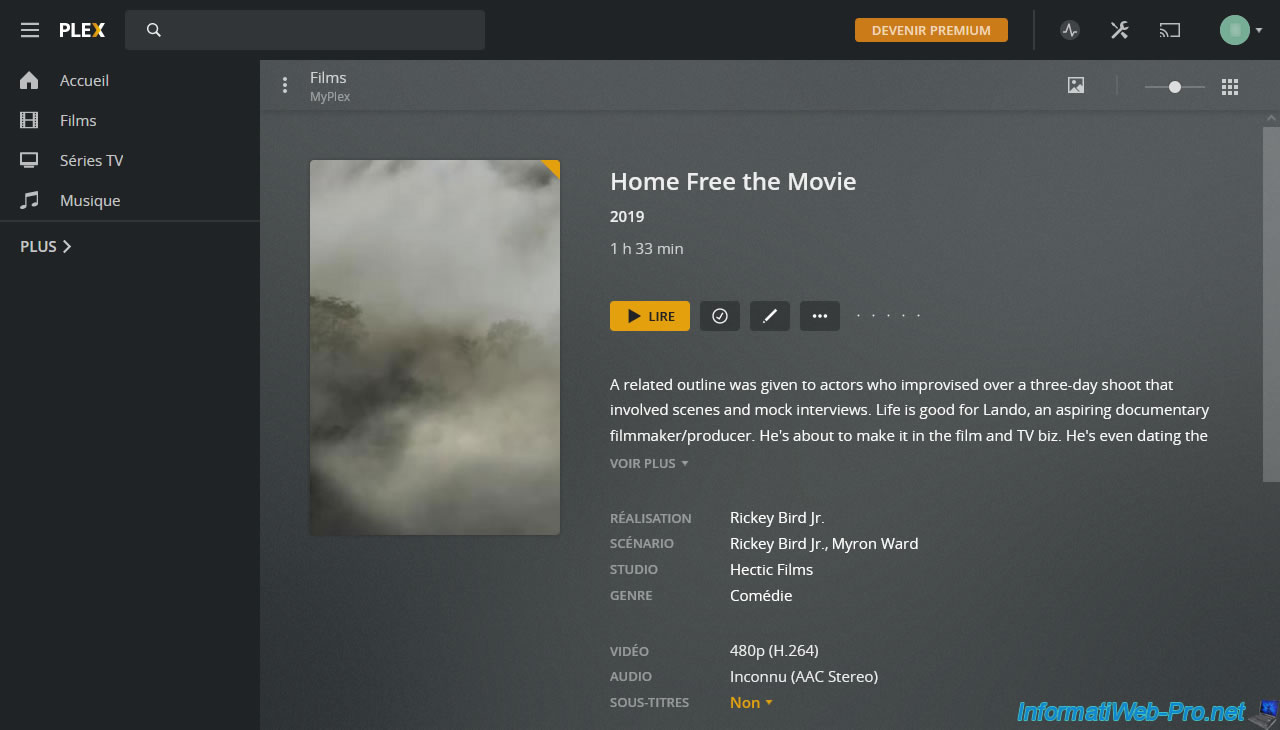
When you add the files of your films, TV series and music (legally downloaded) to your Unraid server, Plex will automatically detect which film, TV series, ... it is and it will display a lot of information concerning these media.
Note that in our case we downloaded a free movie for legality reasons.
To watch the film, click on it, then on the "Play" button.
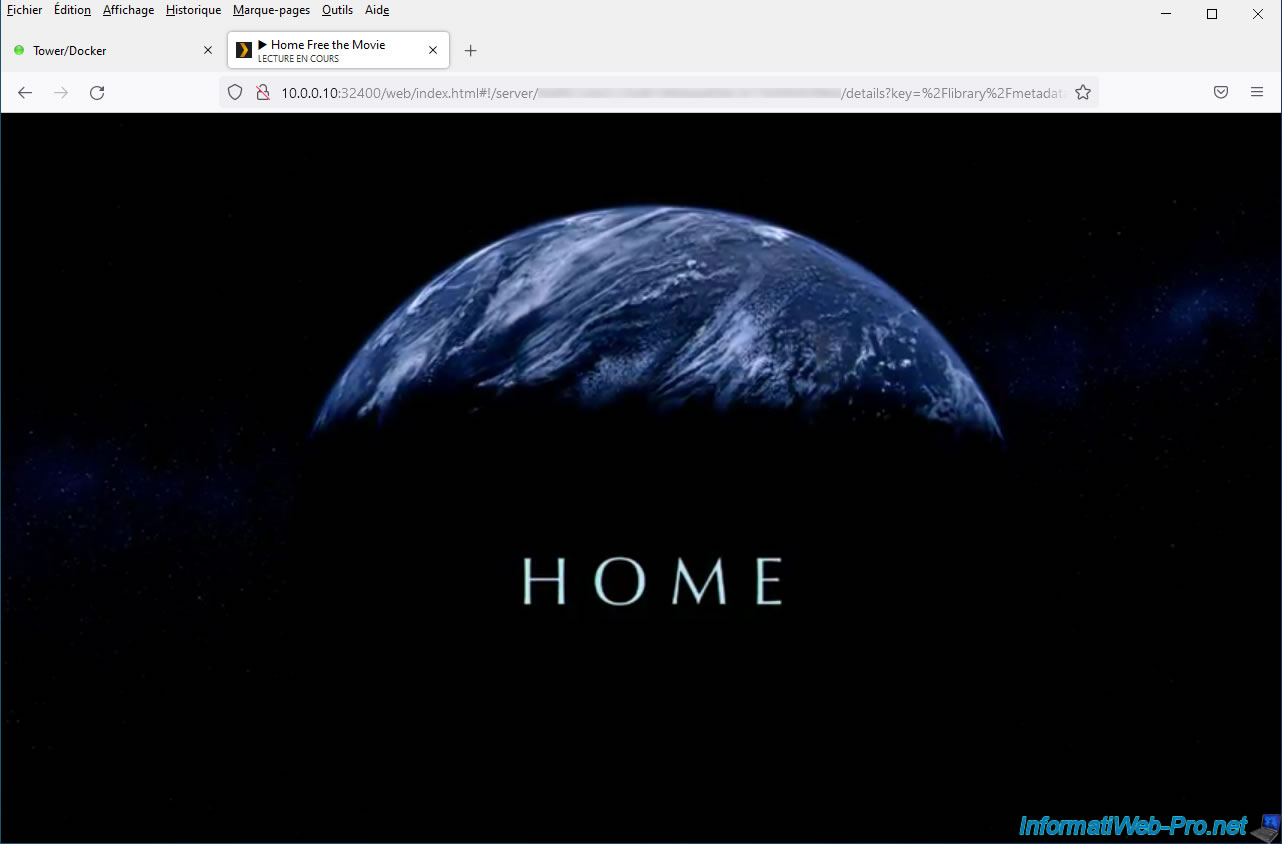
The movie starts playing.
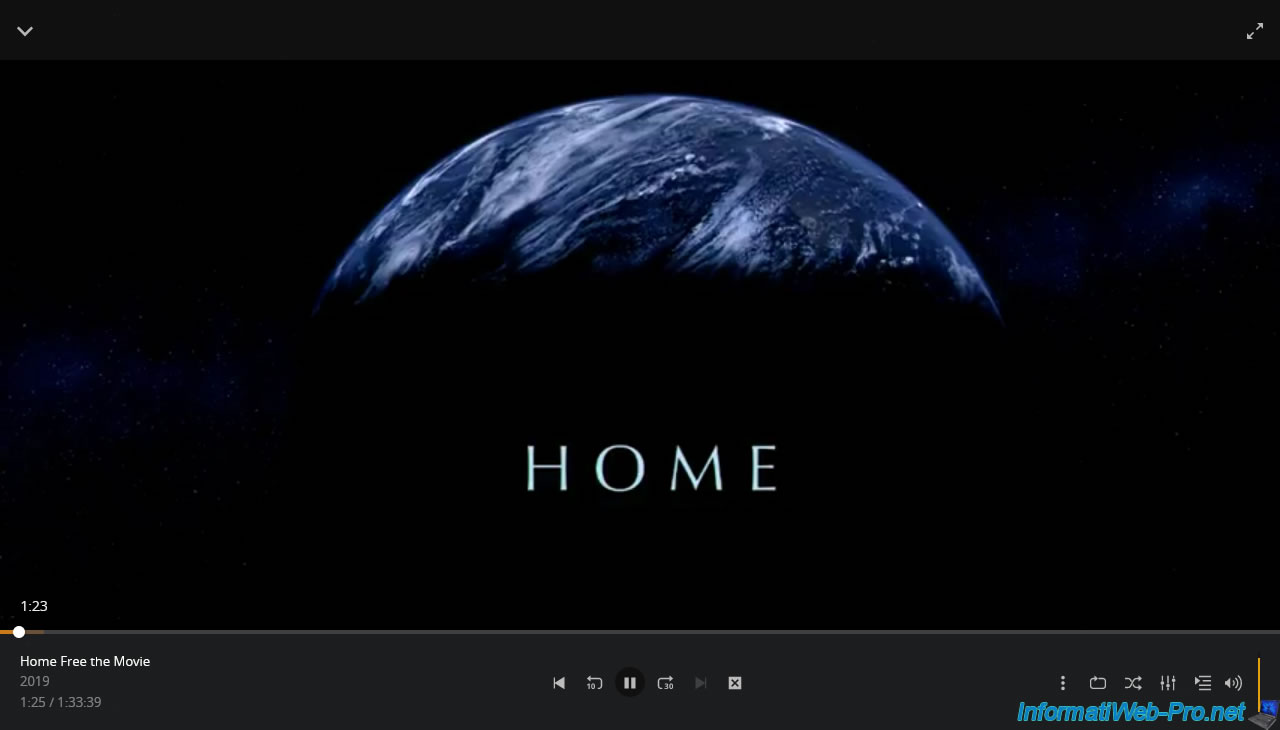
To display the different controls (play, pause, ...) of the video player, hover over the video with your mouse.
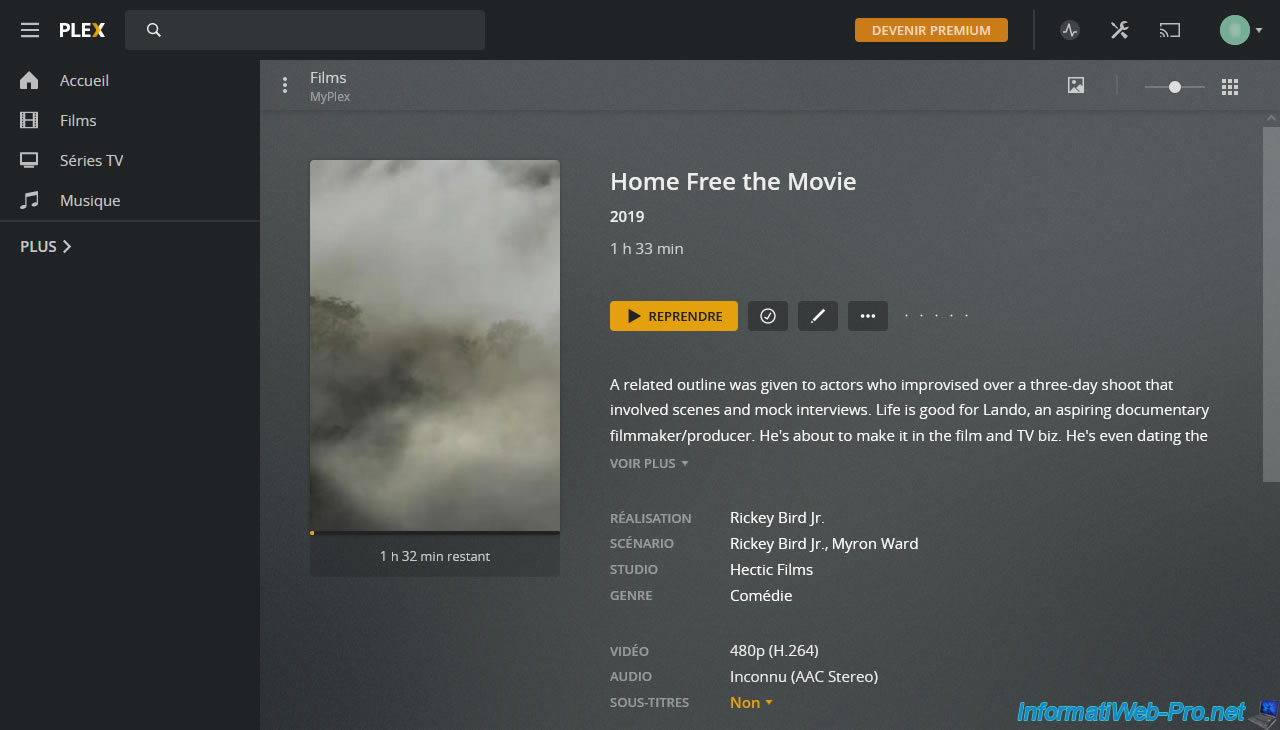
Note that Plex will automatically save where you left off so you can continue playing the desired media later, where you left off.
5. Stop the Docker Plex container
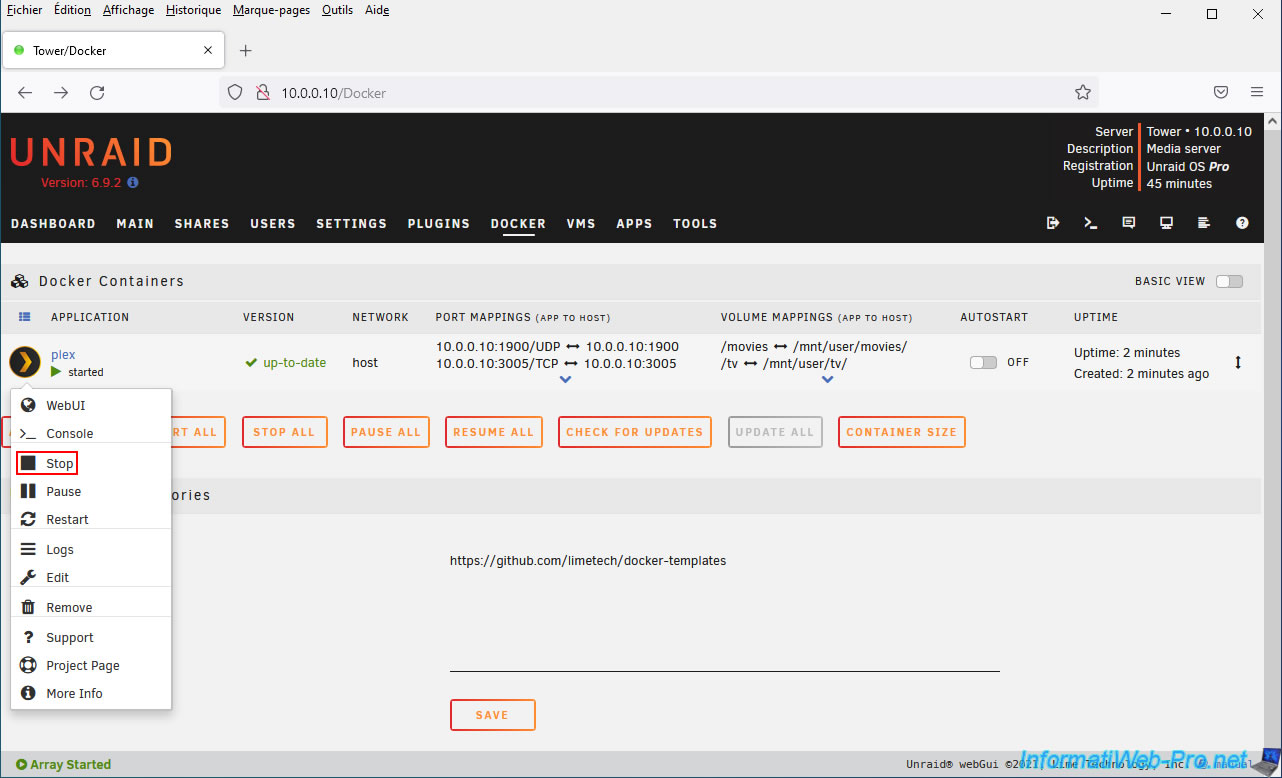
To stop the "plex" Docker container, simply click on its icon and click: Stop.
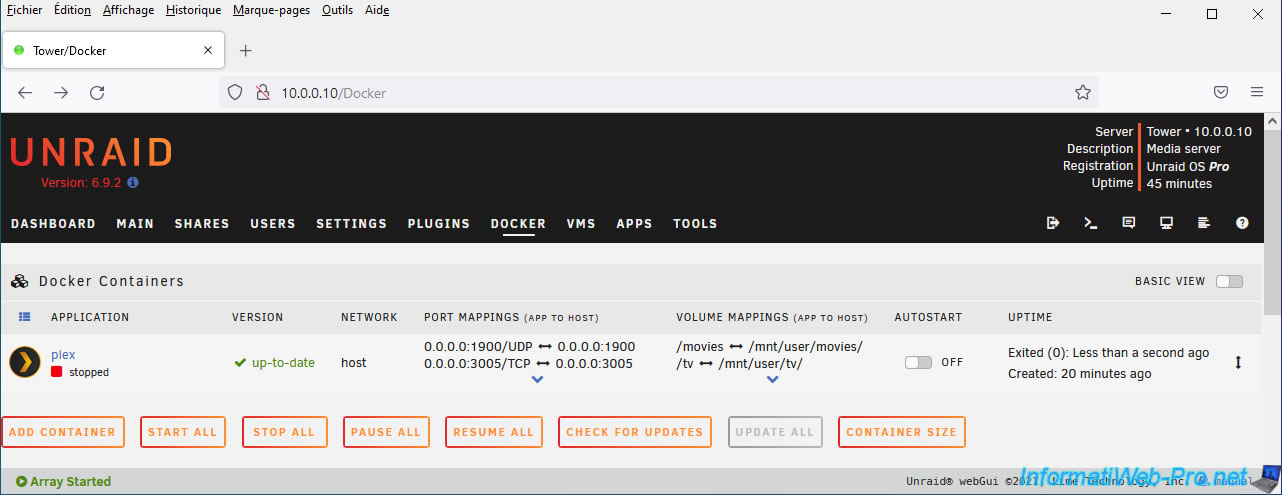
The container is stopped.
6. Install the Plex client on Windows
Although you can use the web interface of your Plex server, you can also use another client.
For the example, we will install the Plex client for Windows available on the official Plex website.
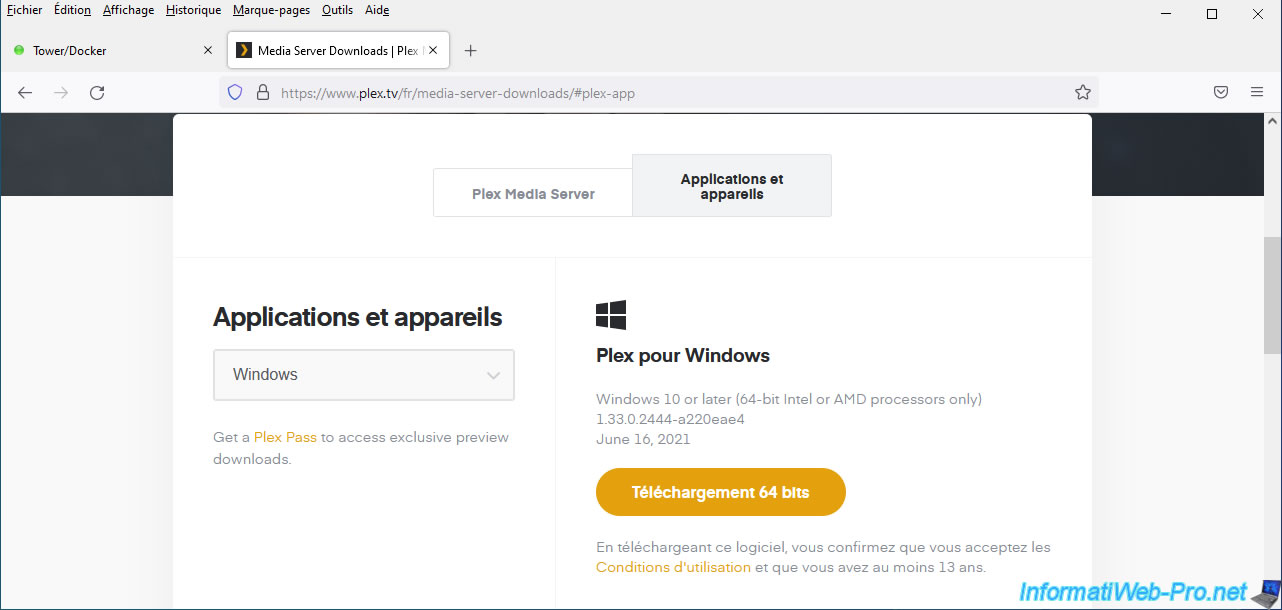
Start the installation of this client for Windows.
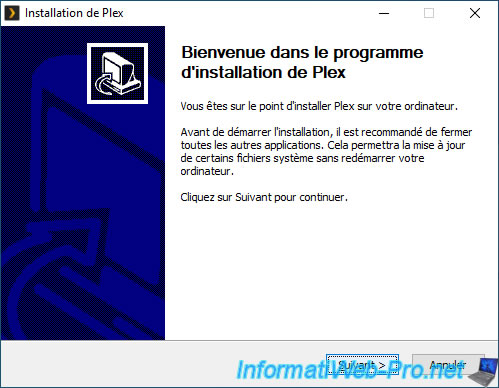
Nothing special for its installation.
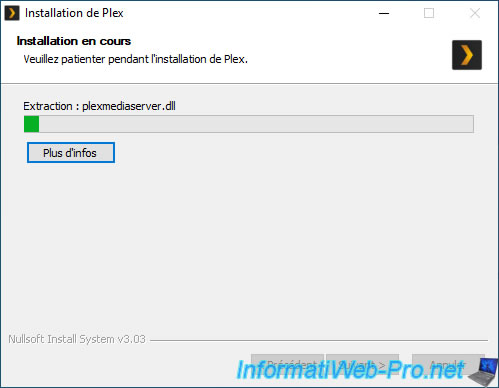
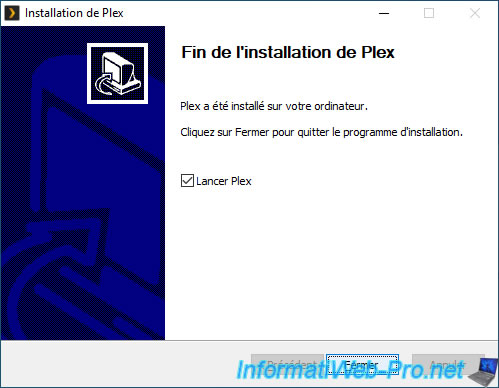
The Plex client is installed on your computer.
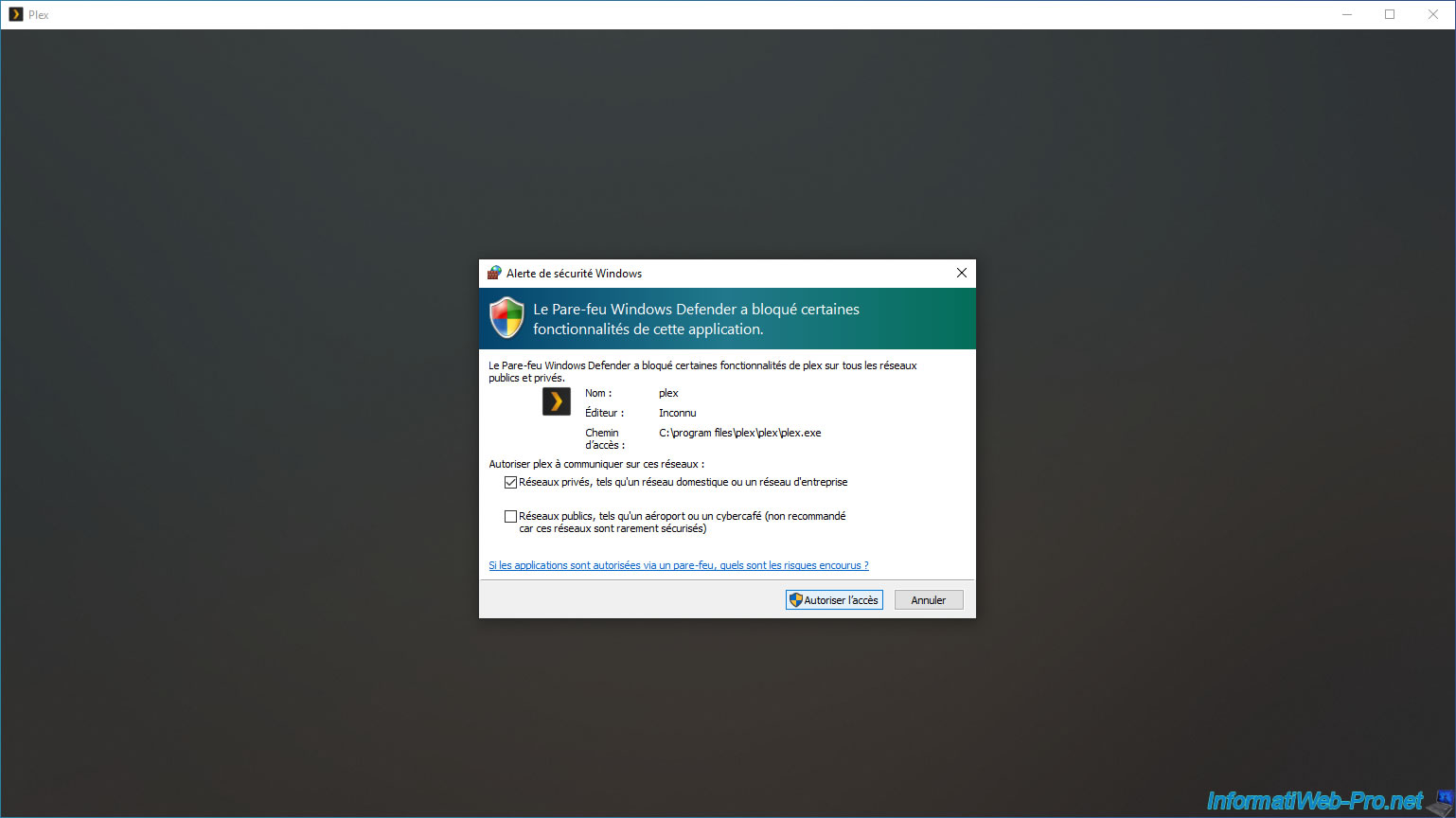
When you first launch the Plex client, Windows may display a Windows security alert.
Click "Allow Access" to automatically allow the necessary rules in Windows Firewall.
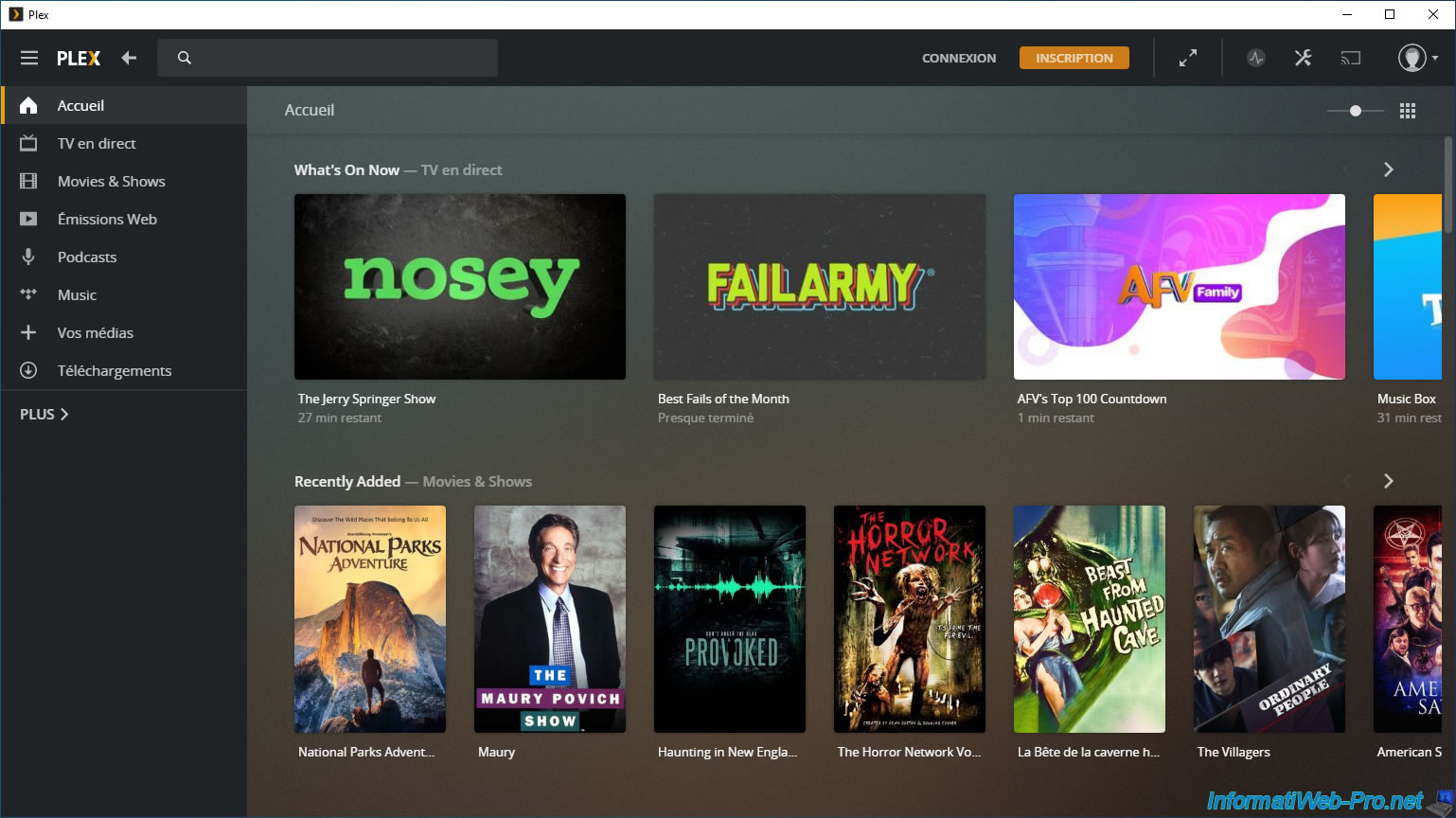
The Plex client appears.
Note that by default, all sources (including online ones) will appear.
7. Connect the Plex Client for Windows to your Plex Server
To be able to watch films, TV series, ... available on your own Plex server, you will need to connect with your Plex account from this Plex client.
To do this, click on the "Connection" button located at the top.
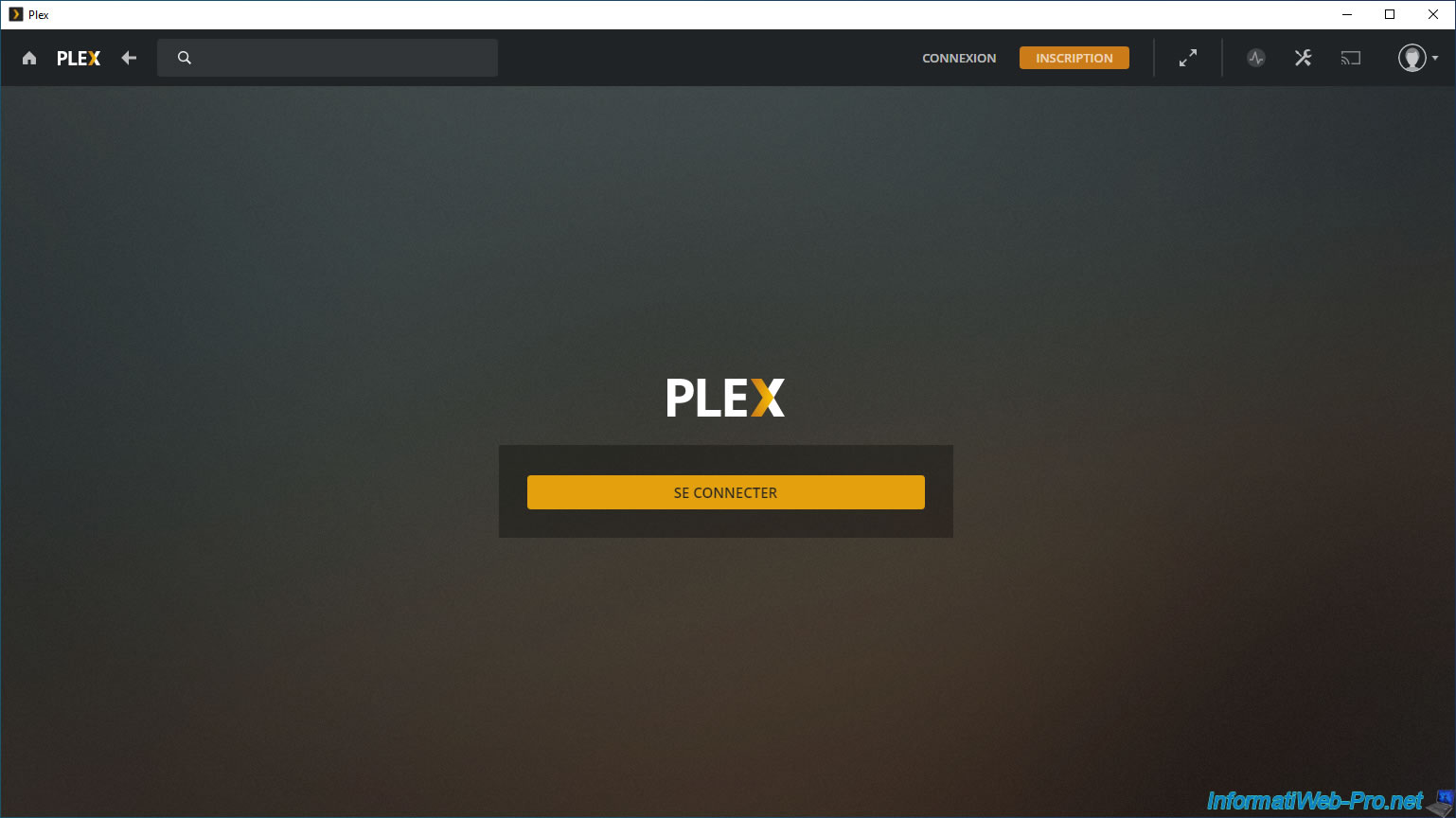
A web page will appear to allow you to log in to your Plex account.
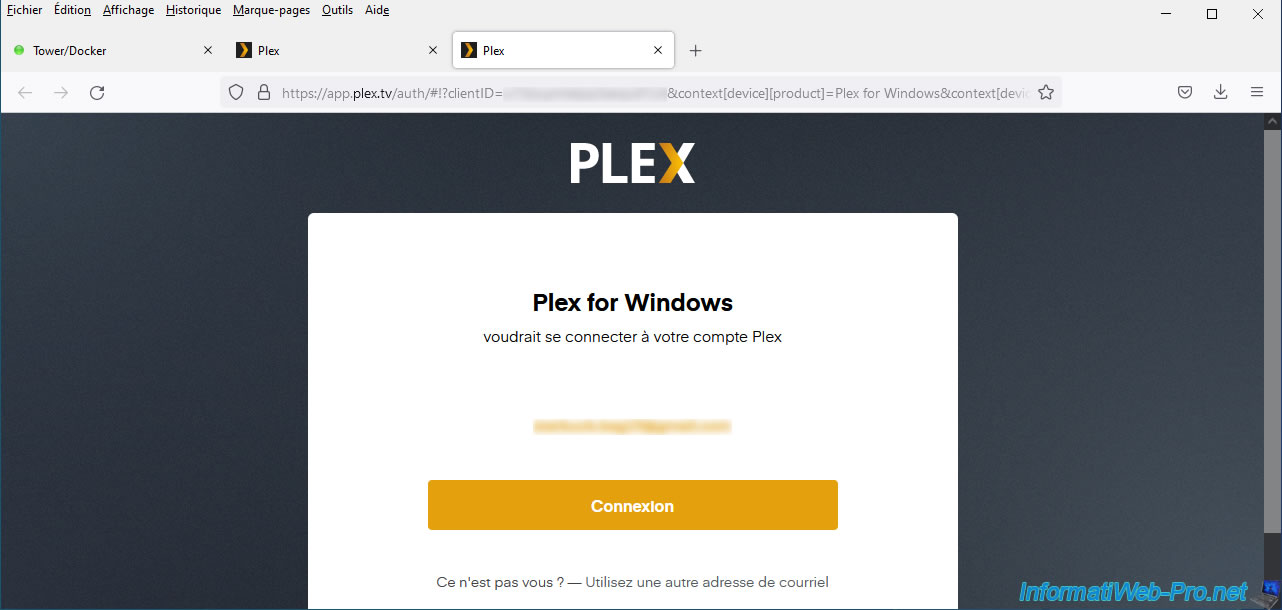
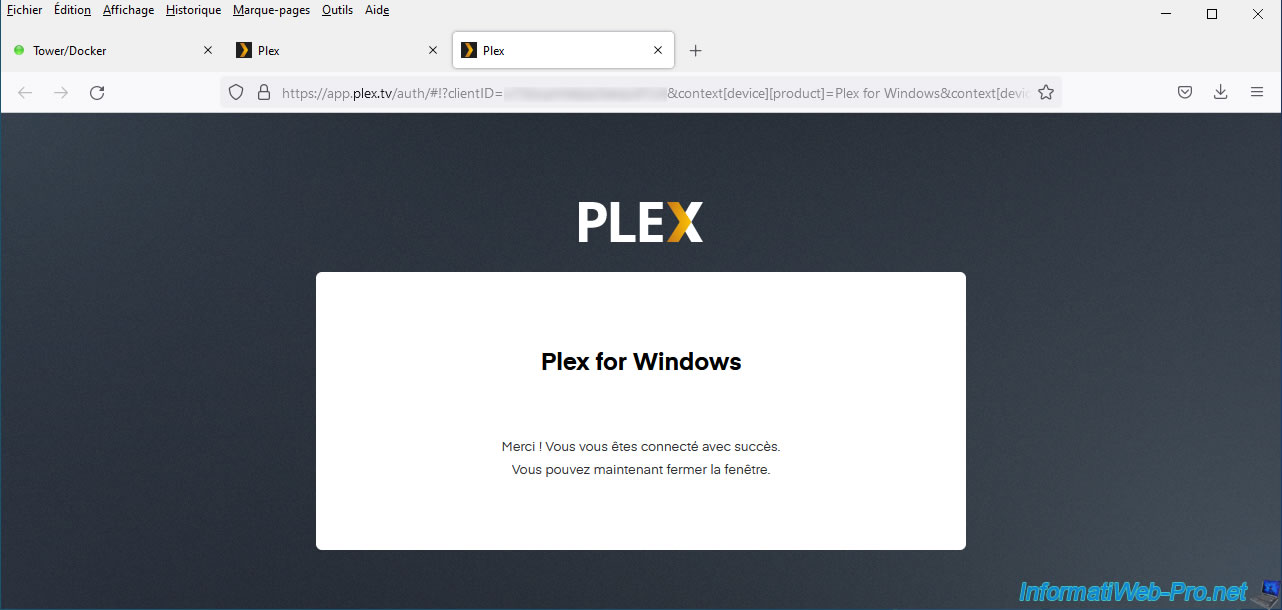
Once you have logged in to your Plex account, you will be able to close this page.
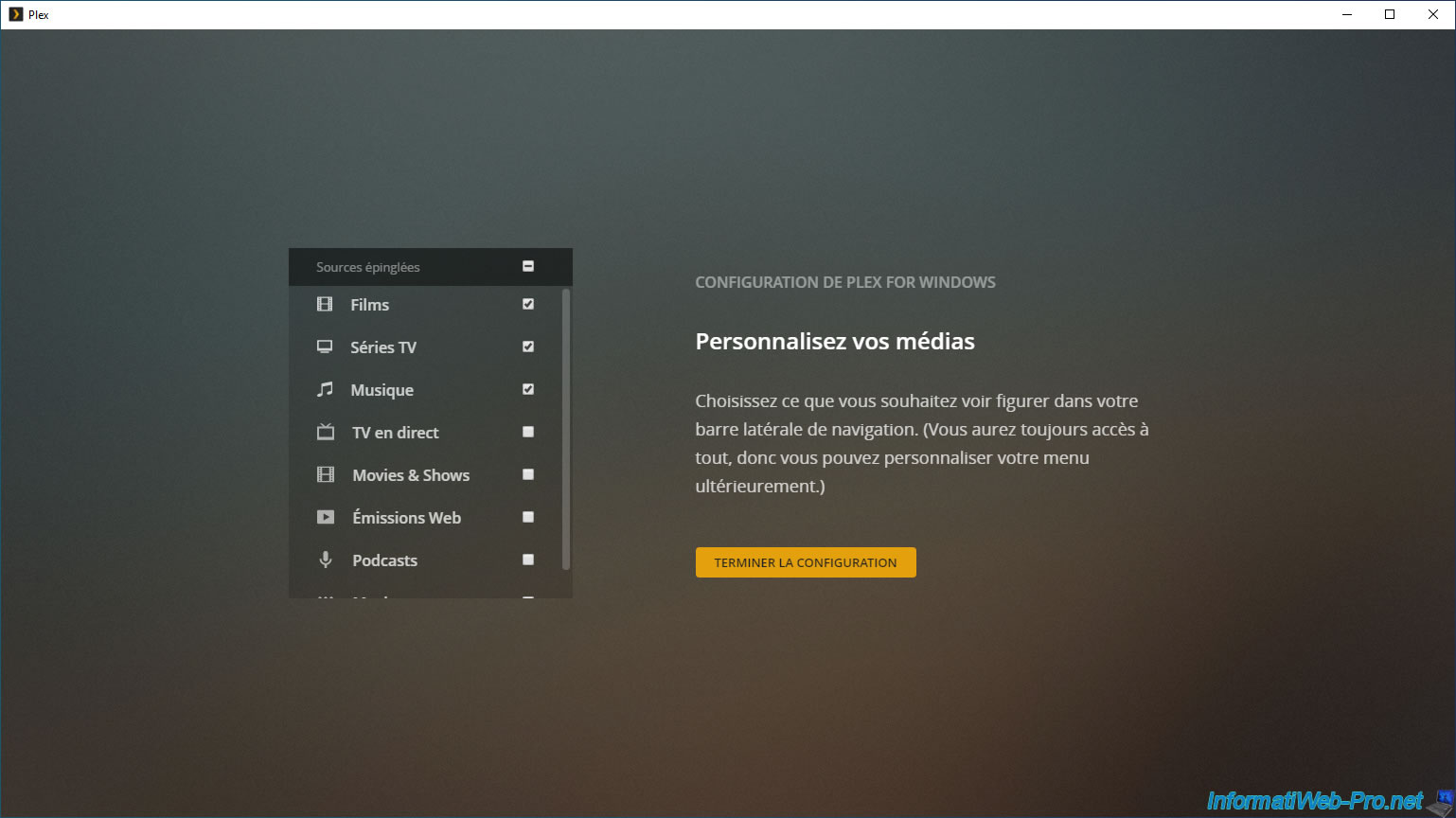
Customize which sources to pin or not if you wish, then click: Finish configuration.
As expected, the film on our own Plex server appears.
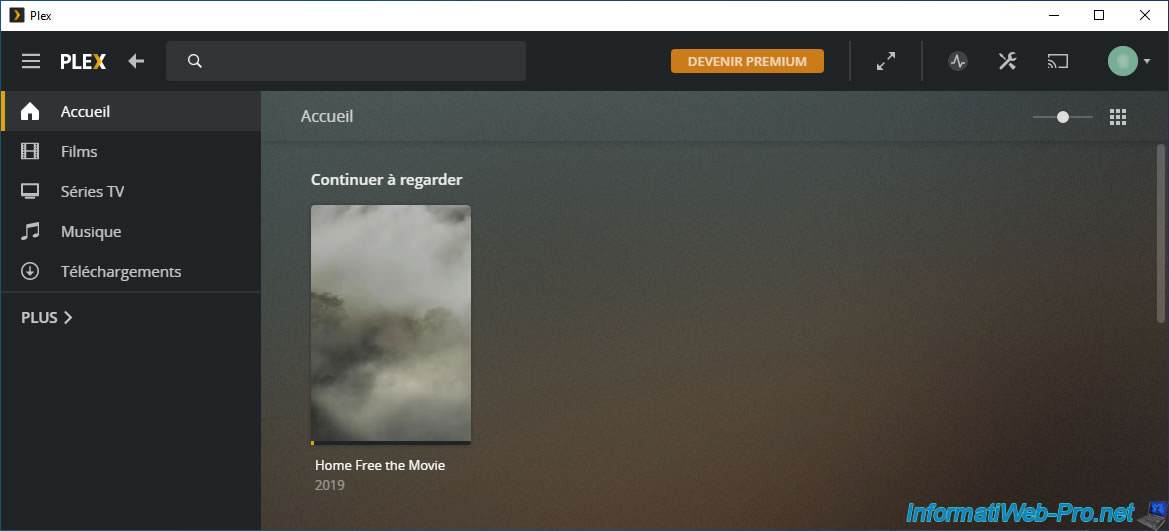
And as you can see, you will have access to the same information.
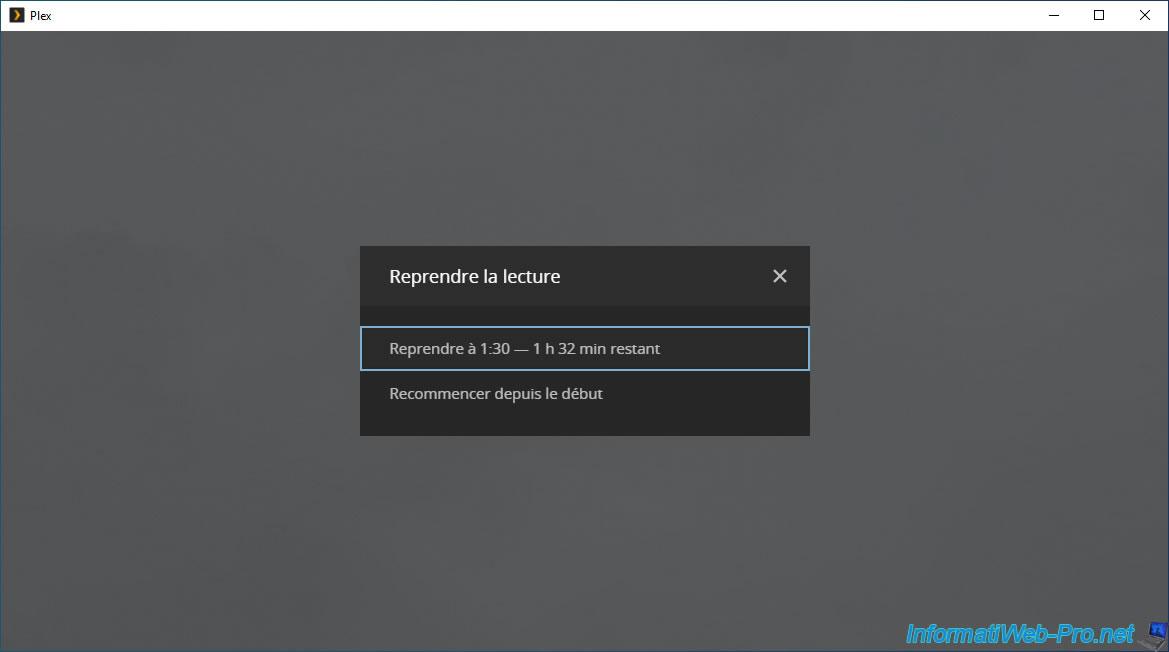
You will also be able to continue watching the desired movie where you left off from another device.
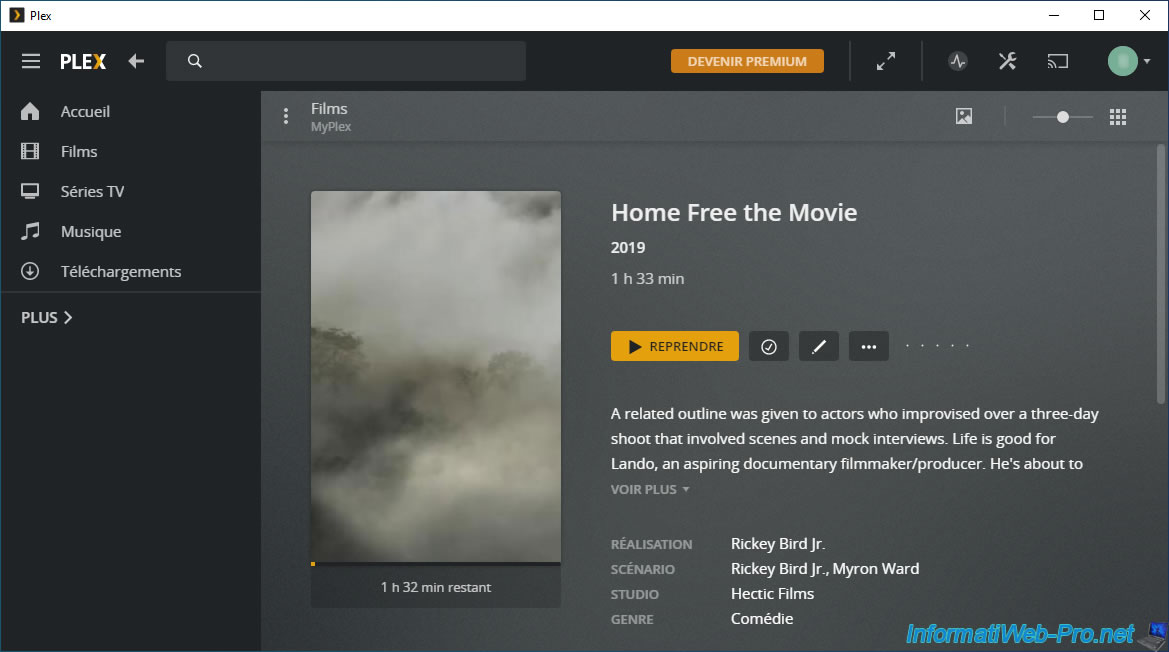
In this case, Plex will let you decide if you want to resume playing where you left off or if you want to start from the beginning.
The movie starts playing.
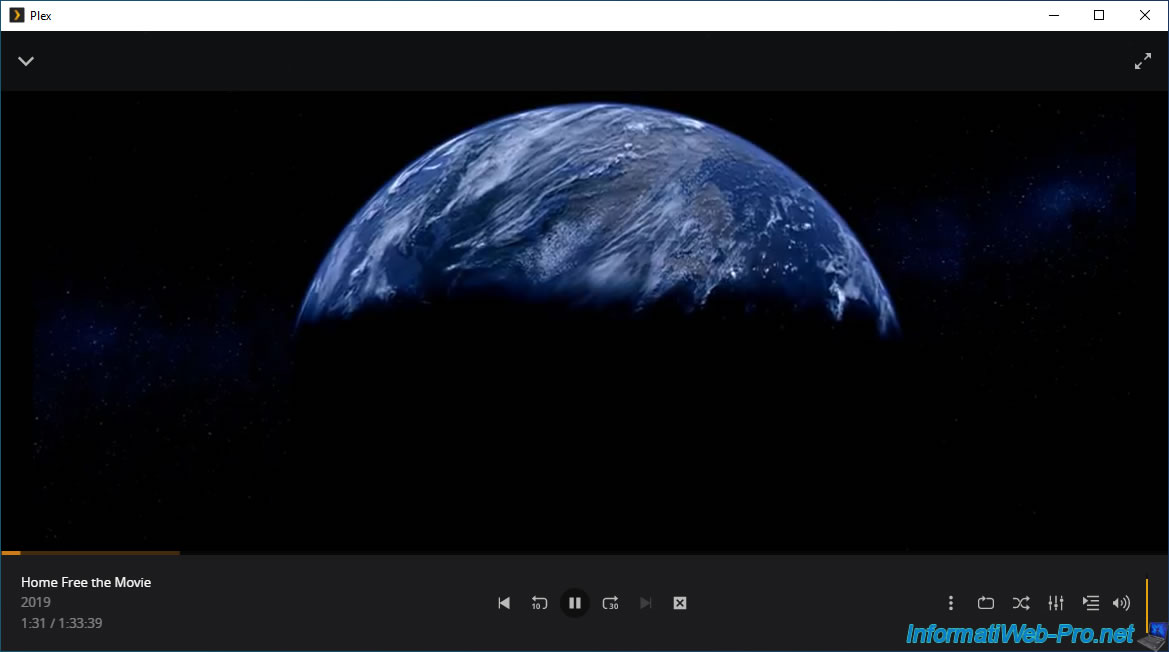
Note that it is obviously your server which sends the streaming film to your Plex client installed on your computer.
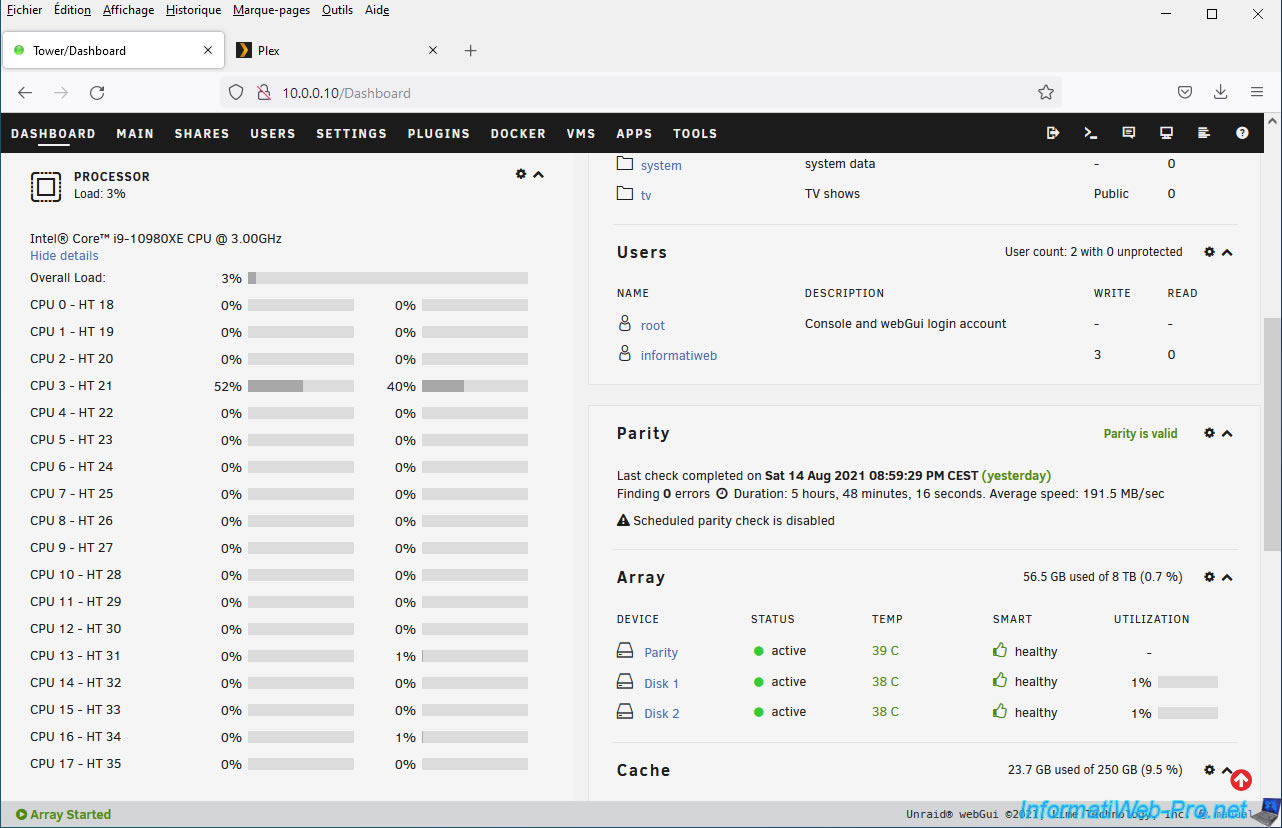
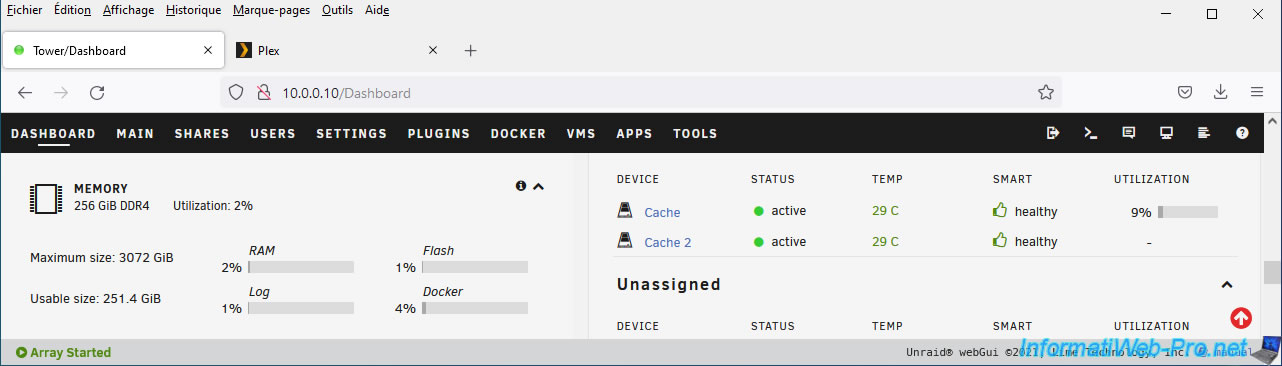
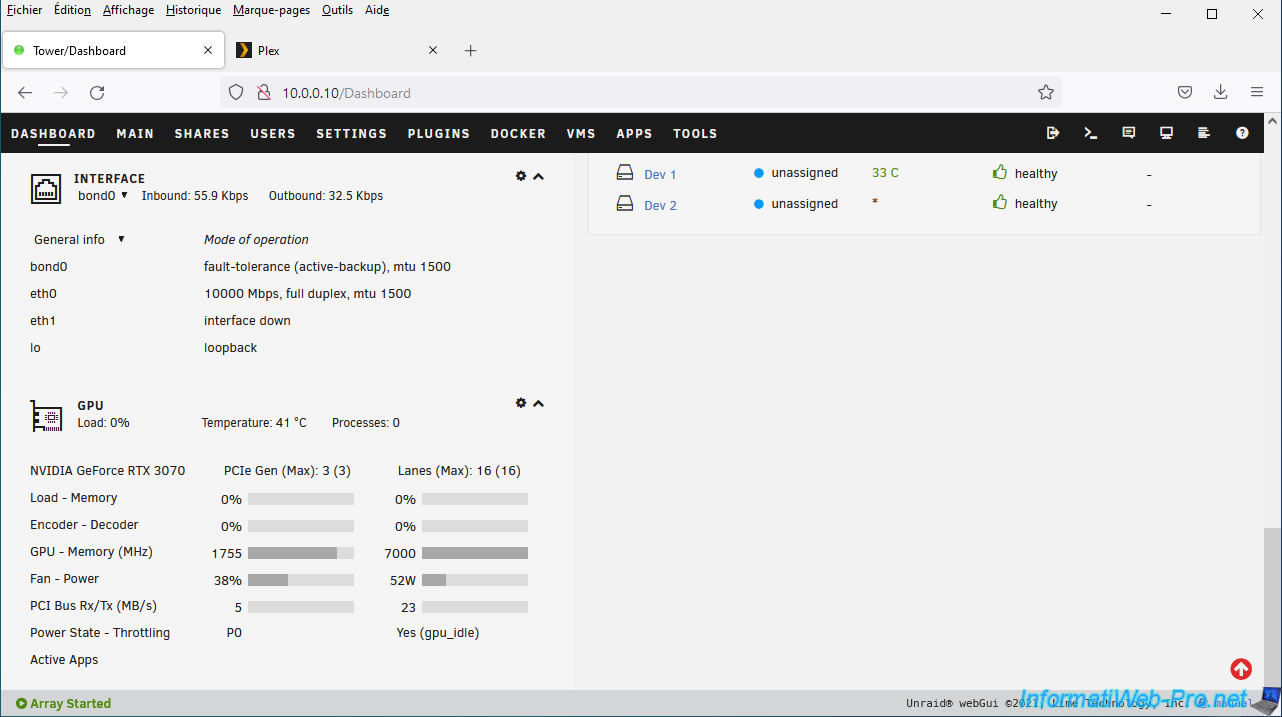
The server's graphics card is not used since there is no transcoding (conversion) in progress and this is not activated in our case anyway.
8. Manage Plex settings
To access your Plex server settings, open its web interface from your Unraid server.
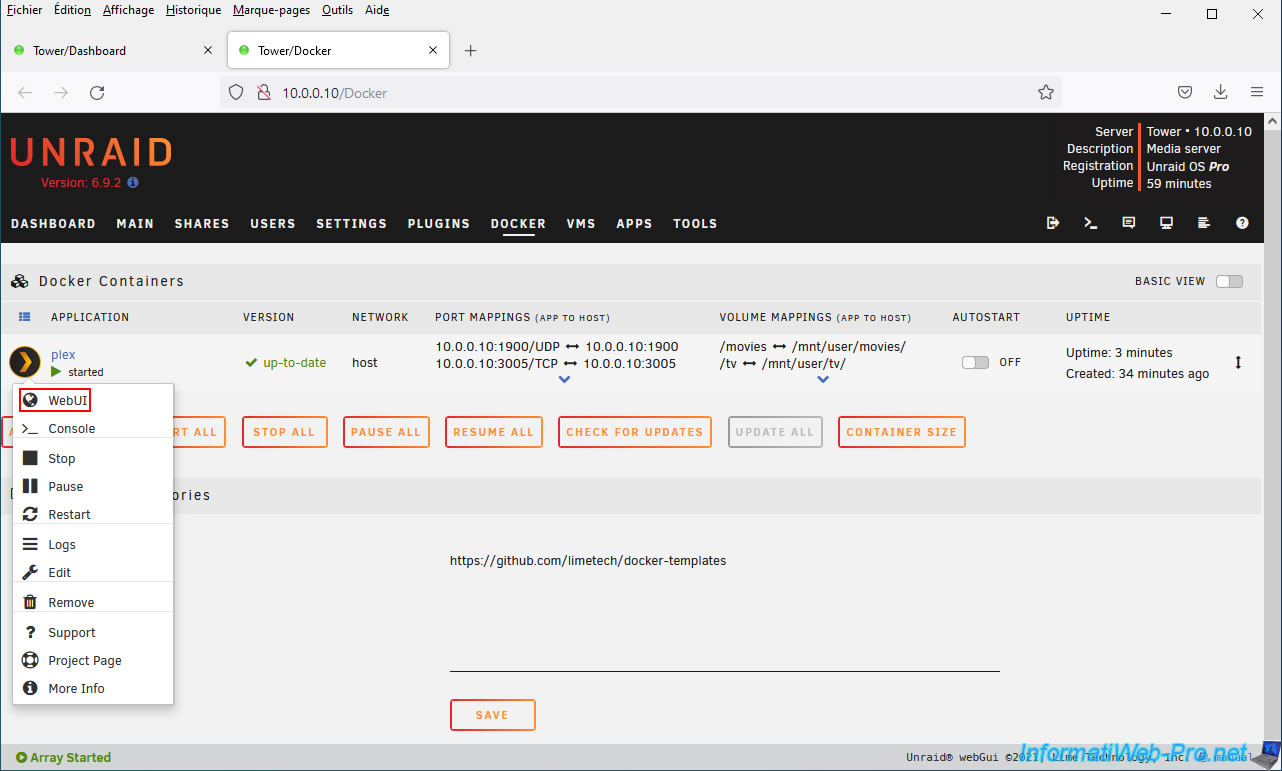
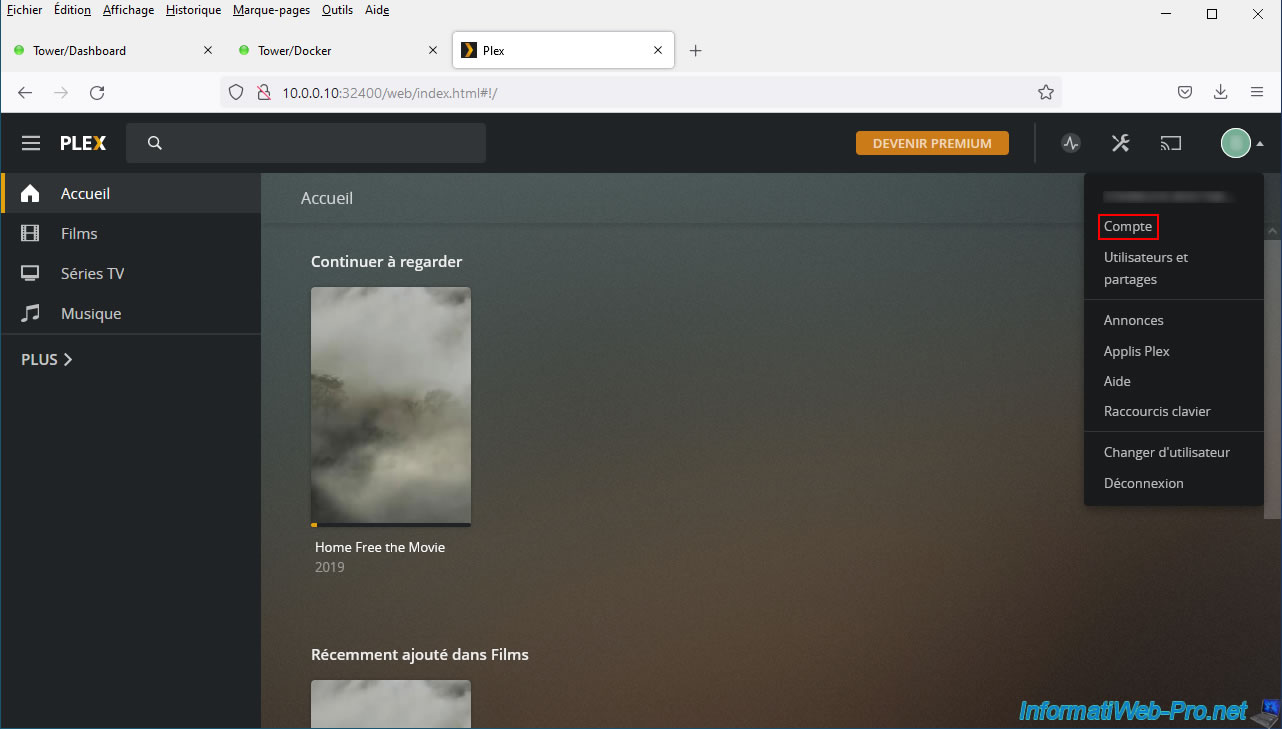
Next, click on the icon at the top right and click: Account.
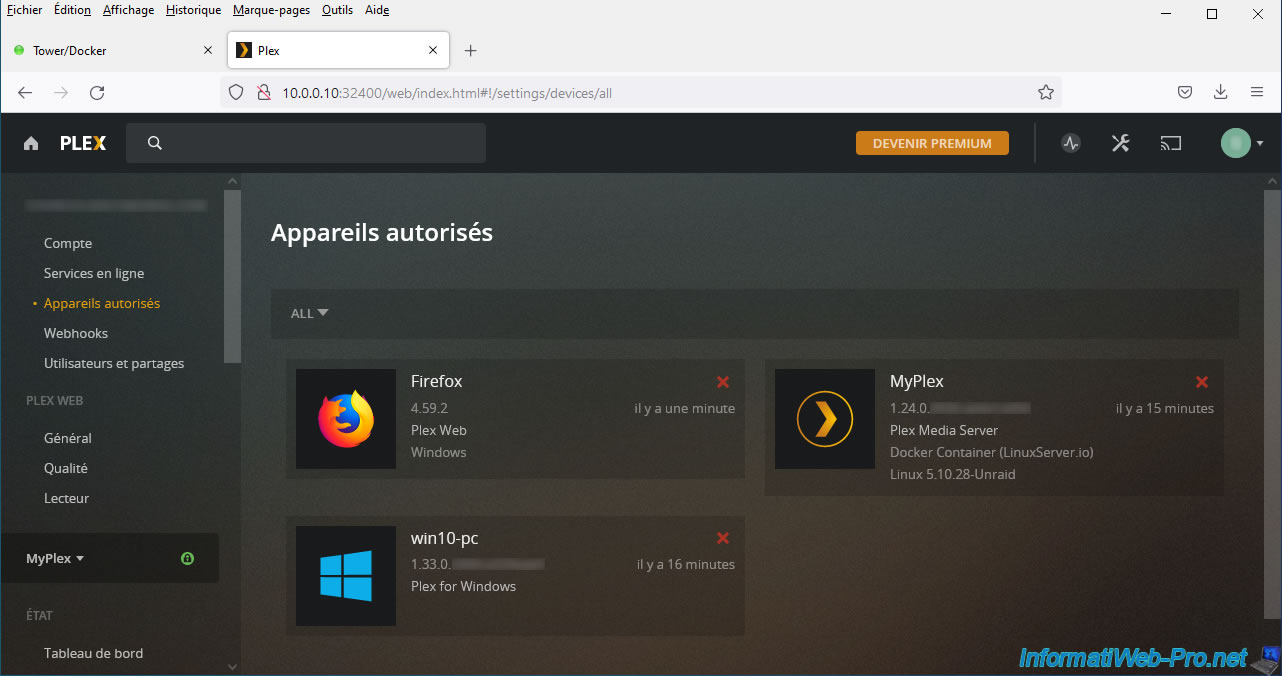
In the "Authorized Devices" section, you will find your Plex server, as well as any Plex clients that are connected to it.
In the "Library" section, you can choose how your library (media library) will be managed.
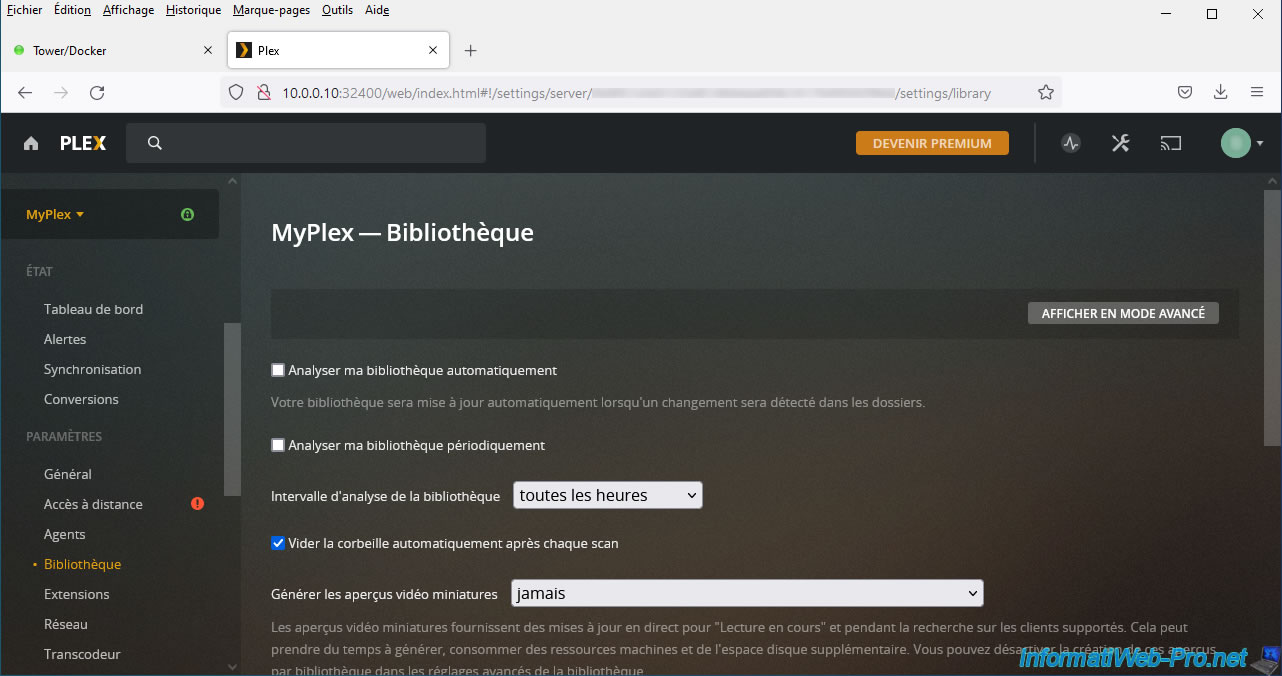
By default, Plex does not automatically scan your media library based on the files present in the different folders selected from the Plex server.
If you add or remove files, you will have to ask Plex to re-analyze the desired library (movies, TV series, ...) to detect new media.
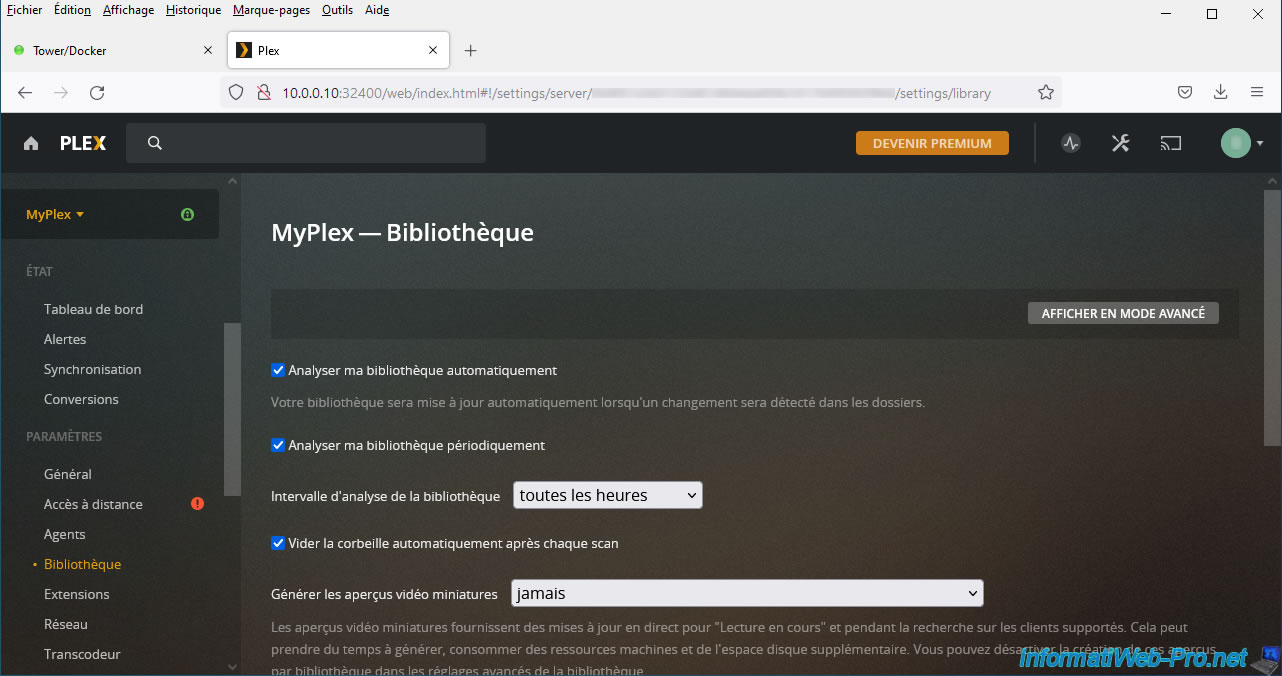
If you want this to become automatic, then check the boxes:
- Scan my library automatically
- Scan my library periodically
If you have Plex Pass and want to use hardware video transcoding (via graphics card), enable the corresponding setting in the "Transcoder" section.
Not having a Plex Pass, this option is not displayed in our case.
Share this tutorial
To see also
-
NAS 2/11/2026
Unraid 6.9.2 - Customize the web interface
-
NAS 3/18/2026
Unraid 6.9.2 - Fixing common problems
-

NAS 2/25/2026
Unraid 6.9.2 - Install the "Community Applications" (CA) plugin
-

NAS 8/26/2026
Unraid 6.9.2 - VMs - Create a gaming virtual machine
No comment