Install a media server (Plex) on Unraid 6.9.2 via Docker
- NAS
- Unraid
- 23 April 2026 at 13:05 UTC
-

- 2/3

3. Configuring Plex server
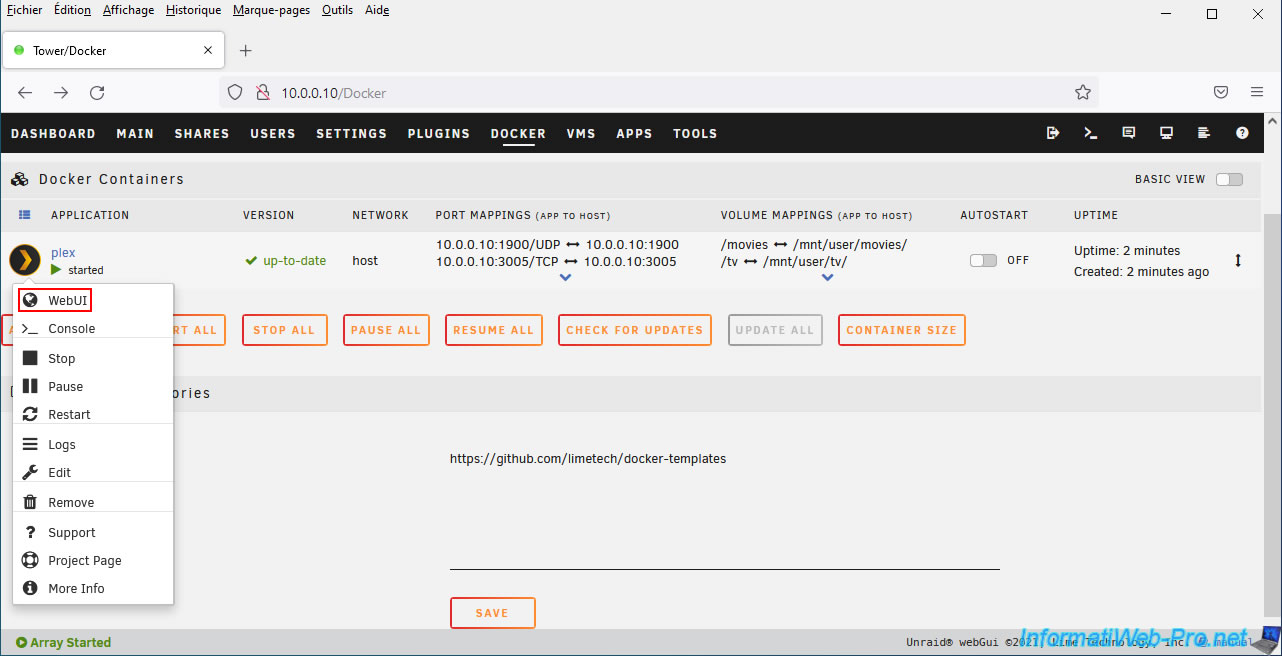
To configure your Plex server, click on the icon of this "plex" container, then click on: WebUI.
A Plex loading page will appear.
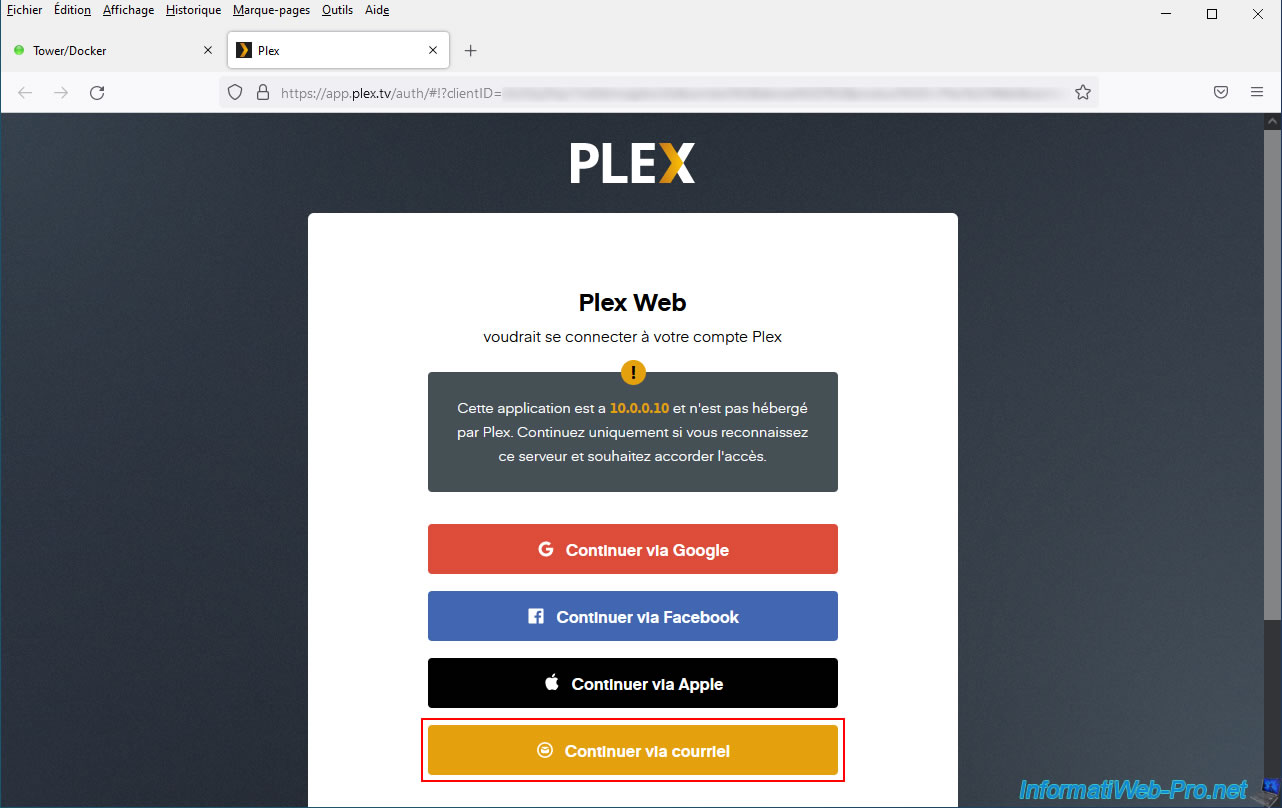
Next, Plex will ask you to sign in with a Plex account.
This has the advantage of being able to easily access your media (films, TV series, ...) from outside, but it also means that Plex depends on the online site of the same name.
In short, click on: Continue via email.
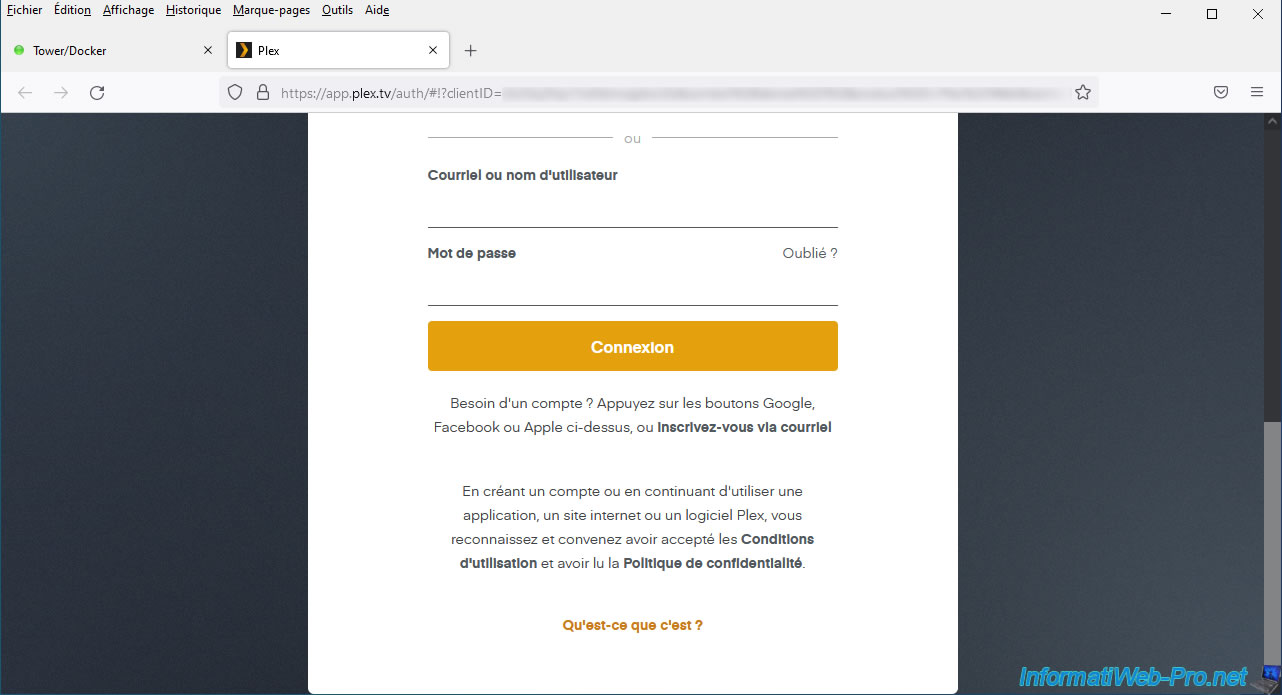
Provide your Plex account credentials and click: Login.
If you don't already have a Plex account, you will need to create one for free by clicking on the "Sign up via email" link located just below the login button.
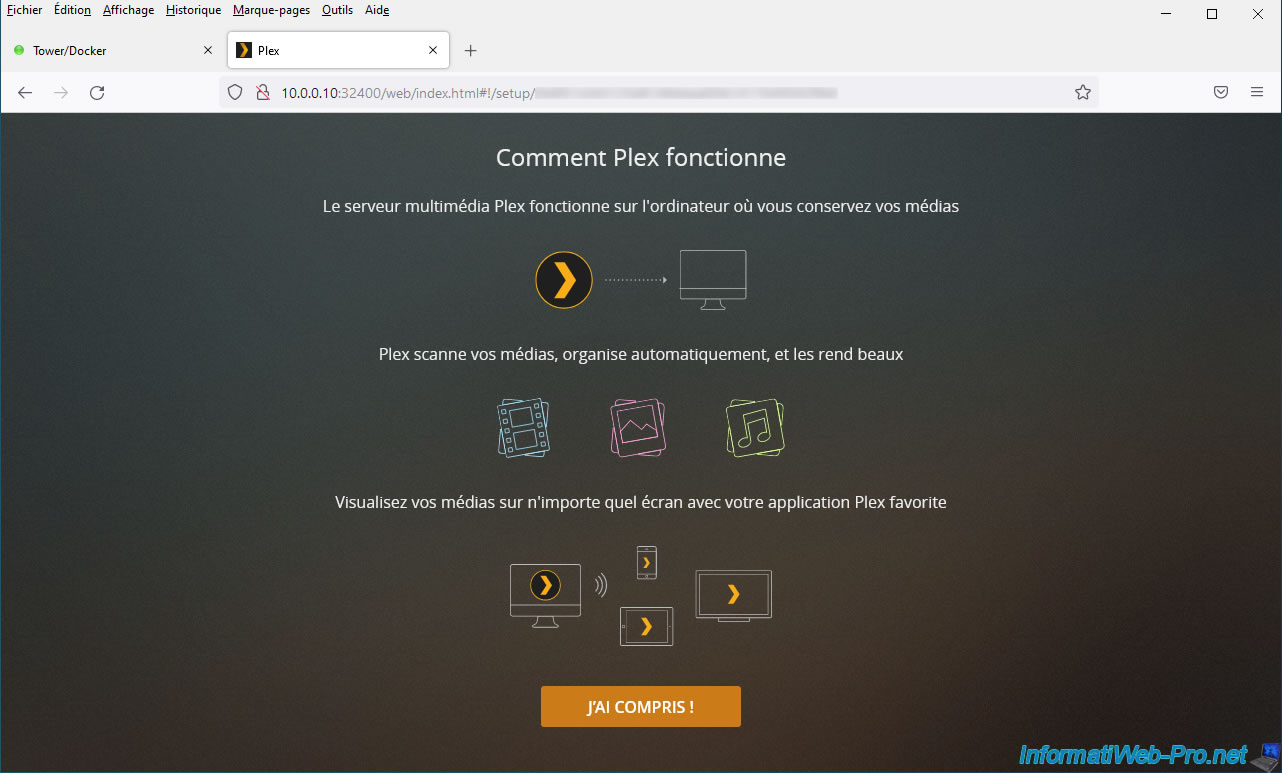
Next, a page will appear to quickly explain how Plex works.
Click on: I understand.
Information appears regarding the Plex Pass (which is optional).
Click the cross at the top right to use the free version of Plex.
Note: this Plex Pass is required if you want to use the required hardware video transcoding (via your Nvidia graphics card).

Provide a name for your Plex server and check the box "Allow me to access my media outside my home" if you want to be able to access your media (movies, TV series, ...) from outside.
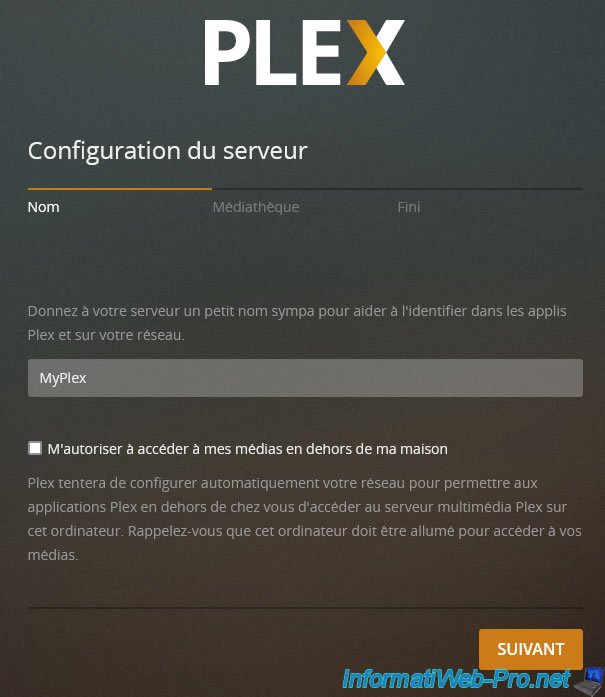
Previously, you created 3 folders (movies, tv and music).
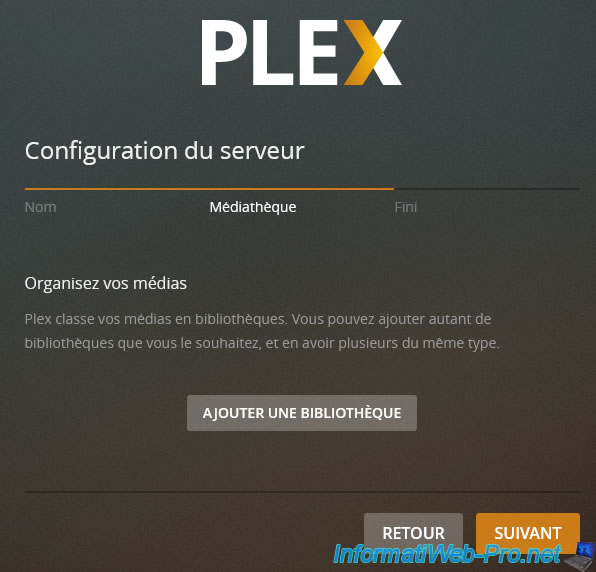
Now, you will be able to configure your media library by adding the different libraries that correspond to these folders.
Click: Add library.
An "Add Library" window appears.
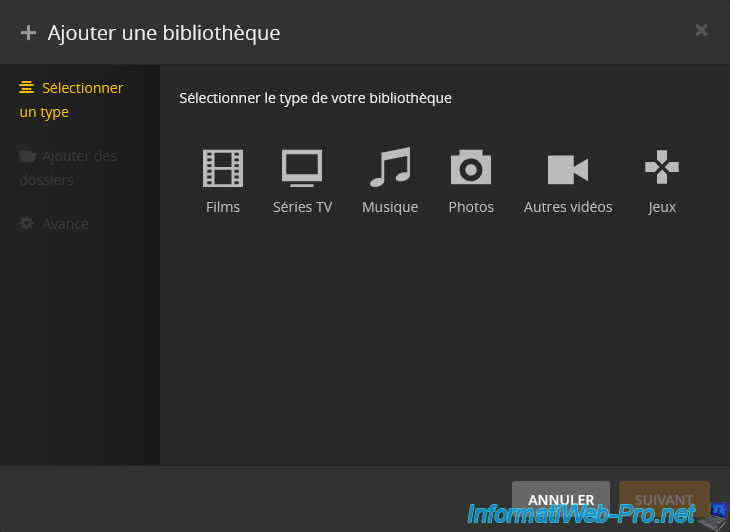
Choose "Movies" and select the desired language.
By default, the name of the added library will be set according to the chosen library type.
Click Next.
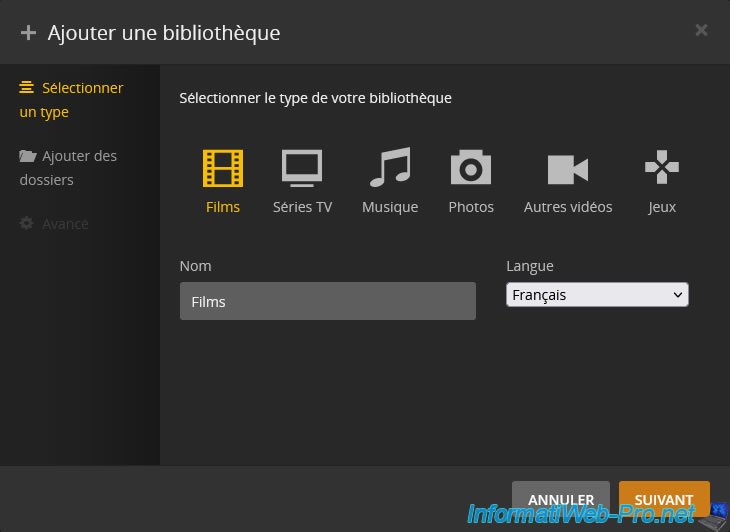
Click "Browse and choose media folder".
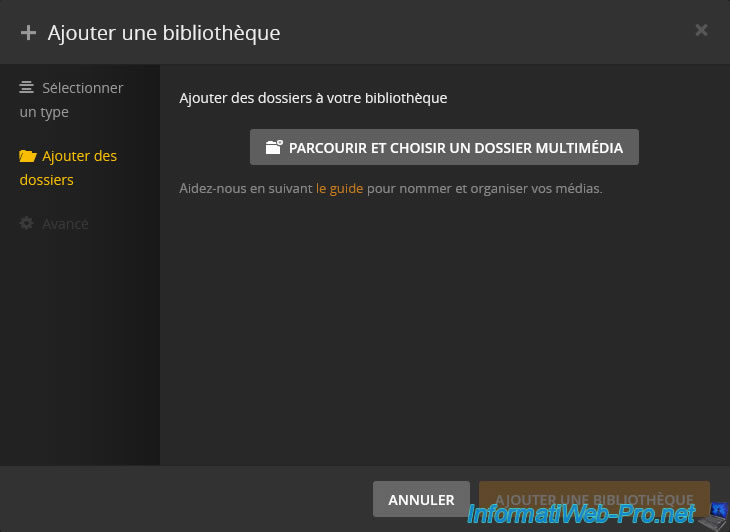
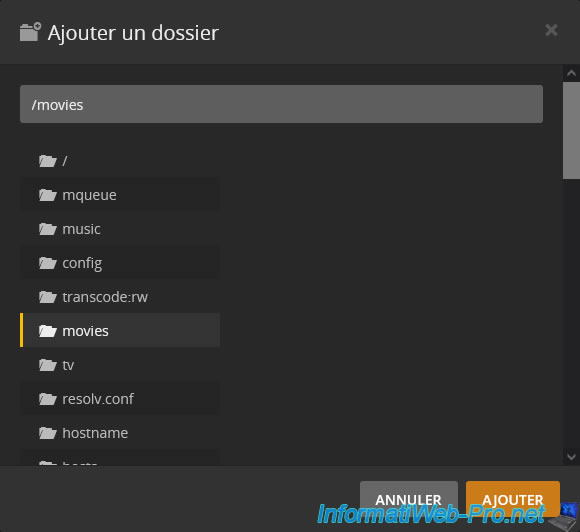
Select the "movies" folder that contains your films and click: Add.
Then click: Add Library.
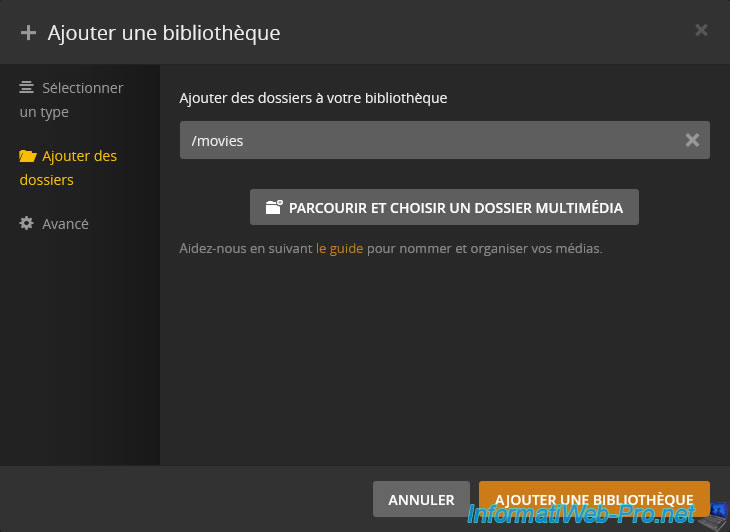
The added library appears.
Click "Add Library" again to add the other 2.
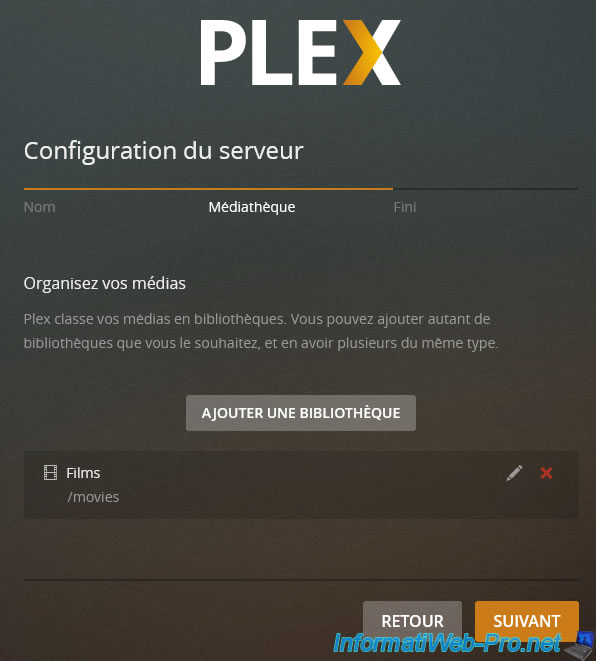
The "Add Library" window reappears.
Add the remaining 2 libraries:
- TV series: for the "tv" folder
- Music: for the "music" folder
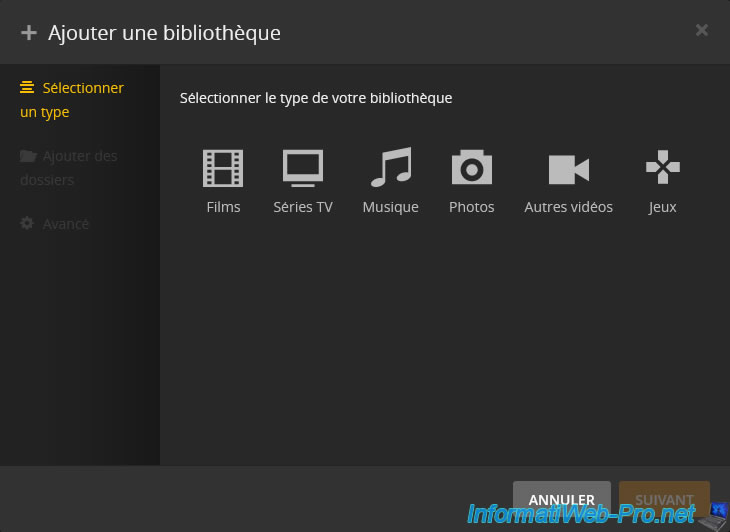
Your 3 libraries have been added:
- Movies: /movies
- TV shows: /tv
- Music: /music
Click "Next".
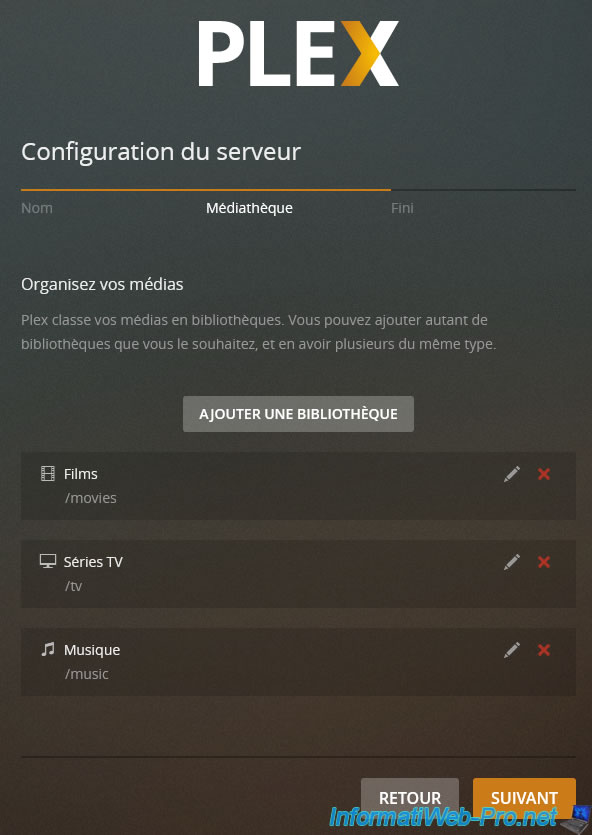
Your Plex server setup is complete.
Click: Done.
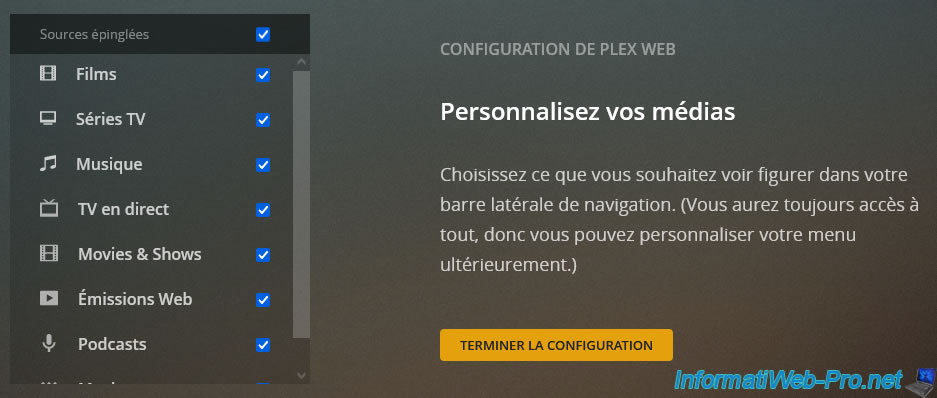
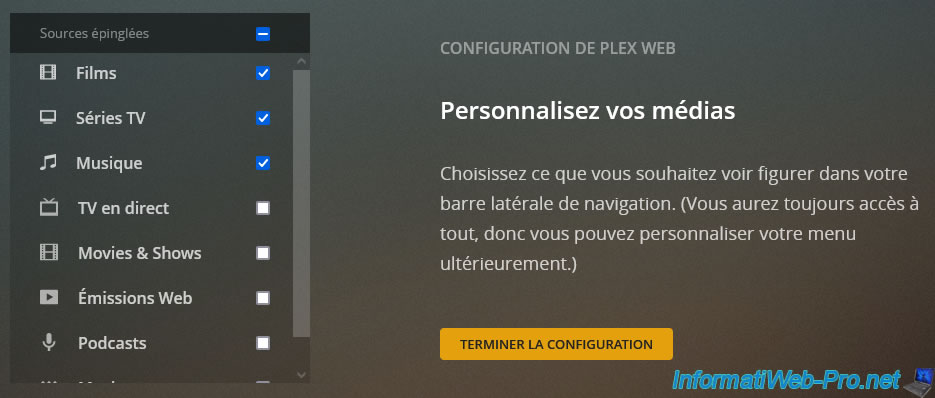
By default, all sources will be displayed.
However, in our case, we only displayed our local sources: films, TV series and music.
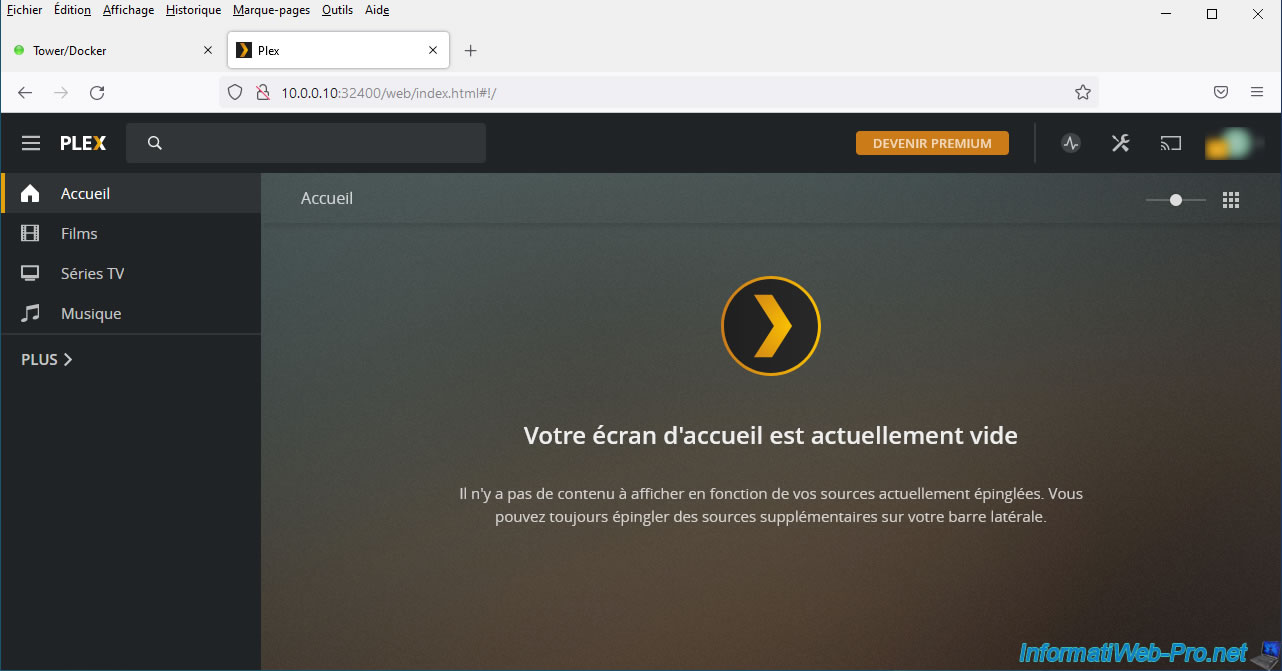
The Plex web interface appears.
Note that at the moment there are no films on our Plex server.
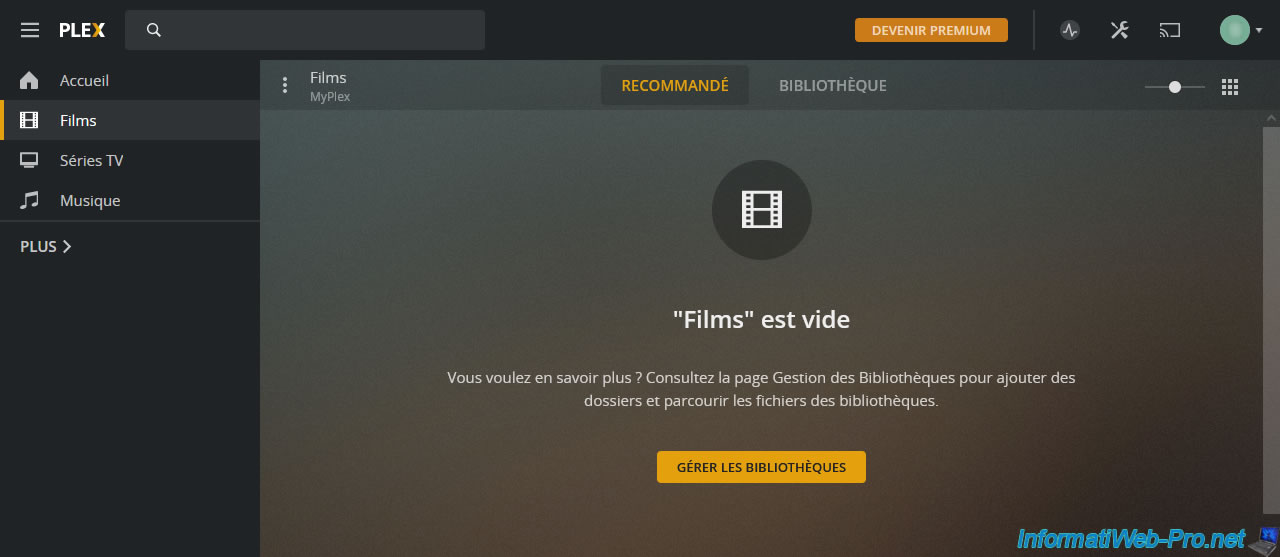
To add movies, TV shows and/or music, transfer the desired files via the corresponding network shares of your Unraid server.
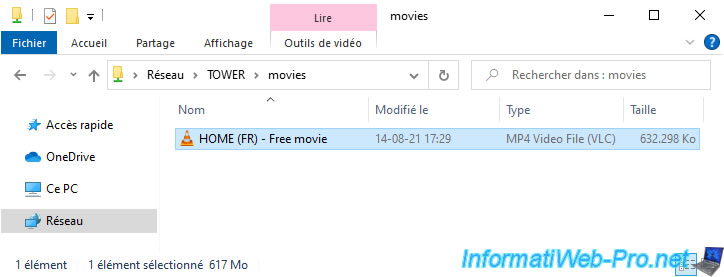
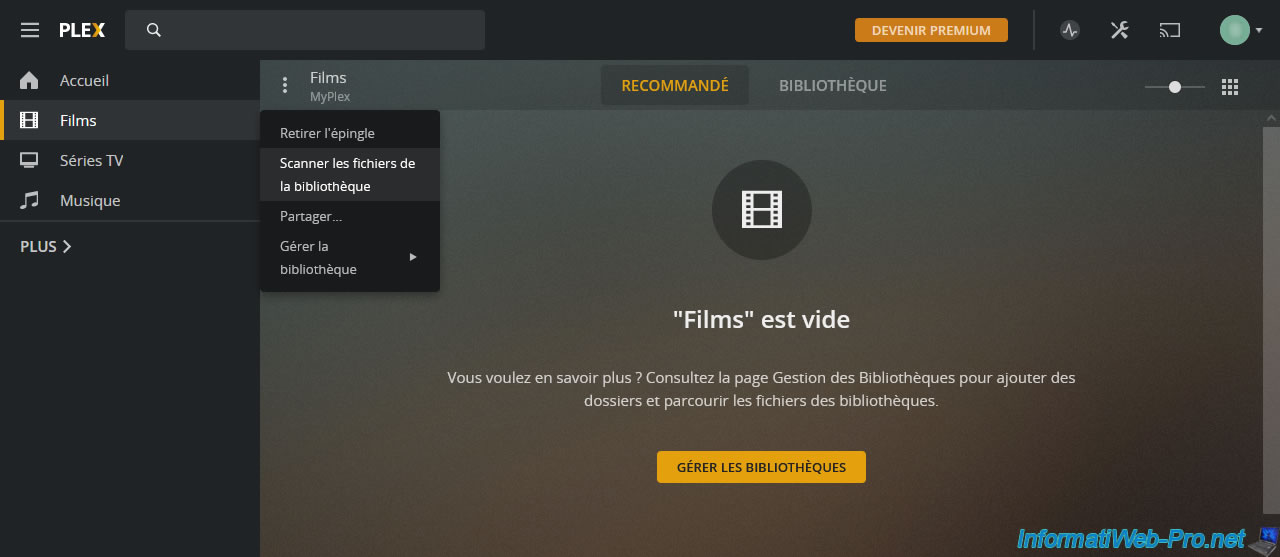
Once the files are stored on your Unraid server, you will need to refresh your libraries for them to appear in the Plex web interface.
To do this, click on the menu icon located to the left of the name of your library, then click on: Scan library files.
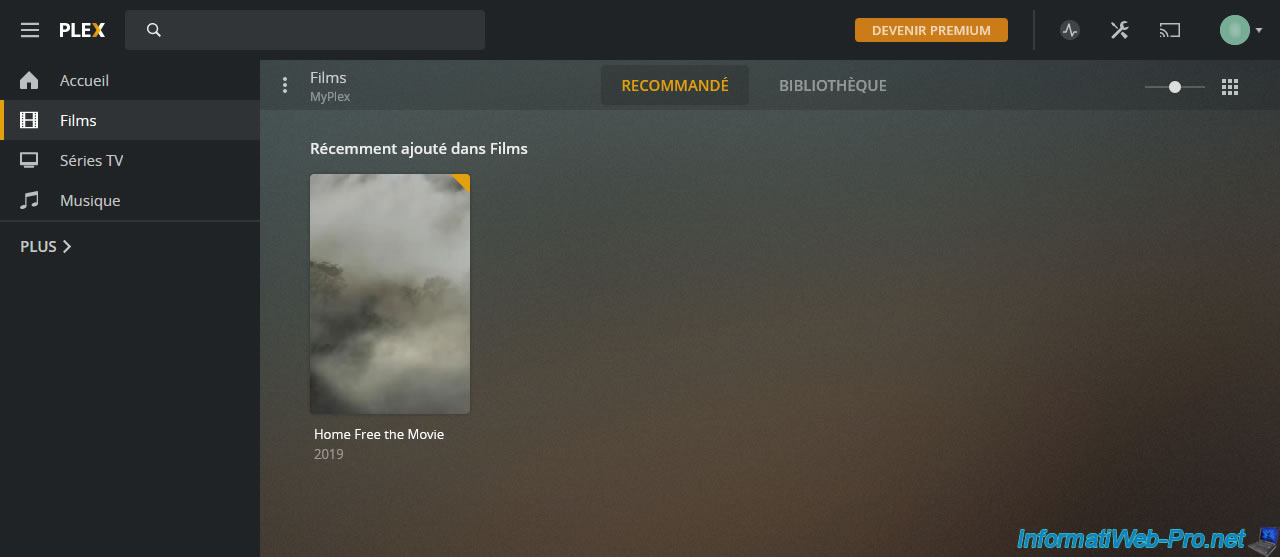
The movie we added to our Unraid server appears.
Share this tutorial
To see also
-
NAS 7/29/2026
Unraid 6.9.2 - VMs - Backing up a VM automatically
-
NAS 10/1/2026
Unraid 6.9.2 - VMs - Create a gaming virtual machine (with an eGPU)
-
NAS 8/13/2026
Unraid 6.9.2 - VMs - Guest not initialized display (solution)
-
NAS 9/16/2026
Unraid 6.9.2 - VMs - Hotplug USB devices (Libvirt Hotplug USB plugin)
No comment