Install a replica WSUS server on Windows Server 2022
- Windows Server
- WSUS
- 18 November 2026 at 14:39 UTC
-

- 2/7

3. Synchronizing the replica WSUS server from the master WSUS server
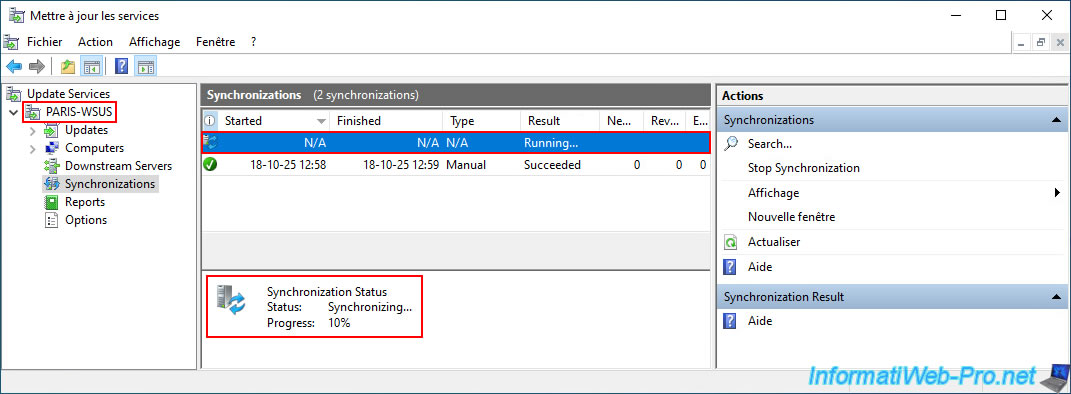
In the "Synchronizations" section of your WSUS replica server (in our case: PARIS-WSUS), you will see that a synchronization is running.
Once the synchronization is complete, its result will be "Succeeded" and the number of referenced updates (New updates) on your replica WSUS server (which corresponds to the number of updates currently referenced on your master WSUS server) will also appear.
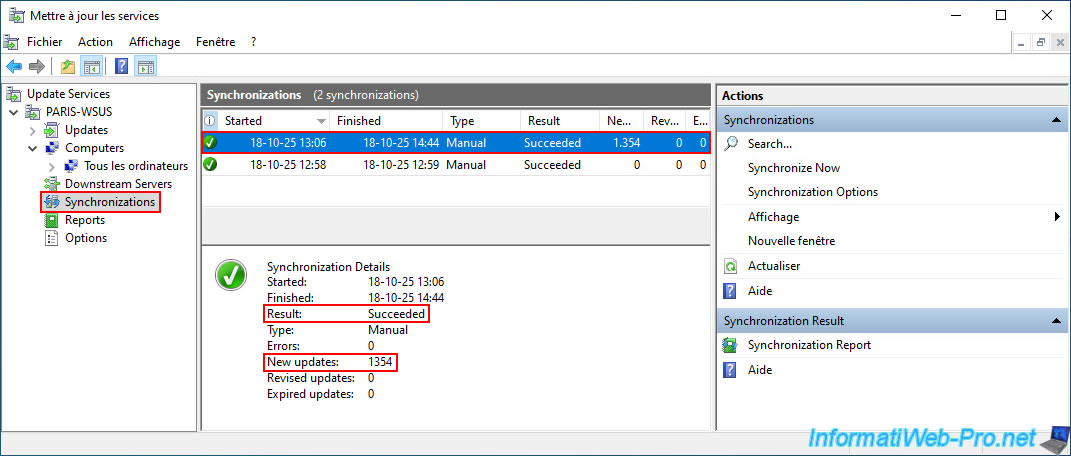
Once the synchronization is complete, its result will be "Succeeded" and the number of referenced updates (New updates) on your replica WSUS server (which corresponds to the number of updates currently referenced on your master WSUS server) will also appear.
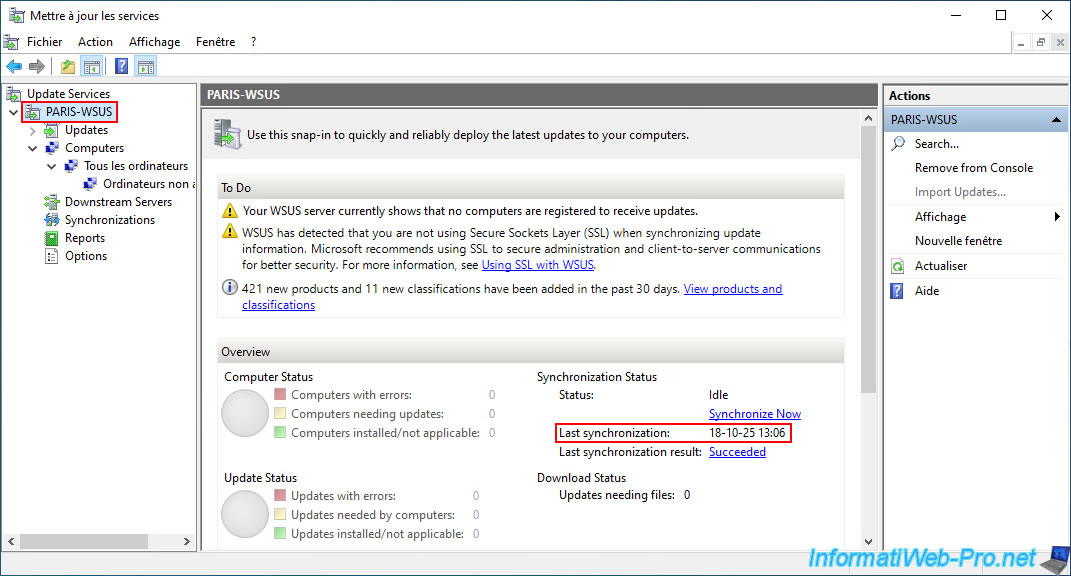
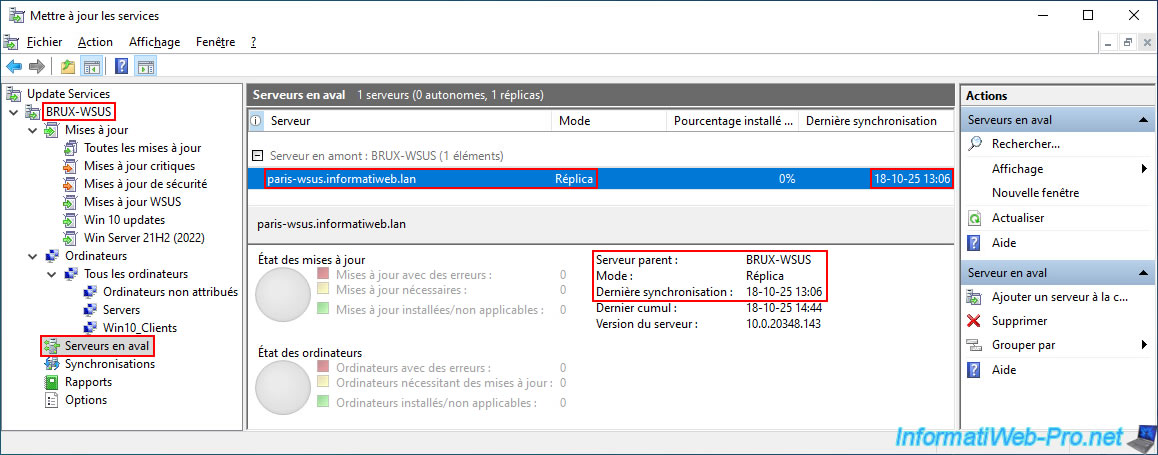
If you select the name of your WSUS server in this console, you will see, among other things, the date of its last synchronization.
In the "Downstream Servers" section of your master WSUS server (in our case: BRUX-WSUS), you will also be able to see that this last synchronization date has changed.
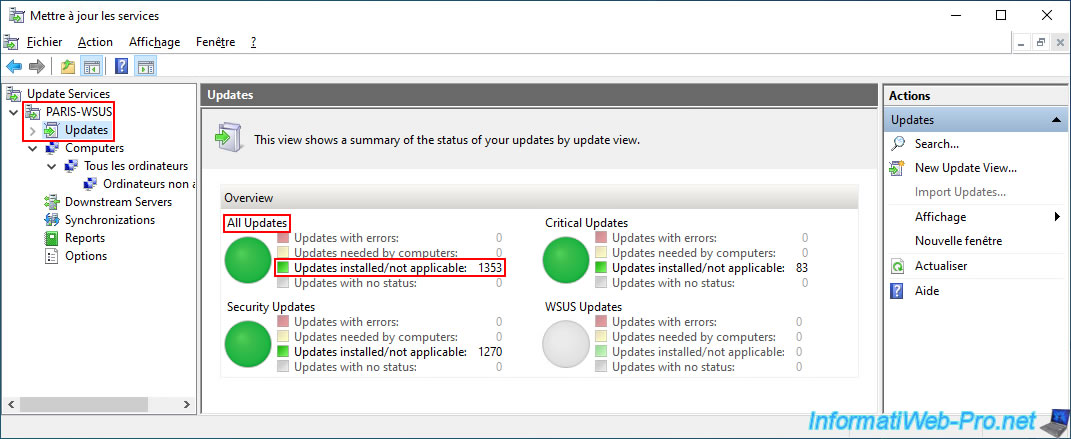
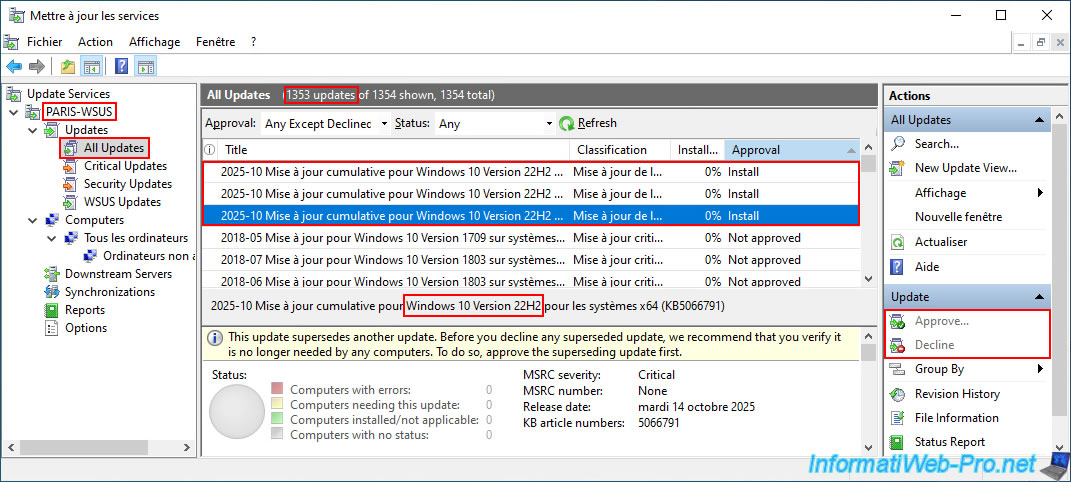
As you can see below, if we display all available updates on this replica WSUS server, all the updates that appear are the same as those on the master WSUS server.
Furthermore, if you select an update, you will notice that the "Approve" and "Decline" options are disabled in the right-hand column.
Indeed, as mentioned earlier, a WSUS server in "Replica" mode acts as a mirror, and administrative management is only possible on the master WSUS server (usually deployed at your company's headquarters).
Note: custom Update Views for displaying updates do not appear to be replicated between the master and replica WSUS servers.
However, this does not affect the application of updates to the correct servers or computers, as the application is based solely on WSUS groups.
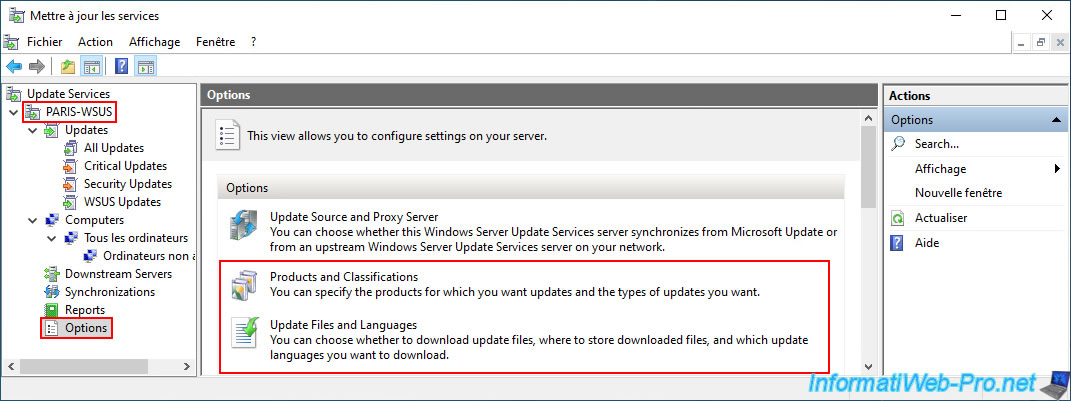
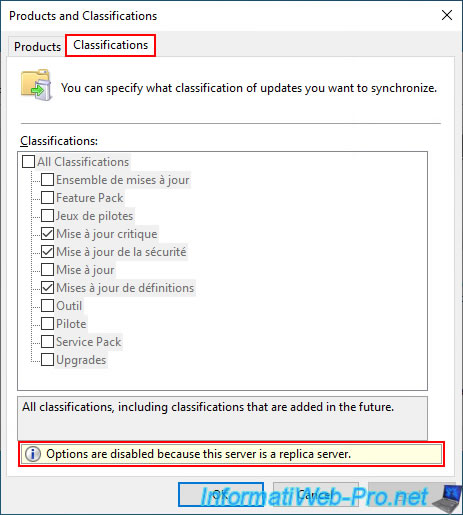
To view the restrictions of WSUS's "Replica" mode, go to the "Options" section and click on the "Products and Classifications" and "Update Files and Languages" options.
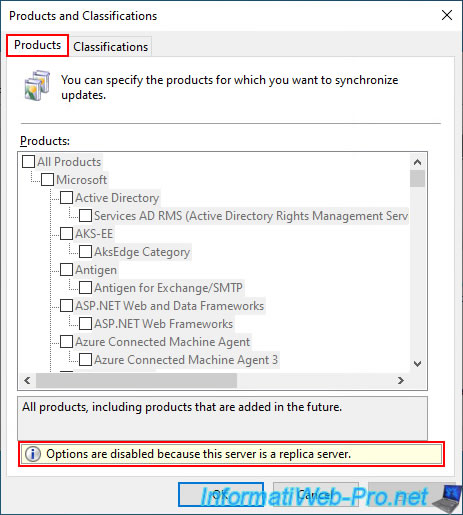
As you can see, the WSUS options related to products are disabled because this is a server in "Replica" mode.
This means that all products required on at least one replica server must still be added to the master WSUS server.
Then, synchronizing the replica WSUS server will retrieve the new data related to the products added to your master WSUS server.
Plain Text
Options are disabled because this is a replica server.
For WSUS classifications, these are also disabled because this is a WSUS replica server.
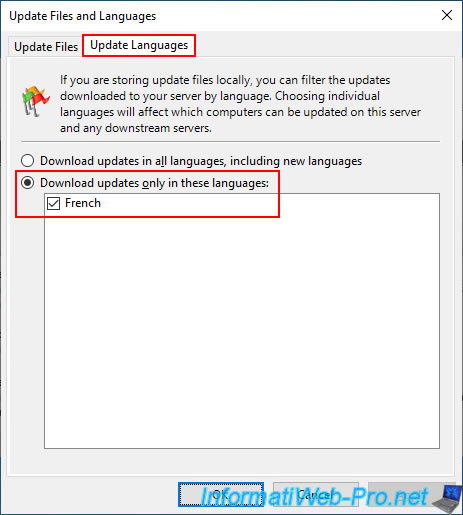
For languages, you'll see that the list is simply limited to the list available on your master WSUS server.
However, it's still possible to filter the languages available on the replica server.
Important : for a language to be selected on your replica WSUS server, it must also be added to the master WSUS server.
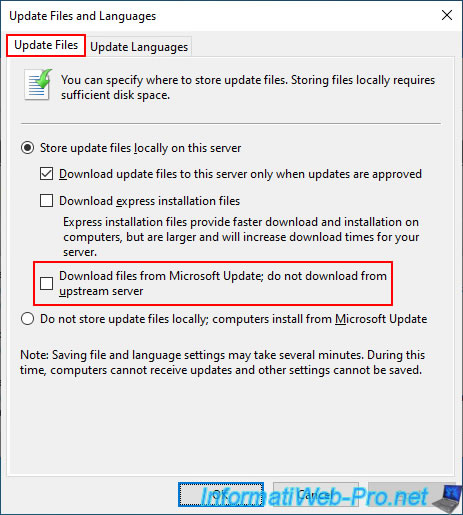
A specific feature for WSUS servers in "Replica" mode: when using local storage to store updates downloaded by your replica WSUS server (to prevent all your servers and computers from downloading them from Microsoft Update over the internet), you have the option to force your replica WSUS server to download each update file only once from the internet (from Microsoft's server) by checking the "Download files from Microsoft Update; do not download from upstream" box.
This allows you to synchronize only the complete WSUS configuration (including update approvals and rejections) between the master WSUS server and your replica WSUS servers.
The goal is to benefit from the flexibility and power of WSUS without saturating the bandwidth of the link connecting your physical sites.
Since update files are the largest component, it is advantageous for each replica WSUS server to download them from Microsoft rather than from your company's headquarters.
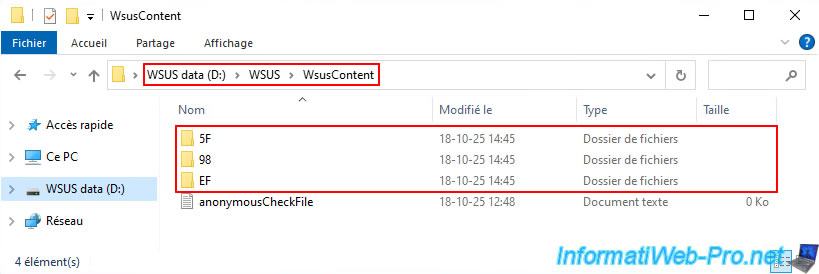
On your WSUS replica server, you should see that folders have been automatically created in your "WsusContent" folder.
Each subfolder within this "WsusContent" folder corresponds to an update (approved, if you are using the default WSUS configuration) downloaded from your master WSUS server or from Microsoft Update if you checked the "Download files from Microsoft Update..." box mentioned above.
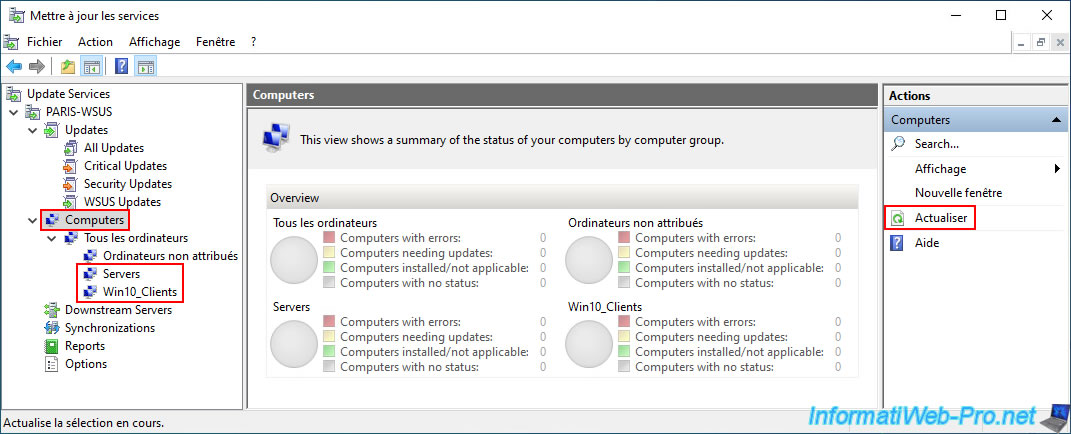
To make the WSUS groups present on your master WSUS server also appear on your replica WSUS server, simply select the "Computers" section and then click the "Refresh" option (in the right-hand column).
Note: synchronization between your replica WSUS server and your master server must have already occurred for these groups to appear when you click "Refresh".
4. Targeting WSUS server clients
4.1. Configure WSUS to use groups via GPO and create the new WSUS groups
4.1.1. Configure WSUS to use groups with assignment via GPO
To assign servers and computers to groups you create in WSUS, you must configure WSUS to use Group Policy Objects (GPOs).
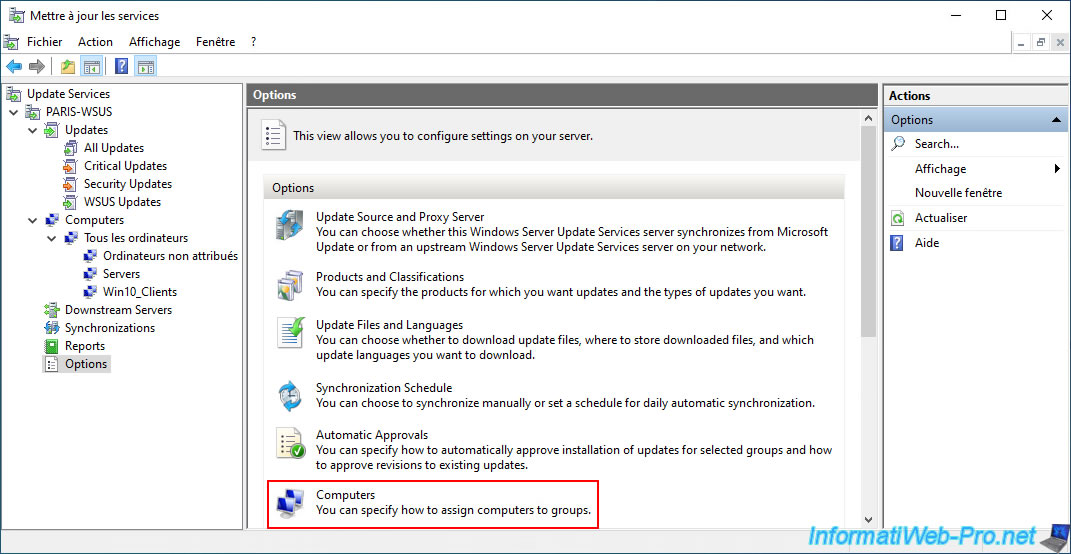
To do this, go to the "Options" section of your WSUS replica server and click on the "Computers" option.
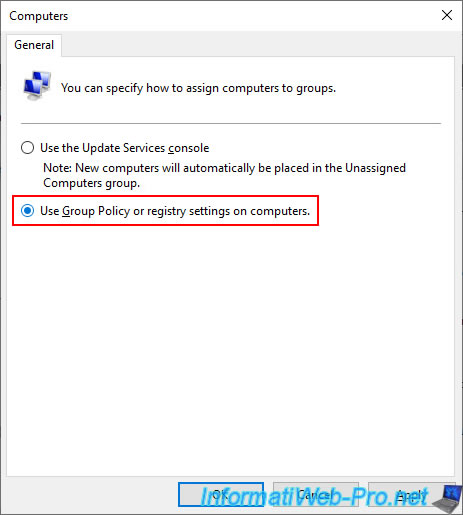
In the "Computers" window that appears, select the "Use Group Policy or registry settings on computers" option and click OK.
This will allow you to assign servers and computers to this WSUS replica server.
Important : all desired WSUS groups must be created on the master WSUS server.
Then, you trigger the replication of these WSUS groups by initiating a synchronization from the WSUS replica server.
Finally, you configure the GPOs (as you will see later in this tutorial) to assign the desired servers and computers to this WSUS replica server if they need to connect to the replica server and not the master WSUS server (depending on their physical location).
4.1.2. Delete WSUS groups on the master WSUS server
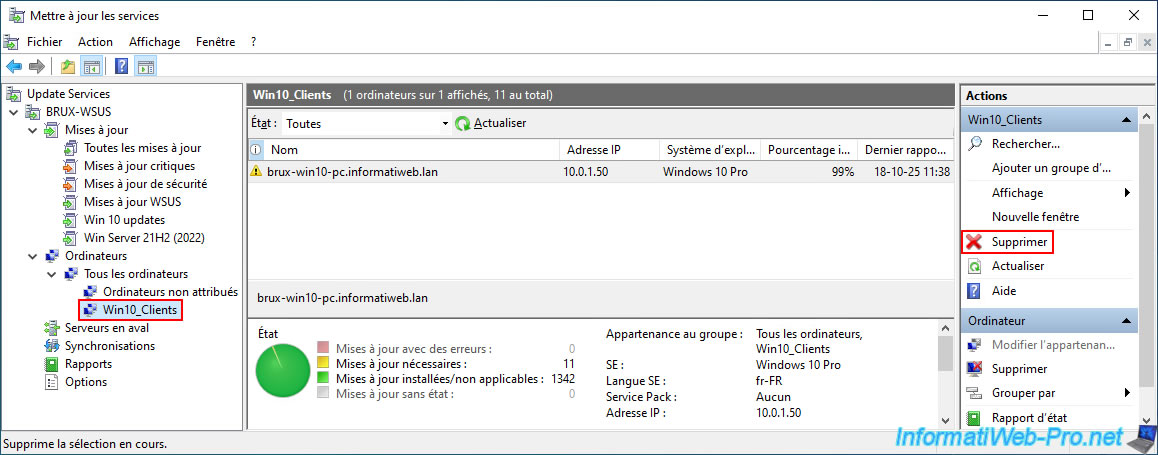
To delete WSUS groups on the master WSUS server, select the desired WSUS group (in the left column), then click "Delete" (in the right column).
Note: WSUS groups can only be managed (added/deleted) on the master WSUS server.
Afterward, synchronization between the master WSUS server and the replica WSUS servers will automatically replicate your changes to your replica WSUS servers.

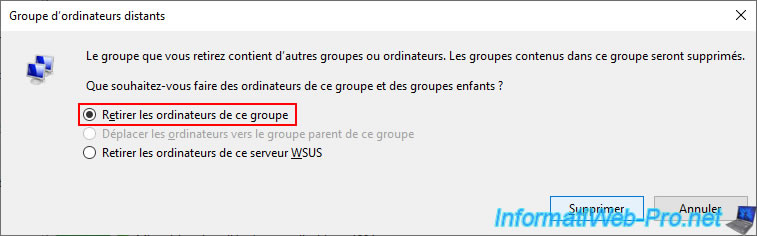
In the small window that appears, select the "Remove computers from this group" option, and then click "Delete".
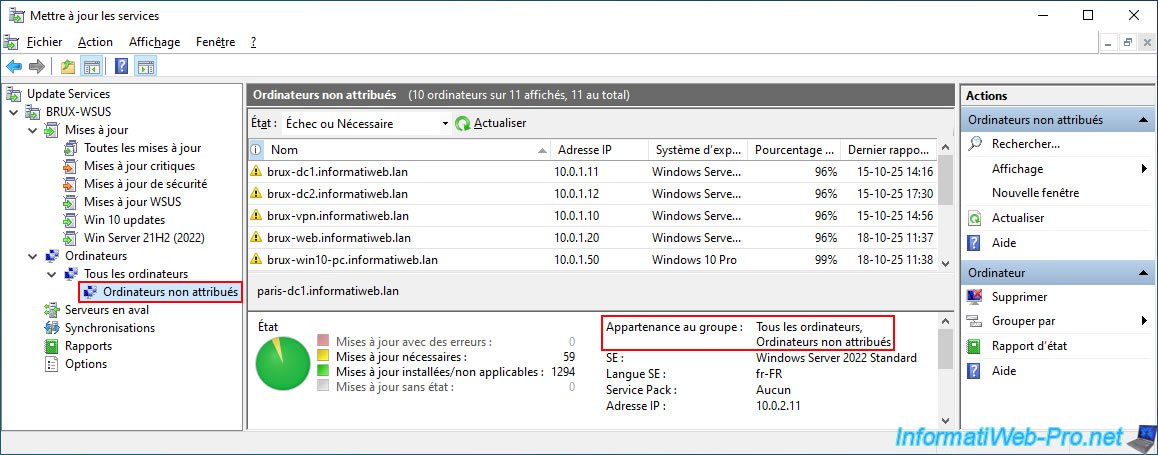
The goal is to remove the old WSUS groups so you can then create new WSUS groups (if you wish), while preserving the information about the servers and computers already listed on your WSUS server.
Please wait a few seconds while the desired computer group is being deleted.
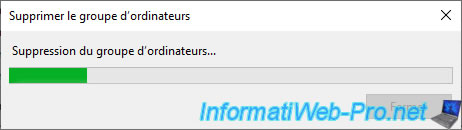
Do the same with the other WSUS groups to be removed (if necessary).
In our case, all servers and computers that had already connected to our master WSUS server therefore end up in the default group "Unassigned Computers".
4.1.3. Add WSUS groups to the master WSUS server
Now, to create the new groups on your master WSUS server, go to the "Computers -> All Computers" section of your master WSUS server and click on "Add Computer Group" (in the right column).
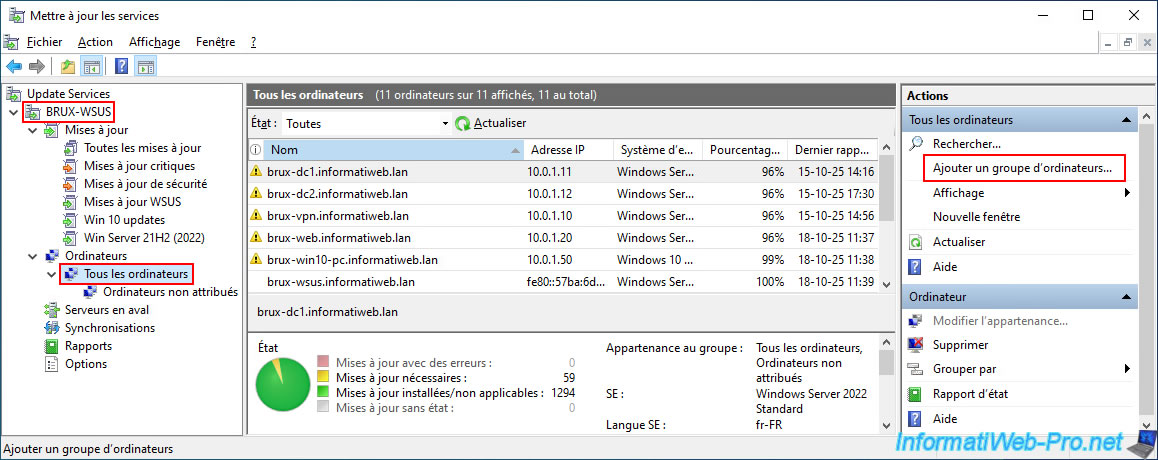
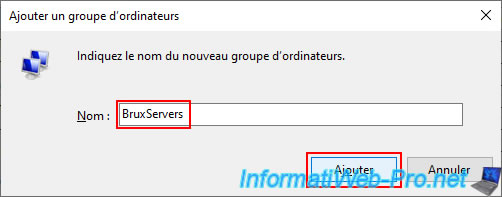
In the small "Add Computer Group" window that appears, enter the name of the WSUS group you want to create.
In our case, we will create four WSUS groups on this master WSUS server:
- BruxServers: for servers (including domain controllers) at the Brussels physical site.
- BruxWin10_Clients: for Windows 10 computers at the Brussels physical site.
- ParisServers: for servers (including domain controllers) at the Paris physical site.
- ParisWin10_Clients: for Windows 10 computers at the Paris physical site.
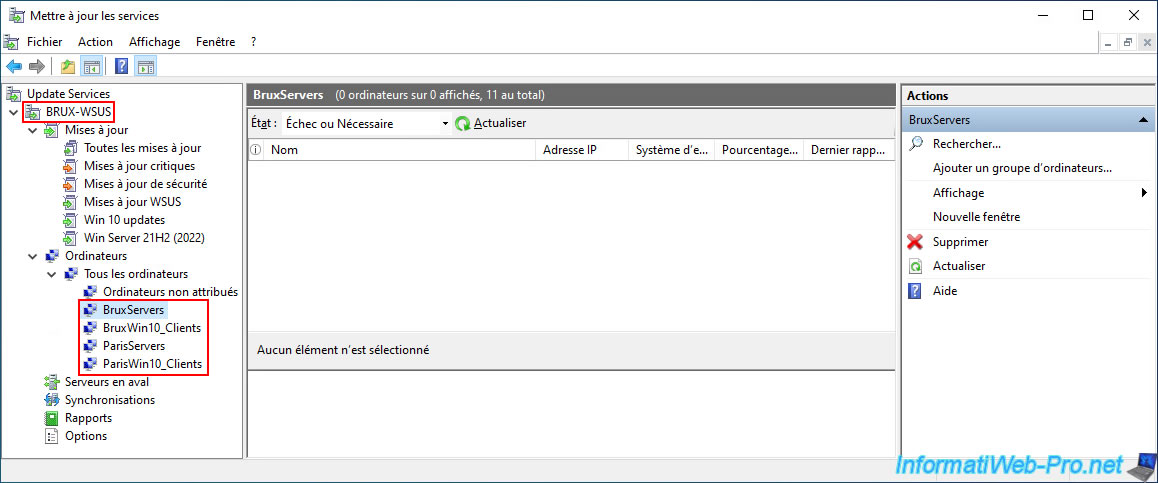
As expected, these four WSUS groups appear in the interface of our master WSUS server, "BRUX-WSUS".
However, they are currently empty, as you still need to configure the GPOs to move or add your servers and computers to the correct WSUS groups.
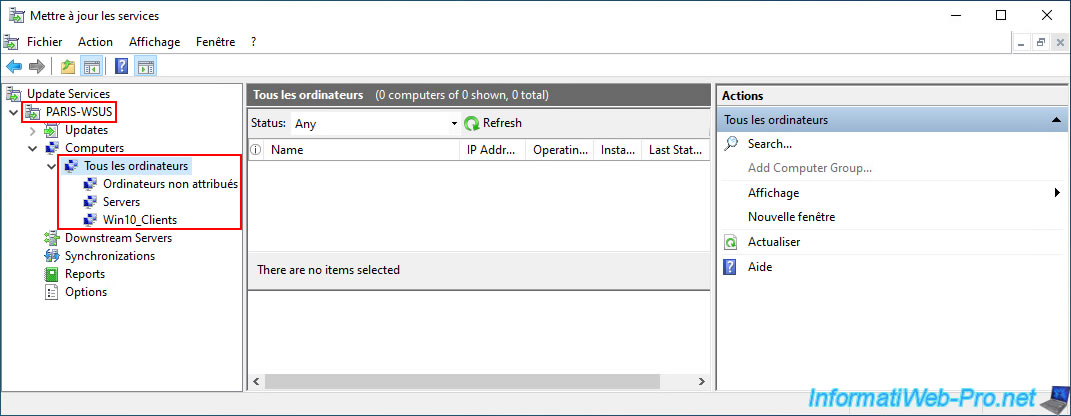
Warning : currently, changes to WSUS groups on the master WSUS server have not yet been replicated to your replica WSUS server.
However, we will address this issue later (in step "4.6" of this tutorial).
Important : as you may have noticed, the "Add Computer Group" option is grayed out.
This is because, in "replica" mode, WSUS groups can only be created on the master WSUS server.
The synchronization process will then synchronize the WSUS groups from the master WSUS server to this replica WSUS server.
Share this tutorial
To see also
-
Windows Server 11/11/2026
WS 2022 - WSUS - Install a master WSUS server
-
Windows Server 11/4/2026
WS 2022 - WSUS - What is a WSUS server?
No comment