Install a replica WSUS server on Windows Server 2022
- Windows Server
- WSUS
- 18 November 2026 at 14:39 UTC
-

- 7/7

5. Verify that your GPO objects are applied on your servers and computers
Given the somewhat complex configuration and the number of GPOs used to manage common settings, the connection of servers and computers to the local WSUS server (depending on their physical location), and the management of assignments to the various WSUS groups created, it is useful to be able to verify directly on the client machine that the GPOs have been correctly applied to the right servers and computers.
To do this, simply log in as administrators to these servers and computers and use the "rsop.msc" console (as explained in our tutorial "Generate a Resultant Set of Policy (RSoP) on client side with Active Directory on Windows Server 2016").
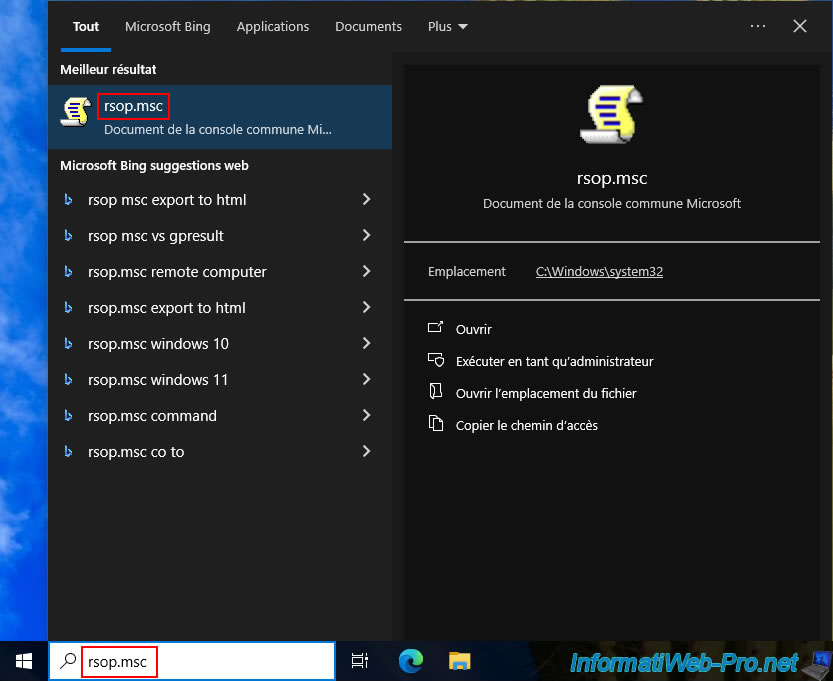
Please wait a little while (approximately 30 seconds) while the "Resulting strategy game is being processed" window appears.
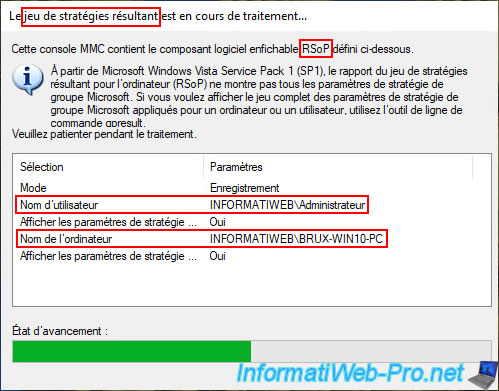
Once the resulting game processing is complete, the "Resulting Strategy Game" window will appear.
Note that this window resembles the "Local Group Policy Editor" console, except that it only displays the policies that have been modified on the computer or server where you are running the "rsop.msc" console.
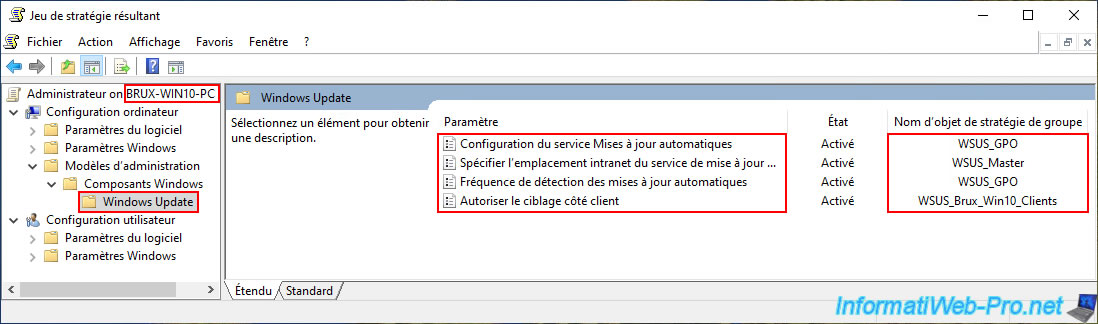
In the case of our client computer "BRUX-WIN10-PC", you can see that four policies are enabled:
- Automatic Updates service configuration: Enables the automatic download and installation of Microsoft updates (Windows and other Microsoft products, if you have allowed it in this policy).
This policy is enabled and configured in the "WSUS_GPO" GPO created on your Active Directory domain controller. - Specify the intranet location of the Microsoft Update service: Tells this computer which WSUS server it should connect to. In our case, the master WSUS server (therefore "BRUX-WSUS").
This policy is enabled and configured in the "WSUS_Master" GPO (which applies only to servers and computers at the Brussels physical site). - Automatic Update Detection Frequency: Defines the frequency (in hours) at which the computer or server checks for updates.
This policy is enabled and configured in the "WSUS_GPO" GPO. - Allow client-side targeting: Defines which WSUS group this computer will appear in on the WSUS server it connects to.
This policy is enabled and configured in the "WSUS_Brux_Win10_Clients" GPO.
Ultimately, this means that this computer will connect to the master WSUS server (BRUX-WSUS) to automatically download and install its Microsoft updates and it will appear in the WSUS group "BruxWin10_Clients" (of the master WSUS server).
For the domain controller "BRUX-DC1", the only difference compared to the computer above is that it will appear in the WSUS group "BruxServers".
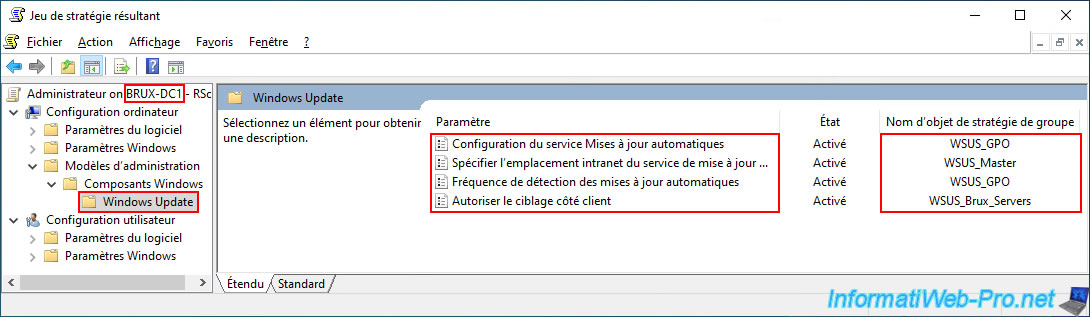
For the other servers in Brussels (including "BRUX-WEB"), the policies applied are the same as for the domain controllers in Brussels (above).
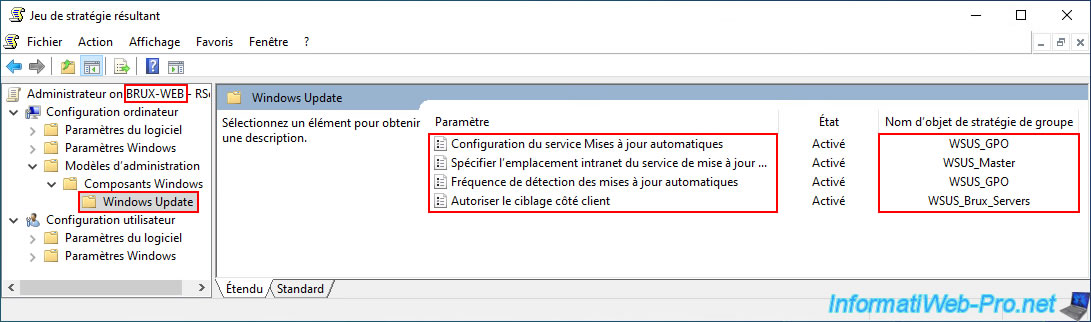
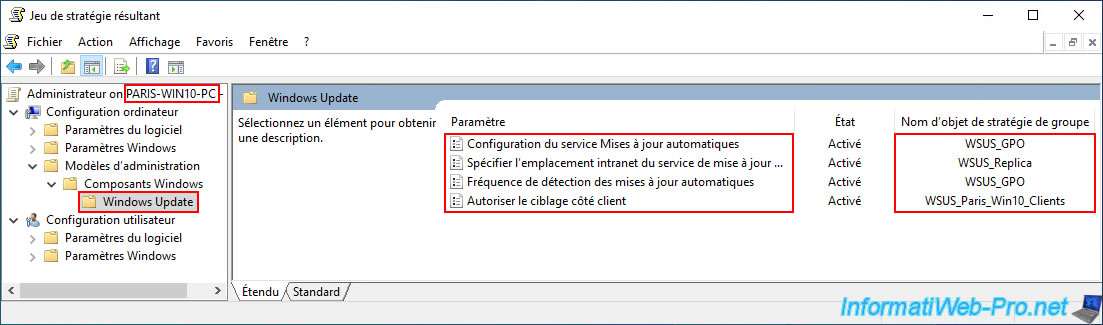
For Windows 10 computers in Paris, you can see that it will connect to the WSUS replica server (PARIS-WSUS) to automatically download and install its Microsoft updates and it will appear in the WSUS group "ParisWin10_Clients" (of the WSUS replica server).
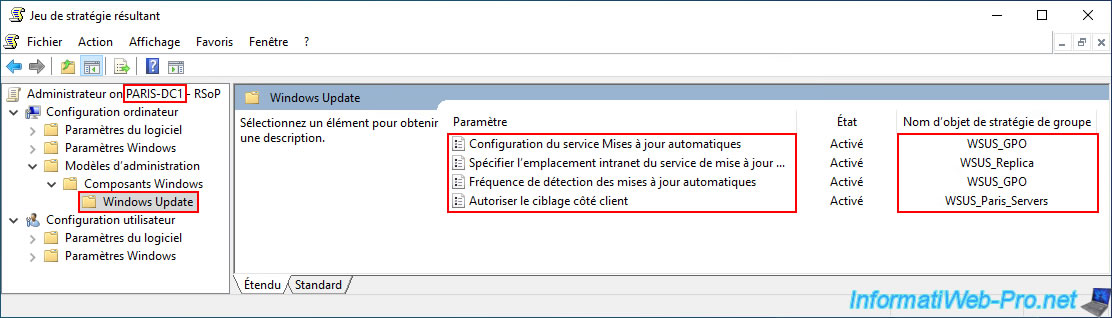
For the domain controller "PARIS-DC1", the only difference compared to the Paris computer above is that it will appear in the WSUS group "ParisServers".
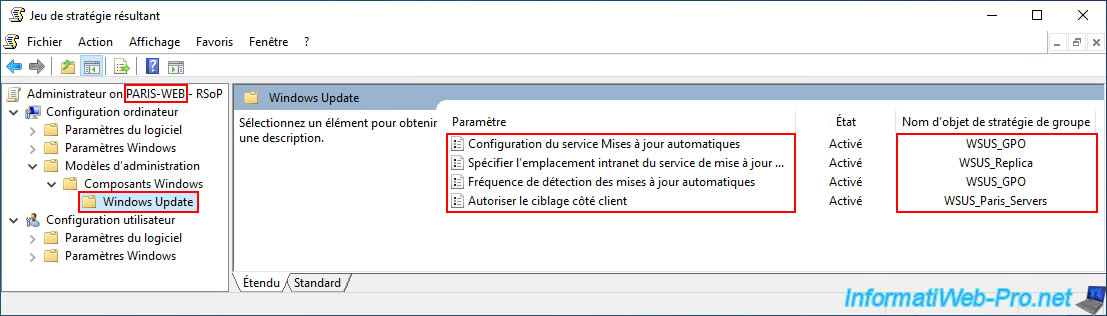
For servers in Paris (including "PARIS-WEB"), the parameters received will be the same as those for the domain controller in Paris.
6. Check for updates on Windows and Windows Server (with WSUS as the update server)
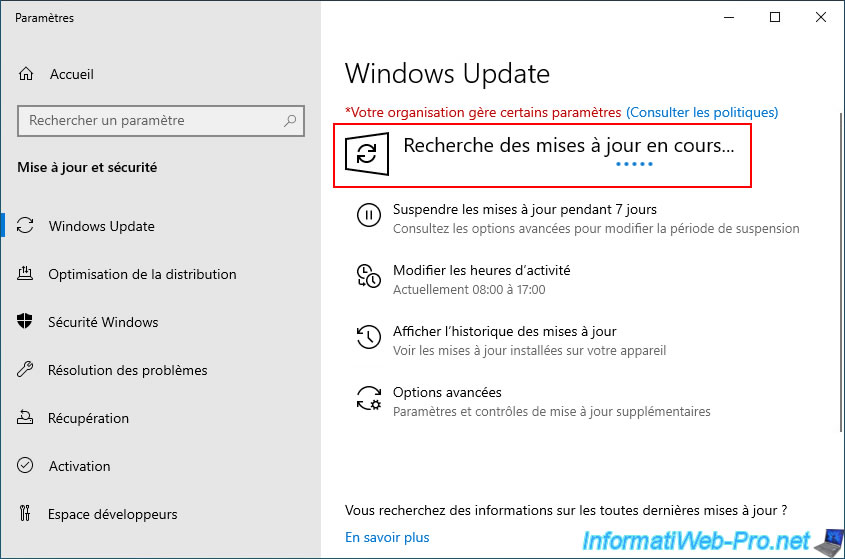
On your servers and computers, go to "Windows Update" and start the update search.
Note: in a production environment, this update search and download will be automatic.
However, in a test environment, the goal is for your servers and computers to appear on your WSUS servers and in the desired WSUS groups.
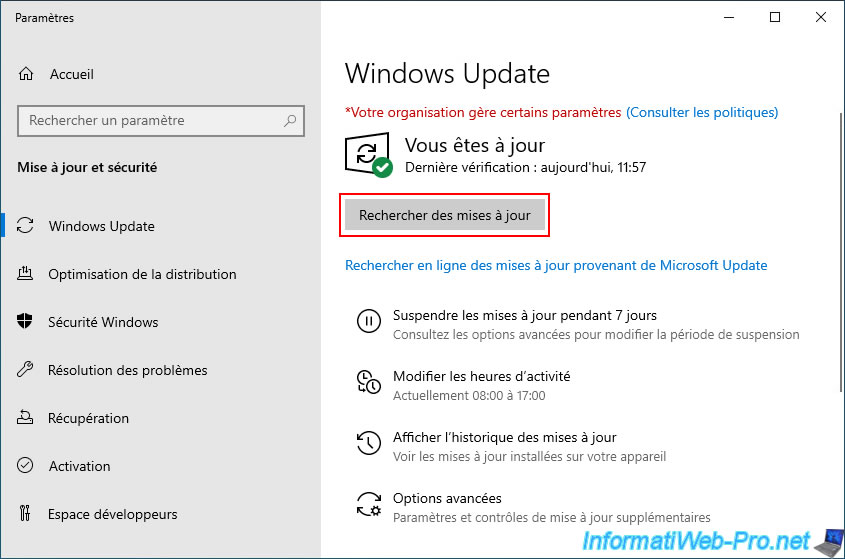
The search for updates begins.
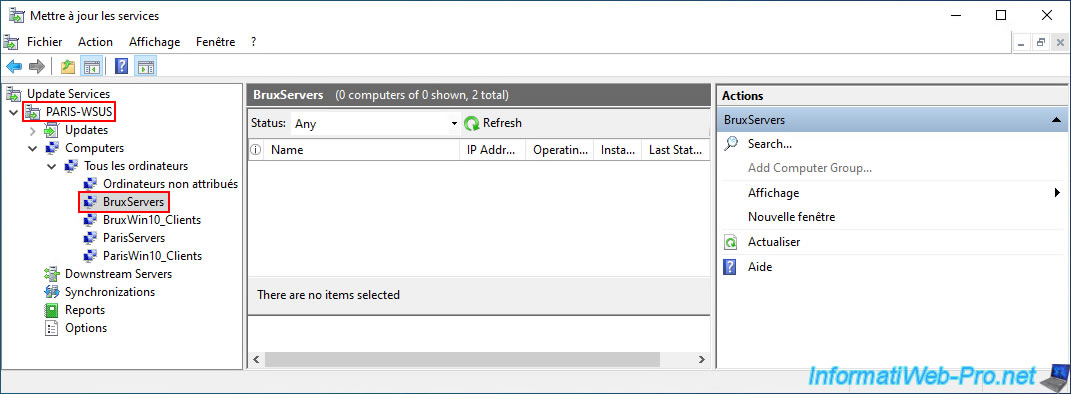
If you look directly in the WSUS groups on your WSUS servers, it's possible that your servers and computers won't appear at all, or not all of them.
This is because, for your servers and computers to appear on your WSUS servers, Windows Update on them must first search for updates via your WSUS servers.
Furthermore, there may be a slight delay between the time Windows Update finishes its update search and the time the server or computer in question appears on one of your WSUS servers.
Note that servers and computers primarily appear on the WSUS server to which they connect.
So, if you access the "BruxServers" group on the "PARIS-WSUS" server, it's normal that nothing appears.
However, if you access the same "BruxServers" group on the "BRUX-WSUS" server, then your Brussels servers will appear there shortly.
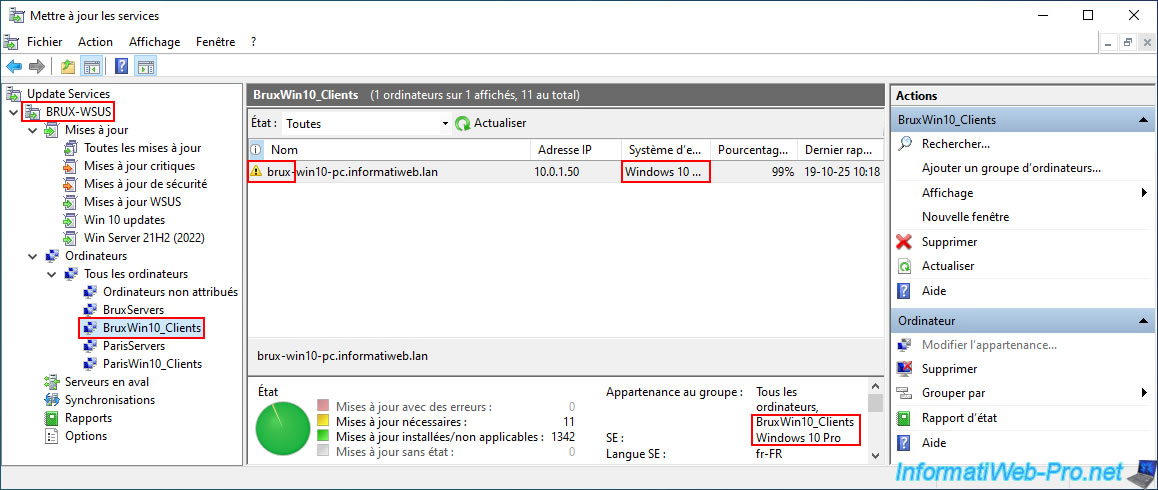
After some time, and especially after Windows Update has finished searching for updates on our various servers and computers, you can see that our Brussels servers (running Windows Server 2022) appear in the WSUS group "BruxServers" on our master WSUS server "BRUX-WSUS".

Our Windows 10 computer (brux-win10-pc) located in Brussels appears in the WSUS group "BruxWin10_Clients" on our master WSUS server "BRUX-WSUS".
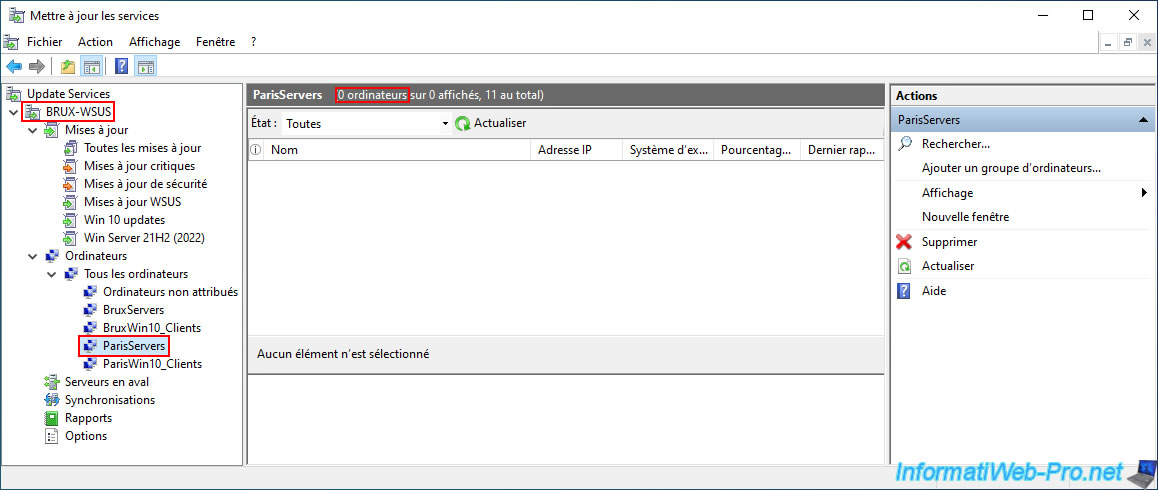
However, you may notice that if we go to the "ParisServers" group on our master WSUS server "BRUX-WSUS", nothing appears.
This is normal since the Paris servers connect to the replica WSUS server "PARIS-WSUS" instead of the master WSUS server "BRUX-WSUS".
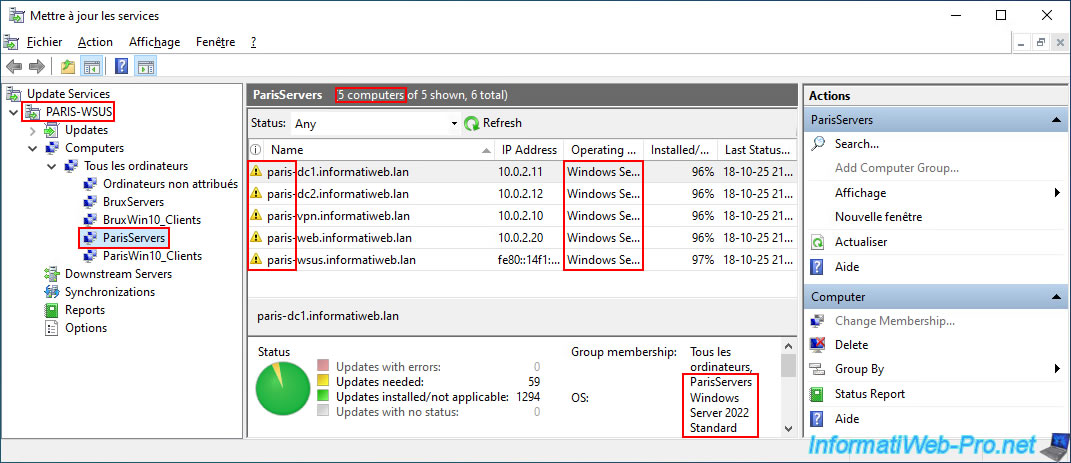
This time, if we go to the same WSUS group "ParisServers", but on our WSUS replica server "PARIS-WSUS", then our Paris servers appear there without any problem.
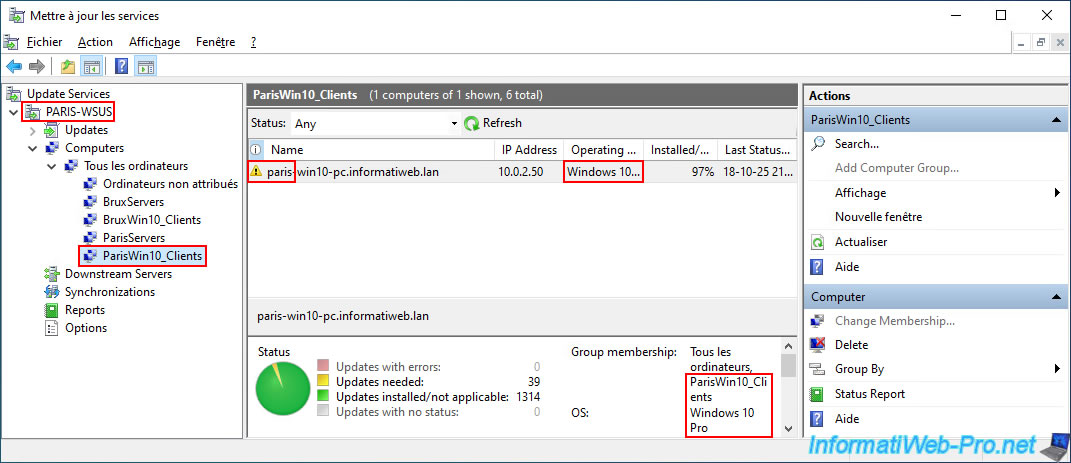
As expected, our Windows 10 computer in Paris (paris-win10-pc) appears in our WSUS group "ParisWin10_Clients" on our replica WSUS server "PARIS-WSUS".
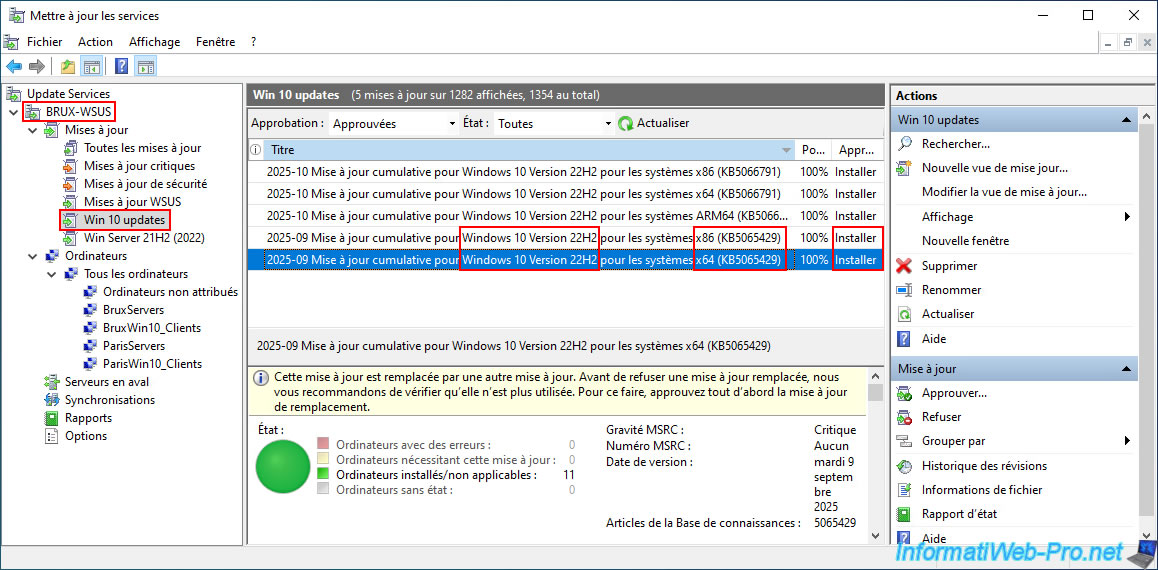
If certain servers and computers do not appear on your WSUS servers or are not in the desired WSUS group, you may need to approve an additional (random) update for the affected server or computer to finally appear on one of your WSUS servers or be moved to the correct WSUS group.
In our case, we had to approve an additional Windows 10 update for the Brussels computer to finally be moved to the desired WSUS group (BruxWin10_Clients).
Share this tutorial
To see also
-
Windows Server 11/11/2026
WS 2022 - WSUS - Install a master WSUS server
-
Windows Server 11/4/2026
WS 2022 - WSUS - What is a WSUS server?
No comment