Install a replica WSUS server on Windows Server 2022
- Windows Server
- WSUS
- 18 November 2026 at 14:39 UTC
-

- 4/7

4.5. Configure GPOs to use WSUS with a master server and a replica server on 2 different sites
4.5.1. Configure common WSUS settings via GPO
To begin, create a new Group Policy Object (GPO) to configure the shared settings for your two WSUS servers.
To do this, right-click on your Active Directory domain name and select "Create a GPO in this domain, and link it here".
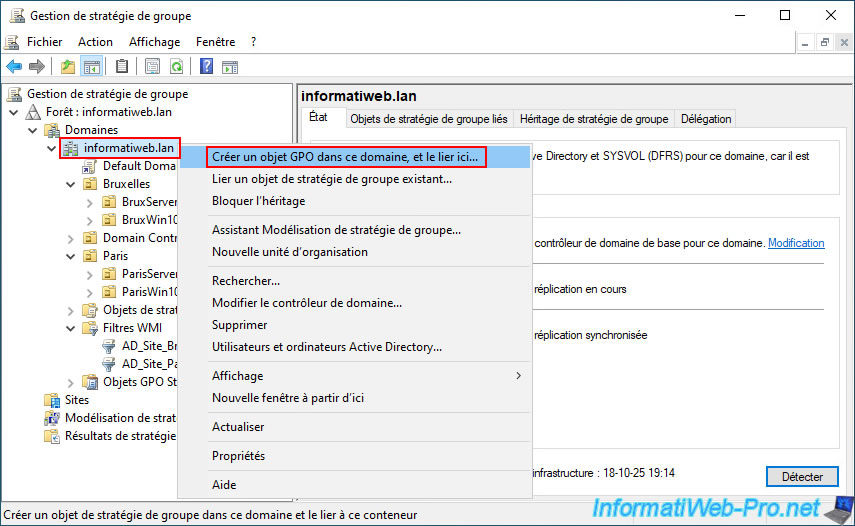
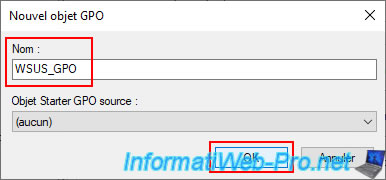
Name this GPO object "WSUS_GPO" (for example).
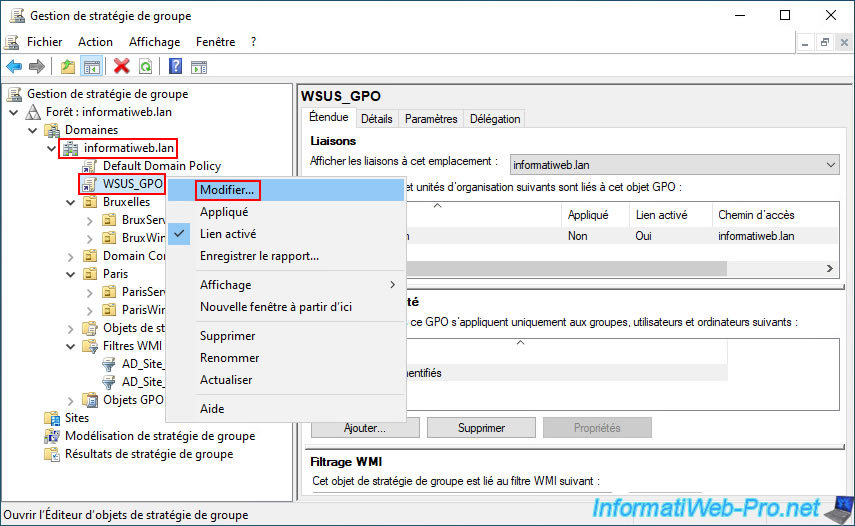
Next, right-click and select "Edit" on this GPO object "WSUS_GPO".
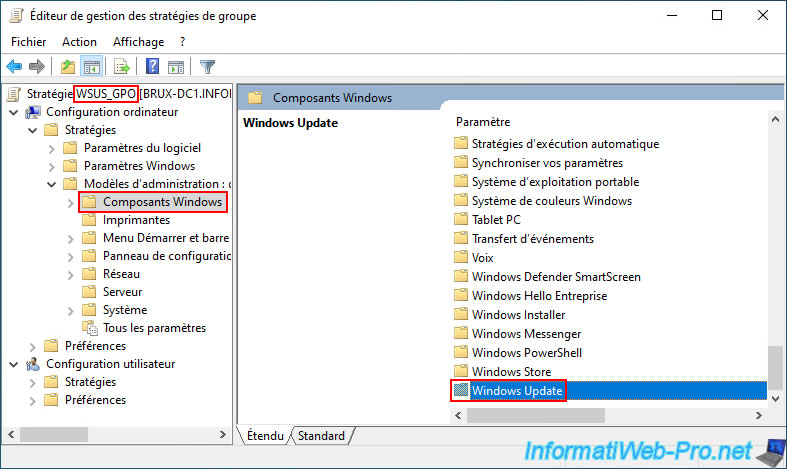
In the Group Policy editor that appears, go to: Computer Configuration -> Policies -> Administrative Templates -> Windows Components -> Windows Update.
In the "Windows Update" folder, double-click the "Automatic Updates Service Configuration" policy, which allows you to configure the automatic download and installation of updates for Windows and Windows Server.
This also lets you choose whether or not to allow automatic updates for other Microsoft products.
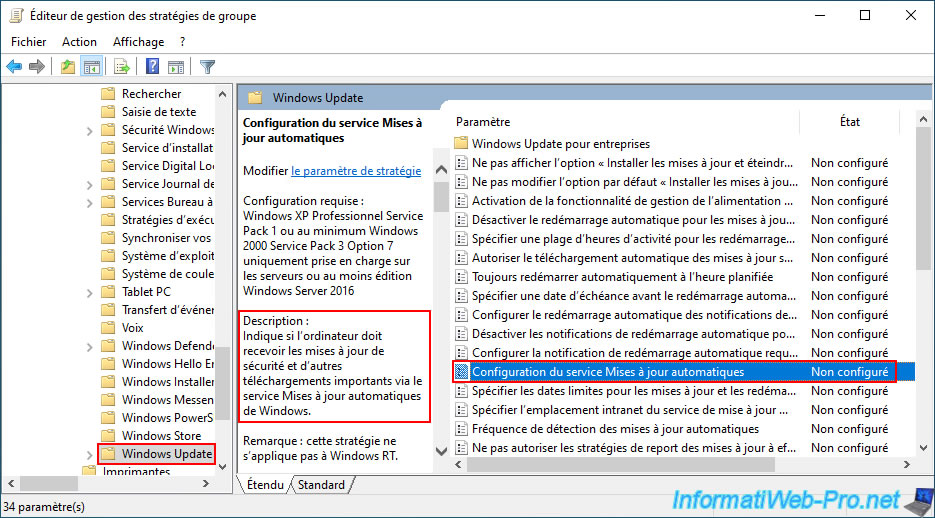
Enable the "Automatic Updates Service Configuration" policy and select option "4 - Automatic Download and Scheduling of Automatic Updates" from the "Automatic Update Configuration" list.
This option ensures that updates are automatically downloaded and installed on your servers and computers.
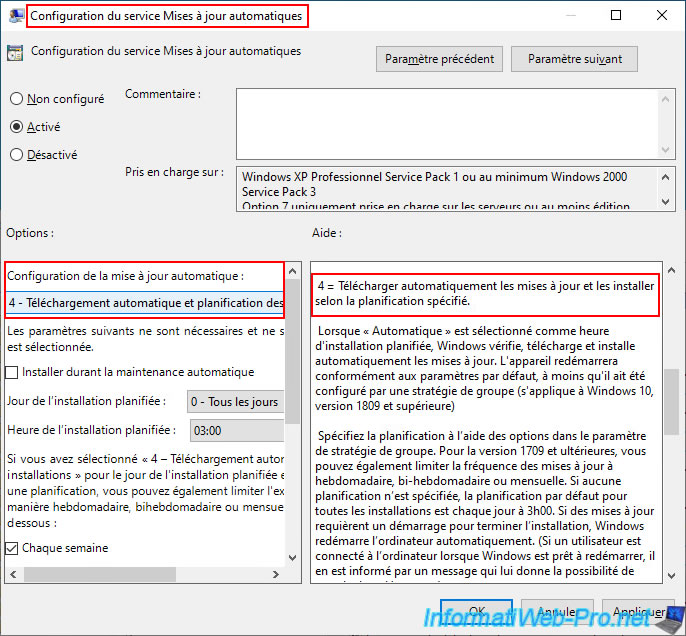
To also allow the installation of updates for other Microsoft products, you must also select the "Install updates for other Microsoft products" checkbox.
If you do not select this checkbox, approved updates for Microsoft Office, Microsoft SQL Server, etc., as applicable, will not be downloaded by Windows Update and therefore will not be installed on the targeted servers and computers from the WSUS interface.
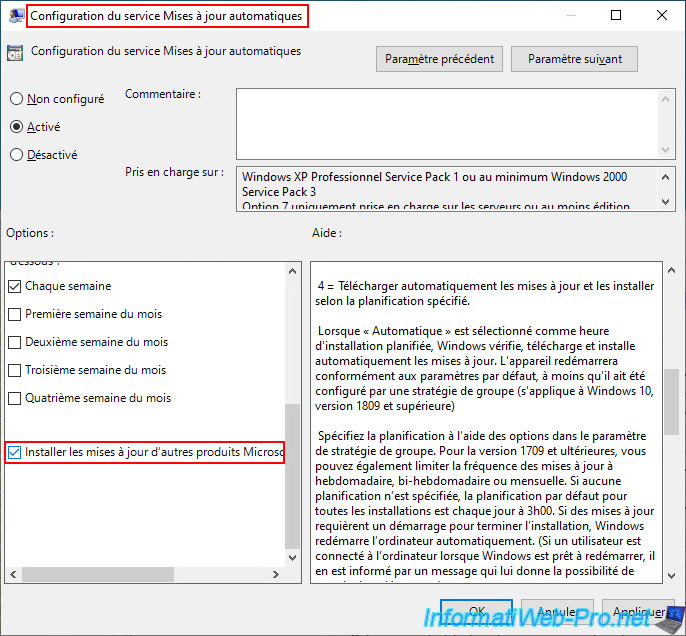
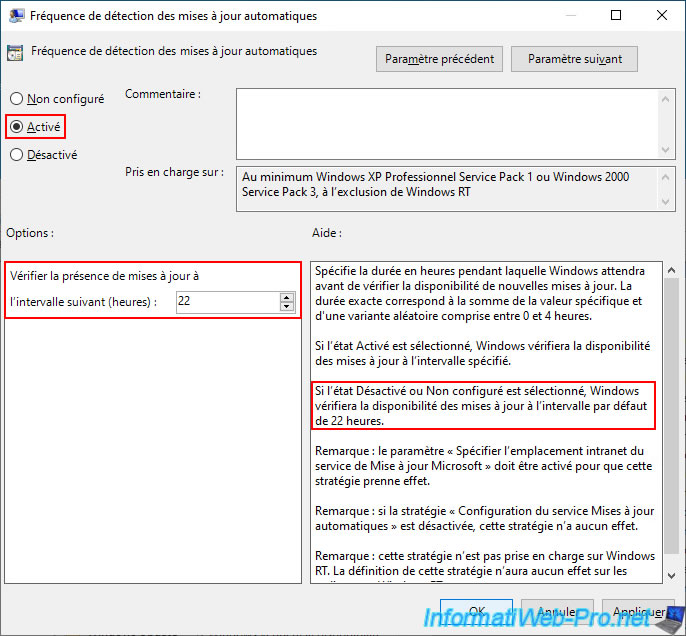
If needed, double-click on the "Automatic update detection frequency" policy to change the update detection interval for Windows Update.
To use the "Automatic Update Detection Frequency" policy, enable it and set the interval in minutes for detecting updates.
As you can see in the policy description, the default value is 22 hours.
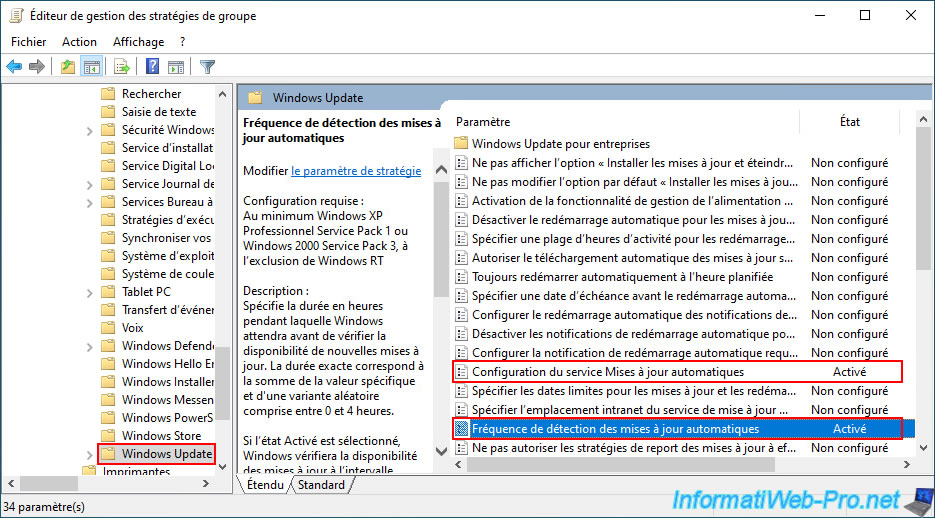
The policies common to your 2 WSUS servers are enabled and configured.
4.5.2. Configure the settings specific to the master WSUS server via GPO
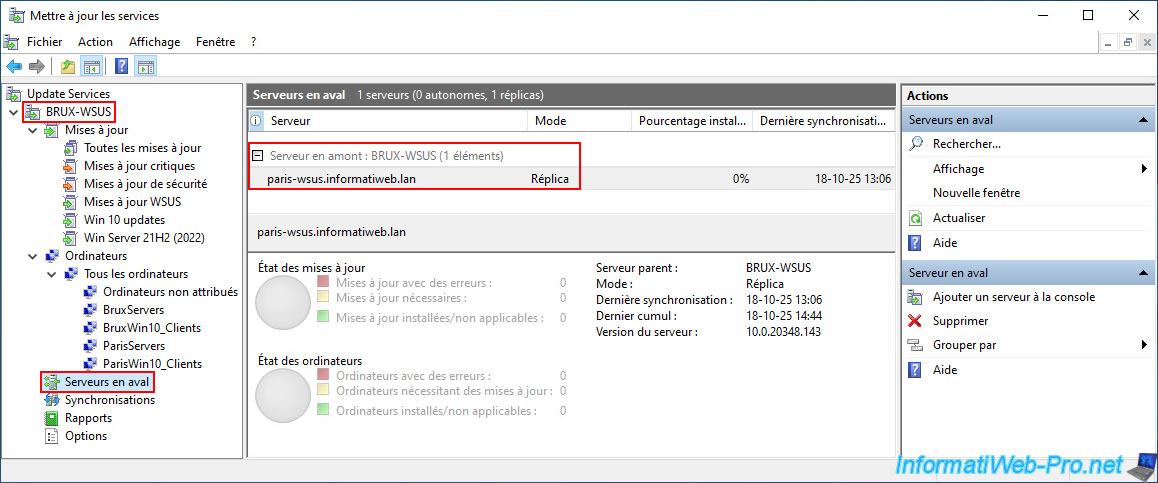
As a reminder, in our case, the master WSUS server is the "BRUX-WSUS" server.
You can also see that the "paris-wsus.informatiweb.lan" server is a replica server whose parent server is "BRUX-WSUS".
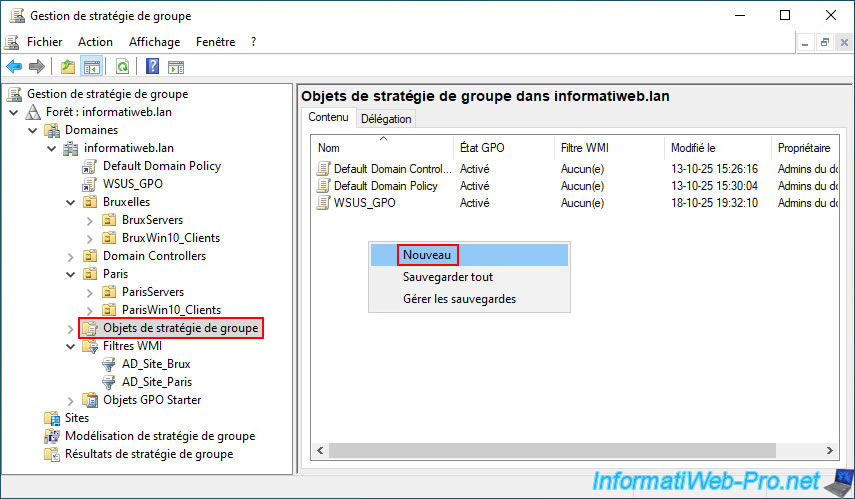
In the Group Policy Management Console, navigate to the Group Policy Objects folder, then right-click and select "New" in the right-hand list.
Important : in this case, you must create the GPO from this Group Policy Objects folder to ensure that the created GPO is not linked to any Active Directory items.
Next, you will see which bindings to add to it for the master WSUS server (located in Brussels in our example).
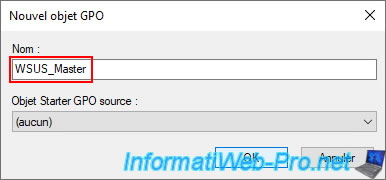
Specify a name for the GPO that will apply to the servers and computers that need to connect to the master WSUS server to download and install their Microsoft updates.
In our case: WSUS_Master.
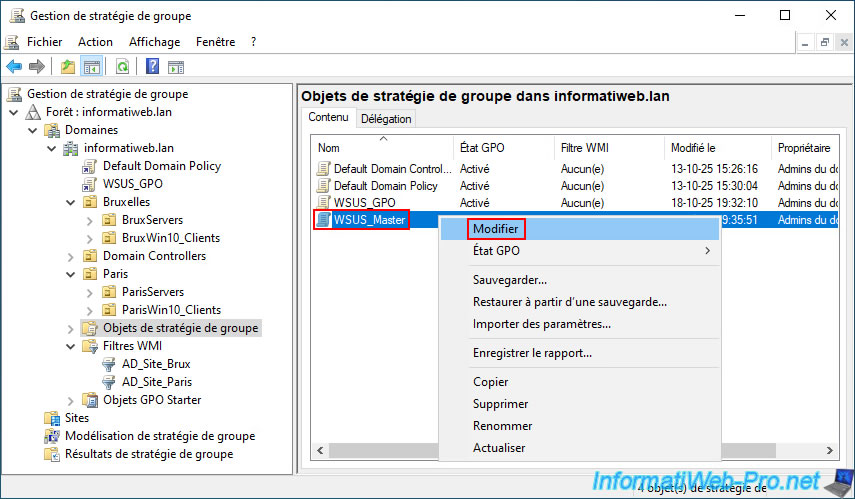
Next, right-click and select "Edit" on the "WSUS_Master" object that appears in the list of group policy objects in your Active Directory domain.
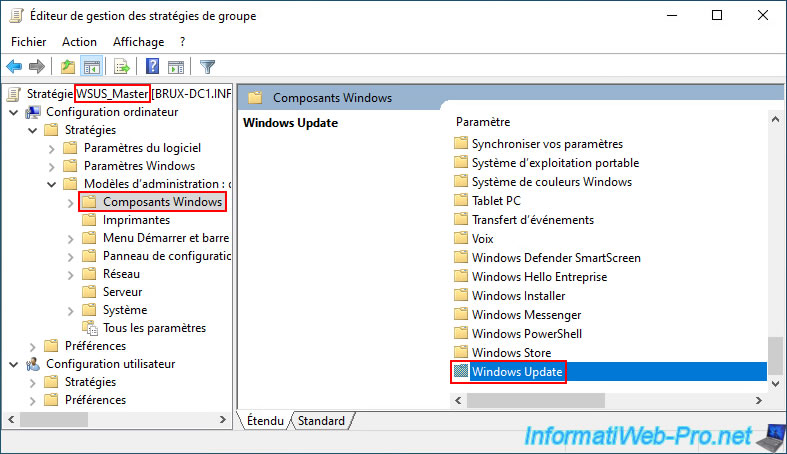
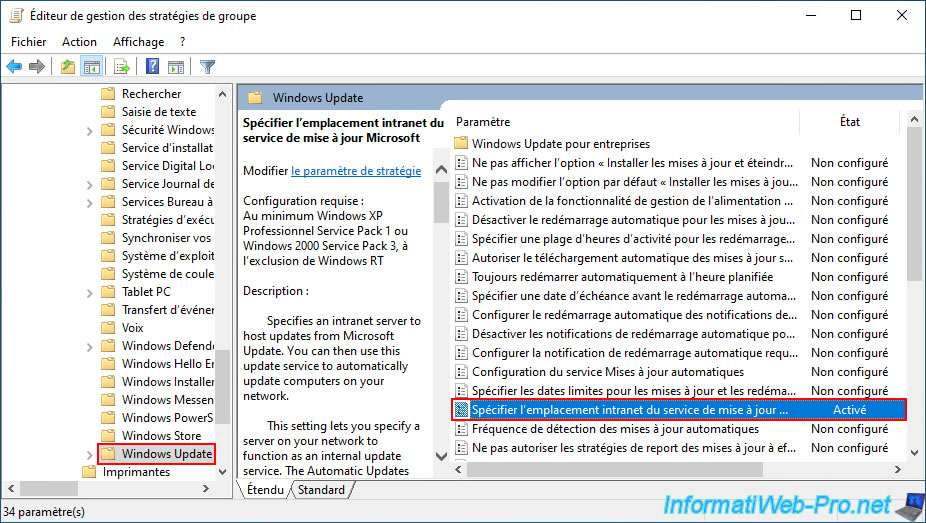
In the GPO editor that appears for this GPO object "WSUS_Master", go again to the folder "Computer Configuration -> ... -> Windows Update".
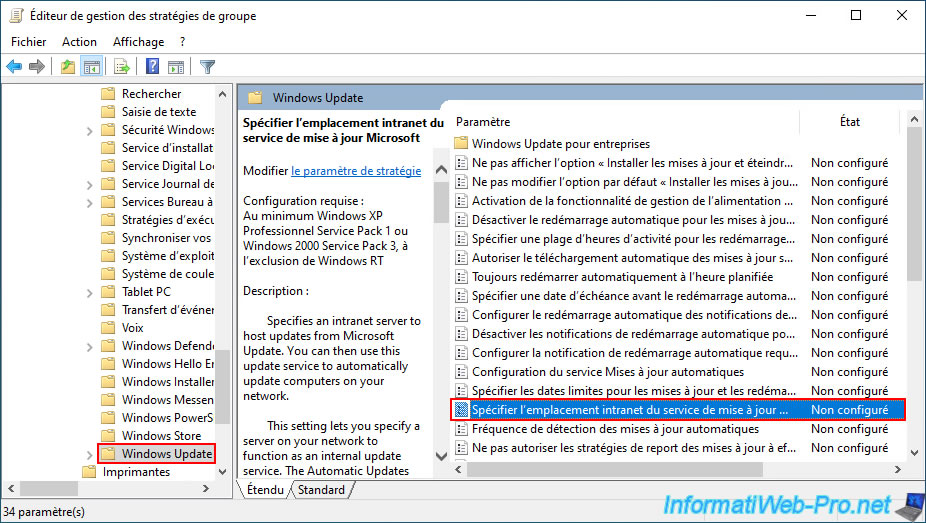
This time, double-click on the "Specify the intranet location of the Microsoft update service" policy.
Enable the "Specify the intranet location of the Microsoft Update Service" policy and enter the address of your master WSUS server.
In our case, this is the WSUS server "BRUX-WSUS," and SSL (HTTPS) is not configured on it.
Therefore, the address to enter is "http://brux-wsus.informatiweb.lan:8530" for our master WSUS server.
Note: if your WSUS server is configured to use SSL (HTTPS), then you should enter the address "https://brux-wsus.informatiweb.lan:8531" (with port number 8531 instead of 8530).
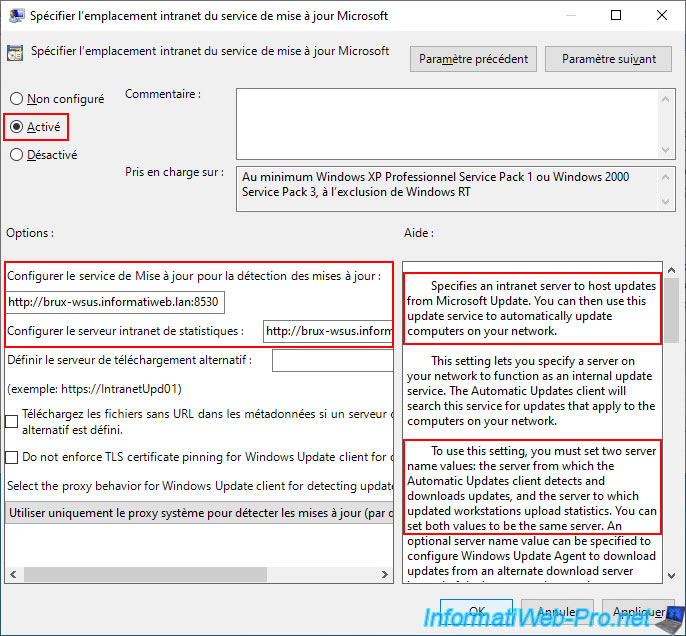
The "Specify the intranet location of the Microsoft Update Service" policy is enabled.
This policy instructs servers and computers that receive this GPO to connect to the master WSUS server.
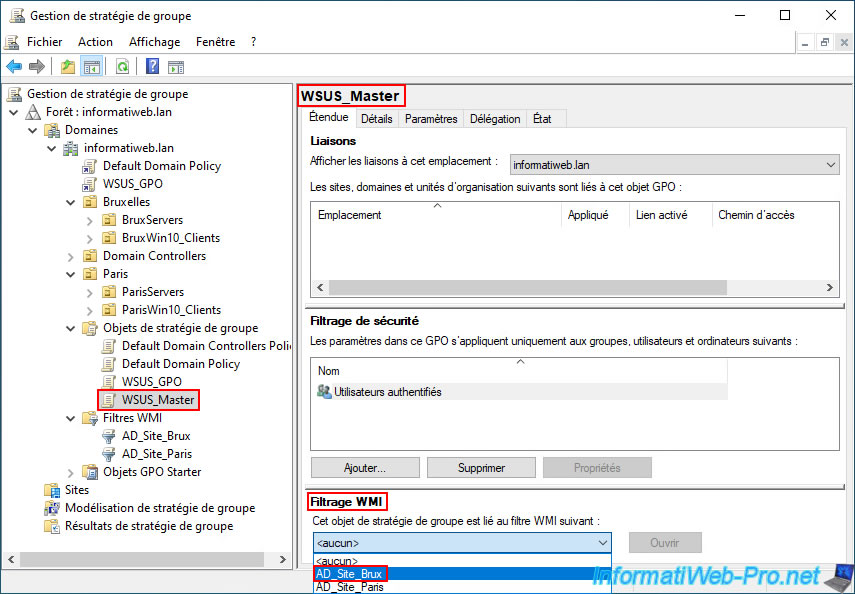
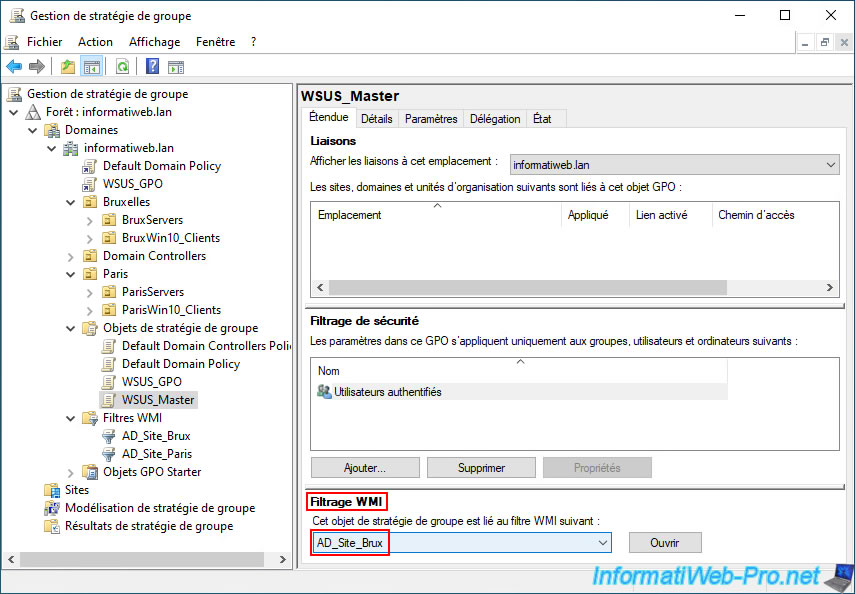
Now that the necessary policy in this GPO is enabled and configured, select the "WSUS_Master" GPO you just created.
This appears in the "Group Policy Objects" folder of the "Group Policy Management" console.
Next, in the "WMI Filtering" section (visible in the lower right corner of the window), select the WMI filter that applies to the Active Directory site where your master WSUS server is located.
In our case, we select the "AD_Site_Brux" WMI filter since our master WSUS server "BRUX-WSUS" is located in Brussels.
Therefore, only servers and/or computers located in Brussels will be able to receive the policy defined in this GPO. This means that only these servers and/or computers will connect to our master WSUS server "BRUX-WSUS".
Note: if this section does not appear, simply expand the window.
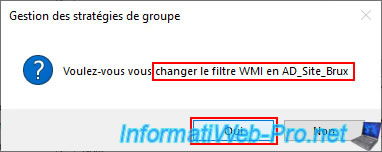
Confirm the WMI filter change on this GPO object by answering "Yes".
Plain Text
Do you want to change the WMI filter to AD_Site_Brux
The desired WMI filter is now selected in the "WMI Filtering" section of this GPO "WSUS_Master".
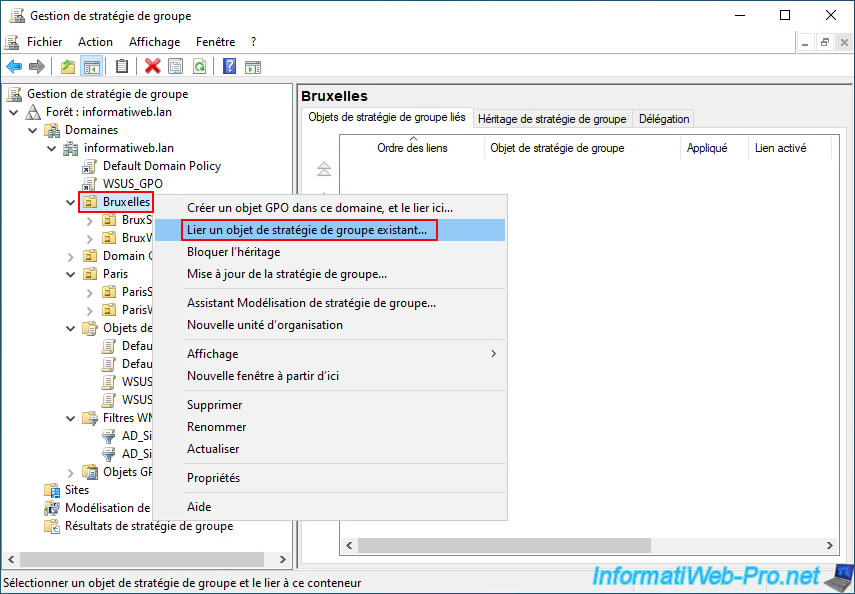
Now, right-click the folder to which you want to link this "WSUS_Master" GPO and click "Link an existing Group Policy Object."
In our case, this is the "Brussels" folder created earlier via the "Active Directory Users and Computers" console.
This GPO will then apply to all servers and computers at this physical site, "Brussels," allowing them to connect to the master WSUS server.
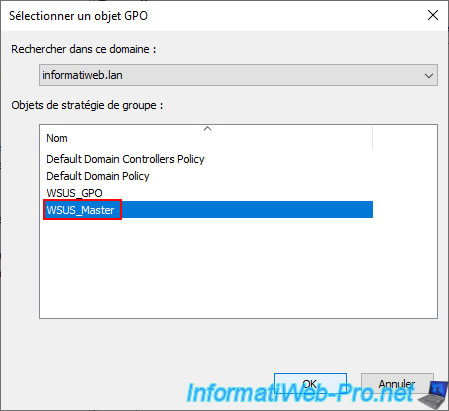
Select your GPO object "WSUS_Master" and click OK.
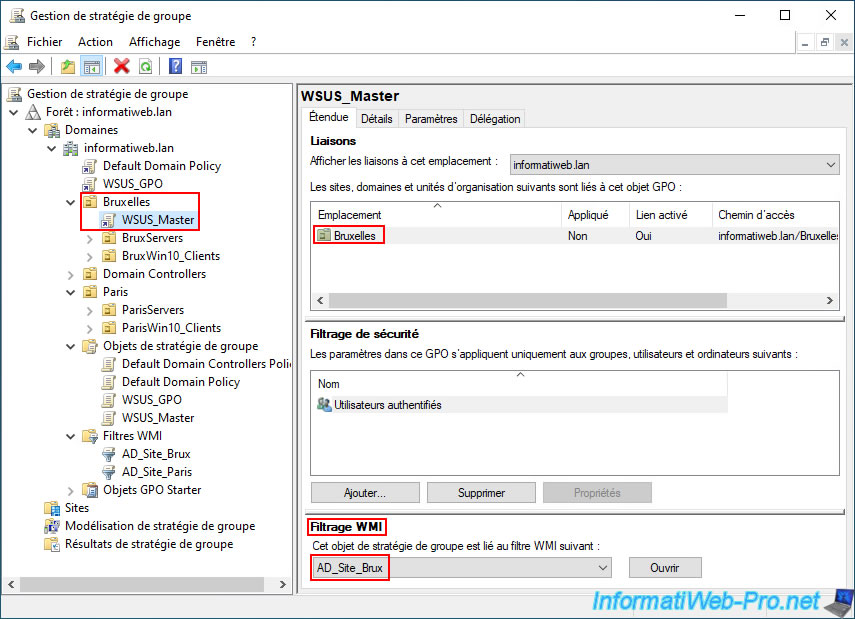
As expected, this GPO object is linked to our "Brussels" organizational unit.
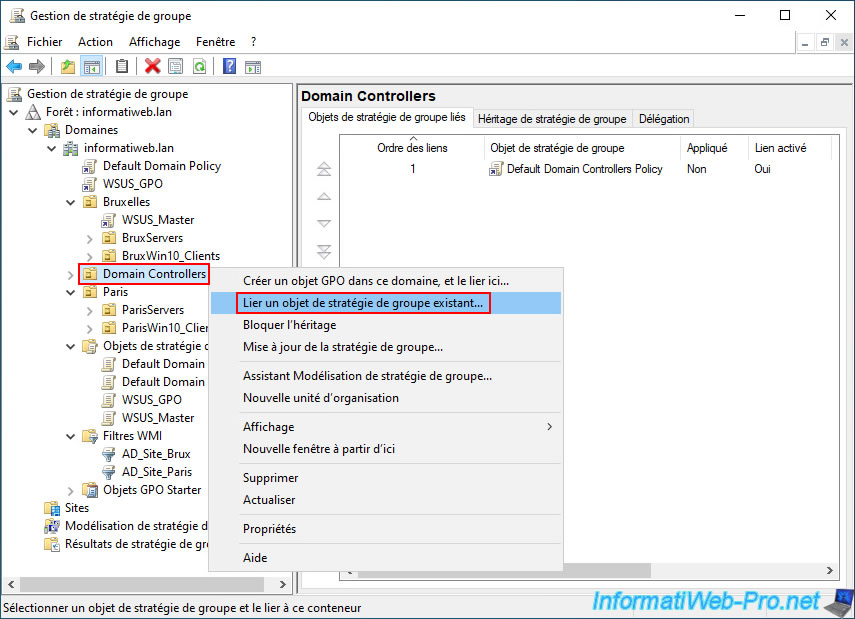
Now, right-click "Link an existing Group Policy object" on your "Domain Controllers" folder.
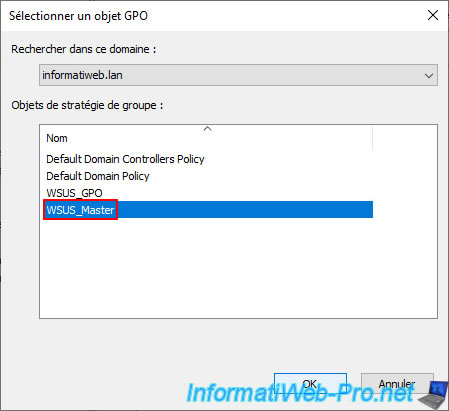
Select your "WSUS_Master" GPO object again.
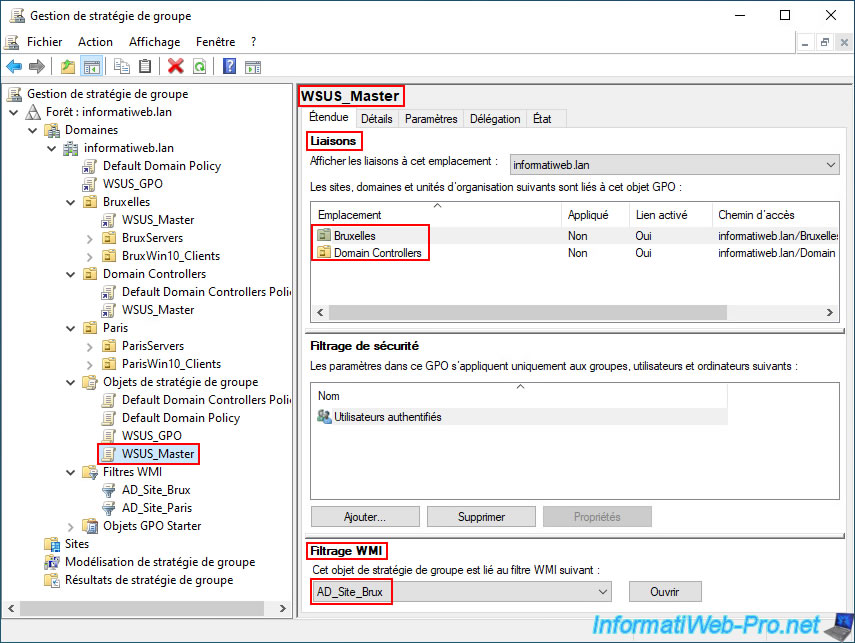
Ultimately, this "WSUS_Master" GPO is linked to our "Brussels" and "Domain Controllers" organizational units, and the "AD_Site_Brux" WMI filter is applied to them.
This also means that for domain controllers, only those located in the "Brussels" Active Directory site will receive the policy defined in this GPO.
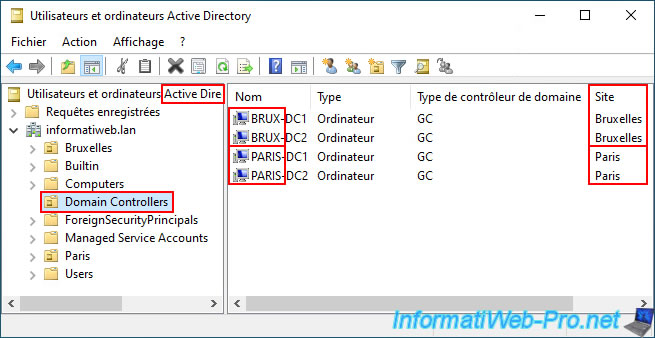
As a reminder, you can see that our two domain controllers (BRUX-DC1 and BRUX-DC2) are located in the "Brussels" Active Directory site.
For the "Domain Controllers" folders, the GPO above therefore applies only to these two domain controllers (BRUX-DC...) and not to those in Paris (PARIS-DC...) thanks to the "AD_Site_Brux" WMI filter selected in the options of this GPO.
Share this tutorial
To see also
-
Windows Server 11/11/2026
WS 2022 - WSUS - Install a master WSUS server
-
Windows Server 11/4/2026
WS 2022 - WSUS - What is a WSUS server?
No comment