Install a replica WSUS server on Windows Server 2022
- Windows Server
- WSUS
- 18 November 2026 at 14:39 UTC
-

- 3/7

4.2. Configure folders in Active Directory to target the desired servers and computers
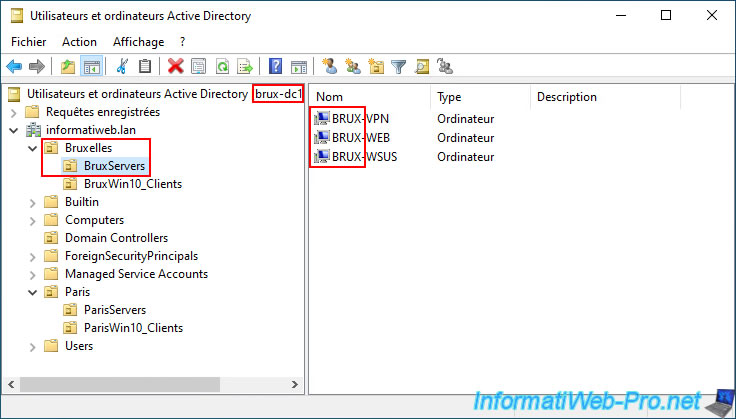
To place your various servers and computers in the correct WSUS groups, you can create a hierarchy of organizational units (folders) like this:
- Brussels: corresponds to the servers and computers of the physical site in Brussels (but no computer account is located at the root of this folder).
- BruxServers: the servers (except for Active Directory domain controllers, as they cannot be moved) located at the physical site in Brussels.
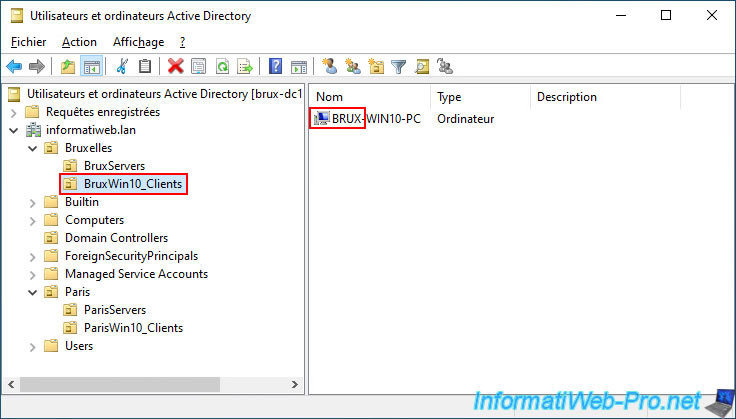
- BruxWin10_Clients: the Windows 10 computers located at the physical site in Brussels.
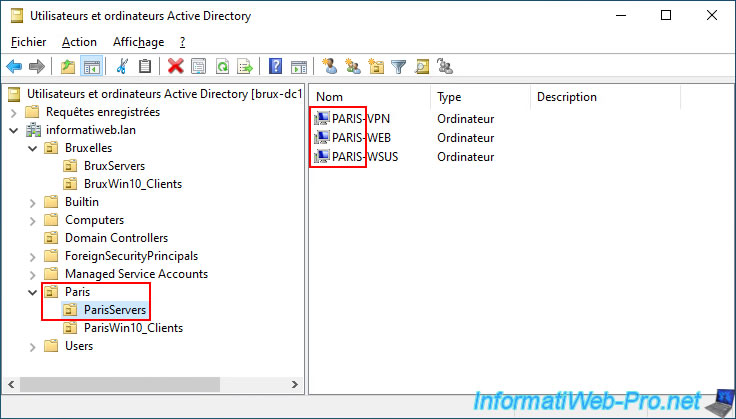
- Paris: corresponds to the servers and computers of the physical site in Paris.
- ParisServers: the servers (except for the Active Directory domain controllers, as before) located at the physical Paris site.
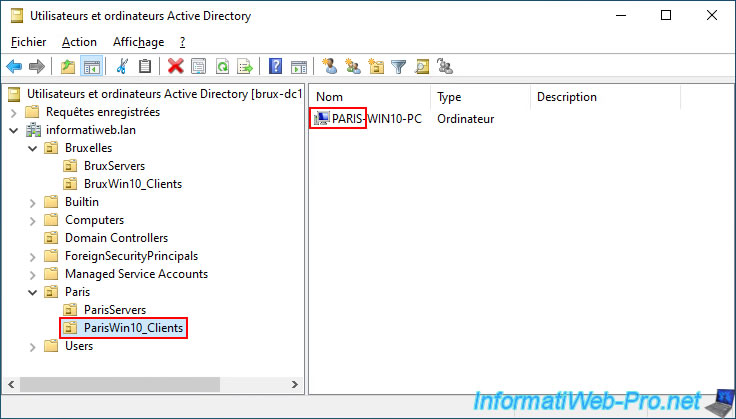
- ParisWin10_Clients: the Windows 10 computers located at the physical Paris site.
More specifically, you can see that there are 3 servers in the "Brussels\BruxServers" folder:
- BRUX-VPN: the VPN server that maintains the site-to-site VPN connection between our physical site in Brussels and our Paris site.
This is necessary for our two WSUS servers (BRUX-WSUS and PARIS-WSUS) to communicate easily with each other despite being physically located in different parts of the world. - BRUX-WEB: a simple web server (IIS) for this example, but it's not strictly necessary.
- BRUX-WSUS: our master WSUS server (which synchronizes from the official "Microsoft Update" server).
In the folder "Brussels\BruxWin10_Clients", you can see that there is only one computer:
- BRUX-WIN10-PC: a computer running Windows 10 version 22H2 (just for example).
Similarly, you can see that there are 3 servers in the "Paris\ParisServers" folder:
- PARIS-VPN: the other VPN server for the site-to-site connection.
- PARIS-WEB: another web server (IIS) created just for demonstration purposes.
- PARIS-WSUS: our replica WSUS server (which synchronizes from our master WSUS server "BRUX-WSUS").
Similarly, you can see that there is again only one computer in the "Paris\ParisWin10_Clients" folder:
- PARIS-WIN10-PC: another computer running Windows 10 version 22H2 (just for example).
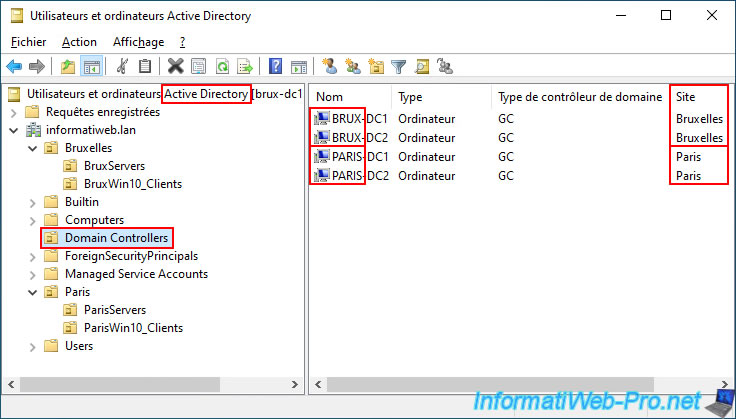
Finally, you can see that our single Active Directory domain (informatiweb.lan) is managed by 4 Active Directory domain controllers (2 per site).
Indeed, by going to the "Domain Controllers" folder, you can see that:
- the domain controllers "BRUX-DC1" and "BRUX-DC2" are located in the Active Directory site "Brussels".
- the domain controllers "PARIS-DC1" and "PARIS-DC2" are located in the Active Directory site "Paris".
Warning : for the correct site to appear here for each domain controller, you must have correctly configured Active Directory sites via the "Active Directory Sites and Services" console.
Next, you must have moved the desired domain controllers to the corresponding physical site.
To do this, refer to step "11.1. Create Active Directory Sites" in our "UPDATE-win-server-ad-ds-multisites" tutorial.
Important : this information will be used (and required) when configuring Group Policy Objects (GPOs) to ensure that the desired domain controllers connect only to the WSUS server located in the same physical site.
4.3. Force the replication of created organizational units to other Active Directory domain controllers
To ensure that future GPOs apply to the correct servers and computers, we recommend forcing replication of the structure created above to your other domain controllers (including those in other Active Directory sites).
To do this, simply open a command prompt on the server (in our case: brux-dc1) where you just created this new organizational unit (folder) structure and type the command below.
Batch
repadmin /syncall /A /e /P
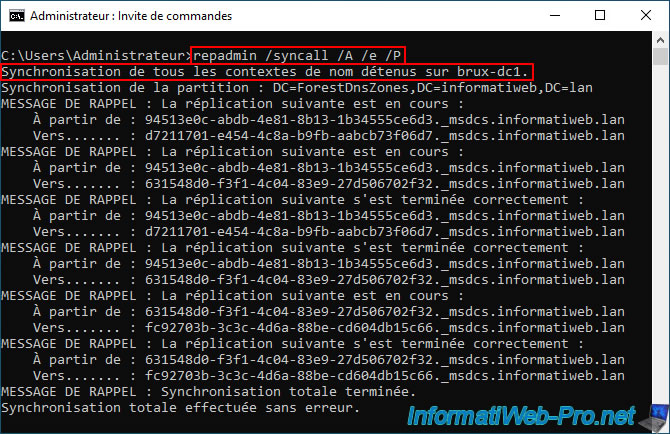
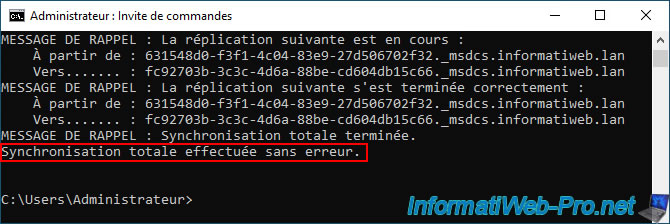
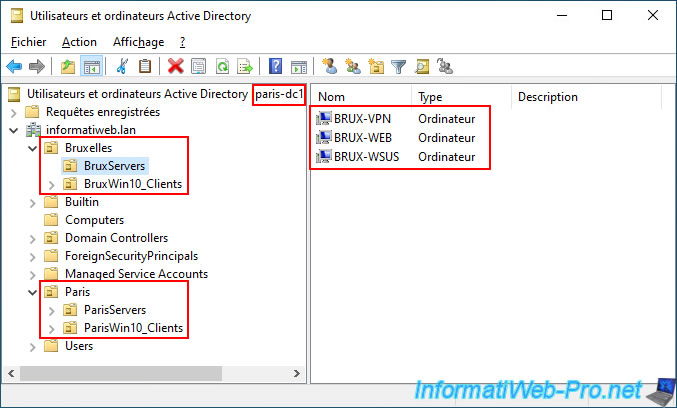
As expected, the infrastructure previously created in Brussels (on the "brux-dc1" domain controller) was replicated fairly quickly to the physical site in Paris (specifically to the "paris-dc1" server in our case).
The computer accounts previously migrated (via the "brux-dc1" domain controller) were also successfully migrated to the "paris-dc1" domain controller in Paris.
4.4. Create WMI filters so that a GPO object applies only to a specific Active Directory site
4.4.1. View the Active Directory sites available from the console to manage GPOs
To find the names of your Active Directory sites from the Group Policy Management Console, right-click "Show sites" on the "Sites" folder.
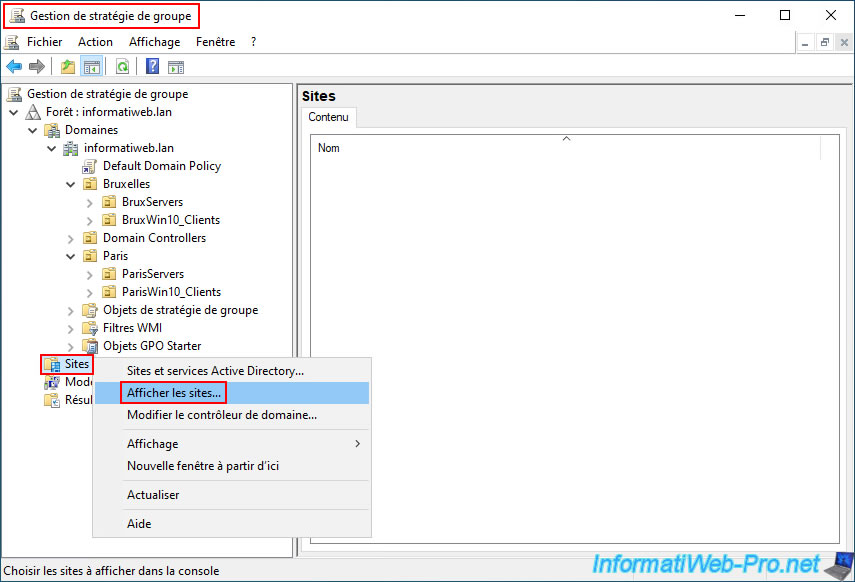
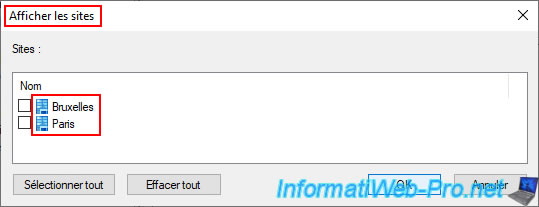
In the "Show Sites" window, you will see the names of your Active Directory sites displayed.
Note: there's no need to select them; the goal is simply to see their names.
4.4.2. Create a WMI filter so that a GPO applies to the Brussels AD site
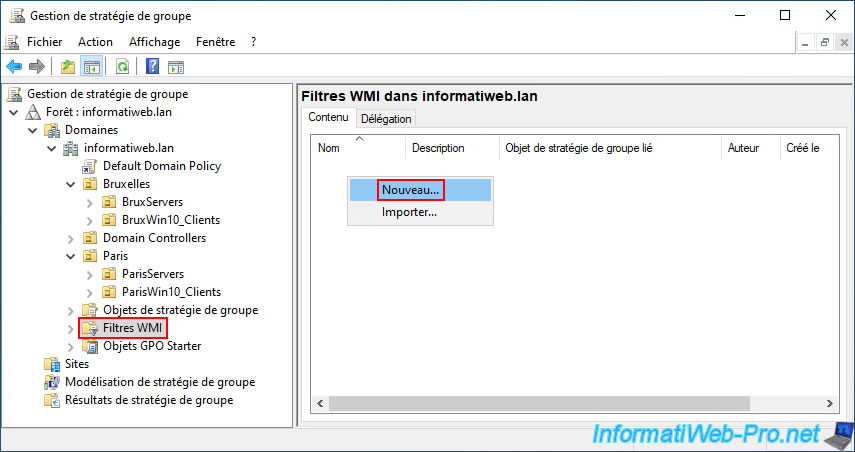
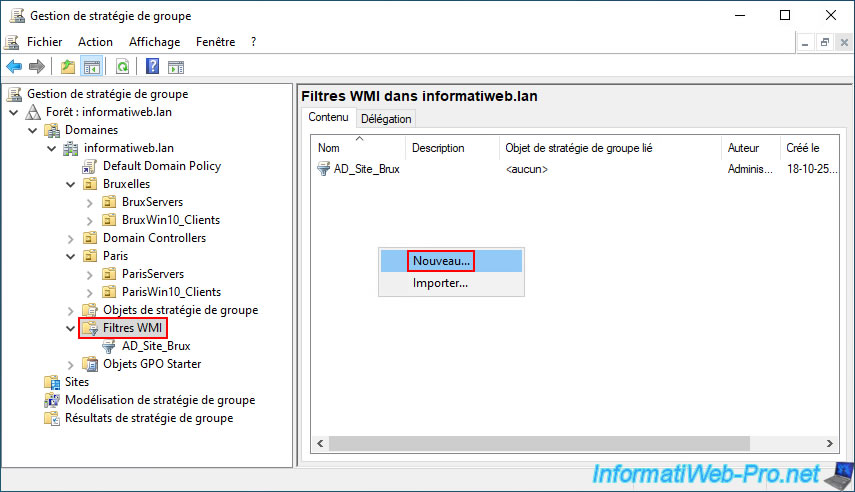
To make a GPO object apply only to the Brussels Active Directory site, click on "WMI Filters" (in the left column), then right-click "New" in the right-hand list.
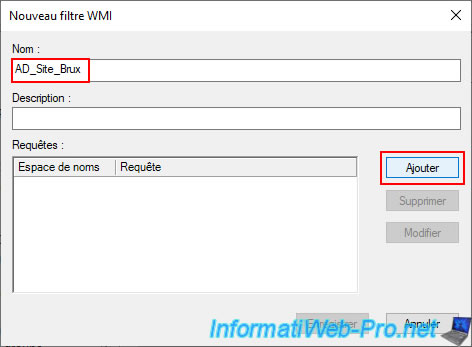
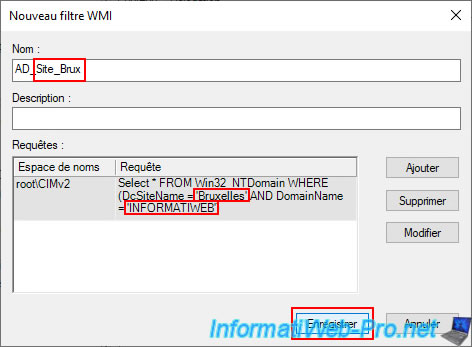
In the "New WMI Filter" window that appears, enter a name for this filter, and then click "Add".
In our case, the name of this first filter will be "AD_Site_Brux".
This clearly indicates that this filter targets only the Active Directory (AD) site in Brussels (Brux).
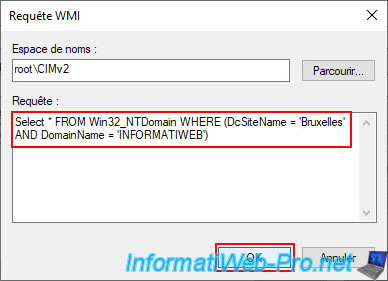
In the small "WMI Query" window that appears, leave the default namespace (root\CIMv2).
Type the command below, replacing the values of these two parameters:
- DcSiteName: the name of the targeted Active Directory (AD) site.
In our case: Brussels. - DomainName: the NETBIOS name of your Active Directory domain.
Warning: this is the NETBIOS name of your Active Directory domain and NOT the DNS name of your AD domain.
In our case: INFORMATIWEB.
SQL
Select * FROM Win32_NTDomain WHERE (DcSiteName = 'Bruxelles' AND DomainName = 'INFORMATIWEB')
Then, click OK.
If the query you entered is correct, it will appear in the "Queries" list in the previous window (New WMI Filter).
Otherwise, an error message will be displayed.
Click "Save".
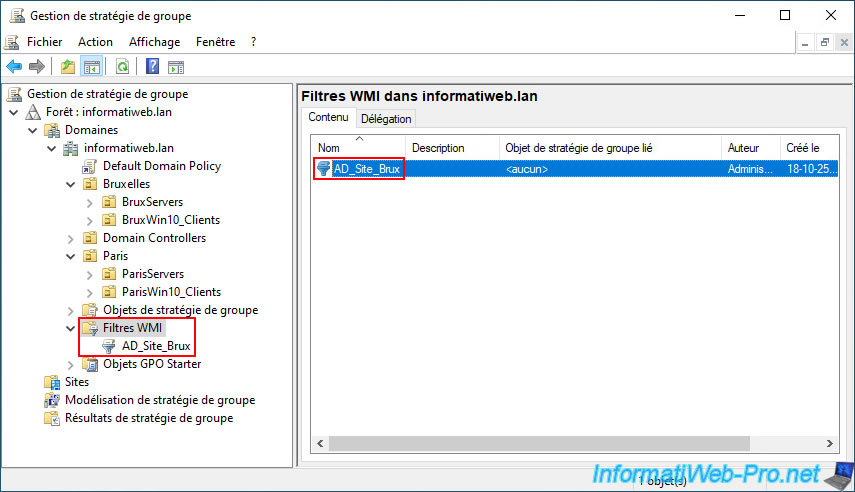
The name of the WMI filter created (in our case: AD_Site_Brux) appears in the "WMI Filters" folder.
4.4.3. Create a WMI filter so that a GPO applies to the Paris AD site
Similarly, you will also need a WMI filter corresponding to the other Active Directory site.
In our case, it will be for the Paris Active Directory site.
To do this, right-click again and select "New" in the WMI filter list.
Type "AD_Site_Paris" as the name for this filter (for example), then click "Add".
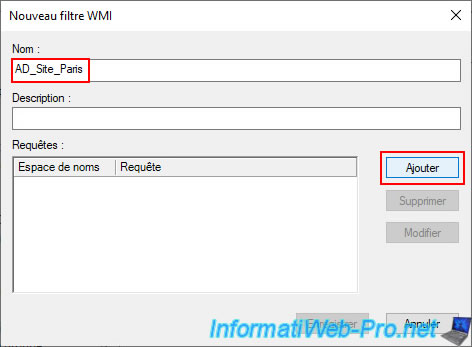
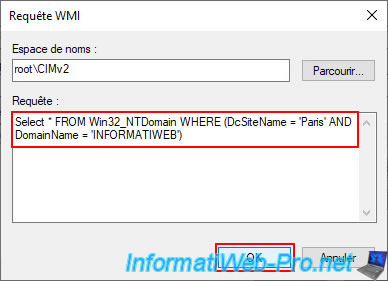
Again, leave the default namespace (root\CIMv2), then type the command below (modifying the values for the AD site and the NETBIOS name of your Active Directory domain again).
This time, the query below will appear.
SQL
Select * FROM Win32_NTDomain WHERE (DcSiteName = 'Paris' AND DomainName = 'INFORMATIWEB')
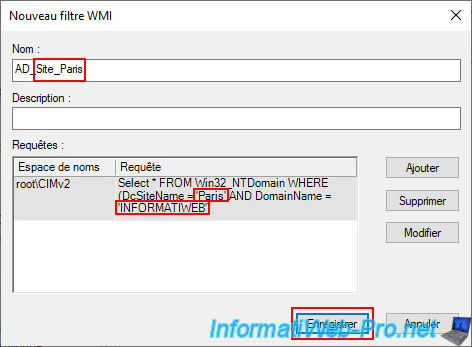
The created query appears in the list.
Click "Save".
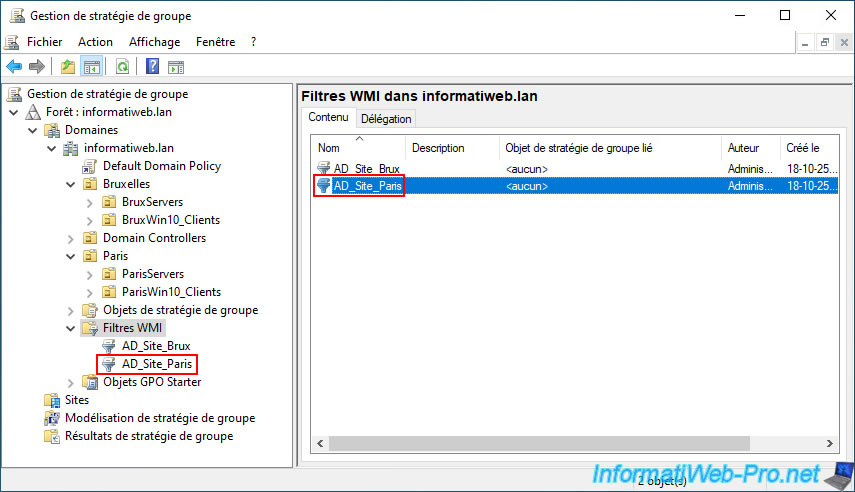
The newly created WMI filter "AD_Site_Paris" appears in the list.
Share this tutorial
To see also
-
Windows Server 11/11/2026
WS 2022 - WSUS - Install a master WSUS server
-

Windows Server 11/4/2026
WS 2022 - WSUS - What is a WSUS server?
No comment