Install a replica WSUS server on Windows Server 2022
- Windows Server
- WSUS
- 18 November 2026 at 14:39 UTC
-

- 6/7

4.5.5. Assign the Windows 10 computers in Brussels to the WSUS group "BruxWin10_Clients" via GPO
In a very similar way to the previous GPO, we will now create a new GPO to assign the Windows 10 computers located in Brussels to the WSUS group "BruxWin10_Clients".
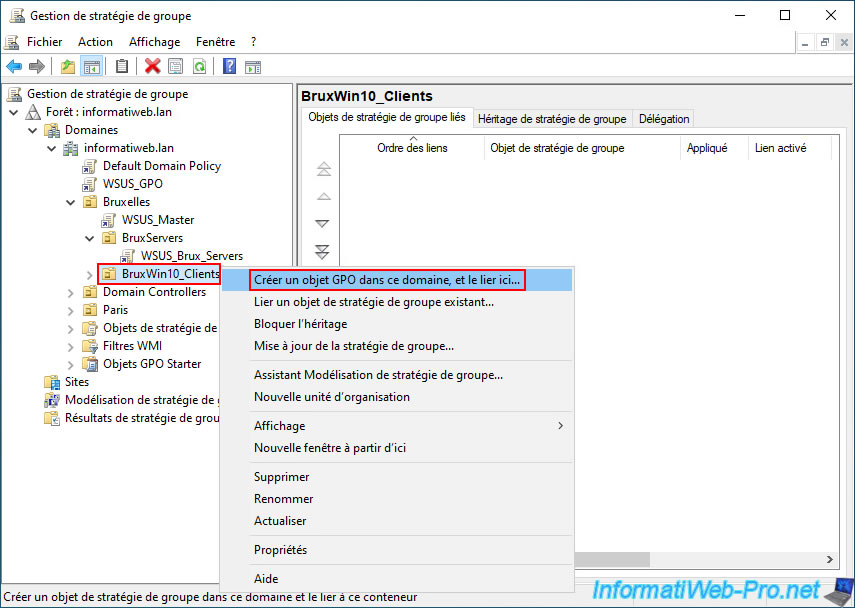
To do this, right-click on the "Brussels -> BruxWin10_Clients" folder and select "Create a GPO in this domain, and link it here".
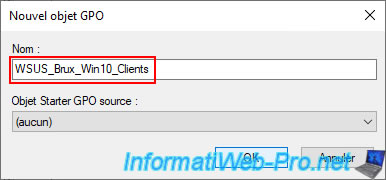
This time, specify "WSUS_Brux_Win10_Clients" as the name for this GPO object.
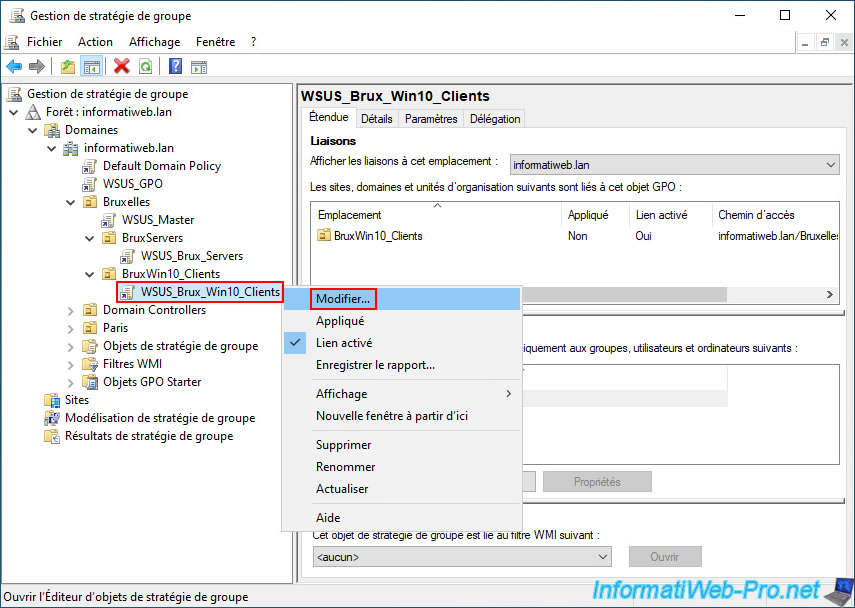
This time, the GPO "WSUS_Brux_Win10_Clients" is simply linked to the organizational unit "BruxWin10_Clients" and no WMI filter is applied to it (because it's not necessary in our case, but you could select the one for the Brussels site if you prefer).
Right-click and select "Edit" on this GPO "WSUS_Brux_Win10_Clients".
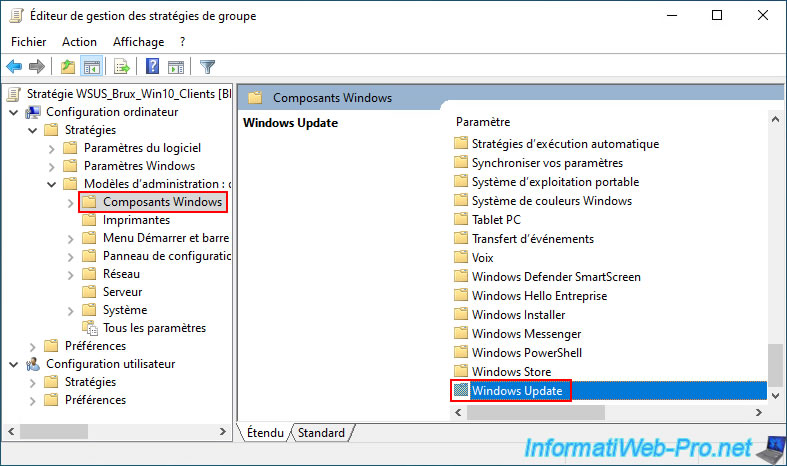
Go back to the "Windows Update" folder in the GPO editor for computer configuration.
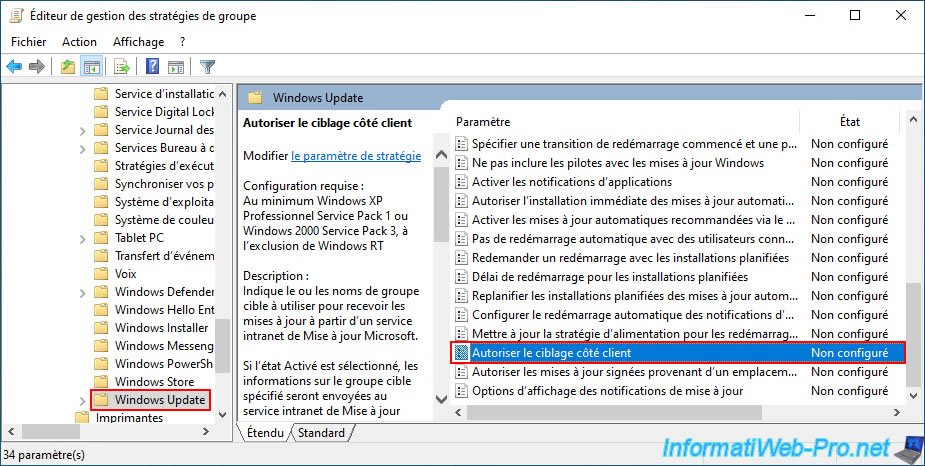
Again, double-click on the "Allow client-side targeting" policy.
Enable this "Allow client-side targeting" policy and this time specify the WSUS group name "BruxWin10_Clients".
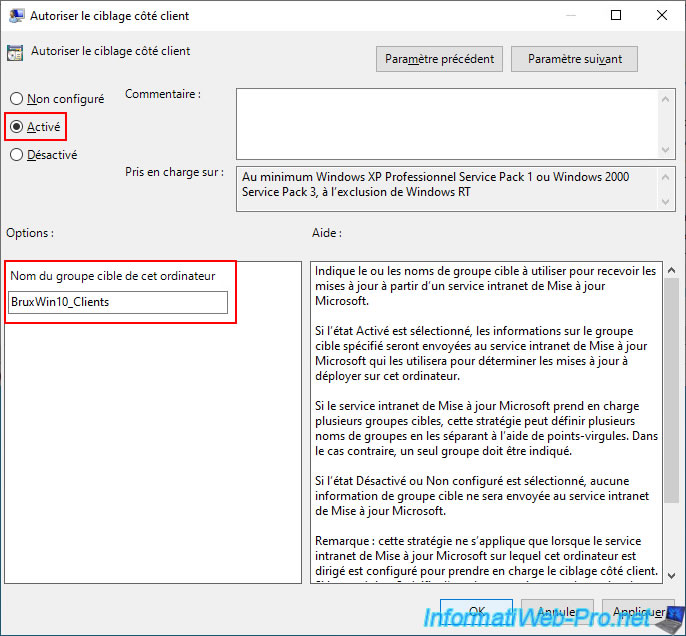
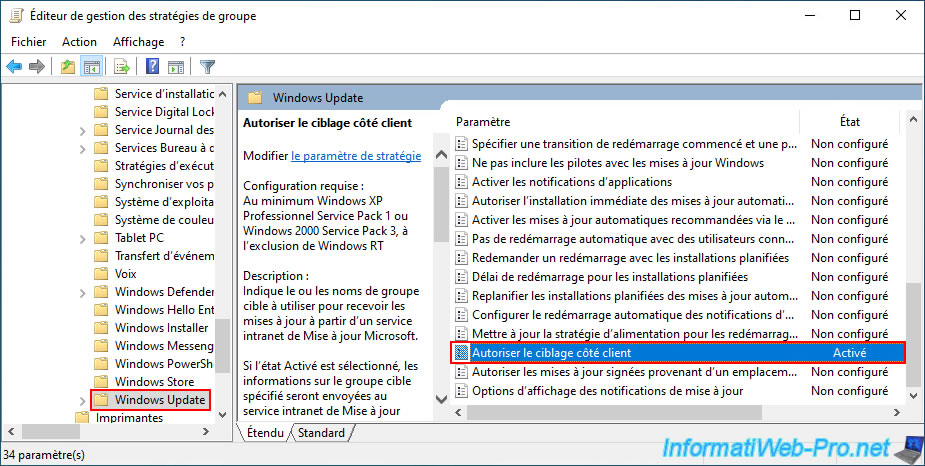
This policy is enabled and configured.
This allows all Windows 10 computers located in Brussels to be automatically assigned to the WSUS group "BruxWin10_Clients".
4.5.6. Assign the Paris servers and computers to their respective WSUS groups via GPO
For the Paris site, the principle remains the same, except that the WMI filter used will be "AD_Site_Paris" instead of "AD_Site_Brux," and the folders used will be subfolders of the "Paris" folder.
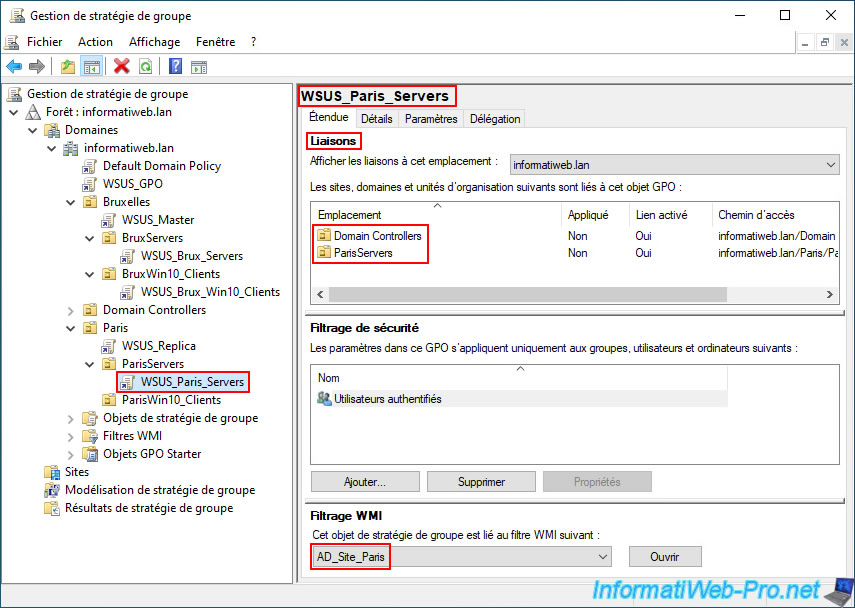
In short, create a new GPO "WSUS_Paris_Servers" by right-clicking and selecting "Create a new GPO in this domain and link it here" on the "ParisServers" folder.
Then, right-click and select "Link an existing GPO" on the "Domain Controllers" folder to also link this GPO to that folder.
Finally, remember to select the "AD_Site_Paris" WMI filter at the bottom of the window so that it only applies to the Paris servers (including only the Paris domain controllers in the "Domain Controllers" folder).
In the end, your GPO object "WSUS_Paris_Servers" should be configured as shown below.
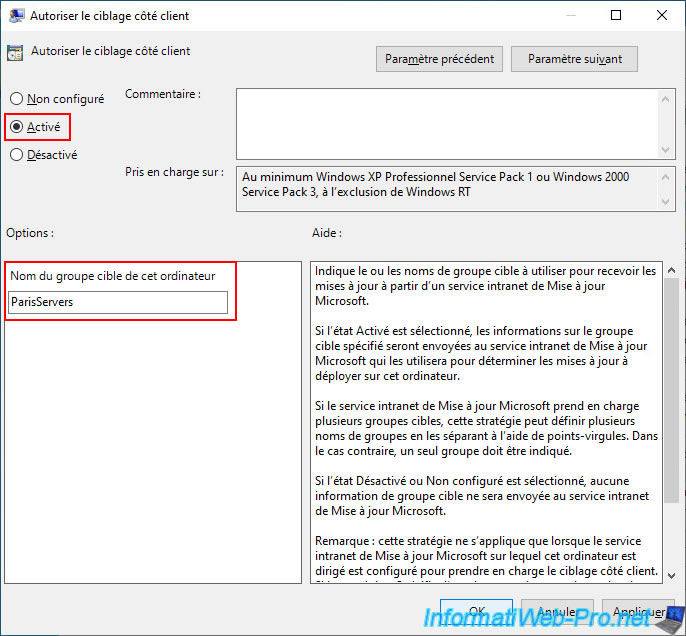
Right-click and select "Edit" on this GPO, then navigate back to "Computer Configuration -> ... -> Windows Update" and enable the "Allow client-side targeting" policy.
This time, enter "ParisServers" as the target group name.
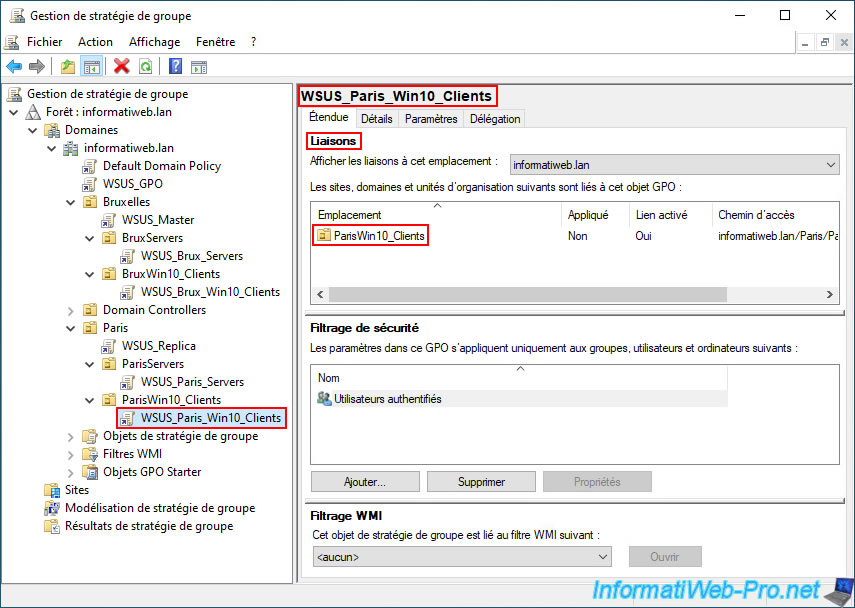
Finally, create a GPO named "WSUS_Paris_Win10_Clients" by right-clicking and selecting "Create GPO in this domain, and link it here" on the "ParisWin10_Clients" folder.
Note: the WMI filter is not necessary here (for client computers in Paris).
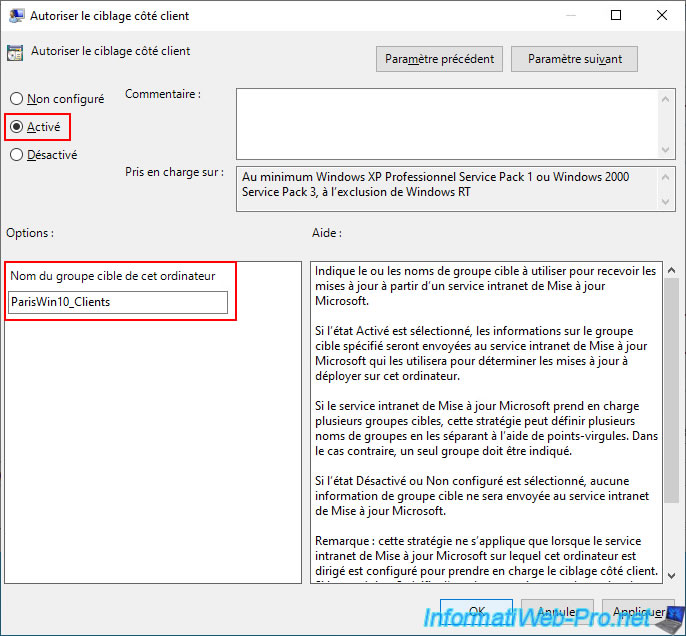
Right-click and select "Edit" on your "WSUS_Paris_Win10_Clients" GPO and enable the "Allow client-side targeting" policy (for computer configuration).
Then, specify the WSUS group name "ParisWin10_Clients".
4.5.7. Replicate GPOs in your Active Directory infrastructure
Warning : when using multiple domain controllers and/or multiple Active Directory sites, you must wait for Group Policy Objects (GPOs) to replicate to all domain controllers in your Active Directory infrastructure.
To view the replication status of your Group Policy Objects (GPOs), select your Active Directory domain in the Group Policy Management console.
On the Status tab, you can see that:
- replication is managed in 2 different ways: Active Directory replication and SYSVOL folder replication (via DFRS).
- Active Directory data replication (such as changes to AD folders, AD sites, DHCP permissions created in AD, etc.) is automatic.
If needed, replication can be triggered immediately using the command "repadmin /syncall /A /e /P". - replication of the "SYSVOL" folder via DFRS, where the GPOs you just created are stored, is also automatic.
However, this replication cannot be forced (or at least not easily, without temporarily modifying objects in AD), so you will need to wait a while for the GPOs to be replicated by DFRS to the "SYSVOL" folder on each AD domain controller.
- Active Directory data replication (such as changes to AD folders, AD sites, DHCP permissions created in AD, etc.) is automatic.
- the server "brux-dc1" is the base domain controller for this domain in our case.
In theory, it is the domain controller holding the FSMO role "PDC Emulator," and in our case, it is the first domain controller that was deployed during the deployment of our Active Directory infrastructure.
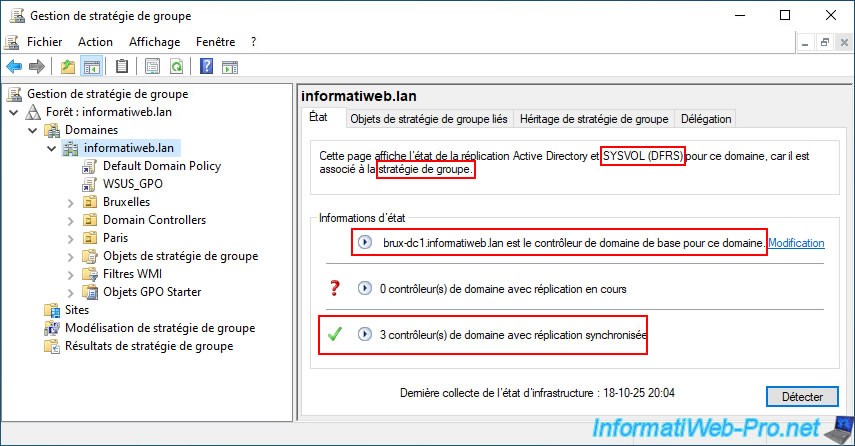
By default, the replication status is not displayed.
To make it appear, simply click the "Detect" button.
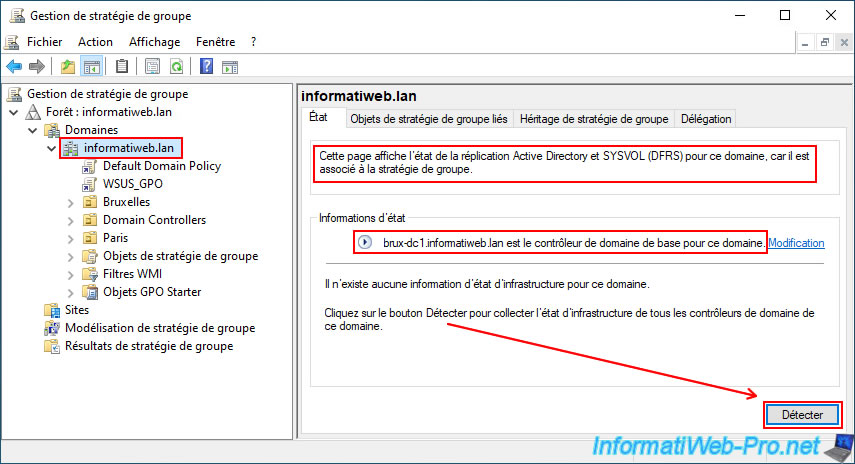
At the moment, you can see that replication is in progress on 2 domain controllers and that it is complete on another domain controller in our Active Directory infrastructure.
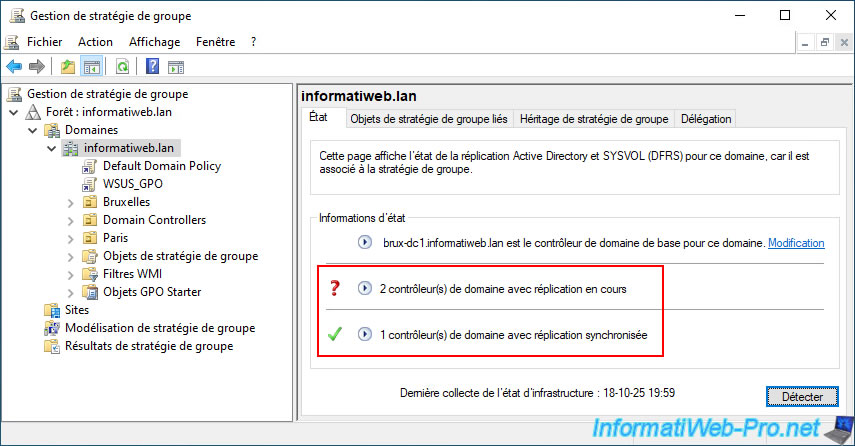
To learn more and see which servers are already synchronized, click the arrow to the left of each line.
You can now see that replication to our second domain controller in Brussels (brux-dc2) is complete.
However, synchronization to the two domain controllers at the remote site (Paris) is still in progress.
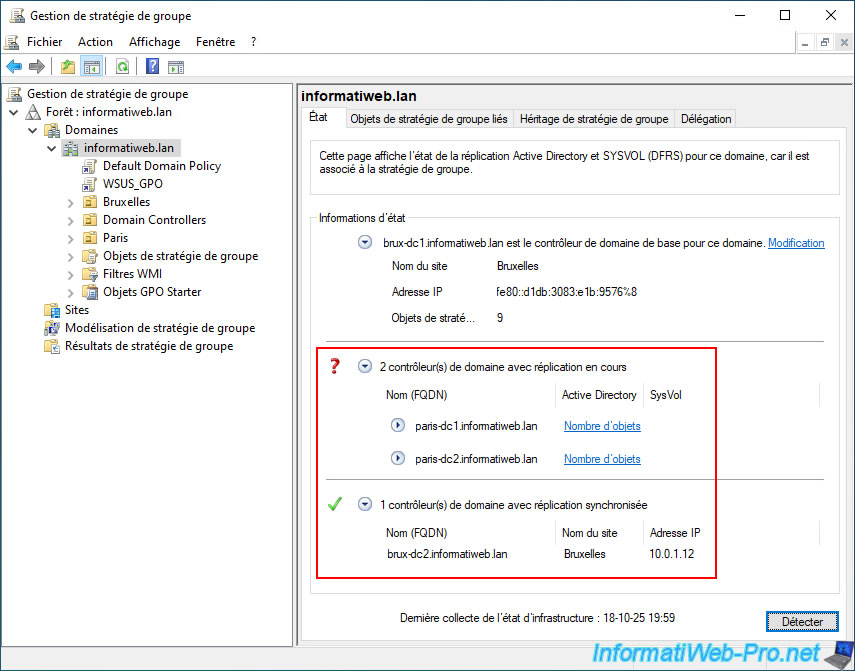
To try to speed up the replication of data from your domain controller where you created these new GPO objects to all other domain controllers in your Active Directory infrastructure (including those in the remote physical site), type the command below.
Batch
repadmin /syncall /A /e /P
Important : this command only forces the replication of Active Directory data to other domain controllers.
This command does not affect the replication of the "SYSVOL" folder (containing, among other things, GPOs), which is managed by DFRS.
However, this is a good way to try to speed up the replication of the SYSVOL folder from Active Directory.
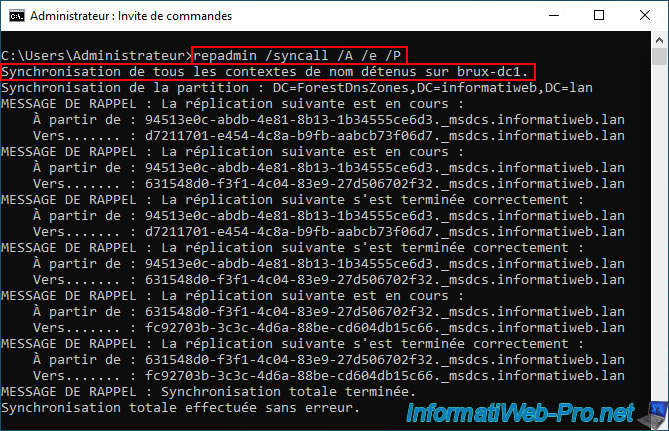
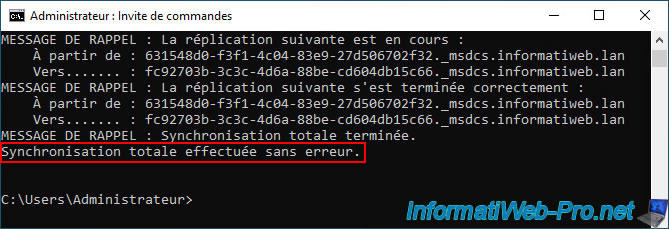
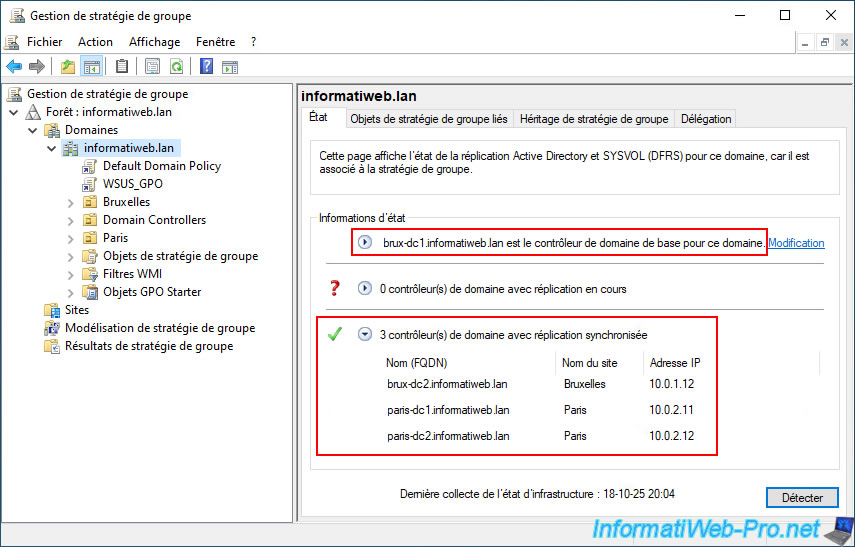
A few minutes later, you should see that replication is complete for all your domain controllers.
Warning : this may take longer depending on your Active Directory infrastructure or the amount of data to be replicated.
If replication never completes, it's possible that replication of the "SYSVOL" folder managed by DFRS has stopped due to a conflict.
In this case, you will need to perform the steps outlined on the page "Force synchronization for Distributed File System Replication (DFSR) replicated sysvol replication - Windows Server | Microsoft Learn".
Again, to see the domain controllers involved, click on the icon located to the left of each status.
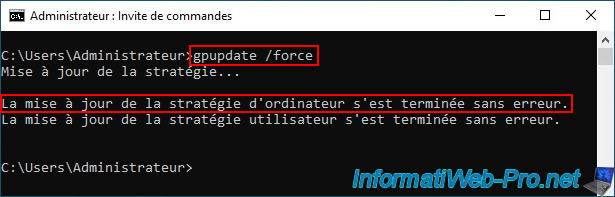
Once all your Active Directory domain controllers are up to date (for this GPO object replication), you can force the Group Policy (GPO) update if you wish on all your servers and computers with the usual command.
Batch
gpupdate /force
You should see the usual messages appear.
Plain Text
Updating policy...

Computer policy update completed successfully.
User policy update completed successfully.
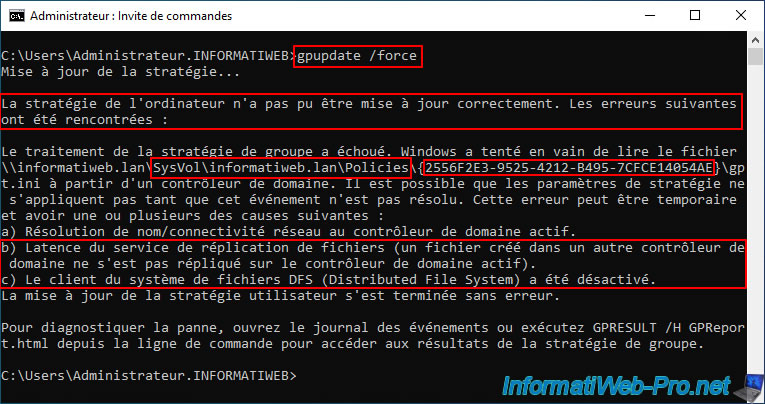
If replication is not complete, the "gpupdate /force" command may return an error like the one below.
This indicates that Windows could not read a configuration file located in a network folder "...\SysVol\informatiweb.lan\Policies\{...}".
In short, each "Policies\{...}" folder corresponds to a Group Policy Object (GPO), and the alphanumeric value between curly braces ({}) represents the identifier of the relevant GPO.
The problem is that this network path can point to either domain controller. Therefore, you must wait until the replication of the "SysVol" folder to the other domain controllers is complete before using the "gpupdate /force" command on your servers and computers.
Plain Text
The computer's policy could not be updated successfully. The following errors were encountered:

Group Policy processing failed. Windows attempted unsuccessfully to read the file \\informatiweb.lan\SysVol\informatiweb.lan\Policies\{2556F2E3-9525-4212-B495-7CFCE14054AE}\gpt.ini from a domain controller.
As indicated towards the end of this long error message, this temporary error may be due to:
- this could be due to latency in the file replication service (DFRS, which regularly replicates the contents of the "SysVol" folder to other domain controllers).
In this case, simply wait a few more minutes and check the GPO replication status as explained above. - it could also be due to a disabling of the DFS system (or rather, a disabling of automatic replication of the "SysVol" folder managed via DFS).
In this case, you will need to perform some steps following the Microsoft guide mentioned earlier in this tutorial.
4.6. Force WSUS group replication
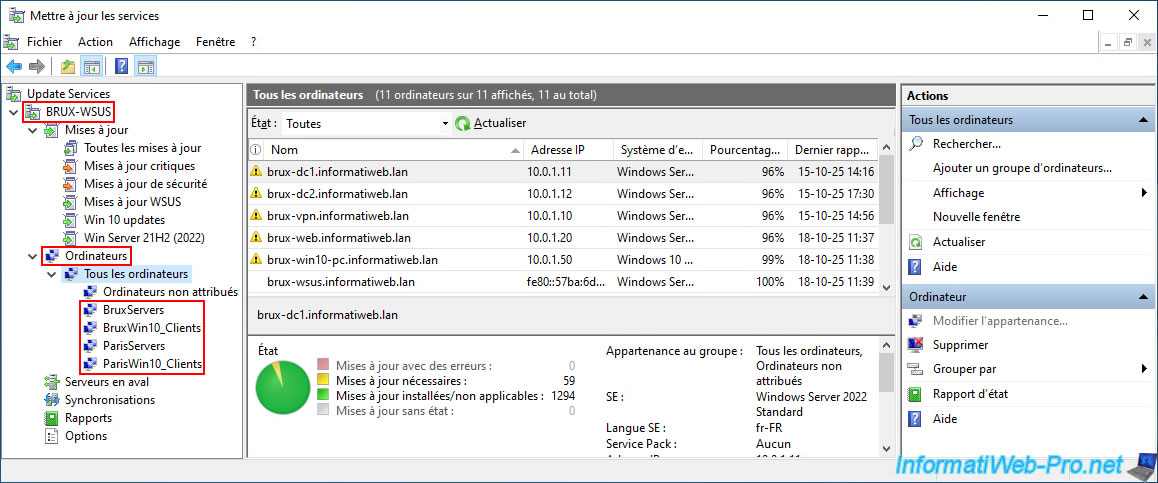
As you can see, in our case, our 4 WSUS groups (BruxServers, BruxWin10_Clients, ...) appear without any problem on our master WSUS server "BRUX-WSUS" where they were created previously.
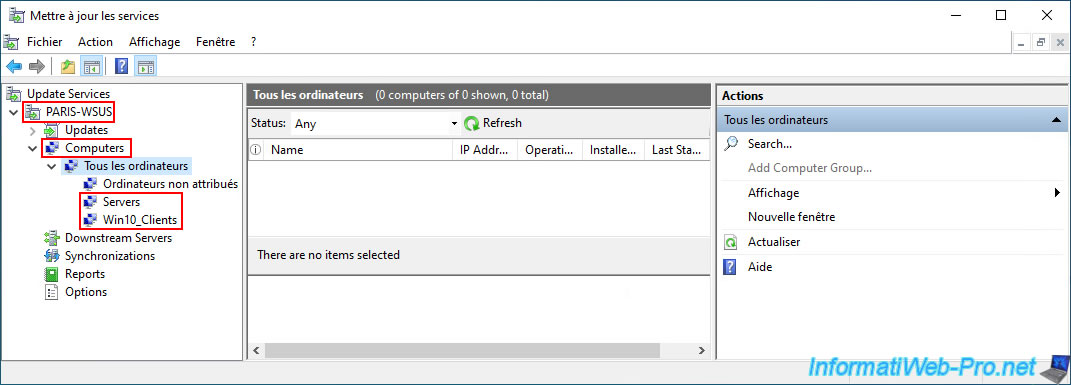
However, these groups still do not appear on our WSUS replica server "PARIS-WSUS", which depends on this master WSUS server "BRUX-WSUS".
Indeed, you still see the WSUS groups that were previously created on this WSUS replica server.
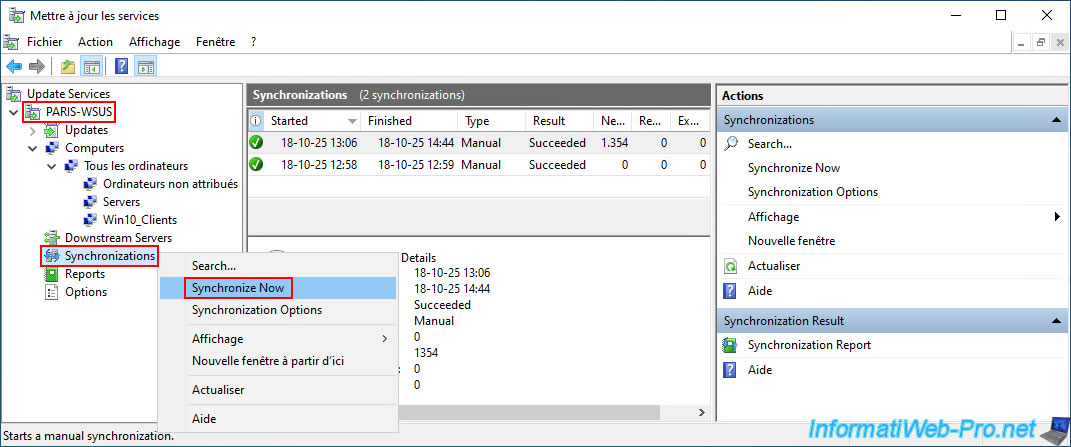
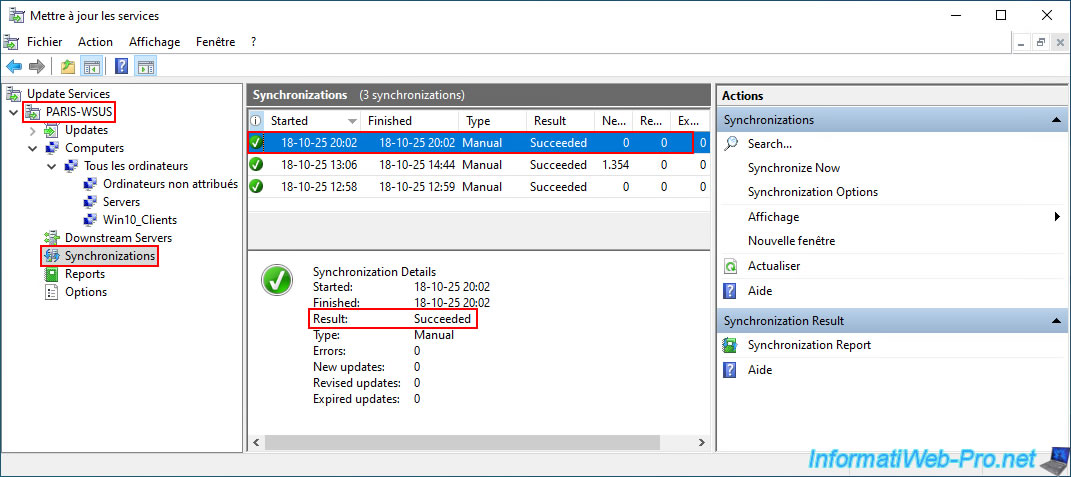
To replicate these WSUS groups from the master WSUS server (BRUX-WSUS) to your replica WSUS server (PARIS-WSUS), simply right-click "Synchronize Now" on the "Synchronizations" section of your replica WSUS server (PARIS-WSUS).
Please wait while your replica WSUS server synchronizes with your master WSUS server.
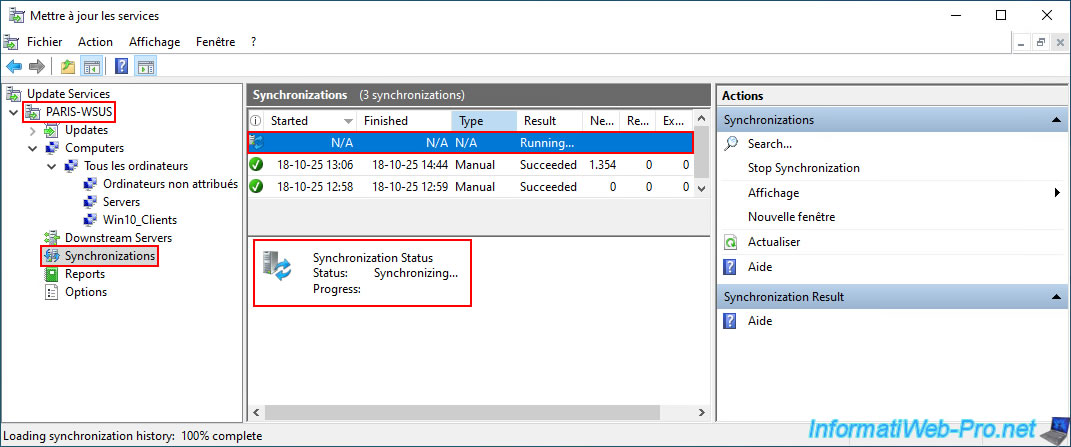
Once the synchronization is complete, the result will be "Succeeded".
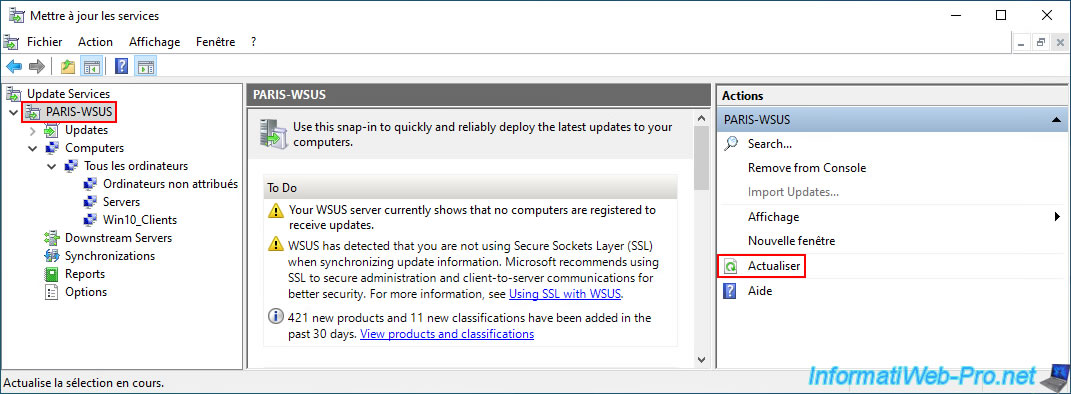
Now, select the name of your WSUS replica server (PARIS-WSUS) and click on the "Refresh" option (in the right column).
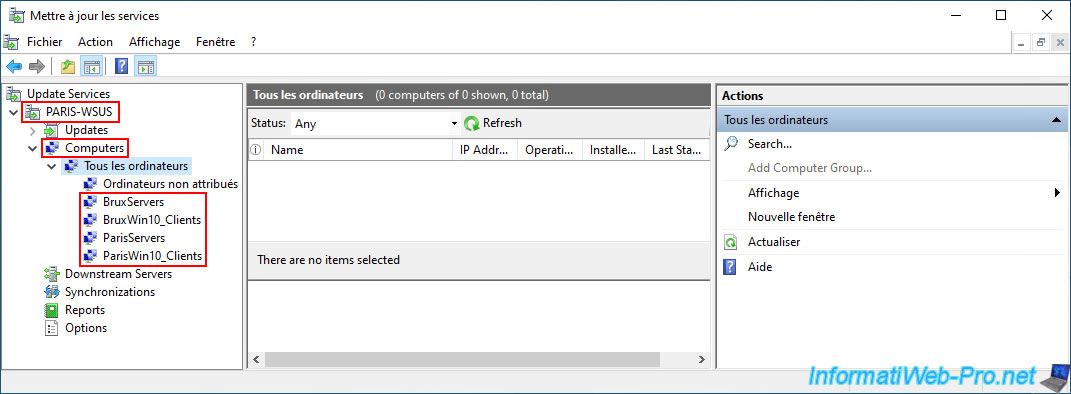
As expected, your WSUS groups created on the master WSUS server now also appear on your replica WSUS server.
This will allow your servers and computers to appear in these groups if they connect to this replica WSUS server, rather than the master WSUS server (depending on the GPOs applied to them and therefore their physical location).
Share this tutorial
To see also
-
Windows Server 11/11/2026
WS 2022 - WSUS - Install a master WSUS server
-

Windows Server 11/4/2026
WS 2022 - WSUS - What is a WSUS server?
No comment