Create a gaming virtual machine (without ACS support and with PCIe ACS overrides patch) on Unraid 6.9.2
- NAS
- Unraid
- 09 September 2026 at 14:08 UTC
-

- 4/4

13. Install Steam and install your favorite game
Download the installer for your preferred gaming platform.
In our case: Steam.
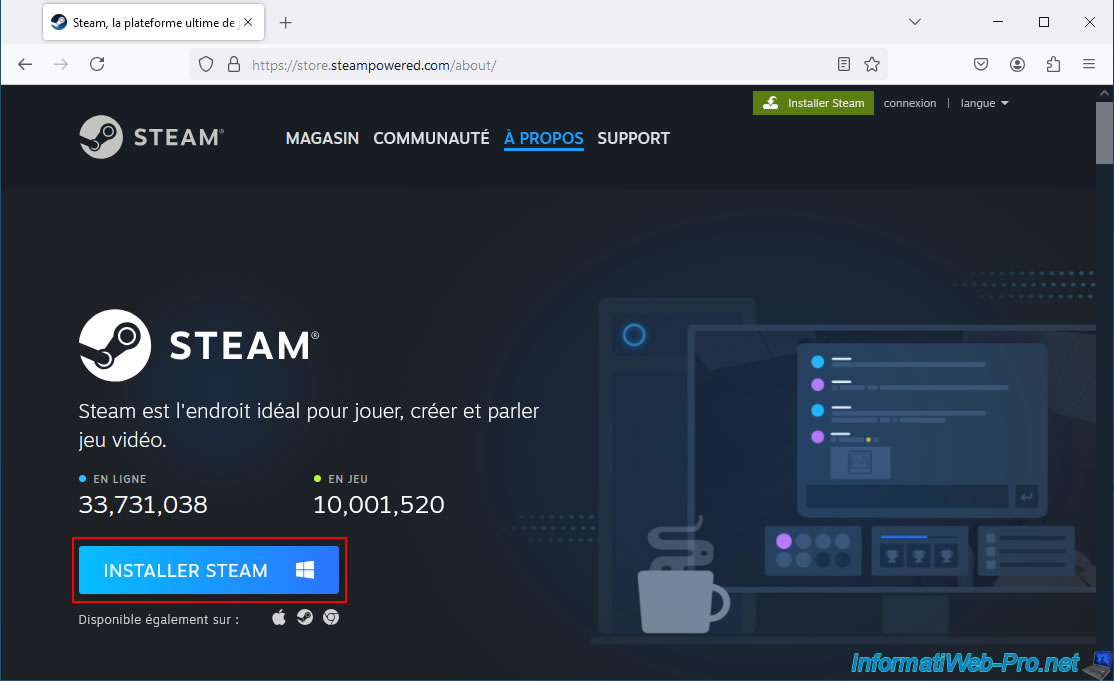
Launch the downloaded installer.
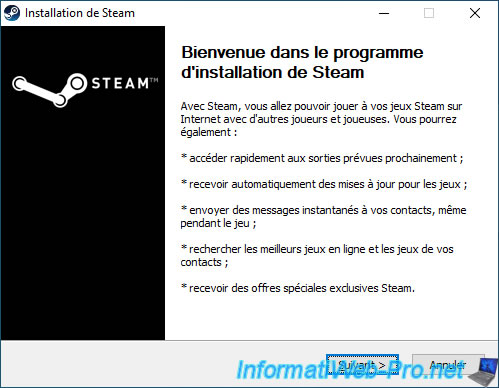
In the case of Steam, you can configure the settings to download and install games by default to your second virtual hard drive.
To do this, refer to step "13. Install Steam and install your favorite game" in our tutorial on creating a gaming virtual machine on Unraid.
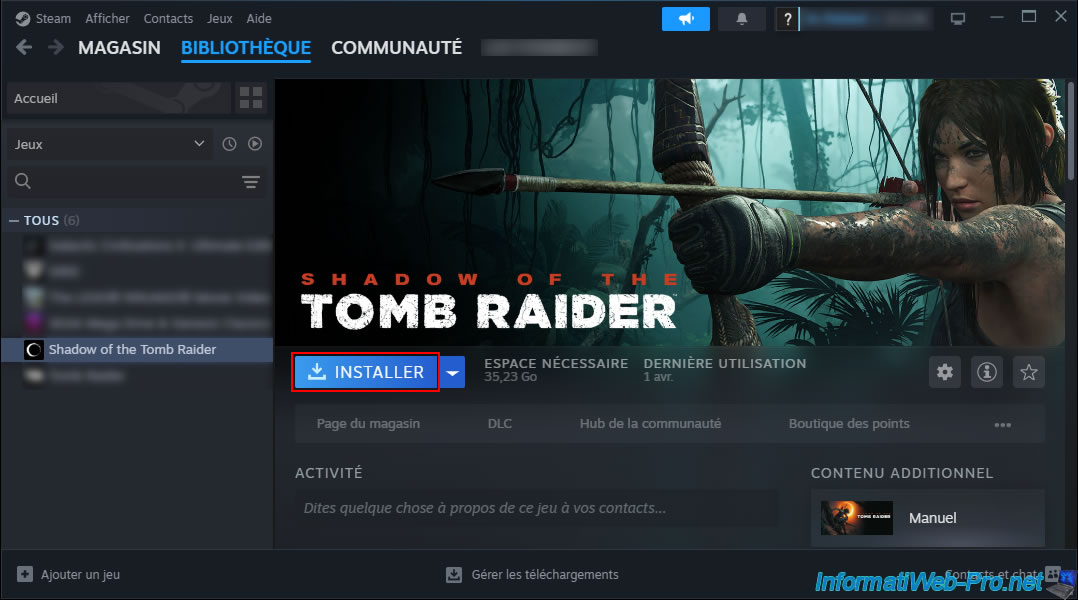
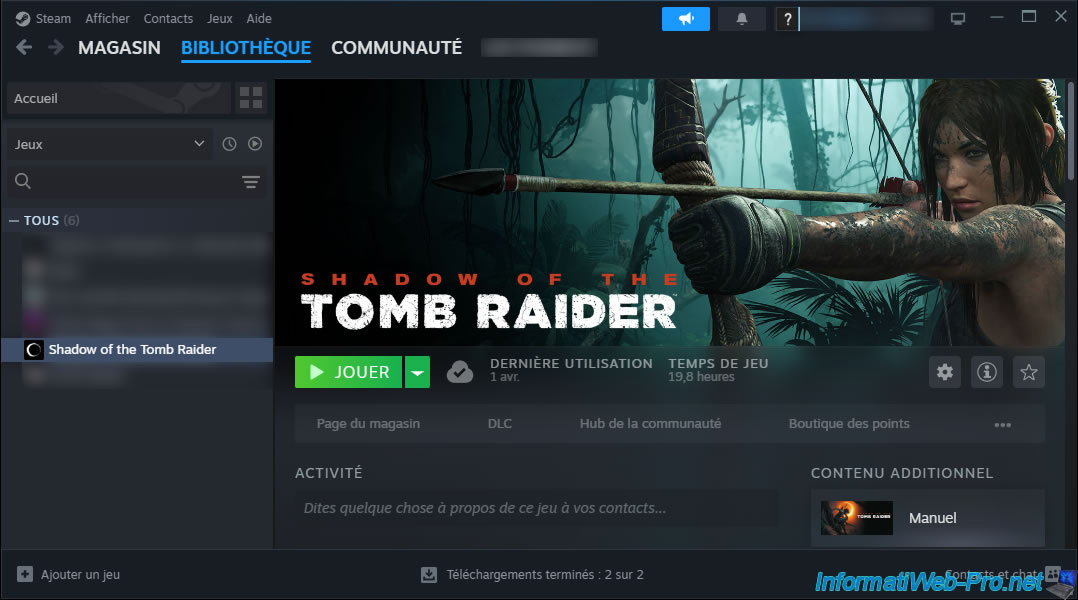
Then, install the desired game from your Steam library.
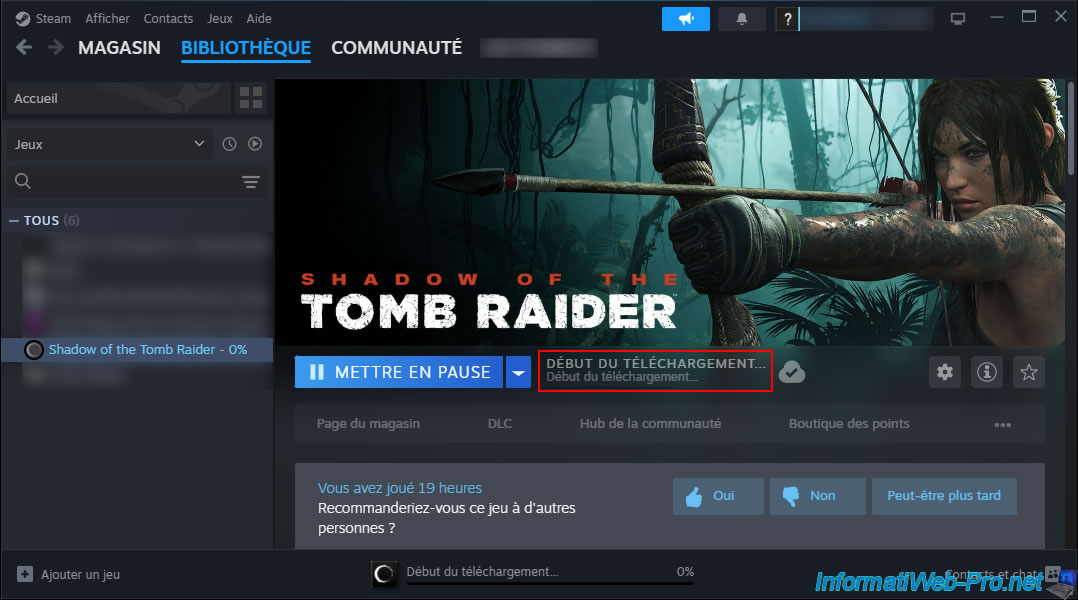
Please wait while your game is downloaded and installed.
The download and installation of the desired game are now complete.
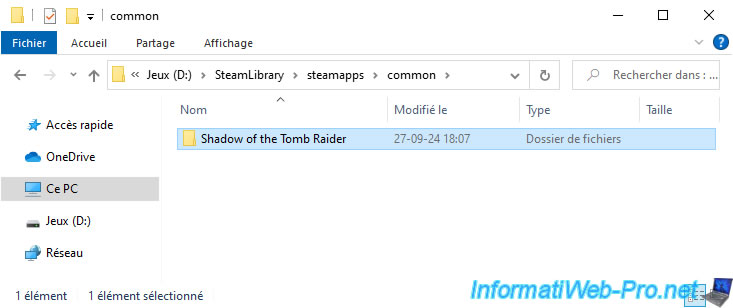
In the "D:\SteamLibrary\steamapps\common" folder, you will see a new folder appear containing your Steam game.
14. Play Shadow of Tomb Raider in your Windows 10 virtual machine
Launch the game from the Steam interface or via the shortcut on your desktop (if applicable).
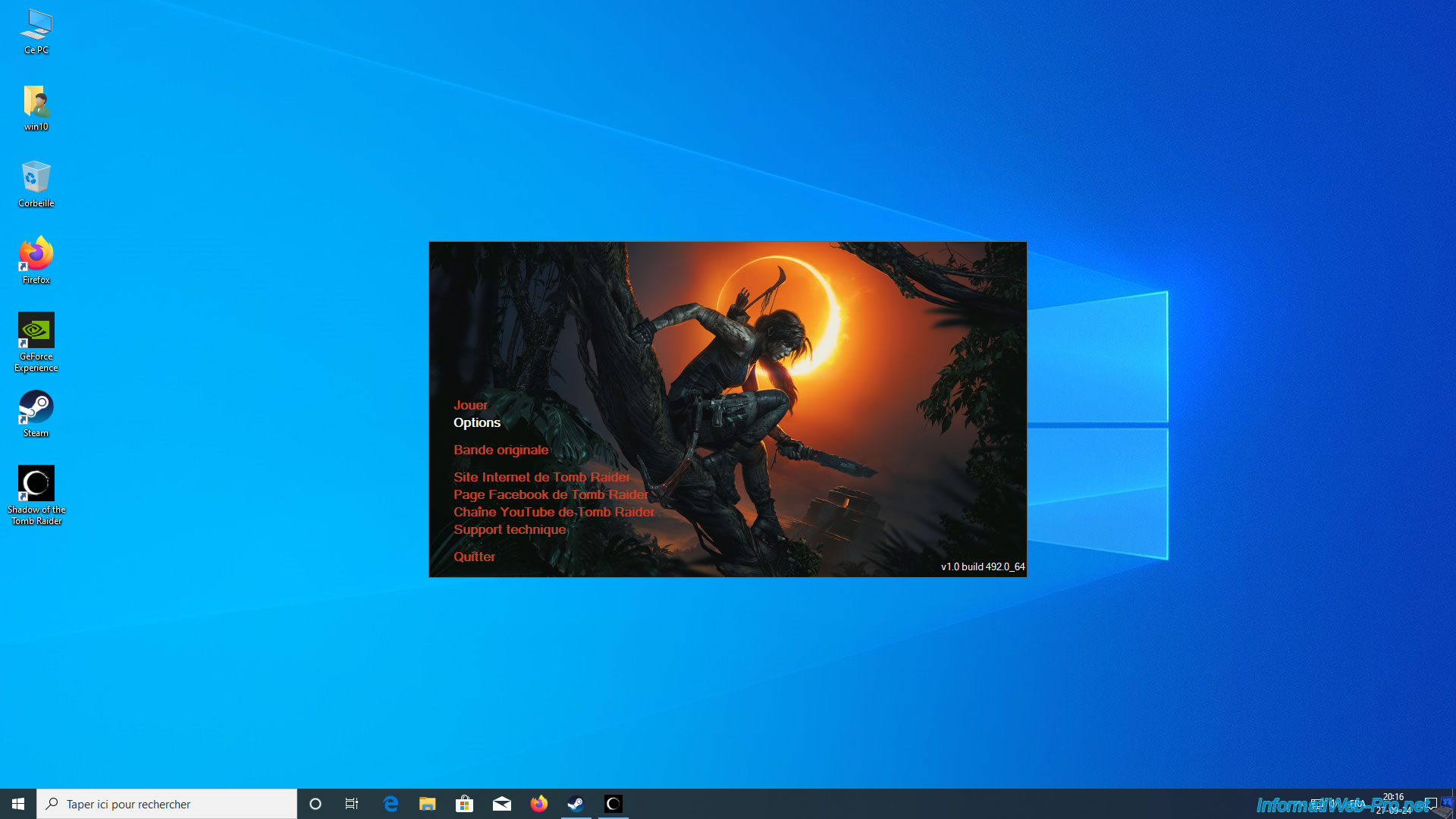
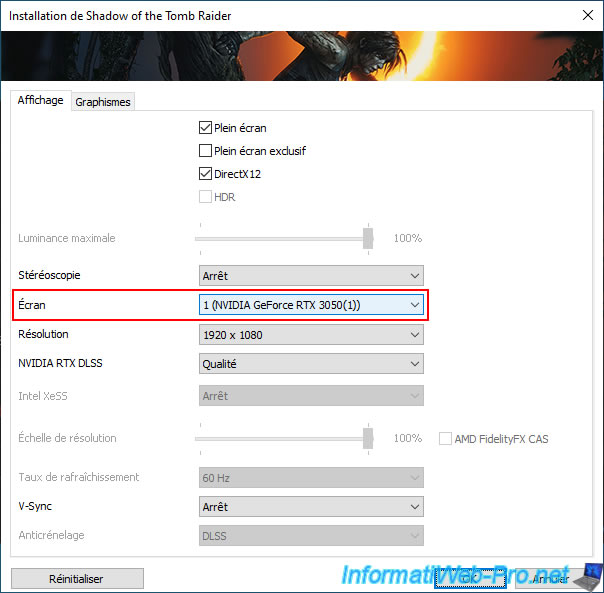
In our case, we can click on "Options" and see that the game will use our physical graphics card, "NVIDIA GeForce RTX 3050" (even though it's running on a virtual machine).
We click on "Play".
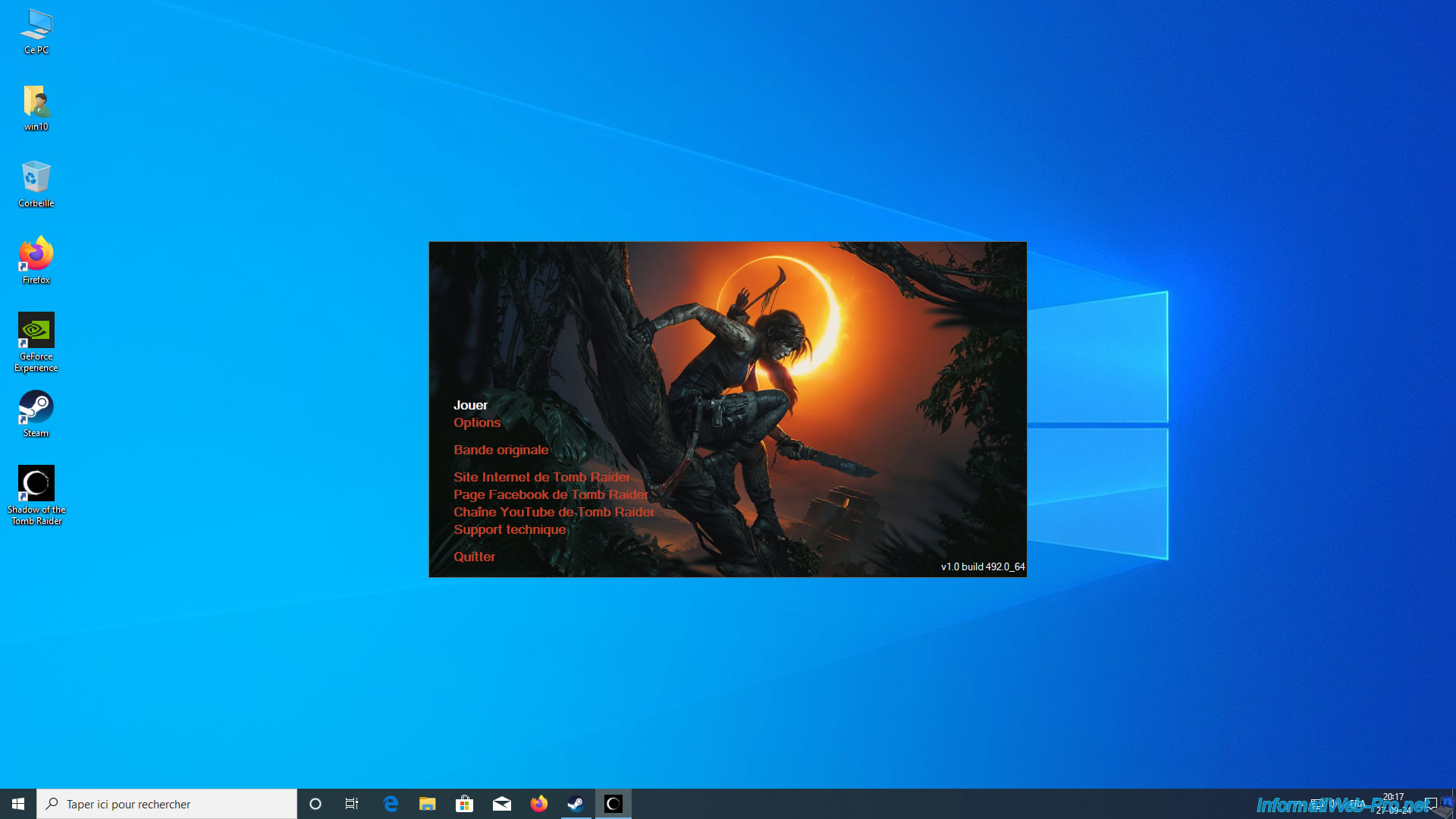
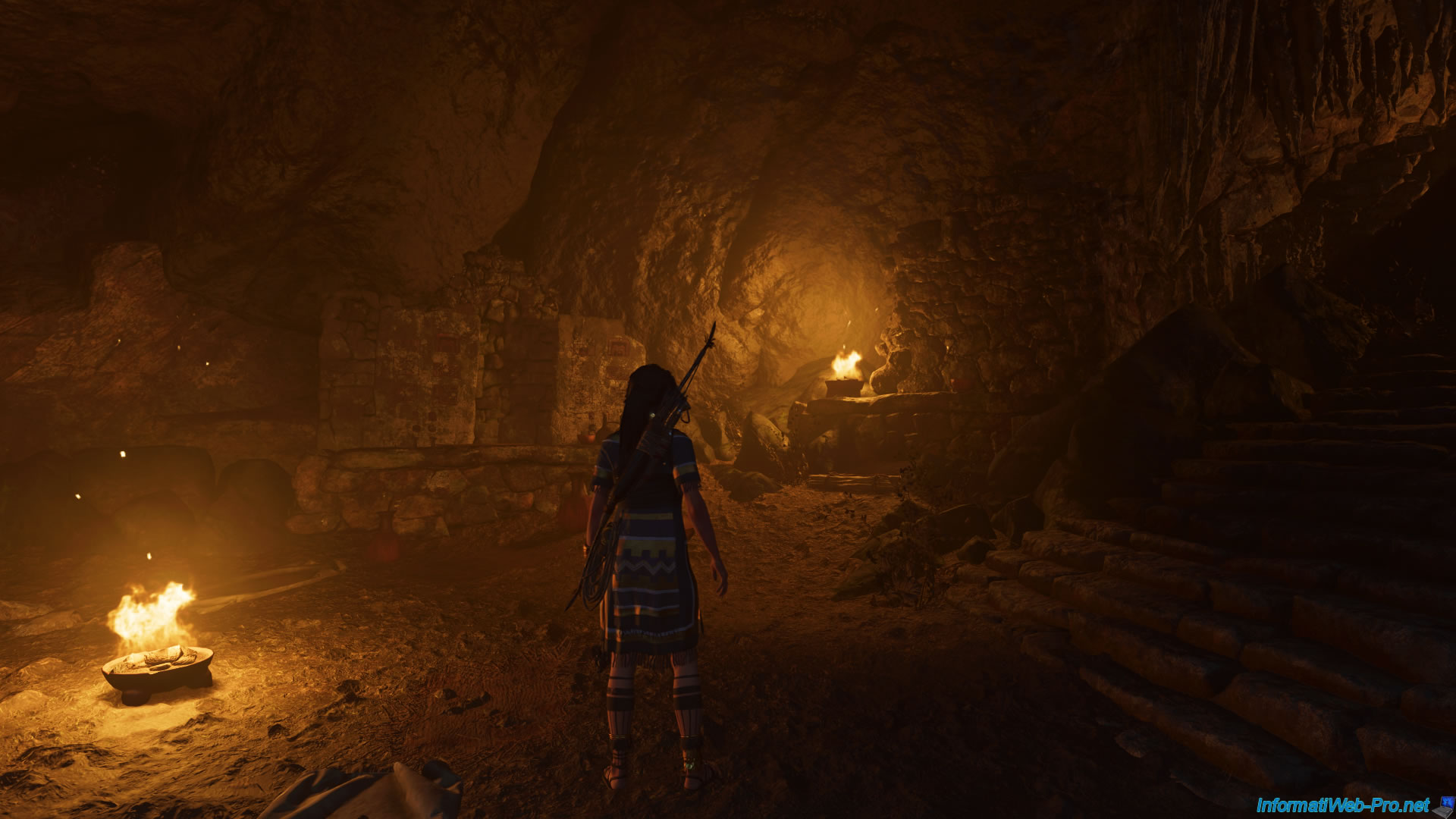
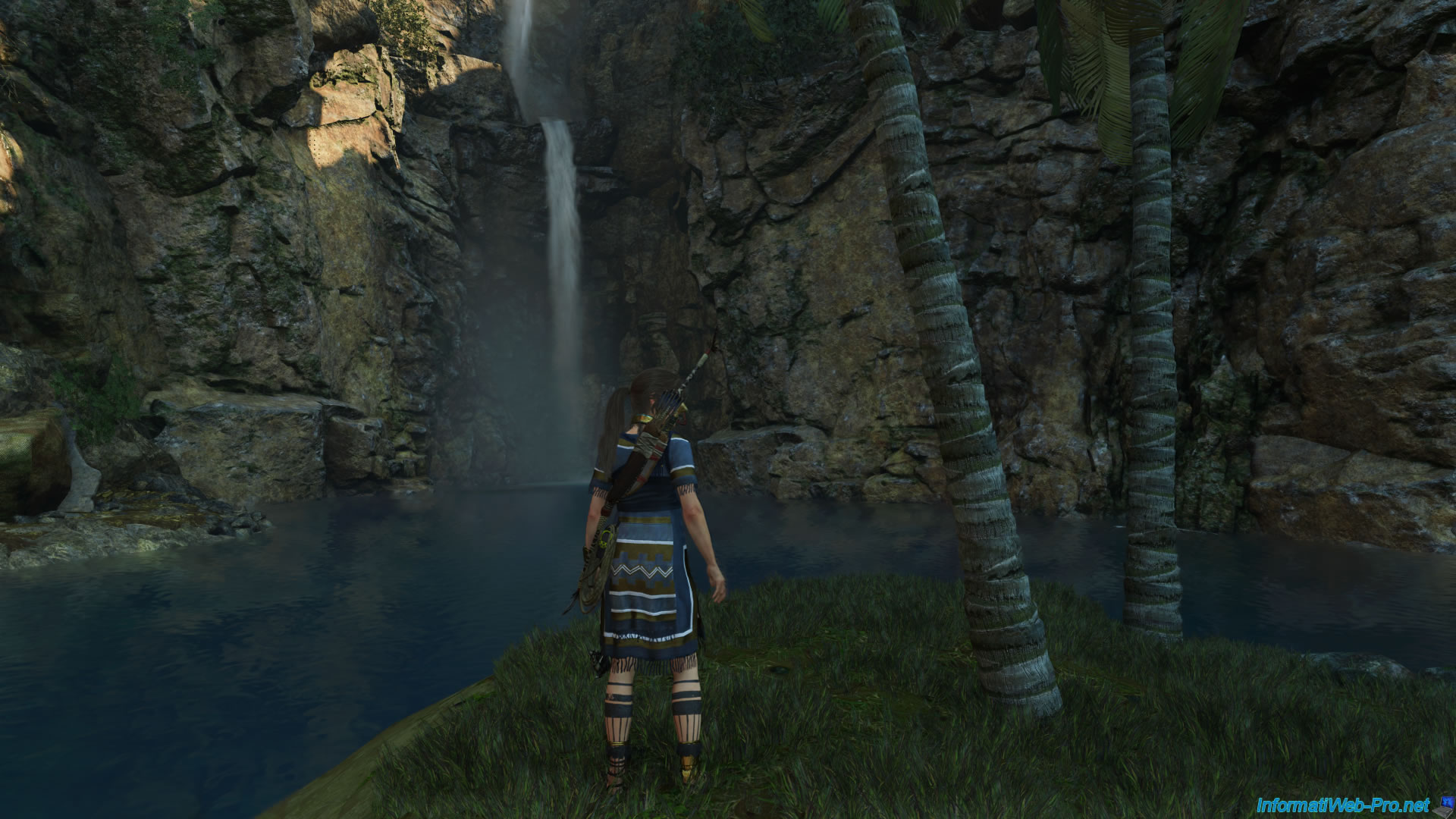
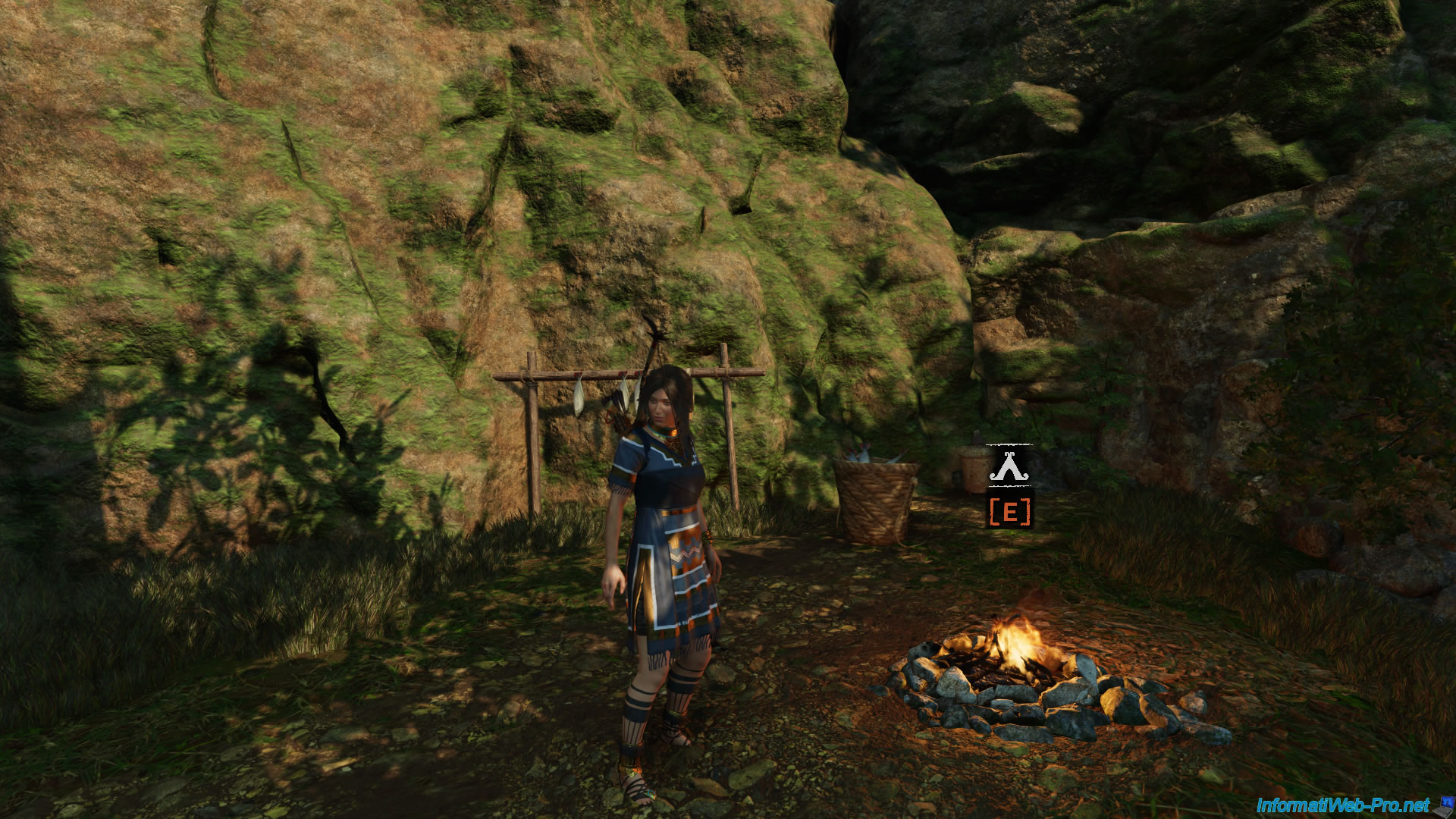
The game starts.

As expected, the game runs smoothly on our gaming virtual machine created using Unraid.
Share this tutorial
To see also
-
NAS 12/4/2025
Unraid 6.9.2 - Define a private static IP address
-
NAS 1/1/2026
Unraid 6.9.2 - Disable flash network sharing
-
NAS 1/28/2026
Unraid 6.9.2 - Replace the parity disk
-
NAS 7/22/2026
Unraid 6.9.2 - VMs - Backing up a VM manually
No comment