Create a gaming virtual machine (accessible via Parsec) on Unraid 6.9.2
- NAS
- Unraid
- 02 September 2026 at 07:39 UTC
-

- 4/7

10. Change the VNC graphics card of your VM to use your Nvidia graphics card
Once your virtual machine is stopped, click on: Edit.
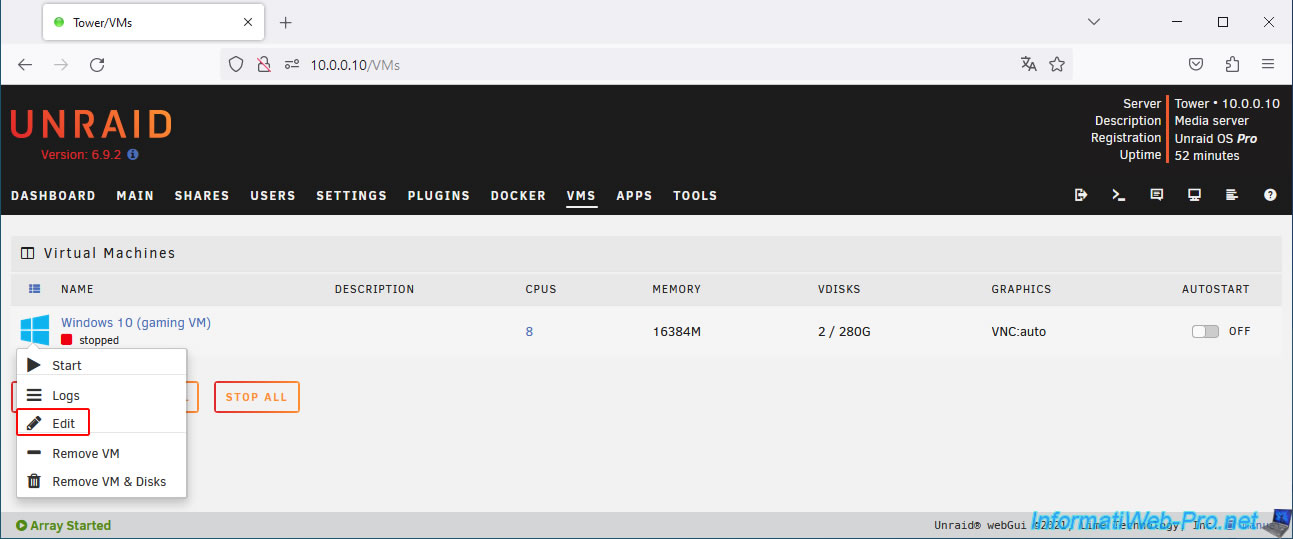
In the "Graphics Card" section, select the Nvidia graphics card you want to use with your virtual machine instead of the "VNC" option currently displayed.
In our case: NVIDIA GeForce RTX 3070 (67:00.0).
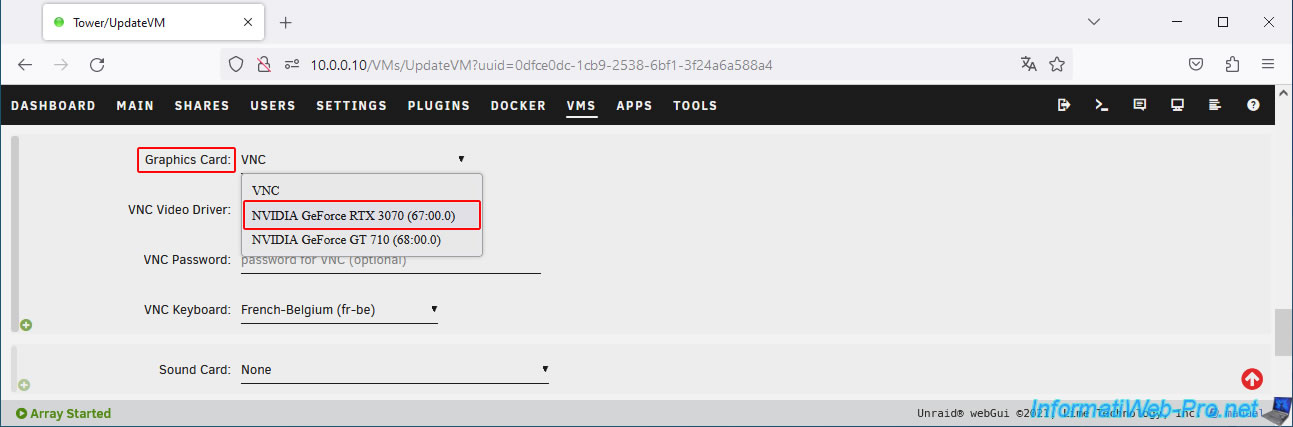
In the "Sound Card" section, select the audio component corresponding to the graphics card you just selected for the "Graphics Card" setting above.
In our case: NVIDIA GA104 HD Audio Controller (67:00.1).
Warning : to select the correct option, simply check the beginning of the IOMMU identifier (in this case: 67:00).
Important : you must pass the graphics card, as well as its audio component and its USB controller (if any) for the virtual machine to see the graphics card in its entirety.
Otherwise, the virtual machine would see an incomplete graphics card, and an error code 43 would appear in the Device Manager for your Nvidia graphics card.
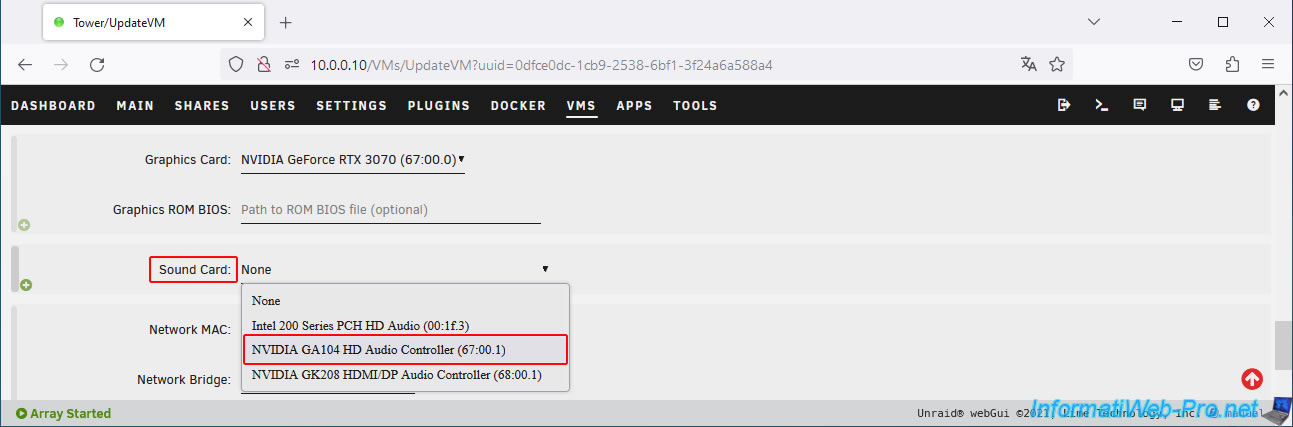
To be sure to select the correct sound card (audio part), you must check that the beginning of the IOMMU identifier is identical for the graphics card selected for the "Graphics Card" parameter and for the sound card (audio part) selected for the "Sound Card" parameter.
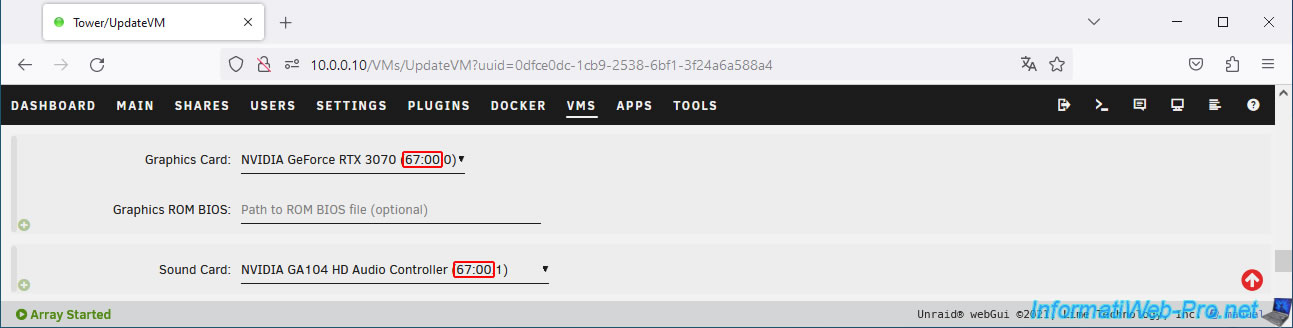
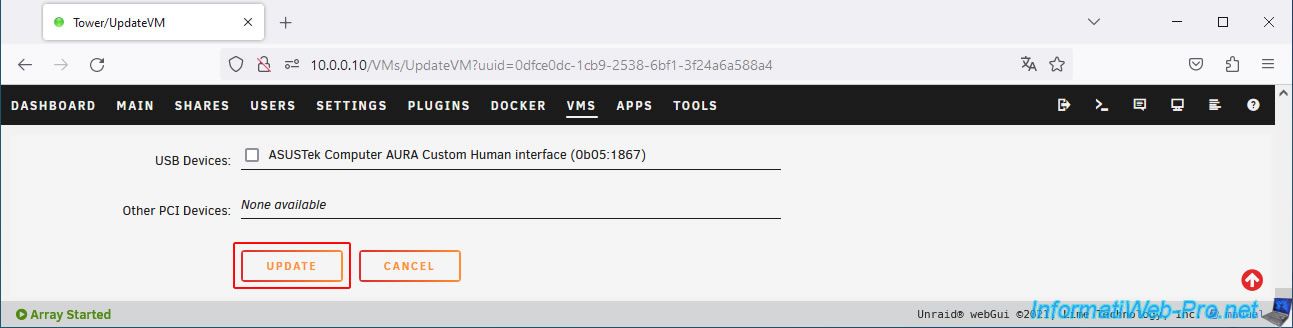
At the bottom of the page, click on: Update.
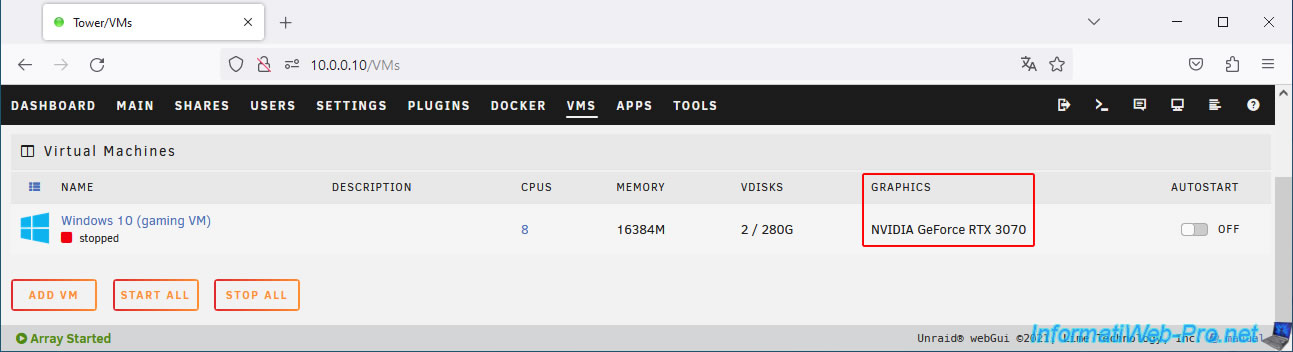
In the "Graphics" column, you will see that your virtual machine is now using your graphics card (in our case: NVIDIA GeForce RTX 3070) instead of the "VNC" virtual graphics card.
11. Connecting to your gaming virtual machine via Remote Desktop (RDP)
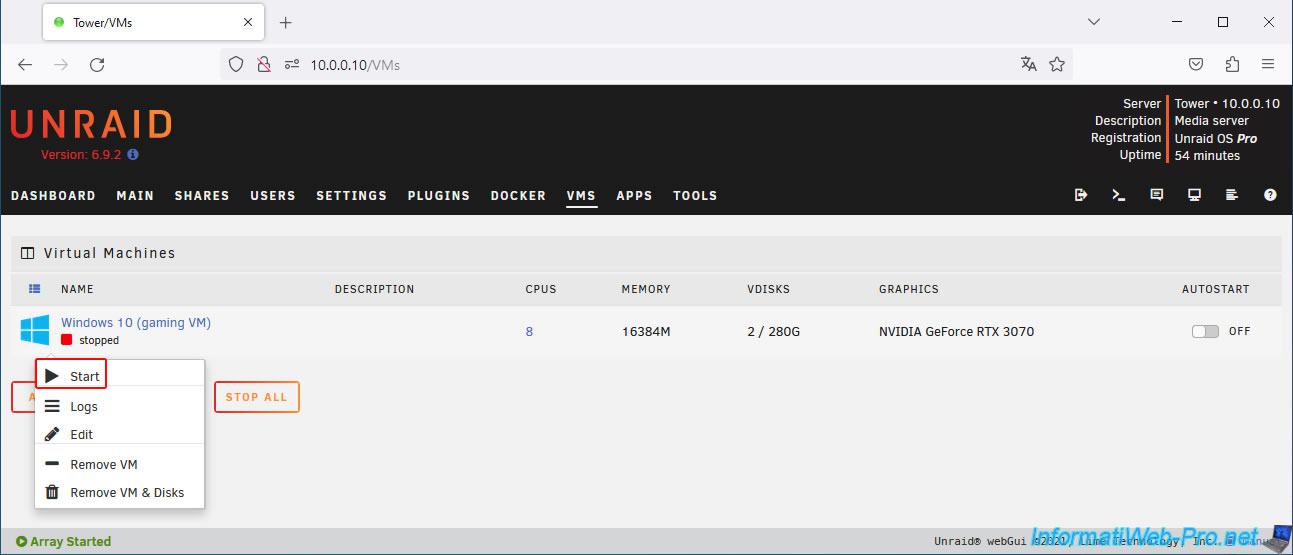
Start your virtual machine by clicking on your virtual machine icon, then on: Start.
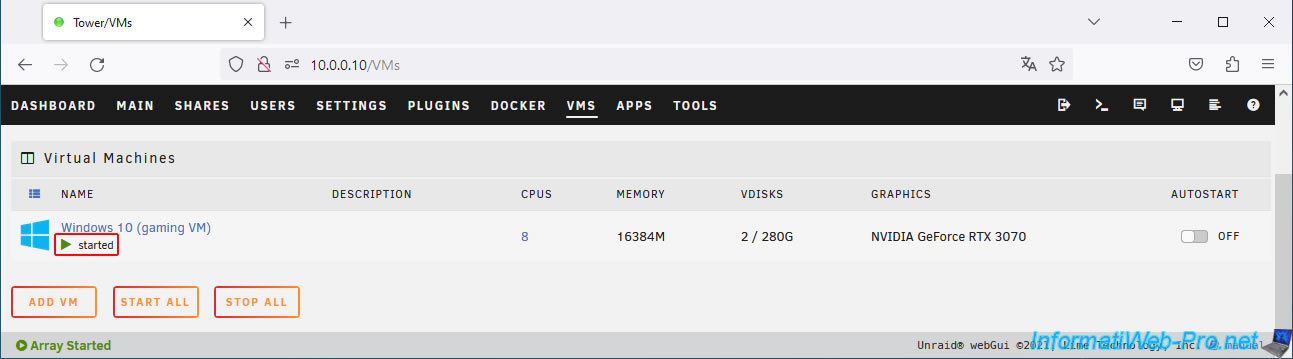
Once the virtual machine is booted, you'll see the "started" status.
However, you'll obviously no longer have access to the virtual machine's console from the Unraid web interface since the VNC virtual graphics card is no longer in use.
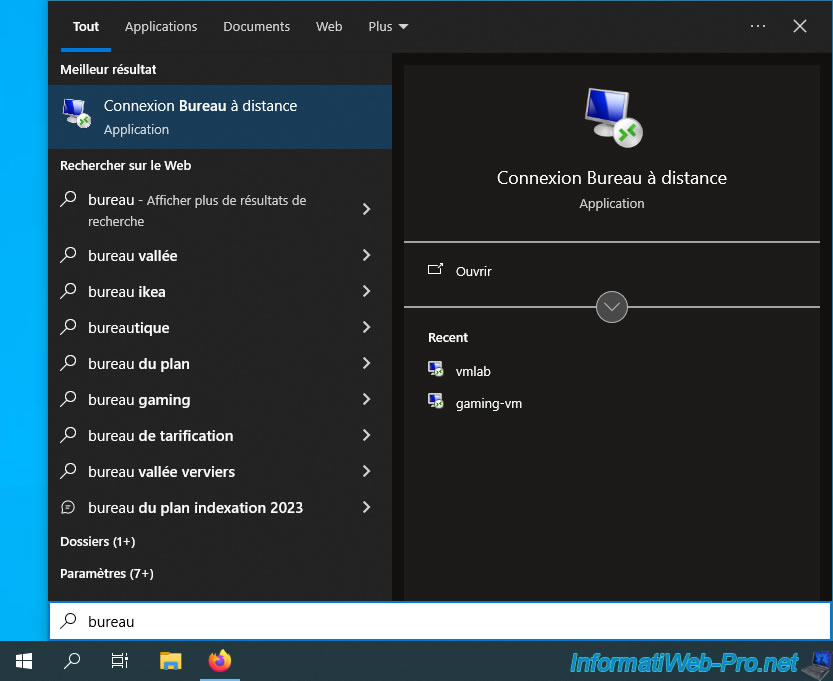
On your computer, launch the "Remote Desktop Connection" program (or in other words: the RDP client, which is available regardless of the Windows edition).
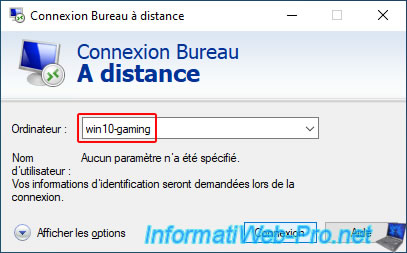
Enter the computer name defined in your virtual machine, then click Connect.
In our case: win10-gaming.
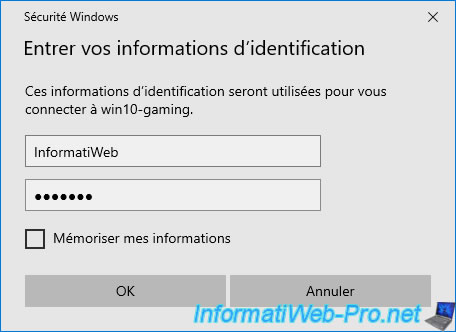
Enter the credentials of the Windows user account in your virtual machine and click OK.
Note: if you have not set a password for your user account, the RDP client will indicate that the password is incorrect (because it cannot be empty).
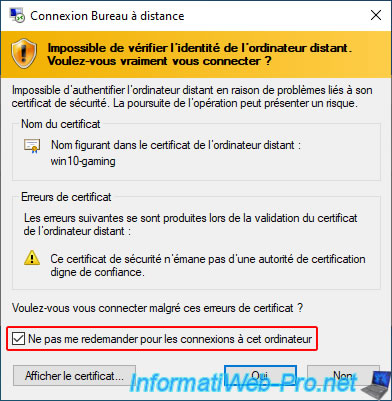
If the computer name and credentials provided are correct, you will see this warning.
Plain Text
Unable to verify the identity of the remote computer.
Are you sure you want to connect?

This security certificate is not issued by a trusted certificate authority.
Check the "Don't ask me again when connecting to this computer" box and click "Yes".
Note: this warning appears because the connection is secured using a self-signed certificate by default, which does not come from a certification authority recognized by Windows.
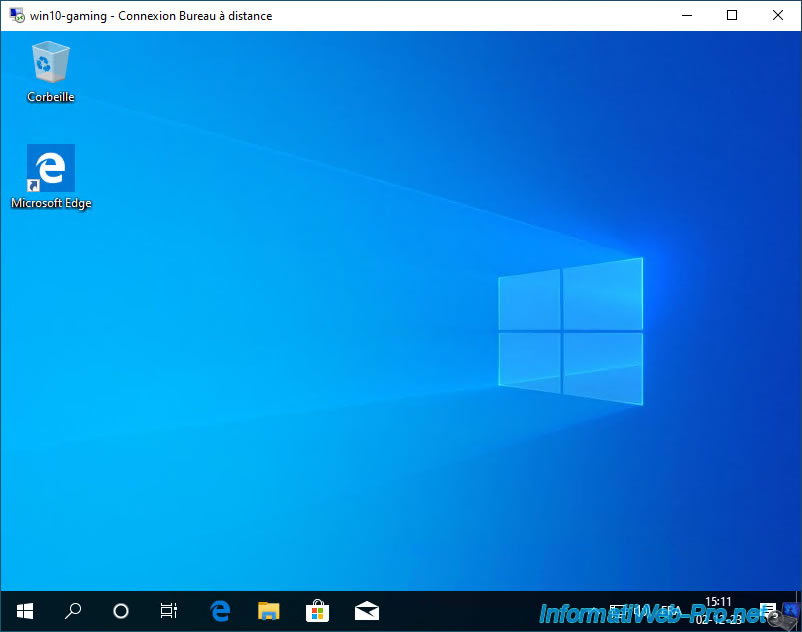
Your virtual machine's desktop appears.
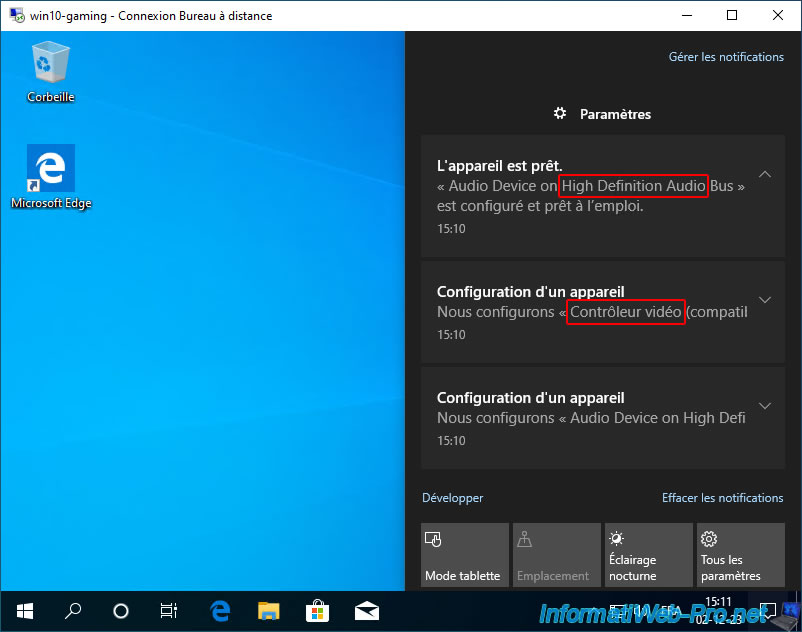
In the Action Center, you'll likely see notifications about video and audio driver installations.
In particular:
- Audio Device on High Definition Audio Bus.
- Video controller (VGA compatible).
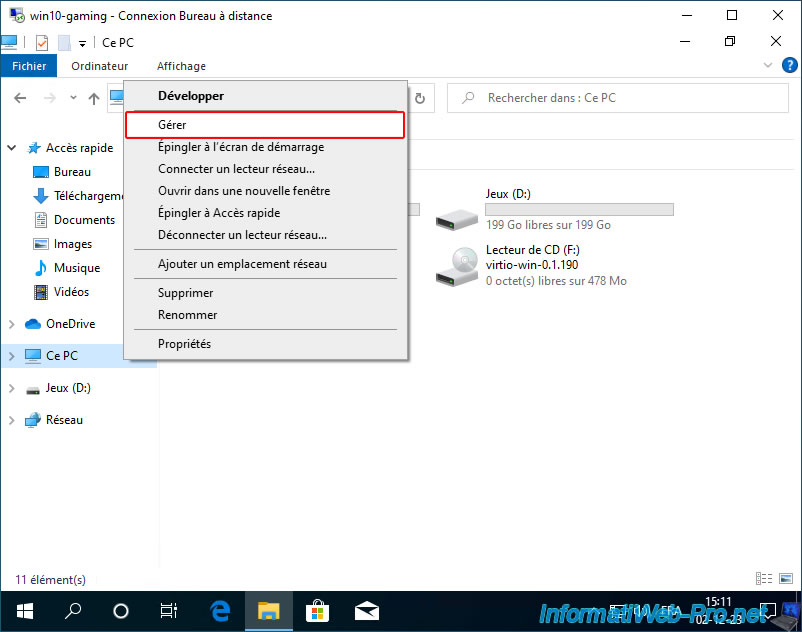
Open file explorer and right-click "Manage" on "This PC".
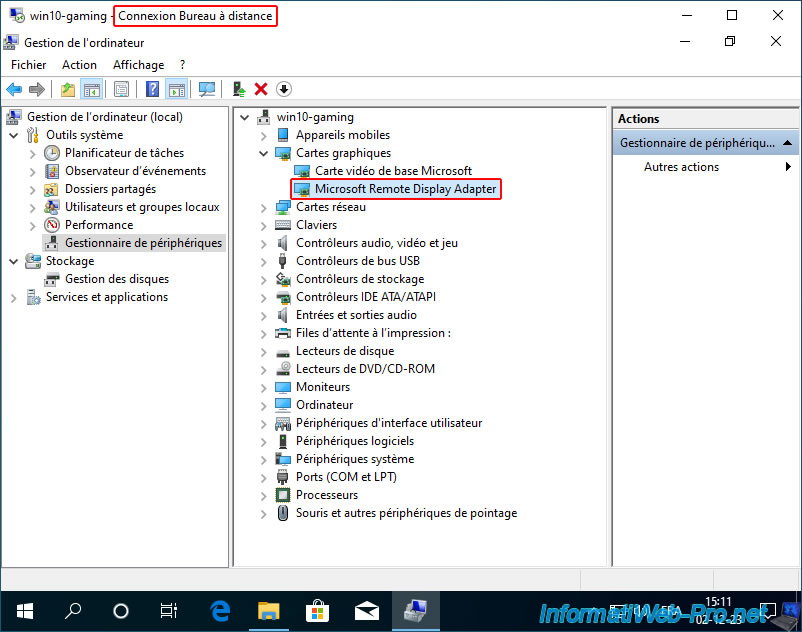
In the "Graphics Cards" section, you will see 2 graphics cards appear:
- Microsoft Basic Display Adapter: a basic display driver automatically installed by Windows 10 so you can display your graphics card through your physical graphics card.
- Microsoft Remote Display Adapter: the virtual graphics card used by Windows Remote Desktop (which is only visible when a Remote Desktop (RDP) connection is established between a PC and your virtual machine).
Share this tutorial
To see also
-
NAS 3/11/2026
Unraid 6.9.2 - Presentation of Dynamix plugins (sys info, ...)
-
NAS 1/21/2026
Unraid 6.9.2 - Replace a storage disk
-
NAS 7/15/2026
Unraid 6.9.2 - VMs - Create a virtual machine
-
NAS 10/14/2026
Unraid 6.9.2 - VMs - Virtualize Hyper-V (nested virtualization)
No comment