Create a gaming virtual machine (gaming VM) on Unraid 6.9.2
- NAS
- Unraid
- 26 August 2026 at 13:14 UTC
-

- 3/5

8. Install Windows 10 in your virtual machine
Now that your virtual machine's console appears on your physical screen, you may see a message asking you to press a key to boot from the CD or DVD.
Press Enter.
If it's too late and you see yellow and white text on your screen, click your virtual machine's icon in the Unraid web interface, then click "Force Stop".
Then, click "Start" to restart the virtual machine.
Warning : the "Restart" option does not work because you are outside of Windows and the ACPI signal is therefore not recognized by the VM.

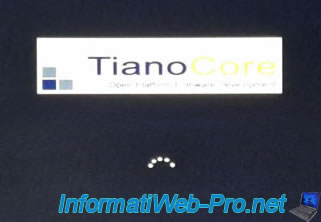
If the virtual machine boots (in UEFI mode) from your Windows 10 installation DVD, you will see the "Tiano Core" logo appear in the center of the screen.
Note: this replaces the motherboard logo that appears when your physical computer boots.

Then, you will see a loading icon appear under this logo (for the same reason as above).
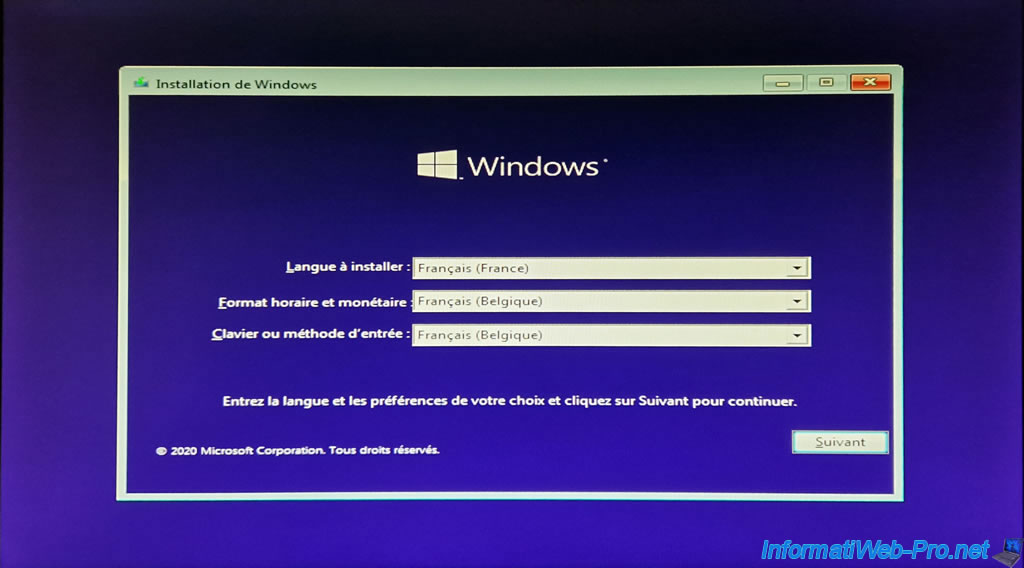
The Windows installer appears.
Choose your language and country, then click Next.
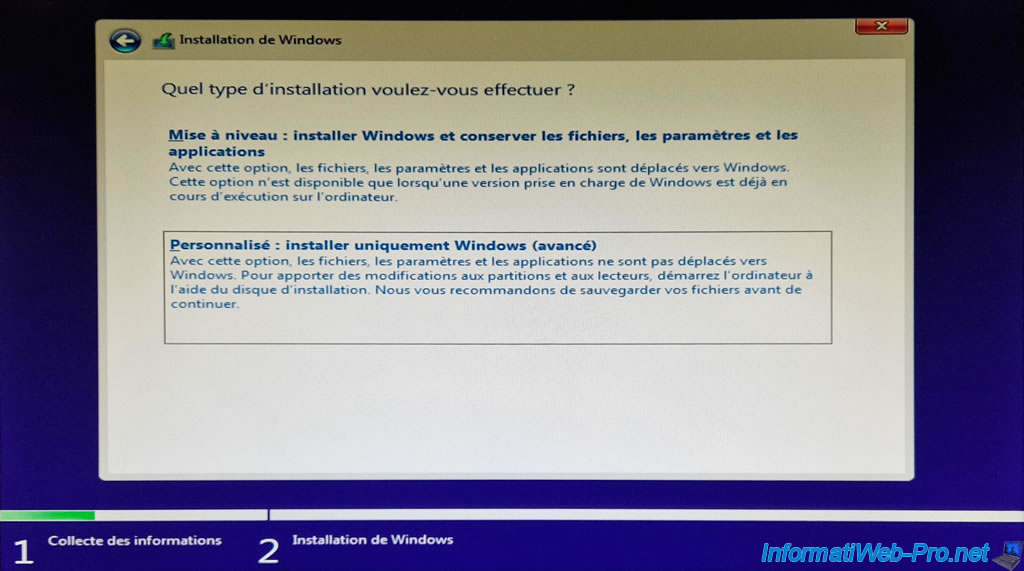
Click "Custom: Install Windows only (advanced)".
As usual with virtual machines created on Unraid, virtual hard disks are not detected by default by the Windows installer because Windows does not have drivers for VirtIO devices.
To fix this, click Load Driver.
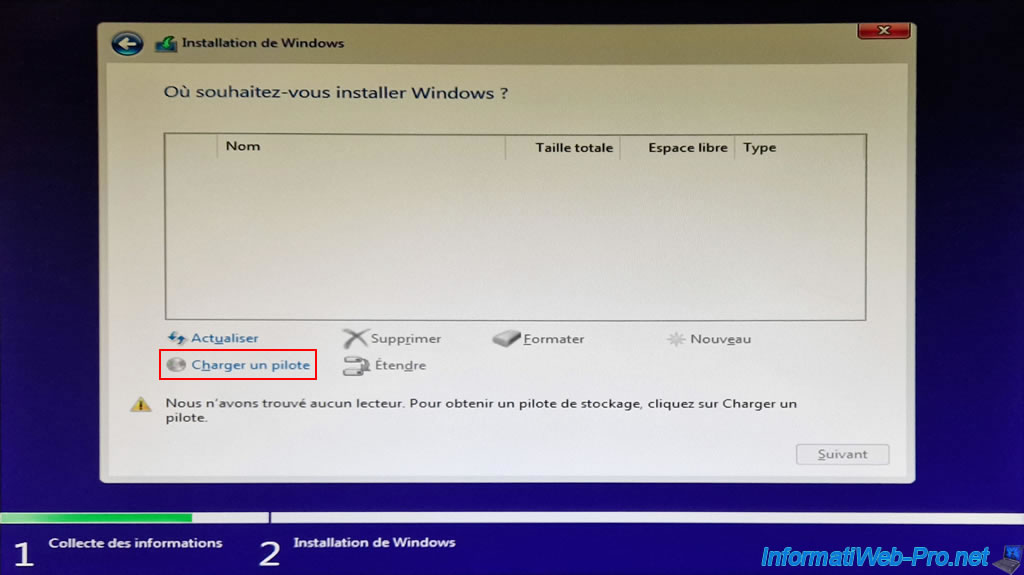
Open "CD Drive (E:) virtio-win-x.x.xx" and select the folder corresponding to your Windows version (in our case: amd64\w10), then click OK.
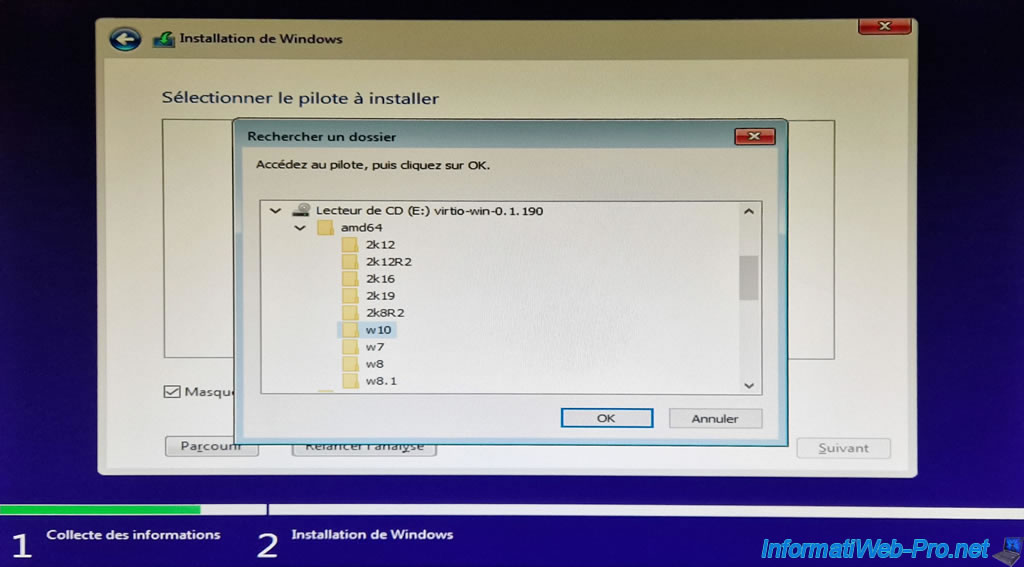
Select the "Red Hat VirtIO SCSI controller" driver that appears and click Next.
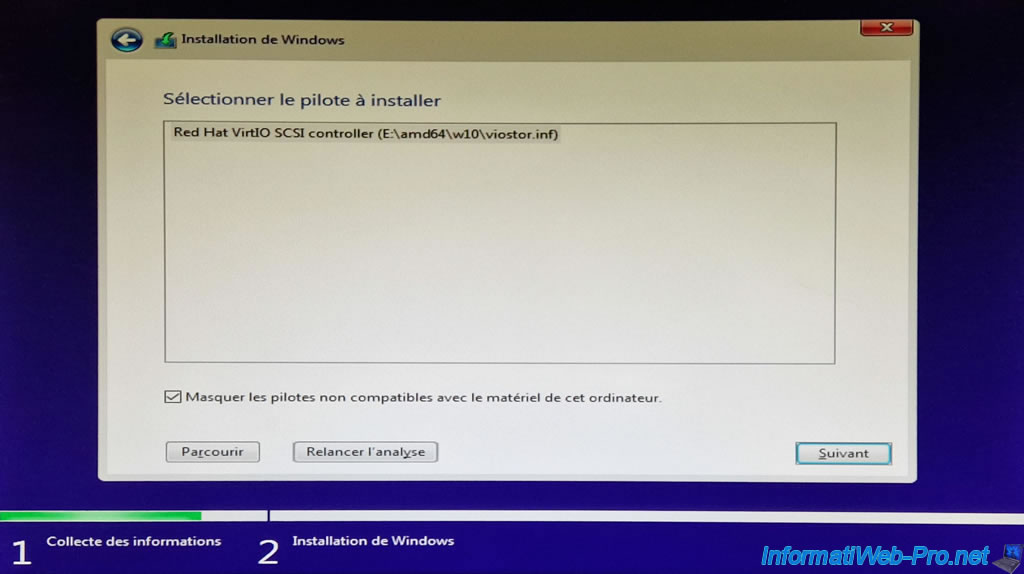
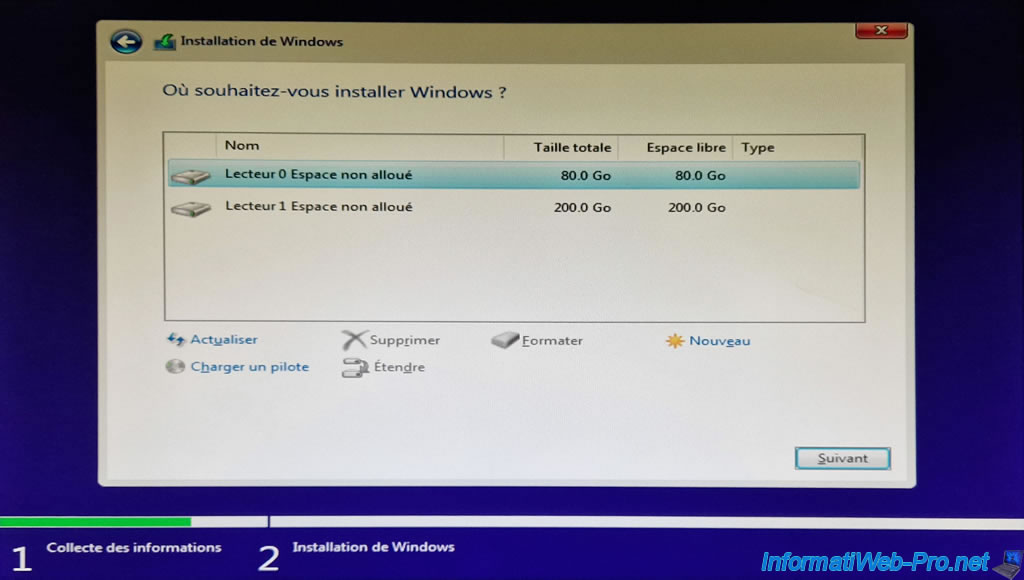
Once the driver is loaded, your 2 virtual hard drives will appear:
- Primary vDisk: Drive 0 of 80 GB.
- 2nd vDisk: Drive 1 of 200 GB.
Select the drive 0 of 80 GB and click Next.
Please wait while Windows 10 installs.
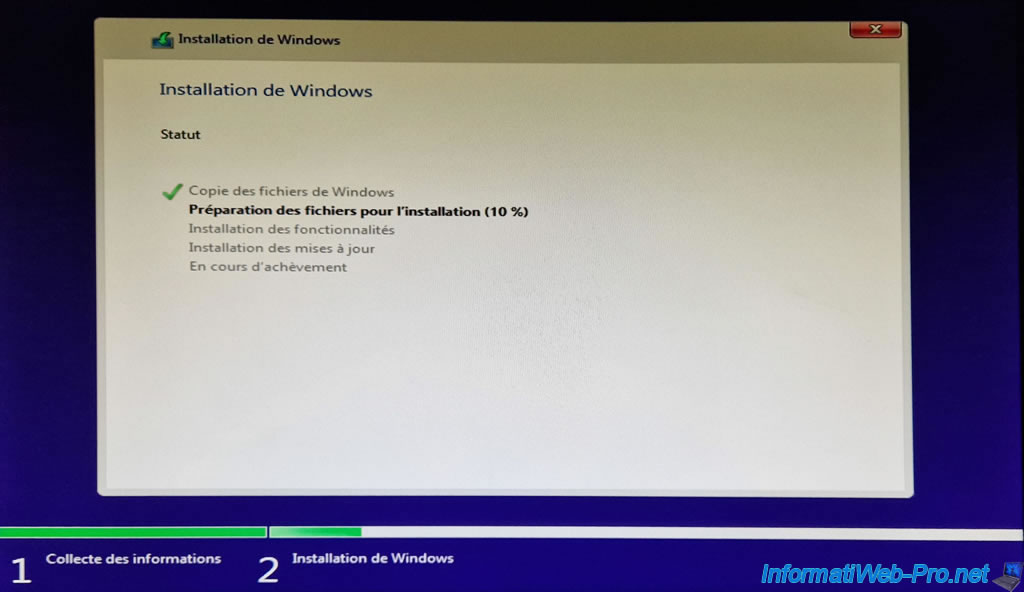
During the Windows 10 installation, your computer will restart once and the "Tiano Core" logo will reappear.

Next, the Windows 10 setup steps appear.
If necessary, refer to the Windows 10 reinstallation formatting tutorial on our "InformatiWeb" website.
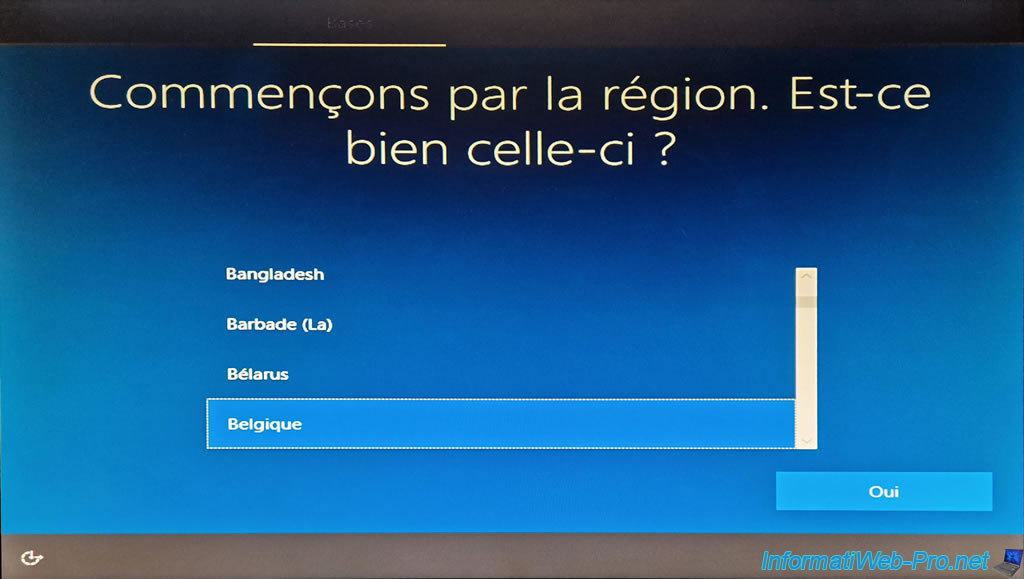
During the Windows 10 setup process, you'll see a screen indicating that you're not connected to the internet.
This is normal, as the virtual wired (Ethernet) network adapter driver isn't installed yet.
Simply click the "I don't have internet" link in the bottom left corner (and repeat the process the second time this screen appears).
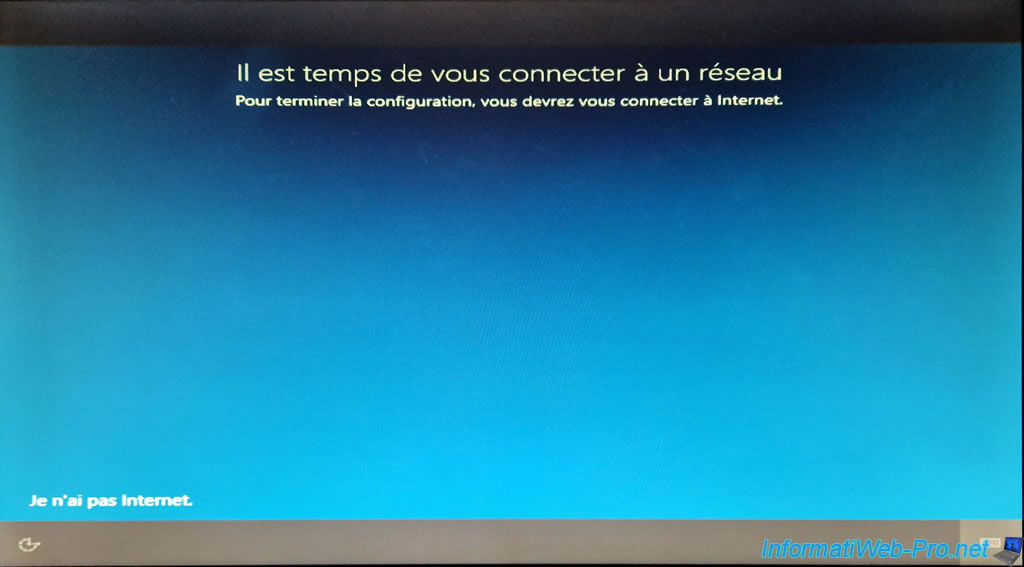
So, Windows 10 is installed and network access is not available at the moment.
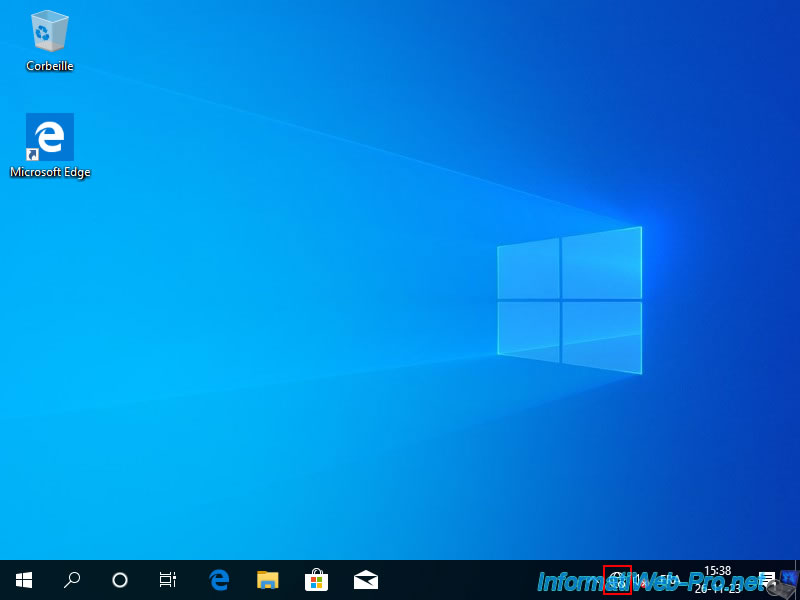
9. Install your virtual machine drivers in Windows 10
Before you can play on this virtual machine, you need to install the missing drivers.
To do this, open file explorer and right-click "Manage" on "This PC".
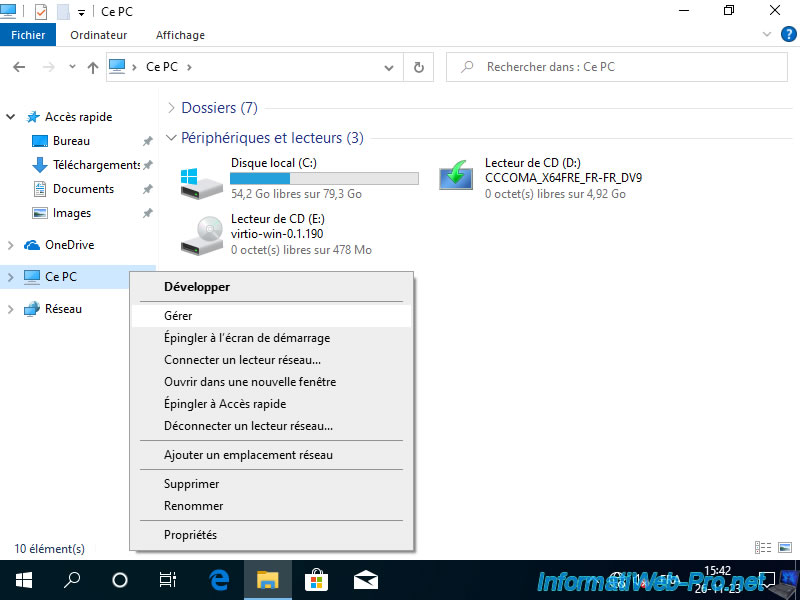
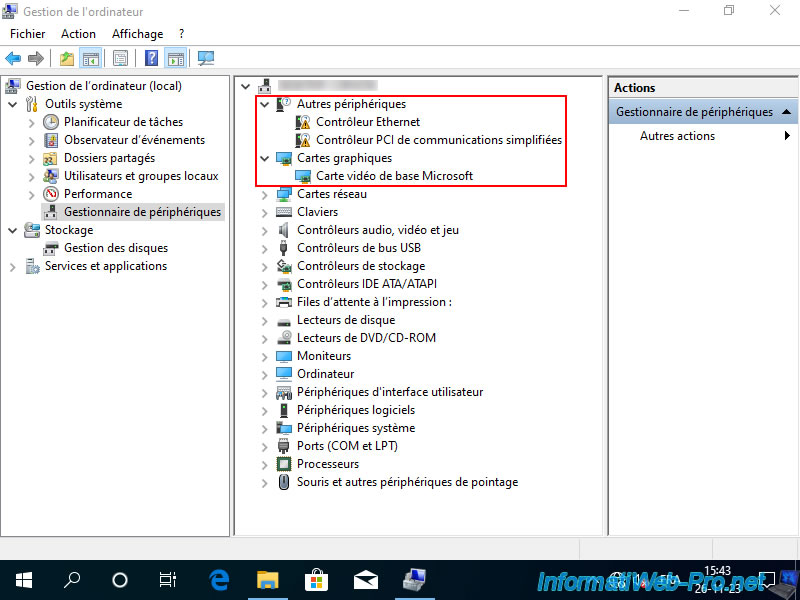
Then, go to "Device Manager" (in the left column) and you will see that:
- two devices have a warning (including the Ethernet controller corresponding to your VM's virtual network card).
- the graphics card is recognized as a Microsoft Baseline video card.
This only allows for a display with a base resolution of 800x600 px.
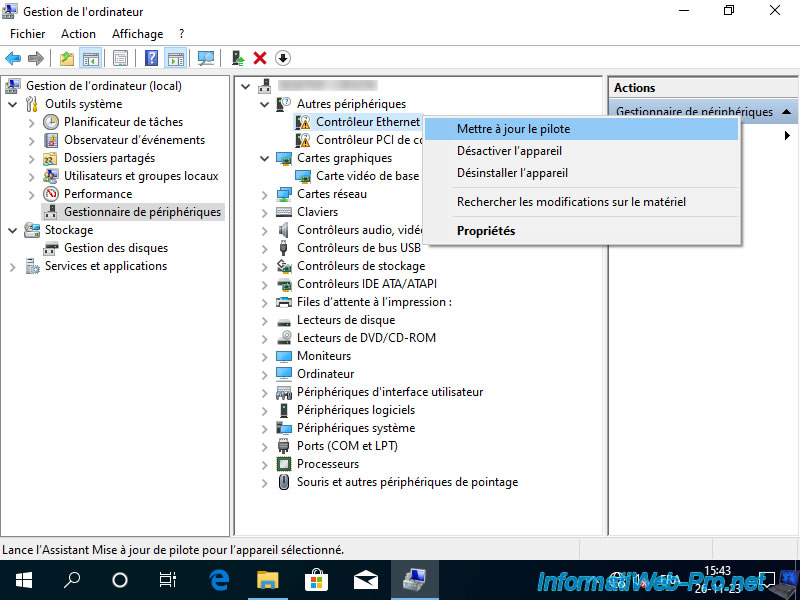
Right click "Update Driver" on the "Ethernet Controller" device.
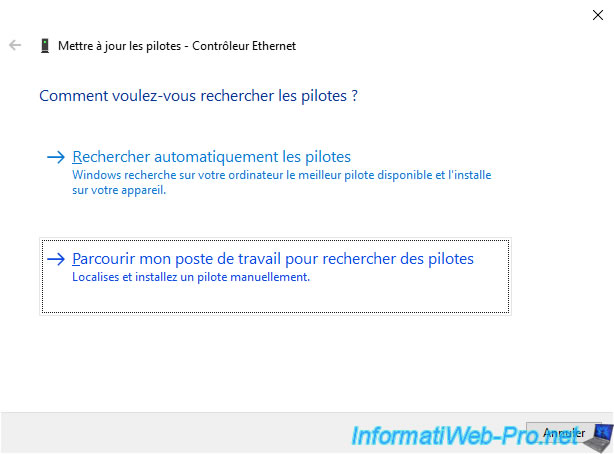
Click: Browse my computer for drivers.
Click on: Browse.
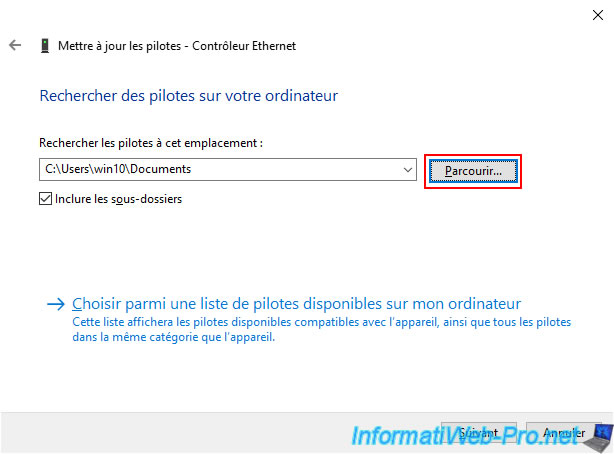
Select "CD Drive (E:) virtio-win-x.x.xx" and click OK.
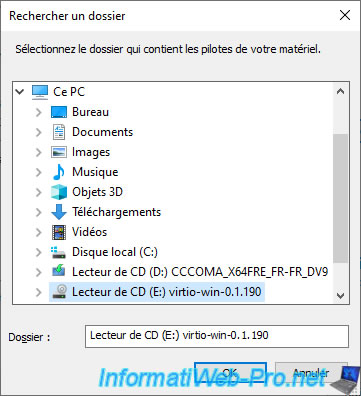
Then, click Next.
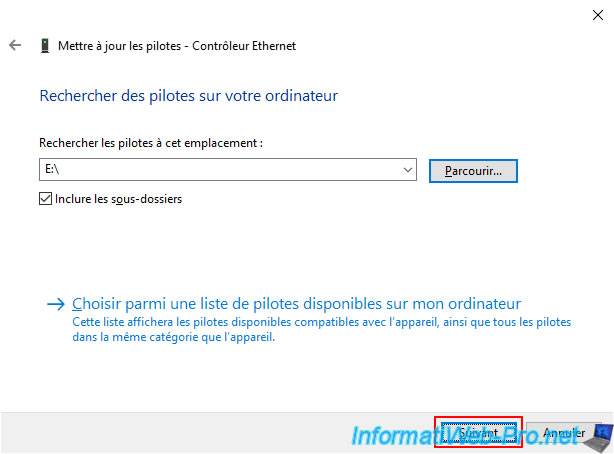
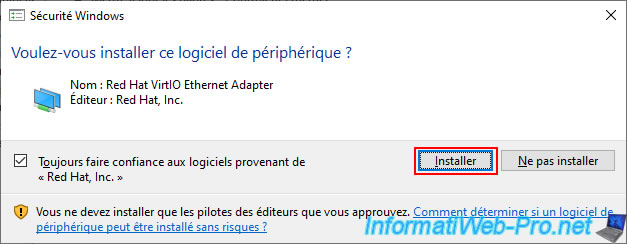
The first time you install a driver for VirtIO devices, a "Windows Security" window will appear.
Check the "Always trust software from Red Hat, Inc" box and click Install.
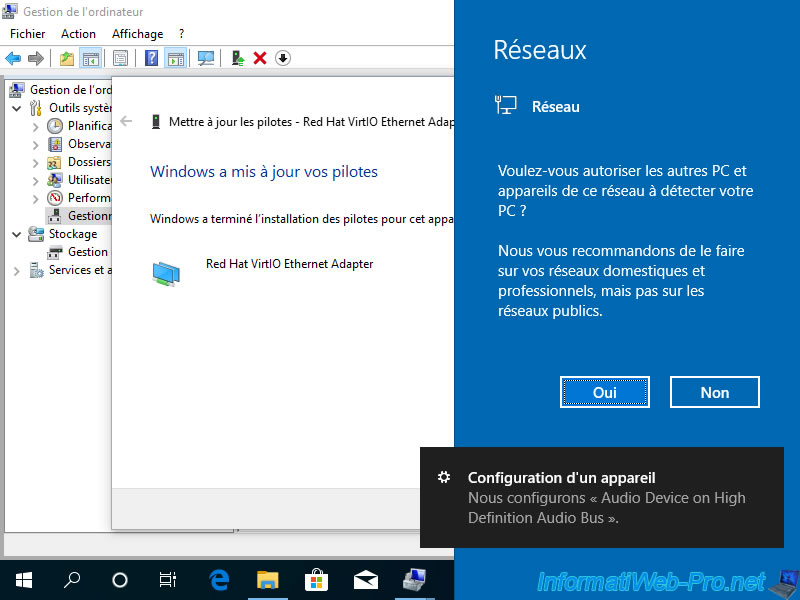
If you see the "Networks" popup, click "Yes" to facilitate file sharing between your virtual machine and your computer.
Note that, thanks to the network connection and internet connection that have become available, Windows 10 will automatically download the drivers for your graphics card (including the audio component: HD Audio).
Hence the "We are confirming Audio Device on High Definition Audio Bus" notification displayed in the bottom right corner of the screen.
Your screen may also black out for a second or two without warning while the graphics driver provided by Nvidia is being installed in the background.
Right-click on the other device (PCI Simplified Communications Controller) and click "Update Driver" again.
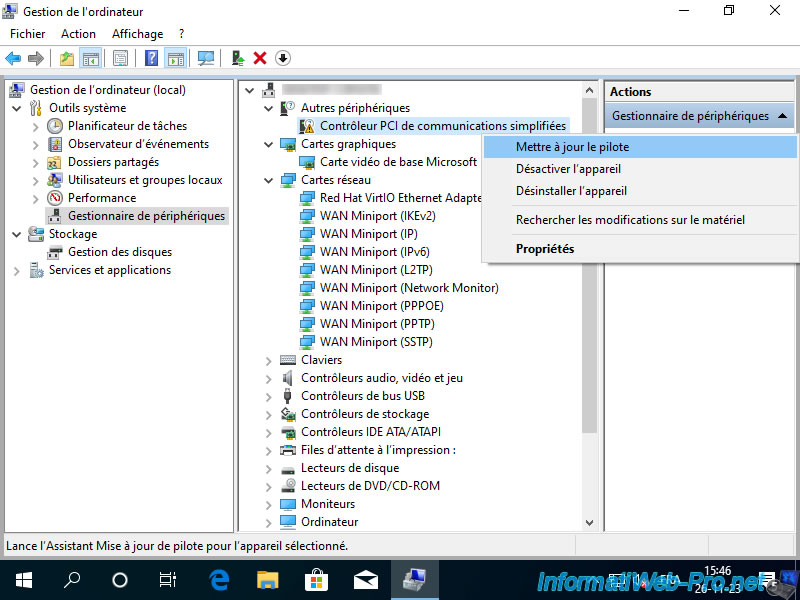
The folder is already selected. So, just click Next.
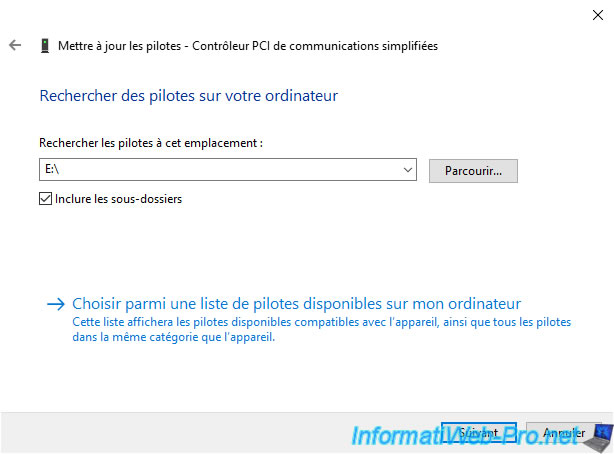
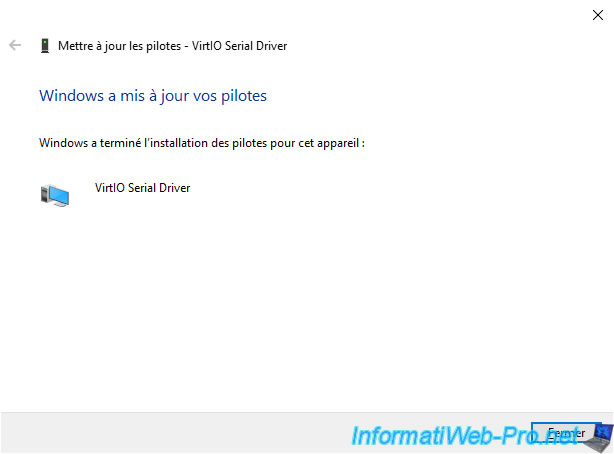
As expected, the driver for the "VirtIO Serial Driver" device has been installed.
Click Close.
As expected, all devices are installed (including your graphics card and its audio part if you wait a bit).
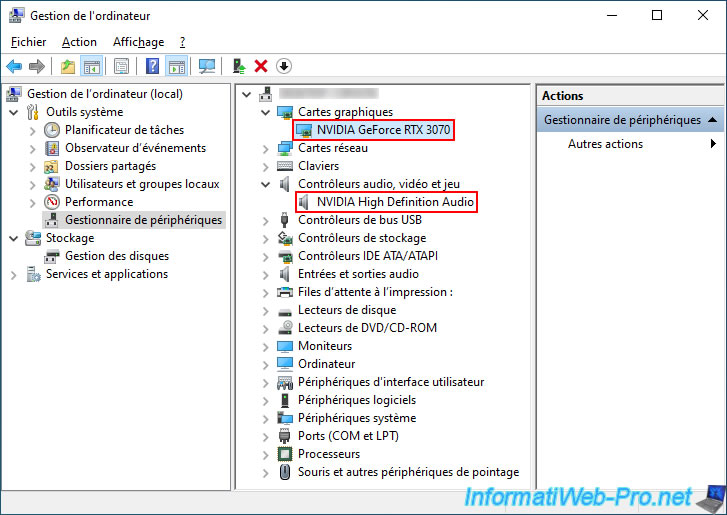
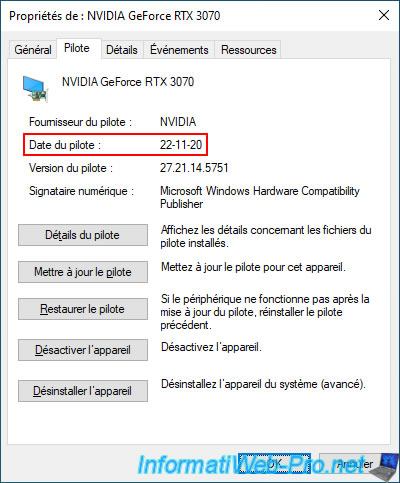
However, if you double-click on the name of your graphics card (in our case: NVIDIA GeForce RTX 3070) and go to the "Driver" tab, you'll see that the automatically installed driver is quite old (in our case, it's from 2020).
This is because Windows 10 automatically downloads the driver from Microsoft's servers, not the Nvidia website.
However, we'll fix that later.
Share this tutorial
To see also
-
NAS 2/11/2026
Unraid 6.9.2 - Customize the web interface
-
NAS 12/4/2025
Unraid 6.9.2 - Define a private static IP address
-
NAS 6/3/2026
Unraid 6.9.2 - SWAG - Access Jellyfin via reverse proxy and Duck DNS (DDNS)
-
NAS 6/10/2026
Unraid 6.9.2 - SWAG - Access Jellyfin via reverse proxy and personal domain
No comment