Install a reverse proxy (SWAG) on Unraid 6.9.2 for external access to your services
- NAS
- Unraid
- 06 May 2026 at 13:20 UTC
-

- 2/3

6. Install SWAG
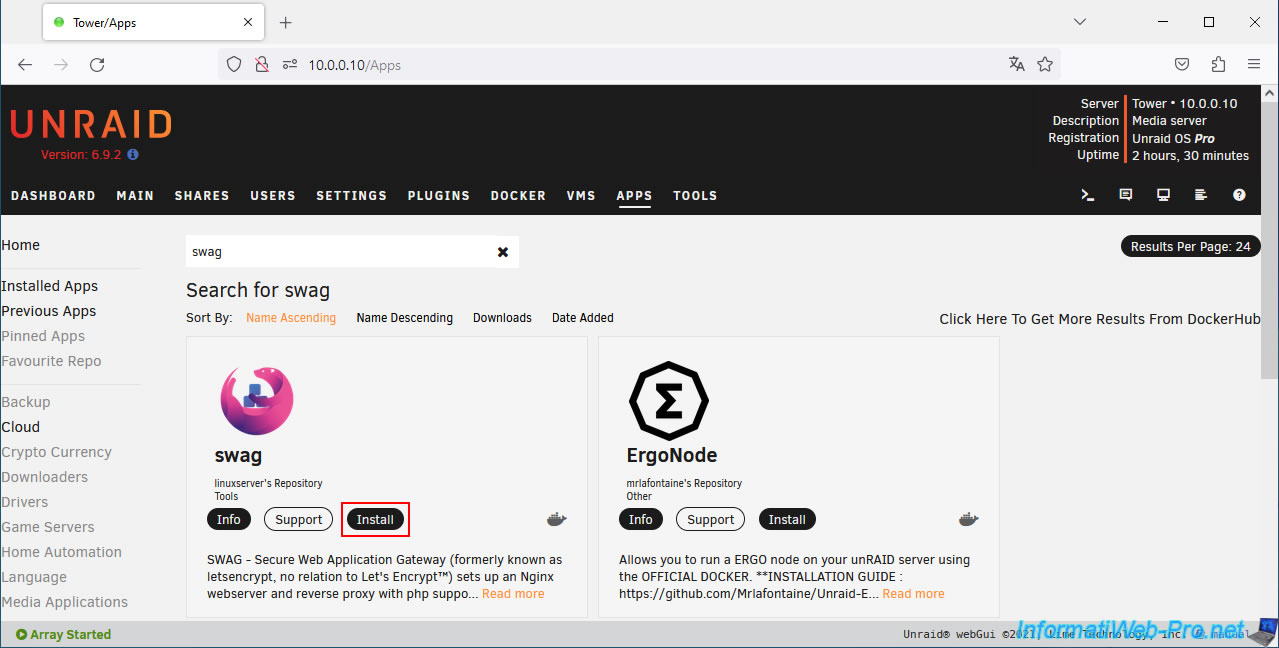
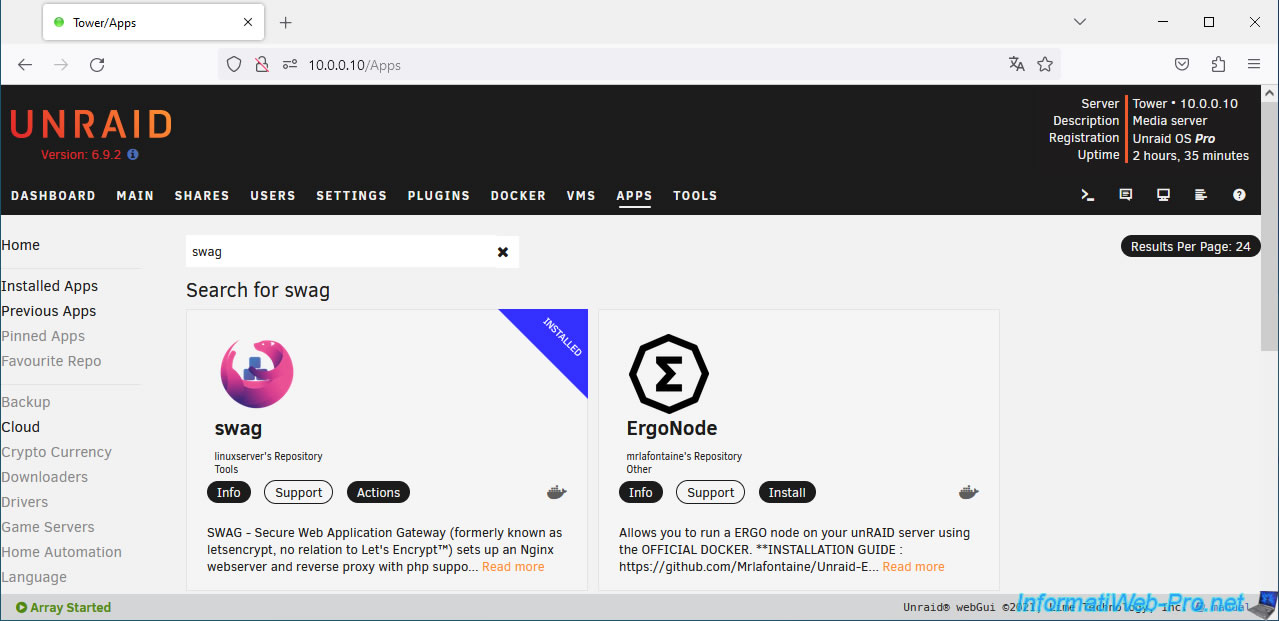
Now that the prerequisites are set, go to the "Apps" tab in Unraid and search for "swag".
Then, click the "Install" button for this "swag" container.
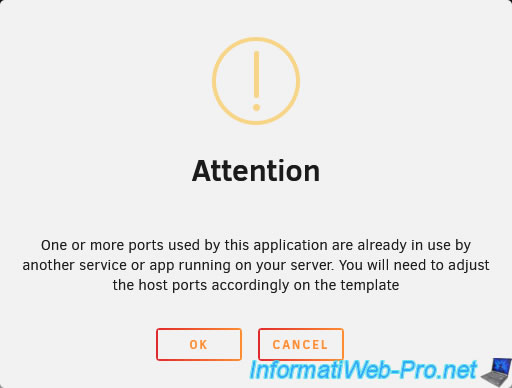
Unraid warns you that one or more ports used by this application are already in use by another service or application running on this server.
Indeed, since "swag" is a reverse proxy, it uses ports 80 and 443 (by default). This conflicts with the Unraid web interface, which also uses port 80 (HTTP) by default.
For this reason, we redirected ports 80 and 443 in our router to ports 8080 and 4443 on our Unraid server.
Plain Text
Attention.
One or more ports used by this application are already in use by another service or app running on your server. You will need to adjust the host ports accordingly on the template.
Click OK.
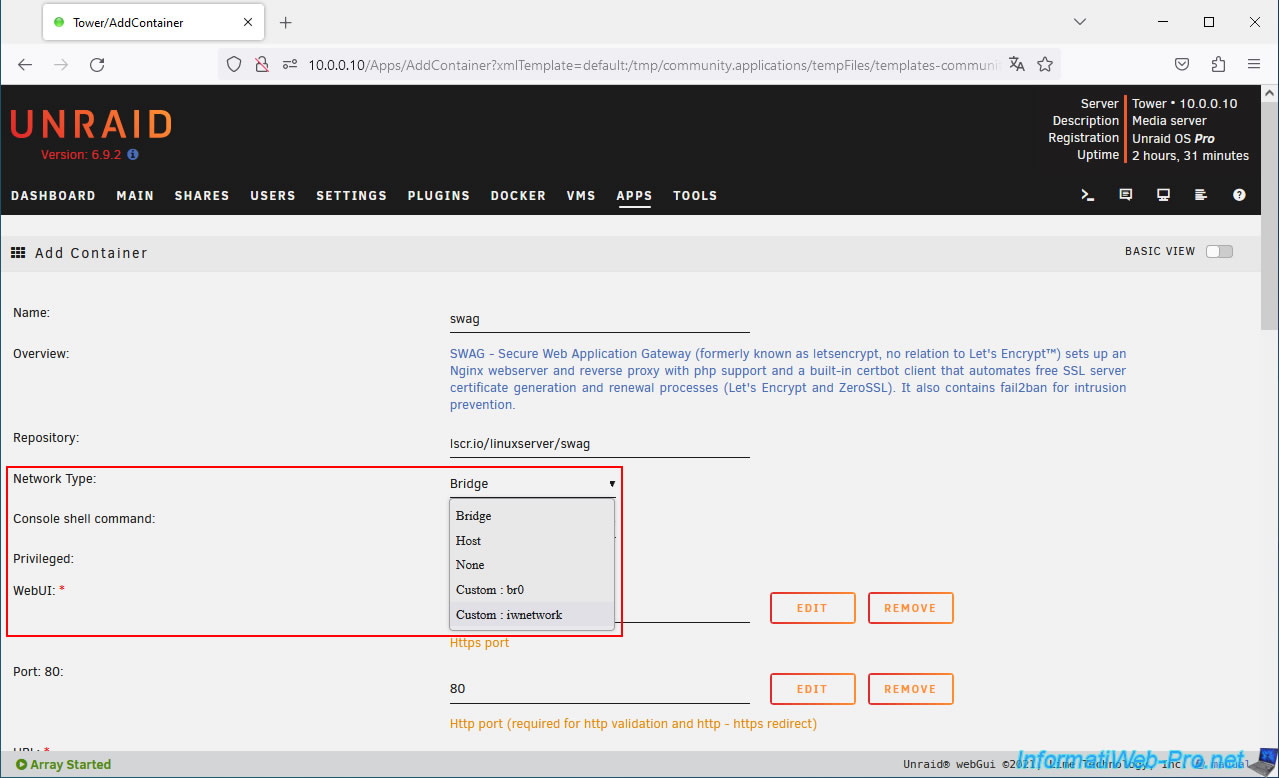
On the "Add Container" page that appears for the "swag" container, select your custom Docker network by setting the "Network Type" parameter to "Custom: iwnetwork" (where "iwnetwork" corresponds to the custom network created on Docker at the beginning of this tutorial).
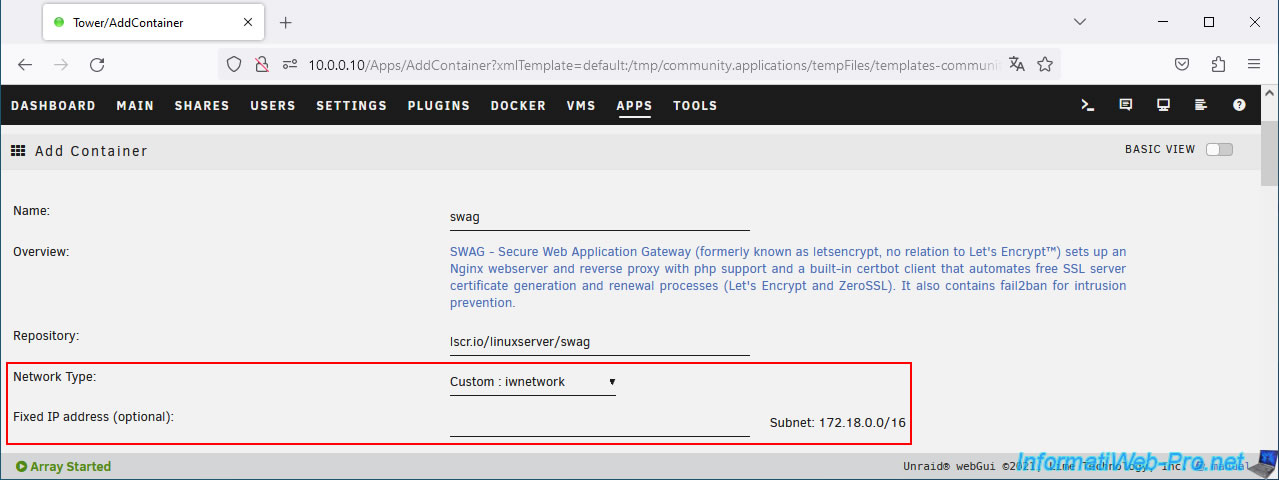
There's no need to assign a fixed IP address to your "swag" container on this custom network. This also works with a dynamic IP address.
In fact, Docker automatically handles the mappings between the custom network and your physical network.
As you can see, by default, swag uses ports 80 (HTTP) and 443 (HTTPS).
Hence the warning displayed earlier by Unraid.
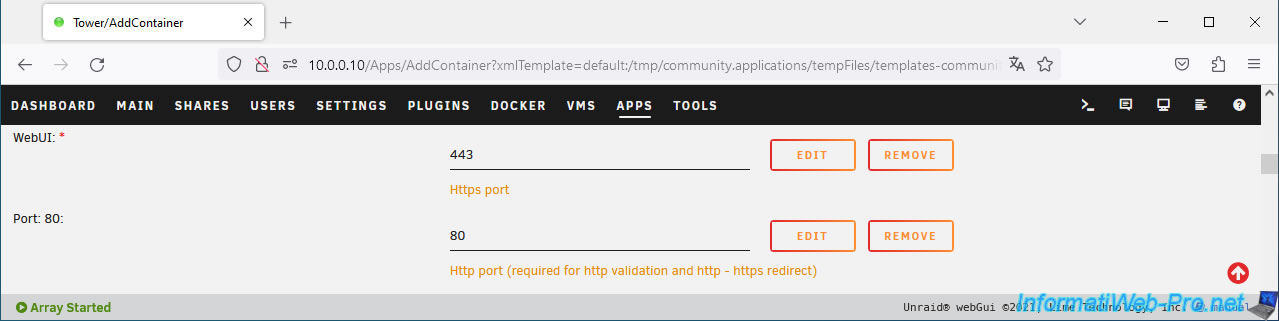
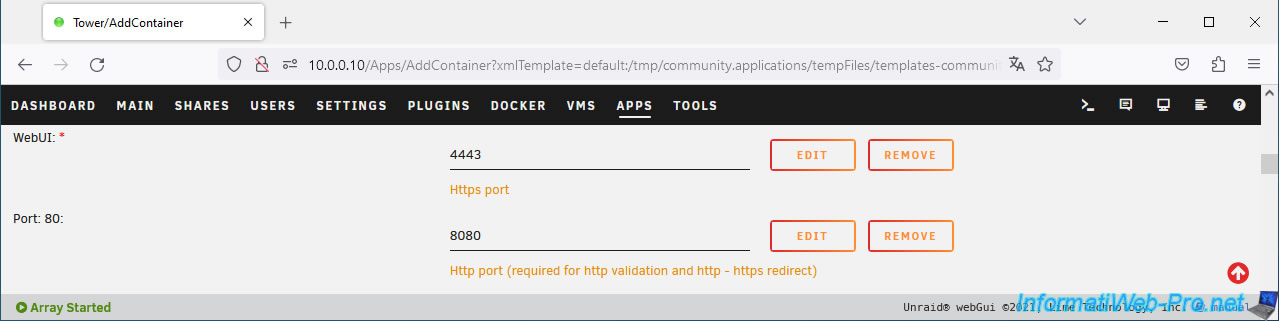
Change these ports to:
- WebUI: 4443 (for HTTPS port).
- Port 80: 8080 (for HTTP port).
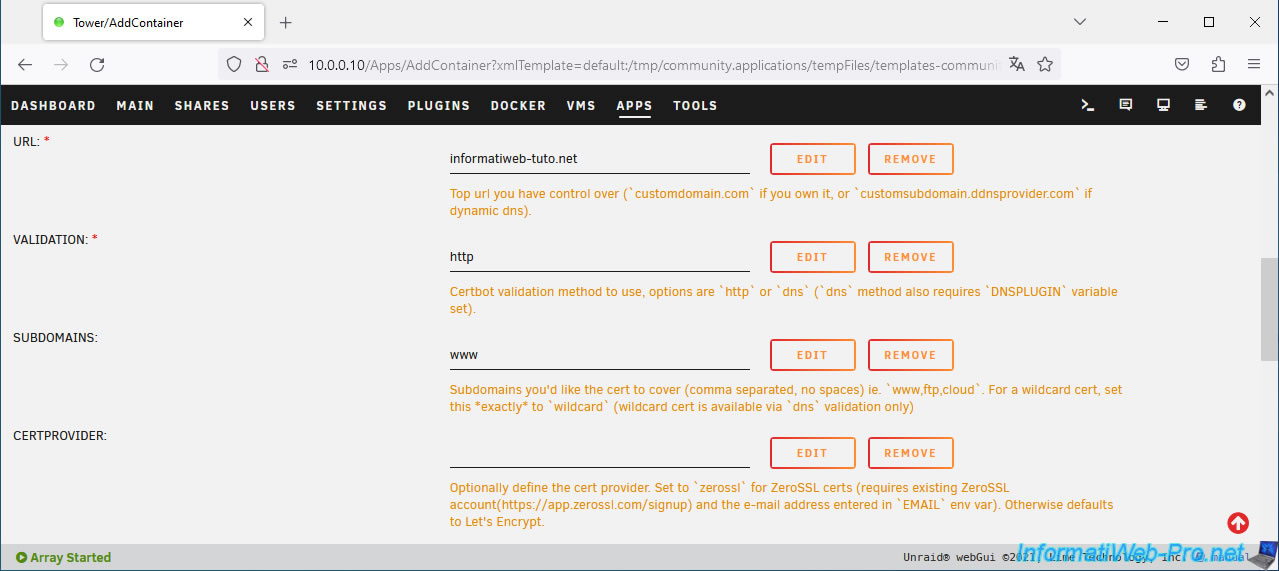
Next, you will find several settings:
- URL: your root domain (if you have a real domain name).
In our case: informatiweb-tuto.net.
For a dynamic domain name, you should specify "domain-of-the-provider-ddns.com" (without the desired subdomain). - VALIDATION: leave "http" to use this type of validation.
Note that if you want to obtain a certificate valid for all subdomains (current and future), "dns" validation will be required.
However, if you want to generate a certificate for the root domain, as well as all the subdomains you specify in the "SUBDOMAINS" box, then you can use "http" validation. - SUBDOMAIN: www. The subdomain(s) (separated by commas) for which the generated SSL certificate will be valid.
- CERTPROVIDER: leave blank. By default, the "Let's Encrypt" certificate authority will be used.
If you want to use "ZeroSSL" instead of "Let's Encrypt", then enter "zerossl" in this box.
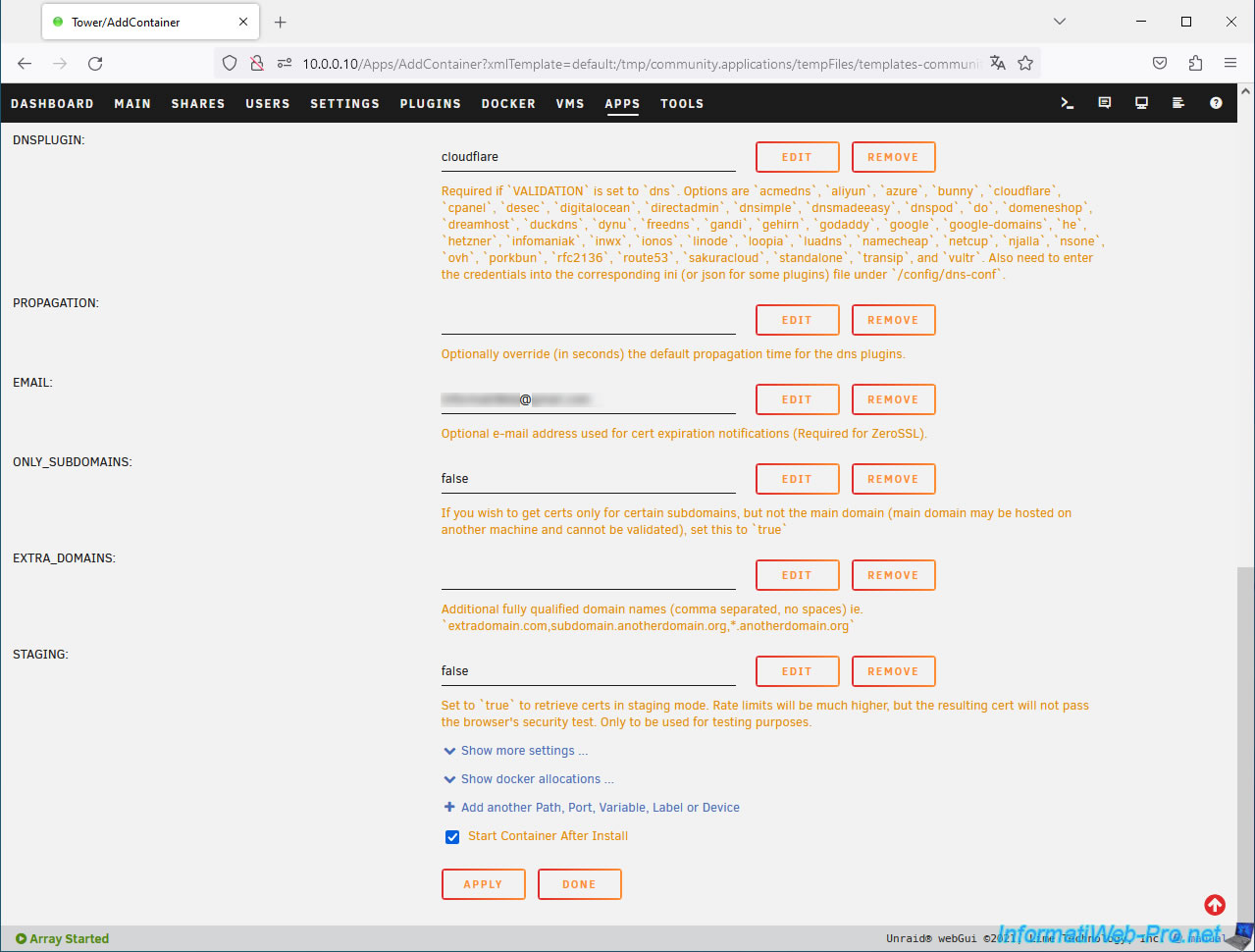
Then, you will also find these settings:
- DNSPLUGIN: The DNS plugin to use if the validation type is set to "dns".
- PROPAGATION: Allows you to change the default propagation time for DNS plugins.
By default, this box is empty. - EMAIL: Enter a real email address to receive email notifications about the expiration of your certificates.
This is optional for "Let's Encrypt" (which is used by default to generate your SSL certificate), but is required for "ZeroSSL" (if you specified "zerossl" in the "CERTPROVIDER" box). - ONLY_SUBDOMAINS: By default, the value "false" is specified.
This means that the SSL certificate will be valid for your root domain name (e.g., informatiweb-tuto.net), as well as for the subdomains specified previously (e.g., www.informatiweb-tuto.net, plex.informatiweb-tuto.net, ...).
If you are not the owner of the root domain name, for example, with a dynamic domain name (DDNS), you must specify "true."
In this case, the certificate will only be valid for your subdomain (e.g., my-subdomain.ddns-provider.com). - EXTRA_DOMAINS: A list of different domains or subdomains (if needed).
- STAGING: Leave the default value "false" to ensure that the generated SSL certificate is valid.
The "true" value is only useful for testing and will generate invalid certificates. This is not helpful.
Once you have configured your desired settings, click "Apply" at the bottom of the page.
Please wait while the swag container is downloaded.
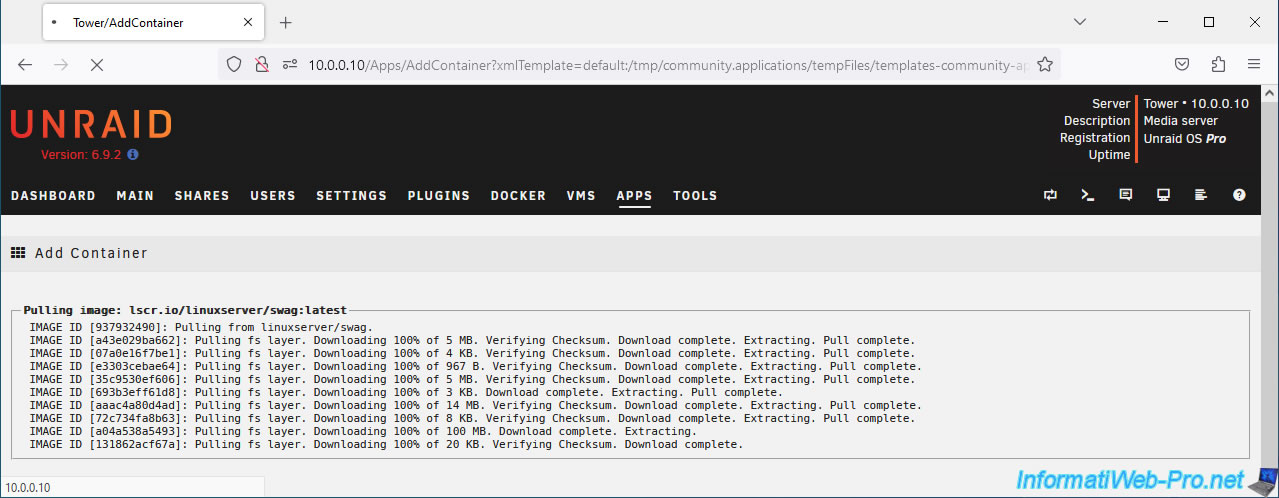
Once the swag container is installed, click Done.
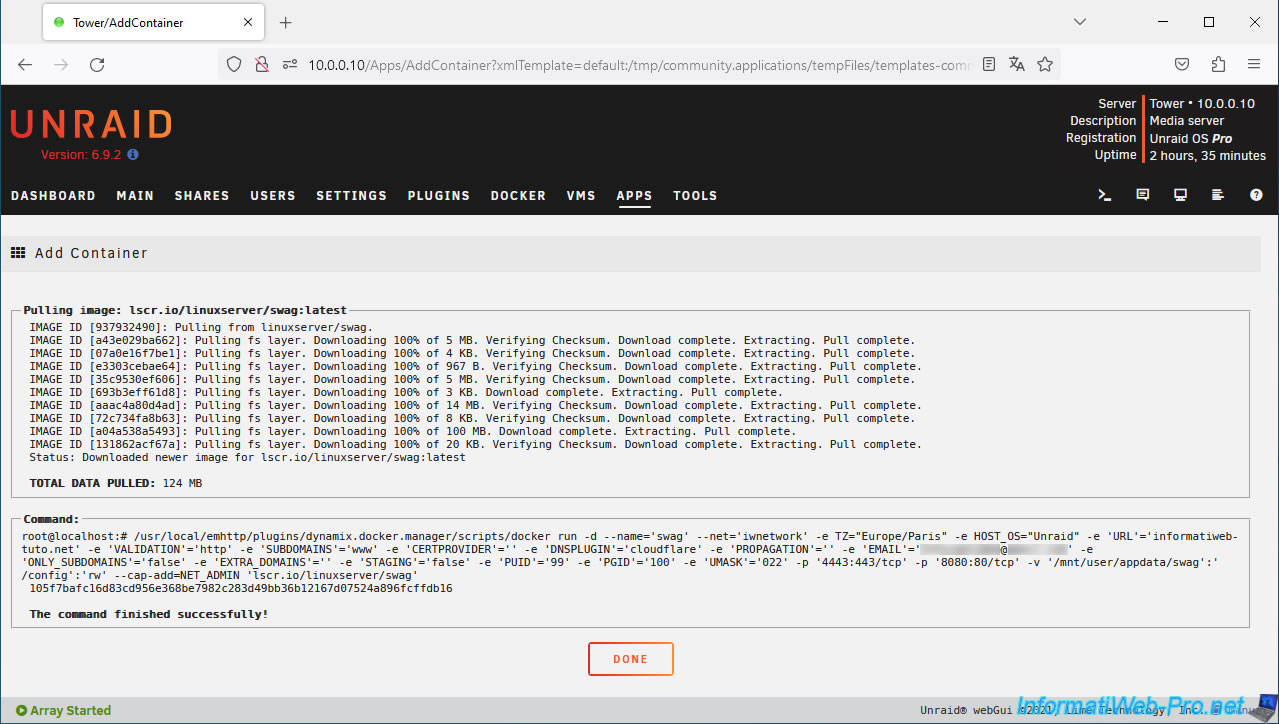
As planned, the "swag" container is installed.
7. Reinstall the swag container (in case of problems)
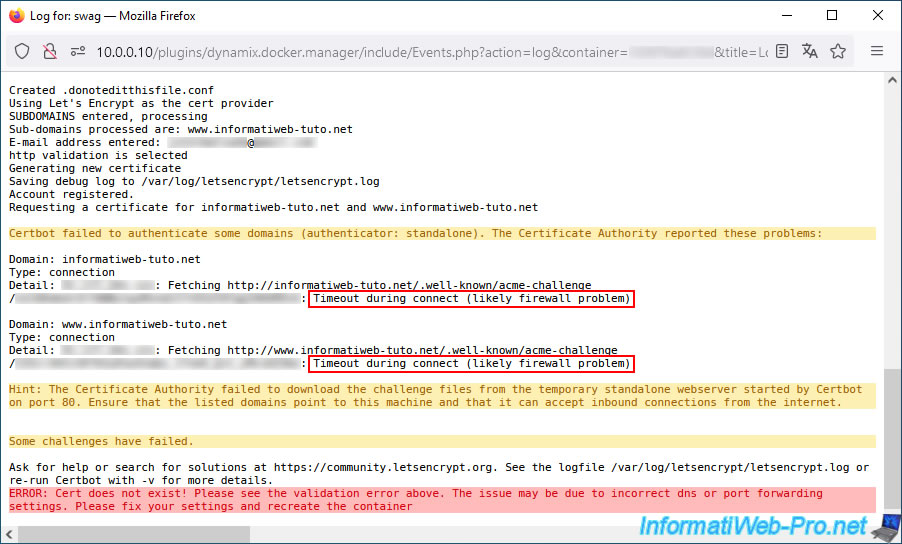
To check if your configuration is correct, go to the "Docker" tab, click on the "swag" icon and click on "Logs".
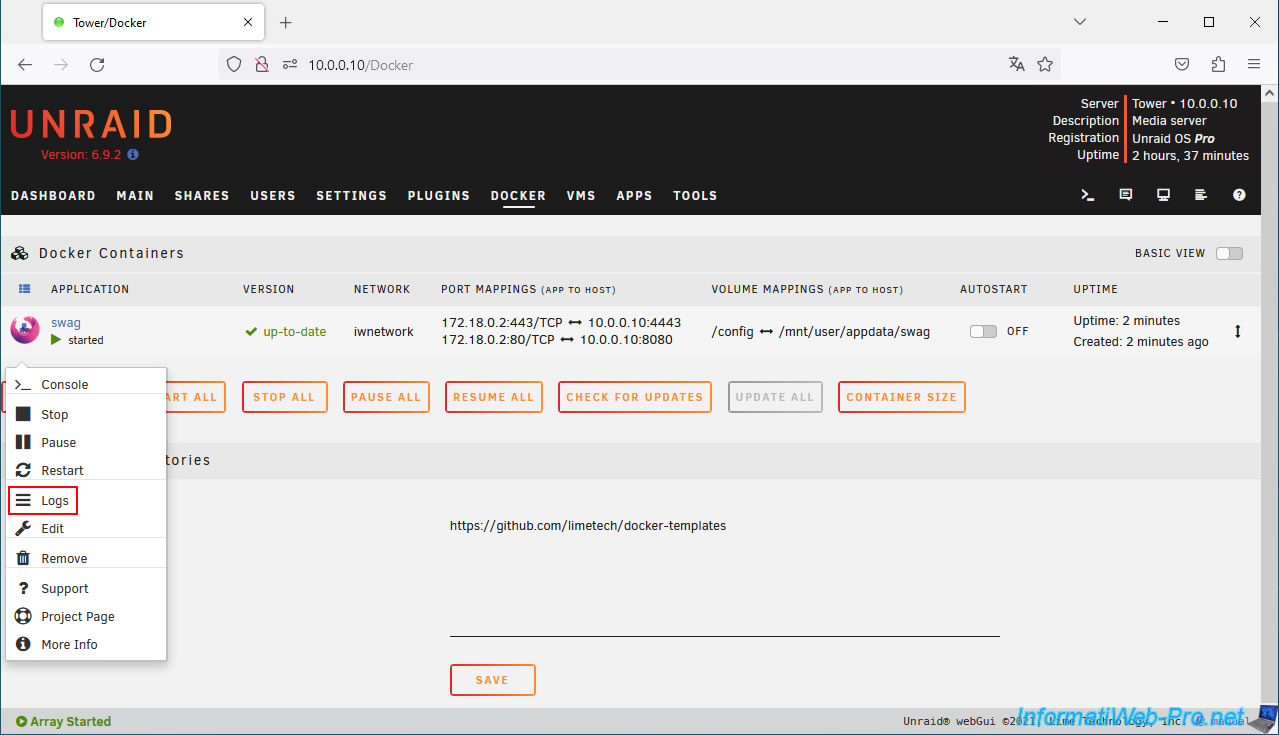
A "Log for: swag" window will appear.
If the configuration of swag, your router, your domain, or other settings isn't correct, warnings and an error will appear.
In our case, we encountered these issues during our first attempt with "swag":
Plain Text
Certbot failed to authenticate some domains (authenticator: standalone). The Certificate Authority reported these problems:

Domain: informatiweb-tuto.net
Type: connection
Detail:
: Fetching http://informatiweb-tuto.net/.well-known/acme-challenge/... : Timeout during connect (likely firewall problem)
...
Fetching http://www.informatiweb-tuto.net/.well-known/acme-challenge/... : Timeout during connect (likely firewall problem)

Hint: The Certificate Authority failed to download the challenge files from the temporary standalone webserver started by Certbot on port 80. Ensure that the listed domains point to this machine and that it can accept inbound connections from the internet.

Some challenges have failed.

ERROR: Cert does not exist! Please see the validation error above. The issue may be due to incorrect dns or port forwarding settings. Please fix your settings and recreate the container
As indicated in the error message at the bottom of the window, you will need to correct your configuration and recreate the container.
After several tests without understanding why it wasn't working, we realized that Proximus (an ISP providing Internet) was now blocking common ports (80, 443, ...) directly on its network.
The port forwarding, which was working properly in our box, wasn't sufficient.
So we unblocked these ports in our Proximus account, and it worked (as it had in the past for other services).
For more information about this default blocking by Proximus, refer to our tutorial "Redirect and open ports in a Proximus Bbox".
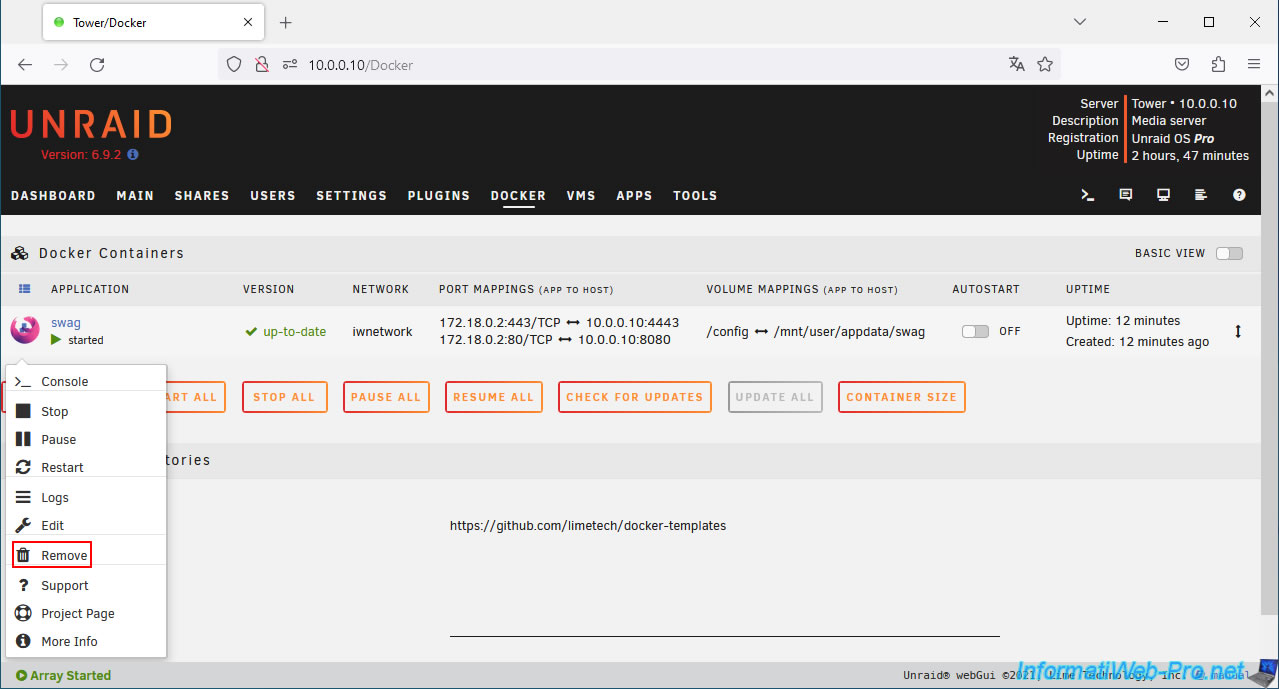
To reinstall the container (once your configuration has been corrected), click on the "swag" icon and click "Remove".
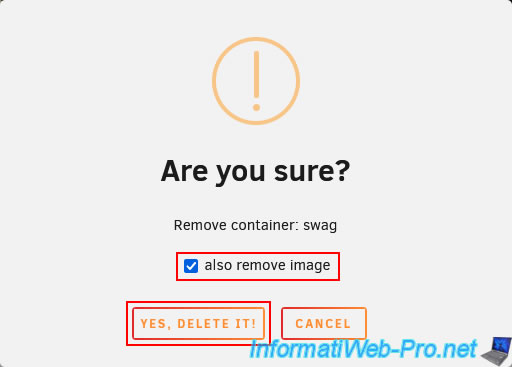
Check the box "also remove image" and click "Yes, delete it".
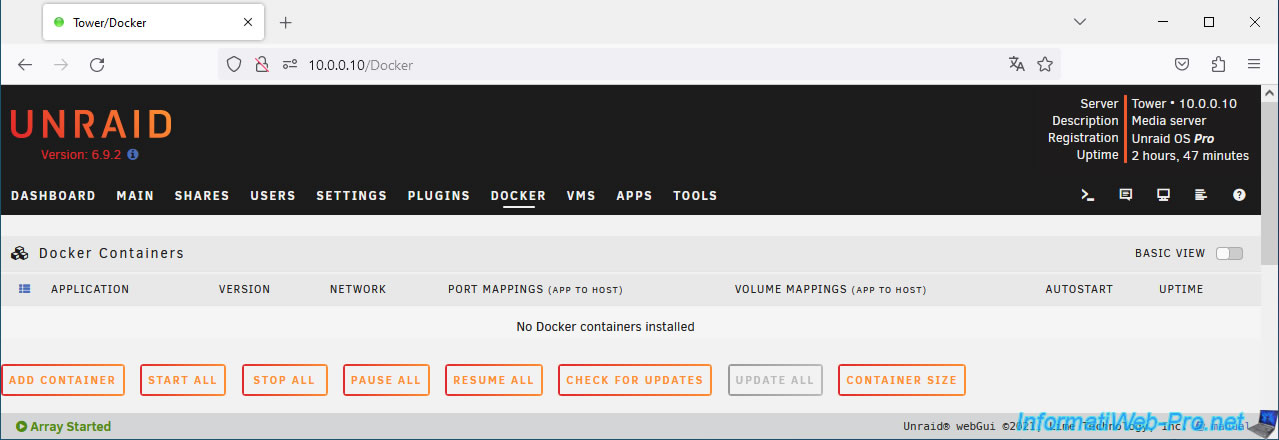
As expected, your "swag" container has disappeared.
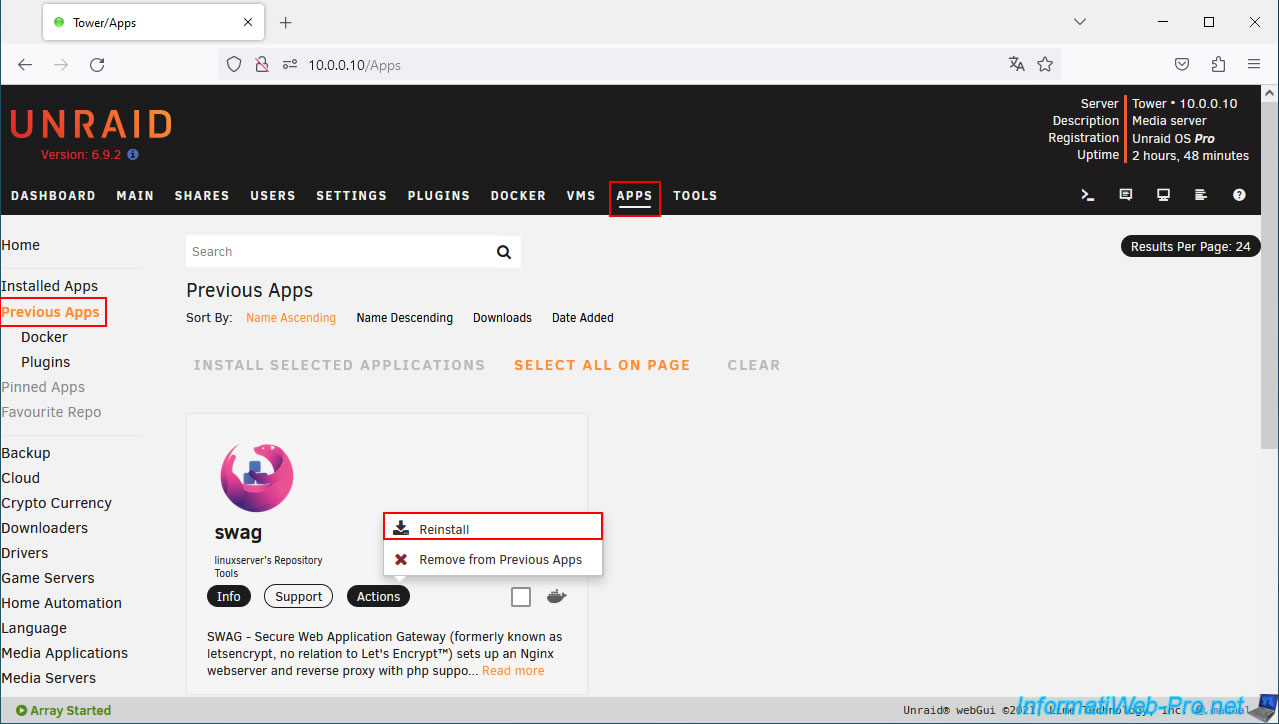
In the "Apps" tab, go to the "Previous Apps" section (visible on the left) and you will see the "swag" container appear.
Click "Actions -> Reinstall".
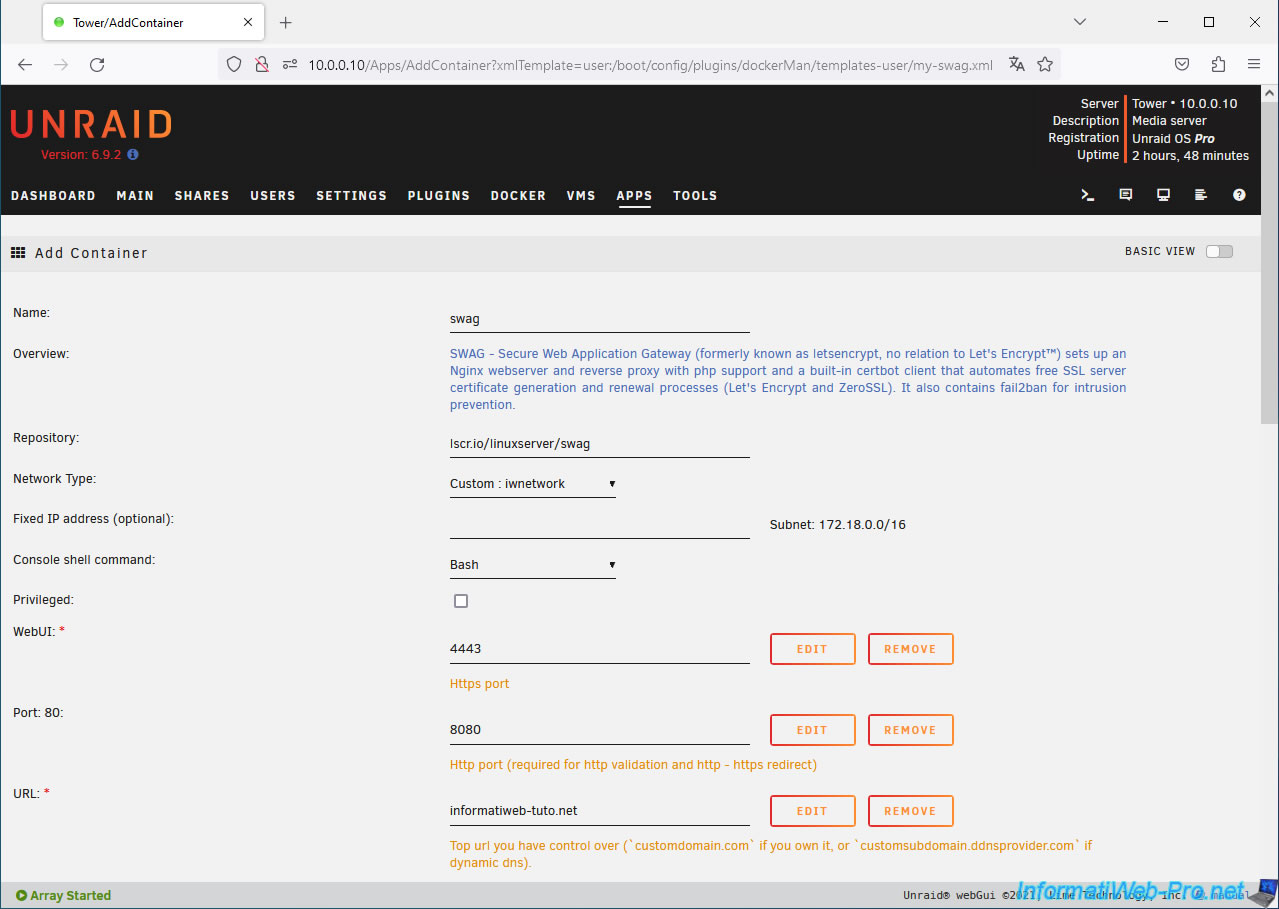
You'll notice that the "Add Container" page will appear with the same settings you previously specified for the "swag" container.
If necessary, modify any settings you may have misconfigured. Otherwise, leave them configured as they were previously (if the error was located elsewhere, for example: your domain, port forwarding on the box, ...).
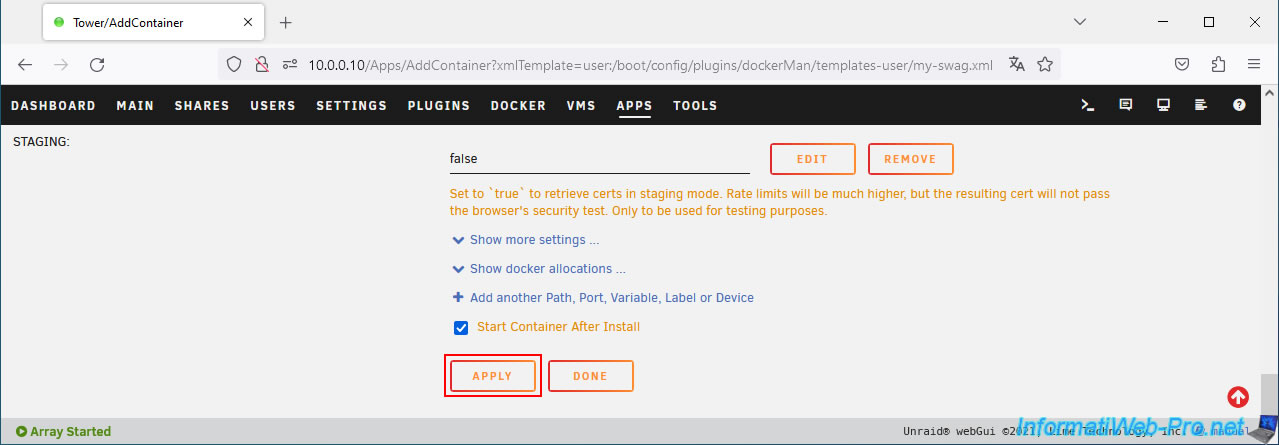
At the bottom of the page, click "Apply".
Share this tutorial
To see also
-
NAS 2/11/2026
Unraid 6.9.2 - Customize the web interface
-
NAS 4/8/2026
Unraid 6.9.2 - Docker - Install a media server (Jellyfin)
-
NAS 6/24/2026
Unraid 6.9.2 - Docker - Install the office suite (Collabora) for Nextcloud
-

NAS 3/4/2026
Unraid 6.9.2 - Install the "Community Applications" plugin (old version)
No comment