Dynamix plugins (sys info, temperatures, ...) overview on Unraid 6.9.2
- NAS
- Unraid
- 11 March 2026 at 17:13 UTC
-

- 2/4

3. Dynamix System Info (system information)
3.1. Install the Dynamix System Info plugin
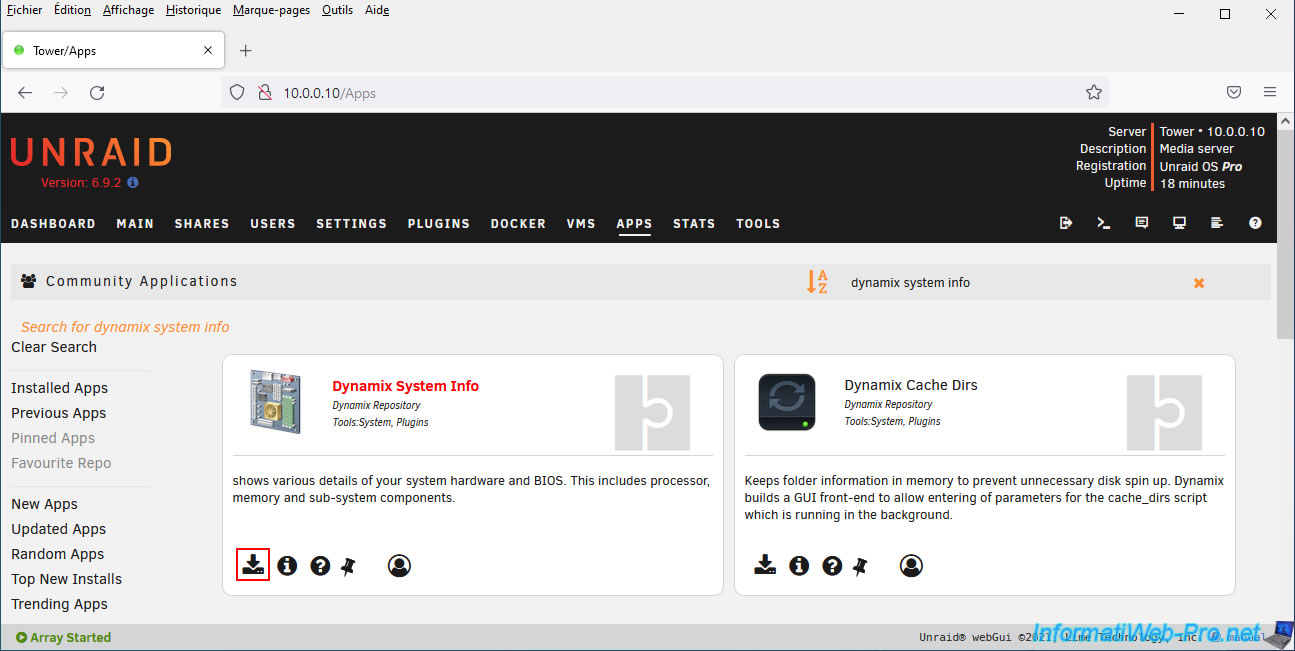
Search for and install the "Dynamix System Info" plugin.
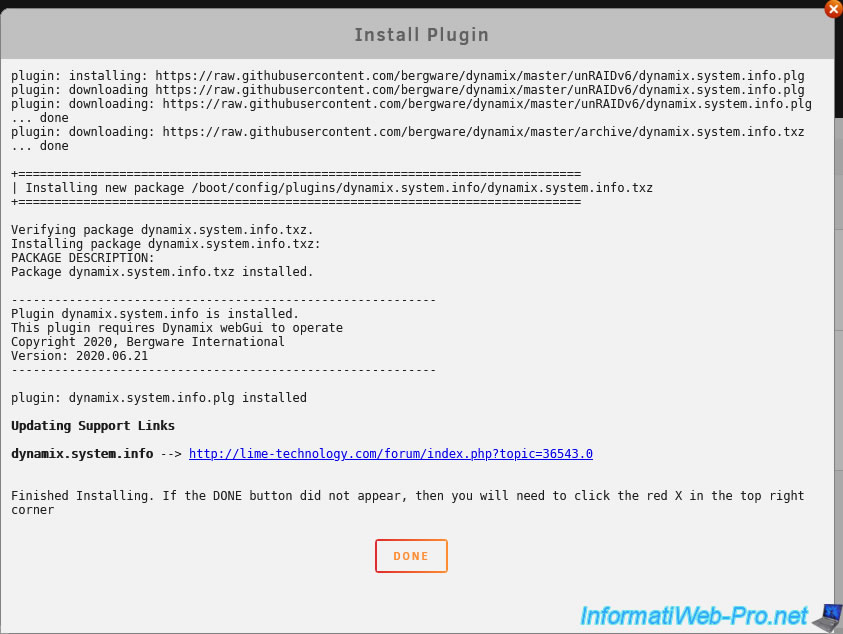
Please wait while the "Dynamix System Info" plugin is installed.
3.2. View information about your system
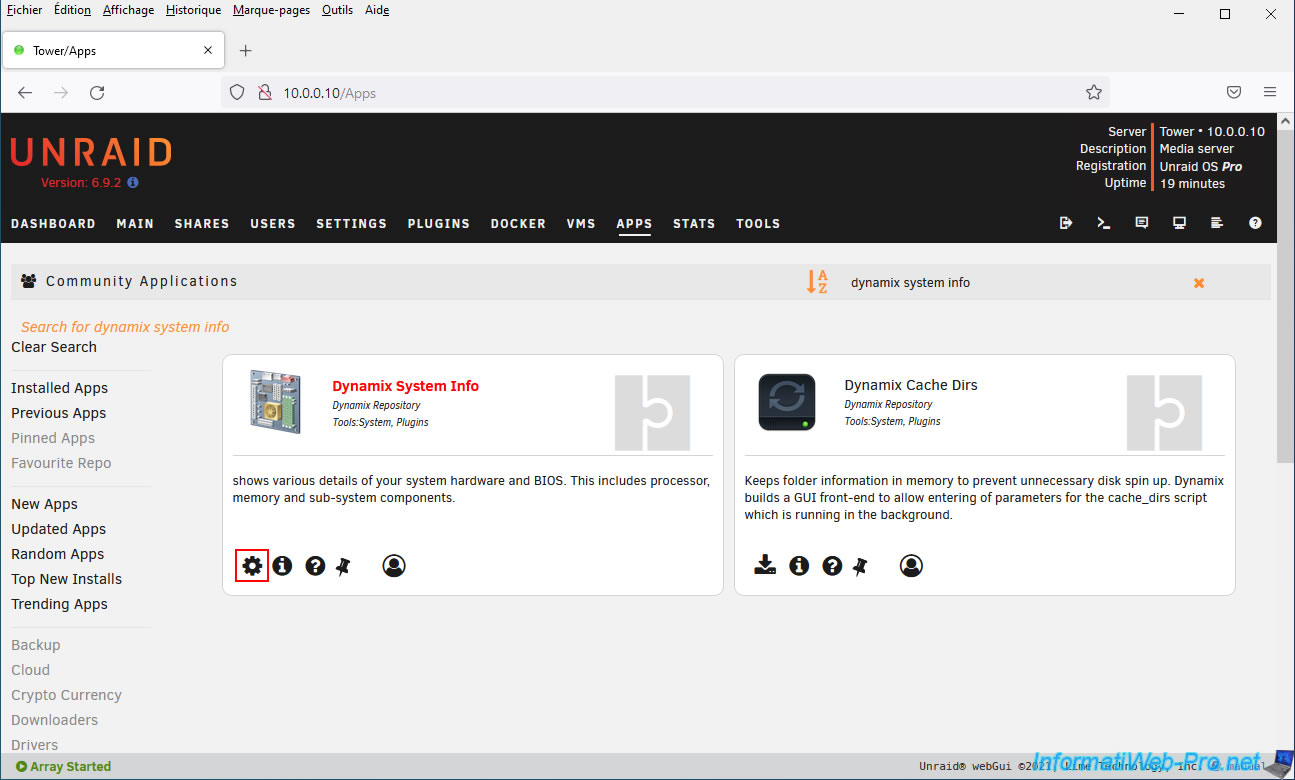
To access your server's system information, click the gear icon.
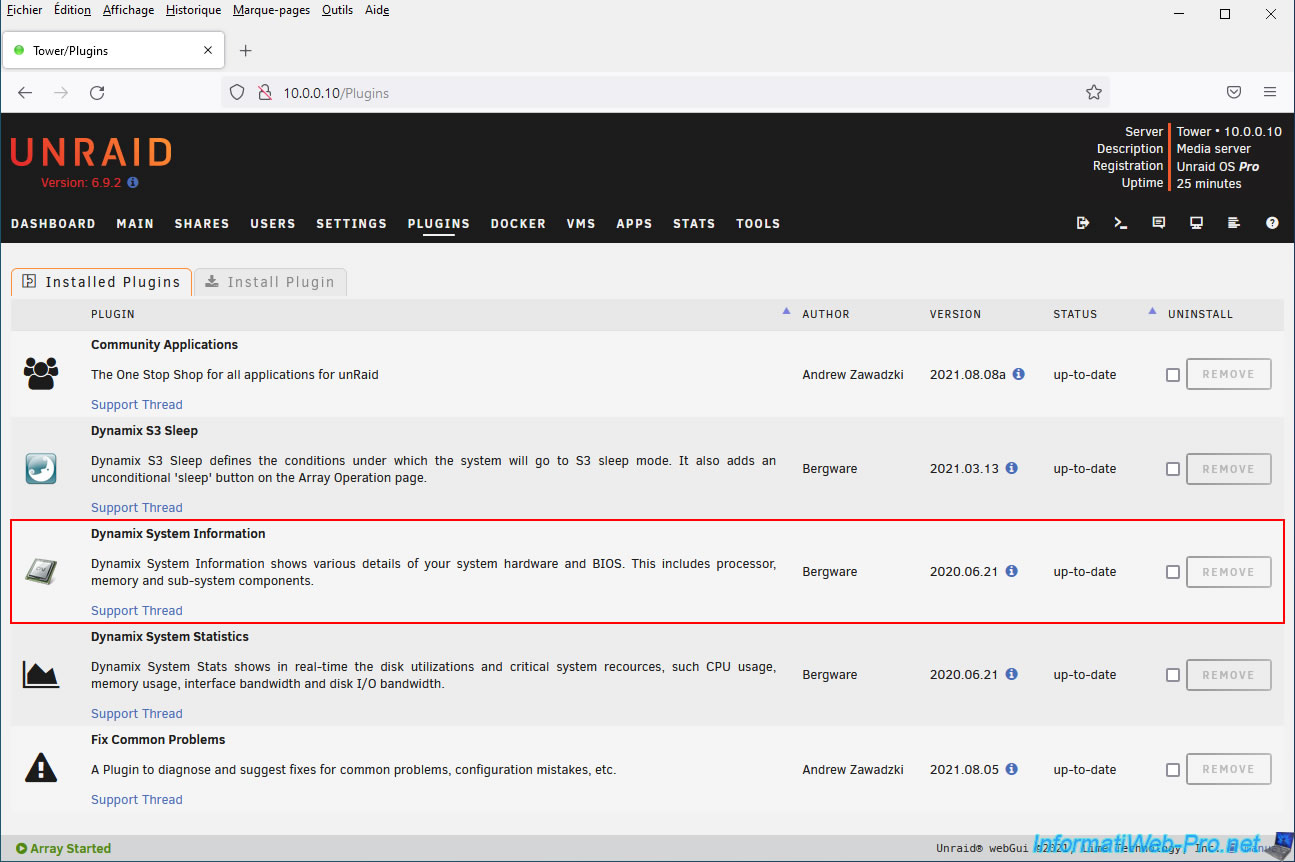
Or go to the "Plugins" tab and click on the icon of this plugin "Dynamix System Information".
This plugin is also available in the "System Information" section of the "Tools" tab under the name "System Profiler".
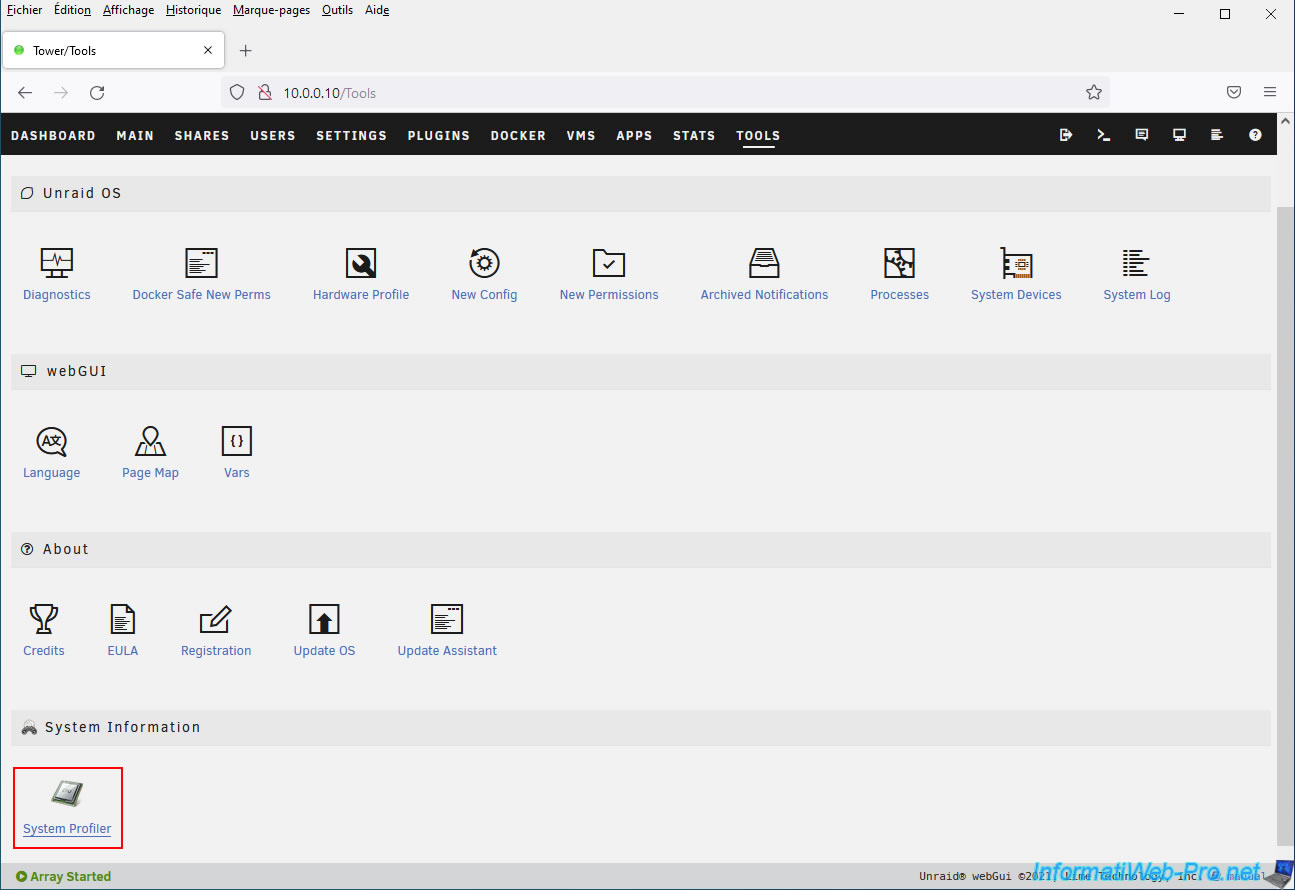
3.3. System Overview (Summary of your system)
In all three cases, you'll arrive at the same page.
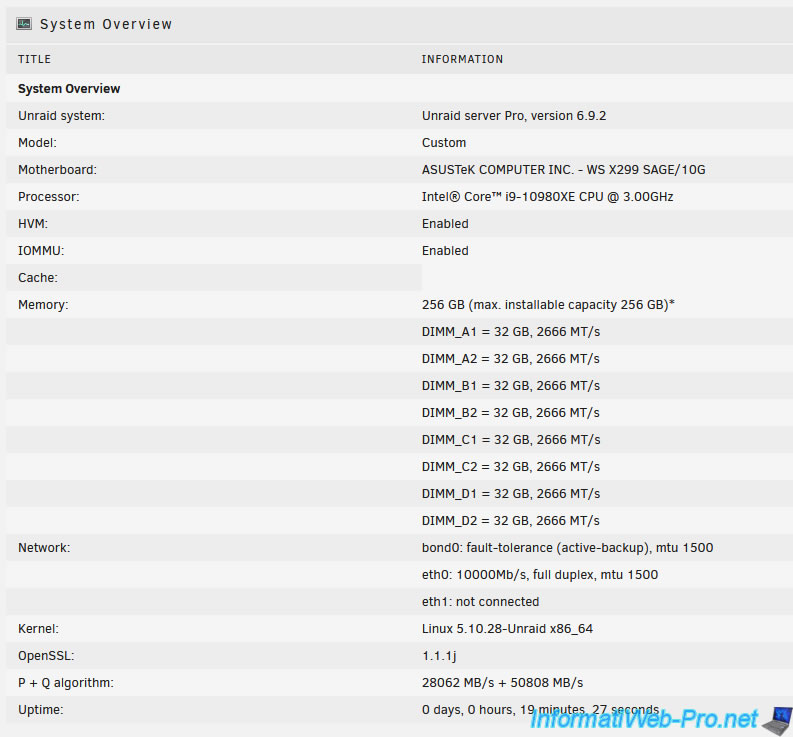
To begin, you'll find a summary of your system (System Overview):
- Unraid system: edition and version of your Unraid server.
In our case: Unraid server Pro, version 6.9.2. - Model: for a branded PC or server, you'll find its model here.
In our case, we built our computer ourselves, so we see the word "Custom". - Motherboard: brand and model of your motherboard.
In our case: ASUSTeK COMPUTER INC. - WS X299 SAGE/10G. - Processor: brand, model, and base frequency of your processor (CPU).
In our case: Intel Core i9-10980XE CPU @ 3.00 GHz. - HVM: HVM stands for "Hardware-assisted virtualization" and indicates whether processor virtualization (Intel VT-x / AMD-V) is enabled or disabled in your motherboard's BIOS.
This feature is required for using virtual machines on your Unraid server. - IOMMU: IOMMU stands for "input–output memory management unit" and refers to the feature of the same name available from AMD.
However, this indicates whether IOMMU (for AMD processors) or Intel VT-d (for Intel processors) is enabled in your motherboard BIOS.
This feature is optional, as it is only required if you want to pass peripherals (via PCI passthrough) or graphics cards (via GPU passthrough) to a virtual machine. - Cache: no information.
- Memory: indicates the amount of RAM installed in your computer/server and the maximum capacity you can install.
In our case: 256 GB of RAM in both cases.
You will also find a list of RAM modules on your motherboard, along with their speeds. In our case: eight 32 GB RAM sticks with a speed of 2666 MT/s (MegaTransfer/second). - Network: list of network cards (bond0, eth0, etc.) available on your server, along with their speed and mode.
- Kernel: information about the Linux kernel version used by your version of Unraid.
- OpenSSL: version of OpenSSL currently used by Unraid.
- P + Q algorithm: no information.
- Uptime: server uptime since its last startup.
3.4. BIOS (Information about your motherboard BIOS)
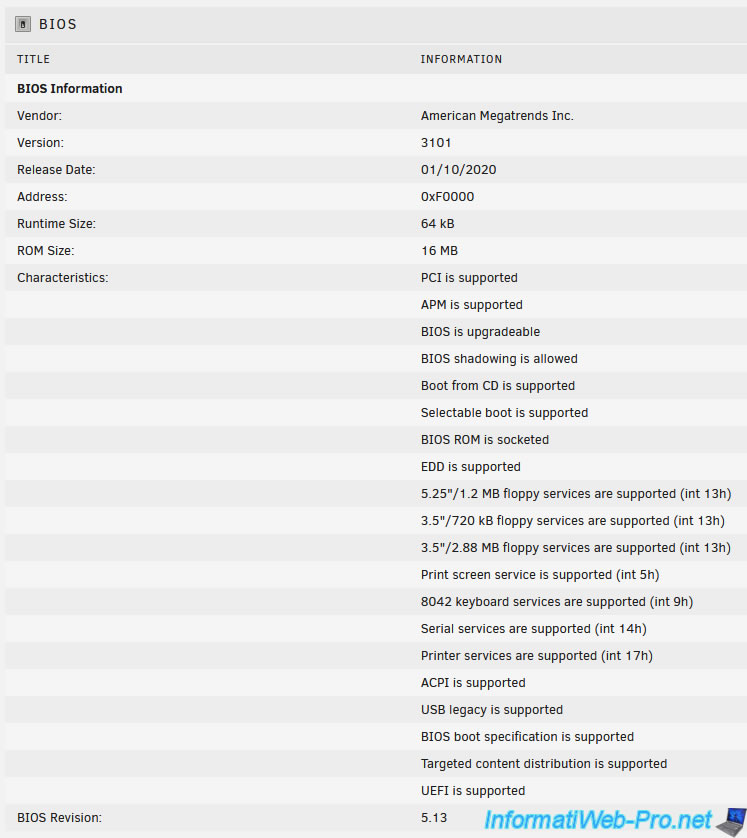
In the "BIOS" section, you will find a lot of information about your motherboard's BIOS:
- Vendor: the BIOS manufacturer.
- Version: your motherboard's BIOS version.
- Release Date: its release date.
- Address: its address.
- Runtime Size: no information.
- ROM Size: size of your motherboard's BIOS or UEFI firmware.
- Characteristics: a list of characteristics about your motherboard's BIOS that allows you to know the features it supports.
For example: BIOS is upgradeable, UEFI is supported, ... - BIOS Revision: your BIOS revision.
Note that this result is the same as what you could have obtained using the "dmidecode" command, which you can install on Linux using the package of the same name.
3.5. Motherboard (Information about your motherboard)
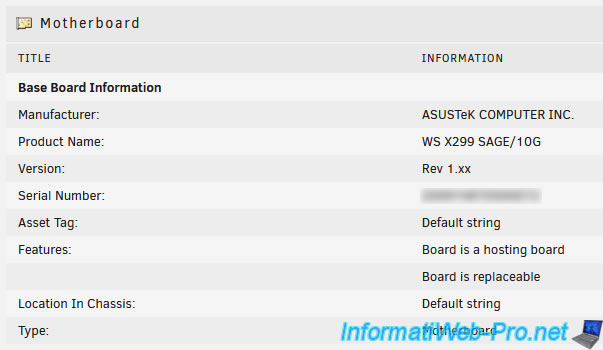
In the "Motherboard" section, you will find information about your motherboard:
- Manufacturer: your motherboard's manufacturer.
In our case: ASUSTeK COMPUTER INC. - Product Name: your motherboard's model.
In our case: WS X299 SAGE/10G. - Version: its revision number.
In our case: Rev 1.xx. - Serial Number: its serial number.
- Asset Tag: value indicated by the manufacturer in the case of a brand-name PC or server.
This is not our case, since we purchased all the parts separately. - Features: indicates its features.
- Location In Chassis: for a computer/server.
- Type: indicates that it is a motherboard.
3.6. Processor (Information about your processor)
In the "Processor" section, you can get information about your processor (CPU):
- Socket Designation: your processor's socket.
In our case: LGA 2066 R4. - Type: its type.
- Family: its family. Note that Intel's X processors were previously Xeon processors.
- Manufacturer: your processor's manufacturer. In our case: Intel Corporation.
- ID: your processor's identifier.
- Signature: its type, family, model, and stepping number.
- Flags: a list of characteristics allowing you to know which features your processor supports.
For example:
- PAE (Physical Address Extension): Allows you to use more than 3 GB of RAM with an x86 (32-bit) operating system like Win XP, for example.
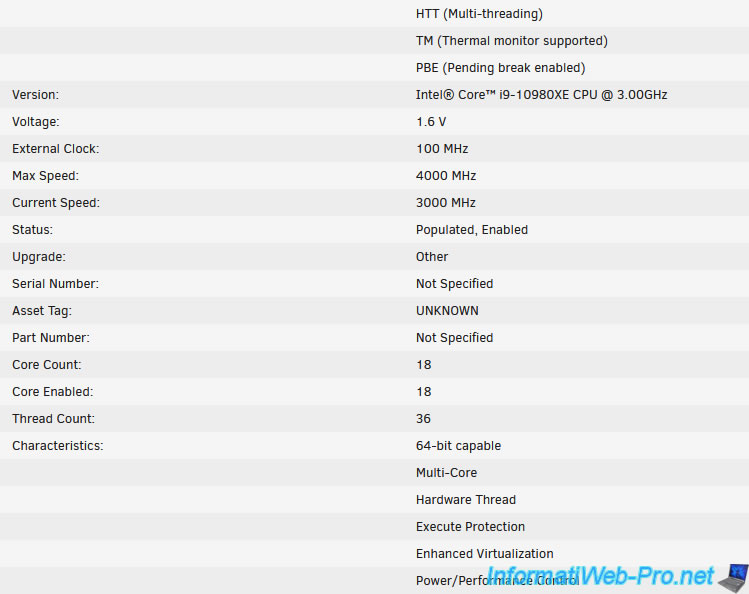
- HTT (Multi-threading): At Intel, this indicates that hyper-threading is supported. This allows you to benefit from double the number of available cores. A processor with 18 physical cores will therefore offer 36 logical cores. - Version: brand, model, and base frequency of your processor.
In our case: Intel Core i9-10980XE CPU @ 3.00 GHz. - Voltage: voltage used by your processor.
- External Clock: external clock speed.
- Max Speed: indication of the maximum clock speed your processor can use.
Although ours is officially limited to 4.60 GHz in turbo mode, not 4.00 GHz. - Current Speed: current frequency of your processor. In our case, this is its base frequency.
- Status: statuses.
- Upgrade: upgrade information.
- Serial Number: serial number of your processor (if supported).
- Asset Tag: information provided by the manufacturer in the case of a brand-name PC or server.
This is not the case for us. - Part Number: your processor's part number (if applicable).
- Core Count: the number of physical cores in your processor.
- Core Enabled: the number of physical cores enabled for your processor. It is technically possible to disable certain cores when your motherboard's BIOS allows it.
- Thread Count: the number of logical cores (also called "threads") provided by your processor.
Thanks to Intel's hyperthreading, you can run two threads simultaneously on each physical core (when this technology is enabled in your motherboard's BIOS).
This explains why the number of logical cores is twice the number of physical cores. - Characteristics: some additional characteristics about your processor.
For example:
- 64-bit compatible: your processor supports 64-bit architecture (x64).
- Multi-Core: your processor has multiple cores.
- and more.
3.7. Cache Memory (Information about your processor's cache memory)
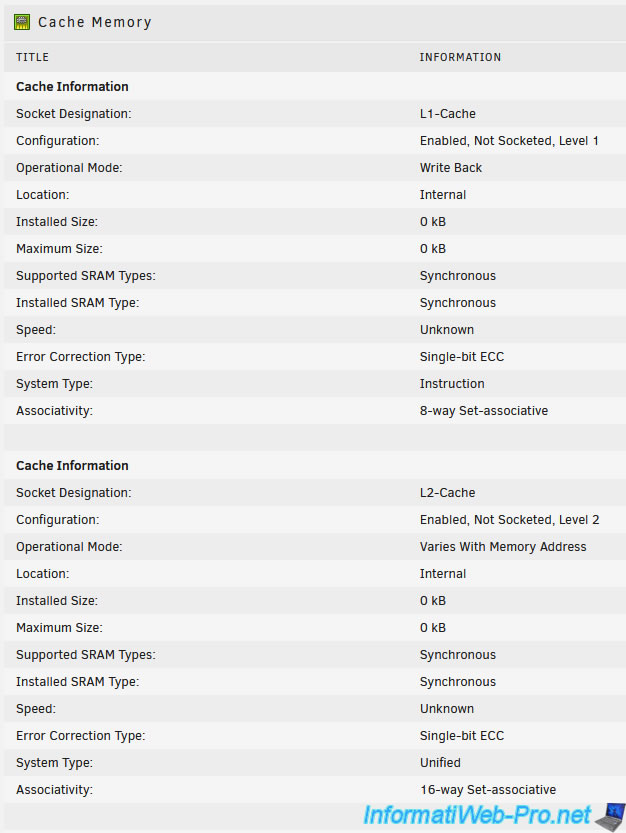
In the "Cache Memory" section, you'll find information about your processor's (CPU) L1, L2, and L3 cache.
This cache memory is located inside the physical processor (the component you place on the motherboard) and is therefore internal (Location: Internal).
3.8. Memory Summary (Summary of your system's RAM)
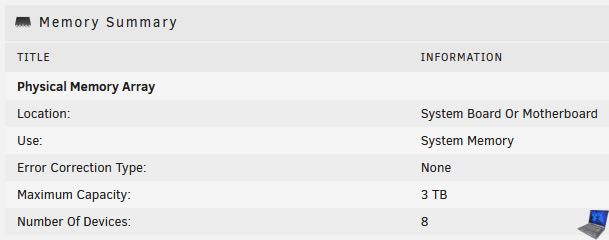
In the "Memory Summary" section, you will find information about your RAM:
- Location: the location of the memory. In our case: on the motherboard.
- Use: the type of use.
- Error Correction Type: indicates whether the memory supports error correction (ECC) or not.
- Maximum Capacity: indicates the maximum supported capacity.
- Number of Devices: indicates how many RAM sticks are present in your computer/server.
In our case: 8 RAM sticks.
3.9. Memory Devices (Informations concernant vos barrettes de RAM)
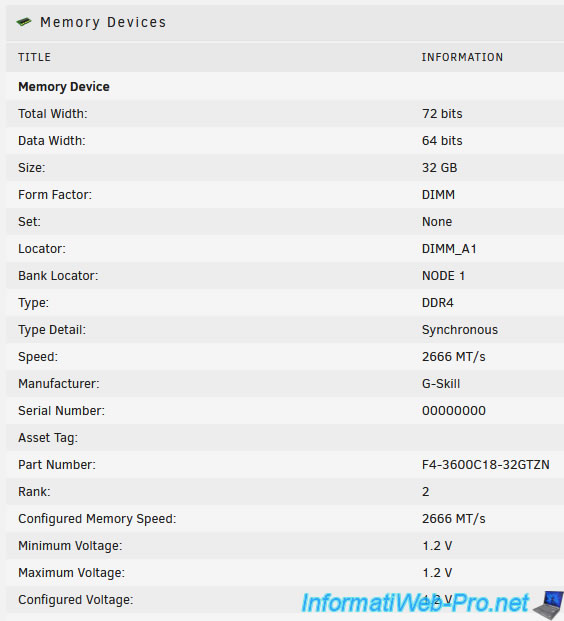
Dans la section "Memory Devices", vous trouverez des informations concernant chaque barrette de RAM (Memory Device) :
- Total Width : taille totale en bits
- Data Width : taille du bus de données
- Size : quantité de mémoire vive disponible sur cette barrette de RAM.
Dans notre cas : 32 GB. - Form Factor : facteur de forme de celle-ci.
Dans notre cas : DIMM. - Set : pas d'info.
- Locator : emplacement physique sur la carte mère.
Exemple : DIMM_A1. - Bank Locator : indication concernant l'emplacement de la barrette de RAM.
- Type : type (génération) de barrette de RAM.
Dans notre cas : DDR4. - Type Detail : indique s'il s'agit de mémoire vive synchrone
- Speed : vitesse de la barrette de ram en MT/s (MegaTransfert / seconde).
- Manufacturer : fabricant de la barrette de RAM.
Dans notre cas : G-Skill. - Serial Number : numéro de série de cette barrette de RAM (si applicable).
- Asset Tag : information indiquée par le fabricant dans le cas d'un PC ou d'un serveur de marque.
- Part Number : référence de cette barrette de RAM.
Dans notre cas : F4-3600C18-32GTZN. Bien que celle-ci fasse partie d'un ensemble dont la référence est : F4-3600C18Q2-256GTZN. - Rank : rang
- Configured Memory Speed : vitesse de mémoire configurée. En sachant que celle-ci ne peut fonctionner à sa vitesse maximale que si le XMP est activé dans les paramètres de votre carte mère et que cette vitesse est supportée par votre carte mère et votre processeur.
Néanmoins, le XMP est déconseillé dans le cas d'un serveur étant donné que cela revient à faire de l'overclocking. - Minimum Voltage : tension minimum de ce module (RAM) en volts
- Maximum Voltage : tension maximum de ce module (RAM) en volts
- Configured Voltage : tension configurée pour ce module (RAM). Dans le cas où vous auriez modifié cette valeur dans les paramètres de votre carte mère.
Néanmoins, encore une fois, cela correspond à de l'overclocking. Ce qui est fortement déconseillé dans le cas d'un serveur étant donné que cela pourra rendre votre serveur instable.
3.10. Ethernet (Information about your wired network cards)
In the "Ethernet" section, you'll find information about your server's various network interfaces.
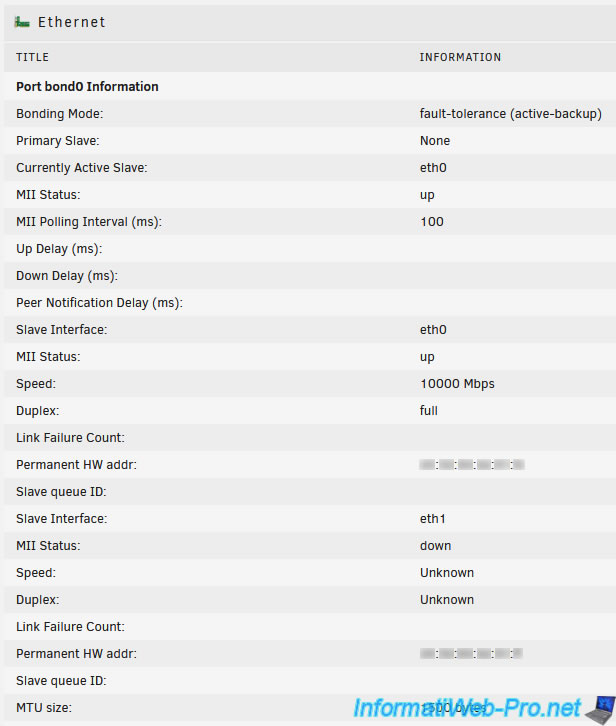
To begin, you'll find information about the "bond0" network interface created by default by Unraid:
- Bonding Mode: indicates the mode in which the bonding is operating. Depending on the mode chosen, this will allow you to benefit from fault tolerance and/or better network performance (particularly by increasing bandwidth).
- Primary Slave: no information.
- Currently Active Slave: network adapter currently active in this network adapter bonding.
- MII Status: indicates the status of the network link. MII = Media Independent Interface.
- MII Polling Interval (ms): indicates the time interval at which the operating system should check the status of this network link (in milliseconds).
- Up Delay (ms): if the network link is detected as "Up" (good), the operating system will wait this time (if specified) before considering this link as "Up" (good).
- Down Delay (ms): same, but when the network link is detected as "Down" (dead).
- Peer Notification Delay (ms): delay between two peer notifications (in milliseconds).
- Slave Interface: this line and the following ones appear multiple times and indicate which network cards are part of this network link aggregation (bonding).
- MII Status: indicates the status of this network link: "up" (good) or "down" (dead).
In our case, the only network card connected to the network is "eth0". - Speed: indicates the supported network transfer speed.
In our case, "10000 Mbps" since these are 10 Gigabit Ethernet network ports. - Duplex: a network card can operate in:
- Half duplex: the network card can send or receive data at a given time. But not at the same time.
- Full duplex: the network card can send and receive data simultaneously (i.e., in both directions) without loss of throughput. - Link Failure Count: number of failures detected for this network link.
- Permanent HW addr: physical address (or MAC address) of the affected network card.
- Slave queue ID: no information.
- MTU size: MTU stands for "Maximum Transmission Unit" and indicates the maximum size of a packet that can be sent at one time over the network.
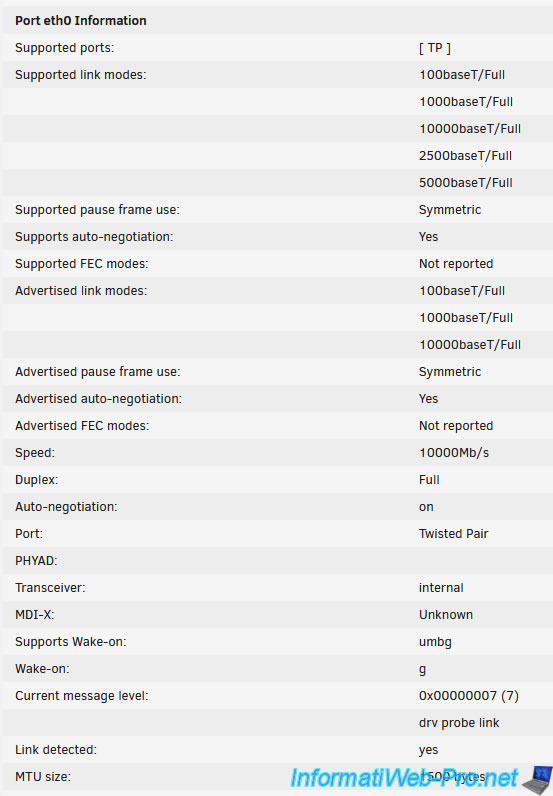
For wired (Ethernet) network cards (network interfaces), you will find a lot of information:
- Supported ports: indicates what this network port supports.
In our case, "TP" stands for "Twisted Pair." - Supported link modes: indicates the different network link modes supported: 100baseT/Full (Fast Ethernet / Full Duplex), 1000baseT/Full (Gigabit Ethernet / Full Duplex), 10000baseT/Full (10 Gigabit Ethernet / Full Duplex), ...
- Supported pause frame use: indicates the pause mode supported for network flow and congestion control.
- Supports auto-negotiation: indicates whether this network card supports auto-negotiation.
- Supported FEC modes: indicates the supported FEC (Forward Error Correction) modes.
- Advertised link modes: the network link modes advertised by this card.
- Advertised pause frame use: the pause mode used by your network card for network flow and congestion control.
- Advertised auto-negotiation: indicates whether auto-negotiation is used or not.
- Advertised FEC modes: indicates the FEC (Forward Error Correction) modes used (if applicable).
- Speed: indicates the transfer speed of your network card.
In our case, "10000 Mbps" since it's a 10 Gigabit Ethernet network port. - Duplex: indicates the duplex mode used. "Full duplex" mode allows data to be sent and received simultaneously without loss of throughput.
Unlike "half duplex" mode, where the network card can only send or receive data at a given time. - Auto-negotiation: indicates whether auto-negotiation is enabled (on) or disabled (off).
- Port: indicates the type of network cable supported.
In our case, "Twisted Pair." This corresponds to the supported port "TP" indicated at the beginning of this network card's information. - PHYAD: PHYAD stands for Physical Address.
- Transceiver: indicates whether the transceiver is internal or external.
- MDI-X: MDI stands for "Medium Dependent Interface".
Most of the time, you use "straight-through" network cables (MDI). However, in some network configurations, you will need a network cable with some wires crossed over (MDI-X).
However, switches today are now able to detect when they should or should not reverse the data send and receive channels. - Supports Wake-on: indicates the supported wake-up modes.
- Wake-on: indicates the mode currently in use.
- Current message level: indicates the debug level of your network driver.
However, this may vary from one network driver to another. - Link detected: indicates whether a network cable is connected (yes) or not (no) to this network port.
- MTU size: indicates the maximum size of a packet that can be sent at once over the network.
Note: this information is retrieved using the "ethtool" command available on Linux.
Share this tutorial
To see also
-
NAS 2/18/2026
Unraid 6.9.2 - Change temperature thresholds
-
NAS 4/1/2026
Unraid 6.9.2 - Docker - Install a file explorer (CloudCommander)
-

NAS 2/25/2026
Unraid 6.9.2 - Install the "Community Applications" (CA) plugin
-
NAS 8/19/2026
Unraid 6.9.2 - VMs - Create a high-performance virtual machine (SSD)
No comment