Install a password manager (Vaultwarden / Bitwarden) on Unraid 6.9.2
- NAS
- Unraid
- 08 July 2026 at 07:44 UTC
-

- 5/6

14. Install and use the Bitwarden application for Windows with your Vaultwarden server
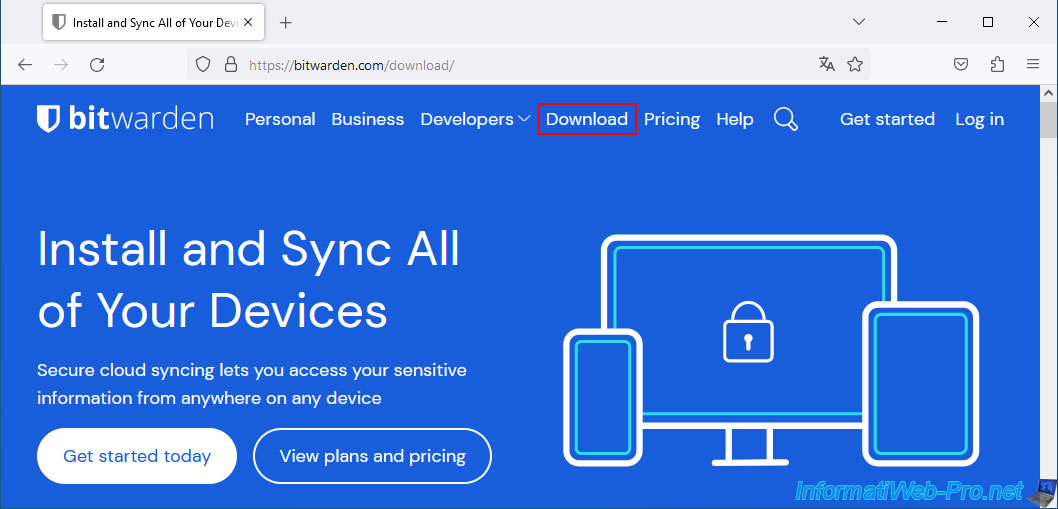
Go to the "Download" section of the Bitwarden website.
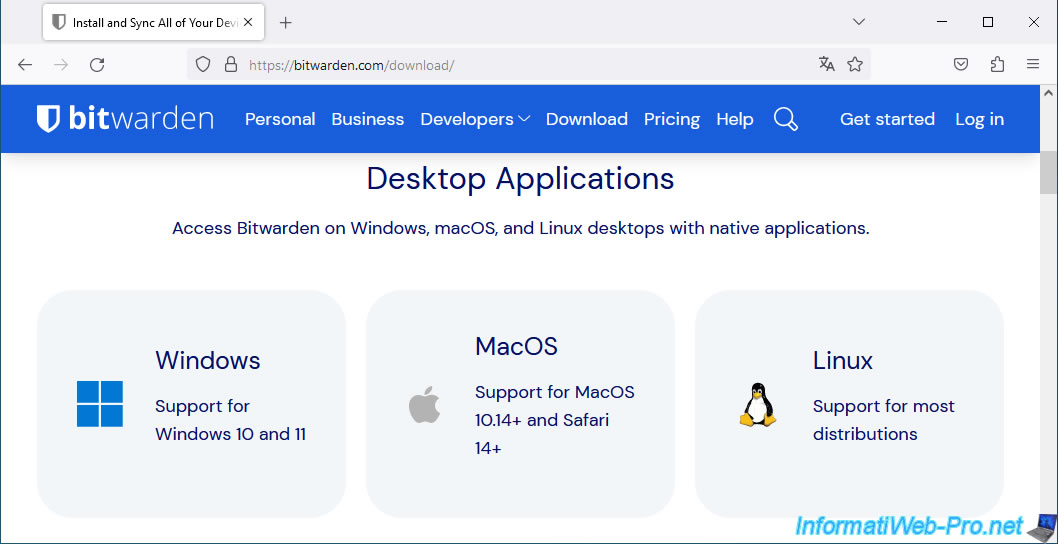
In the "Desktop Applications" section, you'll find download links for PC applications (Windows, Linux, and Mac).
In our case, we downloaded the Windows version.
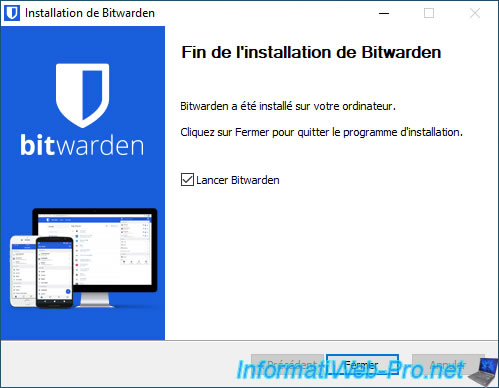
Once the installation is complete, click Close.
As you can see, by default, the Bitwarden application connects to the "bitwarden.com" server.
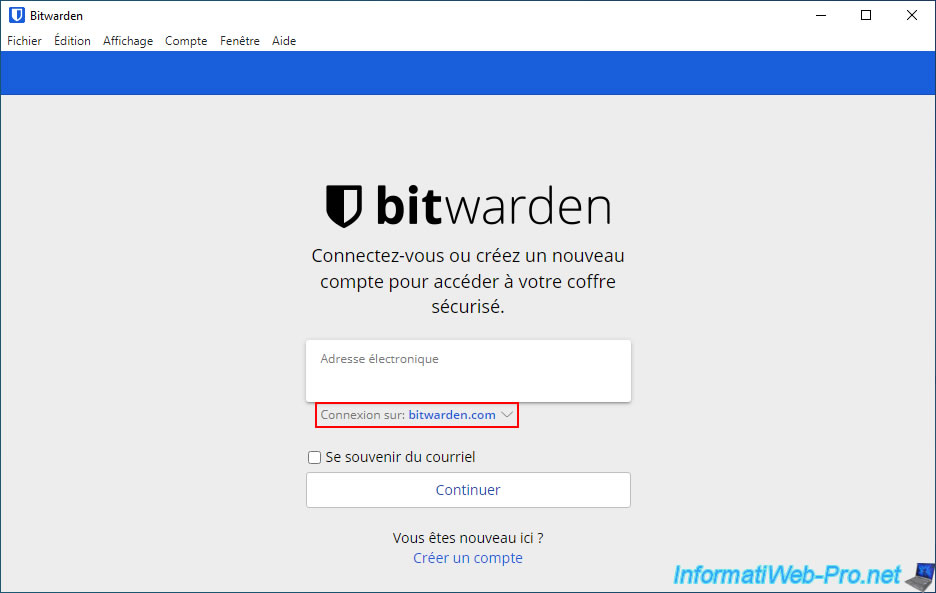
In your case, you will need to click on this domain "bitwarden.com" and select the "self-hosted" option available in the list.
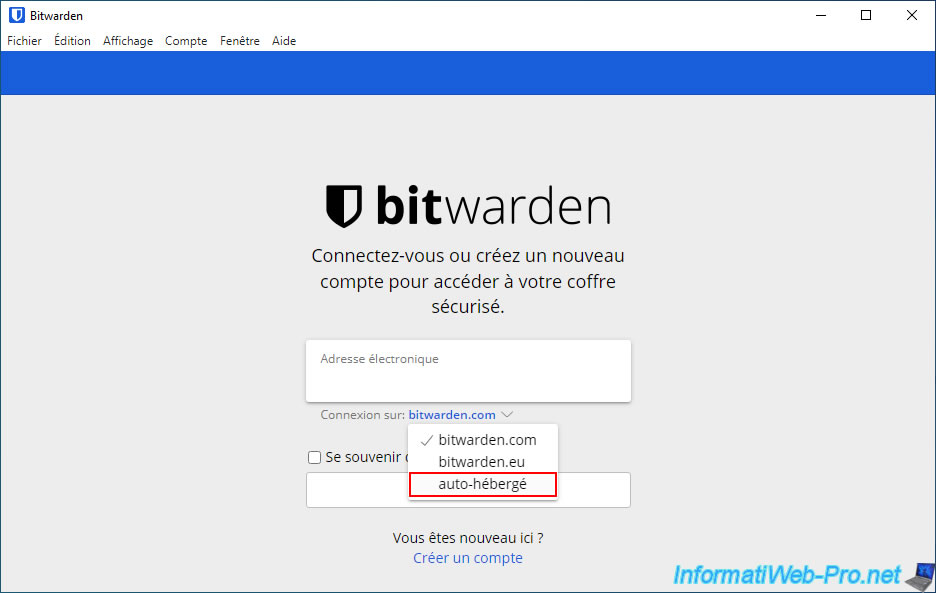
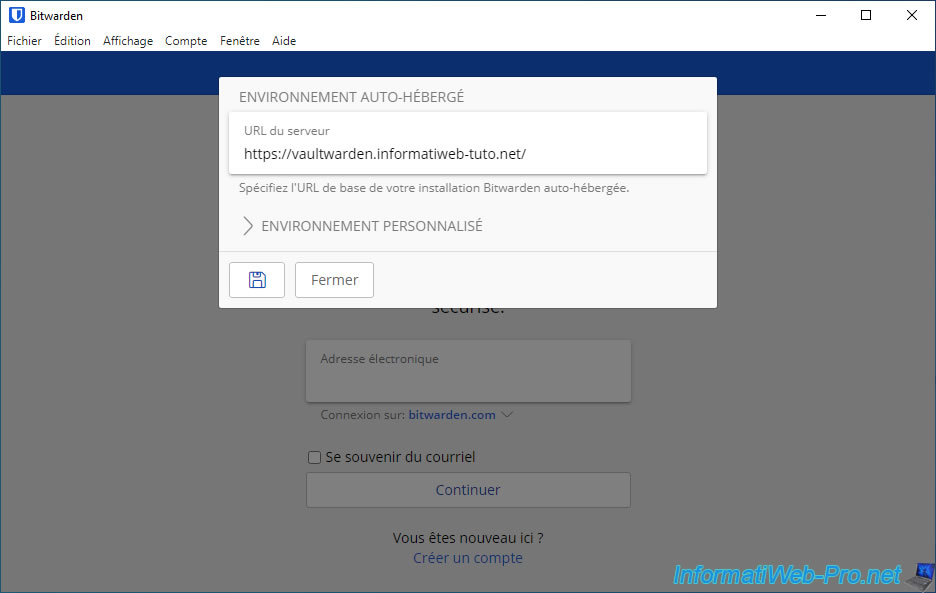
Enter the HTTPS address of your Vaultwarden server in the "Server URL" box in the "Self-Hosted Environment" window that appears.
Then, click the small diskette to save this setting.
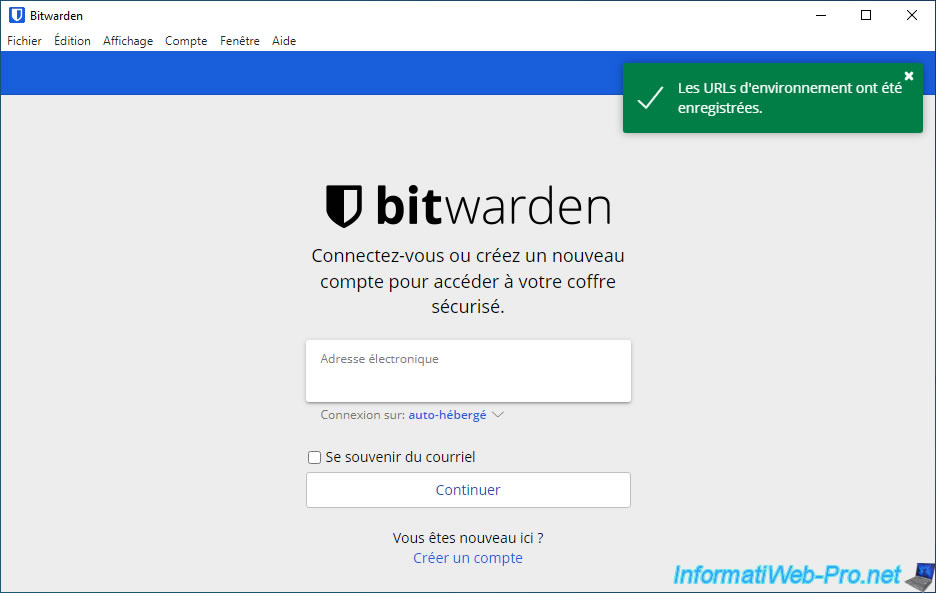
The message "Environment URLs have been saved" appears and the Bitwarden application tells you that the connection will be made on "self-hosted".
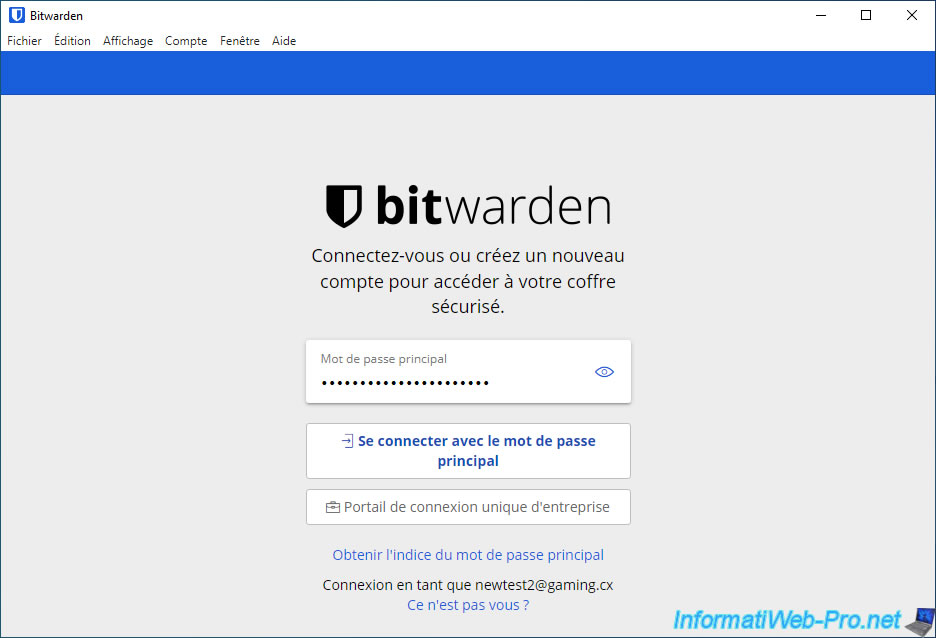
Log in with the account created on your own "Vaultwarden" server.
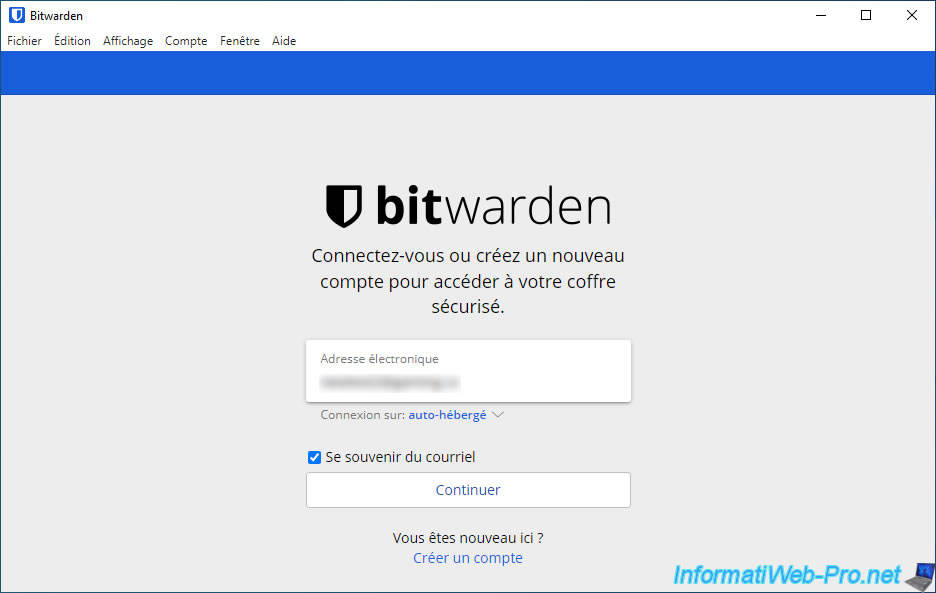
Enter the password for this account.
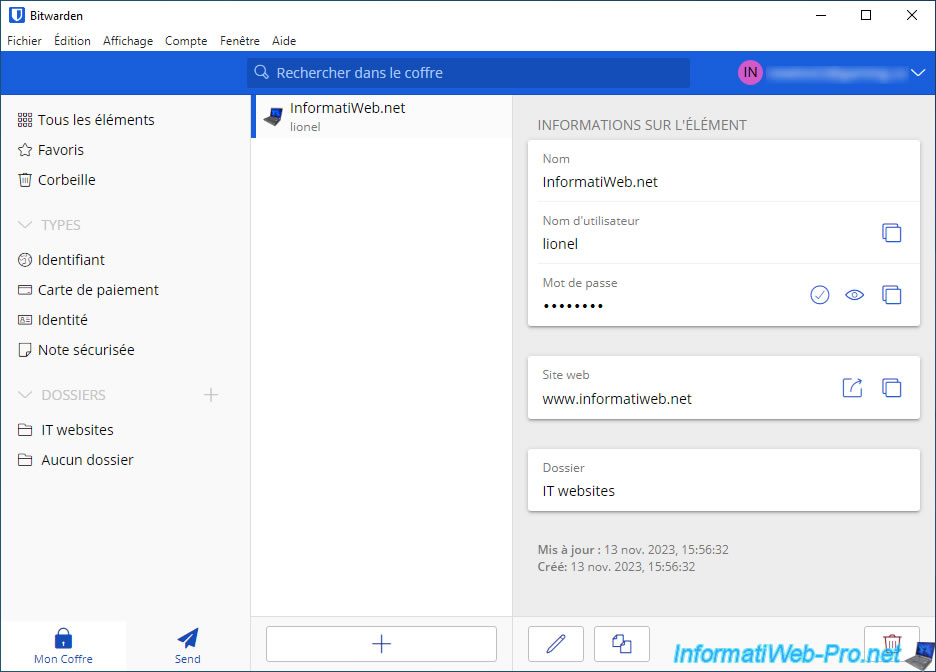
Your Vaultwarden vault appears in the Bitwarden app (as if it had been created on the official Bitwarden website).
15. Download, install and configure Bitwarden extensions to connect to your Vaultwarden server
Whether you use the Bitwarden website or your own Vaultwarden server, you can also use the official Bitwarden extensions available for all popular web browsers: Mozilla Firefox, Google Chrome, Opera, ...
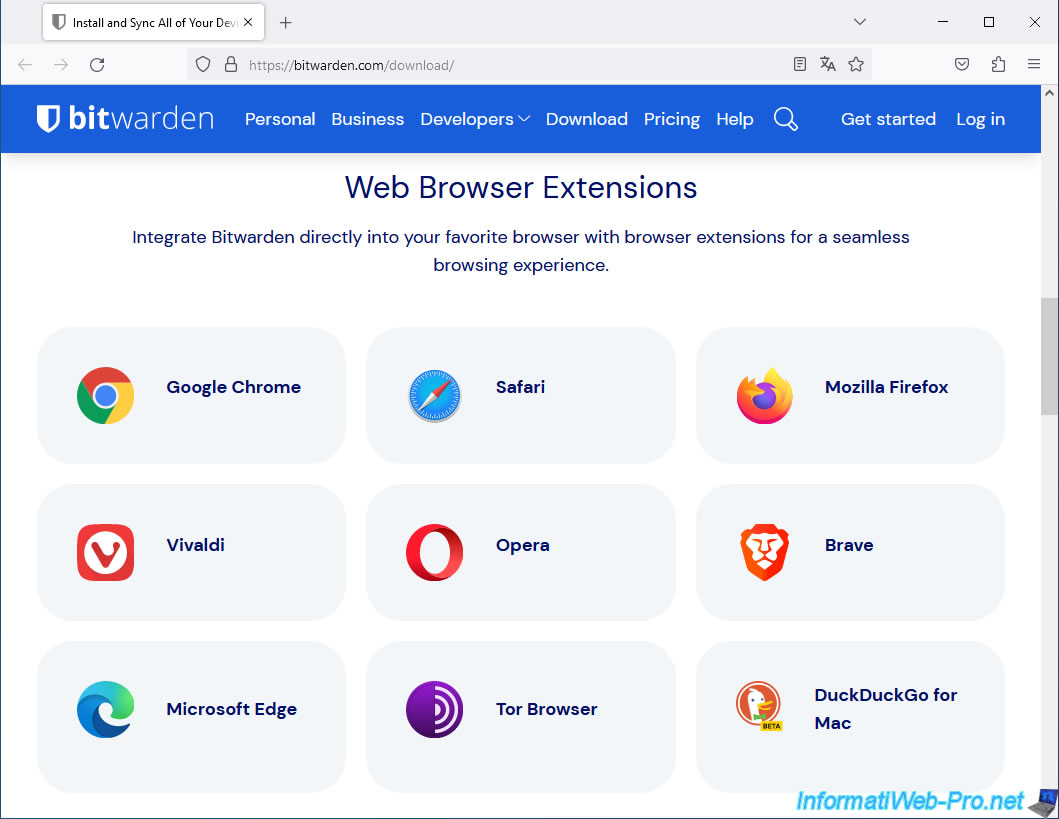
15.1. Download the Bitwarden extension for Mozilla Firefox and connect to Vaultwarden
To get started, install the Bitwarden extension available for Mozilla Firefox.
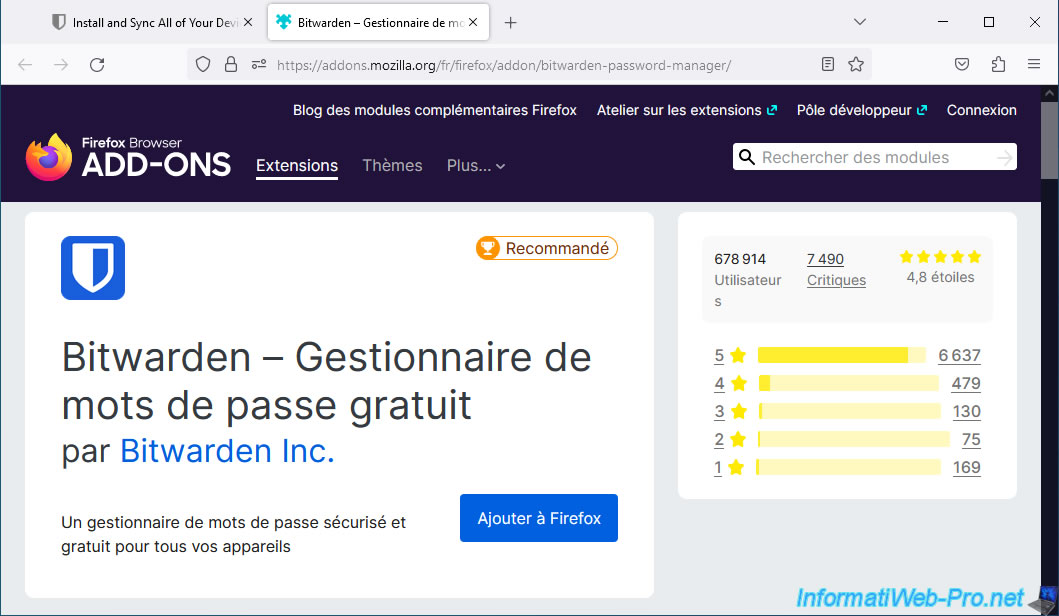
By default, the extension connects to the official domain "bitwarden.com".
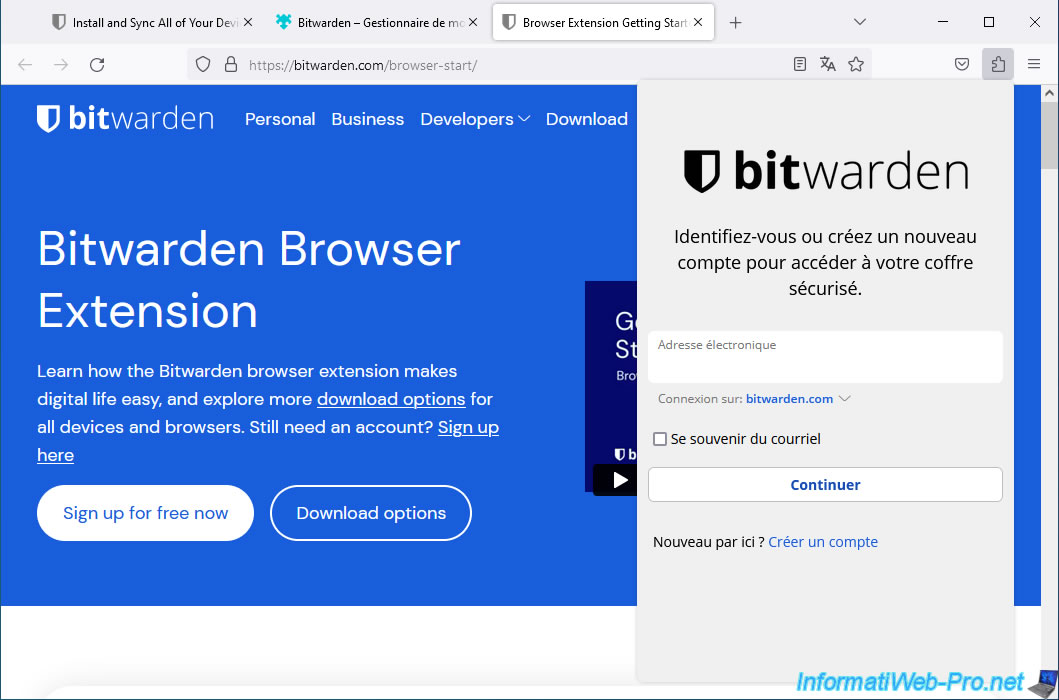
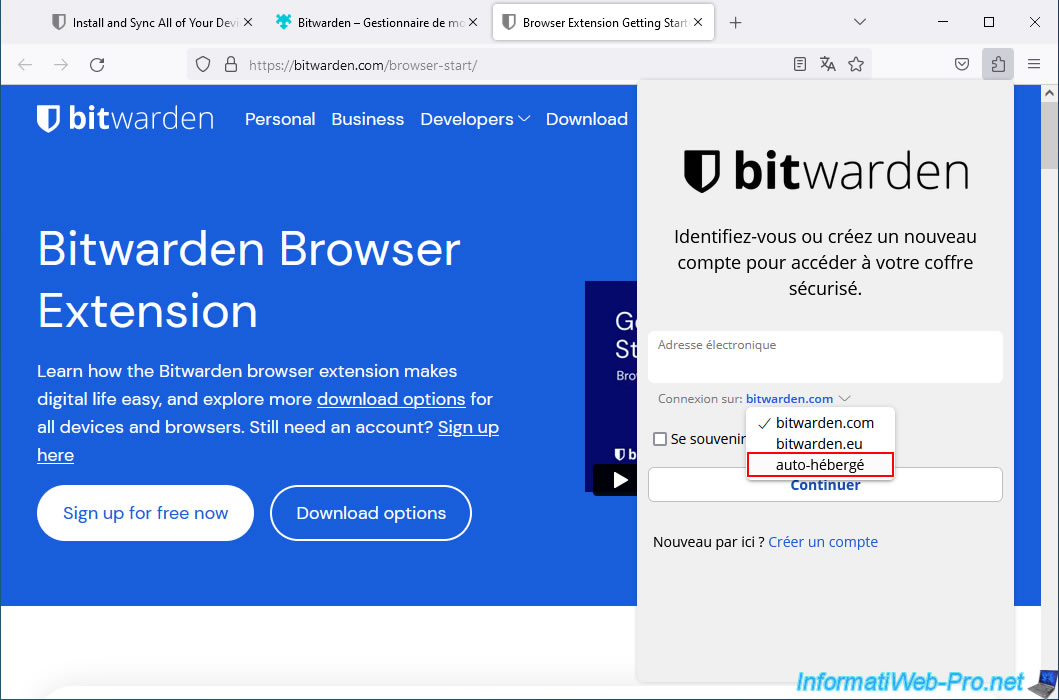
Click on this domain "bitwarden.com", then click on "self-hosted".
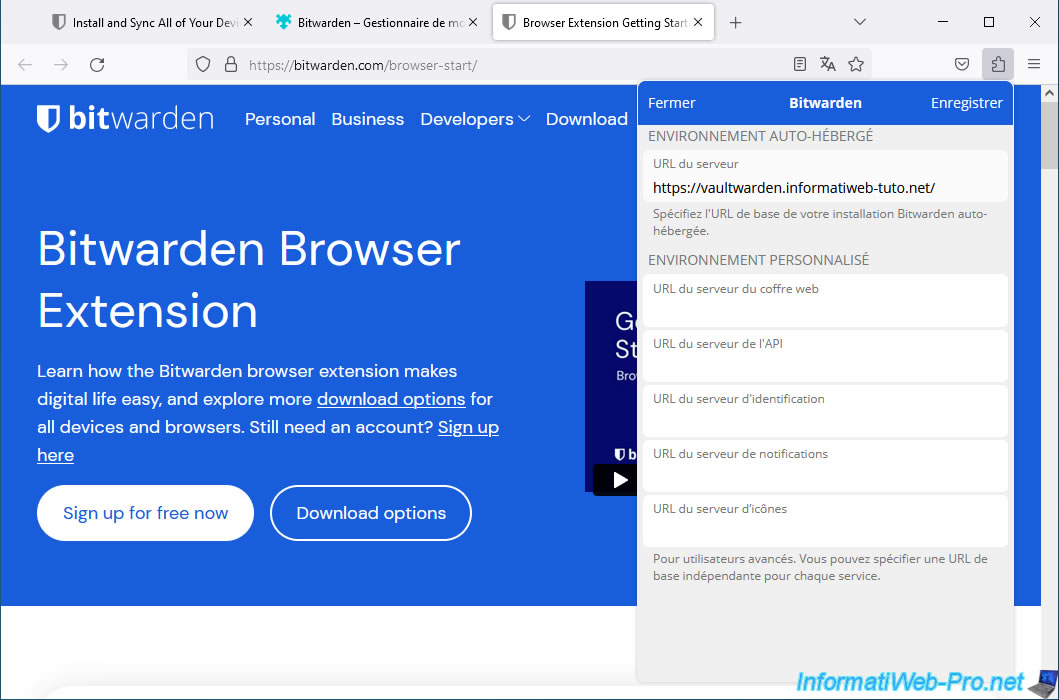
Enter the HTTPS address of your Vaultwarden server in the first box of the "Self-hosted environment" window displayed, then click Save.
The message "Environment URLs have been saved" appears (as on the Bitwarden application for Windows).
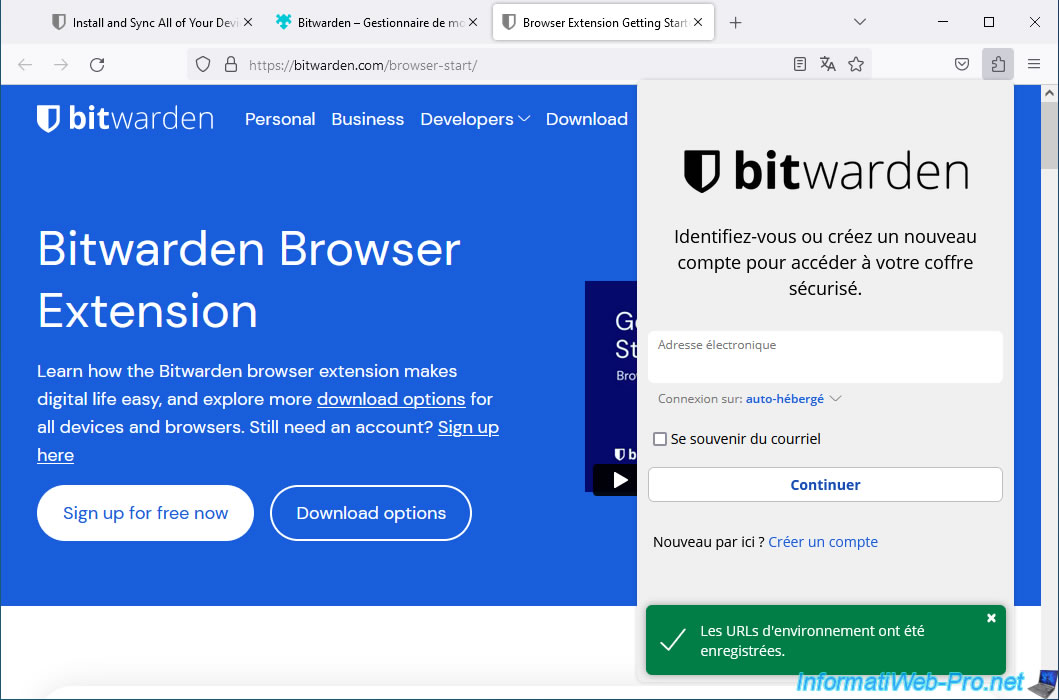
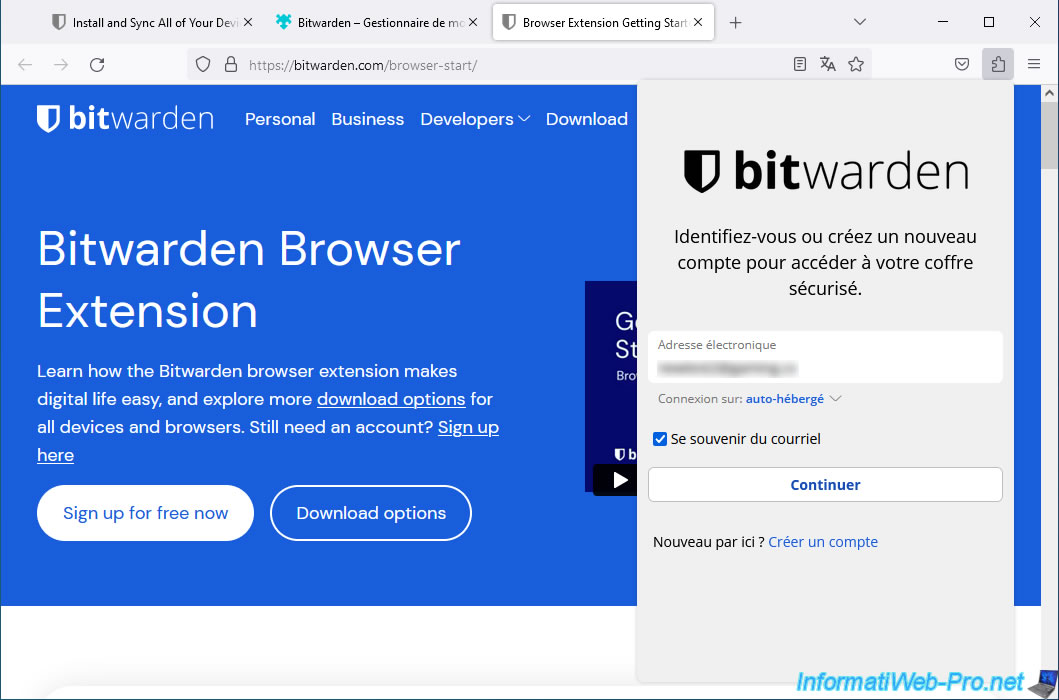
Now, you can see that the extension will connect to "self-hosted."
Enter the email address of the account created on your own Vaultwarden server and click Continue.
Next, type its password and click "Connect...".
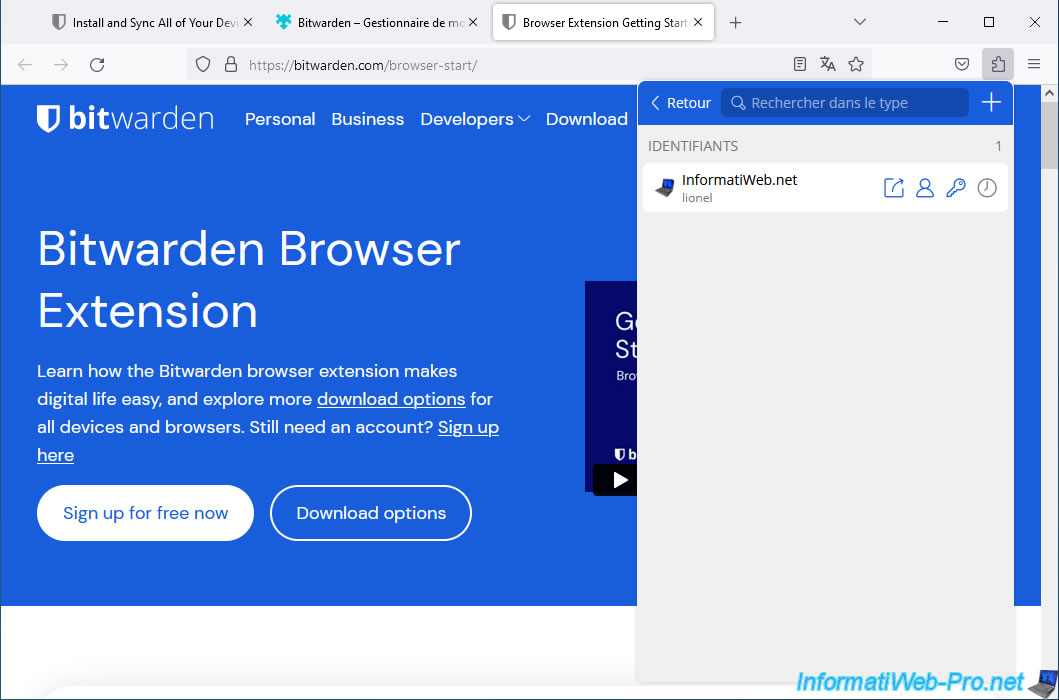
As you can see, you have access to the same items in your vault (stored on your own Vaultwarden server).
Share this tutorial
To see also
-
NAS 1/15/2026
Unraid 6.9.2 - Change the parity disk
-
NAS 12/4/2025
Unraid 6.9.2 - Define a private static IP address
-
NAS 6/17/2026
Unraid 6.9.2 - SWAG - Access Nextcloud via reverse proxy and personal domain
-
NAS 9/16/2026
Unraid 6.9.2 - VMs - Hotplug USB devices (Libvirt Hotplug USB plugin)
No comment