- NAS
- Unraid
- 04 February 2026 at 08:57 UTC
-


By default, the Unraid console and web interface are not password protected.
It's therefore recommended to set a password for the root account (used for your Unraid server console, as well as its web interface) to prevent unauthorized access to your Unraid server.
1. Set or change the Unraid root account password
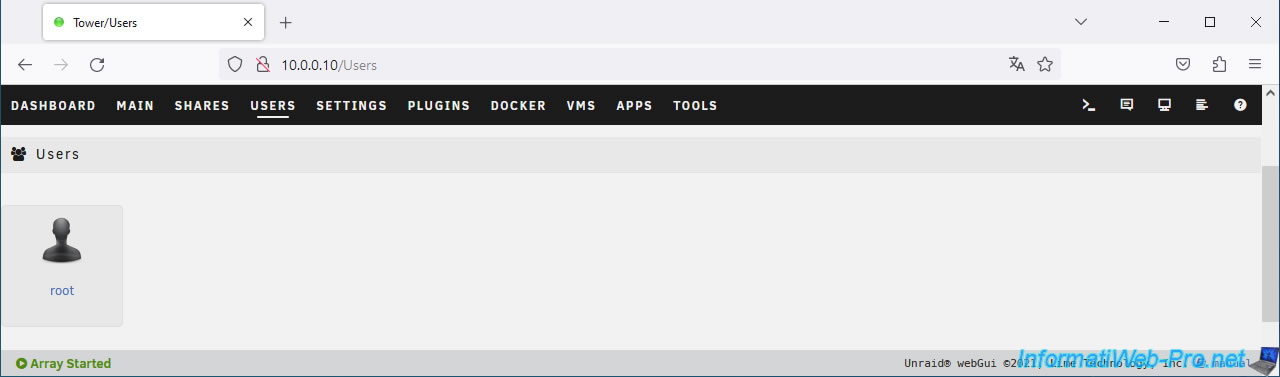
To set or change the password for the root account of your Unraid account, access its web interface and go to the "Users" section.
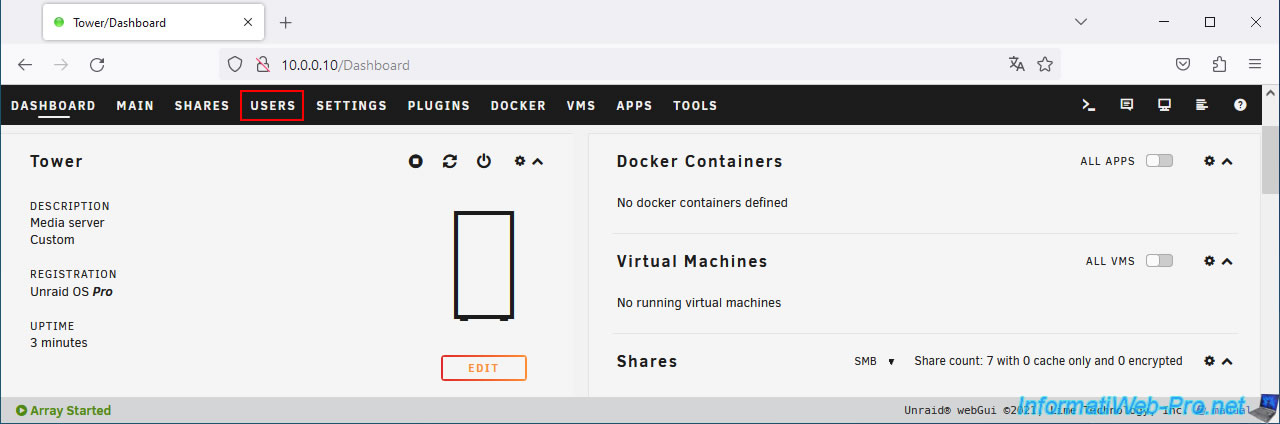
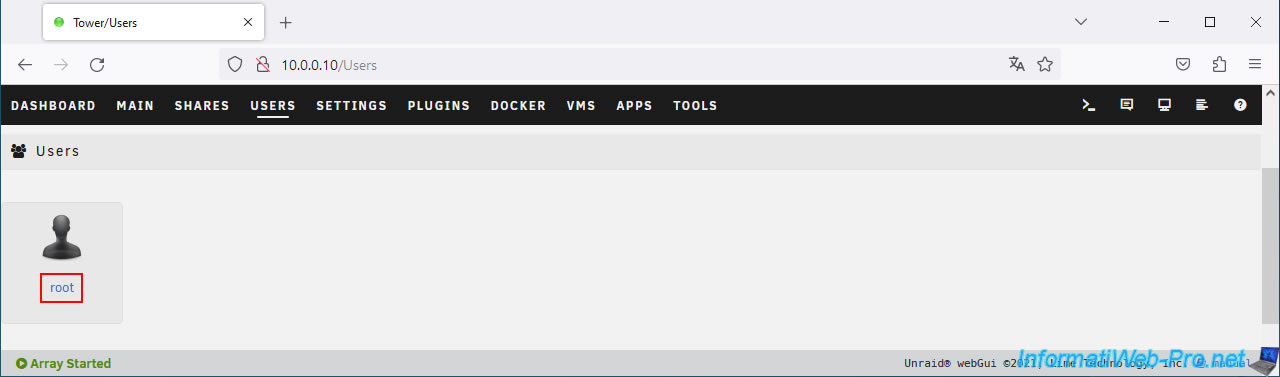
Click on the "root" account.
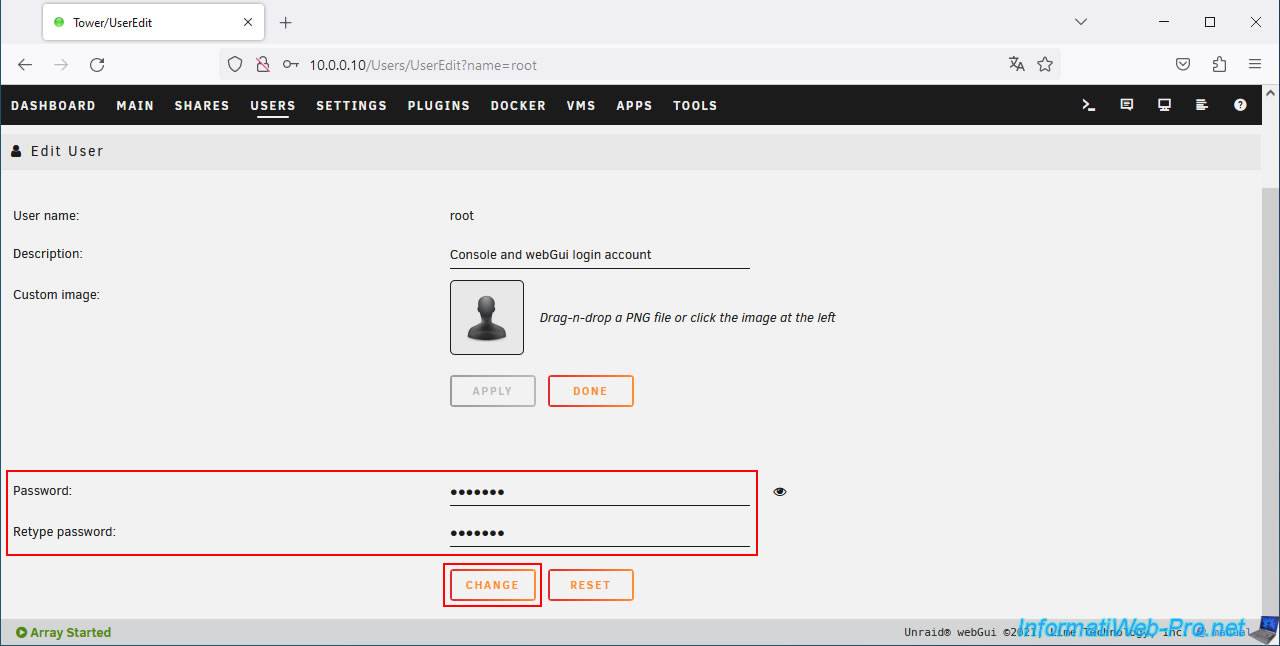
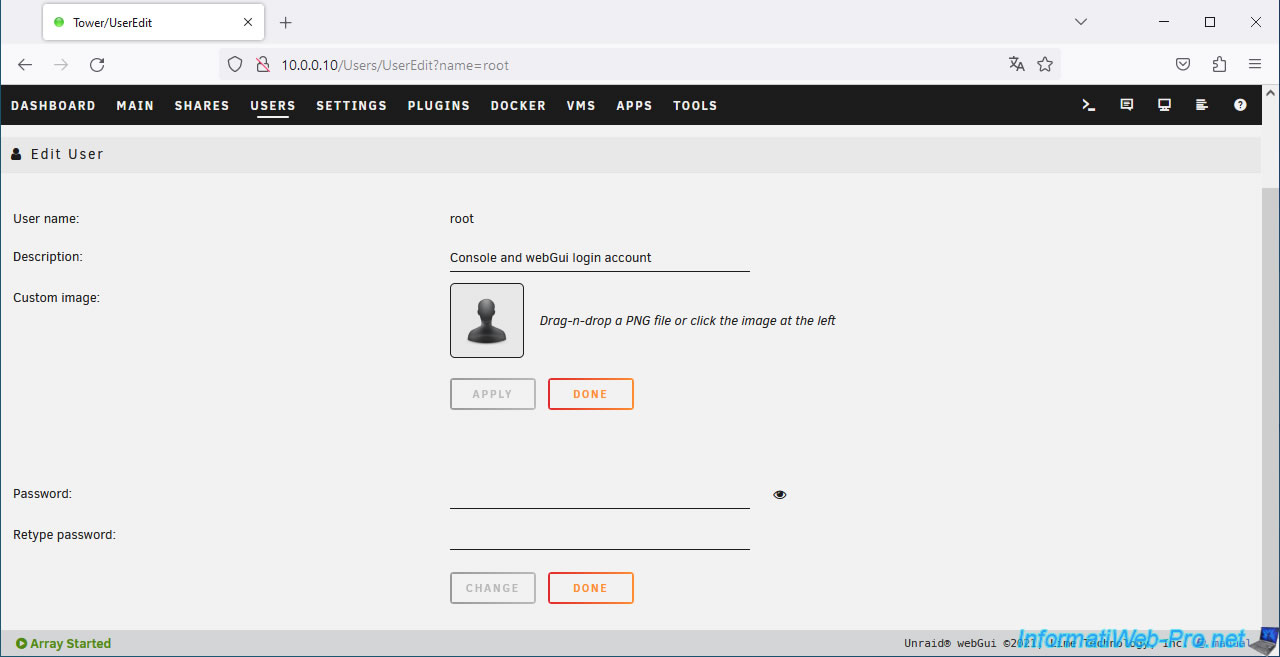
As you can see, the "root" account of your Unraid server is used for the console, as well as the web interface.
Plain Text
User name: root.
Description: Console and webGui login account.
Enter a password in the "Password" and "Retype password" boxes, then click: Change.
Important : it's not possible to delete a user account password from the Unraid web interface.
To do this, you will need to delete 2 Unraid configuration files, as explained in the next step of this tutorial.
Source : Unraid | Unraid Security Best Practices.
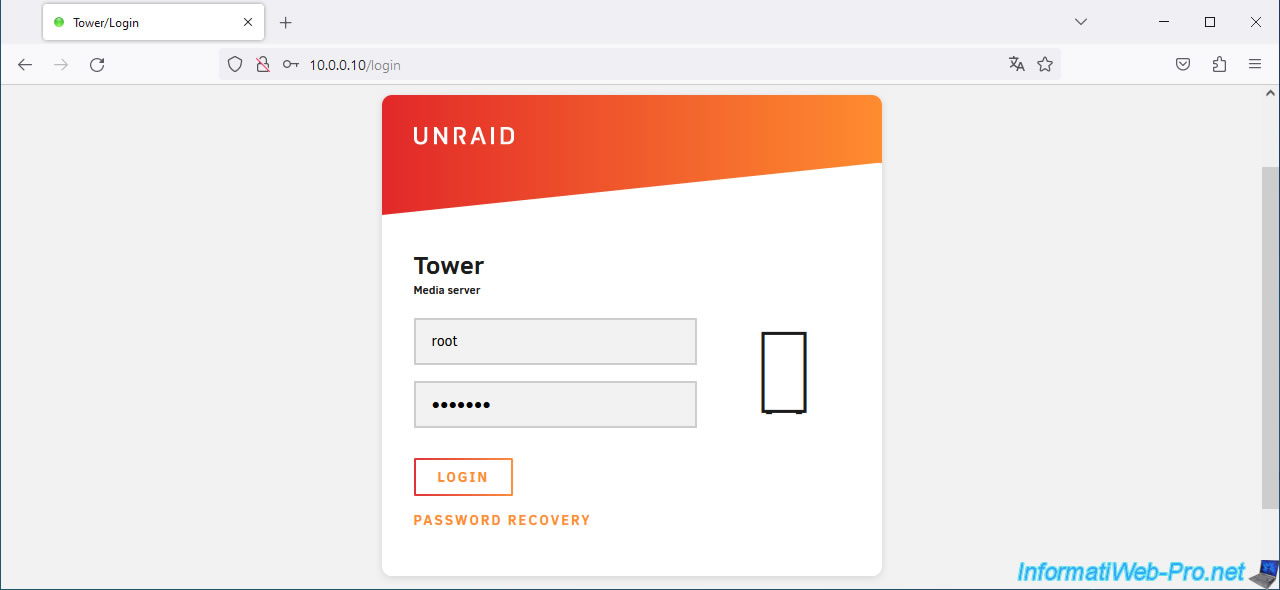
Now, a login page will appear when you try to access the web interface of your Unraid server.
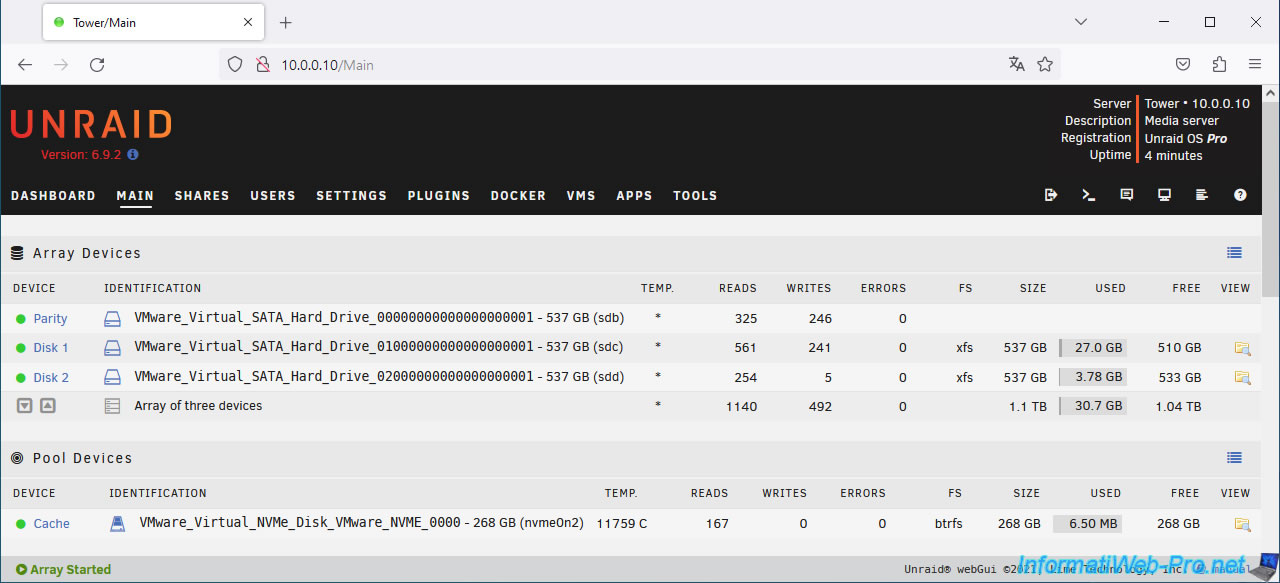
Once logged in as root, you will once again have access to the Unraid web interface.
2. Reset (remove) Unraid root account password
If you want to remove the "root" account password from your Unraid server, you will first need to shut down your Unraid server.
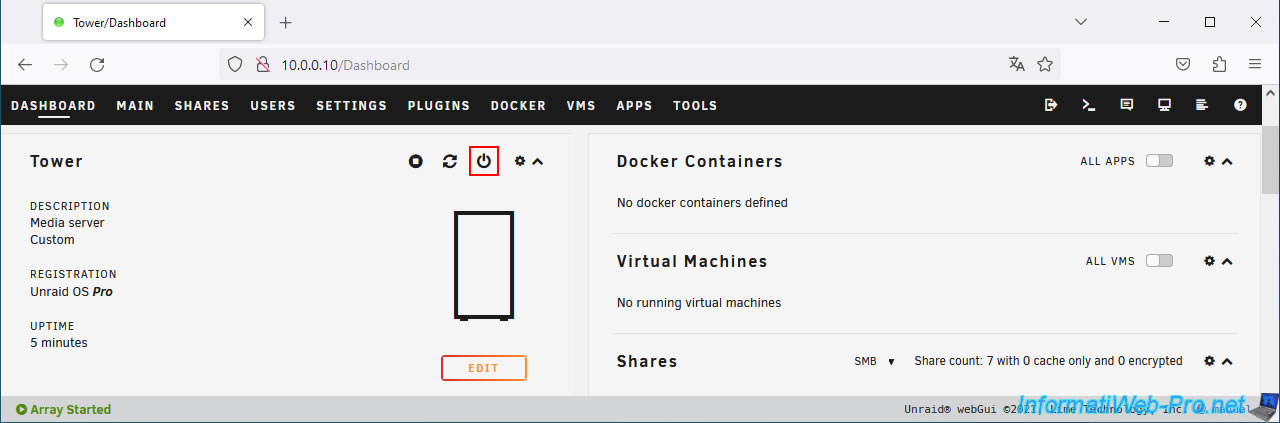
To do this, if you know the current password for the "root" account and therefore have access to this web interface, go to the "Dashboard" tab and click on the 3rd icon (framed in red in the image below).
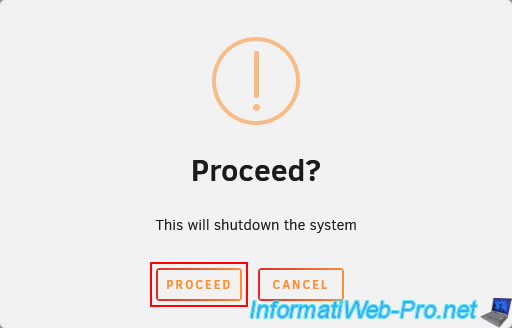
Confirm the shutdown of the Unraid server by clicking on: Proceed.
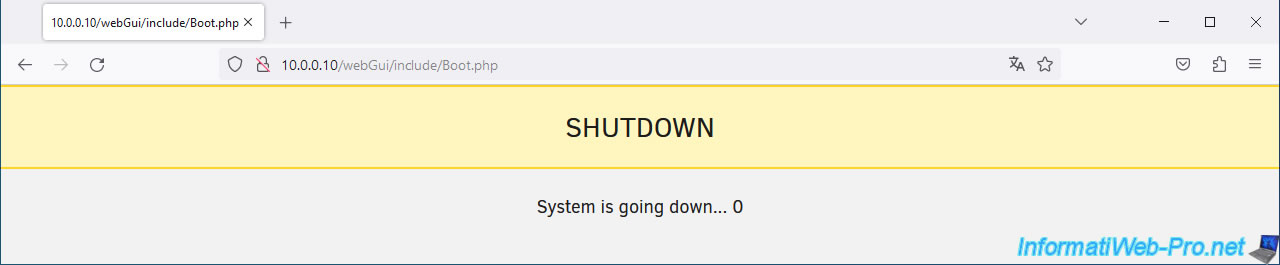
Your Unraid server shuts down.
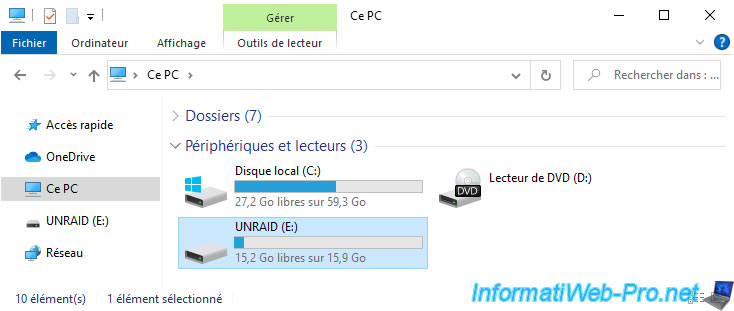
Connect the USB key from your Unraid server to your PC.
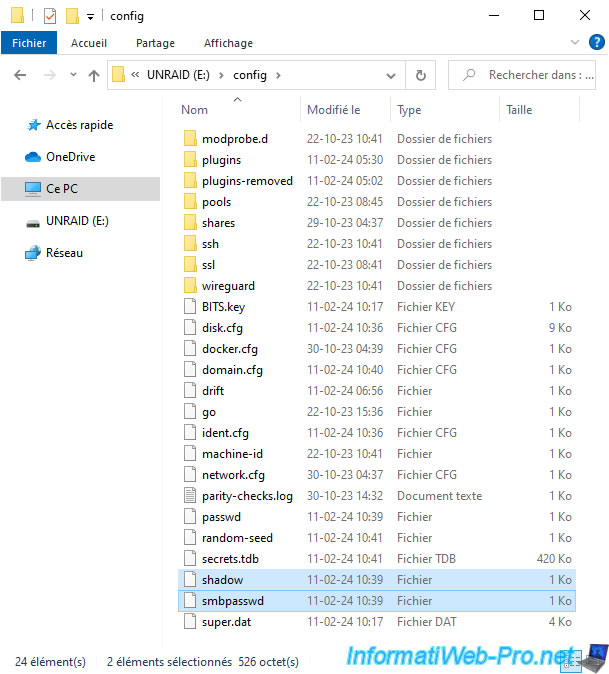
On this USB key, go to the "config" folder and delete the files: shadow and smbpasswd.
Warning :
- do not delete the "passwd" file.
- deleting these 2 files resets the password of all user accounts present on your Unraid server (which includes the "root" account, but also additional user accounts that you may have created and which allow access to shares of your Unraid server).
Source : Resetting your Unraid password | Unraid Docs.
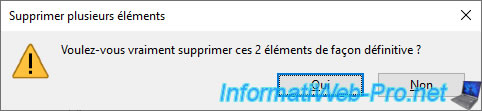
Confirm the deletion of these files by clicking Yes.
Close the Windows File Explorer window and properly eject your Unraid USB key using the icon located in the taskbar.
Then, click on "Eject [name of your USB key]" (option corresponding to your USB key named "UNRAID").
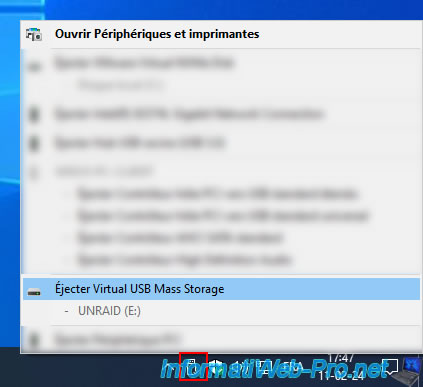
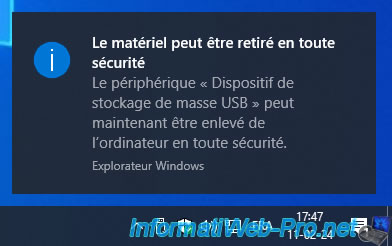
Your USB key has been ejected correctly.
Physically unplug it and plug it back into your server.
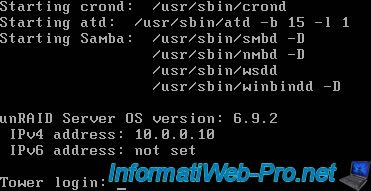
Start your Unraid server.
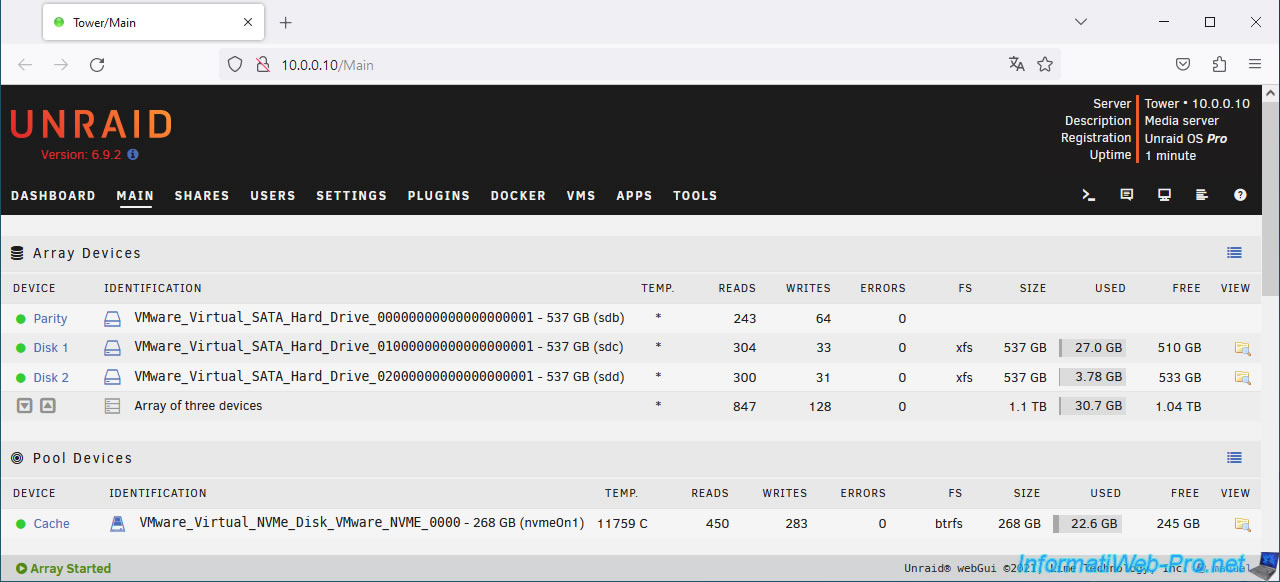
Once your Unraid server has started, access its web interface and you will see that you have access to it again without having to enter a password.
Since all passwords (including that of the "root" account) have been reset, it is important to reset passwords for the user accounts present on your Unraid server.
Thus, access to the shares of your Unraid server will be secure again (in the event that certain shares are accessible only by certain users).
To do this, go to the "Users" section and click on the desired account(s).
Enter a new password in the "Password" and "Retype password" boxes, then click "Change".
Share this tutorial
To see also
-
NAS 1/8/2026
Unraid 6.9.2 - Add a storage disk
-
NAS 4/15/2026
Unraid 6.9.2 - Docker - Install a file server (Nextcloud)
-
NAS 1/21/2026
Unraid 6.9.2 - Replace a storage disk
-

NAS 9/9/2026
Unraid 6.9.2 - VMs - Create a gaming virtual machine (without ACS support)
You must be logged in to post a comment