Install a password manager (Vaultwarden / Bitwarden) on Unraid 6.9.2
- NAS
- Unraid
- 08 July 2026 at 07:44 UTC
-

- 4/6

11. Vaultwarden reports
In the "Reports" tab of Vaultwarden, you will find 6 reports regarding the passwords stored in your Vaultwarden account:
- Exposed Passwords Report: allows you to identify which of your passwords are part of a data breach.
This allows you to change them to others before hackers attempt to use passwords that have been leaked in the past. - Reused Passwords Report: allows you to identify which of your accounts are protected with the same password.
This allows you to ensure that you use unique passwords on each website. This way, if one site is hacked, you only need to change one password. - Weak Passwords Report: allows you to test the strength of your passwords to detect weak ones (e.g., qwerty, 1234, ...).
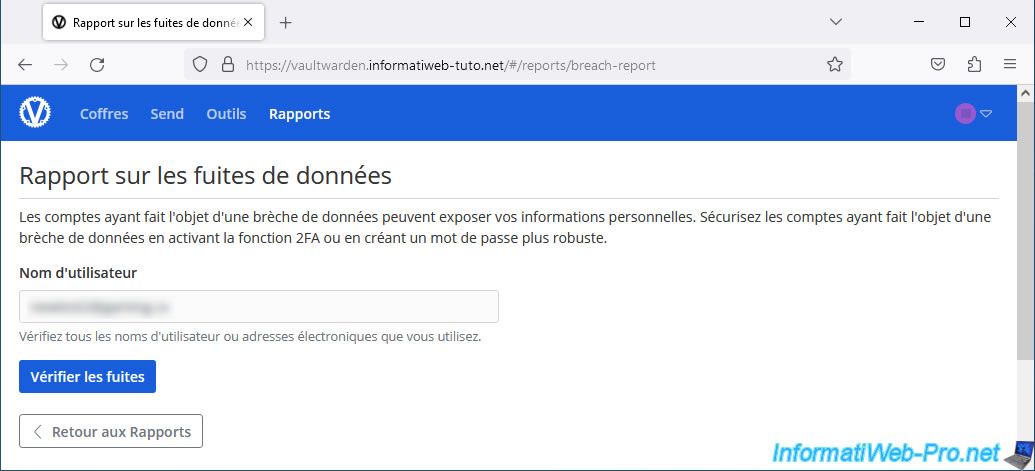
- Insecure Websites Report: allows you to detect items in your vault where the website address begins with "http://" instead of "https://".
This allows you to update the website address to the HTTPS version if it's available (which is most of the time). - Two-Factor Authentication Inactive: allows you to detect websites where you haven't yet enabled two-factor authentication (if available).
- Data Leak Report: allows you to find out if one of your usernames or email addresses is part of one or more data leaks and which data was leaked when.
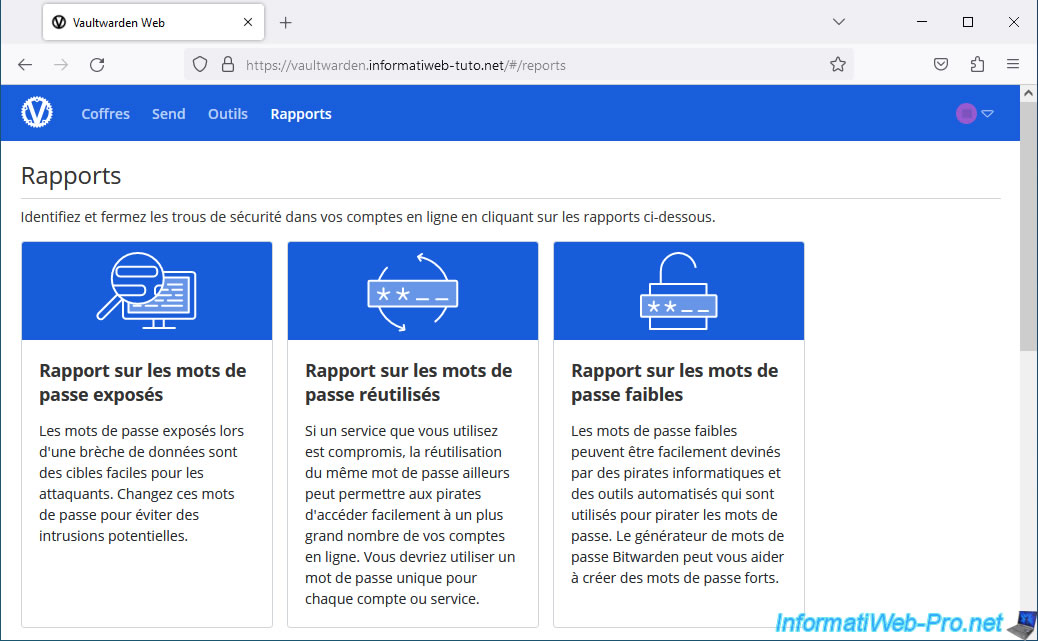
Use the "Exposed Passwords Report" to check if your passwords have already been leaked.
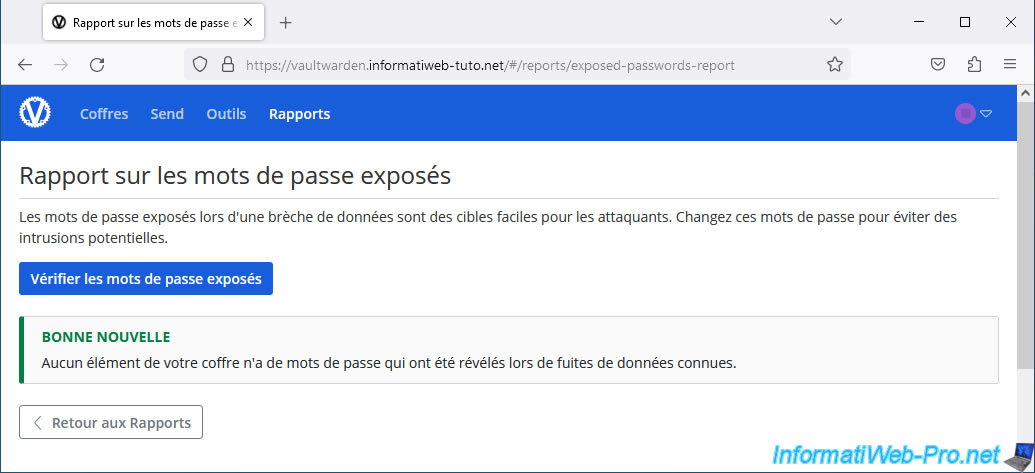
With the "Password Reuse Report" report, check if you have used the same password on multiple websites.
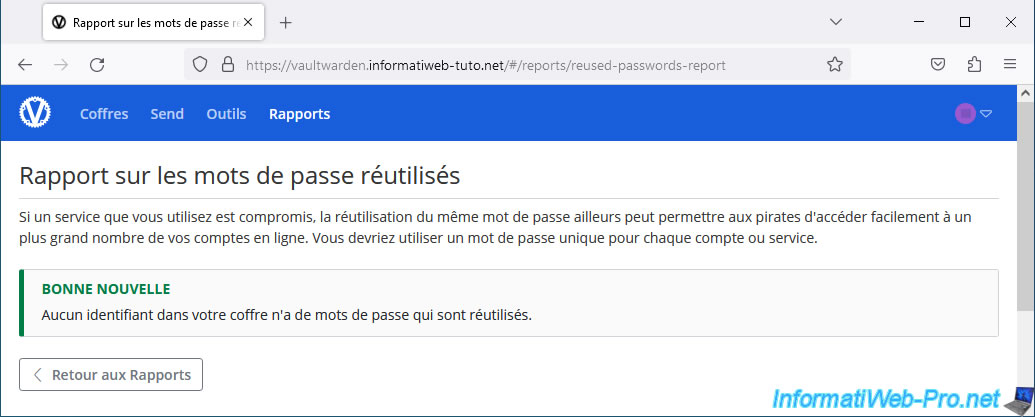
With the "Weak Password Report" report, check whether you should replace certain passwords with more secure (complex) ones.
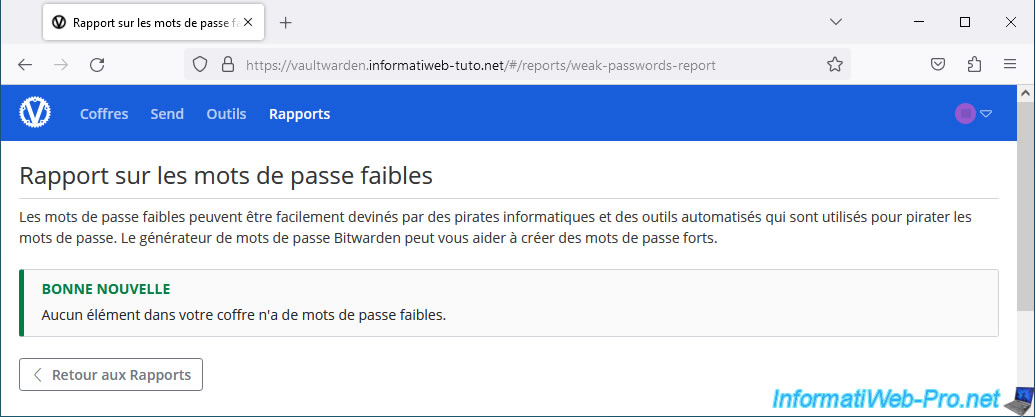
With the "Unsecured Websites Report" report, check if you are using HTTPS on all the sites you are registered on.
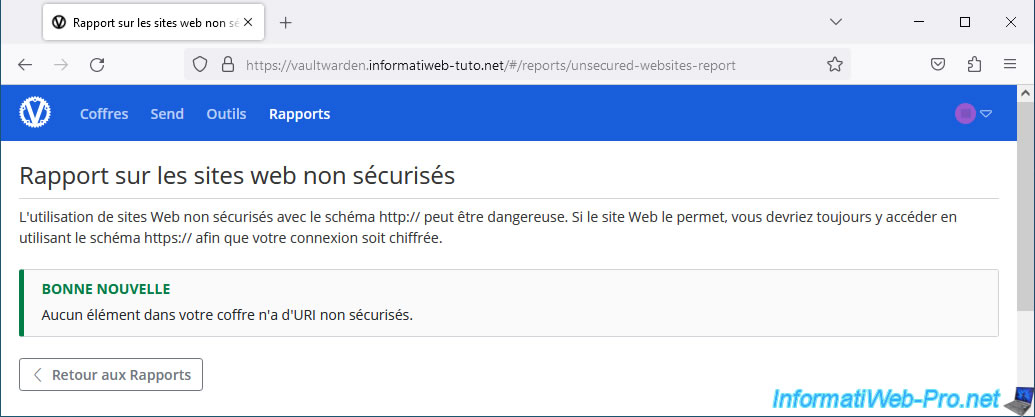
Use the "Two-Factor Authentication Inactive" report to verify that you are using two-factor authentication on the sites you are registered on.
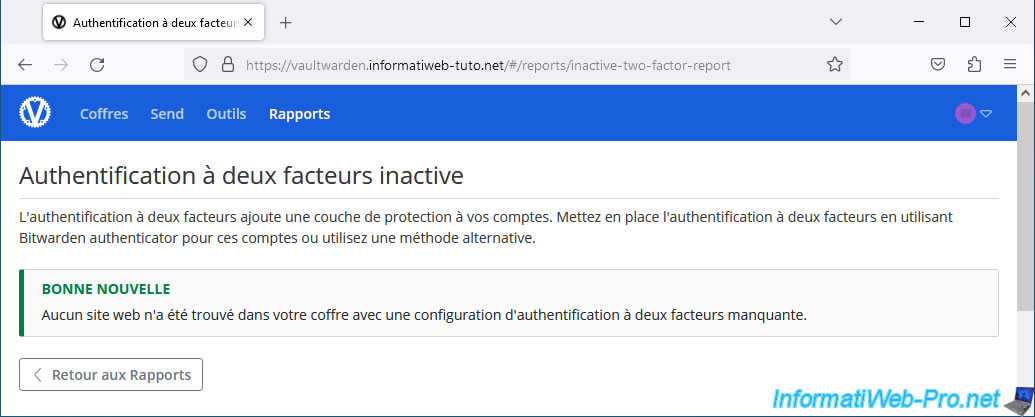
With the "Data Leak Report" report, you can check if one of your usernames or email addresses is part of a known data leak.
12. Create a new item in your Vaultwarden vault
As with the official Bitwarden website, you can create folders in your Vaultwarden by clicking: New -> Folder.
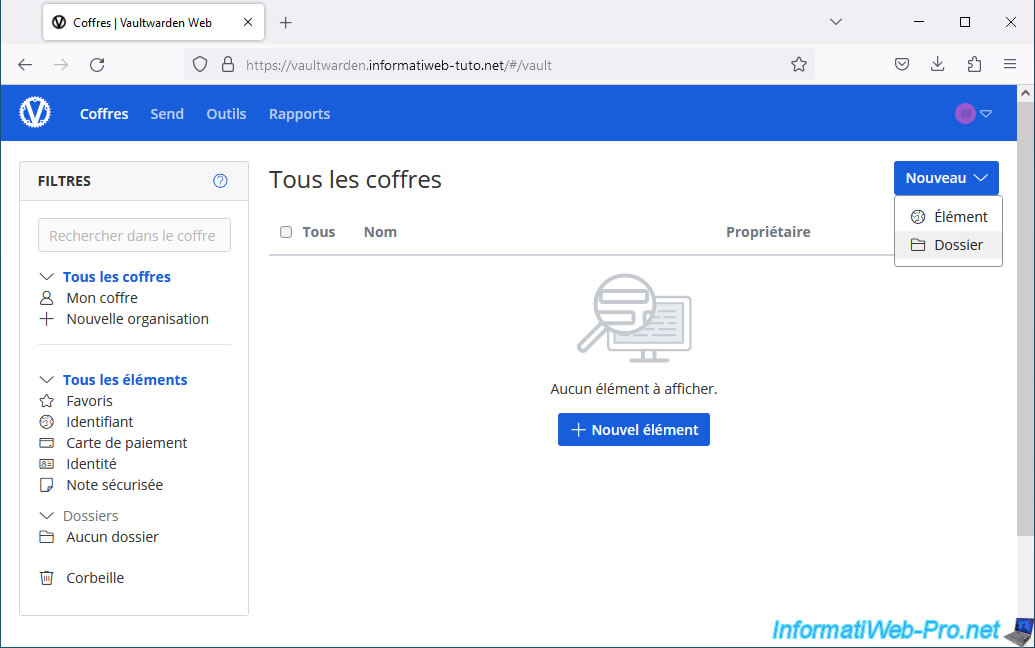
Enter a name for this new folder and click Save.
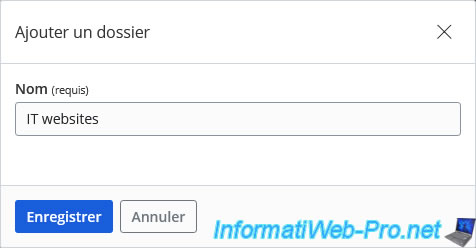
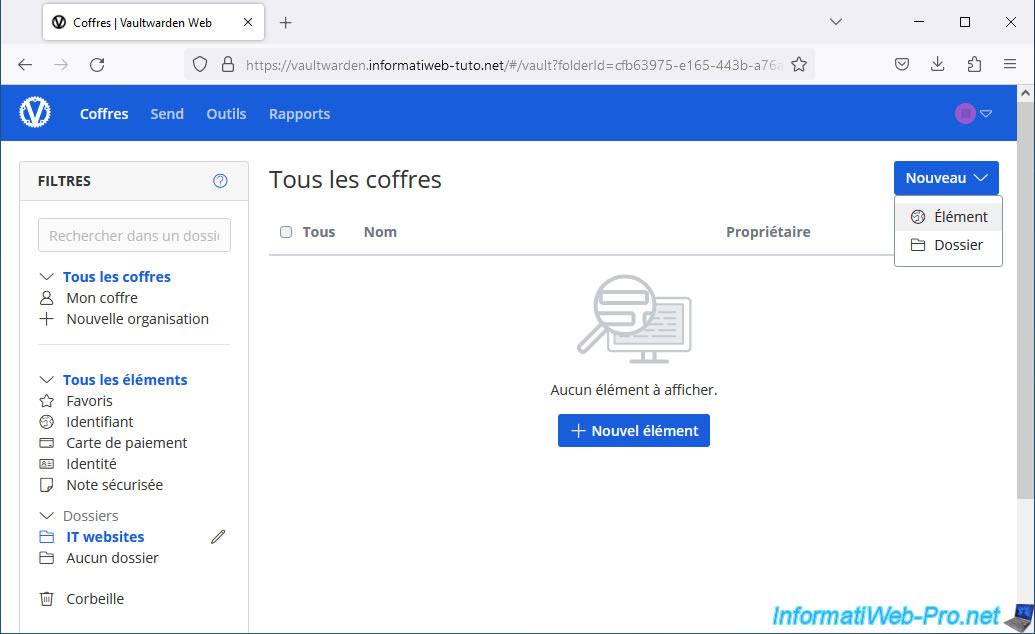
Then, click on the name of this folder to enter it, then click: New -> Item.
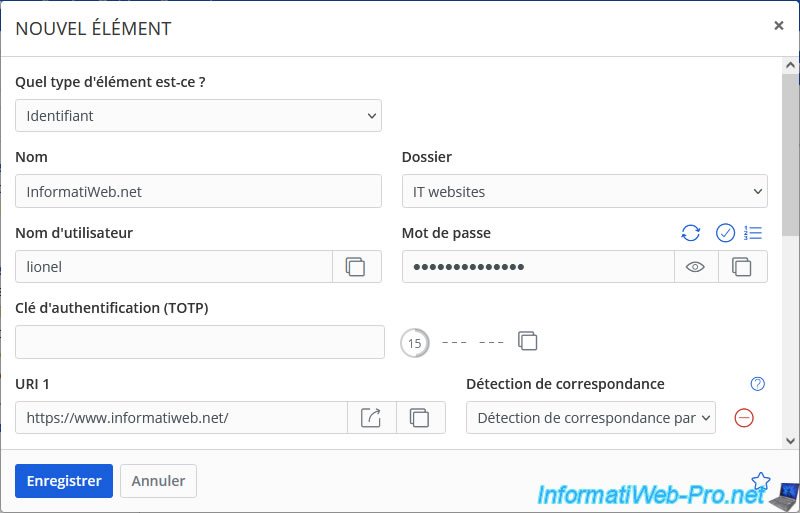
In the "New Item" form that appears, select "Identifier" for the item type, then specify:
- Name: the name of the desired website.
- Folder: the folder where this item should be stored.
- Username: your account name on the website in question.
- Password: its password.
- URI 1: the address of this website (preferably HTTPS, if available).
Then, click Save.
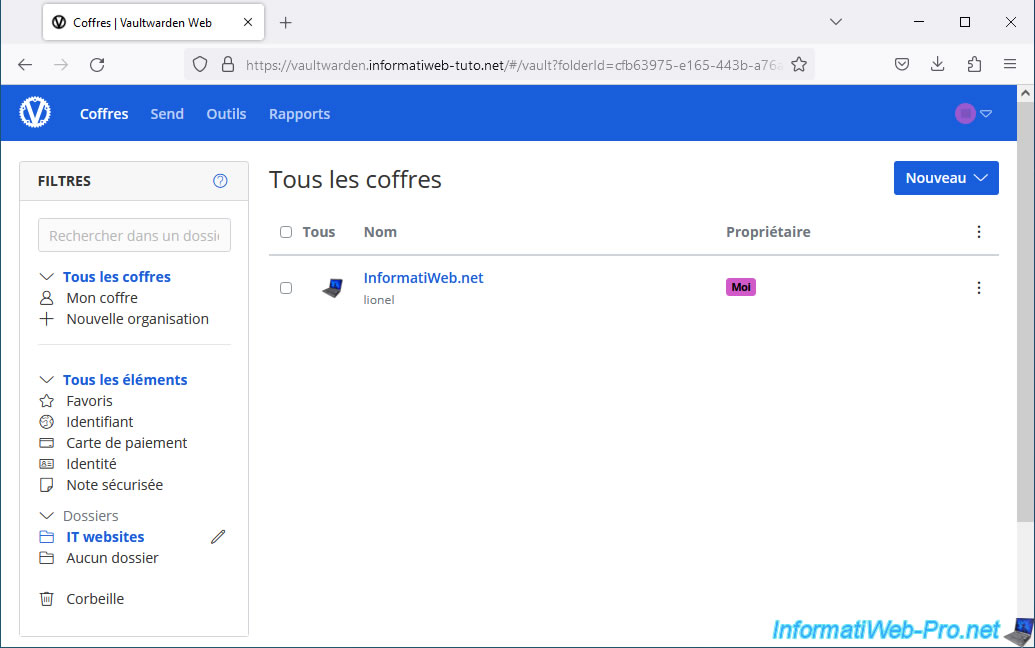
Your new item appears in your Vaultwarden chest.
13. Block future registrations on your Vaultwarden server
13.1. Block future registrations on Vaultwarden via its admin page
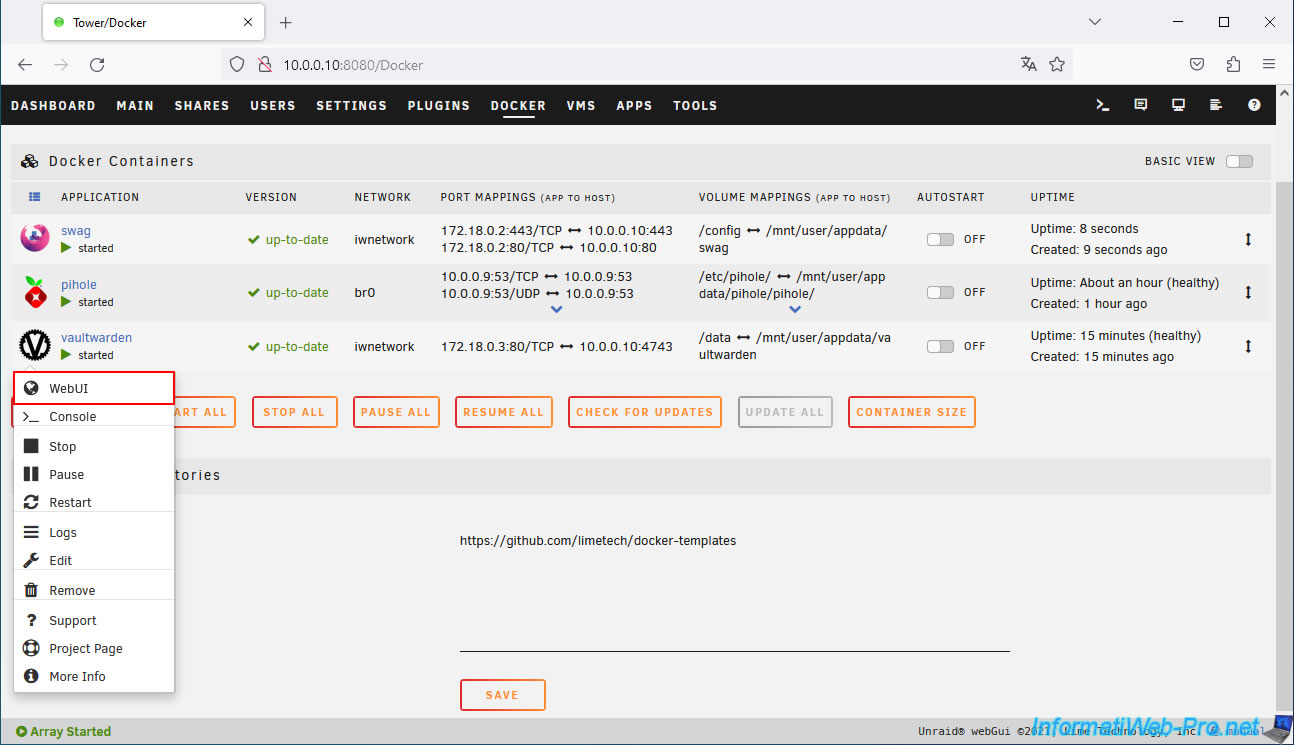
To block future registrations on your Vaultwarden server, to prevent anyone from creating new accounts on it, click on the "vaultwarden" container icon, then click on: WebUI.
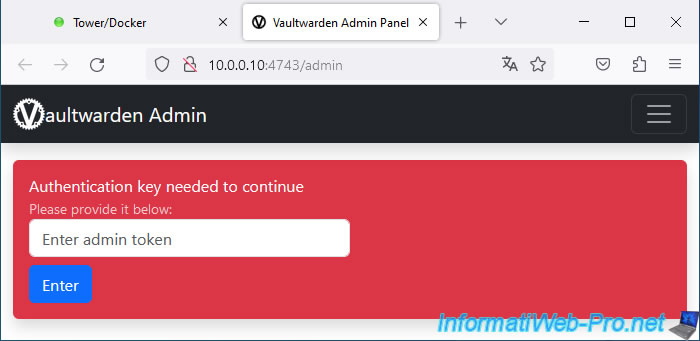
Enter the admin password (ADMIN_TOKEN) corresponding to the Argon2 hash generated previously when you first configured your Vaultwarden server, then click Enter.
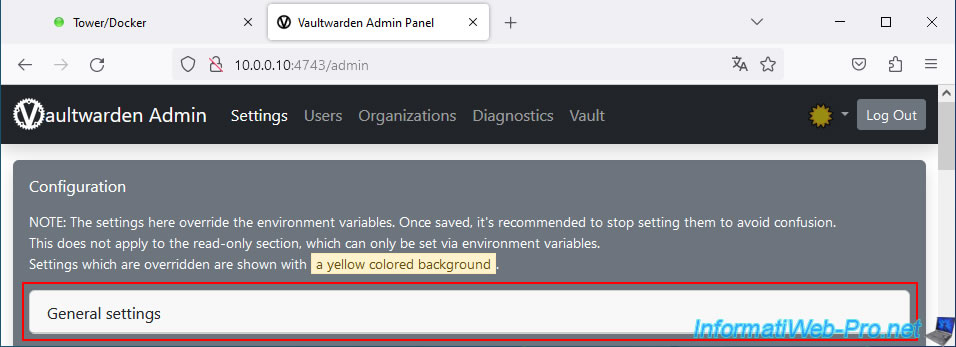
Go to the "General settings" section.
As you can see, by default new registrations are allowed.
Plain Text
Allow new signups : Default true.
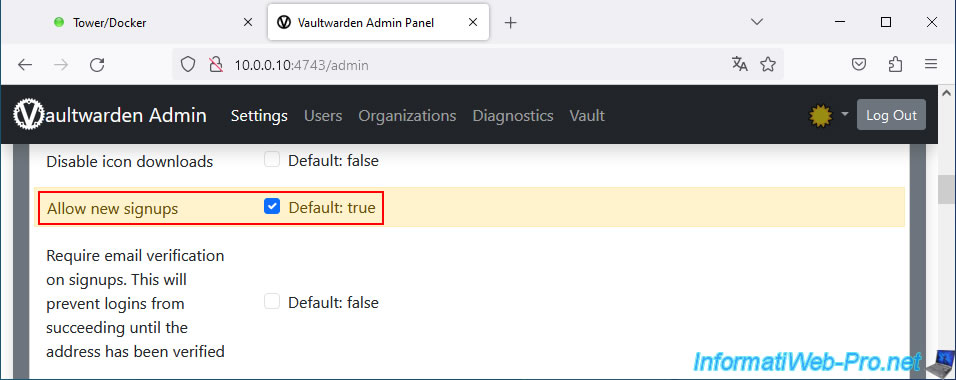
Uncheck this box "Allow new signups".
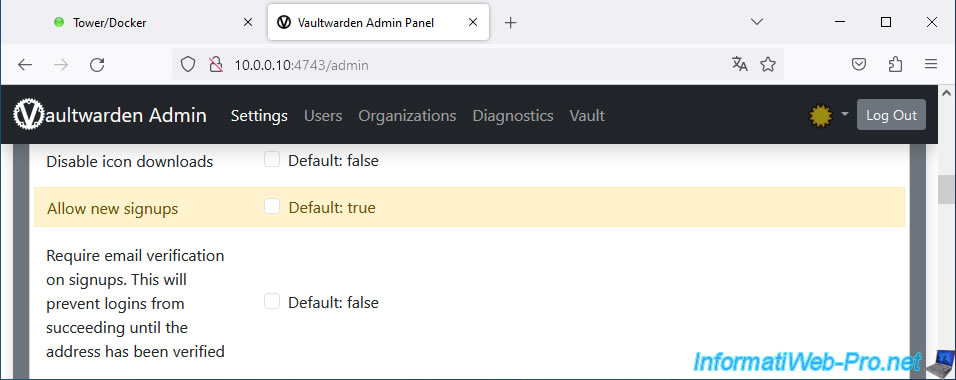
Then, at the bottom of the page, click Save.
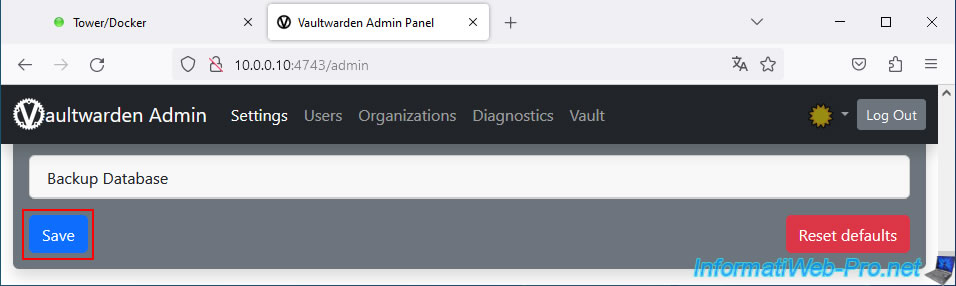
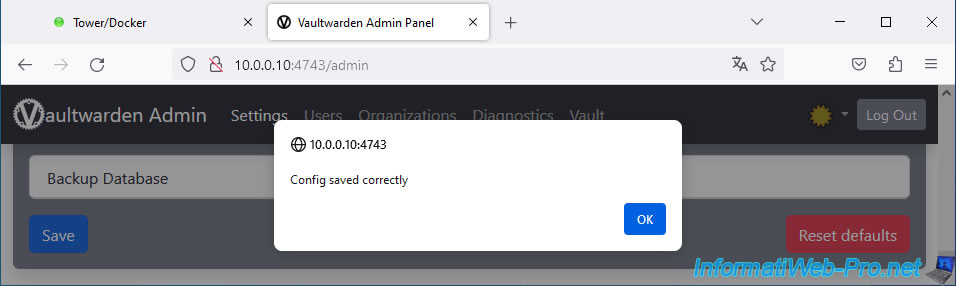
The message "Config saved correctly" appears.
Click OK.
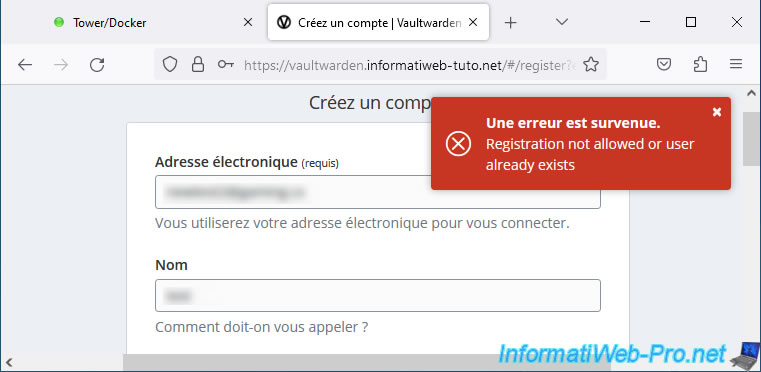
Now, if you fill out the registration form and validate, you will see that an error "Registration not allowed or user already exists" appears.
13.2. Block future registrations on Vaultwarden in container configuration
To prevent this option from being re-enabled the next time you modify your Vaultwarden container's configuration, we recommend disabling the same option in that container's configuration.
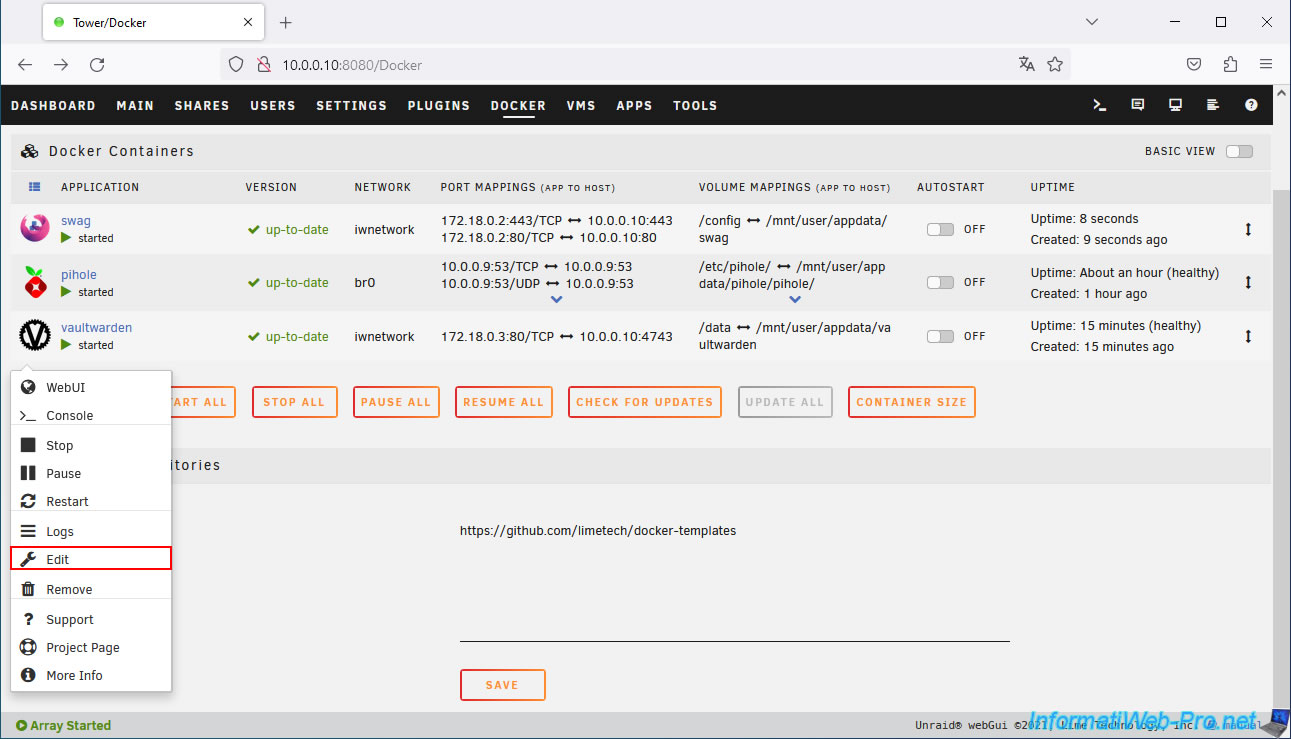
To do this, click the Vaultwarden icon and click Edit.
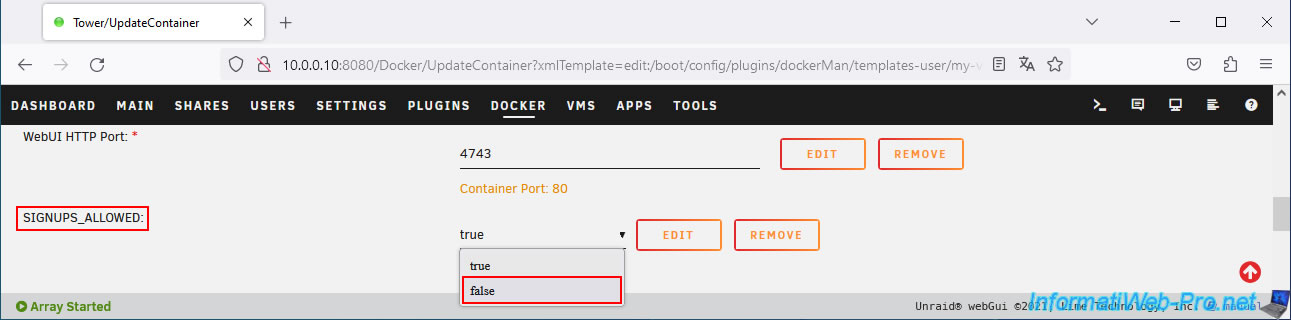
Change the value of the "SIGNUP_ALLOWED" parameter to "false" to refuse new registrations.
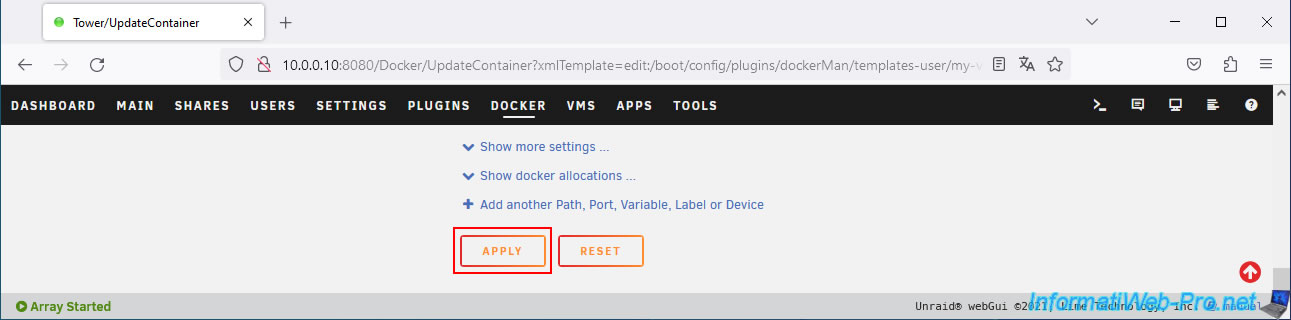
Then, click "Apply" at the bottom of the page.
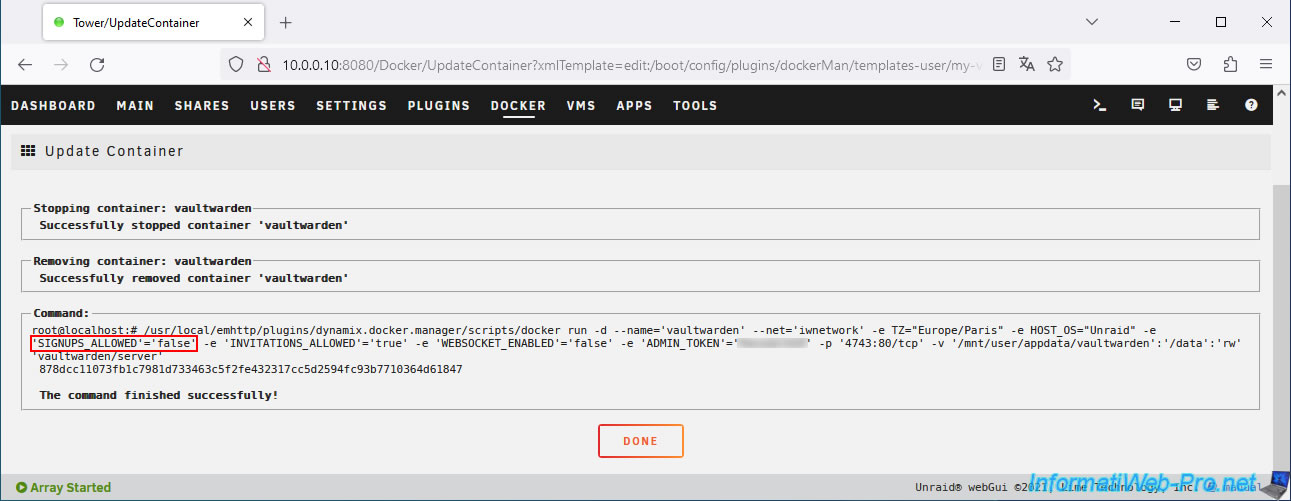
Click Done.
Share this tutorial
To see also
-
NAS 2/25/2026
Unraid 6.9.2 - Install the "Community Applications" (CA) plugin
-
NAS 5/27/2026
Unraid 6.9.2 - SWAG - Use a DDNS client (Duck DNS)
-
NAS 8/26/2026
Unraid 6.9.2 - VMs - Create a gaming virtual machine
-
NAS 10/1/2026
Unraid 6.9.2 - VMs - Create a gaming virtual machine (with an eGPU)
No comment