Install a password manager (Vaultwarden / Bitwarden) on Unraid 6.9.2
- NAS
- Unraid
- 08 July 2026 at 07:44 UTC
-

- 6/6

15.2. Download the Bitwarden extension for Google Chrome and connect to Vaultwarden
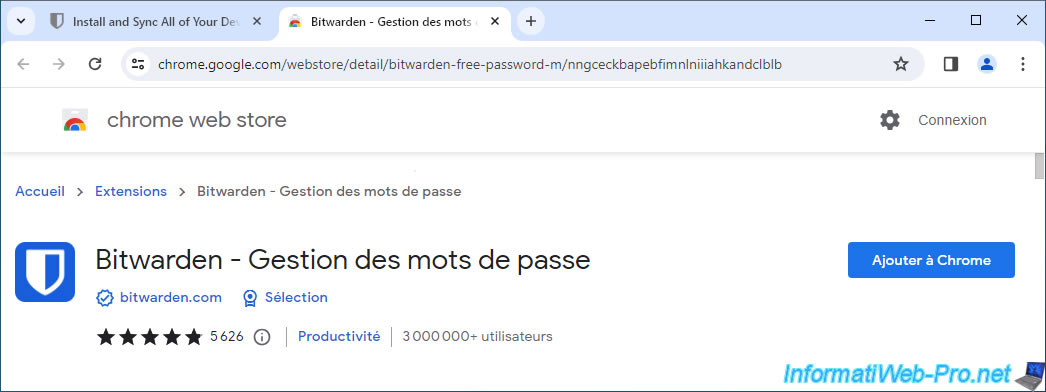
For Google Chrome, install the official Bitwarden extension available on the chrome web store.
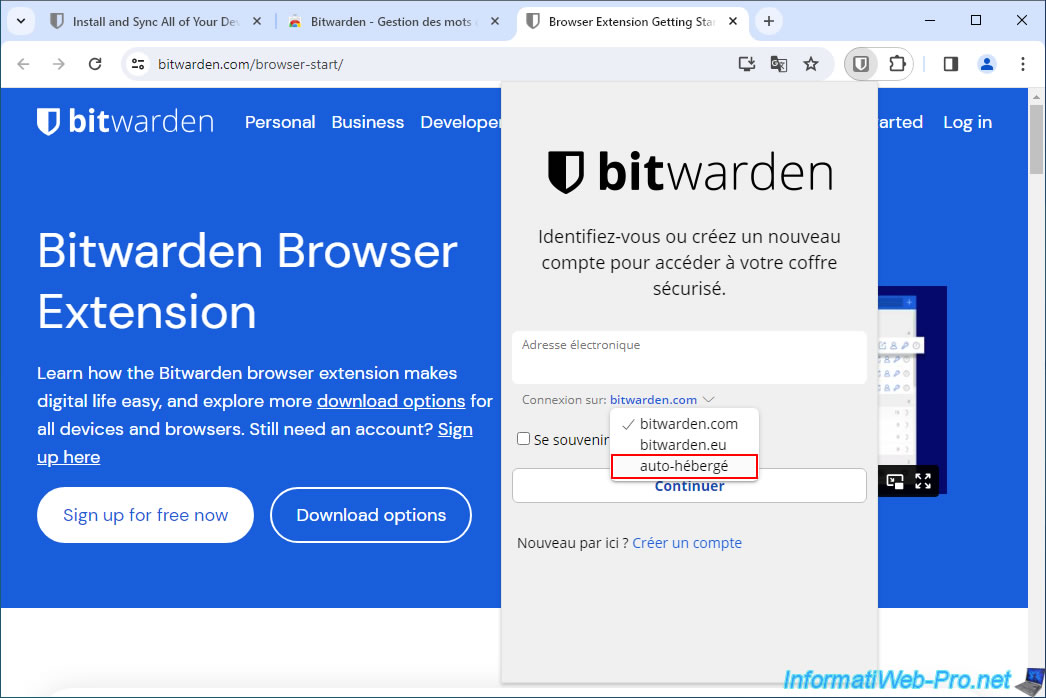
As on Mozilla Firefox, click on the "bitwarden.com" domain displayed by the Bitwarden extension, then click on "self-hosted".
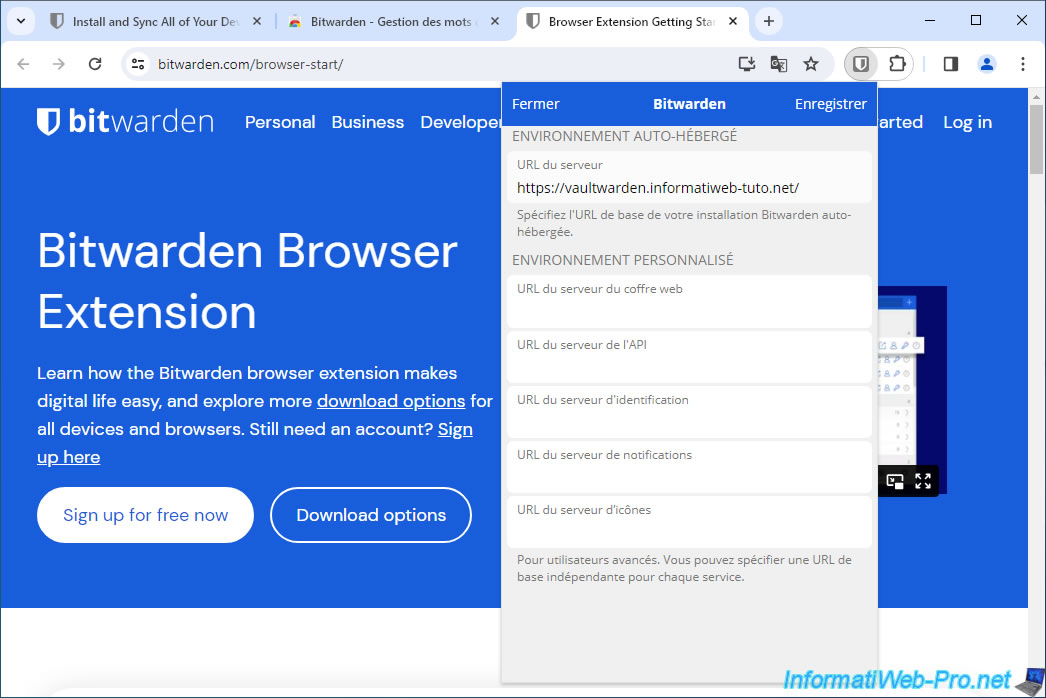
Enter the HTTPS address of your Vaultwarden server, then click Save.
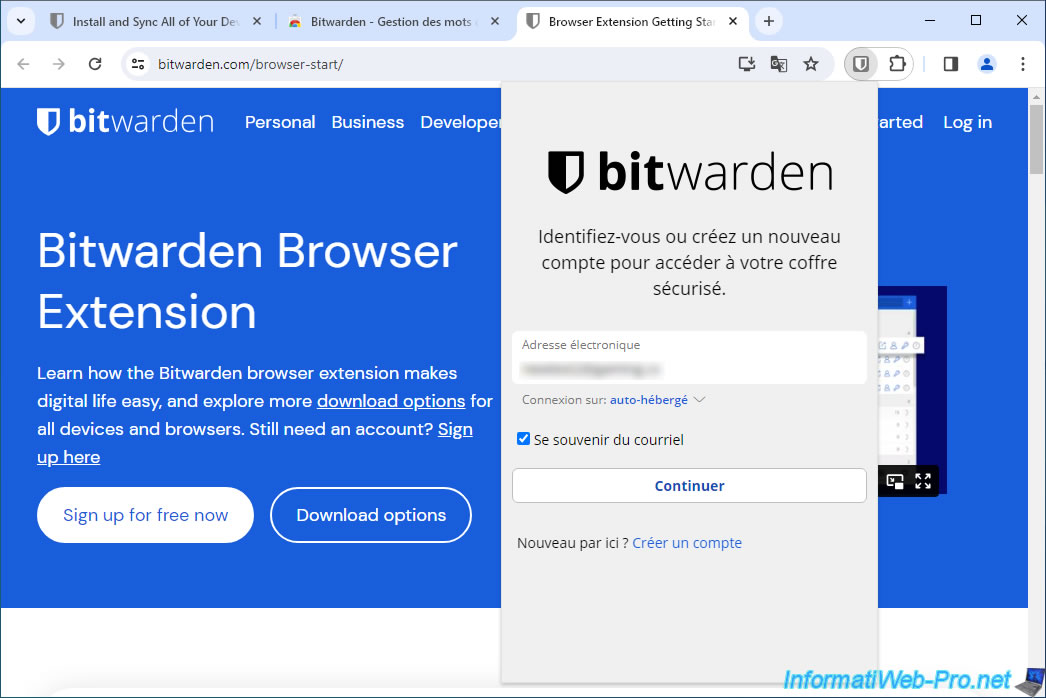
Log in with your previously created account on your Vaultwarden server.
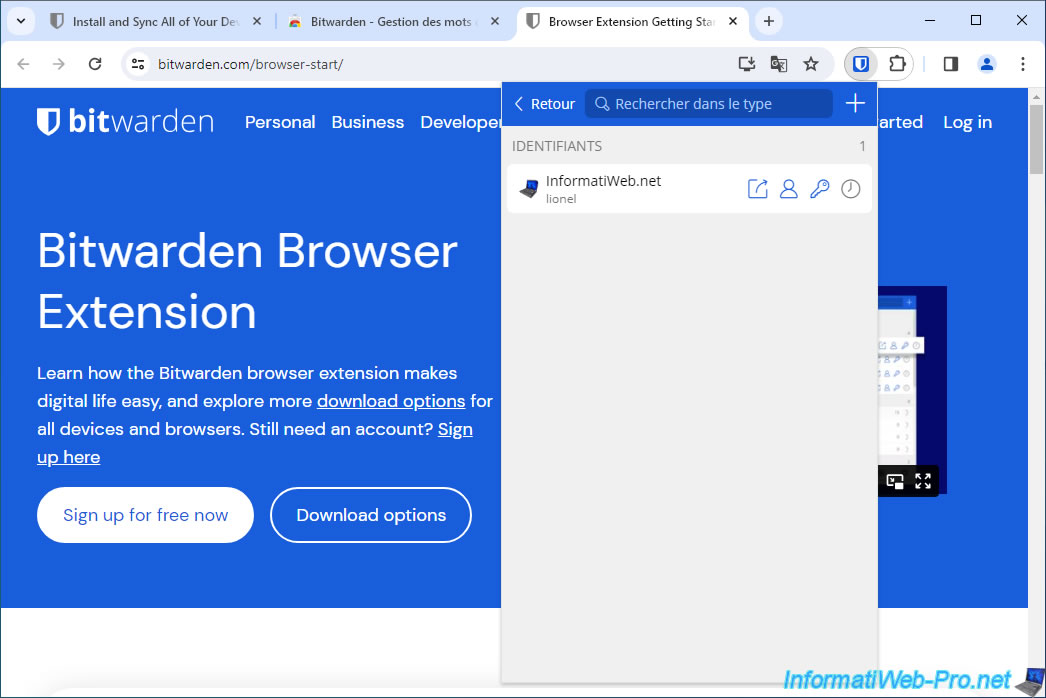
Items in your vault appear in the Bitwarden extension for Google Chrome.
15.3. Download the Bitwarden extension for Opera and connect to Vaultwarden
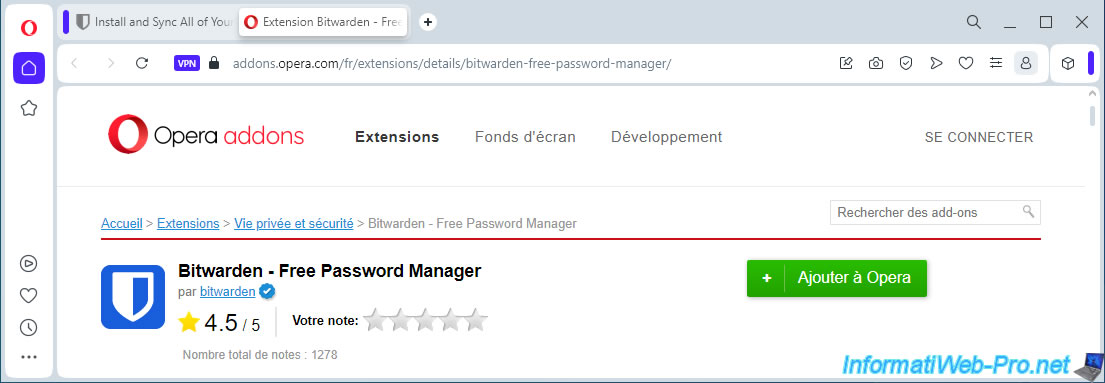
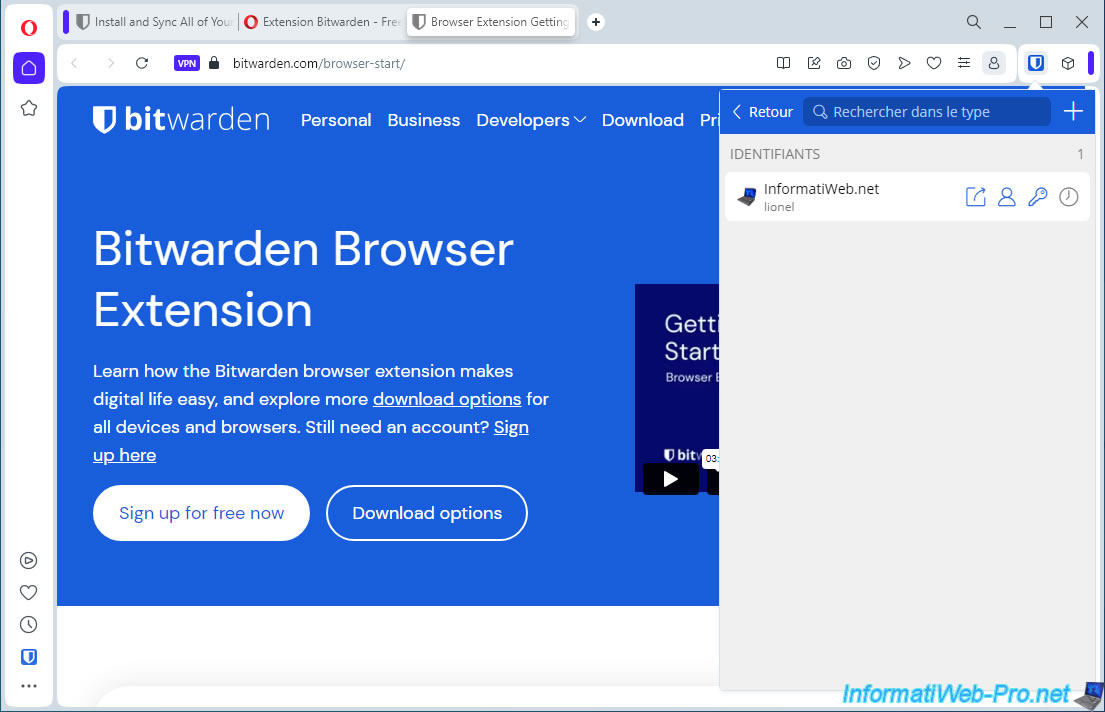
For the Opera web browser, install the official Bitwarden extension available on the "Opera addons" website.
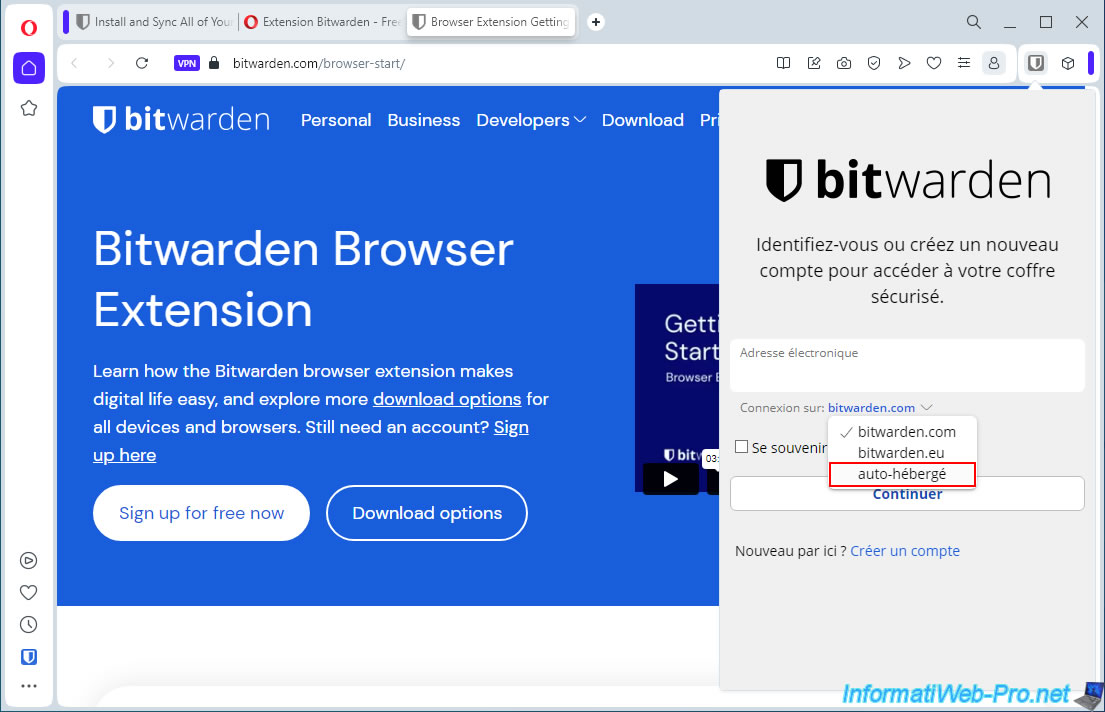
Once the Bitwarden extension is installed in Opera, choose "self-hosted" for the connection.
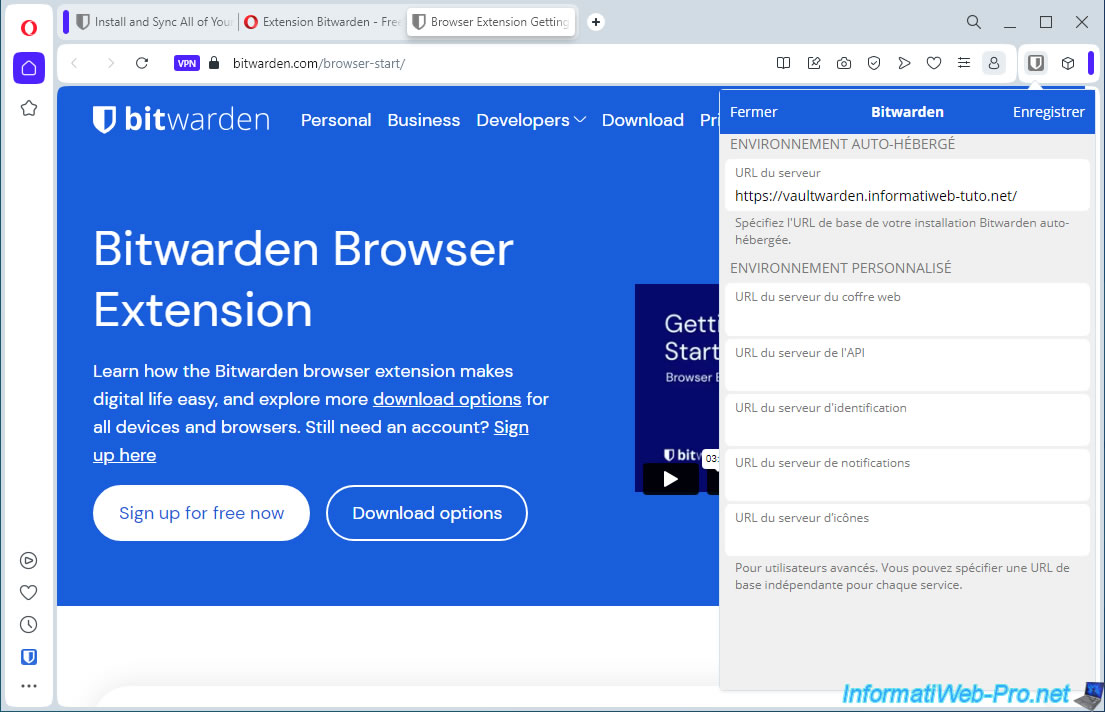
Enter the HTTPS address of your Vaultwarden server in the first box of the "Self-hosted environment" section and click Save.
Log in with the account created on your own Vaultwarden server and as expected, the items from your Vaultwarden vault appear in the extension installed in Opera.
15.4. Download the Bitwarden extension for Microsoft Edge and connect to Vaultwarden
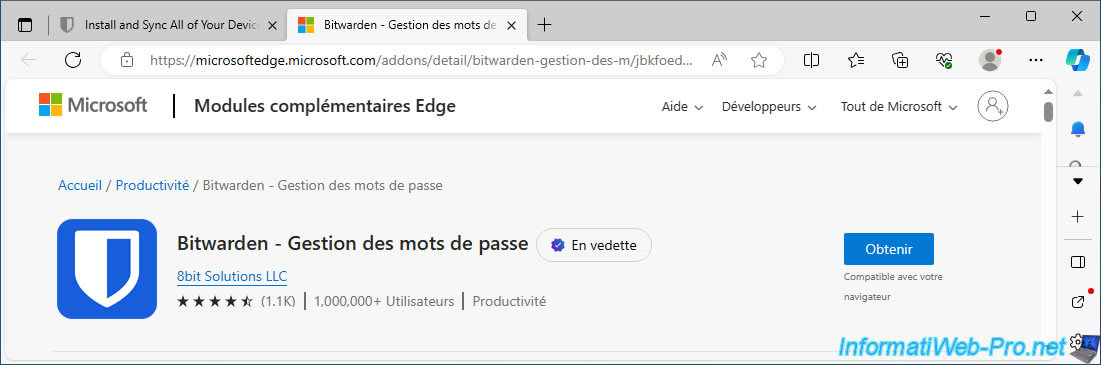
For Microsoft Edge, install the Bitwarden extension available from "Microsoft | Edge Add-ons".
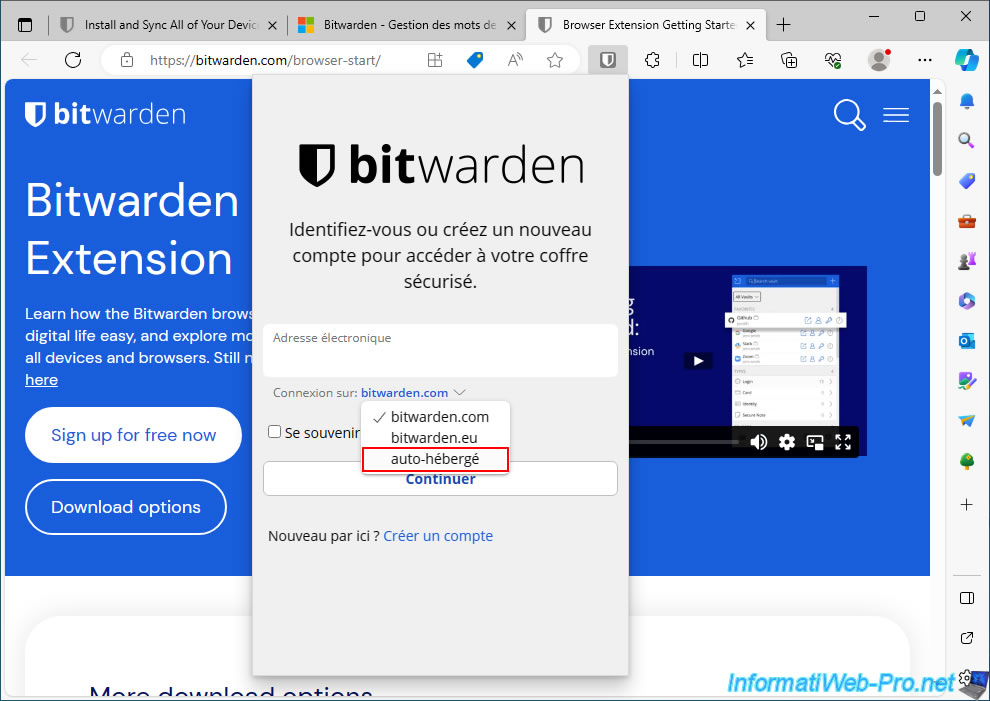
Once the Bitwarden extension is installed in Microsoft Edge, choose to connect to "self-hosted" (as with other Bitwarden extensions).
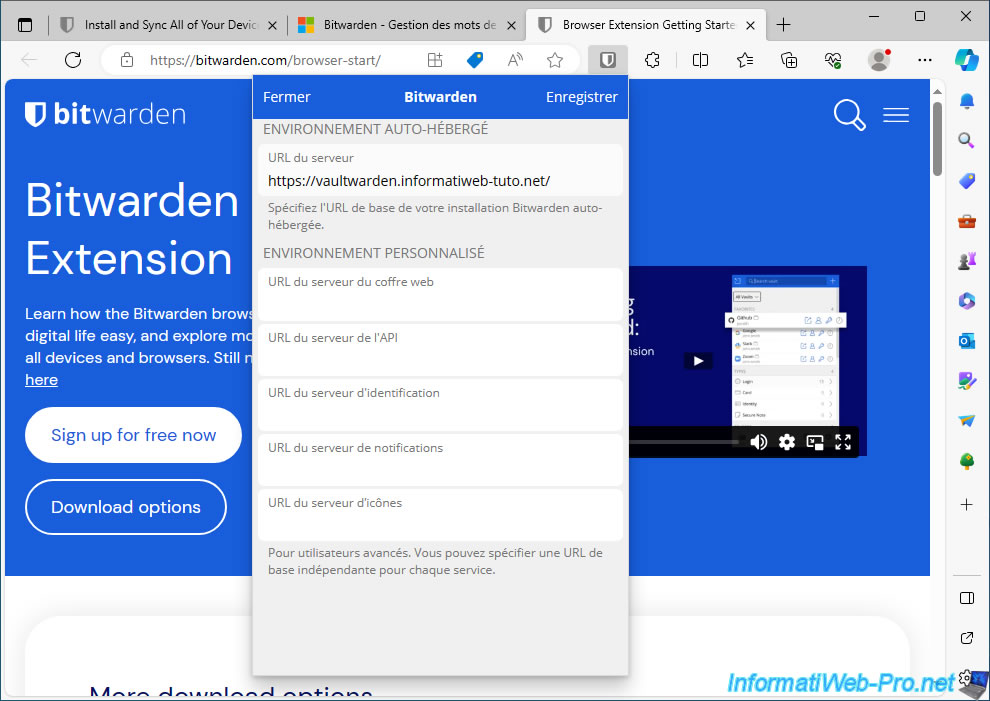
Specify the HTTPS address of your Vaultwarden server for the self-hosted environment, then click Save.
Then, log in with the account you created on your Vaultwarden server and you will find your Vaultwarden vault items again.
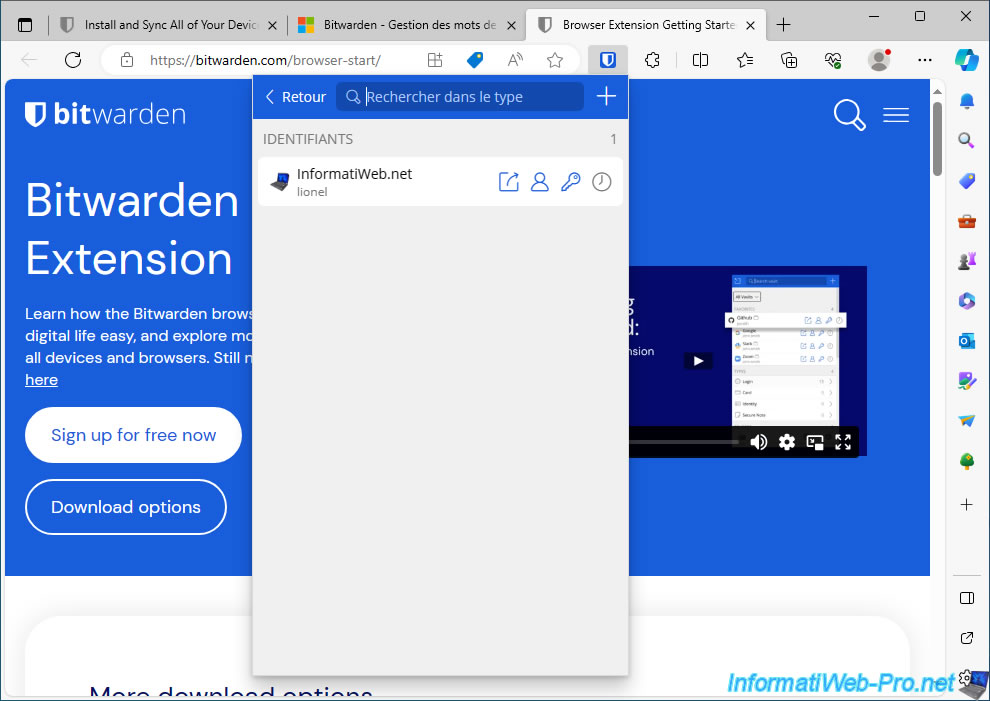
16. Use the Bitwarden app on your smartphone to connect to your Vaultwarden server (on Android)
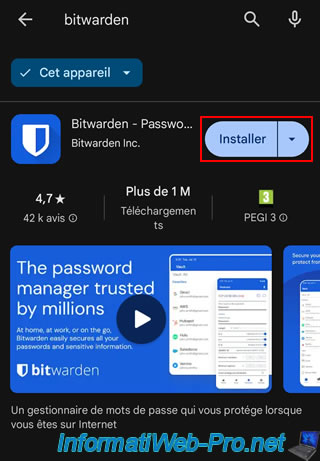
On Android, open the Play Store and search for the "Bitwarden - Password Manager" Android app.
Install it.
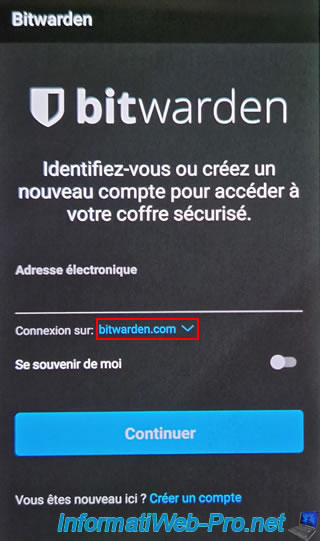
As usual, the Bitwarden application is designed to connect to the official server "bitwarden.com."
Click on this domain.
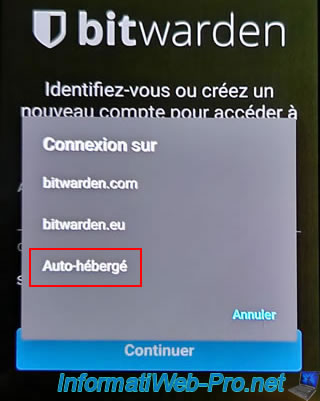
Choose "Self-hosted" from the list that appears.
A "Settings" screen will appear.
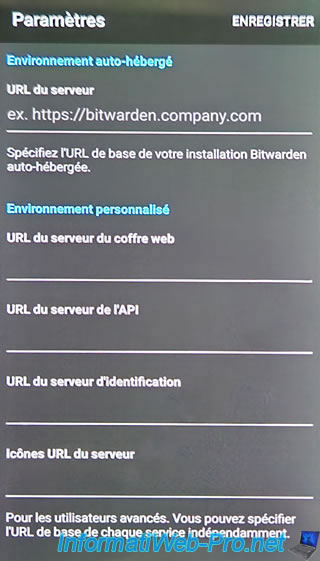
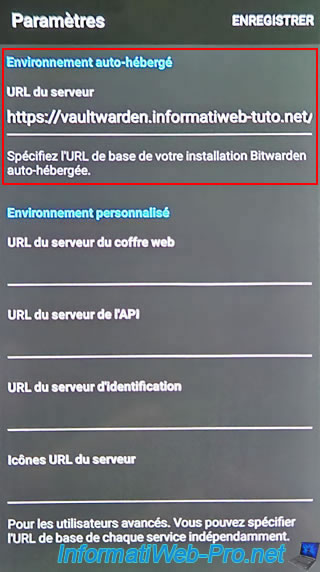
Enter the HTTPS address of your Vaultwarden server in the 1st section (Self-hosted environment).
Now, the Bitwarden app tells you that the connection will be made on "Self-hosted".
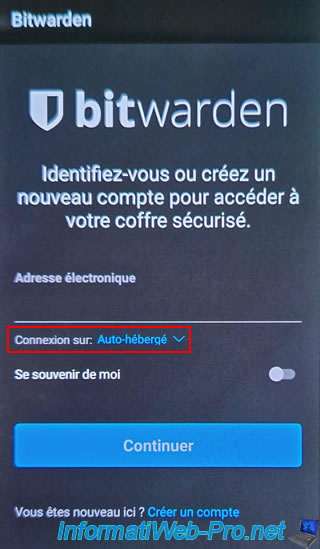
Enter the email address for the account you created on your own Vaultwarden server, then click "Continue".
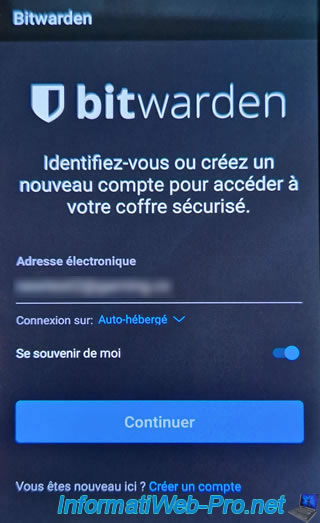
Enter your Vaultwarden account password.
Note: as you can see at the bottom of the application, the connection will be made to the domain corresponding to your Vaultwarden server.
However, the application only displays the root domain retrieved from the HTTPS address specified previously.
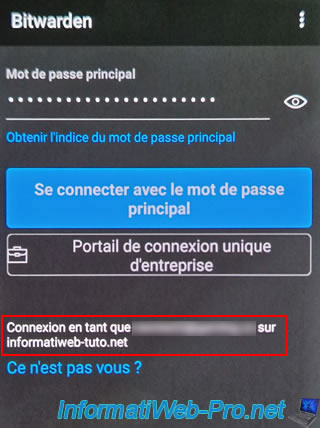
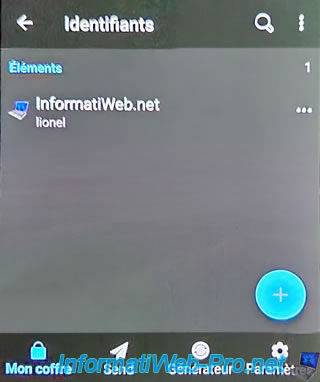
As expected, you can find your Vaultwarden items in the Bitwarden app for Android.
Share this tutorial
To see also
-

NAS 11/26/2025
Unraid 6.9.2 - Manually install Unraid 6.9.2
-
NAS 6/10/2026
Unraid 6.9.2 - SWAG - Access Jellyfin via reverse proxy and personal domain
-

NAS 8/26/2026
Unraid 6.9.2 - VMs - Create a gaming virtual machine
-
NAS 9/16/2026
Unraid 6.9.2 - VMs - Hotplug USB devices (Libvirt Hotplug USB plugin)
No comment