Install a password manager (Vaultwarden / Bitwarden) on Unraid 6.9.2
- NAS
- Unraid
- 08 July 2026 at 07:44 UTC
-

- 3/6

9. Configure your local DNS server and local access to Vaultwarden
For now, if you use the "nslookup" command to find out the IP address associated with your new "vaultwarden" subdomain, you will see that your external (WAN) IP address will appear.
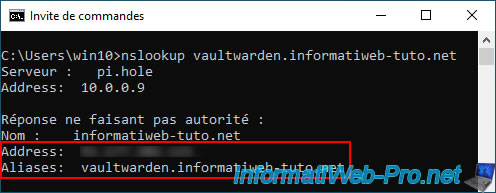
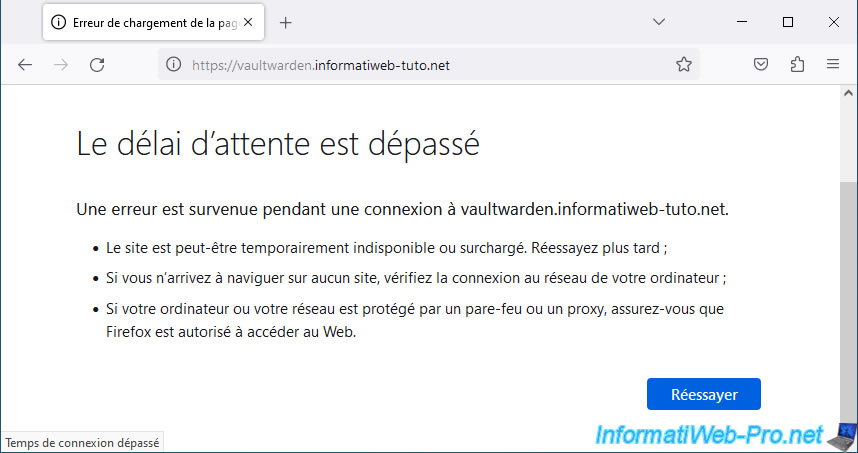
This means you won't be able to access the "vaultwarden" subdomain locally at this time.
Hence the "Timed out" message displayed in Mozilla Firefox.
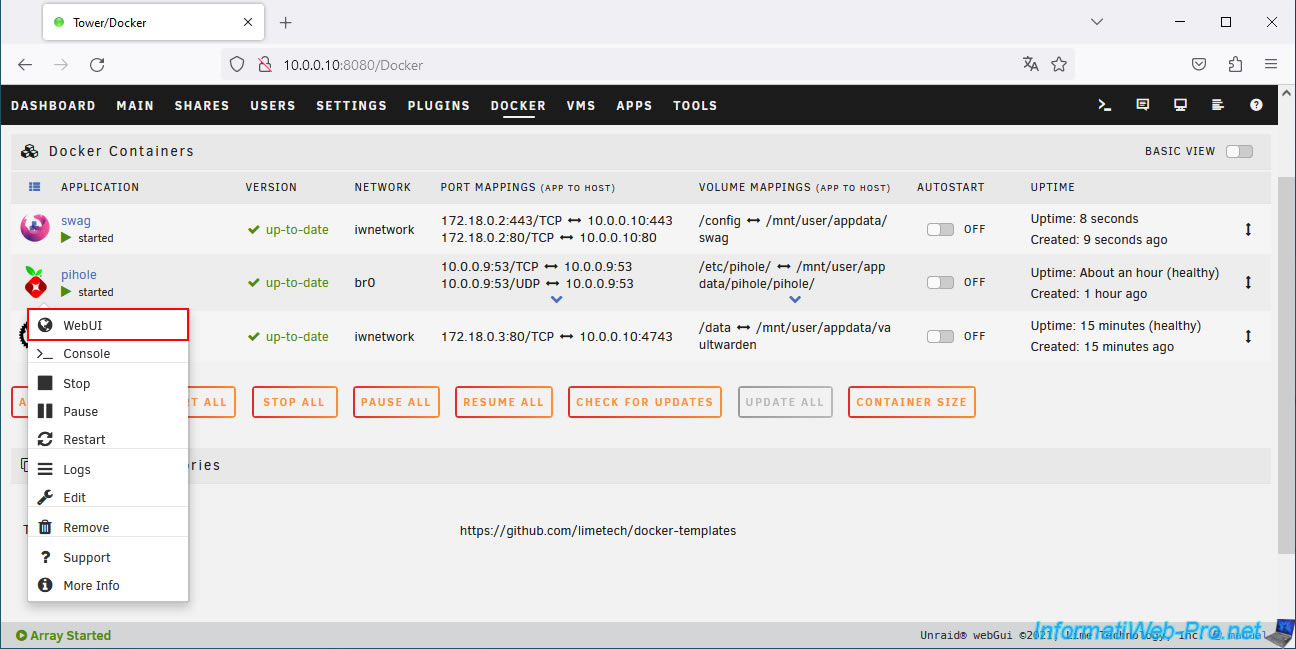
To fix this, in the "Docker" tab of Unraid, click on the "pihole" icon, then on: WebUI.
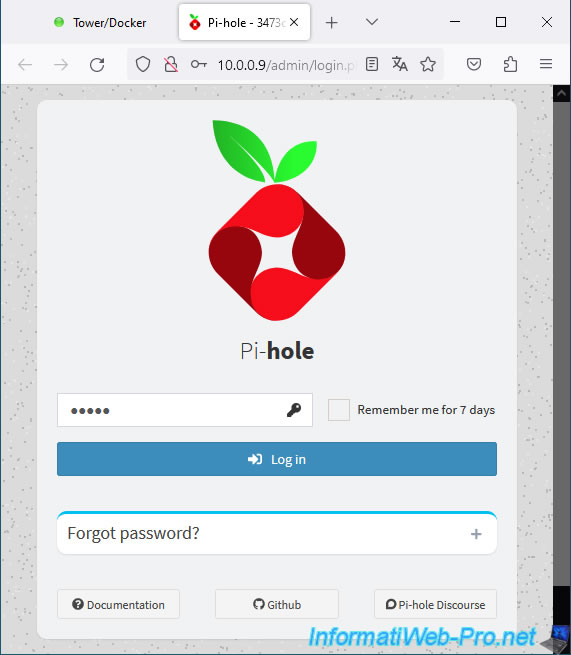
Log in to the pihole web interface.
Note: the default password for pihole is "admin".
Go to the "Local DNS" section and create an A or CNAME record (depending on your preference).
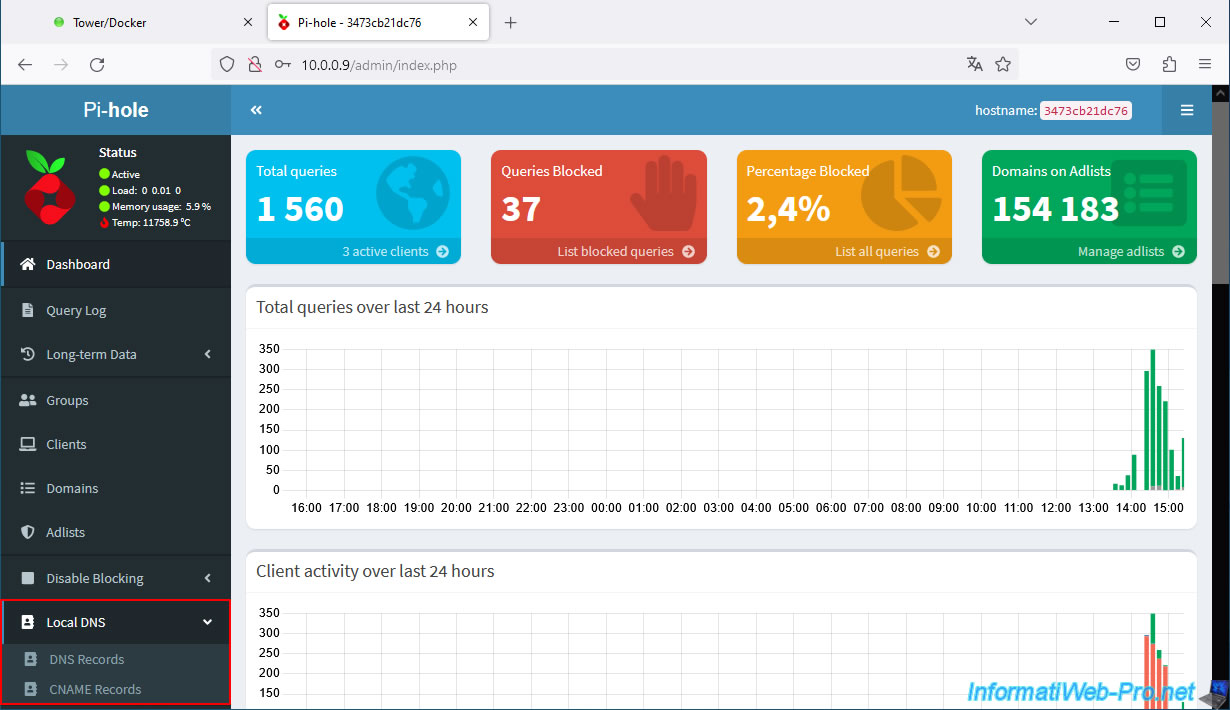
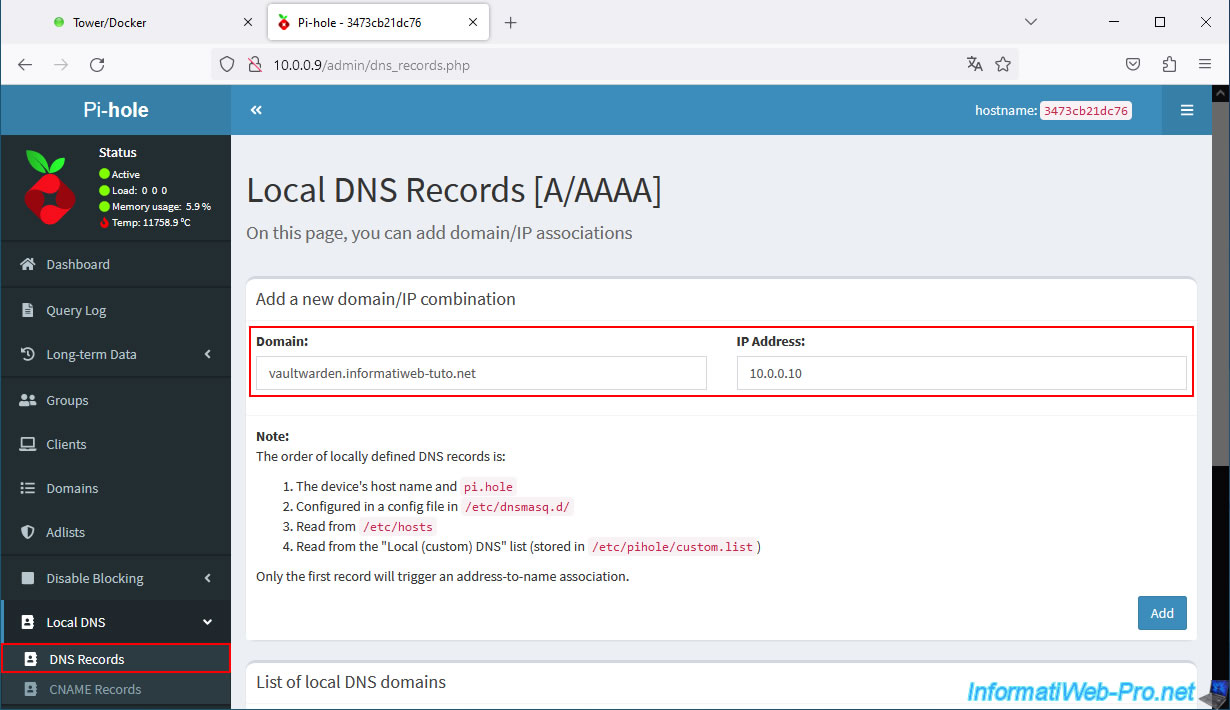
To create an "A" record (domain name pointing to an IP address), go to: Local DNS -> DNS Records.
Next, enter your new subdomain (e.g., vaultwarden.informatiweb-tuto.net) and Unraid's local IP address, then click "Add".
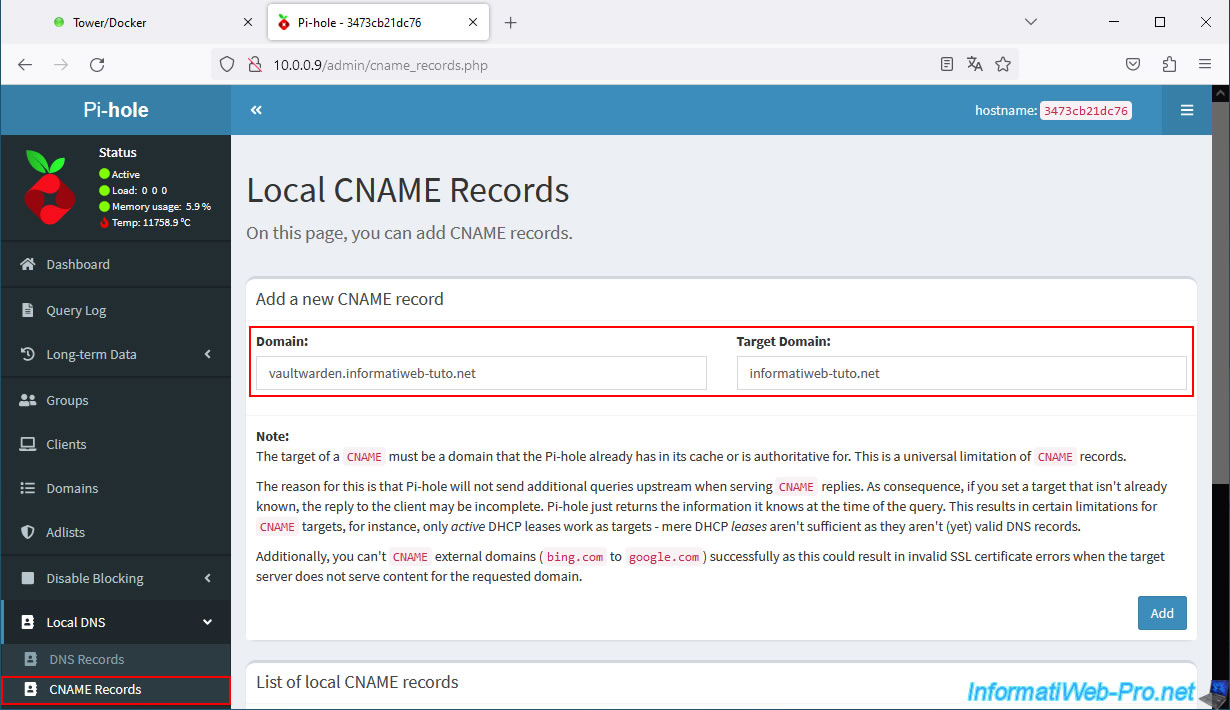
To create a CNAME record (alias), go to Local DNS -> CNAME Records.
Next, enter your new subdomain (e.g., vaultwarden.informatiweb-tuto.net) and the root domain used with swag (on the right), then click "Add".
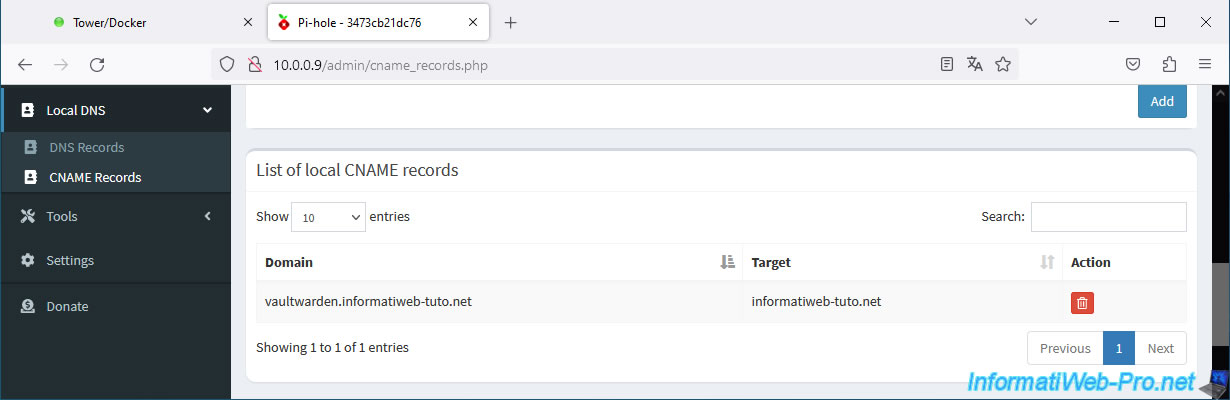
The new DNS record appears at the bottom of the page.
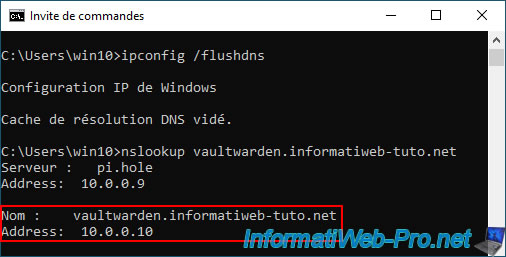
On your computer, open a command prompt and type these commands to flush your computer's DNS cache and then find out the new IP address returned for your "vaultwarden" subdomain.
Batch
ipconfig /flushdns
nslookup vaultwarden.informatiweb-tuto.net
As expected, at home, your computer will use Unraid's local IP address.
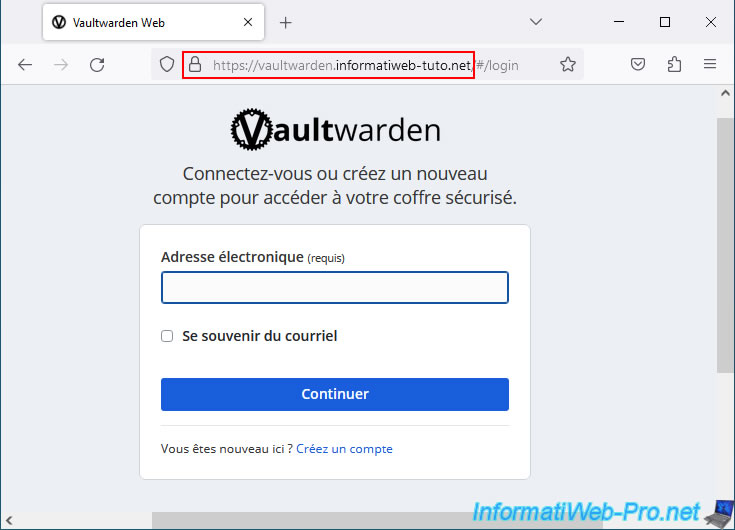
Now, if you type your subdomain "vaultwarden.informatiweb-tuto.net" in any web browser on your computer, you will arrive at the Vaultwarden login page.
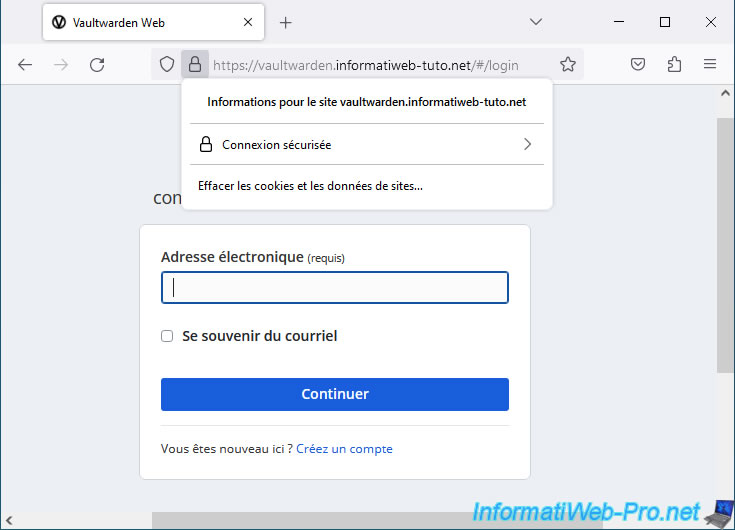
If you click on the small padlock, you'll see that the connection is secure.
Your certificate is valid for your domain and the desired subdomains (regardless of the IP address used).
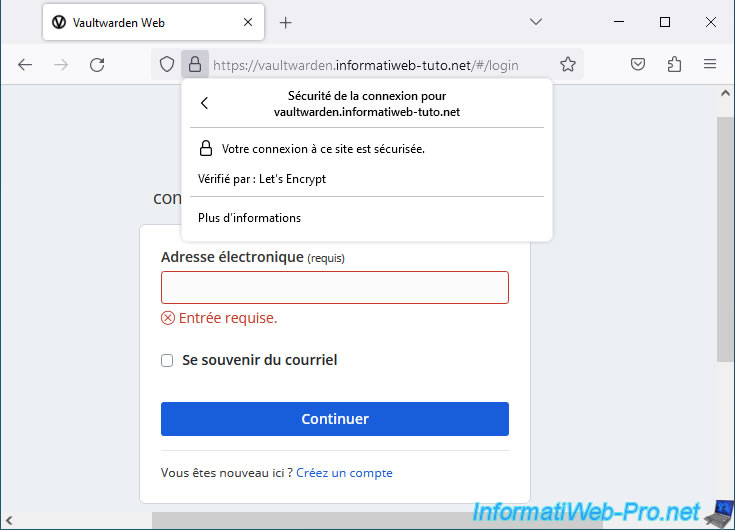
As you can see, the certificate is provided by "Let's Encrypt".
10. Create an account on your own Vaultwarden server
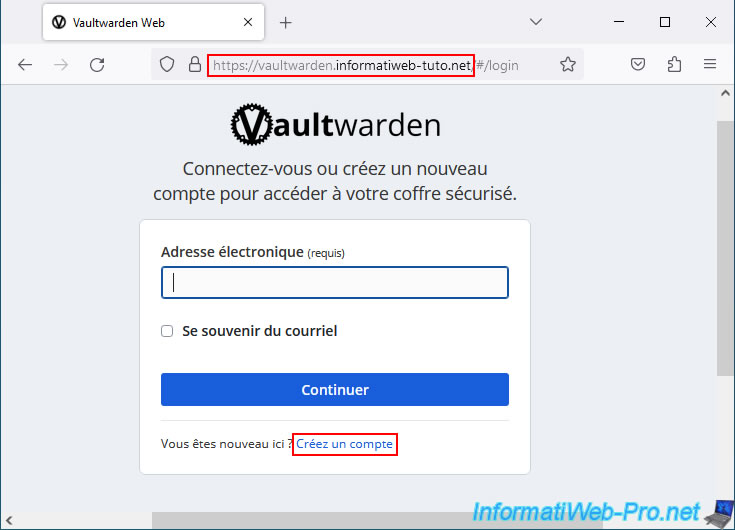
On your Vaultwarden server, click the "Create an account" link.
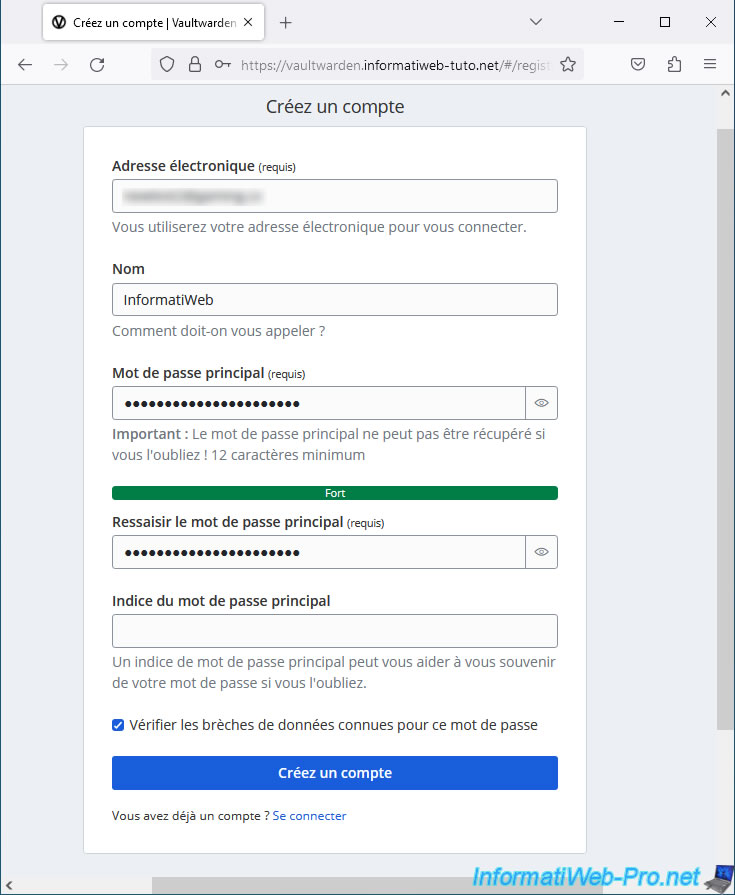
Complete the registration form by providing at least one email address and a master password.
Leave the "Check for known data breaches for this password" box unchecked for security reasons and click "Create Account".
By default, with Vaultwarden, no confirmation email is sent.
Unlike the Bitwarden website, which requires account validation by email.
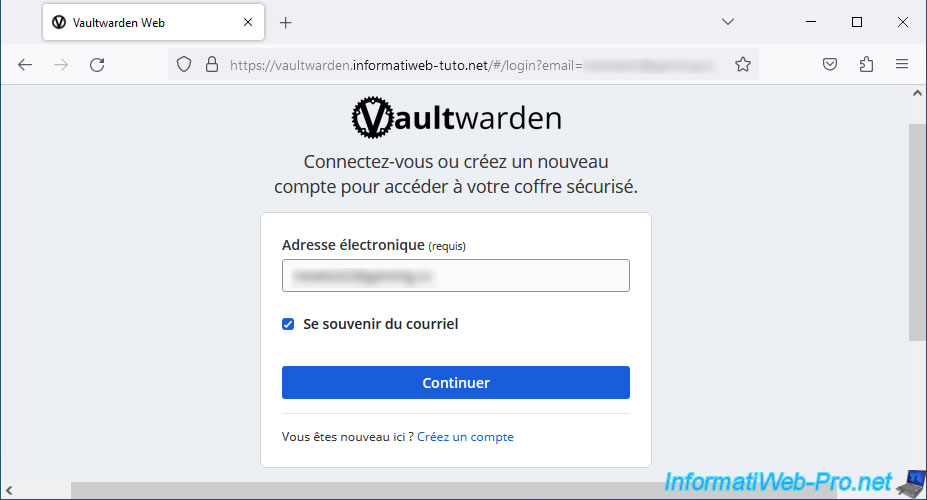
Log in with your new account on your own Vaultwarden server.
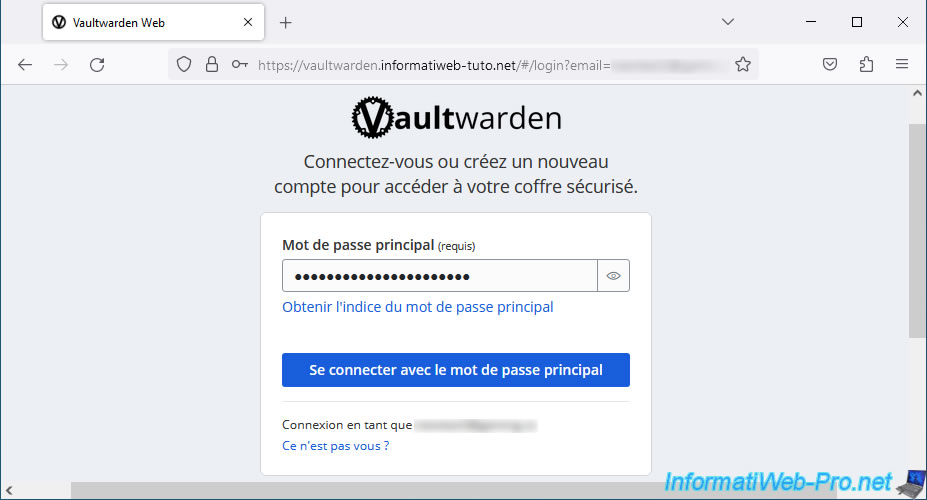
Enter your master password and click "Log in with master password".
You arrive at your new Vaultwarden where you can store your passwords.
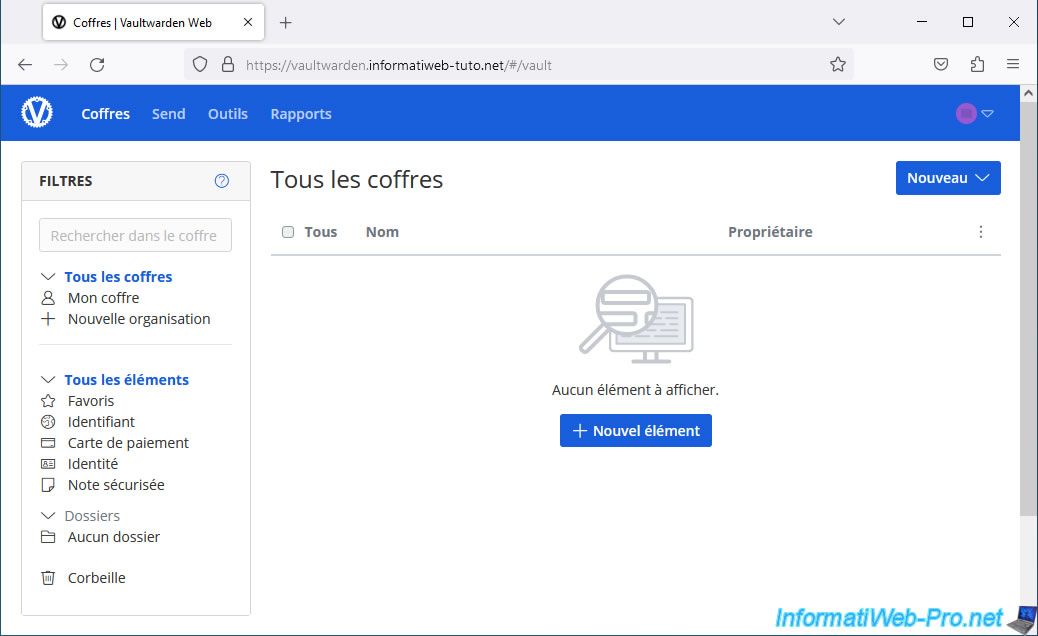
If you'd like to explore this interface in detail, as well as the Windows application, the extensions available for web browsers, and the Android smartphone application, refer to our "win-bitwarden" tutorial published on our "InformatiWeb" website (intended for individuals).
Indeed, the web interface is exactly the same, as are the applications.
The only difference is the "self-hosted" setting, where you must specify your server address for the various Bitwarden applications.
This is what you'll see in the rest of this tutorial.
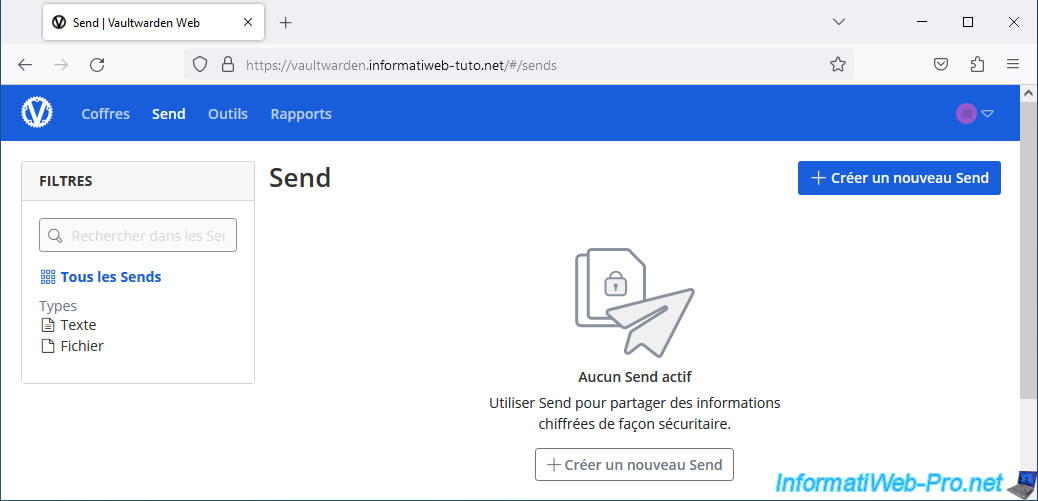
As with an account on the Bitwarden website, you can also send encrypted data via the "Send" section.
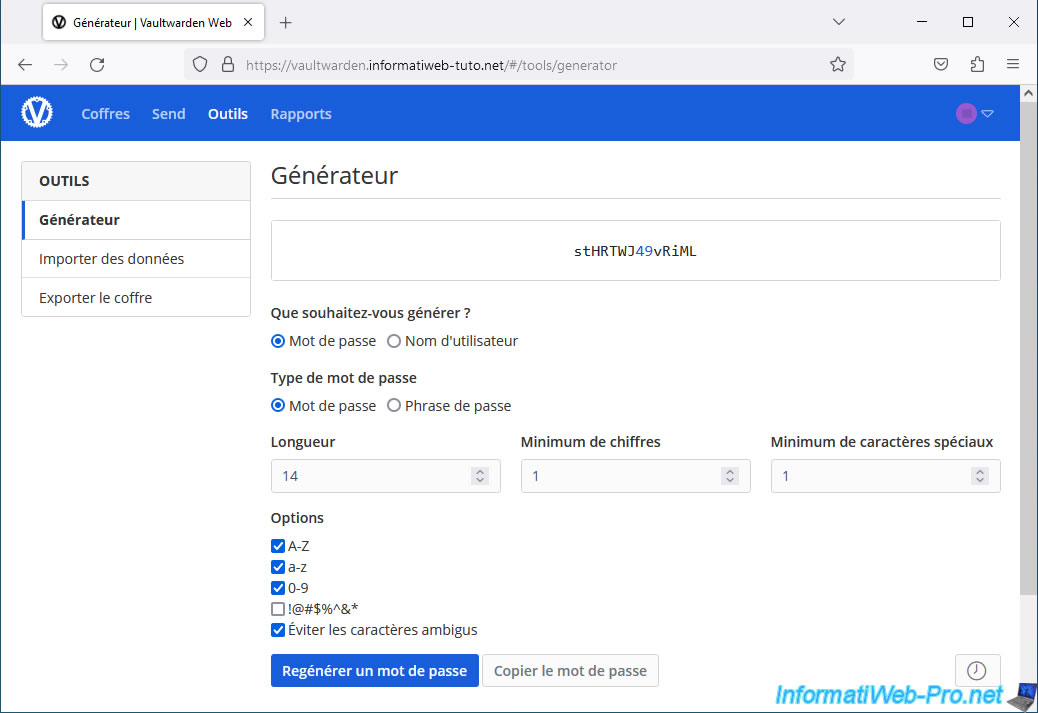
You can also use Vaultwarden's password generator.
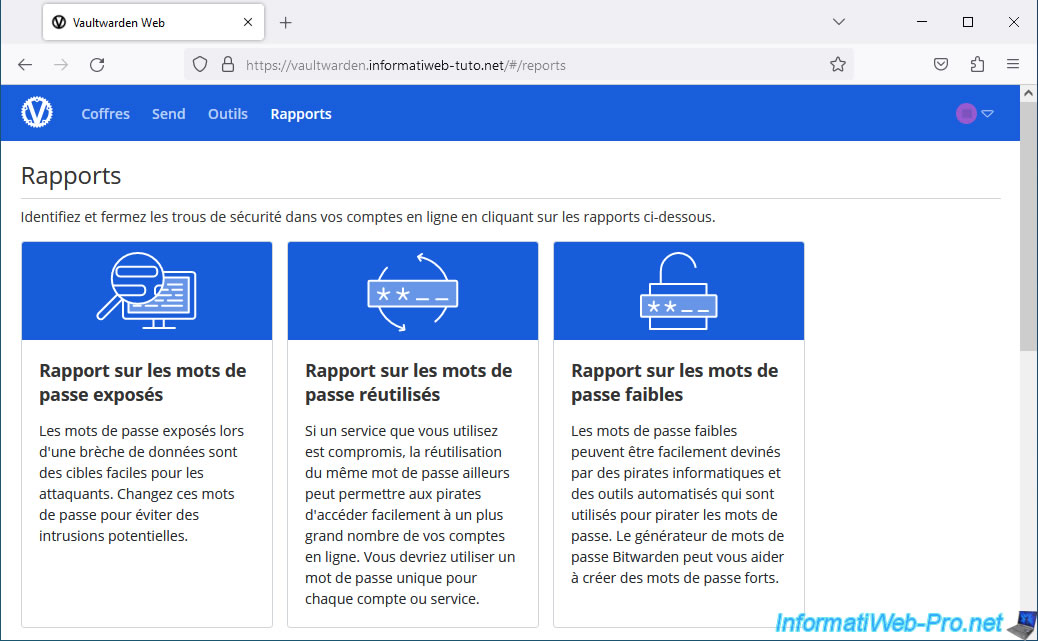
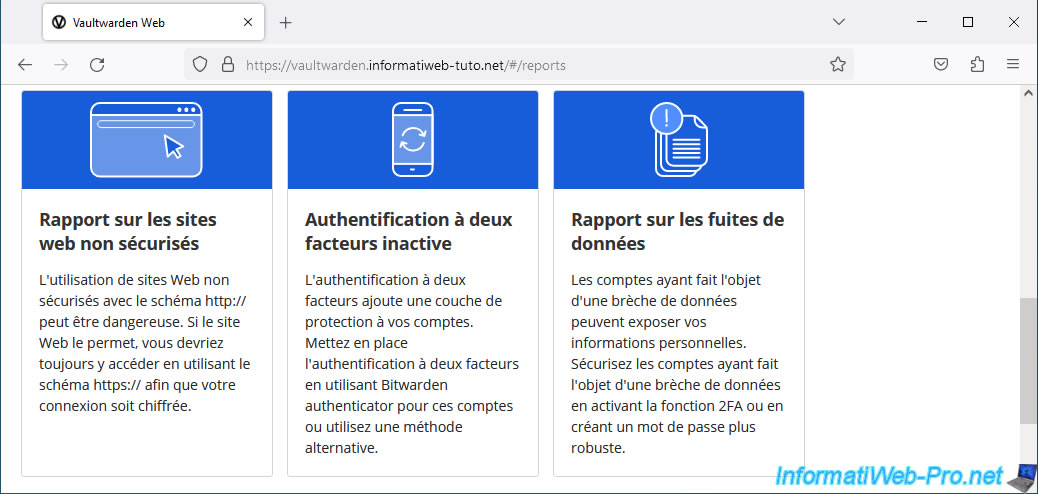
One interesting difference: the "Reports" section is completely free when you use your Vaultwarden server (unlike the Bitwarden website, where these (except for the last one) require a Premium subscription).
You can therefore easily detect passwords in your Vaultwarden vault that may be part of a data breach, reused passwords, weak passwords, ...
Share this tutorial
To see also
-
NAS 4/15/2026
Unraid 6.9.2 - Docker - Install a file server (Nextcloud)
-
NAS 4/8/2026
Unraid 6.9.2 - Docker - Install a media server (Jellyfin)
-
NAS 6/3/2026
Unraid 6.9.2 - SWAG - Access Jellyfin via reverse proxy and Duck DNS (DDNS)
-

NAS 9/2/2026
Unraid 6.9.2 - VMs - Create a gaming virtual machine (accessible via Parsec)
No comment