Install a file server (Nextcloud) on Unraid 6.9.2 via Docker
- NAS
- Unraid
- 15 April 2026 at 10:39 UTC
-

- 4/6

6.2.2. Create a folder via Nextcloud
To create a new folder via Nextcloud, click: New -> New folder.
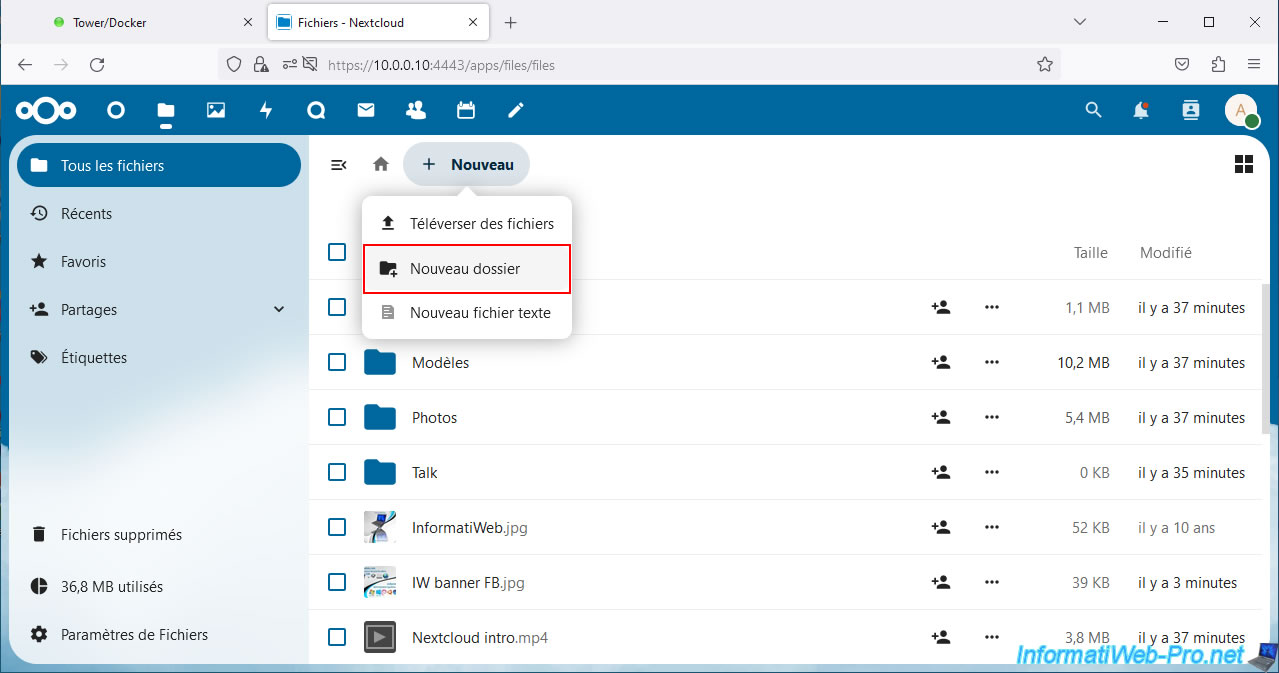
By default, Nextcloud allows you to indicate the new name of this new folder.
Then press Enter to confirm.
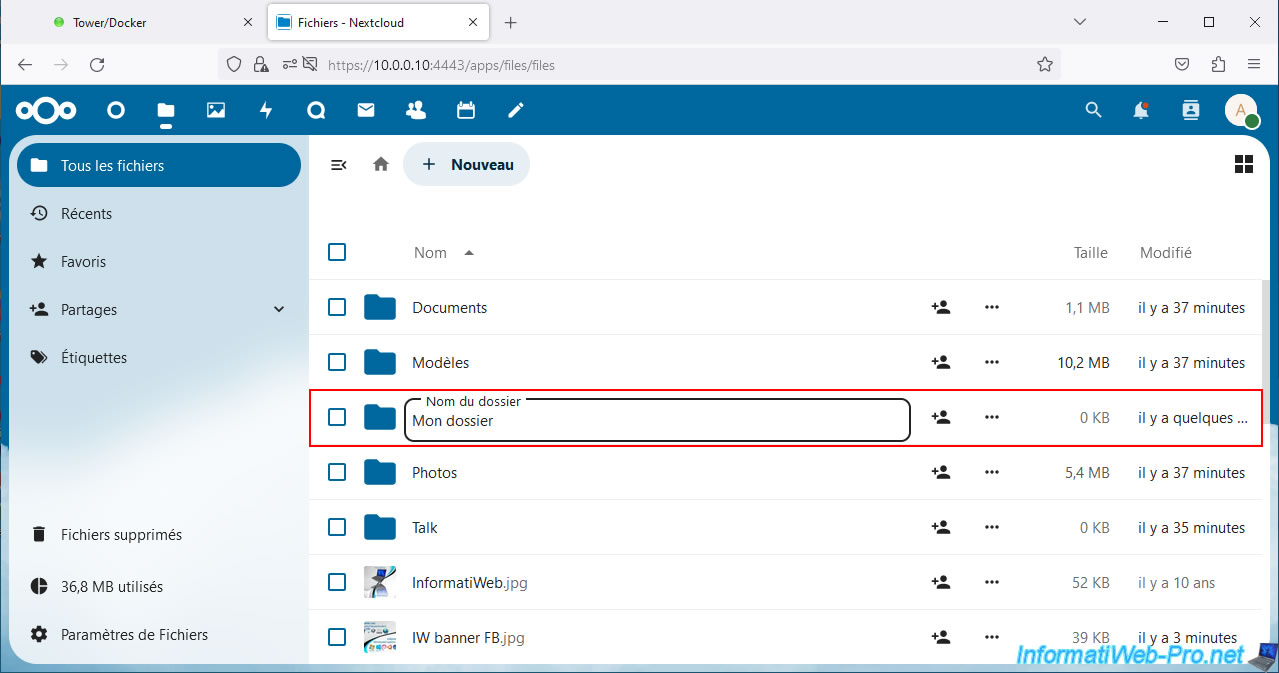
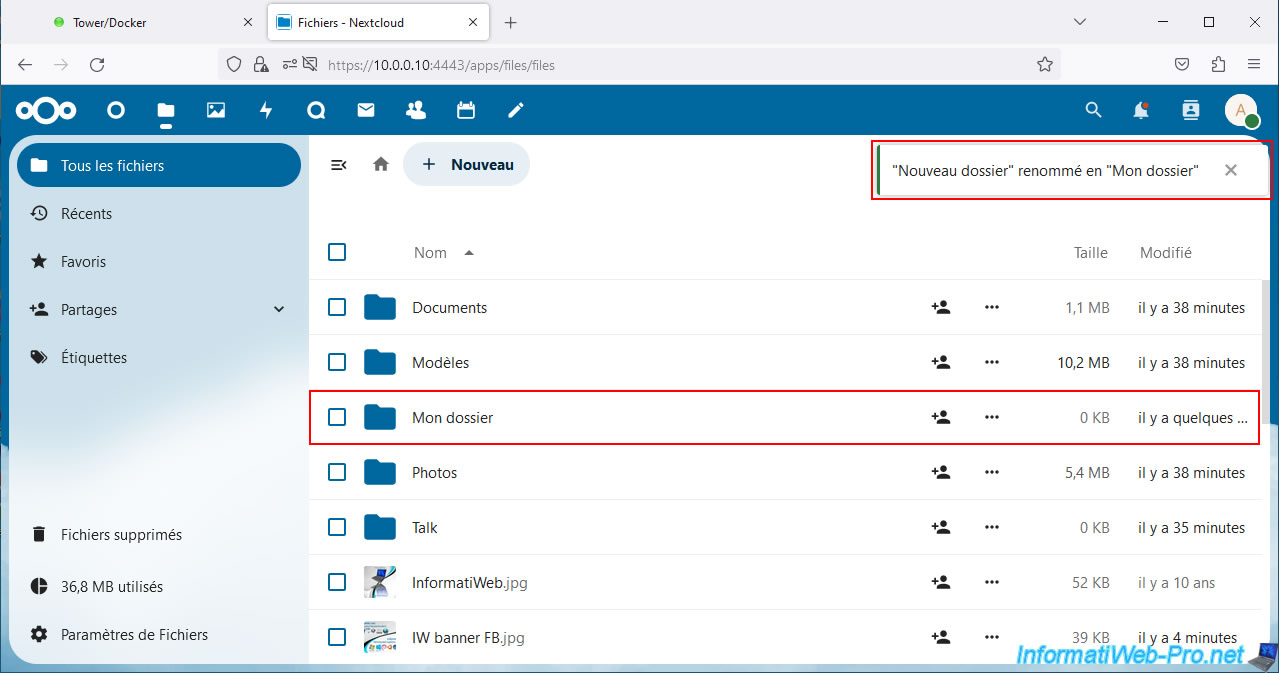
The new folder has been created and renamed.
6.2.3. Create a text file via Nextcloud
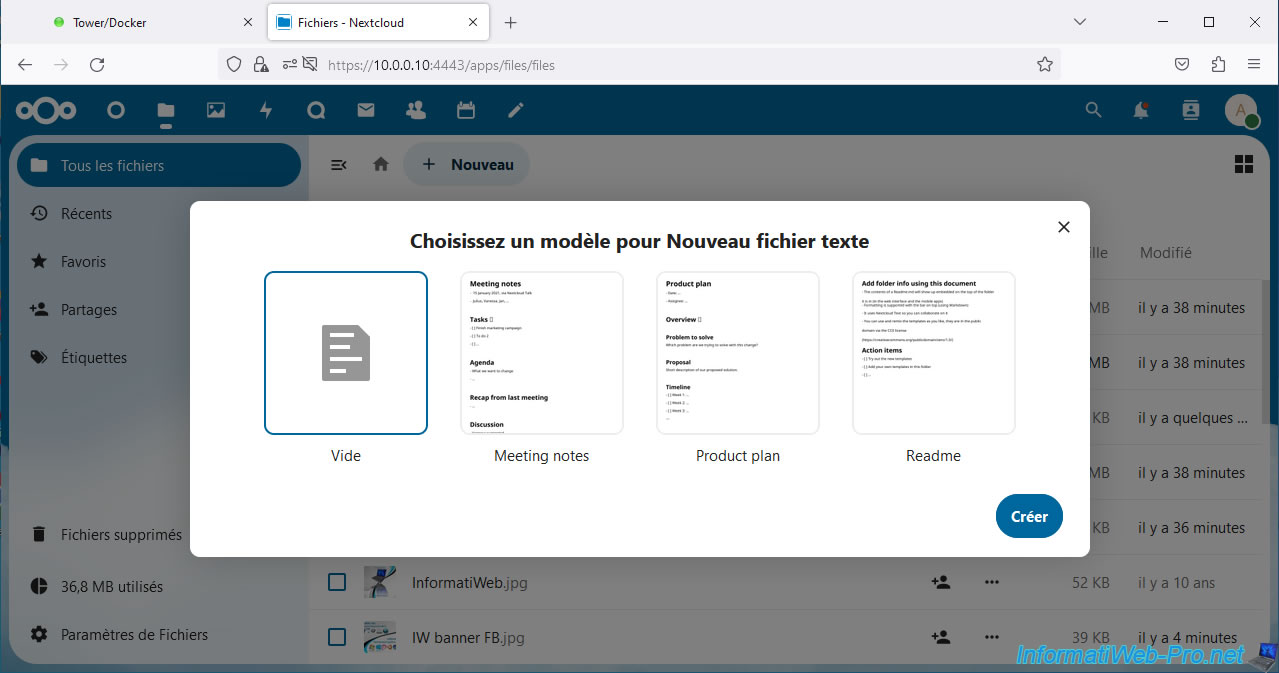
To create a new text file via Nextcloud, click: New -> New text file.
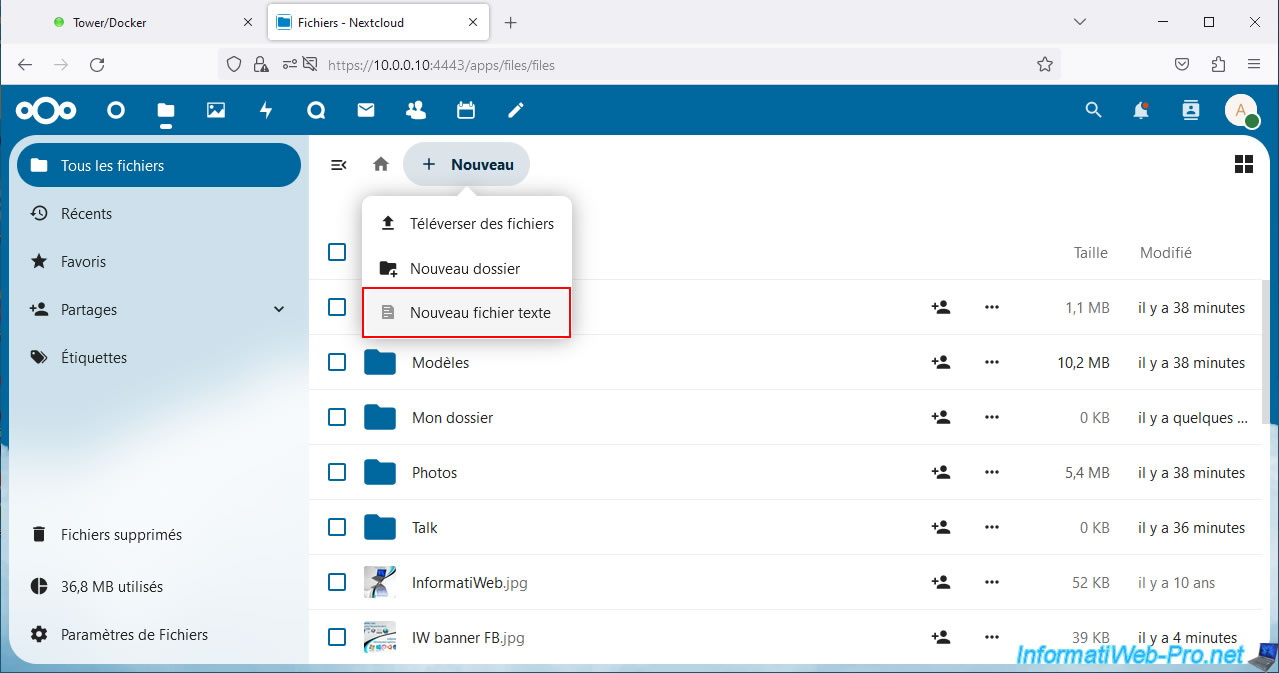
Choose a template for your new text file.
In our case: Empty.
Then, click on the button: Create.
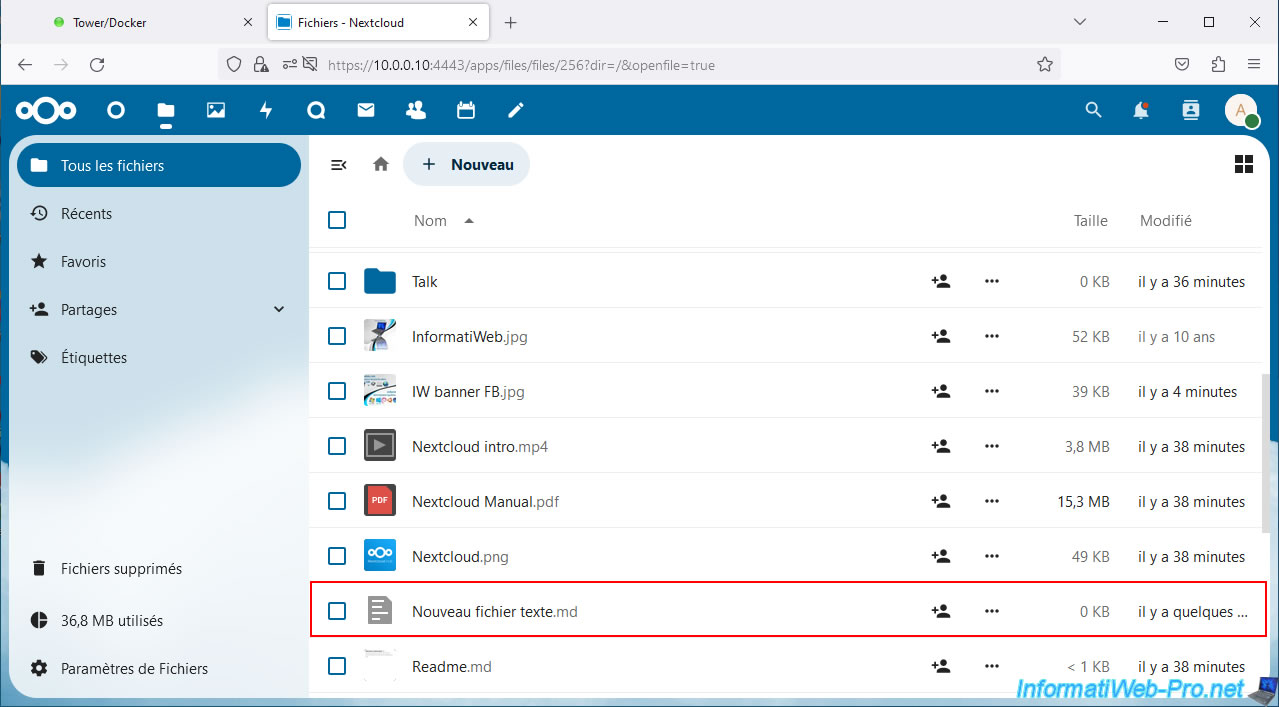
The new text file appears in the list.
Click on its name to modify its content from the Nextcloud interface.
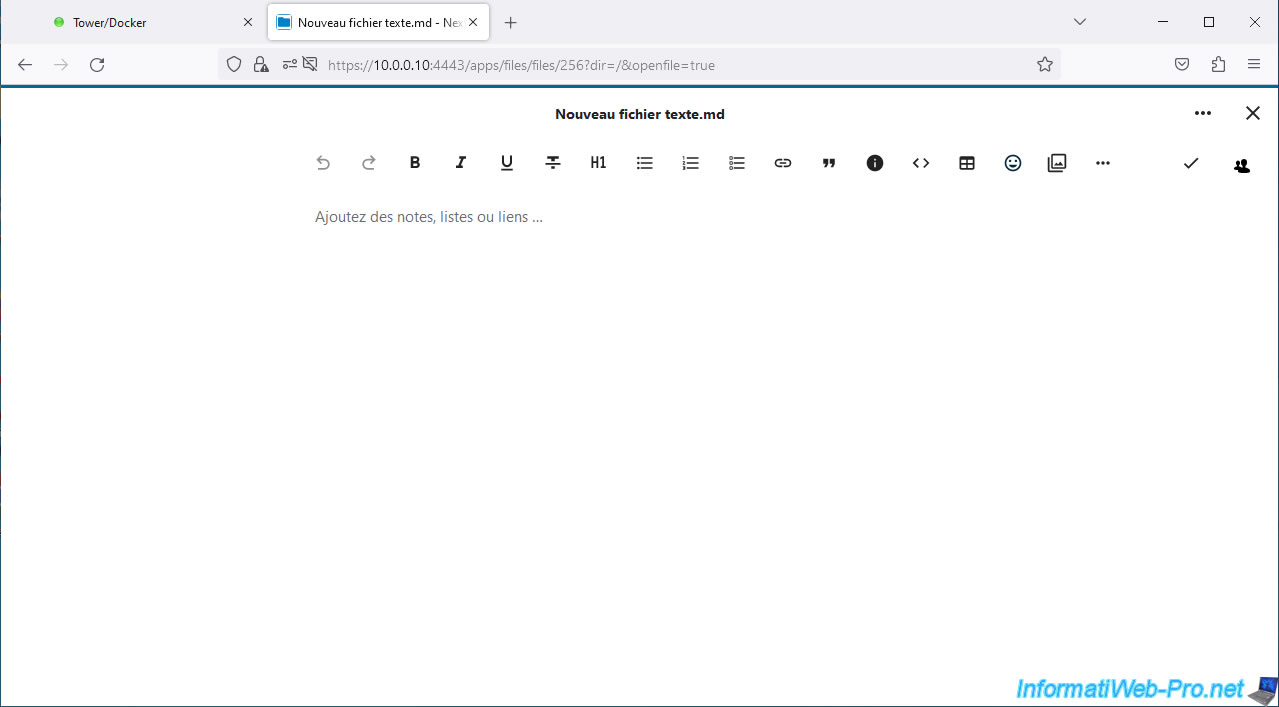
As you can see, you can write text there and format the text with the common options:
- bold, italic and/or underlined.
- create unordered (with points) or ordered (with numbers) lists
- add hyperlinks
- add smileys
- ...
6.3. Share files via Nextcloud
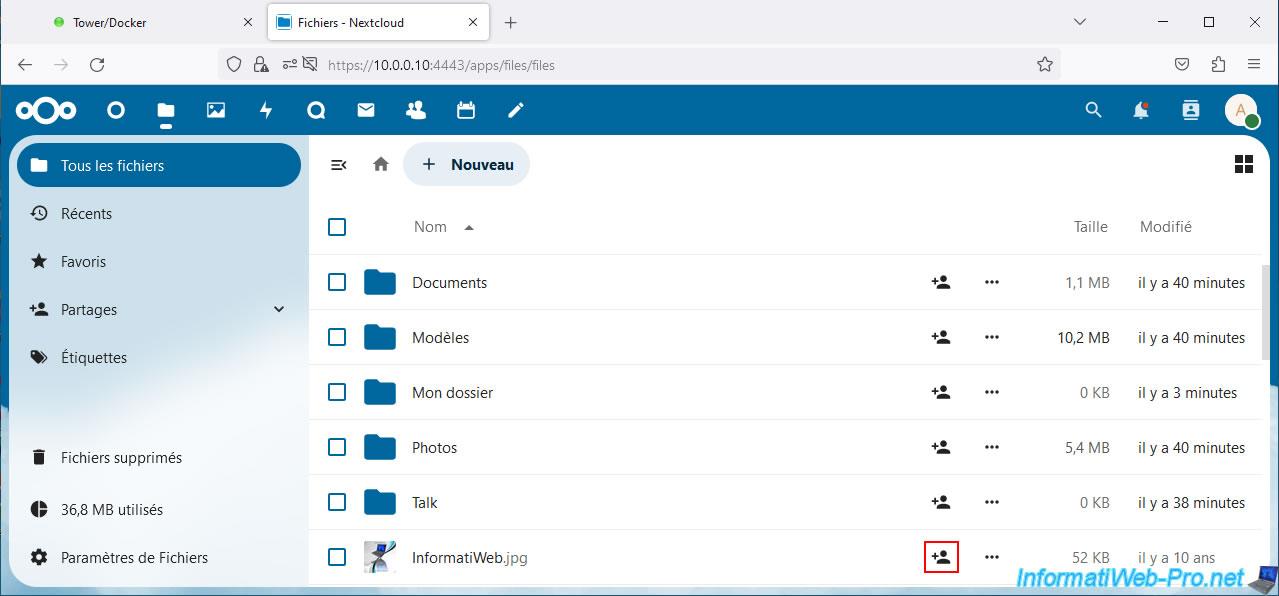
To share a folder or file, click the share icon to the right of the folder or file you want to share.
A pane will appear with the "Sharing" tab selected by default.
As you can see, you can create a share link (usable without being connected to Nextcloud) or use an internal link which will only work if the person also has access to this file while connected to Nextcloud.
You can also see the users who currently have access to this folder or file. Default: only you.
Click the "+" icon (to the right of "Share link").

The "Link copied" and "Share link created" notifications will appear and you will see that, by default, privacy for sharing is set to "View only".
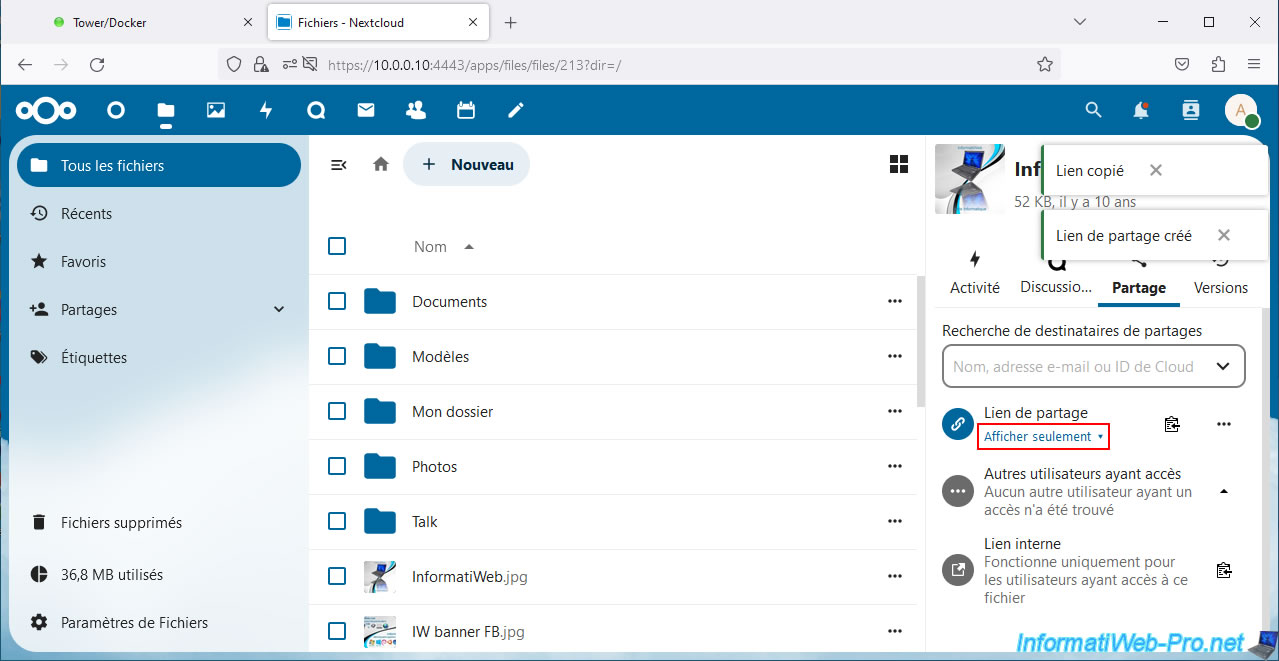
Click "View only" to change the privacy of this share (if you wish).
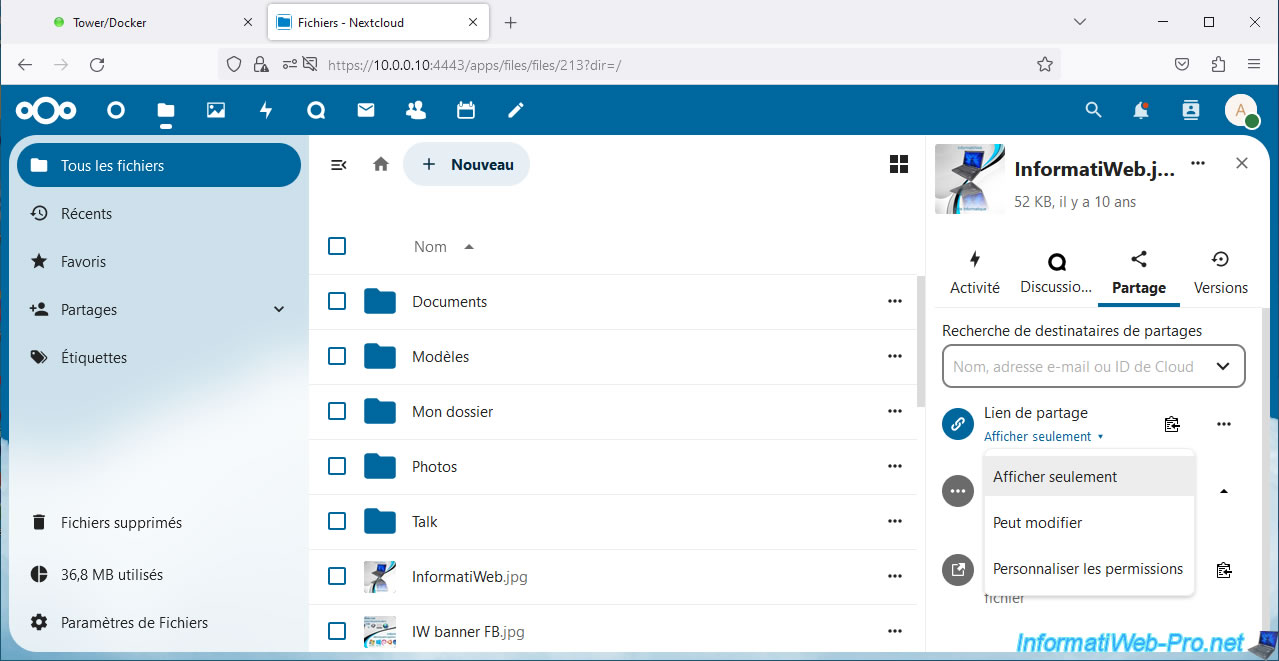
You can choose between:
- View only: allows the person to view the file and download it if necessary.
- Can Edit: allows the person to see it and edit it (if they want).
- Customize permissions: allows you to adjust settings manually.
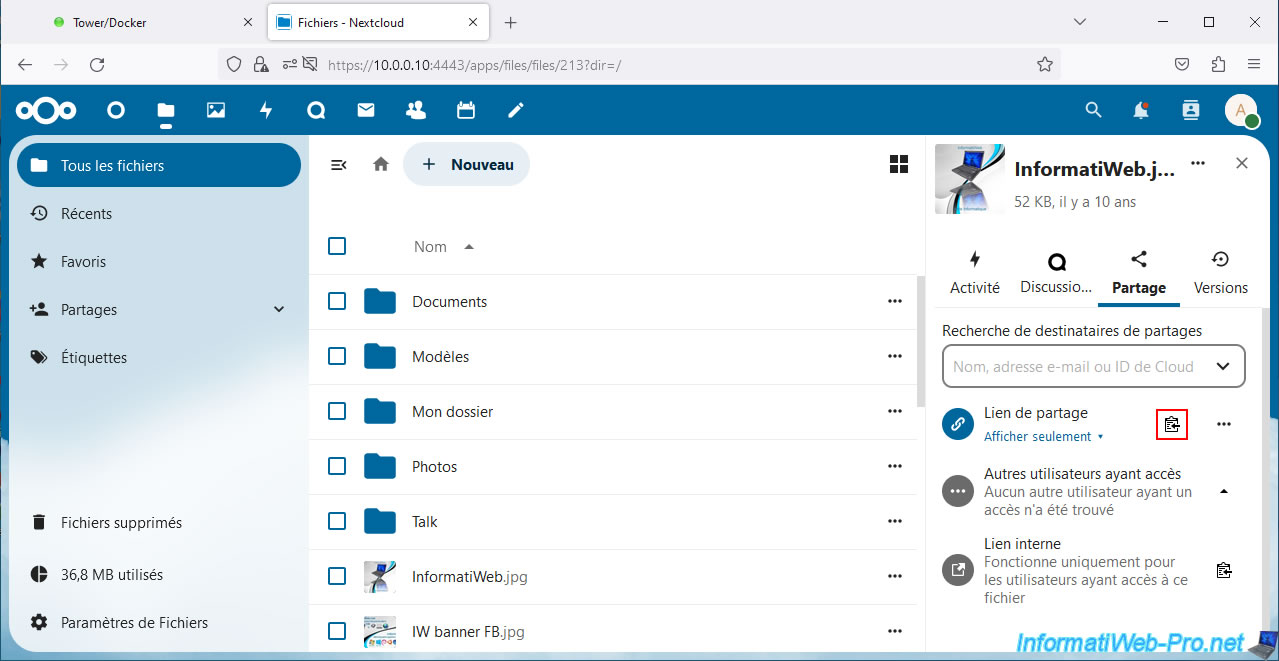
To copy the sharing link of this folder or file, click on the icon to the right of "Sharing link".
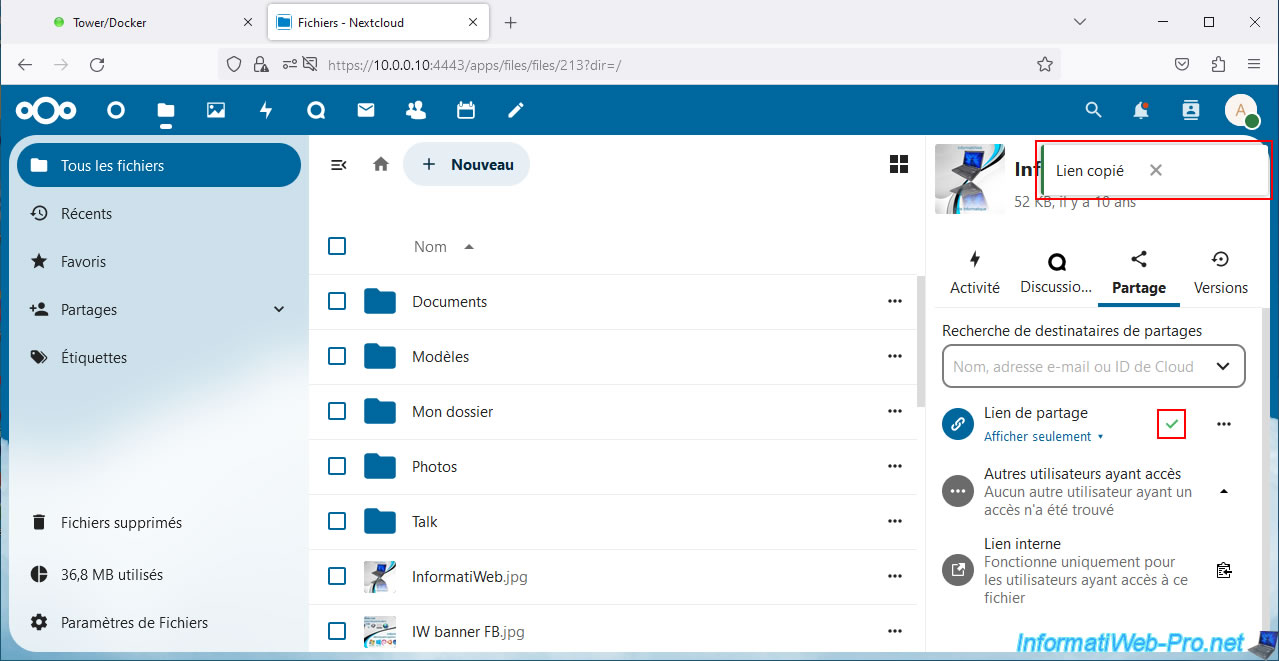
The icon will turn into a green "v" and a "Link copied" notification will appear.
To see more settings for sharing a folder or file, click the "..." icon (also located to the right of "Sharing link"), then click: Customize link.
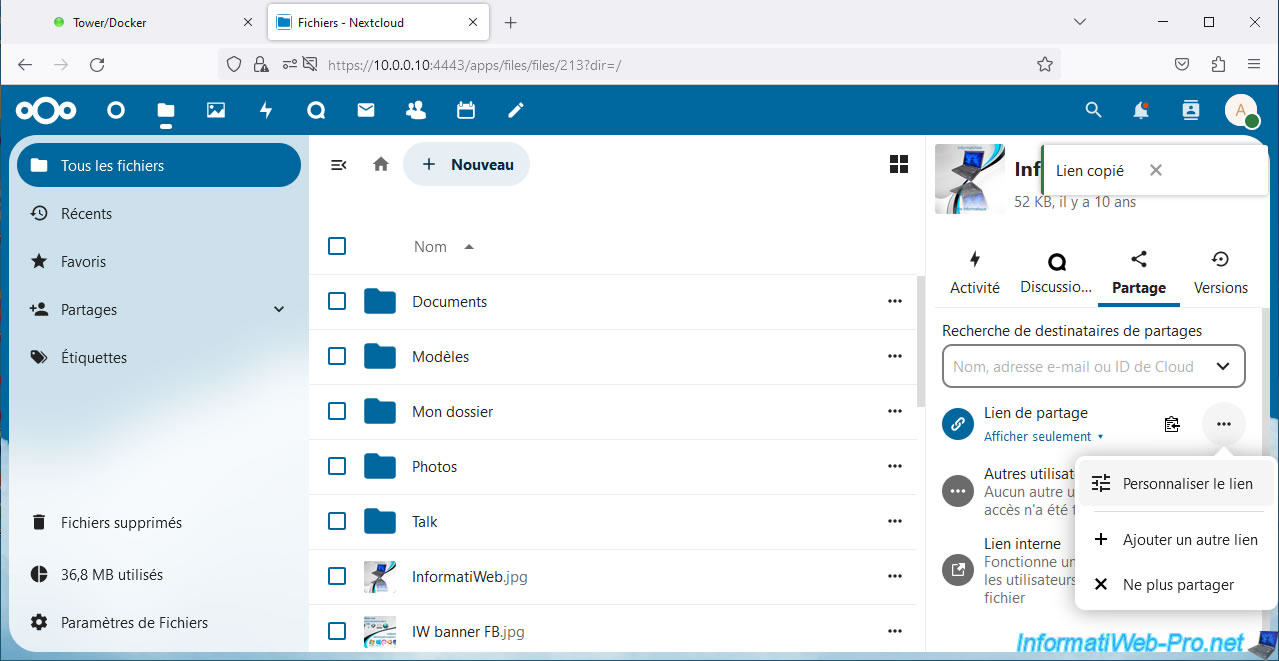
In the "Sharing" tab, you will see these options appear:
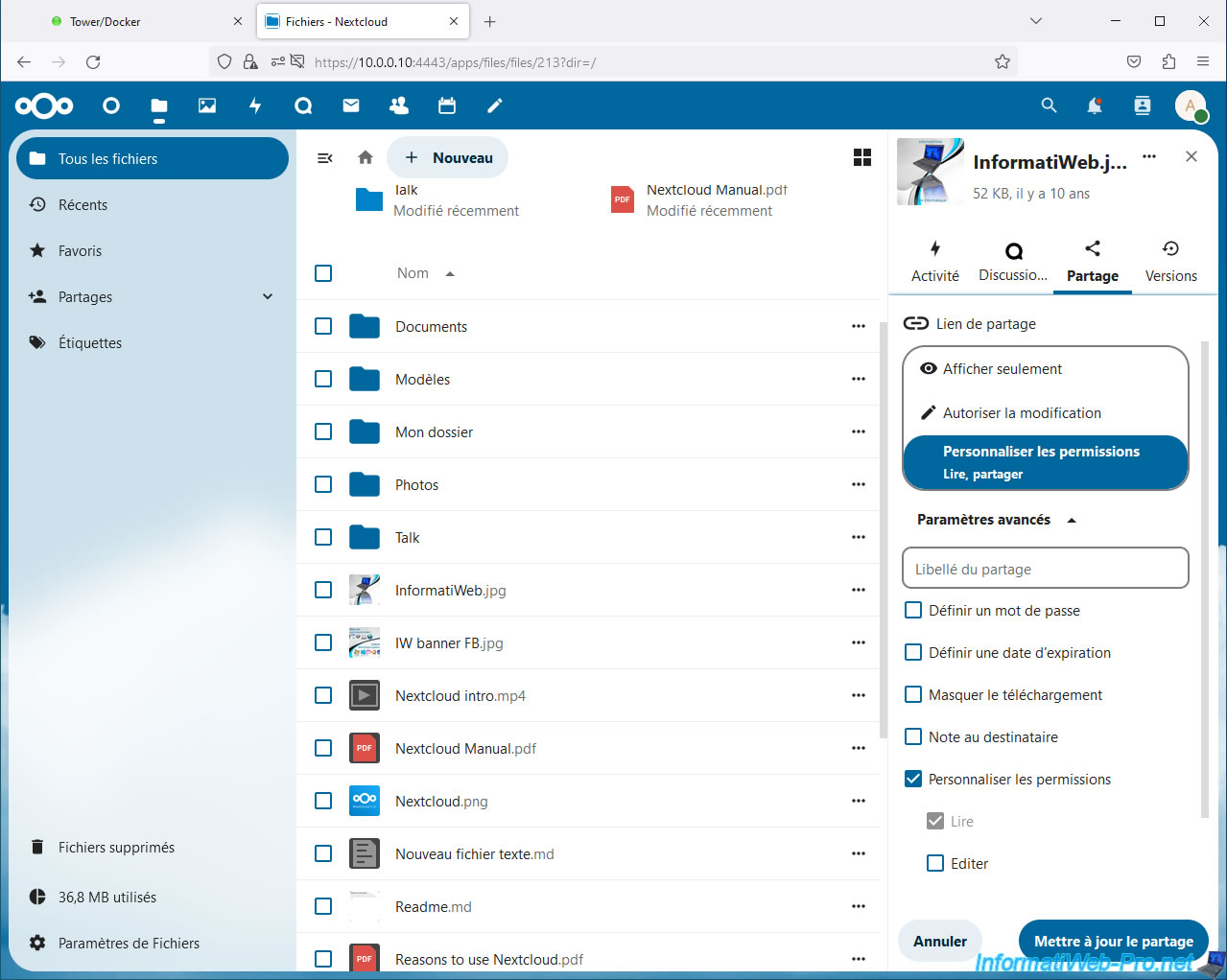
- Show only: read only (which corresponds to the "Show only" choice earlier).
- Authorize modification: reading and writing (which corresponds to the "Can modify" choice earlier).
- Customize permissions: allows you to adjust advanced settings for sharing.
Thanks to the advanced settings for sharing, you can set an expiration date, protect it with a password, manage permissions (Read, edit and/or delete), ...
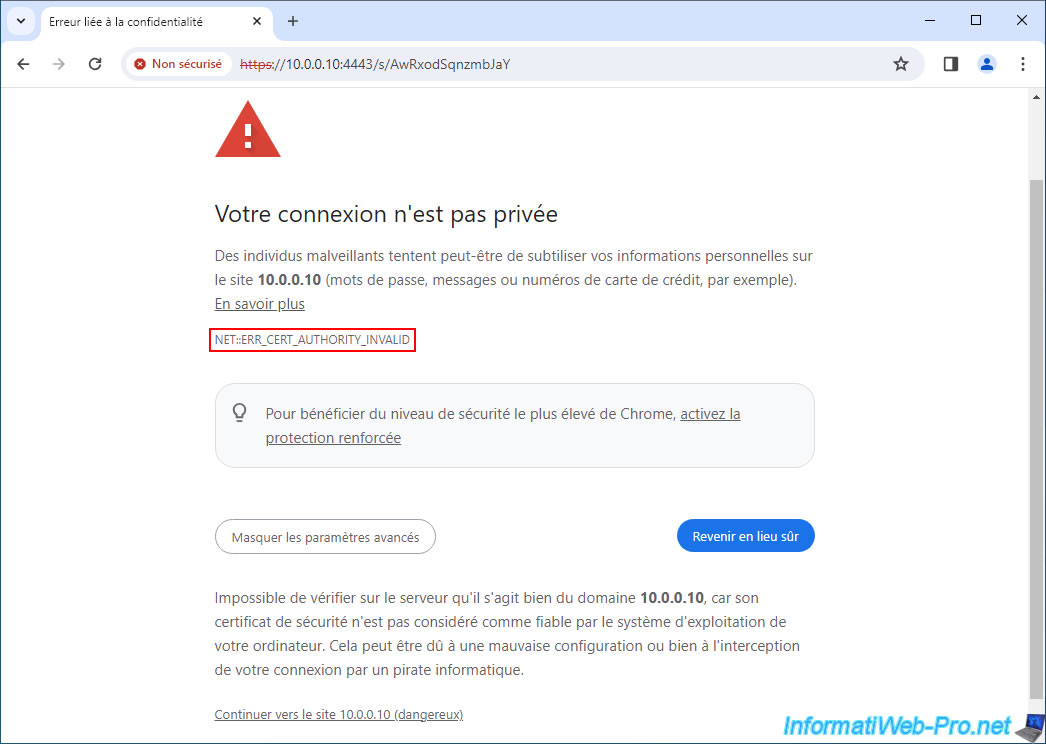
The person who attempts to access this sharing link will see a warning (due to the use of a self-signed SSL certificate to secure the Nextcloud web interface, as explained previously).
Ignore this warning.
Plain Text
NET::ERR_CER_AUTHORITY_INVALID
Warning : as you can see, by default, the sharing link contains the local IP address of your Unraid server.
File sharing therefore only works locally at the moment.
If you want shared files to also be accessible from the Internet, you will need to use a reverse proxy (such as: SWAG, for example) as you will see in a future tutorial.
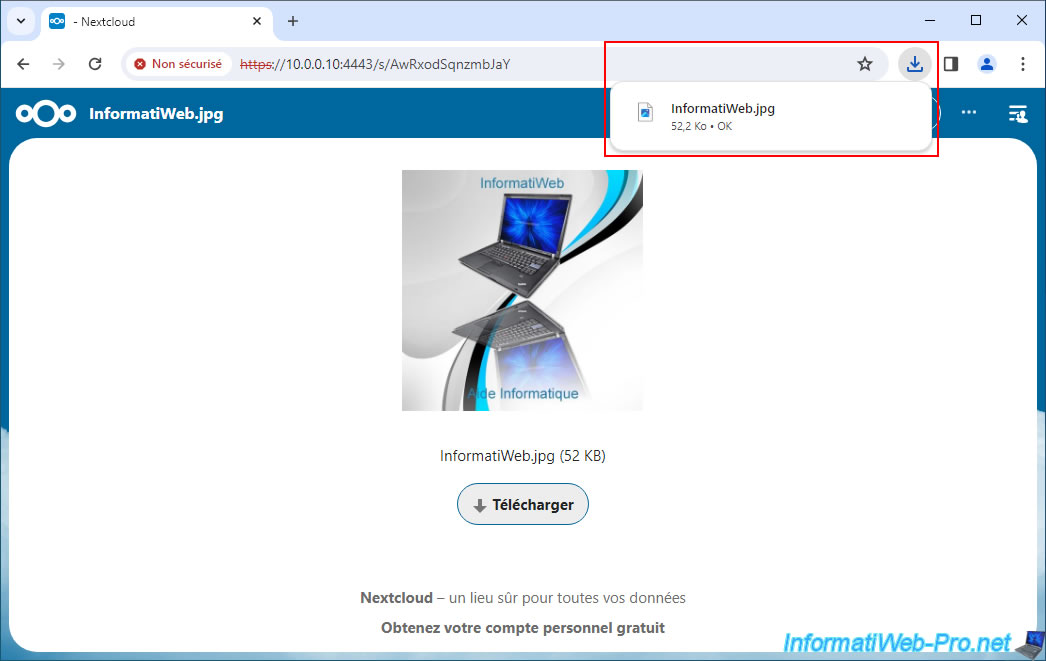
A preview of the file appears (if possible, depending on its type), as well as a "Download" button.
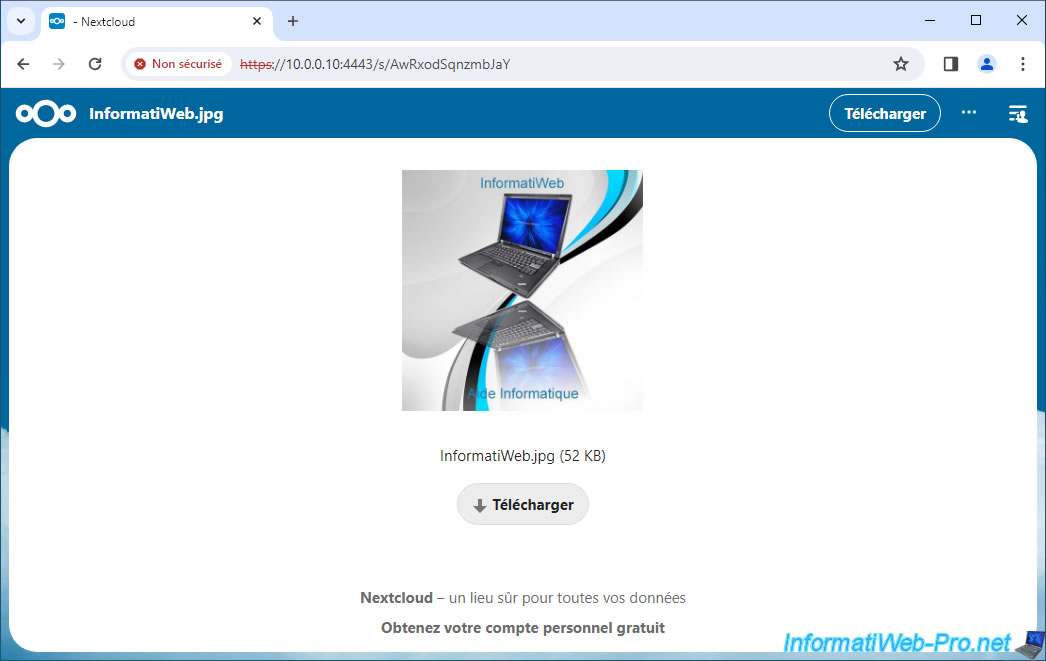
As expected, downloading a shared file works without you having to log in with an account on your Nextcloud server.
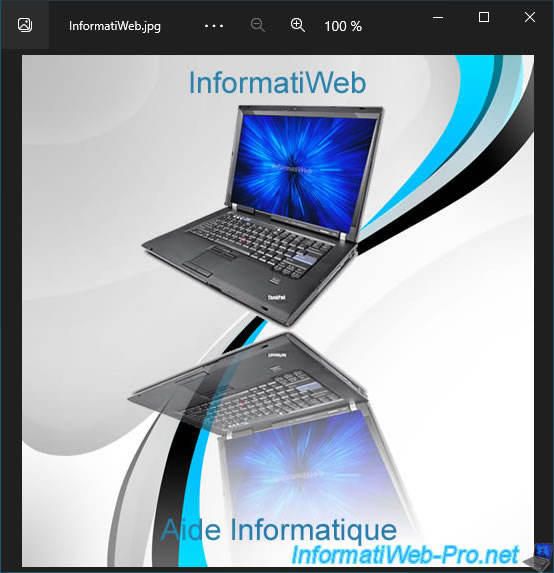
As expected, we can open the downloaded file on our computer.
Share this tutorial
To see also
-
NAS 3/25/2026
Unraid 6.9.2 - Change web interface ports
-

NAS 11/26/2025
Unraid 6.9.2 - Manually install Unraid 6.9.2
-
NAS 3/11/2026
Unraid 6.9.2 - Presentation of Dynamix plugins (sys info, ...)
-
NAS 5/6/2026
Unraid 6.9.2 - SWAG - Install a reverse proxy (SWAG)
No comment