Install a file server (Nextcloud) on Unraid 6.9.2 via Docker
- NAS
- Unraid
- 15 April 2026 at 10:39 UTC
-

- 3/6

5. Fix 504 gateway time-out error with Nextcloud
Once Nextcloud is configured, the web interface may be very slow or even "504 Gateway Time-out" errors may occur.
Indeed, once Nextcloud configuration is complete, you will need to restart your "nextcloud" container at least once for Nextcloud to work correctly.

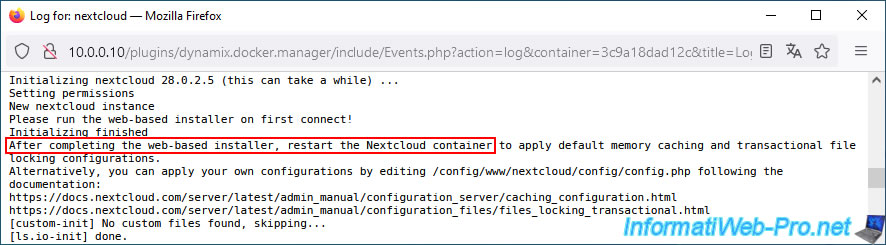
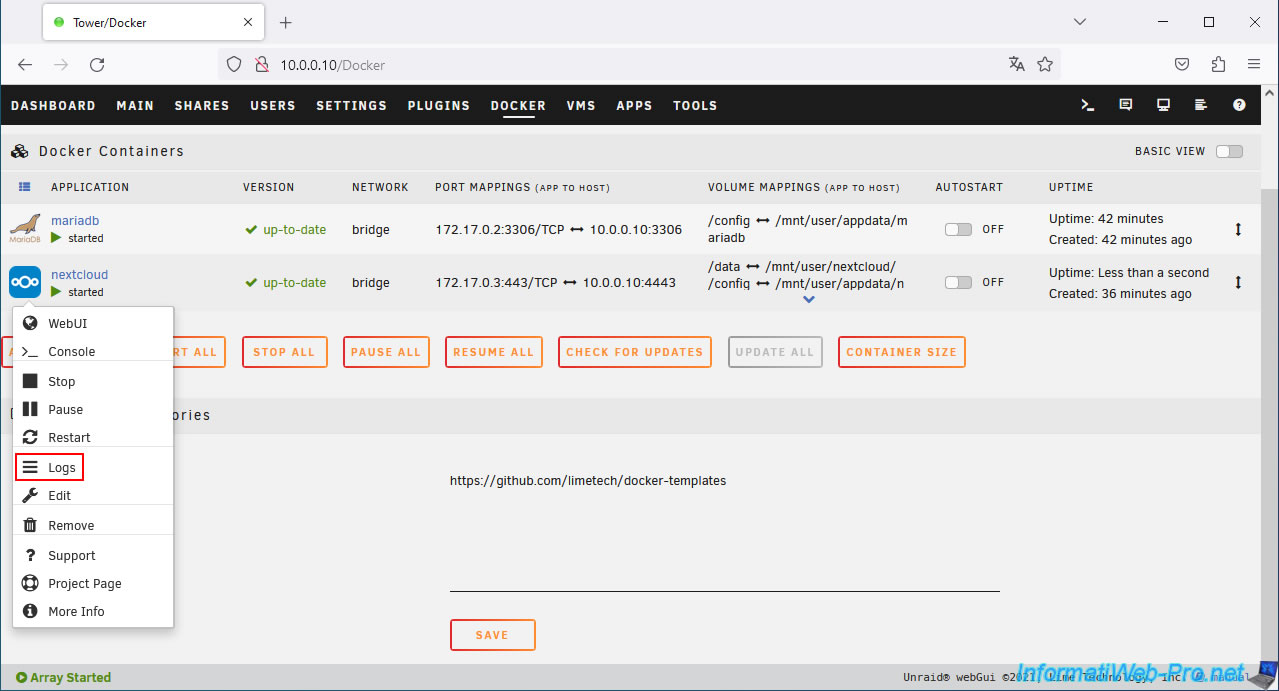
To better understand where the problem comes from, simply access the logs of your "nextcloud" container by clicking on its icon, then on: Logs.
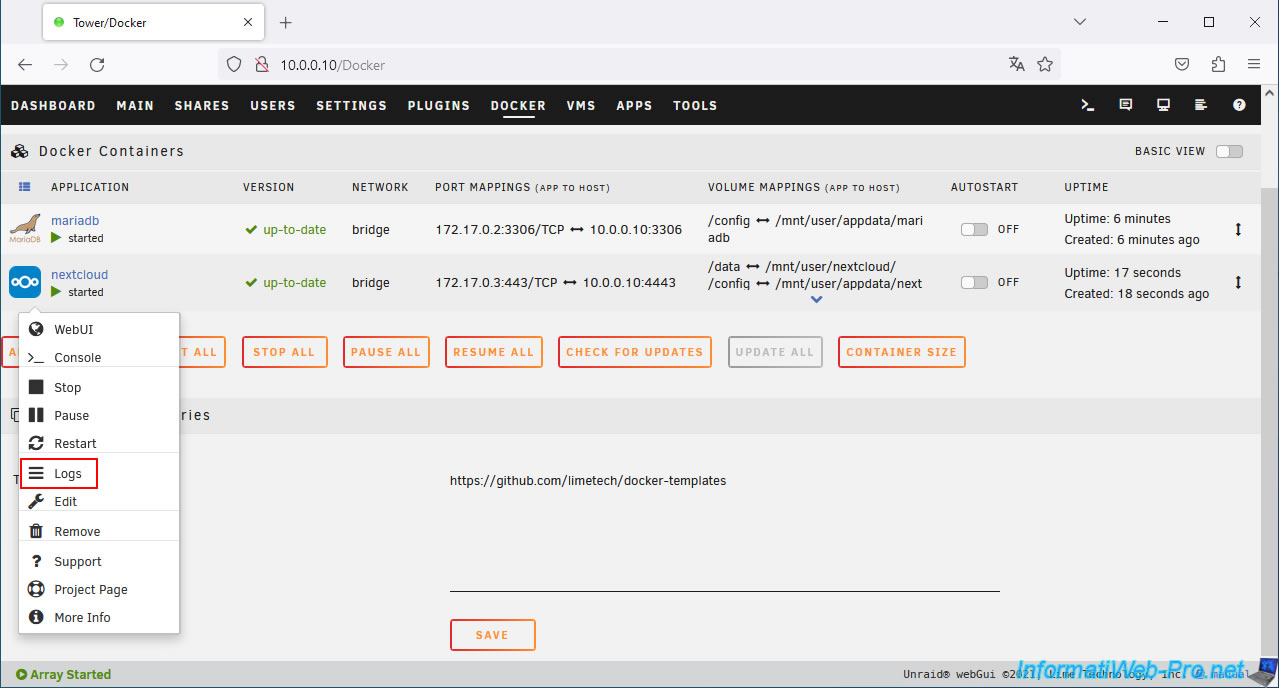
As you can see, after completing the Nextcloud installer via your web browser, you are supposed to restart your "nextcloud" container to perform some adaptations automatically, including the cache.
Plain Text
After completing the web-based installer, restart Nextcloud container to apply default memory caching and transactional file locking configurations.
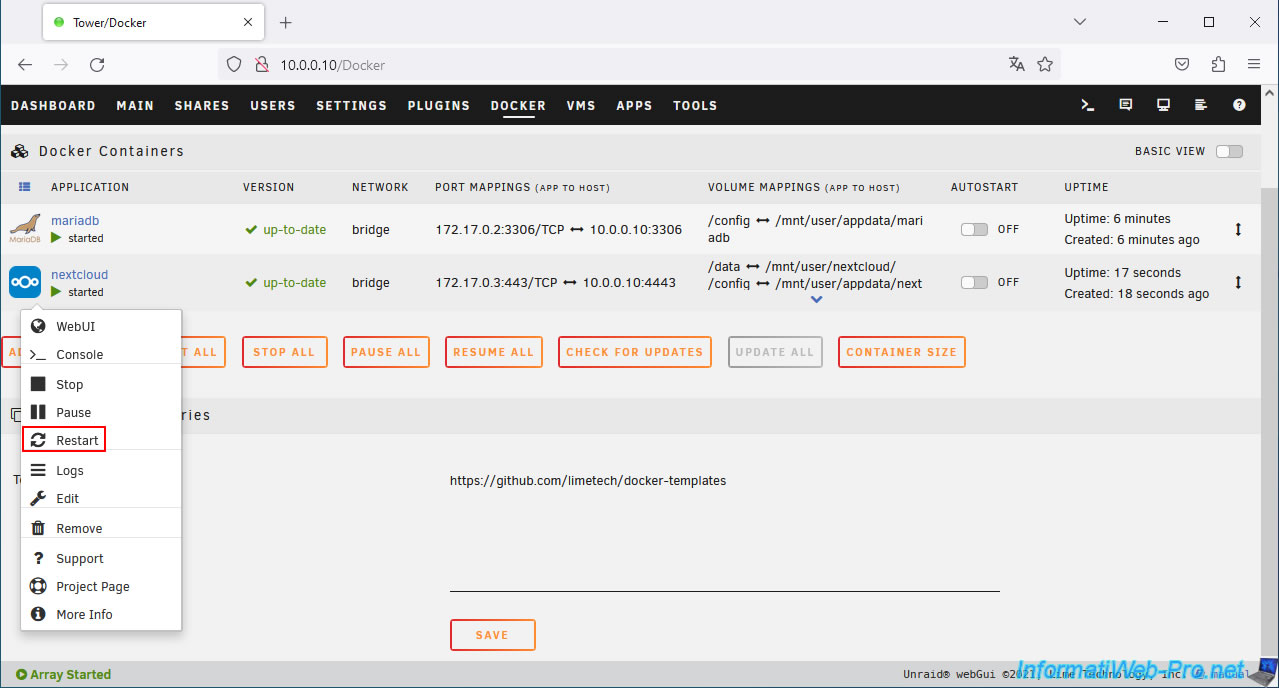
Click on your "nextcloud" container icon and click: Restart.
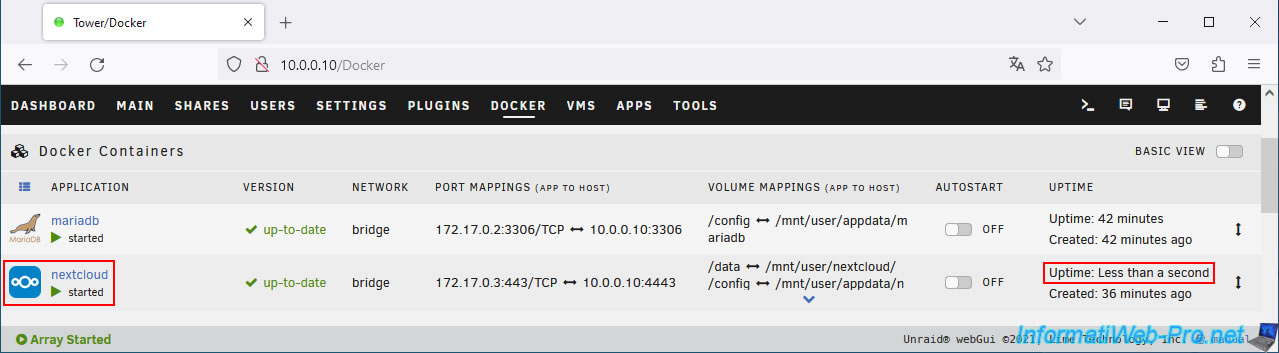
As expected, your "nextcloud" container has restarted.
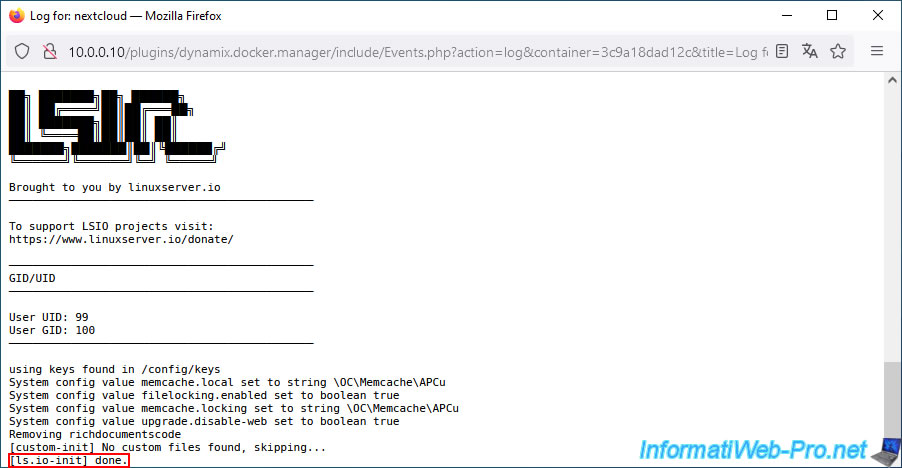
Open your "nextcloud" container logs again.
The previous message no longer appears.
Make sure the message "[ls.io-init] done." appears.
If not, wait a few seconds for the container to completely finish starting.
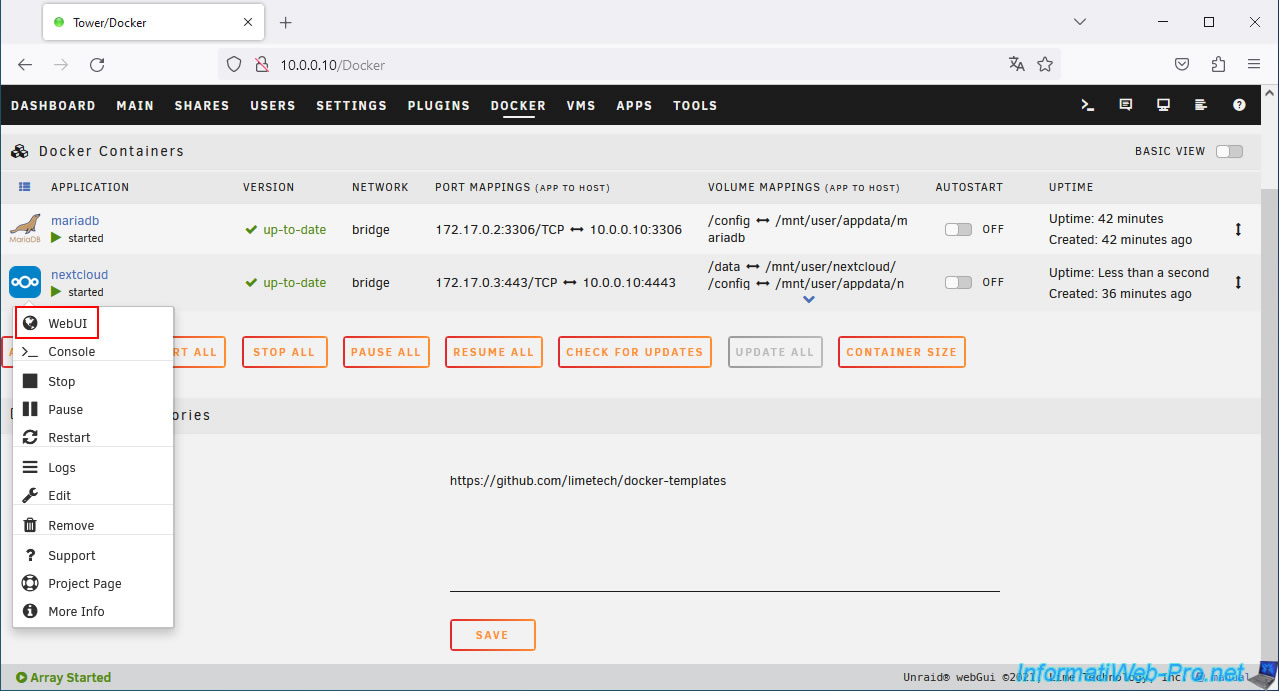
Then, reopen the Nextcloud web interface by clicking on the icon of your "nextcloud" container, then on: WebUI.
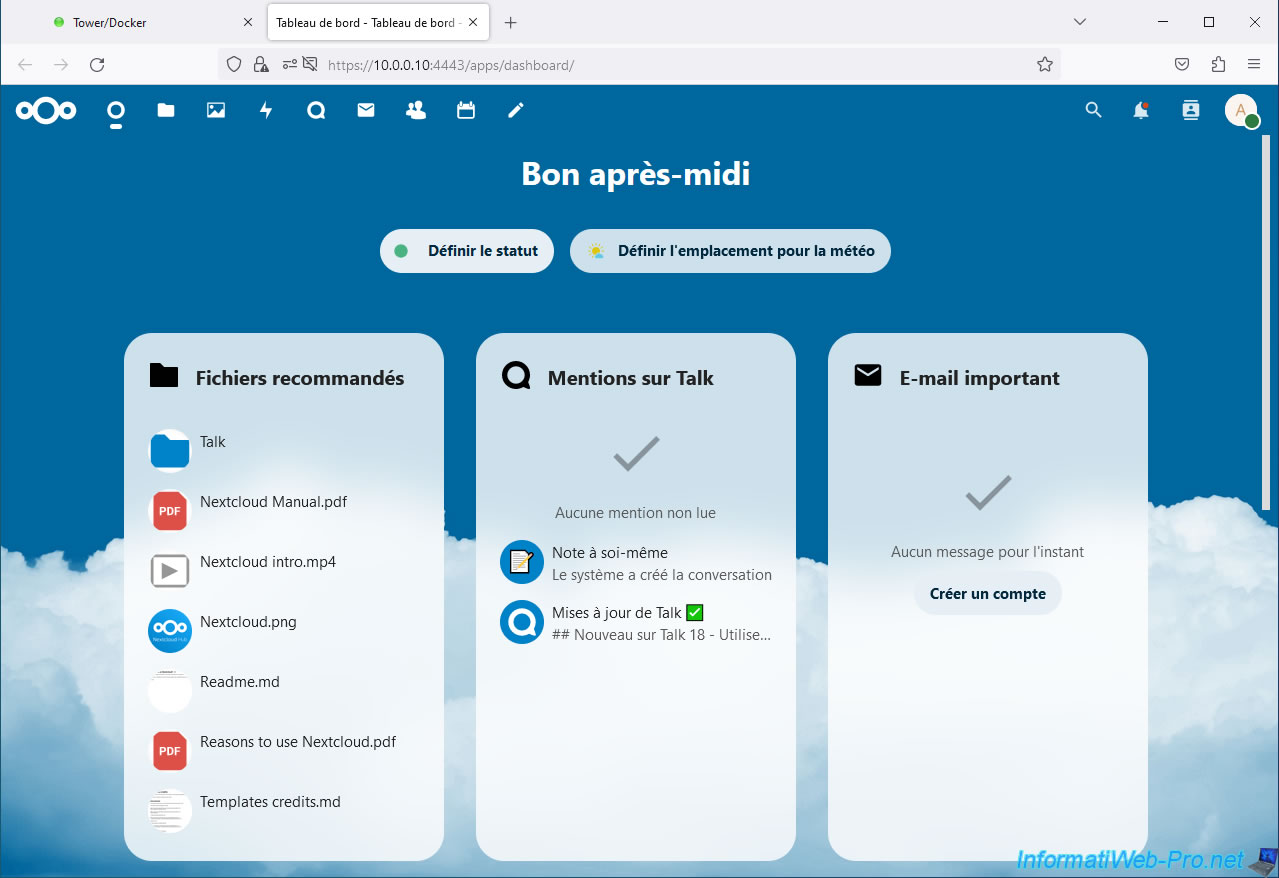
As you can see, even the dashboard appears better than when you first launched Nextcloud.
Now Nextcloud is smooth and no 504 errors occur.
6. Nextcloud file explorer
To manage your files through Nextcloud, click on the folder icon (located at the top left of the page).
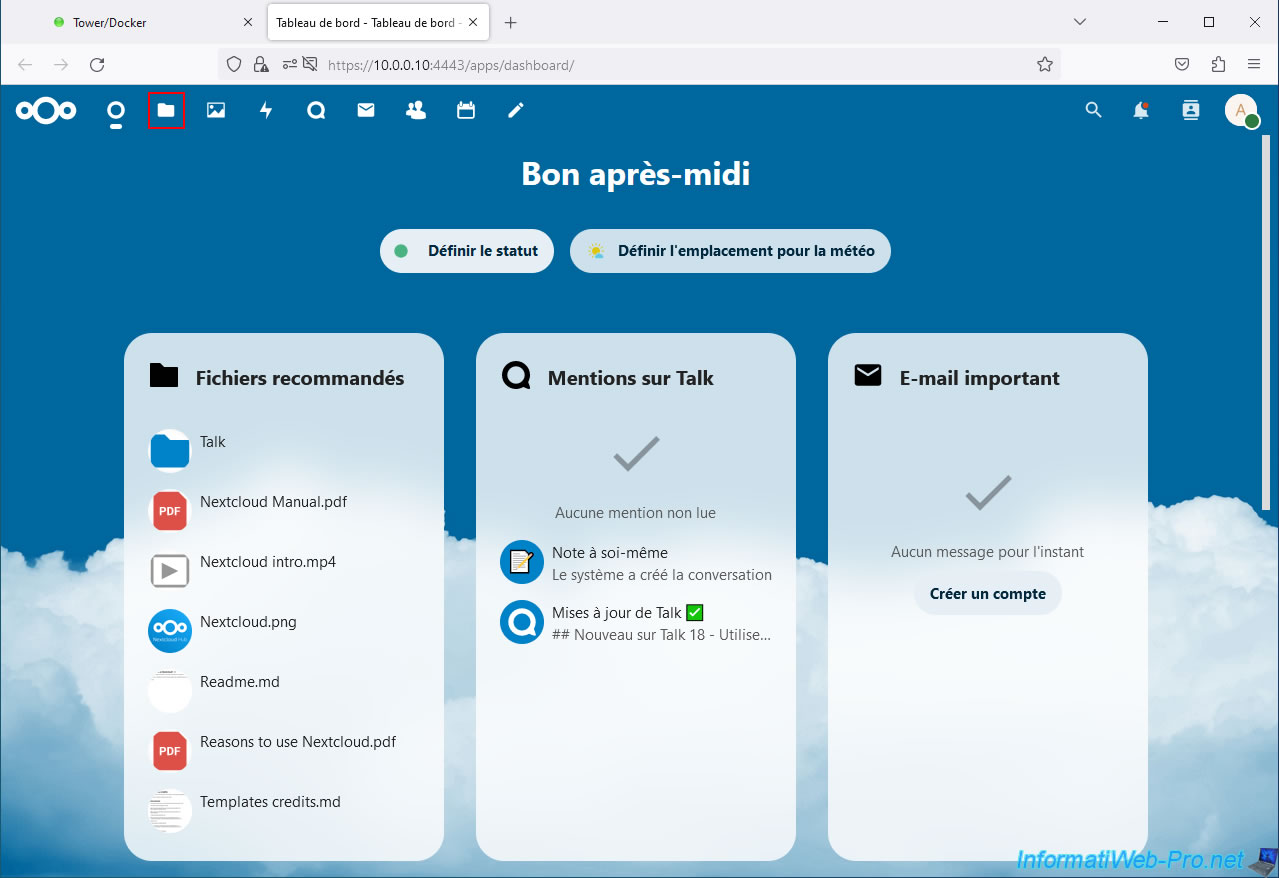
6.1. Open files in Nextcloud
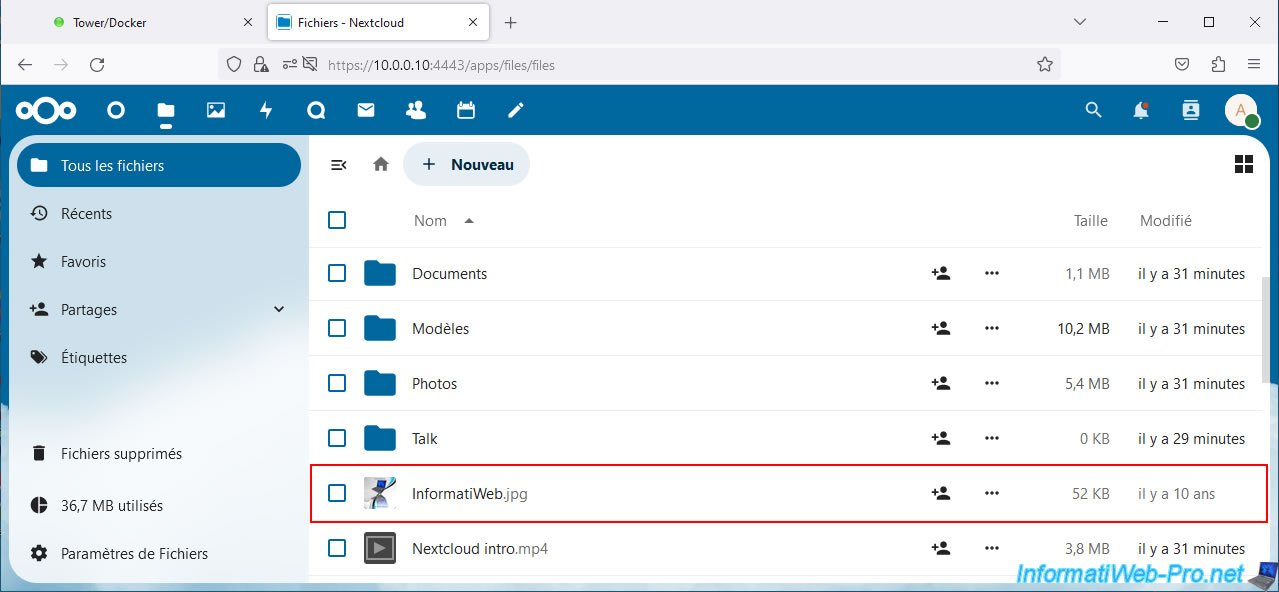
When you install Nextcloud, several sample folders and files are automatically created on your server.
To open a file in Nextcloud, simply click on its name.
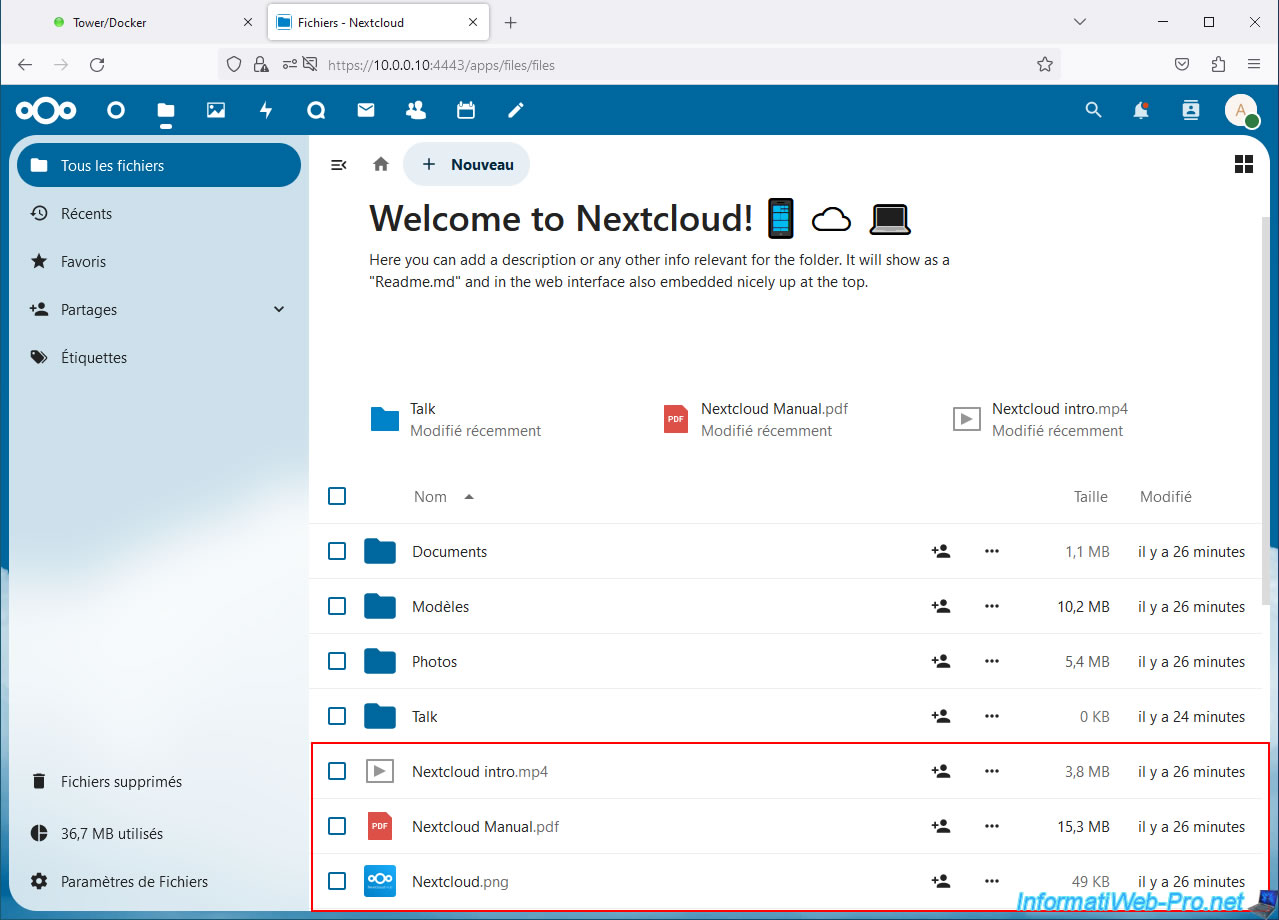
Here is an example with the Nextcloud image.
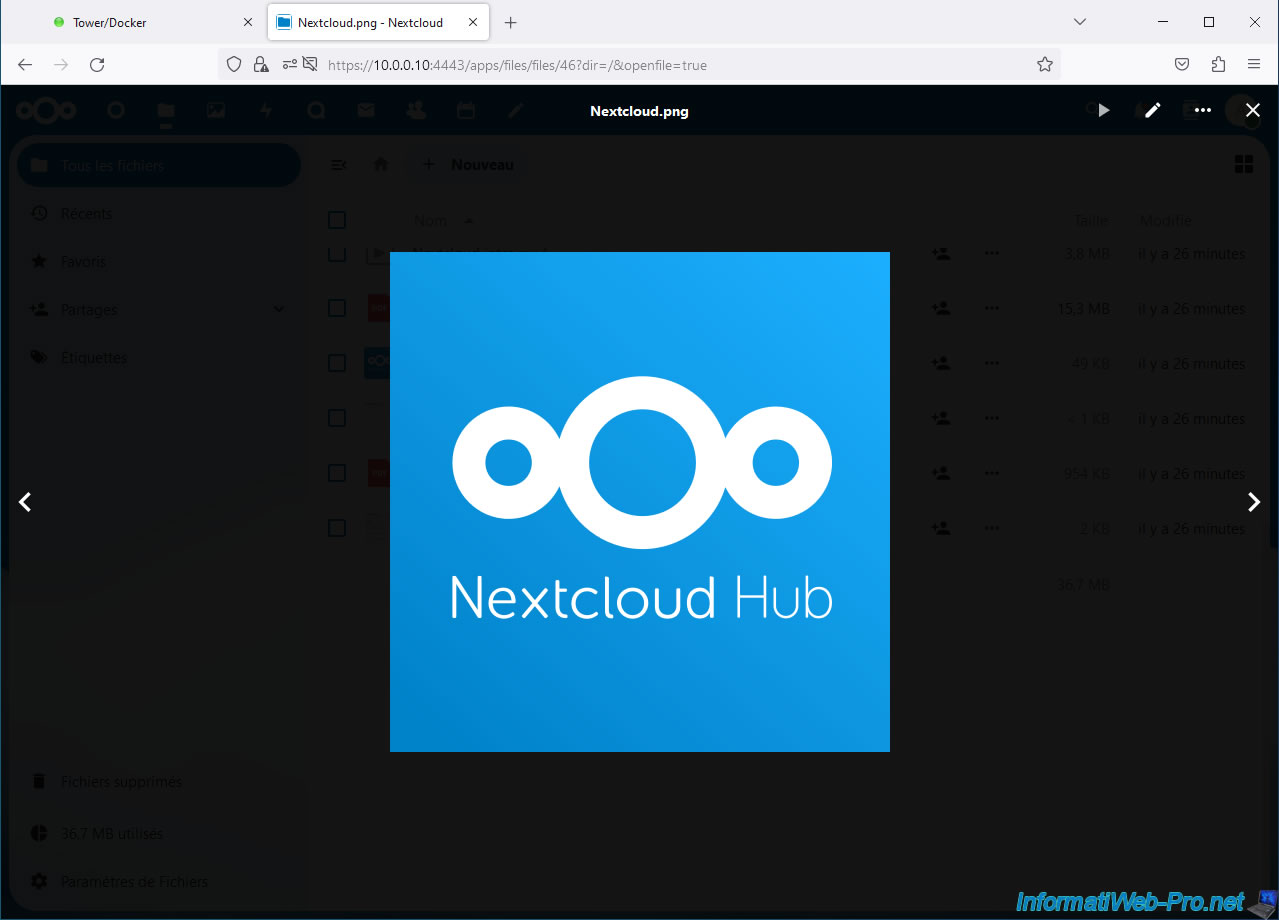
A PDF file opened directly in your web browser.
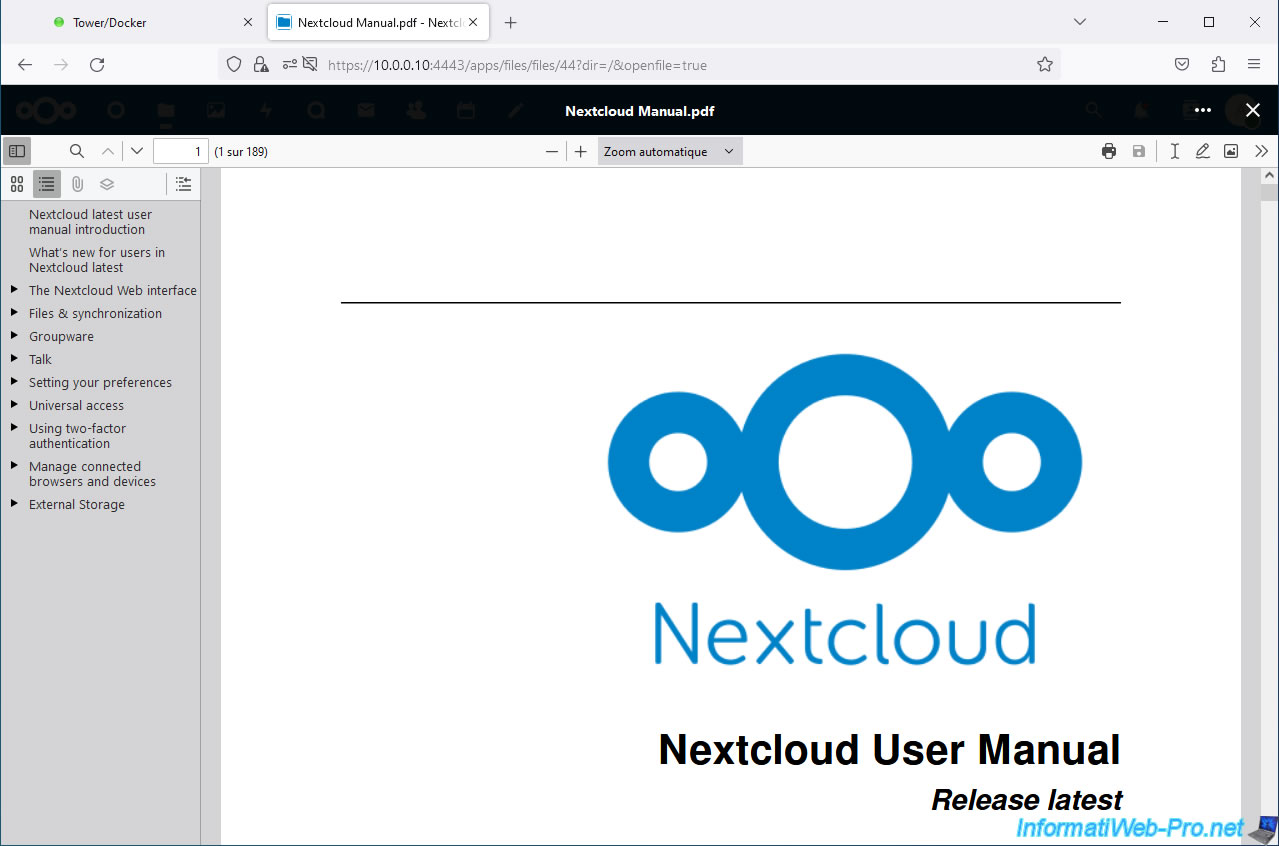
Another example with the Nextcloud video.
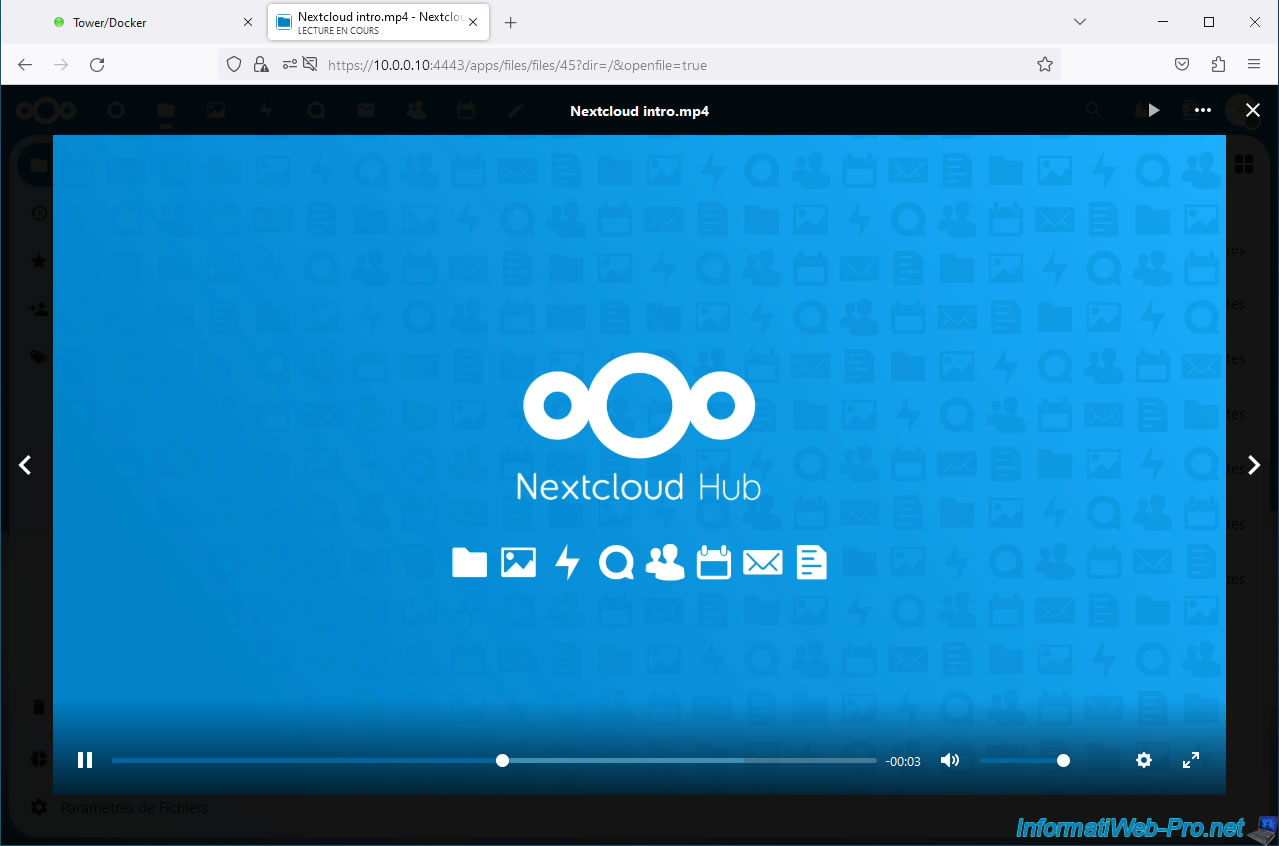
6.2. Add files or folders to your Nextcloud server
To add files or folders to your Nextcloud server, click the button: New.
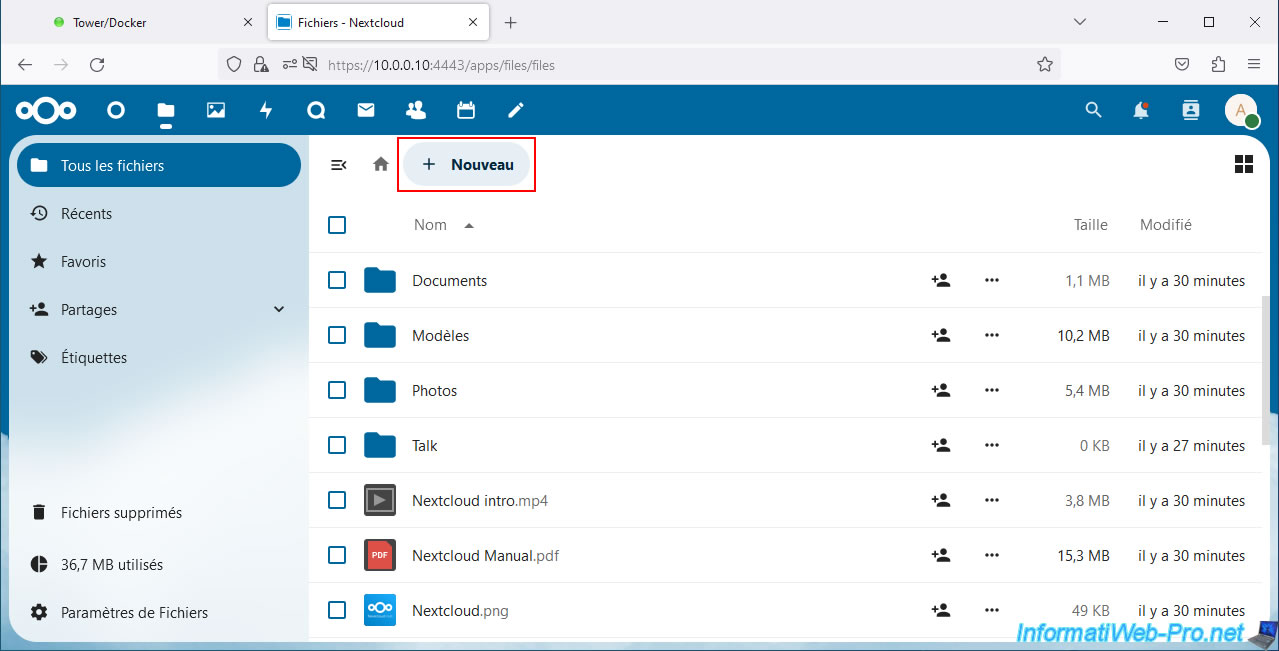
6.2.1. Add files via Nextcloud
To add files via Nextcloud, click: New -> Upload files.
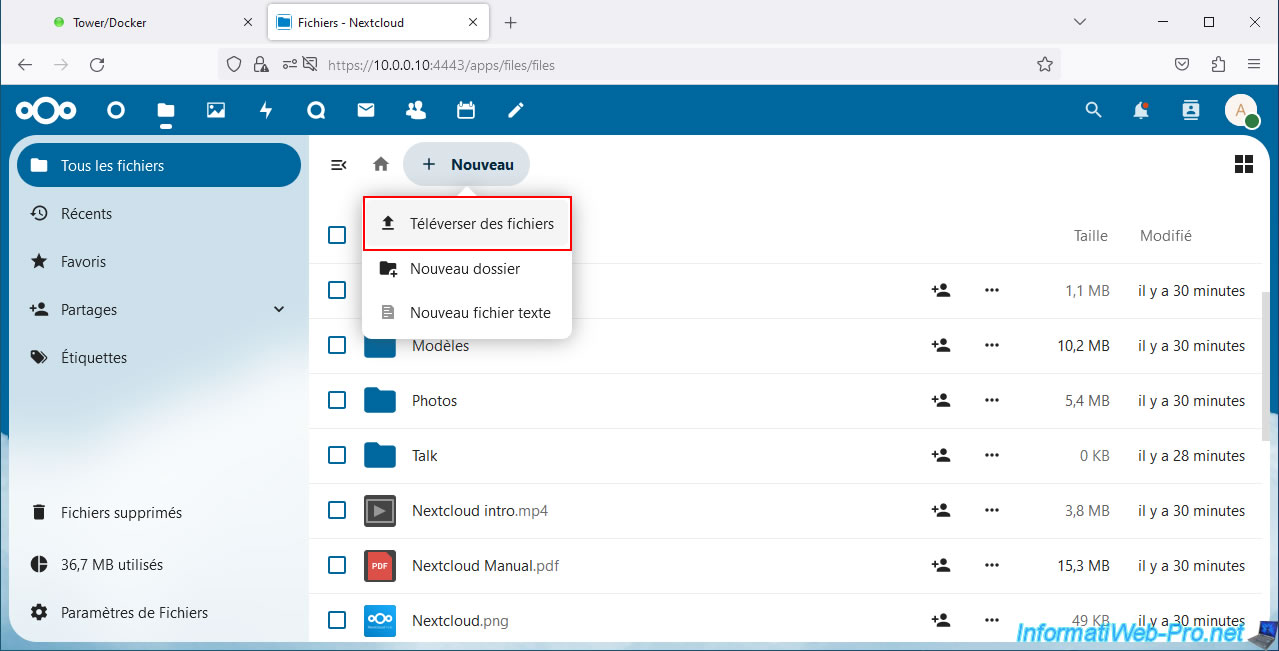
A "Send file" window will appear where you can select the file to send.
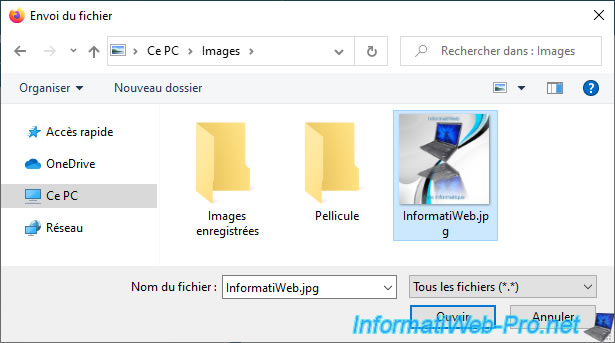
The sent file appears in the list.
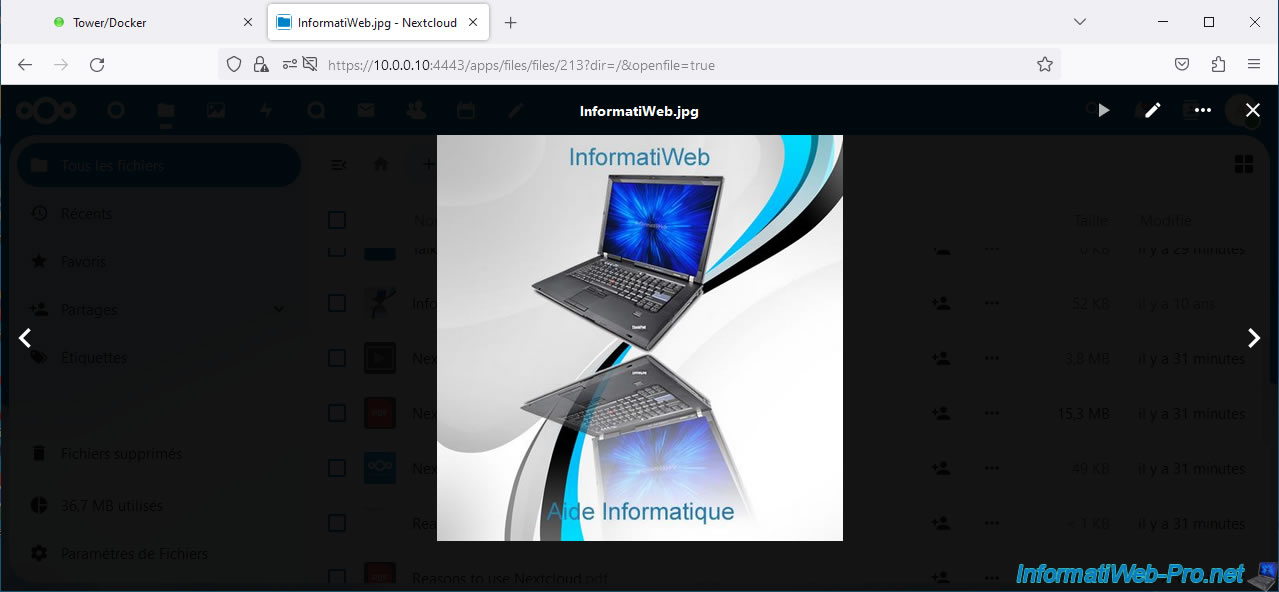
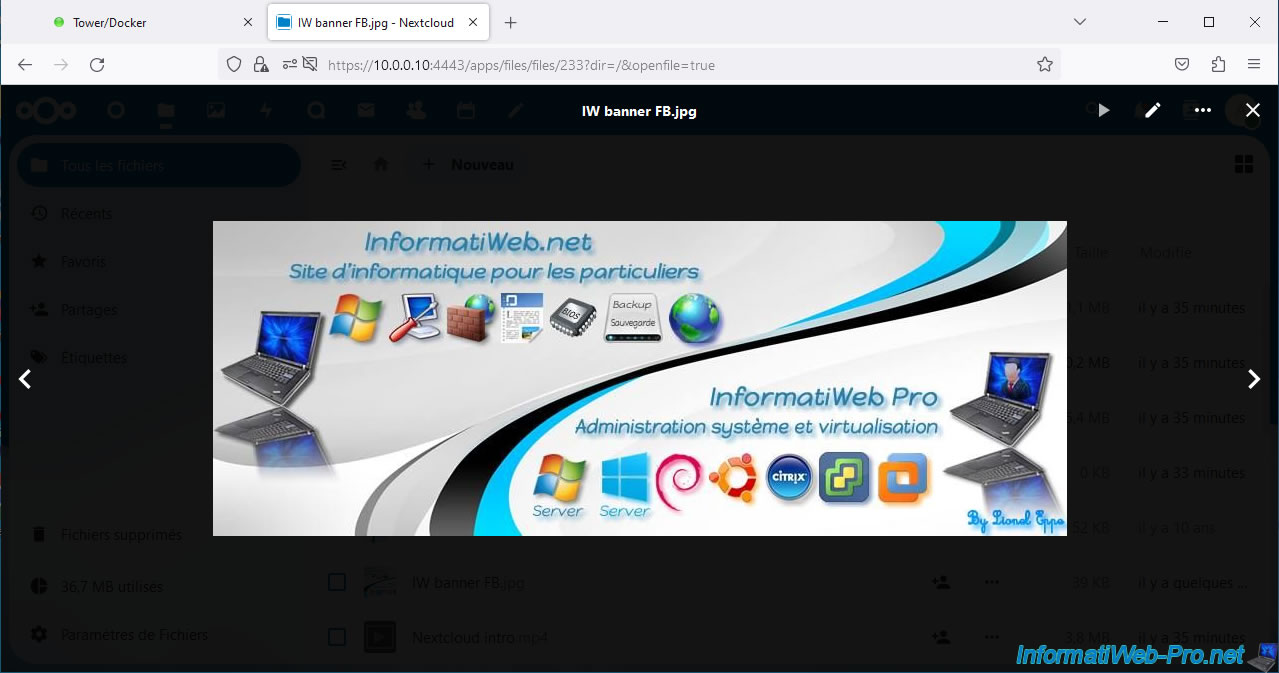
As expected, images can be opened directly in the Nextcloud interface.
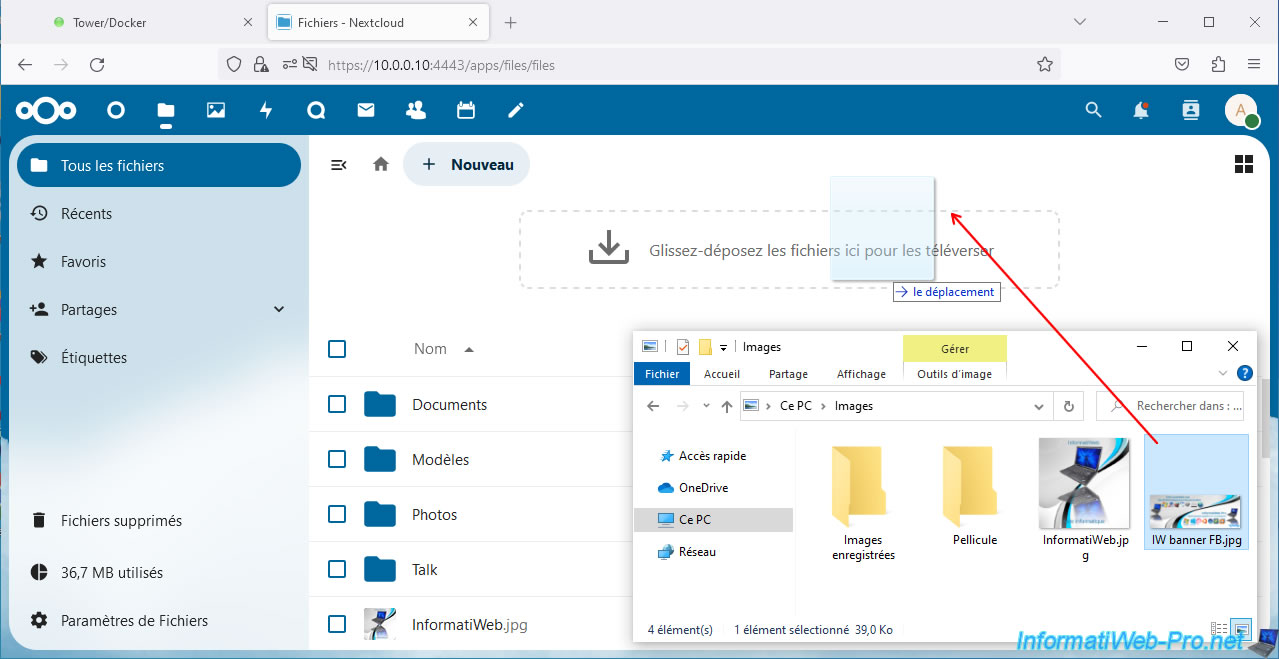
To add files to your Nextcloud server, you can also drag and drop them onto the Nextcloud page.
By dragging your files onto the Nextcloud page, a "Drag and drop files here to upload" box will appear.
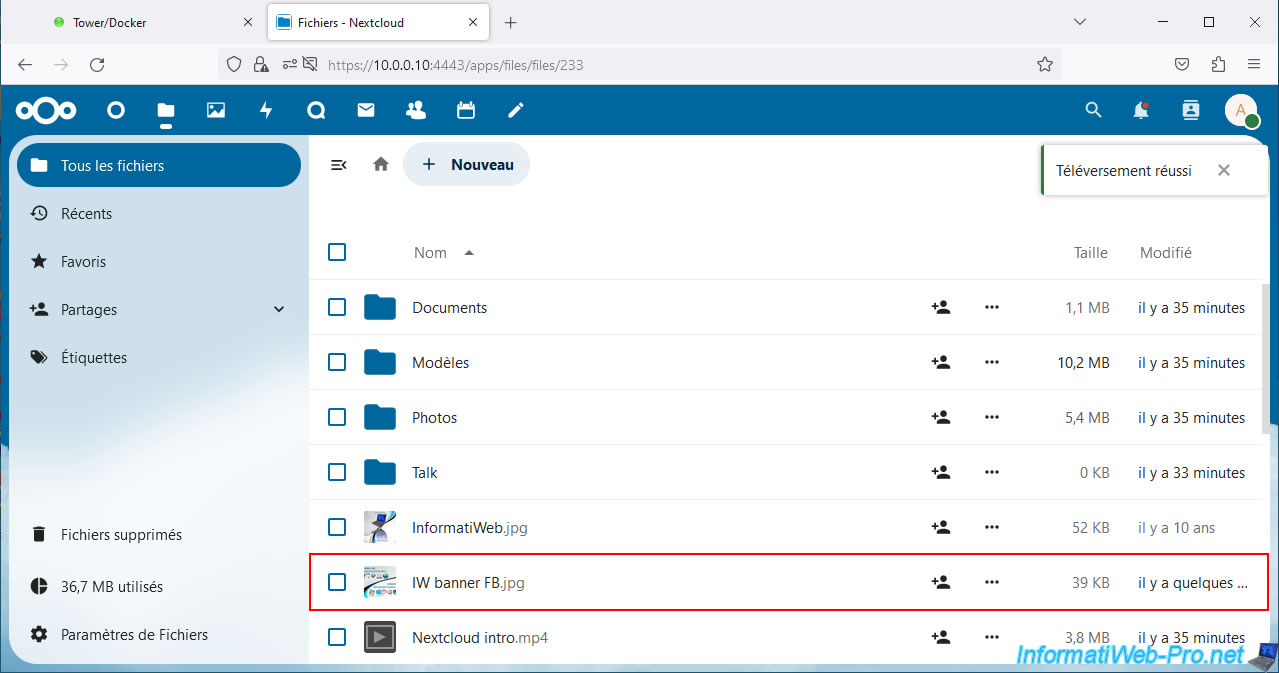
The dragged and dropped file(s) appear in the list and a "Successful Upload" notification appears at the top right.
As expected, you can see the image from the Nextcloud interface.
Share this tutorial
To see also
-
NAS 1/8/2026
Unraid 6.9.2 - Add a storage disk
-
NAS 4/23/2026
Unraid 6.9.2 - Docker - Install a media server (Plex)
-

NAS 11/26/2025
Unraid 6.9.2 - Manually install Unraid 6.9.2
-
NAS 8/5/2026
Unraid 6.9.2 - VMs - Manage your VMs with virt-manager (on Debian)
No comment