- NAS
- Unraid
- 11 February 2026 at 14:25 UTC
-

- 1/3

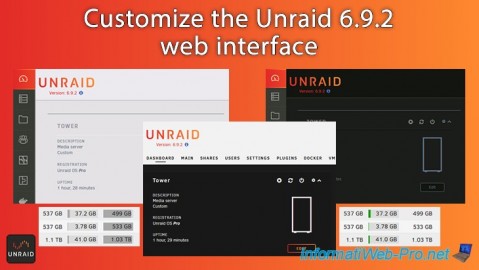
On Unraid, you can change the format of dates, numbers, the theme to use, ...
You can even display a banner at the top of the page (as was the case on old versions of Unraid) and personalize it as you wish.
- Change Unraid display settings
- Change date/time format
- Change the number display format
- Show sections of a page as tabs
- Show the array usage percentage at the top of the page
- Display and customize the banner at the top of the page on Unraid
- Display containers and/or VMs on the Unraid dashboard
- Use a dark theme or another theme on Unraid
- View used or free space in your array in color on Unraid
1. Change Unraid display settings
To change Unraid's display settings, go to the "Settings" tab.
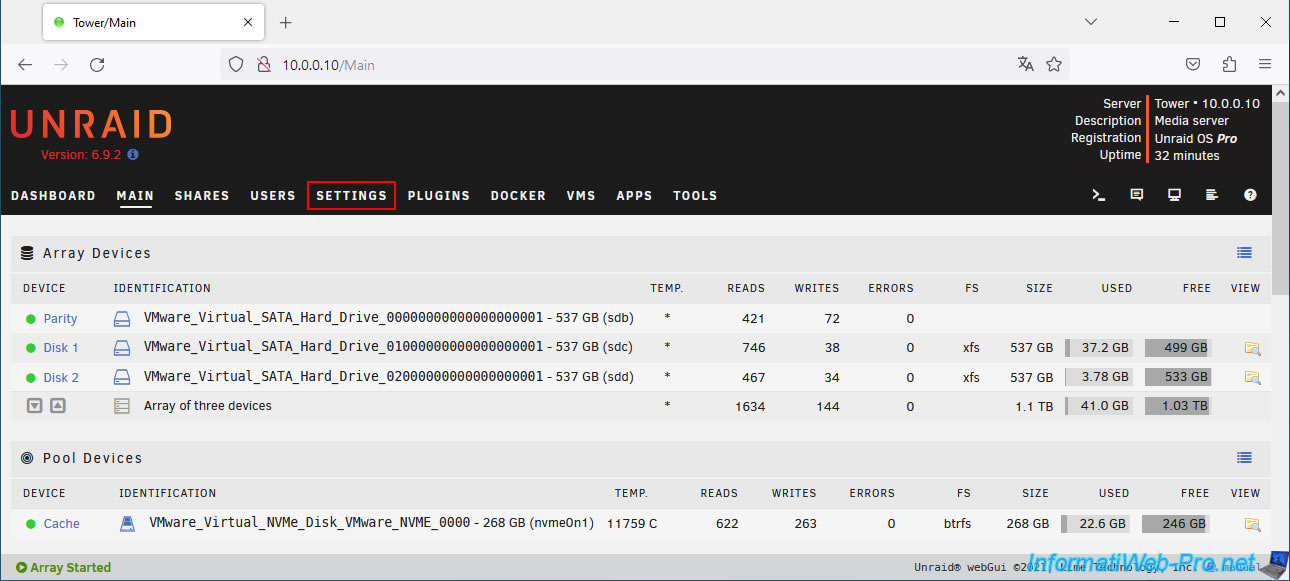
Then, in the "User Preferences" section, click: Display Settings.
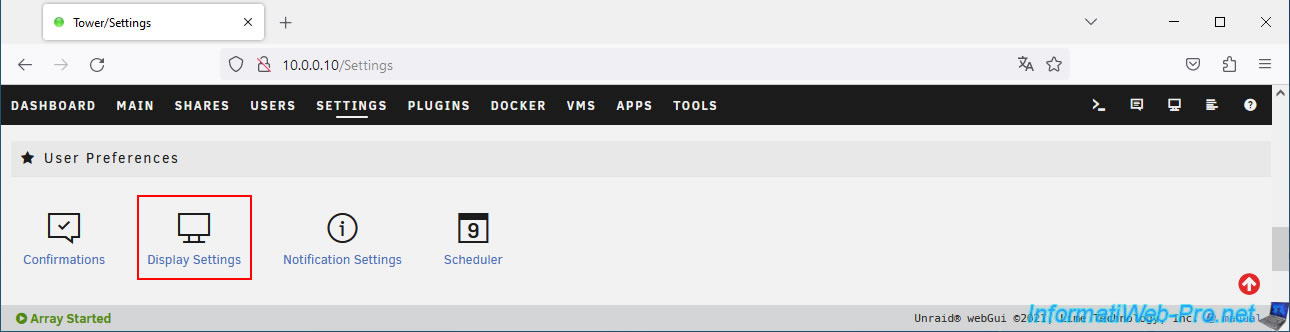
As you can see, you will be able to modify many display settings (Display Settings):
- Language: change the Unraid language.
However, this requires the installation of a language pack via the "Apps" tab of Unraid. Indeed, by default, the only language available is English. - Font size: change the text size.
- Date format: changes the date format (to use a French format, for example, instead of the original English format).
- Time format: if you choose a custom date format (other than "System Settings") above, you can choose to use "12 hour" mode (xx:xx:xx AM / PM) or 24 hour mode (ex : 23:59:59).
- Number format: change the format to use to display numbers (English format, French format, ...).
- Number scaling: by default, the storage unit (TB, GB, MB, ...) is chosen automatically according to the size to display.
But, you can force the unit to use to display sizes (for storage). - Page view: allows you to display all the sections one below the other on different pages (notably the "Main" tab) or display a tab list with the different sections of the page.
- Placement of Users menu: Displays the link to the "Users" page in the bar at the top of the page (default) or in the "User Preferences" section of the "Settings" page.
- Listing height: makes it easier to access the buttons for managing containers (in the "Docker" tab). Default: Automatic.
If you select "fixed", you will always have to scroll (even if the list is empty) to access the action buttons for Docker containers. This is not the case with the "Automatic" option. - Display device name: allows you to slightly change the display of device names. In particular the capital letter present or not at the beginning of the name.
- Display world-wide-name in device ID: allows you to display or not the WWN (World Wide Name) which is a unique identifier used by the SAS device after the device name.
- Display array totals: allows you to display or not the totals for the array (array) in the "Main" tab.
For example: the total size of the array (except the cache), the used or free space on the array, ... - Show array utilization indicator: allows you to display or not the percentage of storage space used on your array at the top of all pages.
This allows you to very easily monitor the space used on your server without having to go to the "Main" tab. - Header custom text color: allows you to change the color of the text used at the top of the page.
This allows you to use a text color that will be more suited to your banner at the top of the page, if you decide to put one via the "Show banner" setting on this page. - Header custom background color: allows you to change the background color of the header (top of page).
By default, the background is black on the White theme used by Unraid by default. - Show banner: allows you to display or not a banner at the top of the page instead of the black banner (visible in the image below).
- Custom banner: allows you to change the banner to use at the top of the page (if the parameter above is configured to "Yes").
- Show Dashboard apps: allows you to choose the applications to display on the Unraid dashboard.
By default, Dockers containers and virtual machines are displayed.
But you can also choose to display only Dockers containers, only virtual machines or neither. - Dynamix color theme: allows you to change the theme to use for the Unraid interface.
As you will see in the rest of this tutorial, you will find dark themes, a light theme and an Azure theme (pre-installed). - Used / Free columns: allows you to adjust the display of the "Used" (used disk space) and "Free" (free space) values visible in the "Main" tab.
- Temperature unit: allows you to choose the unit to use for the temperatures.
In France and Belgium, you will use the "Celsius" unit (°C). While the English use the unit "Fahrenheit" (°F).
Note: to restore these display settings to their default values, simply click on the "Default" button visible at the bottom of the page.
Sources :
- Move Docker control buttons to the top above the list of containers - Feature Requests - Unraid
- Don't auto-capitalise the first letter of Pool device names in the UI (cosmetic change request) - Feature Requests - Unraid
2. Change date/time format
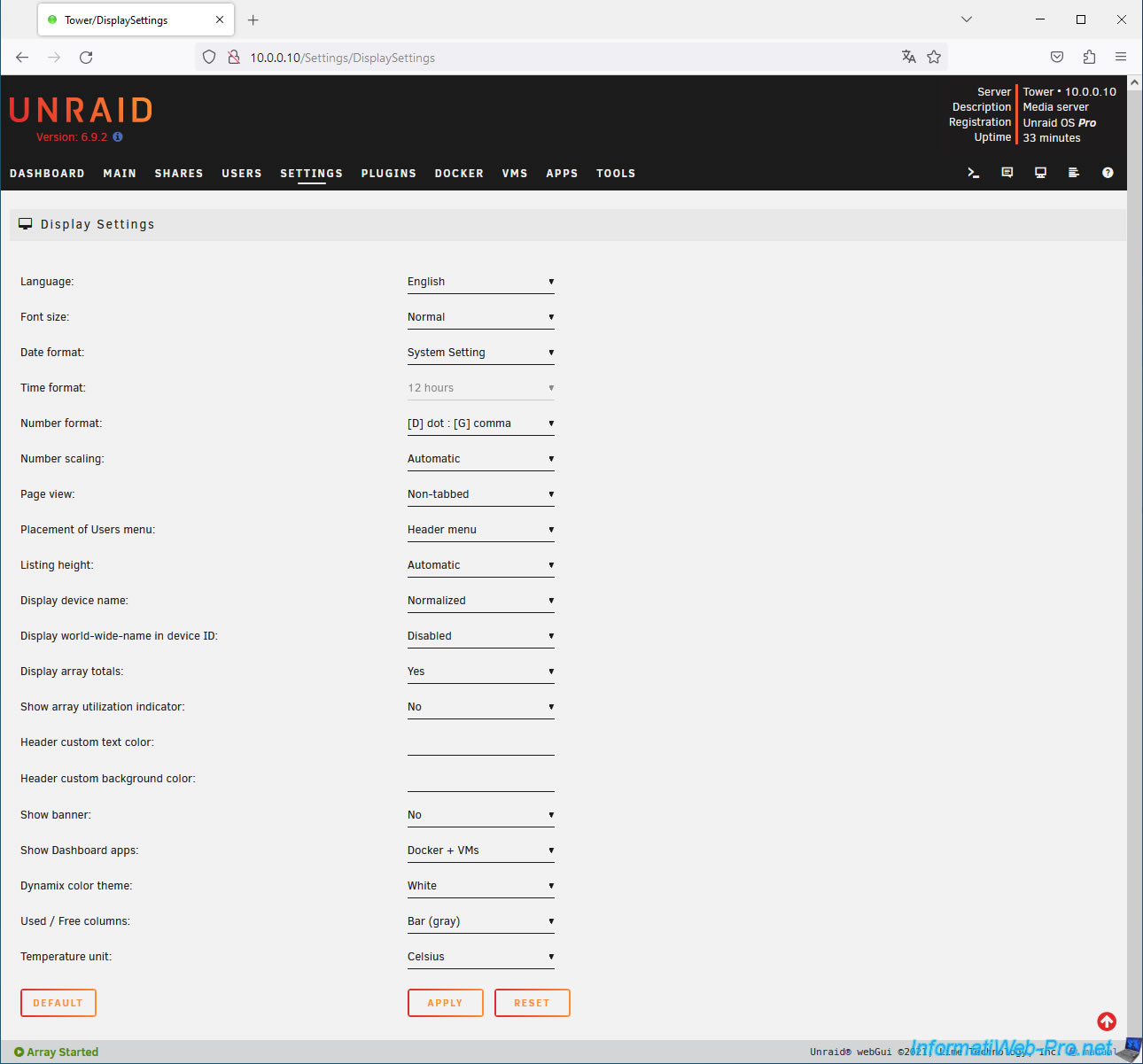
By default, system settings are used.
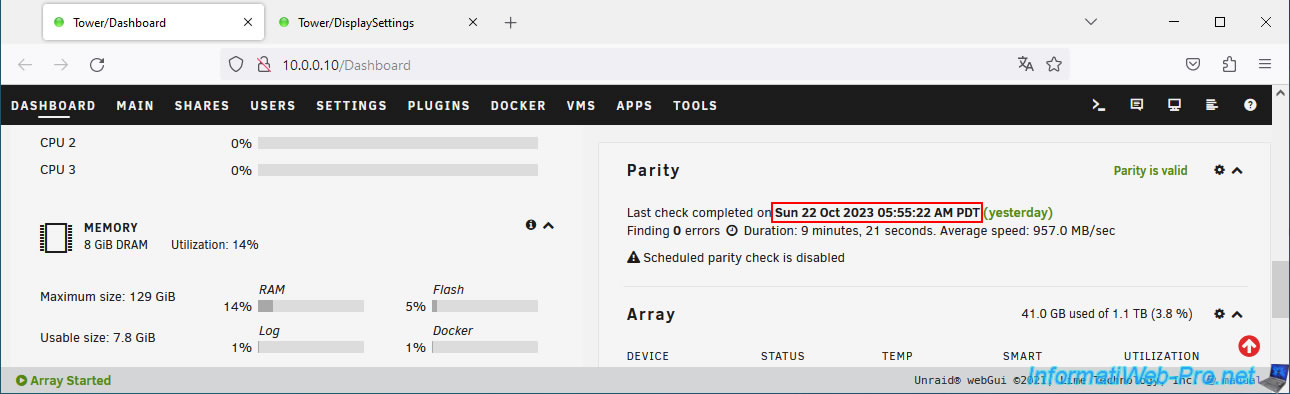
So, the dates are displayed in English and in 12 hour format (hence the presence of "AM" or "PM" after the date/time displayed on the Unraid pages).
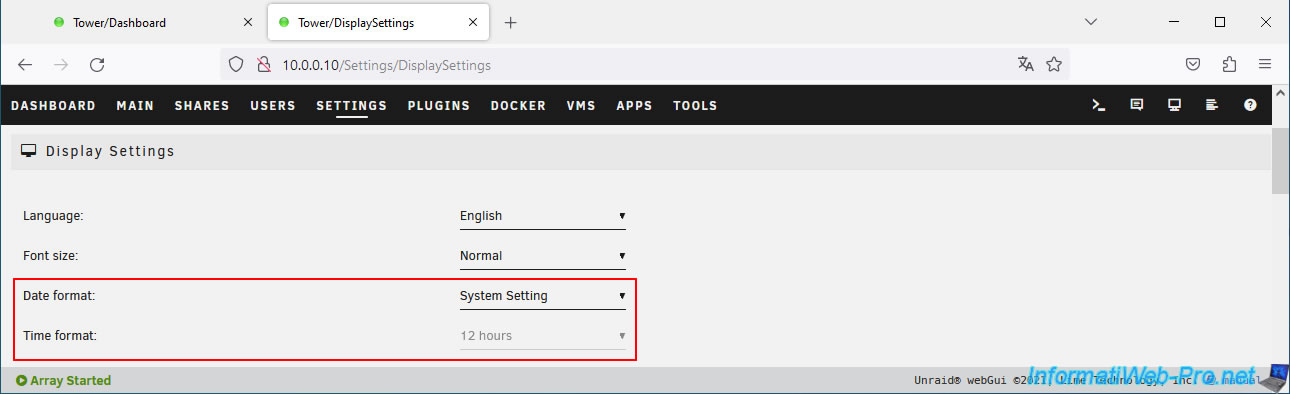
By default, dates are displayed in this form (see image).
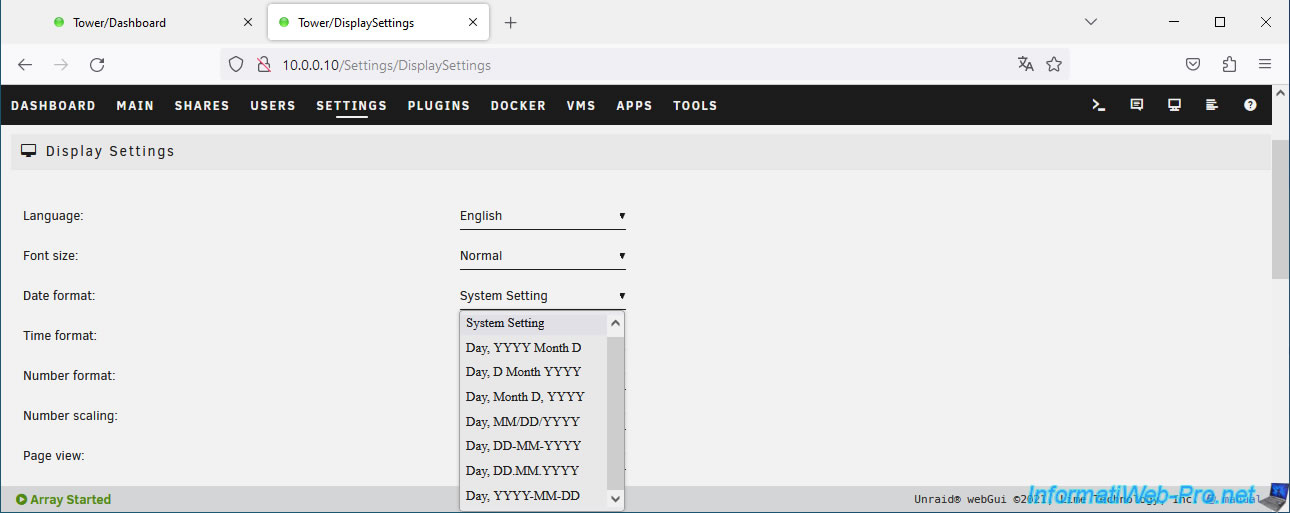
In the "Date format" list, you will find English formats (Day, YYYY Month D, Day, MM/DD/YYYY, ...) and French formats (Day, DD-MM-YYYY, Day, DD.MM .YYYY, ...).
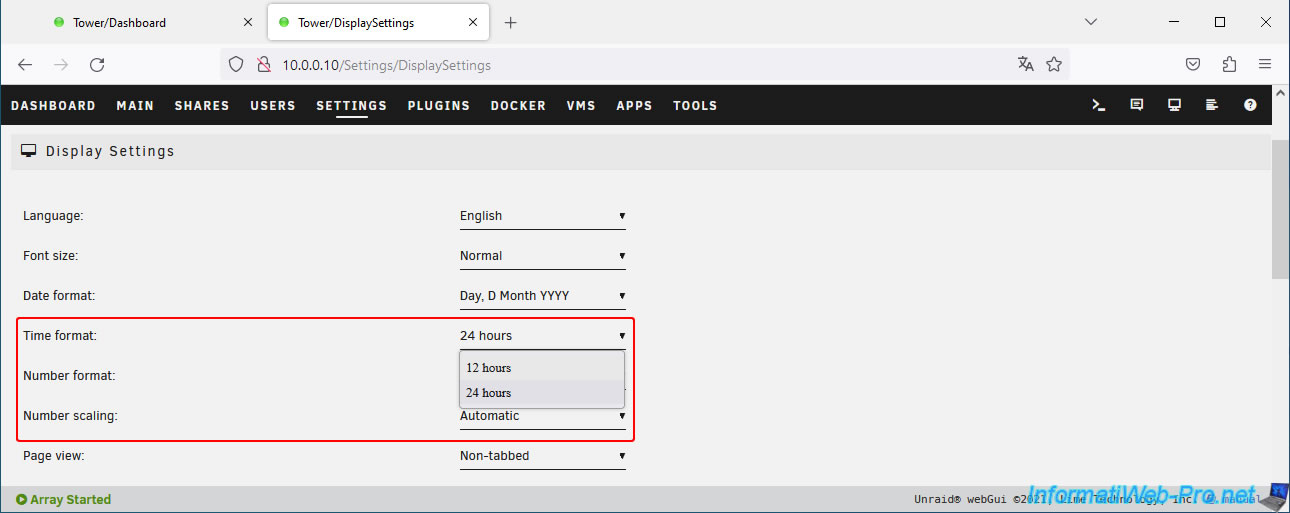
Once you have chosen a custom date format (other than "System Setting"), you can choose to use the "12 hours" or "24 hours" format.
As you will have understood, the "12 hours" format means the display of "AM" (for the morning) and "PM" (for the evening). While the 24 hour format will be displayed as is (ex: 23:59:59).
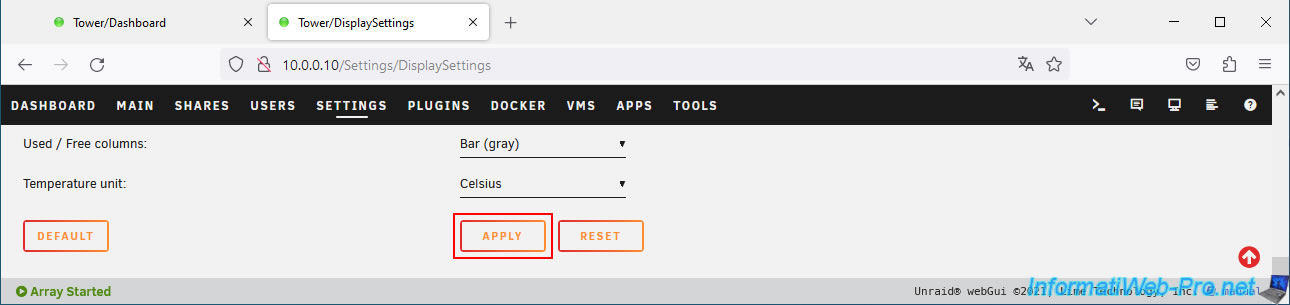
Once you have changed the settings you want, remember to click "Apply" to apply the changes.
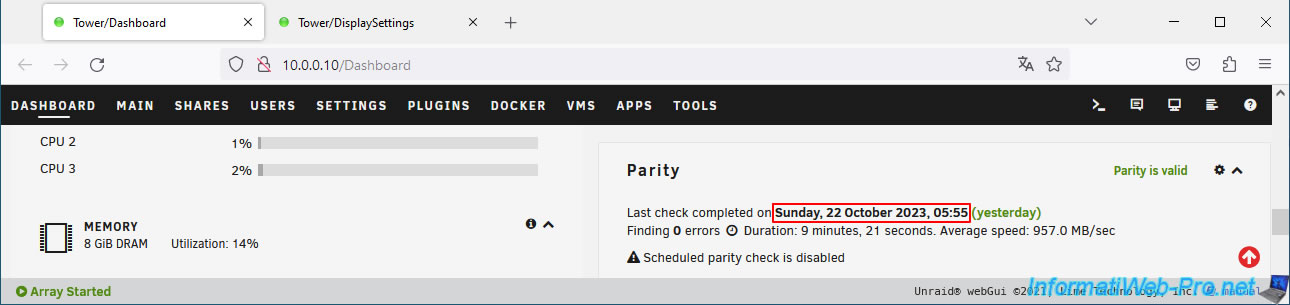
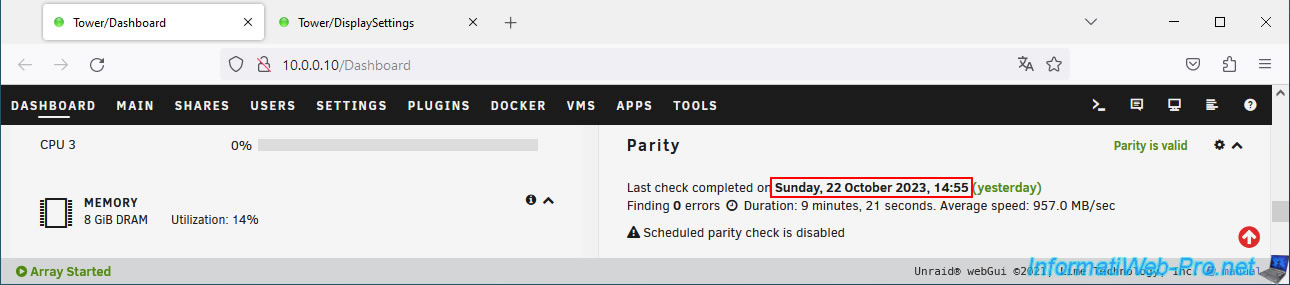
On the dashboard (for example), you will see that the date format in the "Parity" section has changed.
On the other hand, you may notice that the time does not correspond with reality. This is due to the time zone used by Unraid by default.
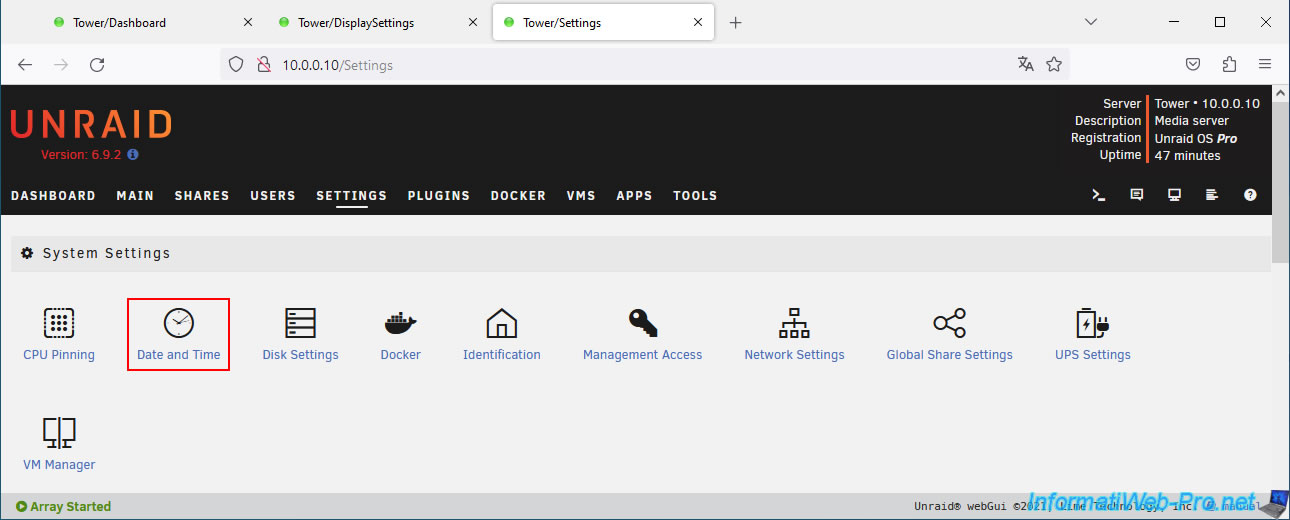
To change the time zone used by your Unraid server, go to: Settings -> System Settings -> Date and Time.
As you can see, the time zone used by default is "UTC-08:00" (which corresponds to the United States).
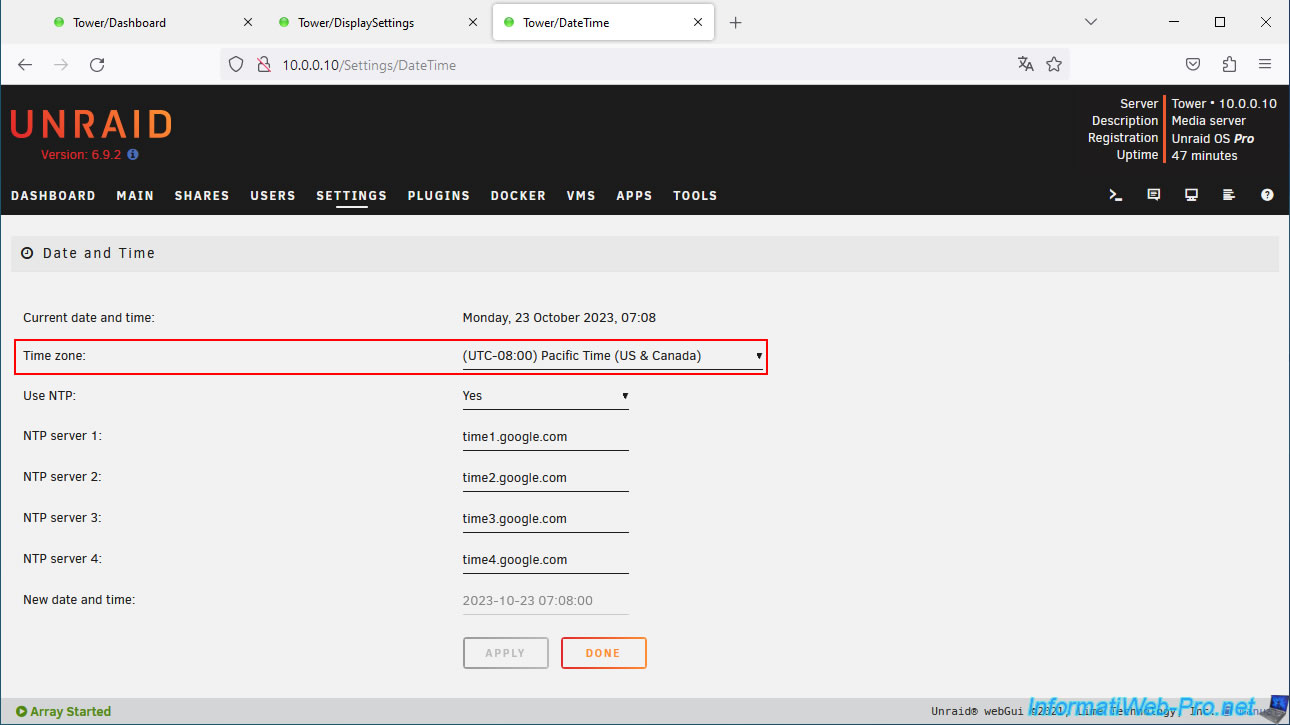
For France and Belgium, select the time zone "(UTC+01:00) Brussels, Copenhagen, Madrid, Paris" in the "Time zone" list.
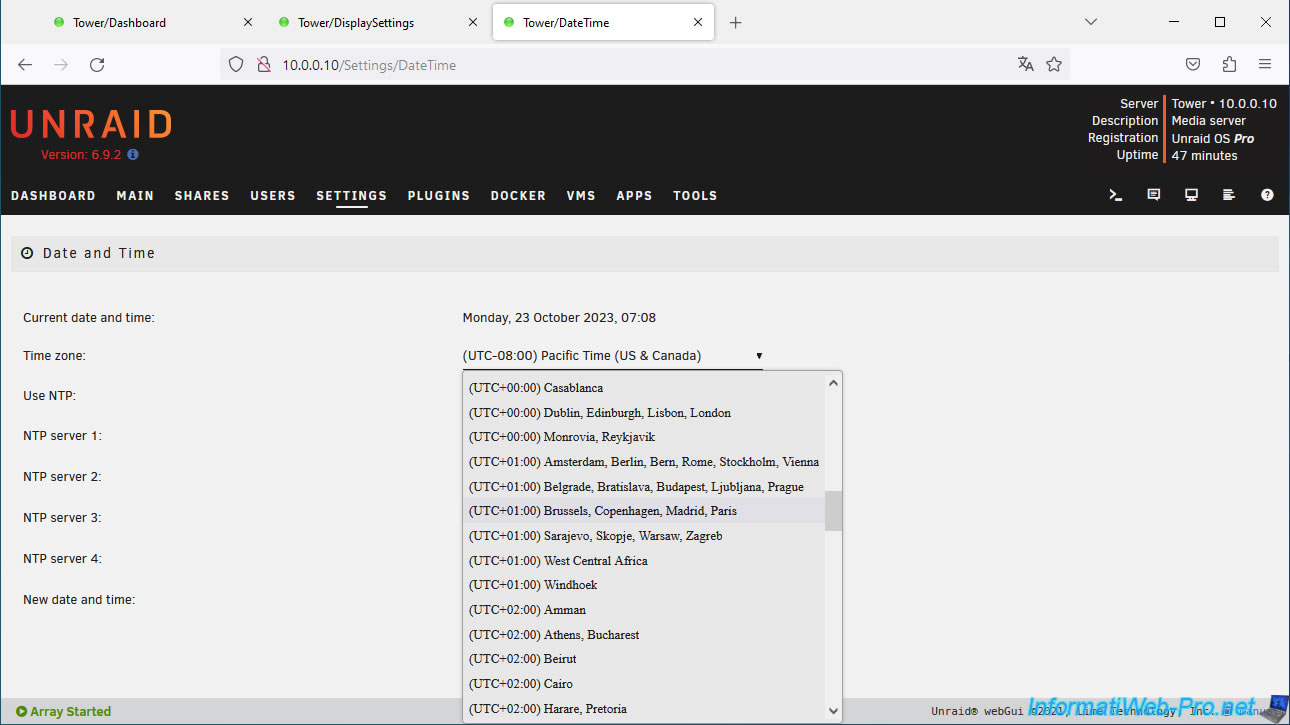
Once your time zone is selected, click Apply.
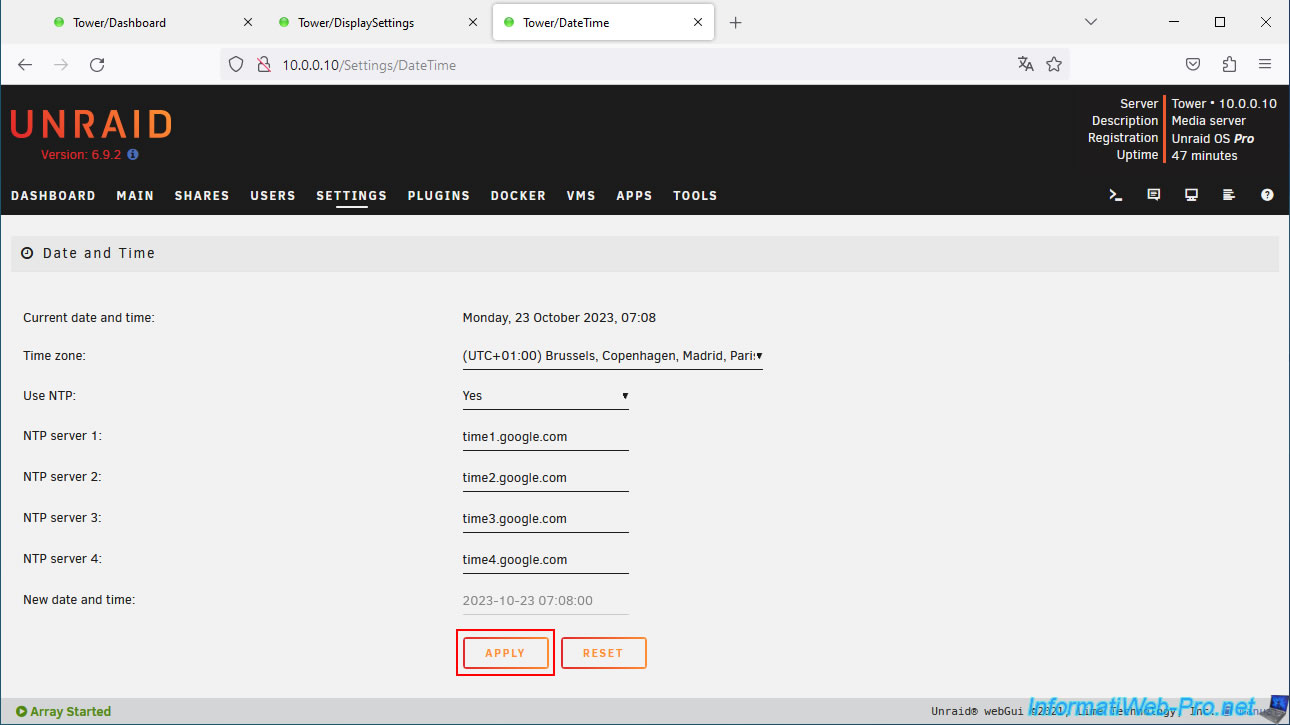
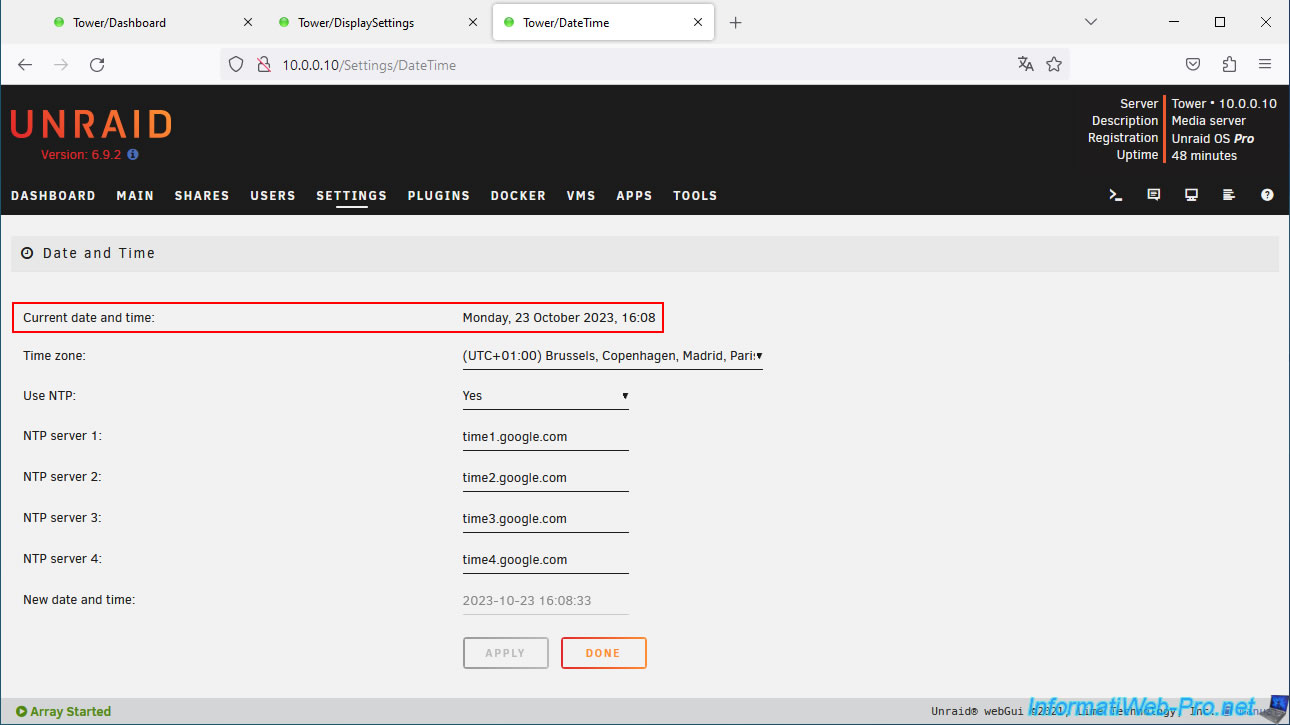
As you can see, the current date/time displayed by Unraid now correctly matches your date/time.
On the Unraid dashboard, the date displayed is now correct.
3. Change the number display format
By default, decimal numbers are displayed with a period (English format) instead of a comma (French format).
You can see this in the "Main" tab, for example.
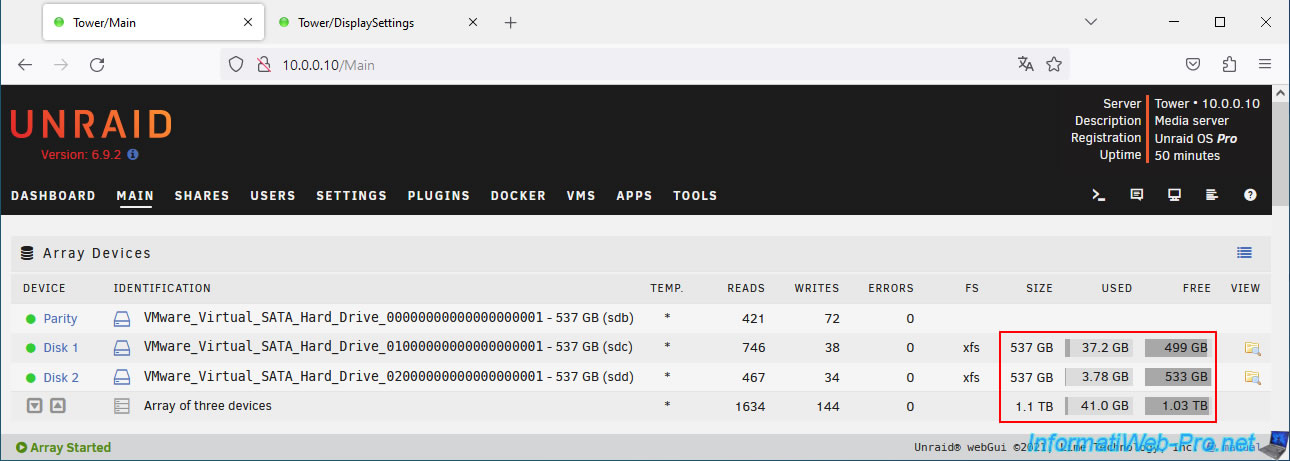
To change the display format of numbers, you must modify the "Number format" parameter available in the display settings (Settings -> User Preferences -> Display Settings).
By default, the format used: [D] dot: [G] comma.
Note: [D] is used for decimals and [G] for thousands. Which gives for example: 40,959.53 GB in English (which corresponds to 40,959.53 in French).
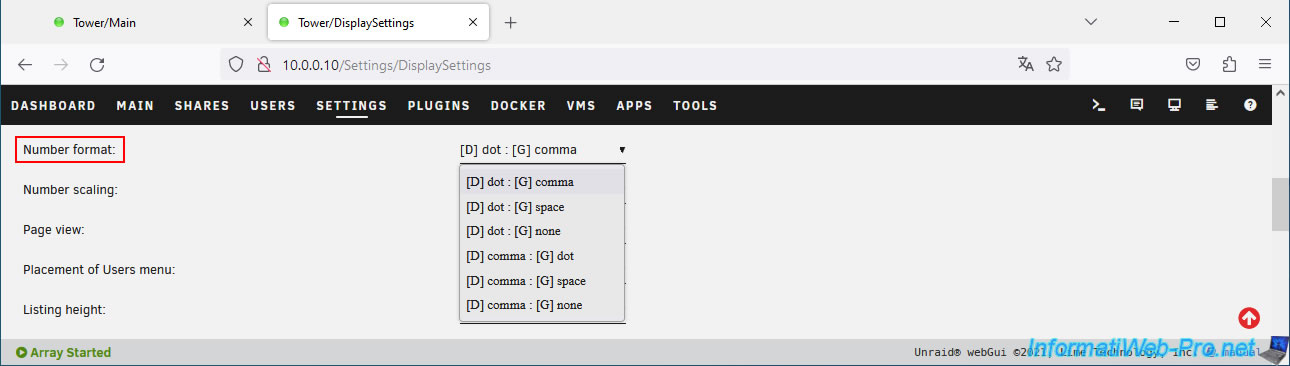
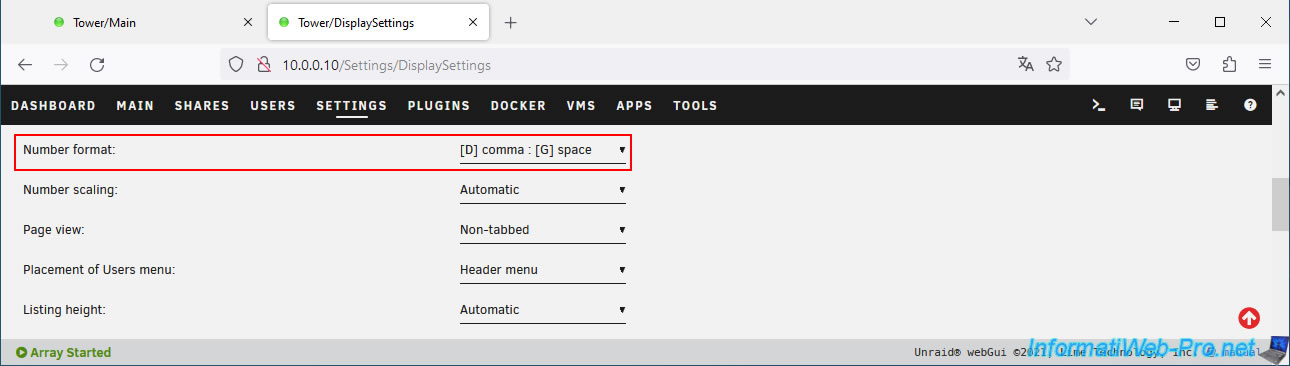
To display numbers as you usually see them on a French interface, select "[D] comma: [G] space".
Which means Unraid will use a comma for decimals and a space for thousands.
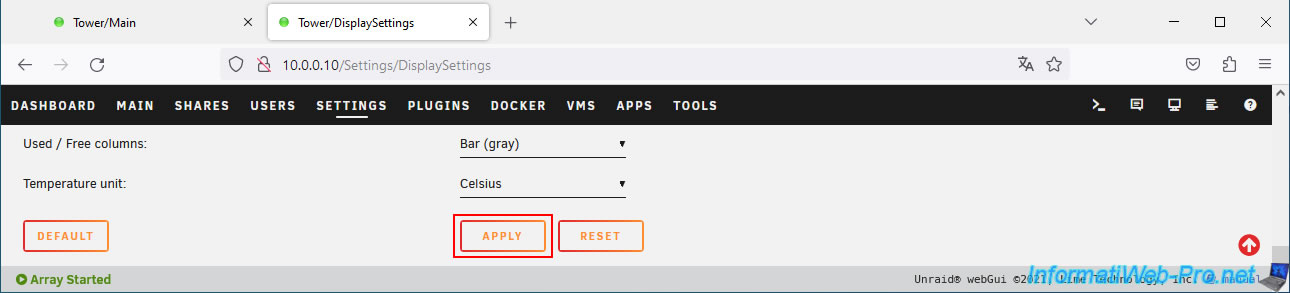
At the bottom of the page, click Apply.
As expected, sizes are displayed with a comma for decimal places instead of a period.
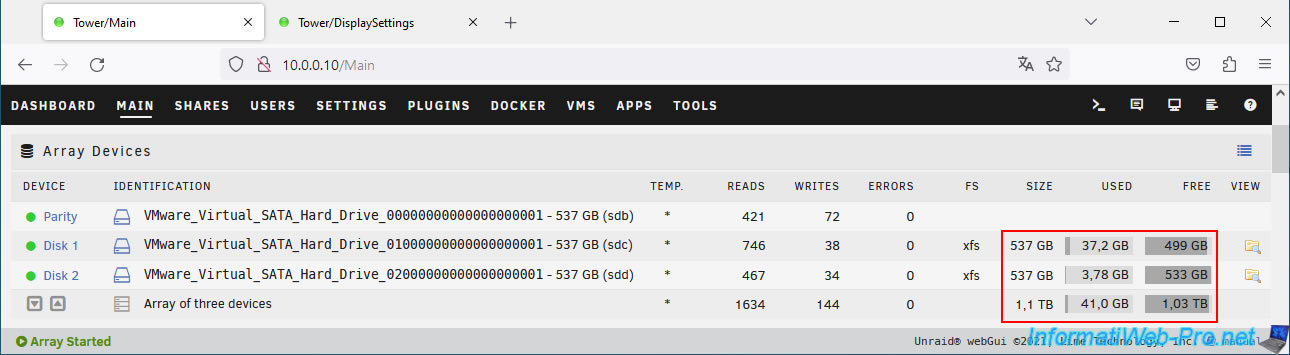
By default, the unit for sizes is automatically selected for easier reading.
But you can force the unit to use using the "Number scaling" setting.
The possible values are:
- Automatic: choice of unit optimized for the size to display.
Default value. - Disabled: displays all sizes in bytes (which will display a lot of numbers for disks in the array, in particular).
- KB, MB, GB, TB and PB: displays all sizes using the chosen unit.
Note: 1 PB = 1024 TB, 1 TB = 1024 GB, ...
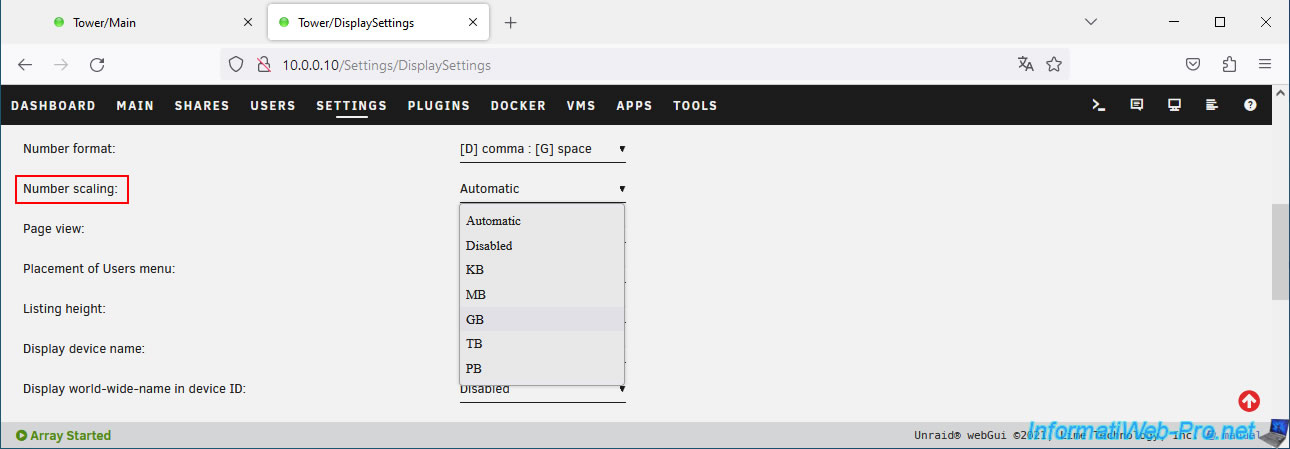
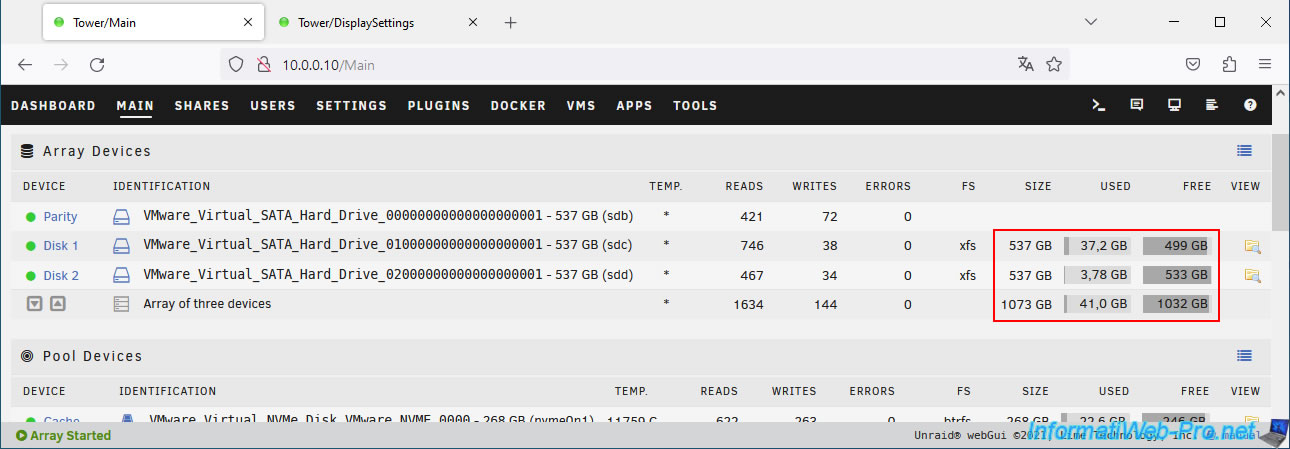
As you can see, in this case we have selected the unit "GB".
The total size displayed for our array is therefore 1073 GB instead of 1.1 TB.
Share this tutorial
To see also
-
NAS 1/1/2026
Unraid 6.9.2 - Disable flash network sharing
-
NAS 4/1/2026
Unraid 6.9.2 - Docker - Install a file explorer (CloudCommander)
-
NAS 4/15/2026
Unraid 6.9.2 - Docker - Install a file server (Nextcloud)
-
NAS 5/20/2026
Unraid 6.9.2 - SWAG - Locally access the reverse proxy (SWAG) via NAT reflection
You must be logged in to post a comment