Customize the Unraid 6.9.2 web interface
- NAS
- Unraid
- 11 February 2026 at 14:25 UTC
-

- 3/3

7. Display containers and/or VMs on the Unraid dashboard
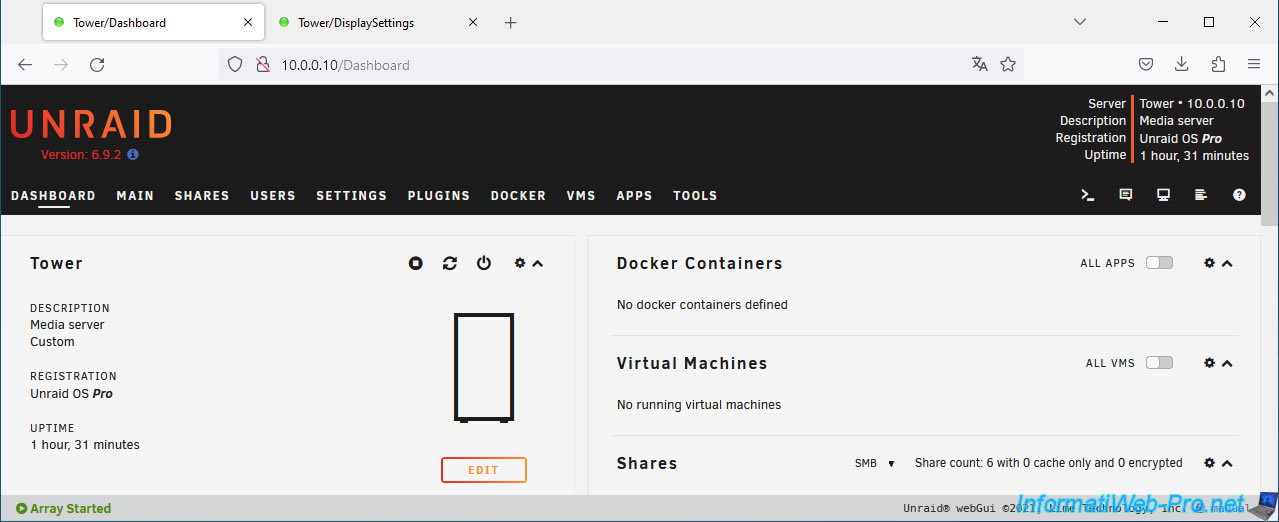
To choose the "applications" you want to display on the Unraid dashboard, you must configure the "Show Dashboard apps" display setting.
By default, the selected option is "Docker + VMs".
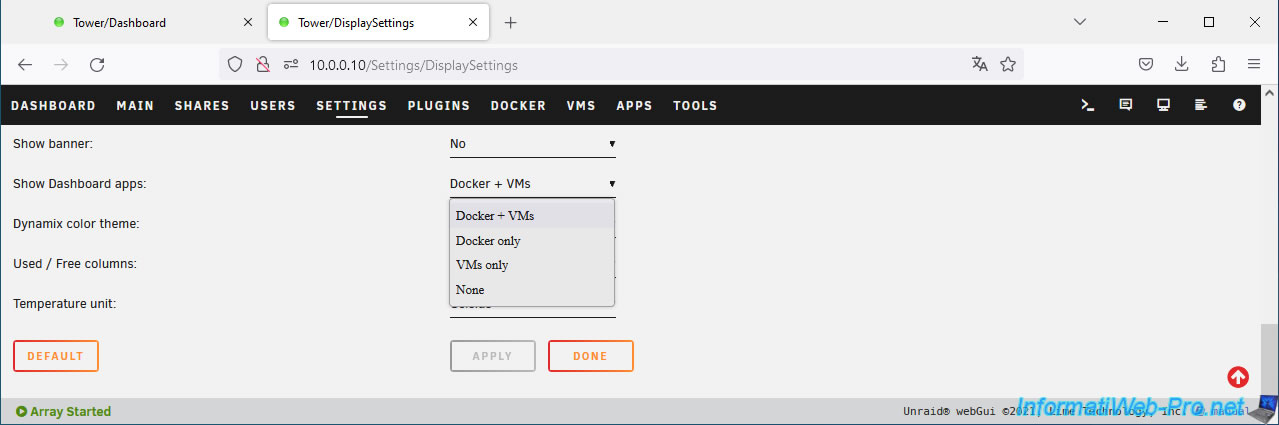
You therefore see the 2 sections ("Docker Containers" and "Virtual Machines") appear at the top of the Unraid dashboard.
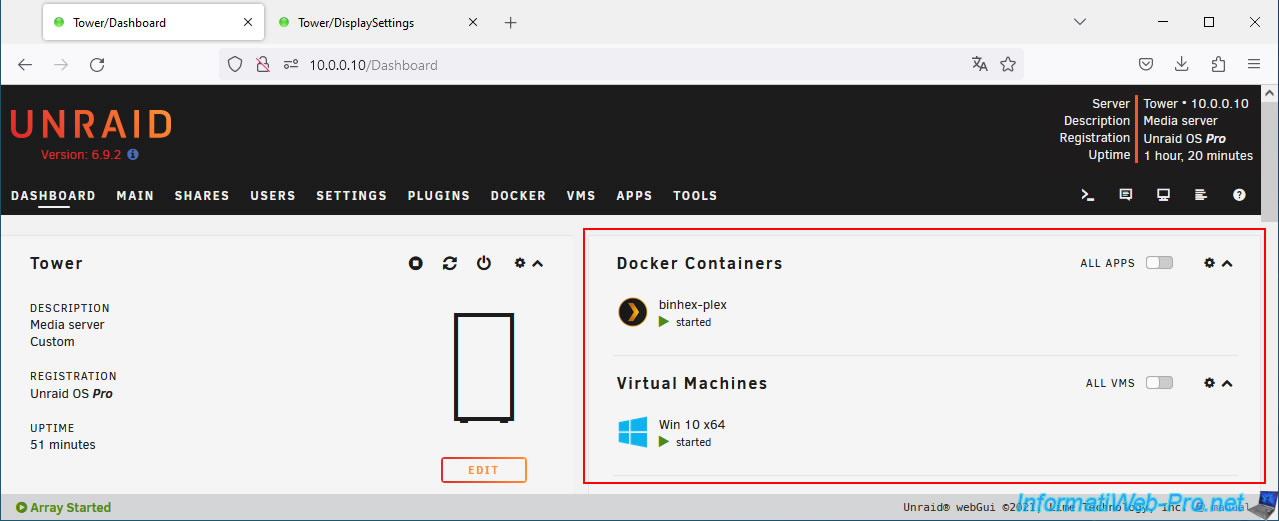
To display only Docker containers, select the "Docker only" value for the "Show Dashboard apps" setting.
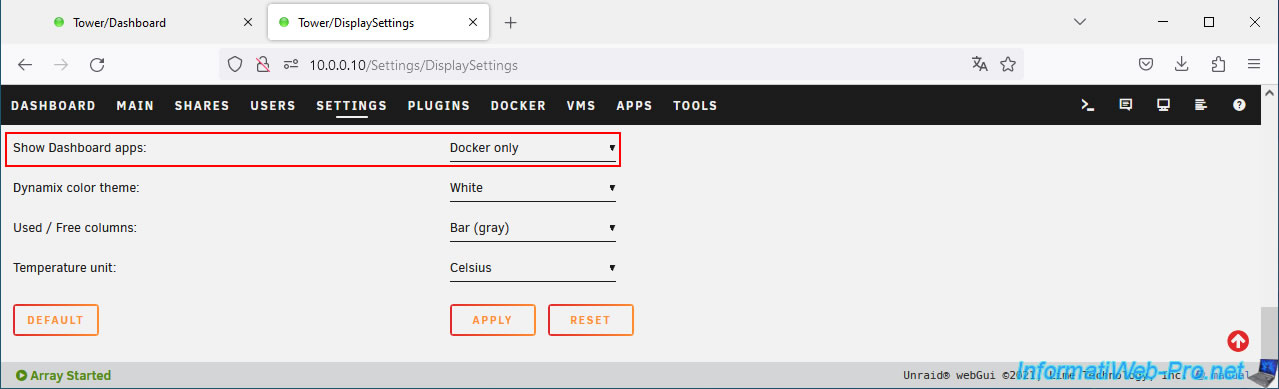
As expected, only the "Docker Containers" section appears on the Unraid dashboard.
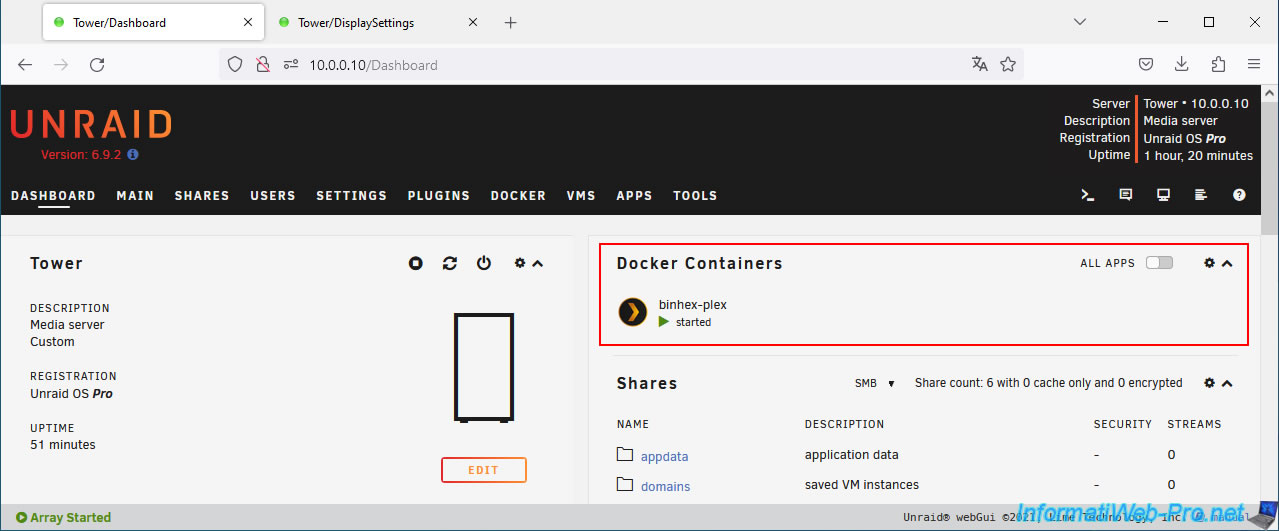
If you want to display only virtual machines (VMs) on the Unraid dashboard, select the "VMs only" value for the "Show Dashboard apps" parameter.
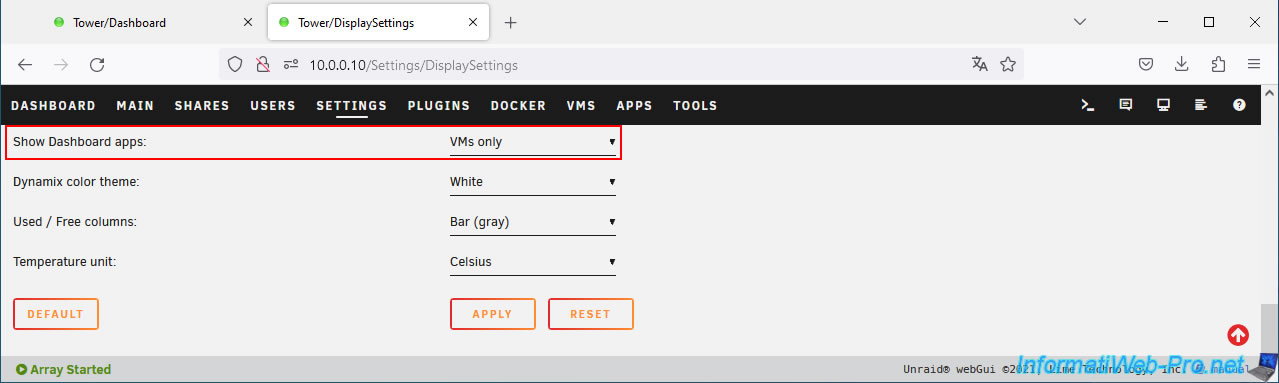
This time, only the "Virtual Machines" section appears on the dashboard of your Unraid server.
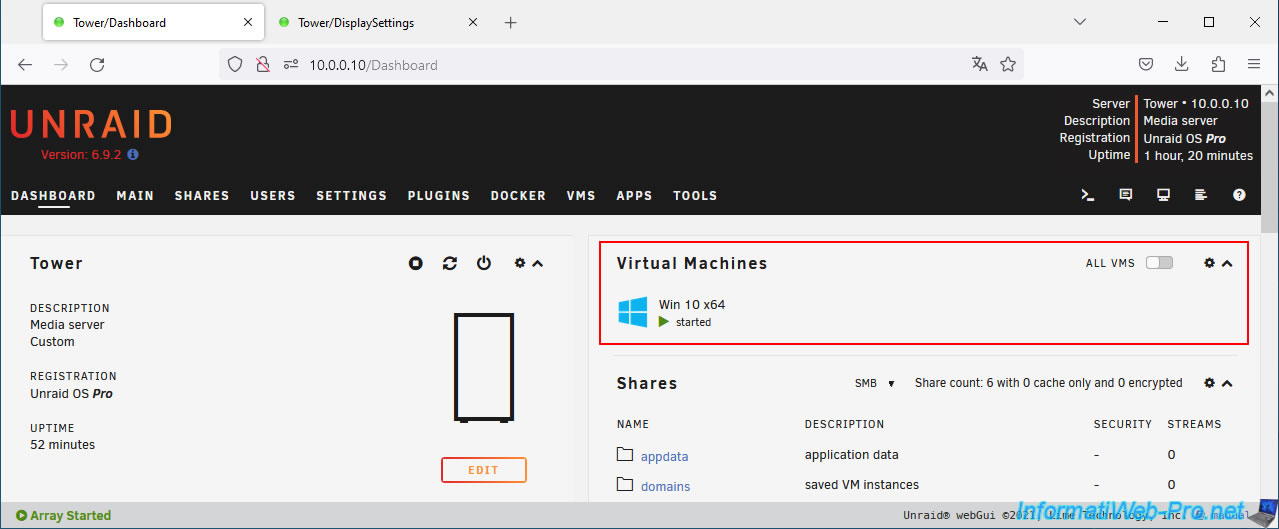
Finally, to display neither Docker containers nor virtual machines, select the "None" option for this "Show Dashboard apps" setting.
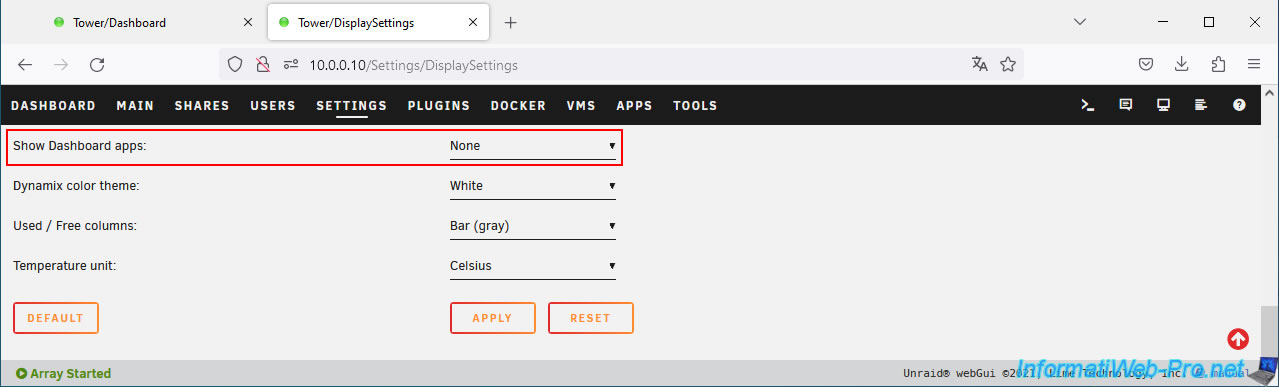
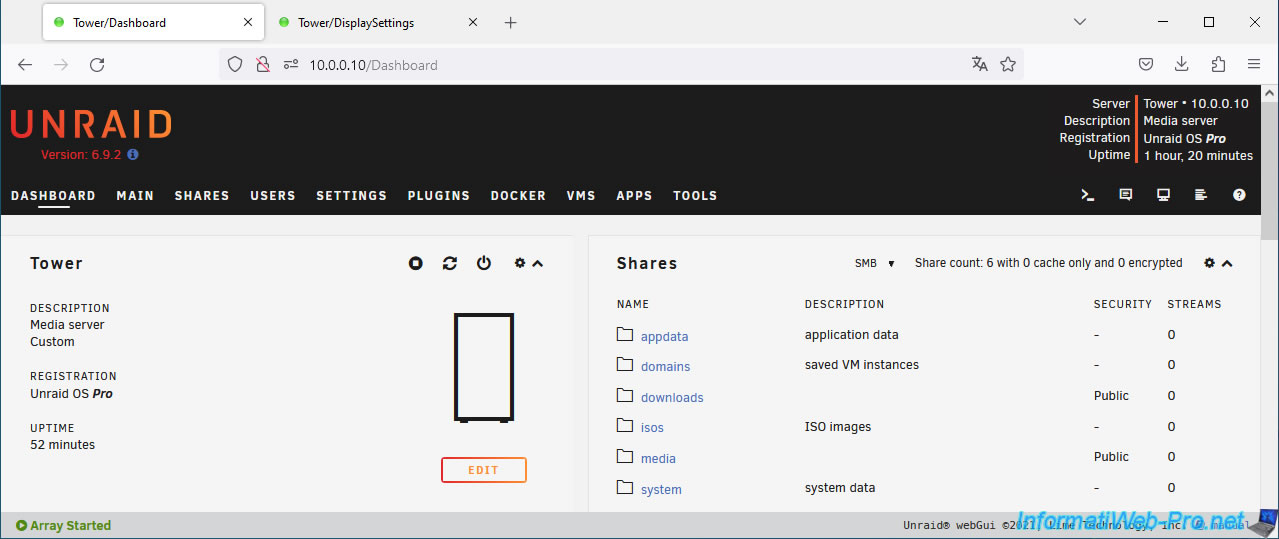
As you can see, no Docker container or virtual machine appears on your dashboard.
8. Use a dark theme or another theme on Unraid
By default, 4 themes are available on Unraid:
- Azure
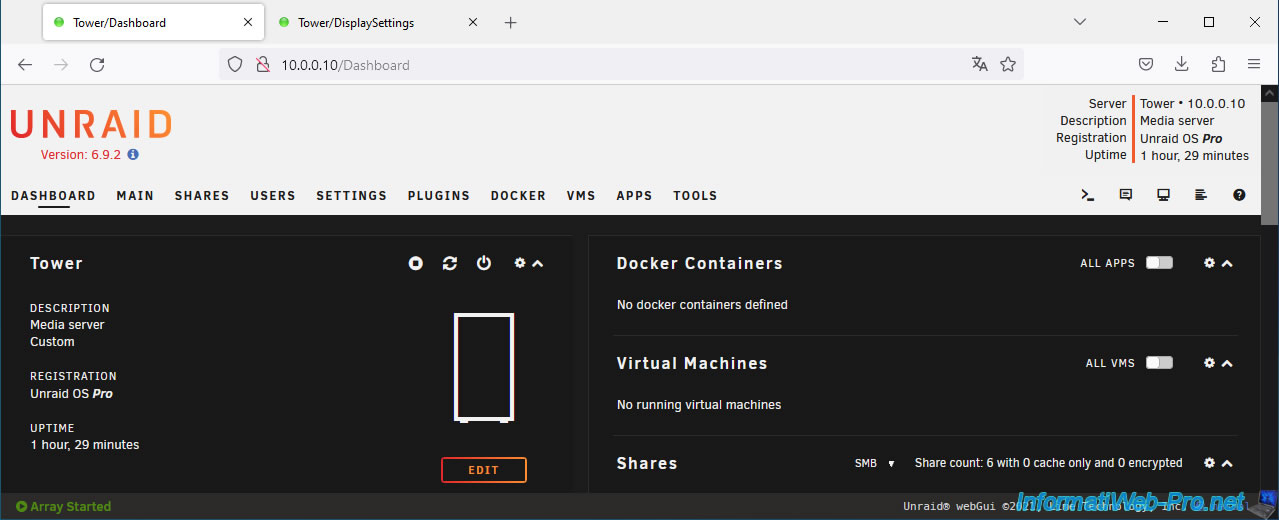
- Black: a dark theme with the same structure as the light theme (White).
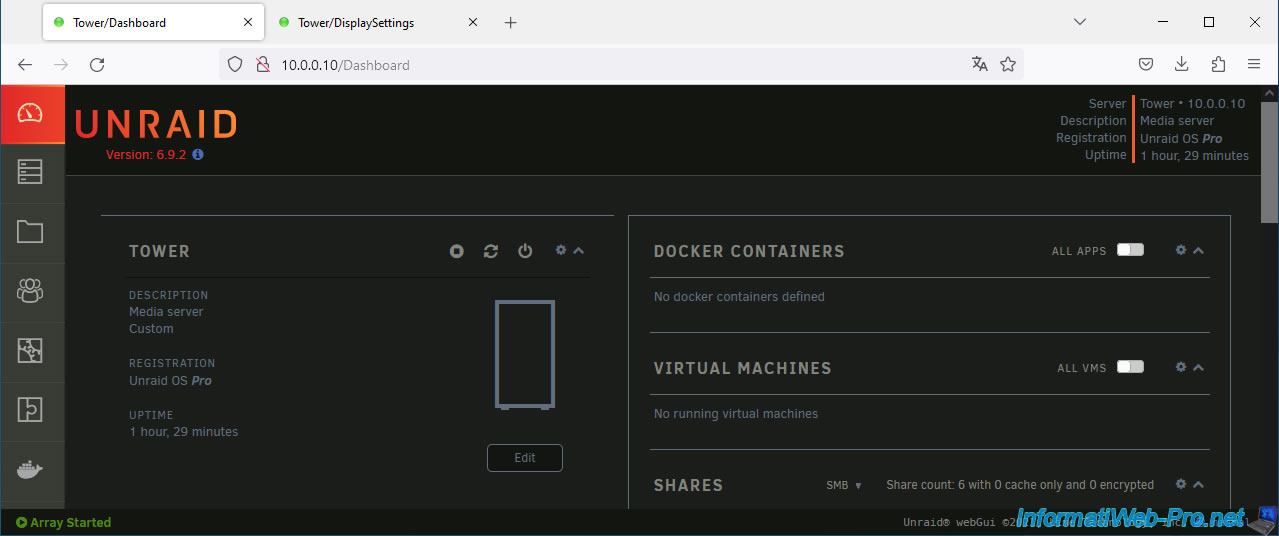
- Gray: the dark version of Unraid's Azure theme.
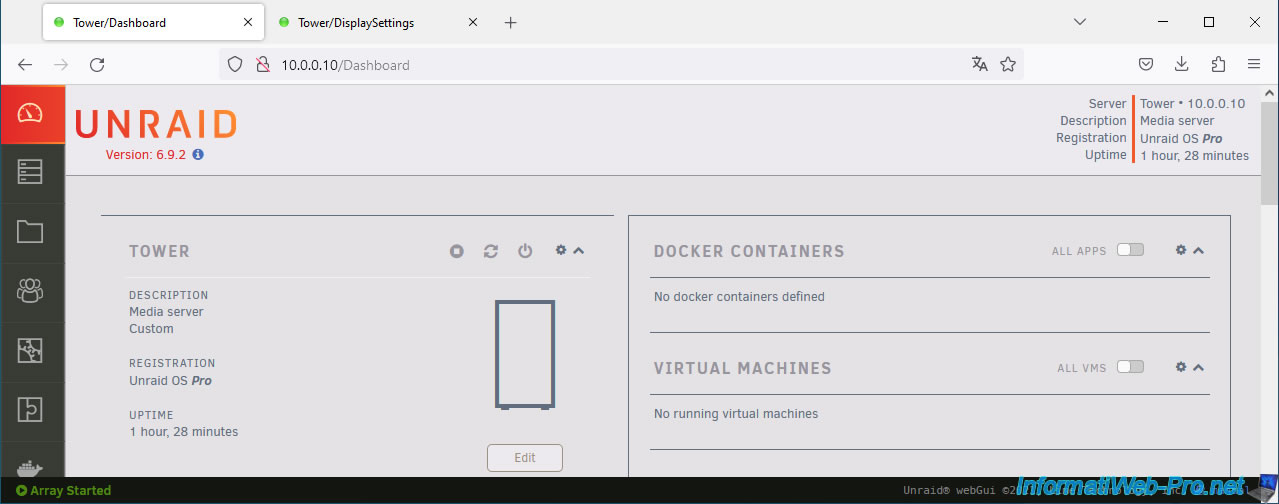
- White: the light theme used by Unraid by default.
To use a dark theme or another pre-installed theme in Unraid, change the value of the "Dynamix color theme" display setting.
Note: again, the display settings are available in "Settings -> User Preferences -> Display Settings".
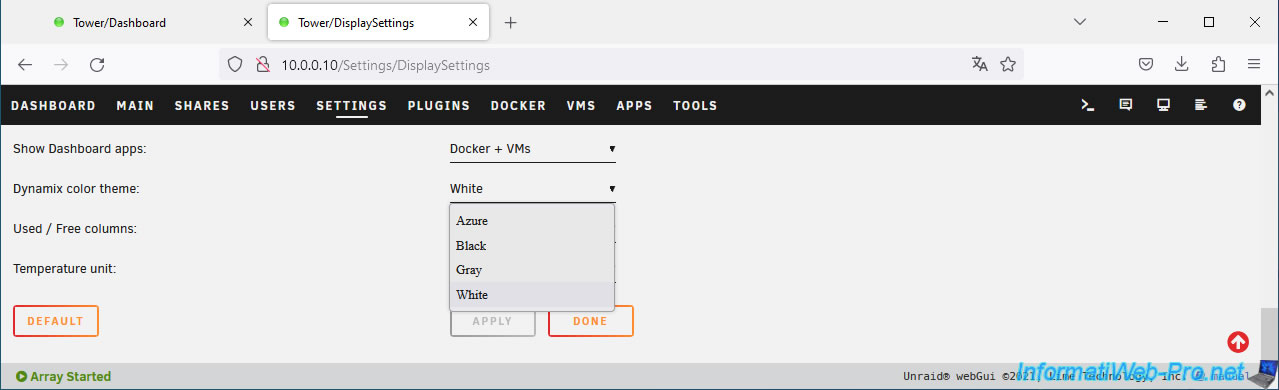
To get started, you can use the "Azure" theme.
Unraid's "Black" theme is the dark version of the "White" theme.
The "Gray" theme is the dark version of Unraid’s "Azure" theme.
Finally, the "White" theme is the light theme used by default by Unraid.
9. View used or free space in your array in color on Unraid
By default, the bars indicating used and free space on your disks and on the array are gray.
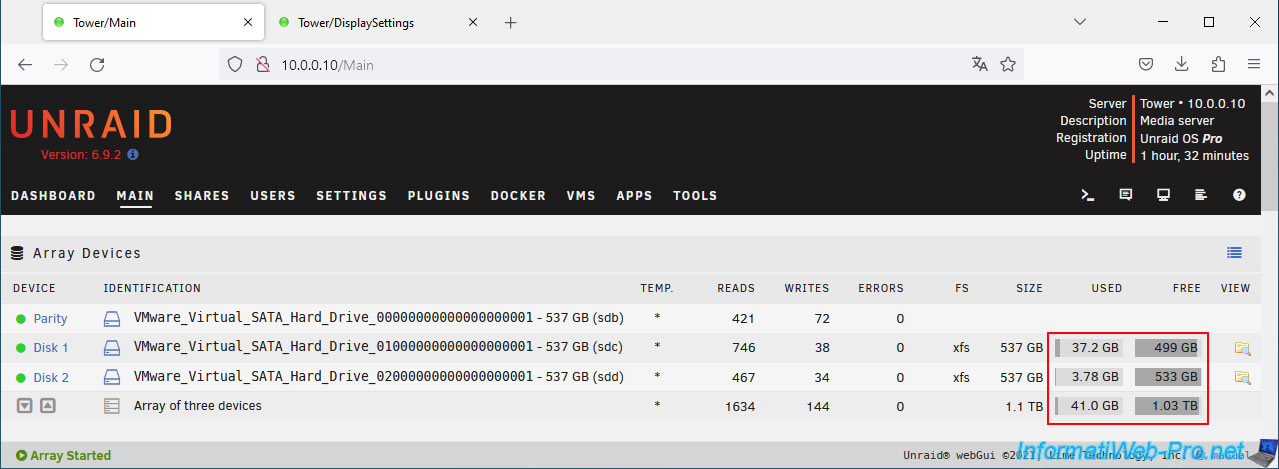
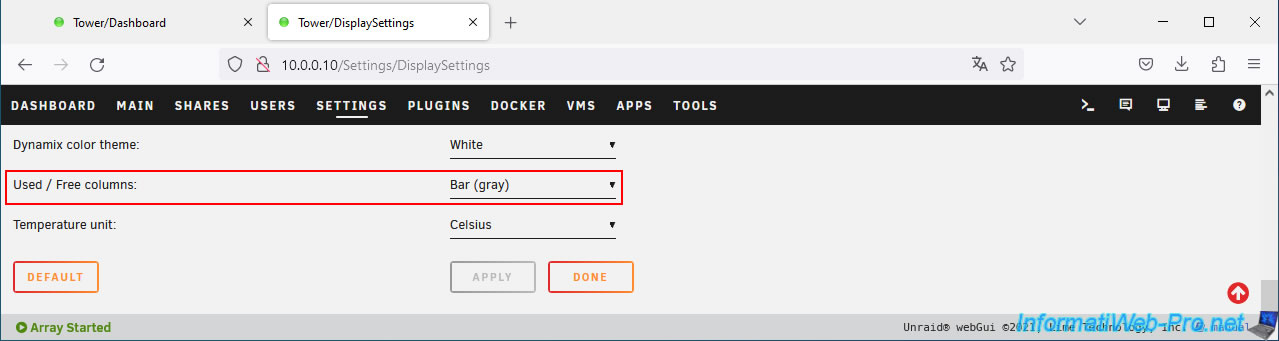
This can be changed via the "Used / Free columns" display setting which defaults to "Bar (Gray)".
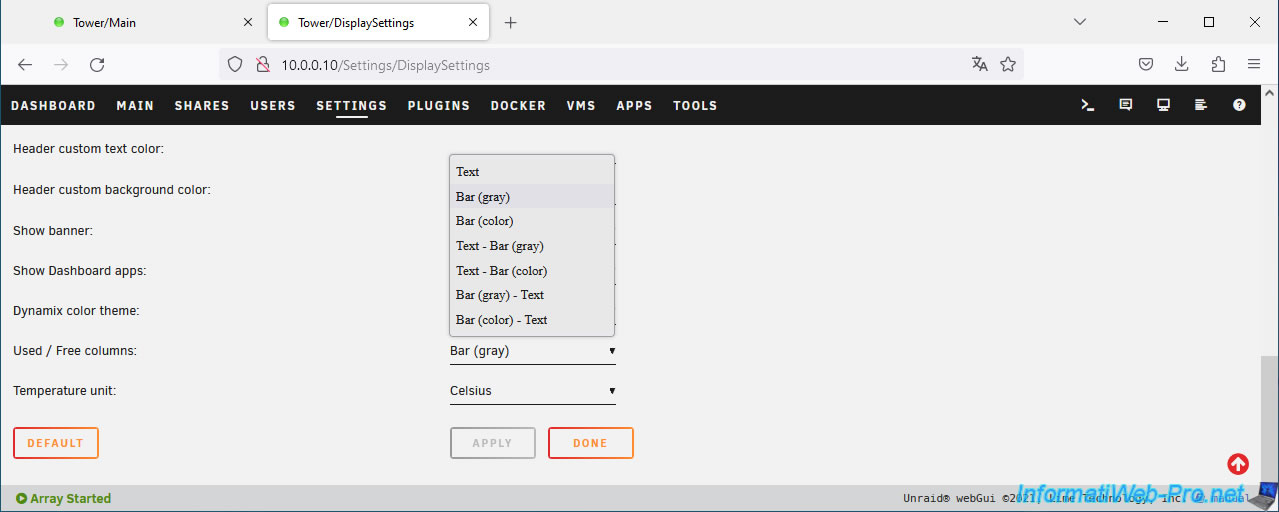
For the "Used / Free columns" setting, you will have the choice between:
- Text: show only the text value for used space or free space for each disk, as well as for the array total.
- Bar (gray): show the text value and a gray bar showing used space or free space in dark gray.
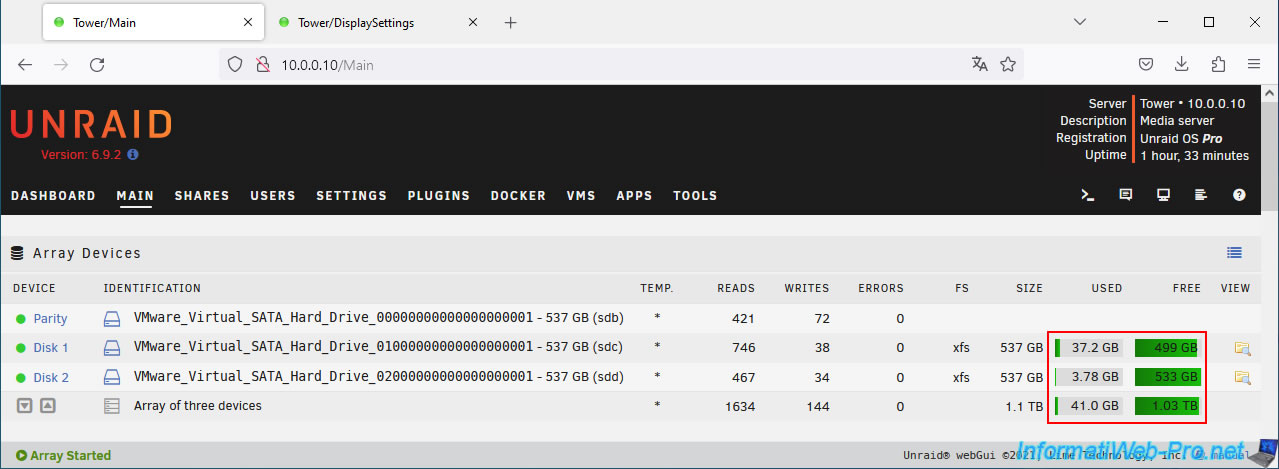
- Bar (color): similar to the previous option, except that the bar will be colored. Green when there is a lot of free space and red if there is little free space.
This allows you to see much more quickly if disk space is heavily used on one of the disks, or even on the entire array. - Text - Bar (gray): shows the text value for used space, but a dark gray bar and text value for free space.
- Text - Bar (color): similar to the previous option, but with green and red values depending on the amount of used/free space.
- Bar (gray) - Text: the opposite of the "Text - Bar (gray)" option. So the dark gray bar for used space and the text value for free space.
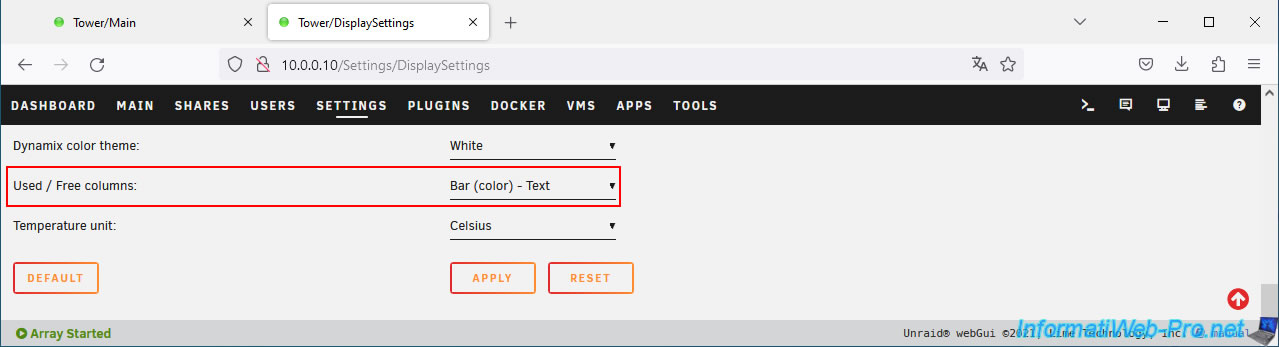
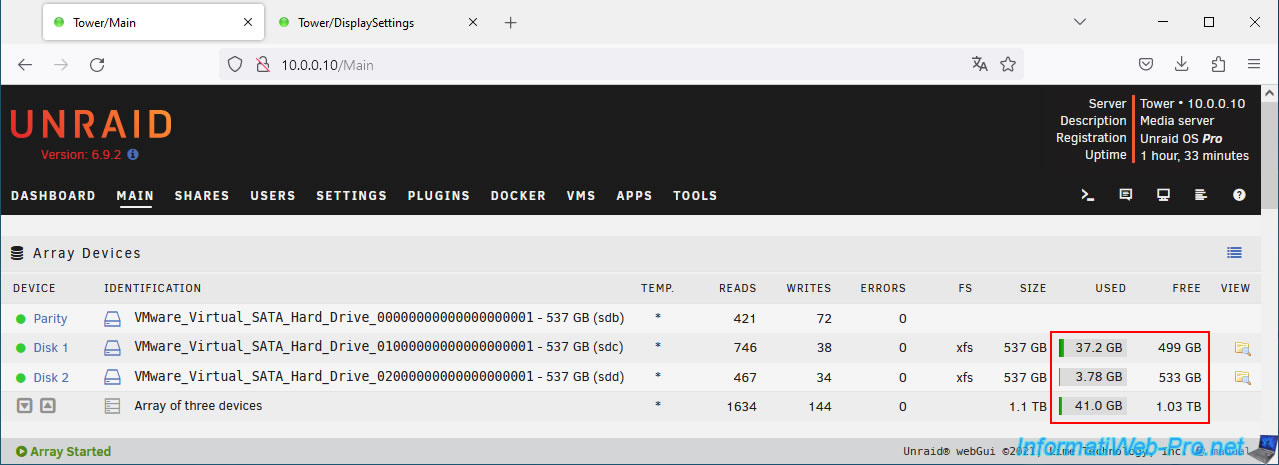
- Bar (color) - Text: similar to the previous option, but with green and red colors depending on the disk space used on your disks and array.
To more quickly see the disk(s) whose disk space is full, choose the "Bar (color)" option.
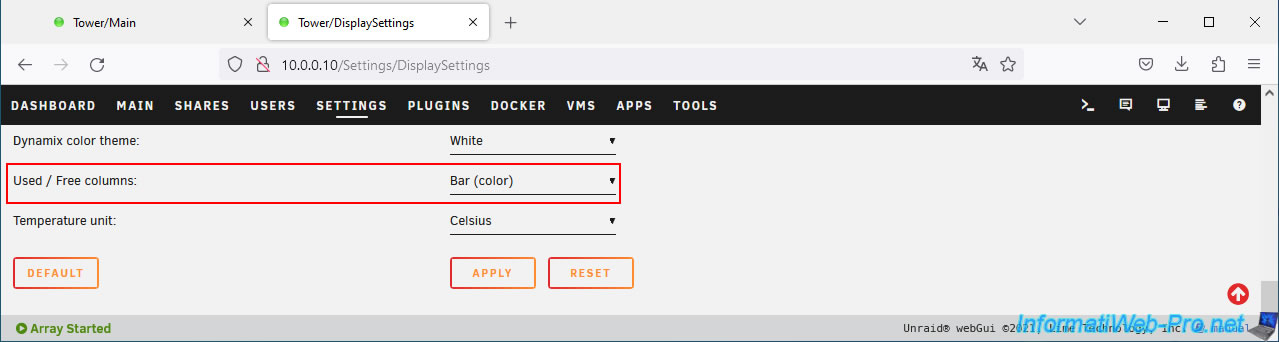
Thus colored bars will appear for the used space and the free space of your disks and your array.
To display colored bars only for the space used, select "Bar (color) - Text".
This time, the colored bars appear only for the space used.
Share this tutorial
To see also
-

NAS 2/25/2026
Unraid 6.9.2 - Install the "Community Applications" (CA) plugin
-

NAS 11/26/2025
Unraid 6.9.2 - Manually install Unraid 6.9.2
-
NAS 6/17/2026
Unraid 6.9.2 - SWAG - Access Nextcloud via reverse proxy and personal domain
-
NAS 8/13/2026
Unraid 6.9.2 - VMs - Guest not initialized display (solution)
No comment